

Tailscale Connections#
Overview#
Use Tailscale to reach a device when you are away from its network.
Your Tailscale network is called a tailnet.
Sync has Tailscale built in. You do not need to install the Tailscale client on your laptop.
The remote device needs the Tailscale client. Sync helps you install it and join the tailnet.
Set it up while you still have direct access to the device.
Add the device to Sync first. Then enable Tailscale in Sync and add the device to your tailnet. Learn more in the Tailscale documentation.
Enabling the Tailscale Integration#
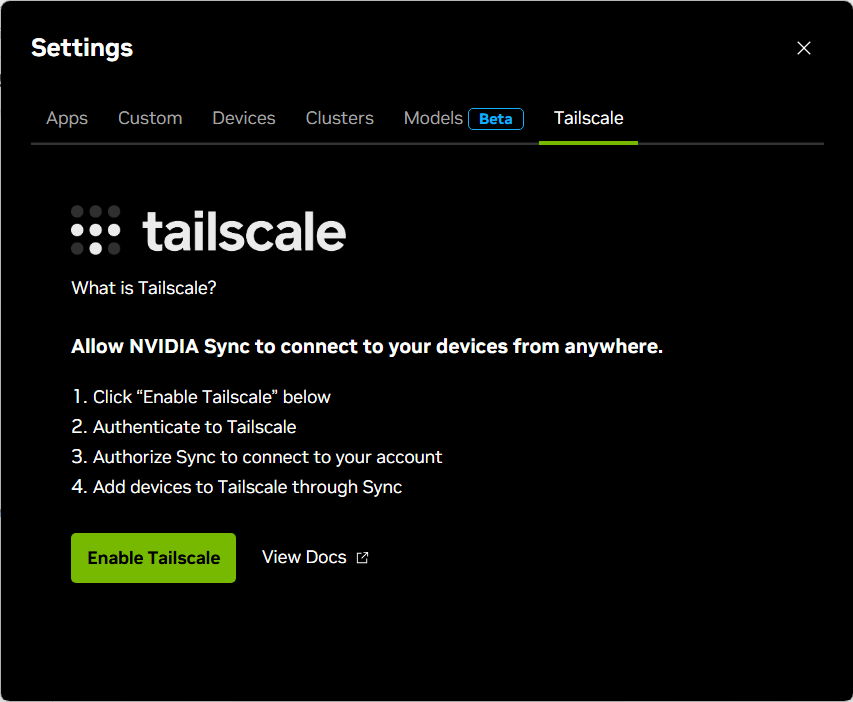
Open Settings > Tailscale and select Enable Tailscale.
Wait for the browser to open. Sign in to Tailscale and select Connect.
Wait for Login Successful, then close the browser and return to Sync.
Wait for Tailscale Was Enabled Successfully, then close the modal.
If Sync shows Waiting for Tailscale to connect…, wait until it connects before adding a device.
Adding a Device to Tailscale#
Use an auth key to add the device to your tailnet.
Open Settings > Tailscale and select Add a Device. If devices are already listed, select Add Device to Tailscale.
Choose the device from the drop-down menu.
Follow the link to the Tailscale auth key settings. Create a key using the default settings.
Paste the key into the modal and select Add Device.
Follow the prompts in the terminal that opens. They help you install the Tailscale client and sign in on the remote device.
Once the device joins your tailnet, Sync can use Tailscale to reach it.
Connecting and Switching Networks#
Connect to the device through Sync as usual.
Sync chooses between direct and Tailscale access. The connection indicator shows which type is in use.
When you change networks, Sync switches the connection for you. This also applies to SSH-enabled apps that use the device’s alias.
If the connection drops, Sync shows a reconnecting state. Select Cancel to stop the attempt.
A connection error may open the Sync pop-up window to show the message.
Managing Tailscale Devices#
Open Settings > Tailscale to see the devices added to your tailnet through Sync.
Reauthenticate a device when its access expires.
Open the device’s action menu and select Reauthenticate. Create a new auth key and follow the prompts to restore access.
Use a direct connection to remove a device from Tailscale.
Make sure you can reach the device without Tailscale.
Open its action menu in Settings > Tailscale and select Remove Device.
Confirm Remove Device and follow the terminal prompts.
Wait for Sync to confirm removal.
Removing the device clears its Tailscale credentials and disconnects it from the tailnet. Its keys appear as expired in the Tailscale administration console. The console entry remains.
To remove the saved device from Sync itself, see Removing a Device From Sync.
Disabling the Tailscale Integration#
Remove the Tailscale devices through Sync before disabling the integration.
Follow the removal steps above while you can still reach each device directly. Then open Settings > Tailscale, open the three-dot menu, and select Disable Tailscale. Confirm Disable Tailscale in the modal.
Disabling clears Sync’s Tailscale credentials. Device entries remain in the Tailscale administration console. If you enable the integration again, you need to add the devices again.
Troubleshooting#
The browser does not open, or you closed it too soon.
Select Resend the request in Sync. If the login session has expired, start the enable flow again from Settings > Tailscale.
Sync cannot connect to the device.
Check your network connection.
Check that the device is still in your tailnet and its access has not expired. Use Reauthenticate if needed.
Expand the error in Sync for more detail.
Removing a device gets stuck.
The removal step needs direct access. Return to a network that can reach the device without Tailscale, then retry.