

AI Workbench Settings
This section covers the settings available in the AI Workbench Desktop App. You can use these settings to configure the application to your liking.
Overview of Settings
The AI Workbench Settings page is where you configure higher level concerns like integrations and application appearance.
Open the Settings page
You can open the Settings window in two ways.
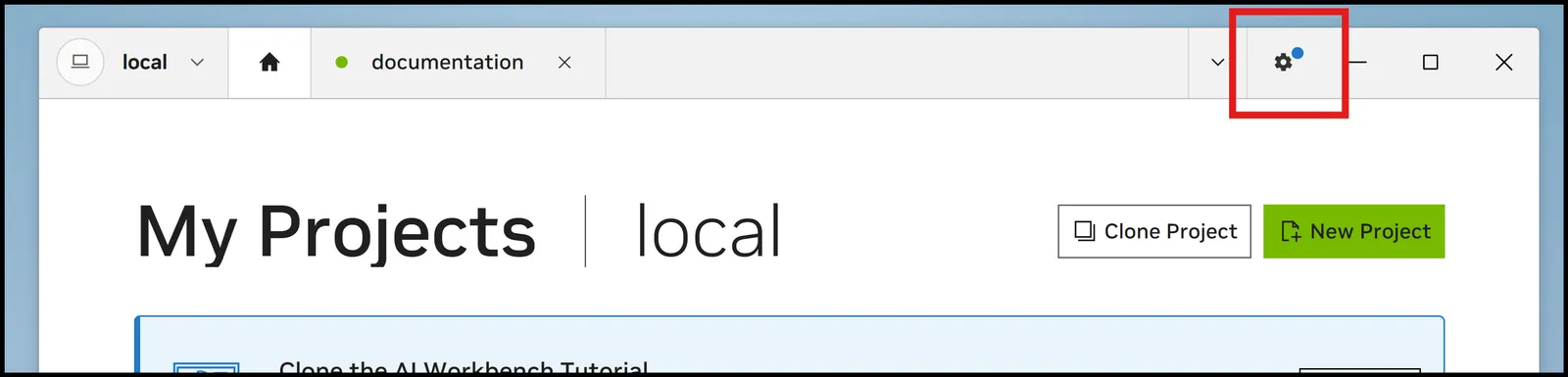
- Select the Gear icon in the top bar of any Desktop App window
- Or, right click the AI Workbench icon in the system tray and select Settings
Integrations
You can connect and manage external services and tools in the Integrations menu.
Integrations are required to connect to Git platforms and to use NVIDIA resources. Each integration can be configured independently, and you can change them at any time.
The following integrations are available:
Enter an NVIDIA personal API key to access NVIDIA resources like containers, models, and APIs.
Connect to NVIDIA Brev for remote development environments.
Connect to GitHub repositories for version control and collaboration.
Connect to GitLab repositories for version control and collaboration.
Connect to a private GitLab server.
Git Author Settings
The Git Author settings are used to define the default Git author information used for commits within AI Workbench.
The Git author is used to sign your commits, and it is set globally across all of your projects. It is blank by default, and you must set it before you can commit to a Git repository. You can set it manually, or it will be set the first time you connect a Git platform integration (GitHub, GitLab, or private GitLab server).
To set the Git author, enter the following information:
- Name: Specify the name that will appear in your Git commit history.
- Email: Specify the email that will be used for commits.
The Git author is set globally across all of your projects. It is blank by default, and you must set it before you can commit to a Git repository.
Container Runtime Settings
The Container Runtime settings let you change the container runtime being used by your local Workbench. It will only show if you have done the full local install.
Appearance Settings
The Appearance settings are used to customize the visual theme of the AI Workbench Desktop Application.
You can choose between the following themes for the application interface:
To see how to customize the appearance of the AI Workbench Desktop App, see Customizing the AI Workbench Desktop App UI.