

Using Jupyter
10.1 Introduction
Jupyter is a general name given to a system of software components integrated with Jupyter Notebook.
Chapter 16 of the Administrator Manual describes Jupyter for NVIDIA Base Command Manager, but is meant for cluster administrators rather than end users.
For the orientation of end users, excerpts from that chapter that give a short overview of the Jupyter components are repeated in this introductory section here. How a user can use the components is described in greater detail in the remaining sections of this chapter.
10.1.0.1 What Is Jupyter Notebook?
Jupyter Notebook (https://jupyter-notebook.readthedocs.io/), or Jupyter, is a client-server open-source application that provides a convenient way for a cluster user to write and execute notebook documents in an interactive environment.
In Jupyter, a notebook document, or notebook, is content that can be managed by the application. Notebooks are organized in units called cells and can contain both executable code, as well as items that are not meant for execution.
Items not meant for execution can be, for example: explanatory text, figures, formulas, or tables. Notebooks can also store the inputs and outputs of an interactive session.
Notebooks can thus serve as a complete record of a user session, interleaving code with rich representations of resulting objects.
These documents are encoded as JSON files and saved with the .ipynb extension. Since JSON is a plain text format, notebooks can be version-controlled, shared with other users and exported to other formats, such as HTML, LaTeX, PDF, and slide shows.
10.1.0.2 What Is A Notebook Kernel?
A notebook kernel (often shortened to kernel) is a computational engine that handles the various types of requests in a notebook (e.g. code execution, code completions, inspection) and provides replies to the user (https://jupyter.readthedocs.io/en/latest/projects/kernels.html). Usually kernels only allow execution of a single language. There are kernels available for many languages, of varying quality and features.
10.1.0.3 What Is JupyterHub?
Jupyter on its own provides a single user service. JupyterHub (https://jupyterhub.readthedocs.io/) allows Jupyter to provide a multi-user service, and is therefore commonly installed with it. JupyterHub is an open-source project that supports a number of authentication protocols, and can be configured in order to provide access to a subset of users.
10.1.0.4 What Is JupyterLab?
JupyterLab (https://jupyterlab.readthedocs.io/) is a modern and powerful interface for Jupyter. It enables users to work with notebooks and other applications, such as terminals or file browsers. It is open-source, flexible, integrated, and extensible.
JupyterLab works out of the box with JupyterHub. It can be used to arrange the user interface to support a wide range of workflows in data science, scientific computing, and machine learning.
JupyterLab is extensible with plugins that can customize or enhance any part of the interface. Plugins exist for themes, file editors, keyboard shortcuts, as well as for other components.
10.1.0.5 What Is A Jupyter Extension?
Several components of the Jupyter environment can be customized in different ways with extensions. Some types of extensions are:
-
IPython extensions (https://ipython.readthedocs.io/en/stable/config/extensions/#ipython-extensions)
-
Jupyter Notebook server extensions (https://jupyter-notebook.readthedocs.io/en/stable/extending/index.html)
-
JupyterLab extensions (https://jupyterlab.readthedocs.io/en/stable/user/extensions.html)
Extensions are usually developed, bundled, released, installed, and enabled in different ways.
Each extension provides a new functionality for a specific component. For example, JupyterLab extensions can customize or enhance any part of the JupyterLab user interface. Extensions can provide new themes, file viewers, editors and renderers for rich output in notebooks. They can also add settings, add keyboard shortcuts, or add items to the menu or command palette.
10.1.0.6 What Is Jupyter Kernel Provisionning?
By default, Jupyter runs kernels locally, which can exhaust server resources. A resource manager, such as a workload manager (Slurm, LSF) or Kubernetes, can be used to deal with this issue.
Jupyter Kernel Provisioning (https://jupyter-client.readthedocs.io/en/latest/provisioning.html#kernel-provisioning) provides a pluggable interface to distribute kernels across the compute cluster, and uses local underlying resource managers.
The Jupyter Kernel Provisioning framework provides scalability, an improved multi-user support, and a more granular security for Jupyter, in comparison with Jupyter Enterprise Gateway.
In BCM, all the technologies mentioned in these sections are combined to provide a powerful, customizable and user-friendly JupyterLab web interface running on a lightweight, multi-tenant, multi-language, scalable and secure environment, ready for a wide range of enterprise scenarios.
For convenience, in the following sections, Jupyter is generally used to collectively refer to Jupyter Notebook, JupyterHub and JupyterLab
10.1.0.7 BCM Jupyter Extensions
For a default deployment of Jupyter, BCM installs and enables the following extensions to the Jupyter environment:
-
Jupyter Addons: A Jupyter Notebook server extension that performs API calls to CMDaemon and manages other server extensions;
-
Jupyter Kernel Provisioning modules: A set of modules created to handle Jupyter kernels’ life-cycles in different possible BCM configurations. The modules available are: Slurm, LSF, Kubernetes.
-
Jupyter Kernel Creator (section 16.5): A Jupyter Notebook server extension that provides a new interactive and user-friendly way to create kernels;
-
Jupyter VNC (section 16.7): A Jupyter Notebook server extension that enables remote desktops with VNC from notebooks;
-
JupyterLab Tools: A JupyterLab extension that exposes BCM server extensions functionalities to the users and shows the Cluster View section;
-
Jupyter WLM Magic (section 16.8): An IPython extension that simplifies scheduling of workload manager jobs from the notebook;
-
Jupyter Kubernetes Operators Manager (section 16.9 of the Administrator Manual): An extension that integrates with Kubernetes clusters, and for which it provides basic overview and management features.
The default setup for the user is described in the next sections. It may however be the case that the cluster administrator has customized Jupyter for the needs of the organization, in which case the description that follows may differ from the real life situation.
For example, if the Jupyter login host is at an IP address of 10.2.75.147 then the URL the user uses to log in from with a browser (figure 10.1) is by default:
https://10.2.75.147:8000
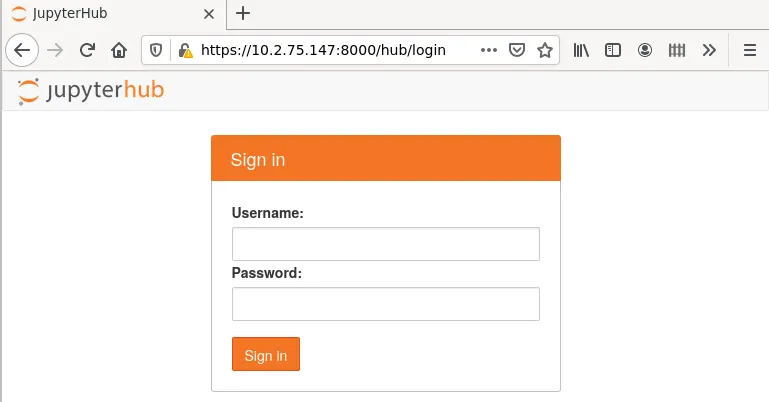
Figure 10.1: JupyterHub User Login Screen
10.2 Jupyter Notebook Examples
The default BCM implementation of Jupyter provides a number of machine learning notebook examples that can be executed with Jupyter.
The notebooks include some applications developed with TensorFlow, PyTorch, MXNet, and other frameworks. The applications can be found in the /cm/shared/examples/jupyter/notebooks/ directory:
The datasets needed to execute these notebooks can be found in the /cm/shared/examples/jupyter/datasets/ directory:
Users can copy these examples to their home directories, create or choose appropriate kernels to execute them, and interactively run them from Jupyter. In order to edit notebooks, the write permissions must be kept during the copy.
It is the responsibility of users to make sure that the required modules are loaded by their Jupyter kernels. The list of frameworks and libraries required to run an example is usually available at the beginning of each notebook.
10.3 Jupyter Kernels
In Jupyter, kernels are defined as JSON files.
Any user that the cluster administrator has registered in the Linux-PAM system can list the available Jupyter kernels via the command line. The following example is run in the initial Jupyter environment:
Example
Each kernel directory contains a kernel.json file describing how Jupyter spawns that kernel:
Example
In addition to specifications for shared kernels, each user can define new personal ones in the home directory. By default, the Jupyter data directory for a user is located at $HOME``/.local/share/jupyter.
This path can be verified with Jupyter by using the --paths option:
Example
The simplest definition for a Python3 kernel designed to run on the login node is:
In the preceding kernel definition:
-
argv: is the command to be executed to locally spawn the kernel -
"display_name”: is the name to be displayed in the JupyterLab interface -
"language": is the supported programming language ("language") -
"{connection_file}"(https://jupyter-client.readthedocs.io/en/stable/kernels.html#connection-files) is a placeholder, and is replaced by Jupyter with the actual path to the connection file before starting the kernel.
The following kernel is Jupyter’s default Python 3 kernel distributed by BCM in the initial environment:
Example
The two kernels are not very different. They differ from each other in the Python 3 binary path, the IPython extension (Jupyter WLM Magic), and the exported PYTHONPATH environment variable ("env").
10.3.1 Jupyter Kernel Provisioning Kernels
Jupyter is designed to run both the kernel processes, as well as the user interface (JupyterLab or Jupyter Notebook) on the same host. The kernel {connection_file} is therefore stored in the ~/.local/share/jupyter/runtime directory, or in the /run directory.
JupyterLab can delegate the task of spawning kernels to another component, Jupyter Kernel Provisioning, as defined in the kernel’s JSON file for kernel_provisioner. Jupyter Kernel Provisioning allows the complete life-cycle of several Jupyter kernels to be managed at the same time—their start, status monitoring, and termination, but the particular Jupyter kernels that run are otherwise independent of Jupyter Kernel Provisioning, and can be managed by third parties.
Jupyter Kernel Provisioning requires an extended kernel.json definition to describe a particular process-proxy module to handle the kernel.
A simple definition for a Python3 kernel designed to be scheduled via JEG is:
In this example, the "metadata" entry has been added. It includes "kernel_provisioner" and "provisioner_name", which define the exact provisioner being used to manage the life-cycle of the kernel. The provisioner is defined via Python’s entry points specification.
It also contains paths to several script templates used to spawn the job within the context that the kernel process runs, and sets the corresponding environment variables and other variables for the templates. The "argv": [] is empty because it is replaced by a script defined in templates/submit_script.sh.j2
BCM is equipped with several types of provisioners to interact with a wide range of resource managers, such as Kubernetes or Slurm. This allows kernels to be scheduled across compute nodes.
BCM recommends that kernels using the Jupyter Kernel Provisioning mechanism are created and used with the Jupyter Kernel Creator (section 16.5) extension.
10.3.2 Tunables For Kernel Provisioners
BCM provides defaults for all the templates. The aim is to have the kernels that are created just work on a typical cluster. However a better fit to the running environment may be possible with some further fine-tuning.
Configuration parameters for modifying the kernel templates can be added with cmsh. These parameters are put into the Jupyter configuration file at /cm/local/apps/jupyter/conf/jupyterhub_config.py, and become accessible when JupyterLab starts. Templates or already-created kernels can be edited—which might be a preferred approach to test a parameter before simply adding it via cmsh. Parameters that are set in the kernel specification (the kernel.json file) have precedence over the ones set in jupyterhub_config.py
The following example shows a session that adds the c.KernelResponseManager.public_ip configuration parameters within cmsh:
Example
On commit, the cm-jupyter service is restarted, which means that all user sessions are dropped. To avoid this, editing the templates directly in the /cm/shared/apps/jupyter/current/share/jupyter/kerneltemplates directory can be considered.
The response manager in the preceding table is a part of WLM kernel provisioners. It is dedicated to getting callbacks and managing signal communications with the running kernel. It acts as a proxy for system signals and informs the kernel provisioner about the kernel being started and which ports it is listening to. The response manager works in tandem with jupyter-kernel-starter.
10.4 Jupyter Kernel Creator Extension
Creating or editing kernels can be cumbersome and error-prone for users, depending on the features of the execution context desired for their notebooks.
To provide a more user-friendly experience, BCM includes the Jupyter Kernel Creator extension in JupyterLab. This extension is accessed from the navigation pane in the JupyterLab interface, by clicking on the BCM icon.
Jupyter Kernel Creator allows users to create kernels using the JupyterLab interface, without the need to directly edit JSON files. With this interface users can create kernels by customizing an available template according to their needs.
A template can be considered to be the skeleton of a kernel, with several preconfigured options, and others options that are yet to be specified. Common customizations for templates include environment modules to be loaded, workload manager queues to be used, number and type of GPUs to acquire, and so on.
Templates are usually defined by administrators according to cluster capabilities, programming languages and user requirements. Each template can provide different options for customizations.
Administrators often create different templates to take advantage of different workload managers, programming languages and hardware resources. For example, an administrator may define a template for scheduling Python kernels via Kubernetes, another one for R kernels via Slurm, and yet another one for Bash kernels via Platform LSF.
10.4.1 BCM Predefined Kernel Templates
To simplify Jupyter configuration for administrators, BCM distributes a number of pre-defined templates with Jupyter Kernel Creator. These templates can be used for default configurations of BCM workload managers, and can be customized and extended for more advanced use. Kernel templates defined by BCM can be found in the Jupyter installation directory, under the kerneltemplates directory:
10.4.1.1 BCM Predefined Kernel Templates Seen By Users
Users can view the available predefined kernel templates in the Jupyter web browser interface, within the KERNEL TEMPLATES section of the dedicated BCM extensions panel (figure 16.5):
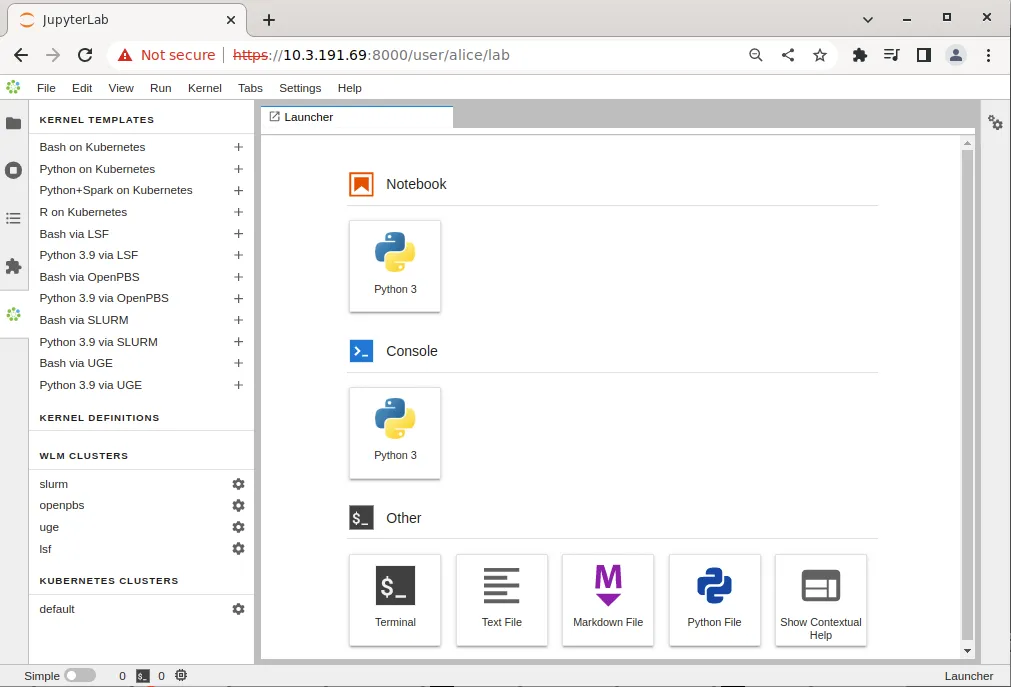
Figure 16.5: JupyterLab BCM extensions section with kernel templates
However, the templates provided by BCM are listed in the panel only if they can be used on the cluster. This means that the templates are listed only after the associated workload manager instance, or associated Kubernetes configuration (such as a Kubernetes operator), have been deployed by cluster manager utilities. For example:
-
After running the
cm-kubernetes-setupcluster manager utility to deploy a Kubernetes cluster, the Kubernetes cluster instance is displayed (navigation path: menu > dedicated BCM extension panel > Kubernetes clusters section)Then, after running the
cm-jupyter-kernel-operatorcluster manager utility to deploy a Jupyter kernel operator package, and configuring a user (section 6.6 of the Containerization Manual), the templatesk8s-cmjkop-julia,k8s-cmjkop-py, andk8s-cmjkop-py-sparkbecome available.The templates are listed as:
-
Julia on Kubernetes Operator -
Python on Kubernete Operator -
Python+Spark on Kubernetes Operator
and accessed via the navigation path: menu > dedicated BCM extension panel > kernel templates section.
-
Users can instantiate a kernel template to create an actual kernel from the dedicated BCM extensions section using the + button of the template. A dialog is dynamically generated for the template being instantiated, and users are asked to fill a number of customization options defined by administrators (figure 16.6):
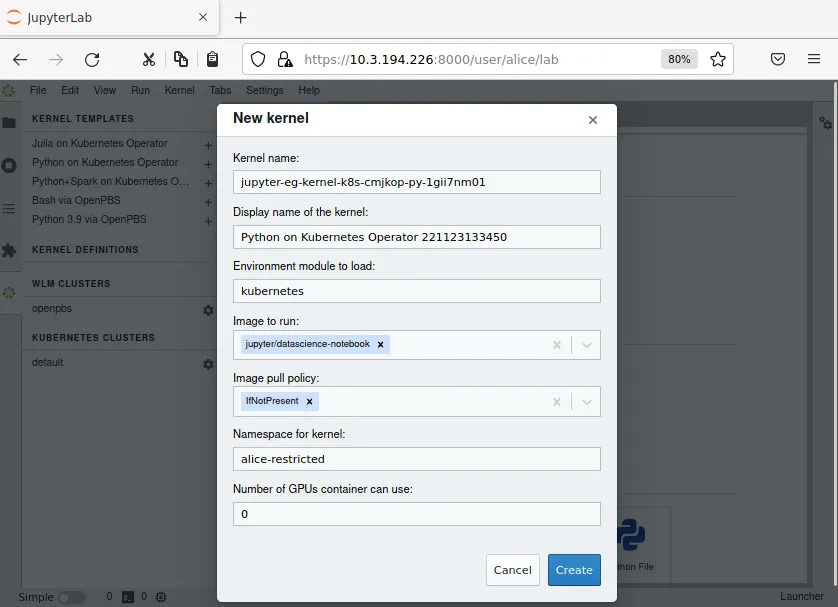
Figure 16.6: Jupyter kernel template customization screen
Once the template is completely customized, the kernel can be created. It automatically appears in the JupyterLab Launcher screen (figure 16.7) and can be used to run notebooks or a console session (figure 16.7):
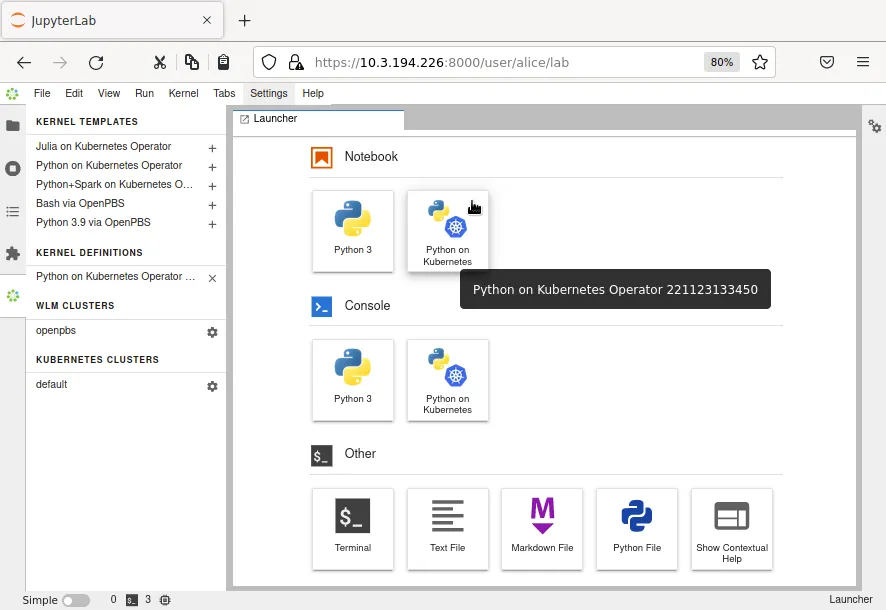
Figure 16.7: JupyterLab Launcher screen with new custom kernel
A user who lists available Jupyter kernels via the command line now sees the newly-created kernel:
The new kernel directory will contain the JSON definition generated by the Jupyter Kernel Creator:
Jupyter kernel names need not be unique. Users should therefore choose meaningful and distinguishable display names for their kernels. Doing so makes the JupyterLab Launcher screen easier to use.
For convenience, a summary of the available kernel templates and their requirements is shown in table 16.1:
Table 10.1: Available Jupyter kernel templates for BCM and their requirements
¹ Docker image: docker.io/brightcomputing/jupyter-kernel-sample:k8s-spark-3.5.3-py38-cuda12.6-rapids24.08-2
² Conda needs to be installed for the user, and the Conda environment needs to be configured in the user’s Bash
shell (section 10.4.2).
DockerHub kernels page: https://hub.docker.com/r/brightcomputing/jupyter-kernel-sample/tags
10.4.2 Using Conda Kernels With Jupyter
Conda is a package manager for languages. Miniconda installs a minimal Conda environment.
10.4.2.1 Installing Conda With Miniconda And Initializing Conda
If Slurm is the workload manager that is installed and available to the Jupyter user, then Conda templates can be installed and made available to the user by installing Miniconda 3. Miniconda installation is described in the official Conda documentation at:
https://docs.conda.io/projects/miniconda/en/latest/
At the time of writing (February 2024), the “Quick command line install” for Linux at https://docs.anaconda.com/free/miniconda/ explains how to carry out a Linux command line installation for Miniconda 3. The following is an excerpt from that text, slightly modified for BCM use:
These four commands quickly and quietly install the latest 64-bit version of the installer and then clean up after themselves. To install a different version or architecture of Miniconda for Linux, change the name of the
.shinstaller in thewgetcommand.
If the user has modules (section 2.3) loaded that set $PYTHONPATH—for example by default—then it can cause Python version incompatibilities later on when using a Conda environment that uses another version of Python. This is explained further in the section “Avoiding Python Version Incompatibilities With Conda” (here). A warning is given during the Miniconda installation if an existing $PYTHONPATH is detected. However it is up to the user to ensure that modules are not left in place that interfere with regular Python usage within Conda, for example by checking the ~/.bash_profile and similar files for what modules are normally loaded in the shell.
After installation, the newly-installed Conda must be initialized:
Users may use other shells, but initialization must be done with Bash.
On restarting the shell, the base environment is indicated with the prompt:
The Python version for the Conda environment can be seen by running python -V. Typically it differs from the system version.
When a Miniconda installation is completed with the preceding conda init bash command, Conda templates become available in the kernel templates list (figure 10.5).
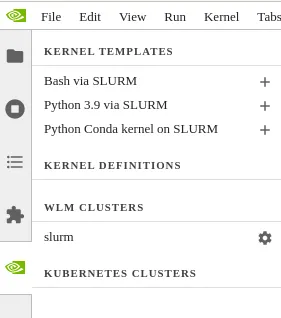
Figure 10.5: Conda template item showing up in the menu
10.4.2.2 Creating And Running A Conda Environment Compatible With Jupyter
The Conda virtual environment by default has its own version of Python. The Conda virtual environment can be created with a minimal set of packages to run a Jupyter kernel.
To make a kernel compatible with Jupyter Kernel Provisioning, the cm-jupyter-eg-kernel-wlm package needs to be installed in the Conda virtual environment with a particular version of Python. This can be carried out with:
Example
10.4.2.3 Avoiding Python Version Incompatibilities With Conda
In the preceding example, the Conda environment myenv is set explicitly to use Python version 3.11.
Some BCM environment modules, such as the jupyter environment module. define the $PYTHONPATH environment variable. Before activating a Conda environment, unloading such BCM environment modules is recommended. For example, in the case of Jupyter, with module unload jupyter. This is because the value of $PYTHONPATH from Jupyter sets the version of Python that is used, which may conflict with that intended by Conda. Having Python modules that have a version incompatible with the one that of Conda can cause issues that are hard to debug.
Besides Jupyter, software that has modules that can affect Python versions in this way are also found in the Machine Learning (ML) group. The ML group is the group that is specified by the ML selection option in https://service.bcm.nvidia.com/packages-dashboard/.
If needed, additional software can be installed into the environment from the Conda channels using its -c|--channel option. For example, PyTorch—which outside Conda is a package in the ML group— can be provided within Conda with:
Example
The preceding PyTorch installation is based on the guidance at https://pytorch.org/get-started/locally/.
Available environments appear in a list dropdown:
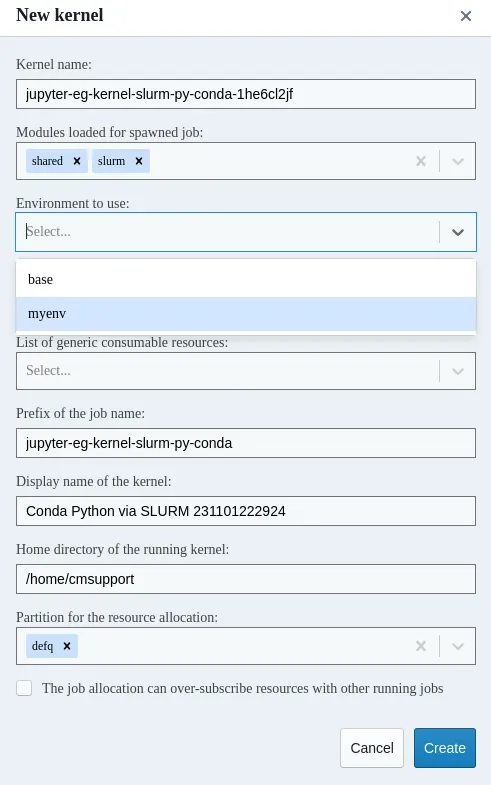
Conda template: environment list dropdown
10.4.3 Using Enroot And Pyxis With Jupyter
If Slurm is configured by the cluster administrator with Enroot and Pyxis support, then a template for running kernels inside Enroot containers appears in the list.
Enroot must be configured by the administrator with both of the following settings enabled:
-
Share raw images among users and nodes -
Share unpacked image files among nodes
The first invocation of the command:
enroot list
must be performed by the administrator too.
Before creating a kernel from a template, the image must be imported, so that it can be prepared to have the kernel run within it. The Jupyter package has a script to do this:
Example
The container can also be pulled as a SquashFS file:
Example
A job is submitted to pull and unpack the image. The script uses the default Slurm module that is available, and uses the default Slurm queue. If necessary, a specific module can be loaded, and a particular queue specified. The container name can also be customized. If the name is not specified, then it is chosen based on the container image name.
Example
When the jobs are finished then the imported images can be displayed in the enroot list output:
The template can then be instantiated and the kernel created. If NGC containers are to be used, then a GPU resource must be added to the kernel.
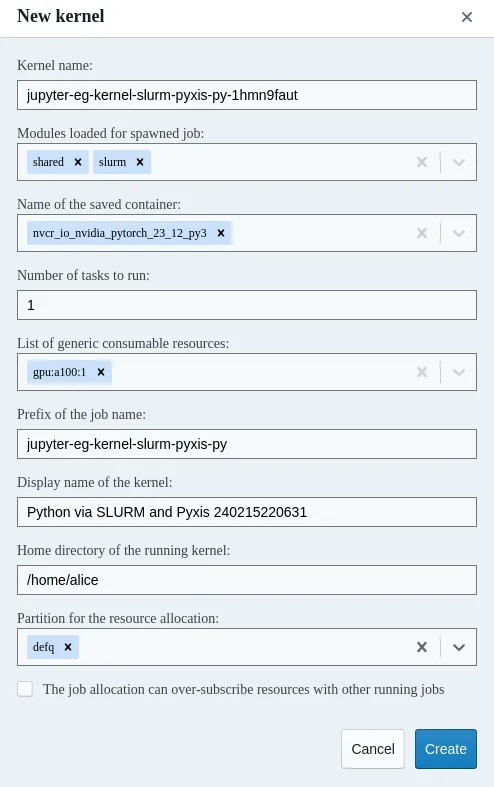
Pyxis template for Python
Alternatively, an image based on the R language can be imported and used:
Example
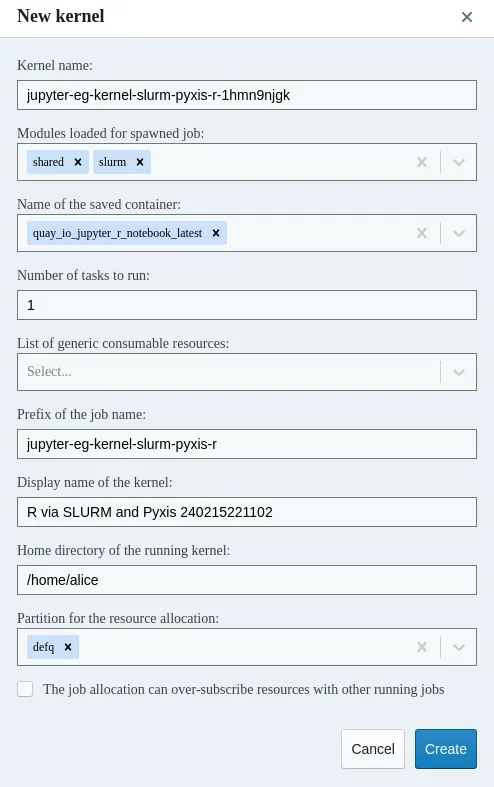
Pyxis template for R
10.5 Changing The User Base Directory In Python Kernels
BCM-provided Python kernel templates can change the user base directory (site.USER_BASE) during creation. It can be set to take the value of temp, permanent, or not set on kernel creation.
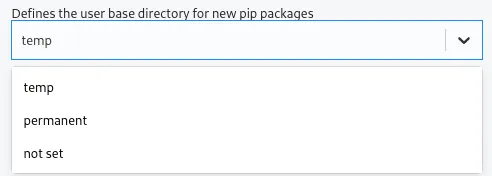
Setting PYTHONUSERBASE
The setting affects the path where pip packages are installed and searched (that is, when running !pip install in the Notebook) by setting $PYTHONUSERBASE environmental variable. Further details on $PYTHONUSERBASE and site.USER_BASE can be found in the official Python documentation at https://docs.python.org/3/using/cmdline.html#envvar-PYTHONUSERBASE
-
not set: does not set PYTHONUSERBASE. So, if notebook installs additional pip packages then they are installed in~/.local/lib/pythonX.Y[t]/site-packages. In such a case, other kernels with the same Python version might be affected. The directory with installed packages is not cleared after kernel removal. -
permanent: the pip packages are installed into the/home/alice/.local/share/jupyter/kernels/kernel-name/directory so that other kernels are not affected. The directory is removed if the kernel is removed. Both thenot setand thepermanentsetting survive restarts of the kernel. -
temp: The pip packages are installed in an individual subdirectory. This is in/tmpon compute nodes, or within a running Docker container. The installed packages disappear when the kernel is restarted.
10.6 Adding Environmental Variables For JupyterLab, Processing And Accessing API keys In Notebooks
To change the behavior of JupyterLab as spawned by JupyterHub, the init.rc file is processed by the /cm/shared/apps/jupyter/current/bin/jupyterhub-singleuser-gw script. The init.rc file can be used to export environmental variables such as JUPYTER_LOG_LEVEL to increase verbosity.
The init.rc file can also contain API keys exported as variables, such as NVCF_API_KEY, OPENAI_API_KEY, or HF_TOKEN.
These variables are passed by default in running kernels if they match rules defined in the include_regex_env and exclude_regex_env tunables. If the content of ~/.jupyter/jupyterhub-singleuser-gw/init.rc changes, then JupyterLab needs to be restarted from the JupyterHub console, using the navigation path:
File>Hub Control Panel>Stop My server>Start My Server
Configuration parameters can be set by an adminstrator on a per-cluster basis using the tunables:
-
c.CMKernelProvisionerBase.include_regex_env -
c.CMKernelProvisionerBase.exclude_regex_env
They can also be set in the kernel.json.j2 template, via
-
metadata.kernel_provisioner.config.include_regex_env -
metadata.kernel_provisioner.config.exclude_regex_env.
Alternatively these variables can be configured manually in the kernel.json files. Default values are:
-
include_regex_env:^(.+_API_(KEY|TOKEN|HOST|TYPE|ORG_ID|ENDPOINT)|HF_.+)$ -
exclude_regex_env:^(JPY_API_TOKEN|JUPYTERHUB_.+|PYTHON.+|JUPYTERLAB_.+|PATH|LD_LIBRARY_PATH.*)$
10.7 Jupyter VNC Extension
10.7.1 What Is Jupyter VNC Extension About?
VNC (Virtual Network Computing) is a screen sharing service that can work in a browser.
If VNC is allowed by the cluster administrator, then the Jupyter environment configured by BCM can be used to start and control remote desktops via VNC with the Jupyter VNC extension.
10.7.2 Enabling User Lingering
User lingering is a systemd setting that sets a user manager for a user at boot and keeps it around after logout. This allows that user to run long-running sessions despite not being logged in. Enabling user lingering may be required for Jupyter VNC extension to run for a relatively complicated desktop such as KDE or GNOME.
For each user on each machine where these environments are installed, the following command must be run:
The command may also be carried out using prolog/epilog scripts in the chosen WLM.
10.7.3 Starting A VNC Session With The Jupyter VNC Extension
Users can start a VNC session with the button added by Jupyter VNC (figure 16.13). Additional VNC parameters can be optionally specified.
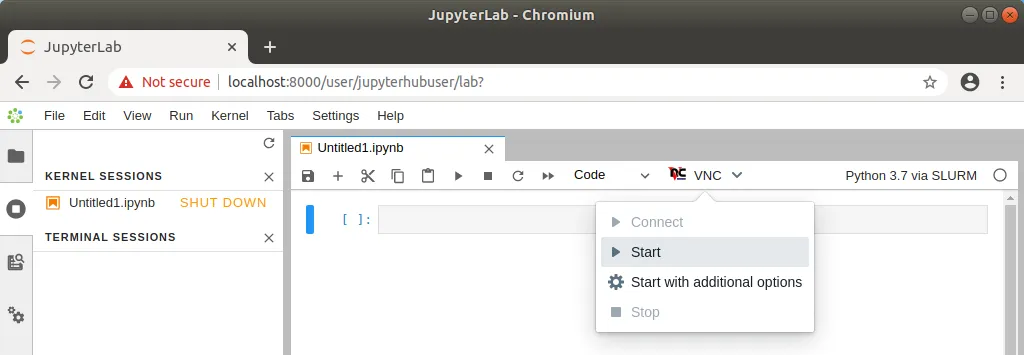
Figure 16.13: Starting Jupyter VNC session from kernel
If VNC is available and correctly configured on the node where the kernel is running, then a new tab is automatically created by Jupyter VNC containing the new session (figure 16.14). A user can now freely interact in JupyterLab both with the notebook and with the desktop environment.
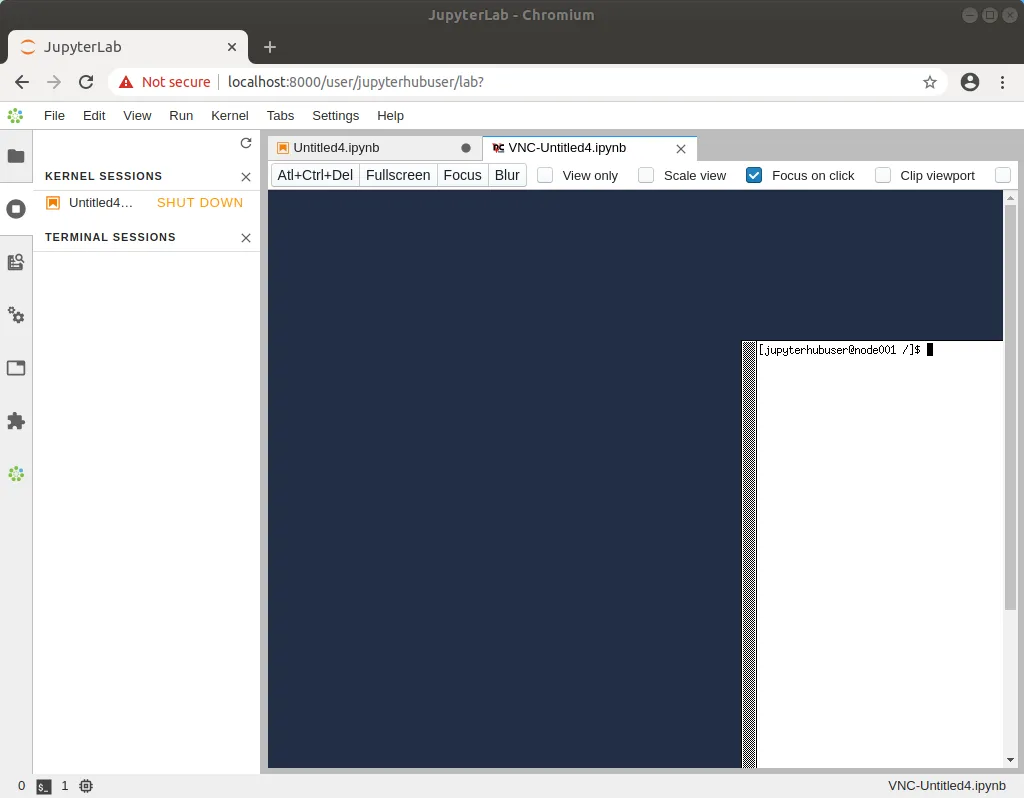
Figure 16.14: Running Jupyter VNC session from kernel
To provide a user-friendly experience, Jupyter VNC also allows the graphical viewport to be resized, so that the desktop application can run full-screen (figure 16.15).
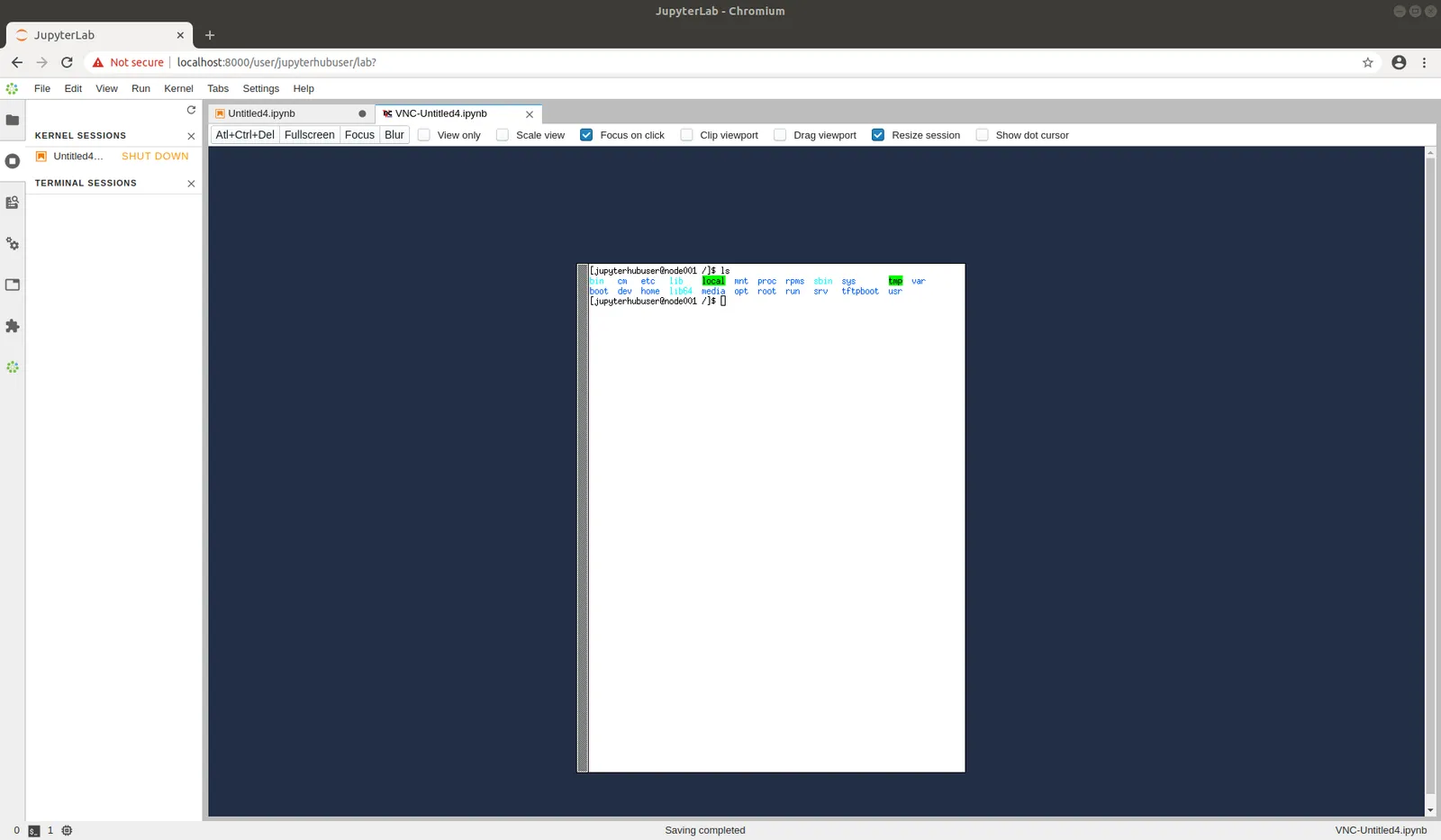
Figure 16.15: Running Jupyter VNC session from kernel (full-screen)
10.7.4 Running Examples And Applications In The VNC Session With The Jupyter VNC Extension
Once the VNC session is correctly started and the new JupyterLab tab has been created, Jupyter VNC automatically exports the DISPLAY environment variable to the running notebook (figure 16.16). Doing so means that any application or library running in the notebook can make use of the freshly created desktop environment. An example of such a library is OpenAI Gym, a toolkit for developing and comparing reinforcement learning algorithms, that is distributed by BCM.
Among the examples distributed by BCM (section 16.3), a notebook running PyTorch in the OpenAI Gym CartPole environment can be found. If executed after a VNC session has been started, a user can then observe the model being trained in real time in the graphical environment.
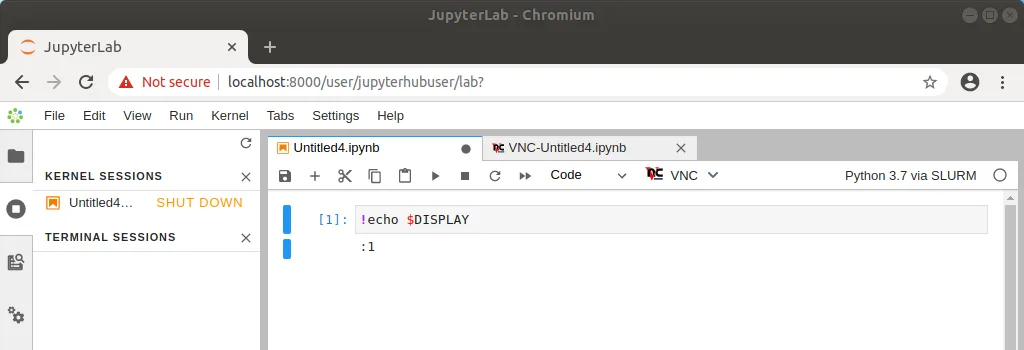
Figure 16.16: Automatic configuration of DISPLAY environment variable
10.8 Jupyter WLM Magic Extension
In the Jupyter environment configured by BCM, the Jupyter WLM Magic extension can be used to schedule workload manager jobs from notebooks.
The Jupyter WLM Magic extension is an IPython extension. It is designed to improve the capabilities of Jupyter’s default Python 3 kernel, which runs on the login node.
The Jupyter WLM Magic extension should therefore not be used from kernels running on compute nodes, such as those typically created with BCM’s Jupyter Kernel Creator extension (section 16.5), and submitted via Jupyter Kernel Provisioning. Indeed, compute nodes running these kernels are often incapable of starting workload manager jobs in many default WLM configurations.
Jupyter WLM Magic extension makes it possible for users to programmatically submit WLM jobs, and then interact with their results. This can be done while using the Python programming language and its libraries, which are available in the notebook.
Users submit jobs and check their progress from the login node. The actual computation is distributed by the underlying workload manager across compute nodes, which means that server resources are spared.
Jupyter WLM Magic commands are available in the IPython kernel as magic functions (https://ipython.readthedocs.io/en/stable/interactive/tutorial.html#magic-functions). A new line magic (%) and a new cell magic (%%) are now added in the kernel, according to the workload manager:
-
Platform LSF:
%lsf_joband%%lsf_job -
Slurm:
%slurm_joband%%slurm_job
A user can list the magic functions in the kernel to see if they are available, with Jupyter’s builtin command %lsmagic (https://ipython.readthedocs.io/en/stable/interactive/magics.html#magic-lsmagic):
Example
The magic functions introduced by this BCM extension share a similar syntax. For convenience, Slurm is used as an example in this section. However, the same instructions are valid for the other WLMs.
Users can check which options are available for a WLM function with the line magic helper:
Example
Line magic functions are typically used to set options with a global scope in the notebook. By doing so, a user will not need to specify the same option every time a job will be submitted via cell magic. For example, if two Slurm instances are deployed on the cluster and their associated environment modules are slurm-primary and slurm-secondary, a user could run the following line magic once to configure the Jupyter WLM Magic extension to always use the second deployment:
Example
Now, jobs will always be submitted to slurm-secondary. This is more convenient than repeatedly defining the same module option for every cell magic upon scheduling a job:
Example
It should be noted that line magic functions cannot be used to submit WLM jobs. Cell magic functions have to be used instead.
A well-defined cell contains the WLM cell magic function provided by the extension, followed by the traditional job definition. For example, a simple MPI job running on two nodes can be submitted to Slurm by defining and running this cell:
Example
Users can take advantage of the Jupyter WLM Magic extension to store some information into Python variables about the job being submitted. The information could be the ID or the output file name, for example. Users can then later programmatically interact with them in Python. This feature is convenient when a user wants to, for example, programmatically carry out new actions depending on the job output:
Example
Users can also exploit Python variables to define the behavior of the Jupyter WLM Magic extension. For example, they can define a Python boolean variable to submit a WLM job only if a condition is true:
Example