

User Portal
The user portal allows users to log in via a browser and view the state of the cluster themselves. The interface does not allow administration, but presents data about the system. The presentation of the data can be adjusted in many cases.
The user portal is accessible at a URL with the format of https:// <head node host name, or IP address>:8081/userportal, unless the administrator has changed it.
The first time a browser is used to log in to the cluster portal, a warning about the site certificate being untrusted appears in a default NVIDIA Base Command Manager configuration. If the network is not vulnerable to a man-in-the-middle attack, then the certificate can safely be accepted, since it is self-signed by the cluster itself.
Since the warning itself gives no way to tell a legitimate self-signed certificate from an attacker’s forged one, the safest way to confirm this is to check the certificate’s fingerprint, using a channel that is already trusted, such as an SSH session to the head node, rather than trusting whatever the browser first shows:
Example
This should be compared against the fingerprint the browser shows for the certificate (usually available from the browser’s certificate details view) before accepting the warning.
Administrators who prefer to avoid the browser warning can instead import the cluster’s own CA certificate (/cm/local/apps/cmd/etc/cacert.pem), which uses the validation model browsers expect by default. This should also be obtained over a trusted channel, such as by copying it directly from the head node, rather than from a copy offered by the browser itself.
The user portal has several modes.
-
The
Overviewmode ( ) is opened by default, and allows a user to access the following pages via links in the left hand column:
 -
The
Monitoringmode (section 9.5) ( ) allows a user to plot device measurables
 -
The
Accounting and reportingmode (section 9.6) ( ) allows a user to plot job-based resource consumption.
9.1 Overview Page
The default Overview page allows a quick glance to convey the most important cluster-related information for users (figure 10.35):
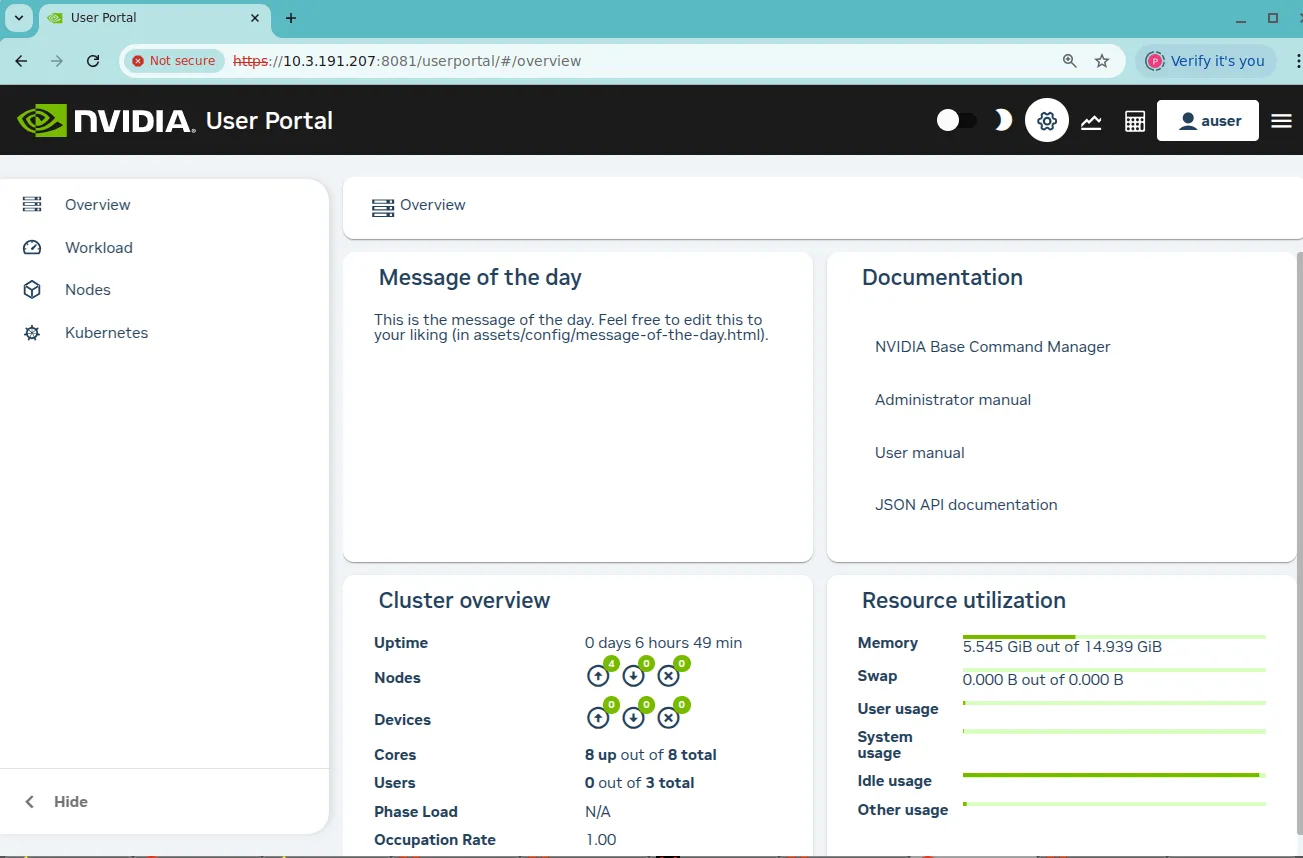
Figure 10.35: User Portal: Overview Page
The following items are displayed on a default home page:
-
a Message Of The Day. The administrator may put up important messages for users here
-
links to the documentation for the cluster
-
contact information. This typically shows how to contact technical support
-
an overview of the cluster state, displaying some cluster parameters
9.2 Workload Page
The Workload page allows a user to see workload-related information for the cluster (figure 9.2). The columns are sortable.
By default, only the cluster administrator can see information for all users. The administrator can adjust the profile for a user to allow that user to view information from other users.
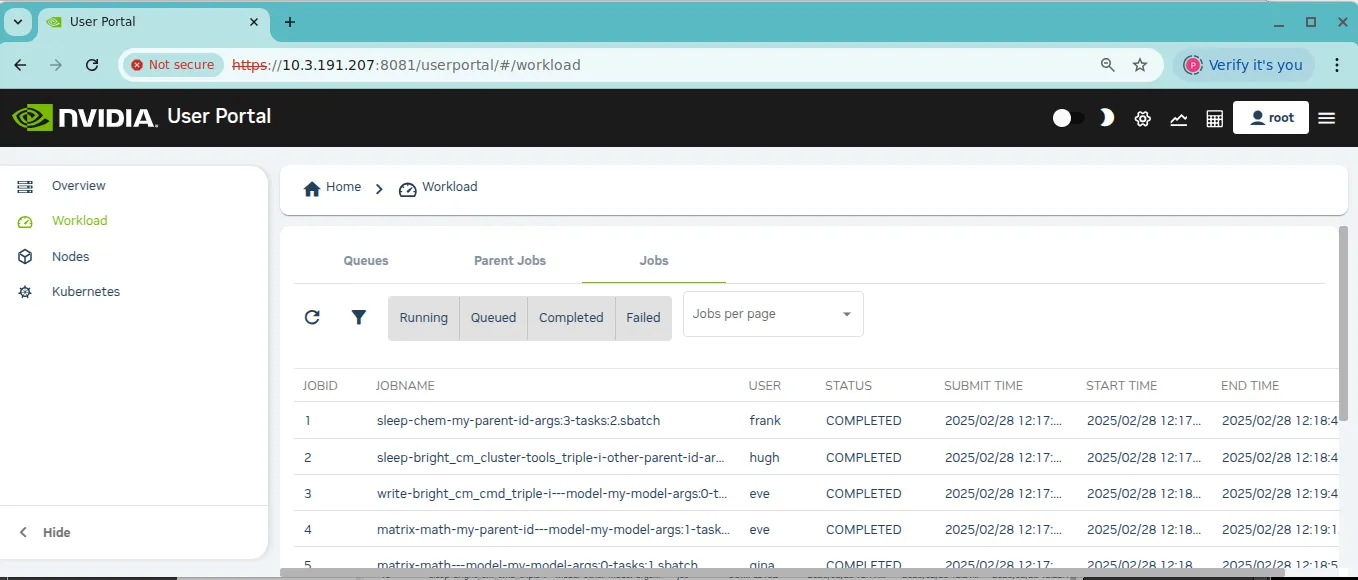
Figure 9.2: User Portal: Workload Page
The workload jobs are organized in tables according to:
-
Queues -
Parent Jobs -
Jobs
9.3 Nodes Page
The Nodes page shows nodes on the cluster (figure 9.3), along with some of their properties. Nodes and their properties are arranged in sortable columns.
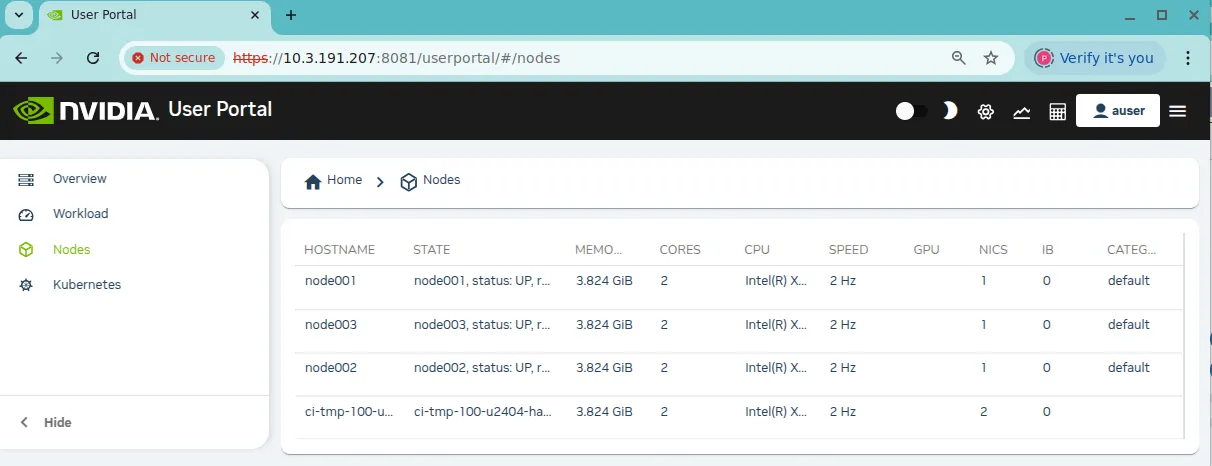
Figure 9.3: User Portal: Nodes Page
The following information about the head or regular nodes is presented:
-
HOSTNAME: the node name -
STATE: For example,UP,DOWN,INSTALLING, along with some other information -
MEMORY: RAM on the node -
CORES: Number of cores on the node -
CPU: Type of CPU, for example, Dual-Core AMD Opteron -
SPEED: Processor speed -
GPU: GPUs on the node, if any -
NICS: Number of network interface cards on the node, if any -
IB: Number of InfiniBand interconnects on the node, if any -
CATEGORY: The node category that the node has been allocated by the administrator (by default it isdefault)
9.4 Kubernetes Page
The Kubernetes page (figure 9.4) shows an overview of the resources available in clusters running Kubernetes.
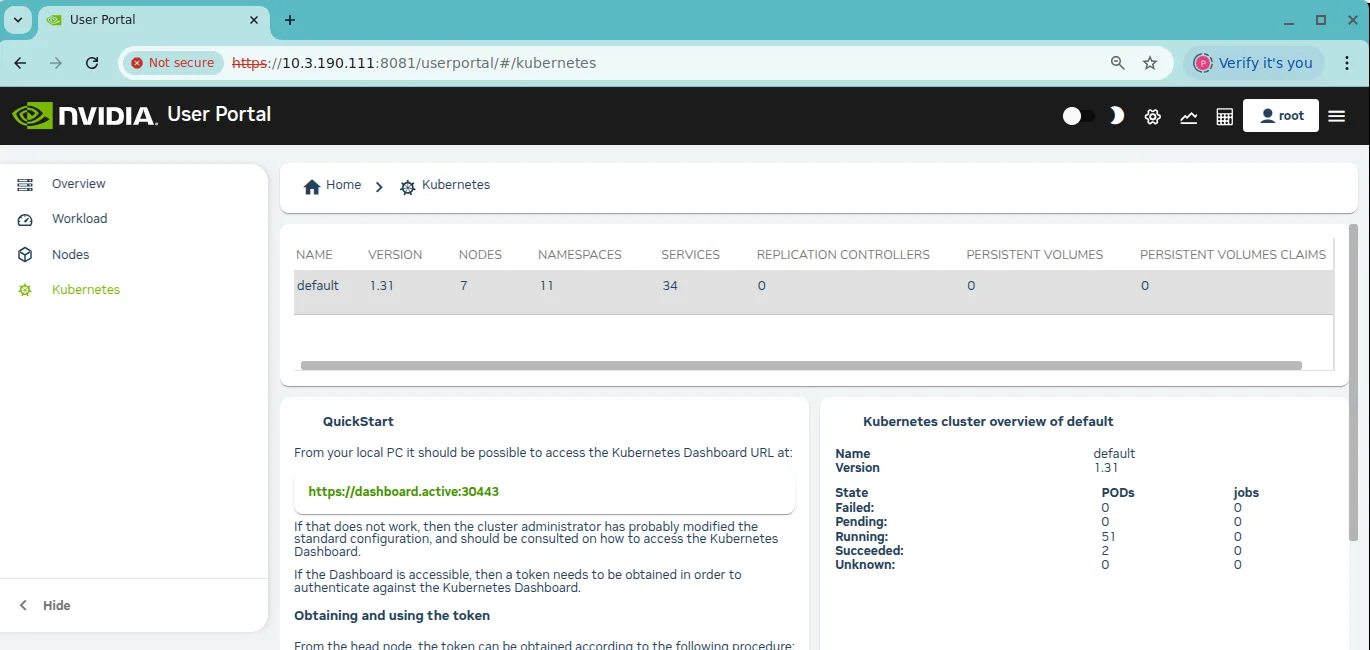
Figure 9.4: User Portal: Kubernetes Page
The Kubernetes cluster is subset of a BCM cluster, and is the part of the BCM cluster that runs and controls pods. The items shown are:
-
NAME: The Kubernetes Cluster name -
VERSION: The Kubernetes version -
NODES: The number of nodes in the Kubernetes cluster -
NAMESPACES: The number of namespaces defined for the Kubernetes cluster -
SERVICES: The number of services that are served by the Kubernetes cluster -
REPLICATION CONTROLLERS: The number of replication controllers that run on the Kubernetes cluster -
PERSISTENT VOLUMES: The number of persistent volumes created for the pods of the Kubernetes cluster -
PERSISTENT VOLUMES CLAIMS: The number of persistent volumes claims created on the Kubernetes cluster
Some notes are also presented for the user on how to access the Kubernetes Dashboard.
9.5 Monitoring Mode
By default the Monitoring mode page displays two empty plot panels within the dashboard section of the page.
The panels can have measurables drag-and-dropped into them from the measurables navigation tree on the left hand side of the page (figure 9.5). The tree can be partly or fully expanded.
A filter can be used to select from visible measurables. For example, after expanding the tree, it is possible to find a measurable related to the cluster occupation rate (Appendix G of the Administrator Manual) by using the key word “occupation” in the filter. The measurable can then be dragged from the options that remain visible.
Extra plot panel widgets can be added to the page by clicking on the Add new widget option (the ⊕ button) in the panels section of the dashboard page.
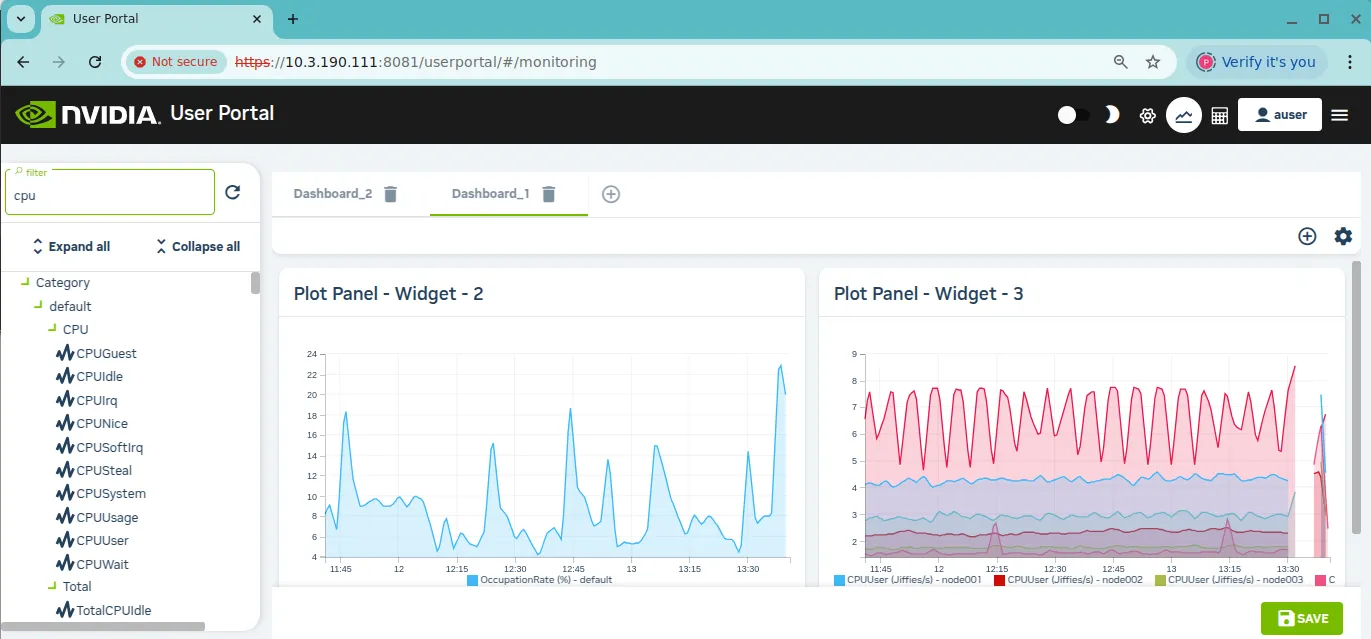
Figure 9.5: User Portal: Monitoring Page Plots
A new dashboard tab can be added to the page by clicking on the Add new dashboard option (the ⊕ button) in the dashboard tabs section of the page.
9.6 Accounting And Reporting Mode
The Accounting and reporting mode page allows resource use to be displayed and reported by running PromQL queries. Further background on this can be found in Chapter 12 of the Administrator Manual.
Resource reports can be created per user and per account by running selected PromQL queries (figure 9.6). The reports can be gathered in dashboard tabs.
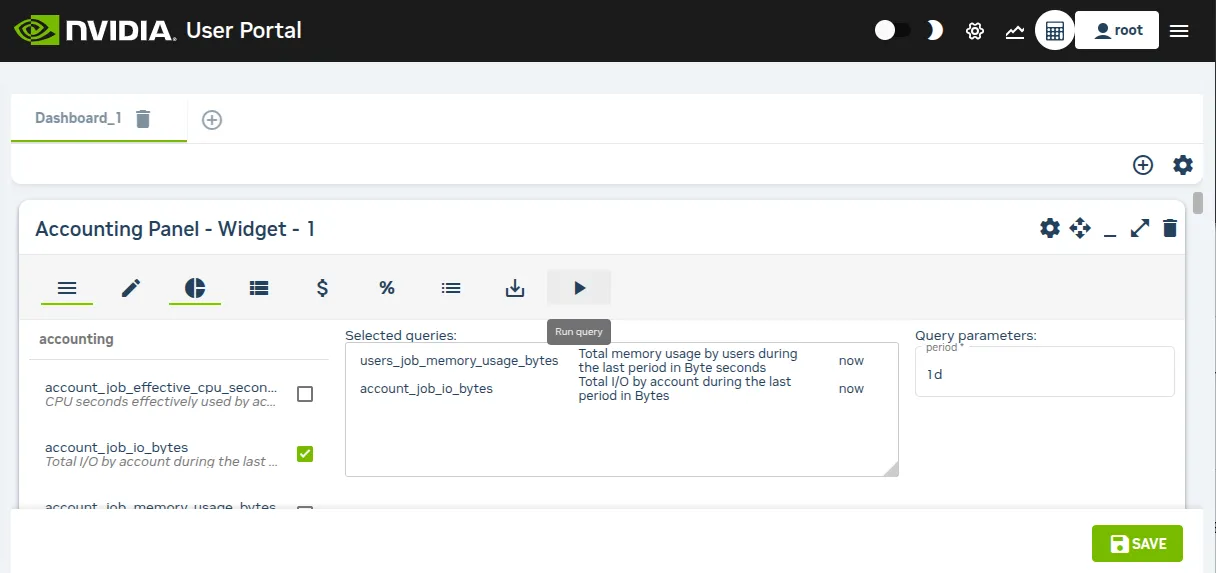
Figure 9.6: User Portal: Dashboard Tabs
The browser configuration that generates the reports can be saved, and the report data values can be displayed in the browser in a table for instant queries and range queries, as well as displayed as a pie chart for instant queries (figure 9.7). The data values can also be exported to CSV or Microsoft Excel format and downloaded.
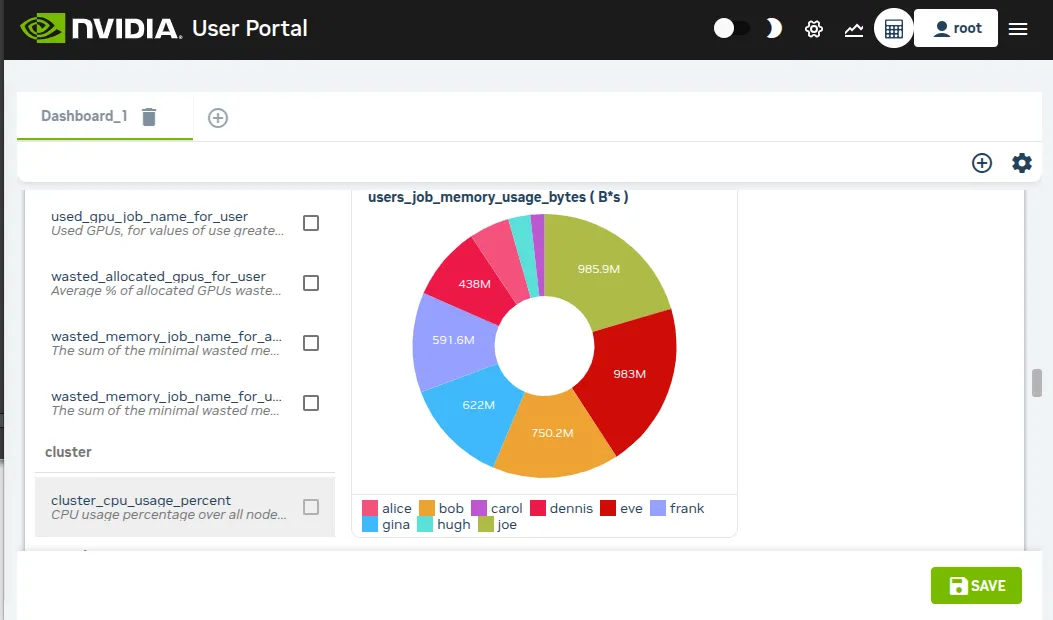
Figure 9.7: User Portal: Simple Accounts