


InfiniBand Components#
UFM Appliance Update#
This example demonstrates updating the UFM Appliance from version 1.8.2.1 to 1.10.1.1 using a high-availability (HA) deployment. The update is performed by:
Updating the standby node.
Performing a role swap.
Upgrading the new standby node.
Download the Software.
Visit the NVIDIA Licensing Portal.
Download the latest UFM Enterprise appliance package (
ufm-appliance-<version>-omu.tar).
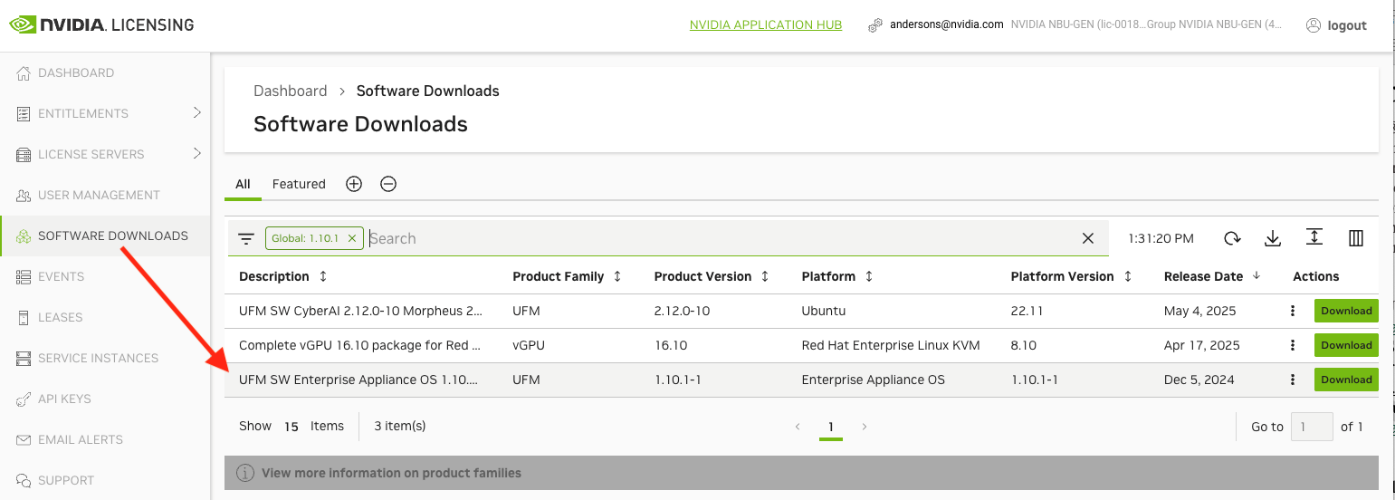
Transfer the downloaded file to your standby UFM appliance using
scp.# scp ufm-appliance-<version>-omu.tar user@standby:/tmp/Pre-Update Verification.
Verify current UFM version by running the checks on either node.
ufm-compute-01 > show version
Product name:        ufm_appliance
Product release:     UFMAPL_1.8.2.1_UFM_6.17.2.1
Verify HA Cluster Status and determine which UFM instance is currently active (master) and which is in standby (slave).
root@ufm-compute-01:~# ufm_ha_cluster status
Cluster name: ufmcluster
Online: [ ufm-compute-01 ufm-compute-02 ]
Full list of resources:
Master/Slave Set: ha_data_drbd_master [ha_data_drbd]
Masters: [ufm-compute-01]
Slaves: [ufm-compute-02]
On the standby server, extract the OMU image to the
/tmpfolder.standby# tar -xzf ufm-appliance-<version>-omu.tar -C /tmp
On the standby server, access the installation folder.
standby# cd /tmp/ufm-appliance-<version>-omu
Run the UFM update script on the standby server.
standby# ./ufm-os-upgrade.sh --yes --reboot
Verify Update Completion.
After the reboot procedure is complete, a systemd service (
ufm-osfirstboot.service) runs the remainder of the update procedure. Once completed, a message is prompted to all open terminals including the status:UFM-OS-FIRSTBOOT-FAILURE- if installation failed.UFM-OS-FIRSTBOOT-SUCCESS- if installation succeeded.
Example:

To manually check the status, run:
systemctl status ufm-os-firstboot.service
Note
Do NOT proceed to the next step before ensuring that the
systemctl status ufm-os-firstboot.servicecommand shows the service has been completed.Initiate UFM Failover.
After the completion of the update script, the UFM code is updated, while the UFM data remains unchanged. The automatic update of UFM data will take place during the next UFM startup. To initiate this process, execute a failover from the Master node (or perform a takeover from the Standby node).
master# ufm_ha_cluster takeover
InfiniBand Switch Upgrade#
This document provides step-by-step instructions for upgrading InfiniBand switch operating systems using NVIDIA’s Unified Fabric Manager (UFM). This method is the recommended approach to ensure consistency and compatibility. Reference the NVIDIA UFM Enterprise Documentation.
Note
Firmware compatibility: For all network related firmware, it’s crucial to have uniform versions for all HCA/NICs and network switches. That includes Compute, Storage and Out-of-Band fabric. UFM, head nodes and partner storage is included as well.
The consequences of not maintaining correct versions:
Longer link-up times
Link stability and/or BER
Inconsistent failures, longer troubleshooting
Performance and latency variations
No link with newer spare parts (transceivers or switches)
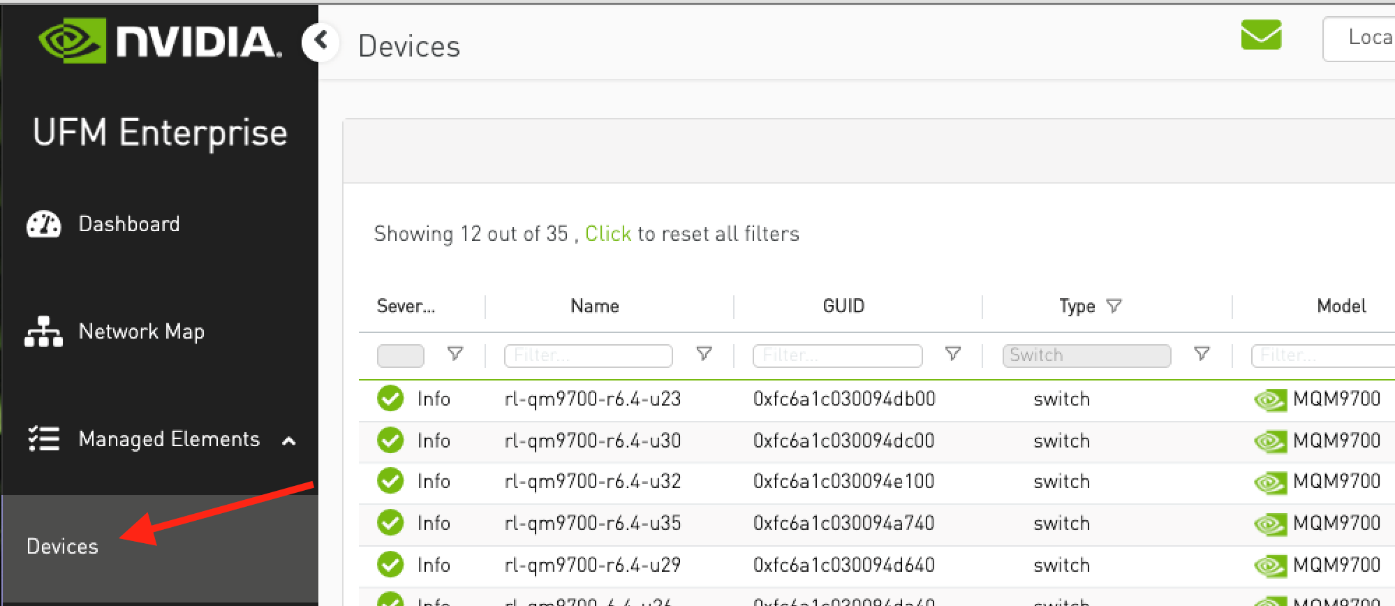
Log in to the UFM Web GUI.
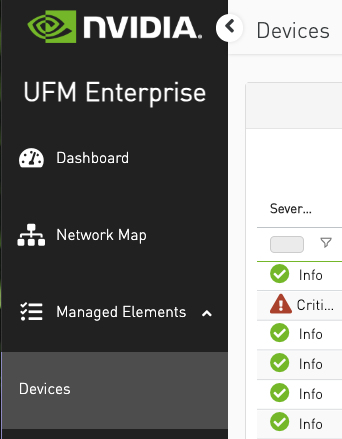
Navigate to the Devices tab.
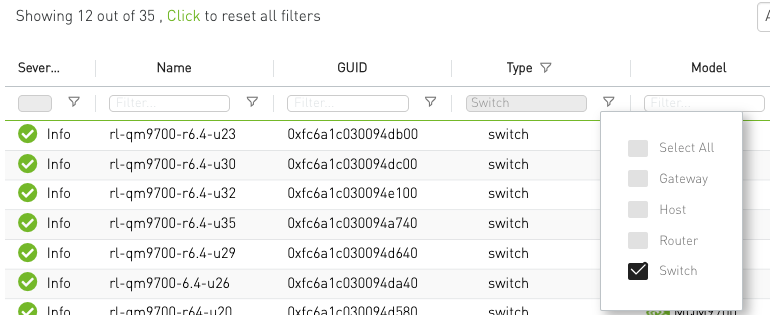
Filter the device type to display only Switches.
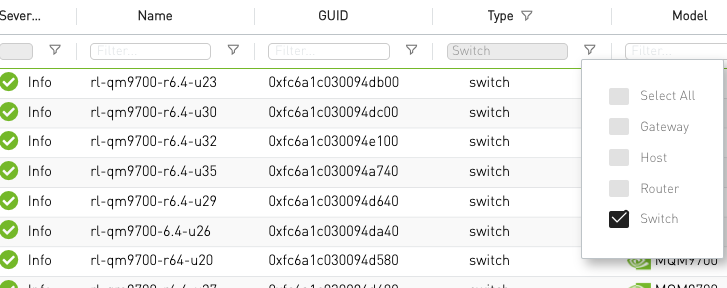
Identify Current Firmware and OS versions. In the example below, the current firmware version is 31.2012.3040. Since the MLNX-OS version must align with the firmware version, it’s important to identify the corresponding OS release.
According to the Release Notes, MLNX-OS version 3.11.3002 is the validated and supported OS version for NVIDIA Quantum-2 firmware version 31.2012.3040.
Determine Upgrade Path#
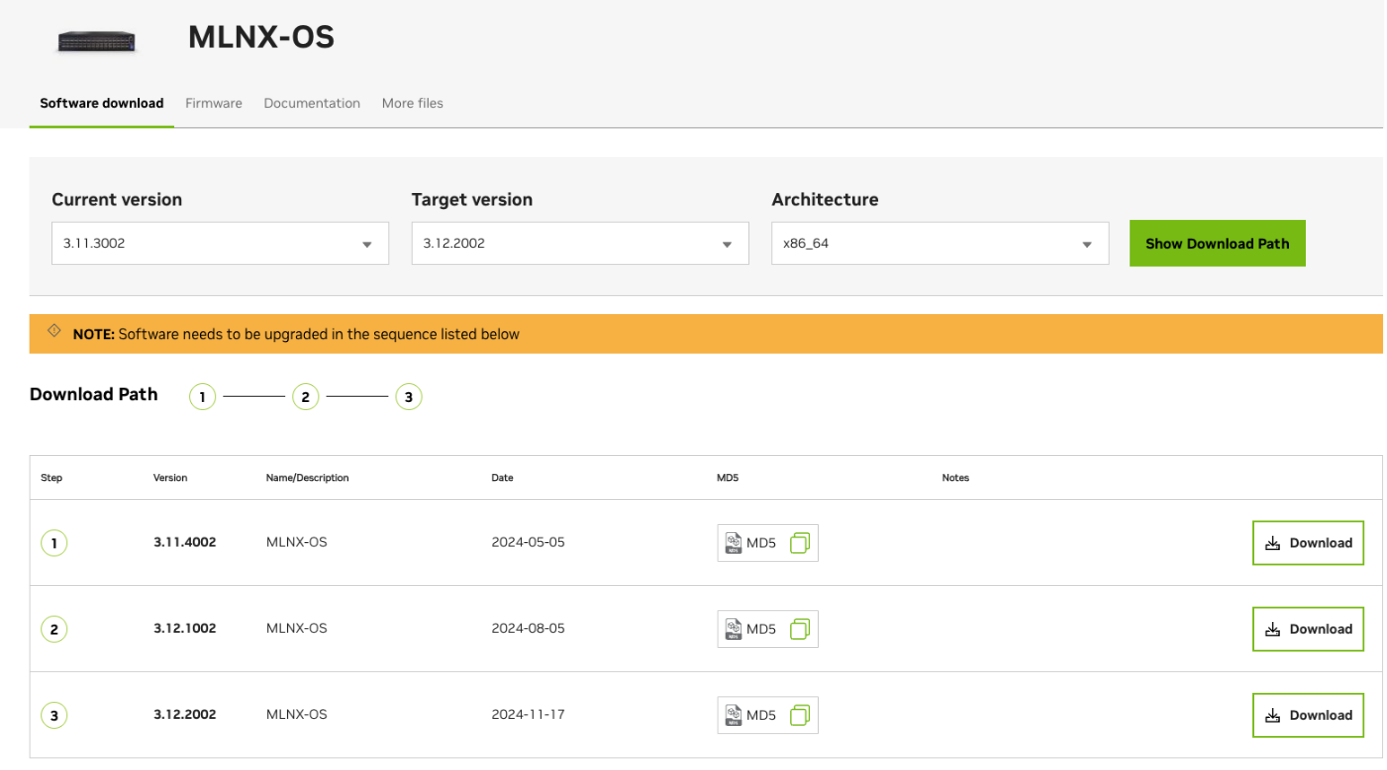
To upgrade from MLNX-OS v3.11.3002 to v3.12.2002:
Visit the NVIDIA Support Portal.
Navigate to: Downloads → Switches and Gateways → Switch Software → MLNX-OS
Select OS Versions.
Enter your current and target OS versions to generate the upgrade path.
Download all required patches in the recommended sequence.
Note
To upgrade from version v3.11.3002 to v3.12.2002, you must apply three cumulative updates in sequence as demonstrated in the figure below.
Place the downloaded patch files on a Linux machine accessible to UFM via FTP or SCP. In this example, the patch files were downloaded directly to the UFM server at the following path:
/root/infiniband-images/
Initiate the Upgrade#
In the UFM Web UI, navigate to Devices.
Apply a filter to display only Switches.
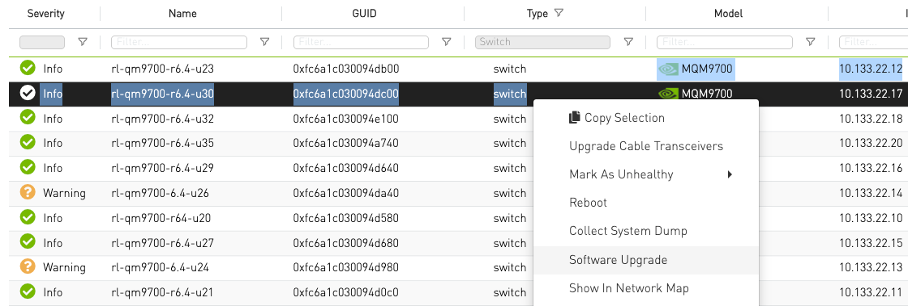
Right-click on the target switch and select Software Upgrade.
Note
To apply patches to multiple switches simultaneously, you can create switch groups in UFM. This allows you to manage and upgrade multiple devices in a single operation.
Enter the details of the patches downloaded in the previous section to initiate the installation process.
Use the fields as shown in the example to input the details:
Protocol: Select the protocol from the dropdown.
IP: Enter the IP address of the server where the MLNX-OS patch files are located.
Path: Specify the directory where the patch image is stored (e.g.,
/root/infiniband-images/).Image: Provide the full image filename (e.g.,
image-X86_64-3.12.2002.img).Description: Enter a short description for tracking purposes (e.g.,
first patch 3.11.4002).Username: Enter the SSH username (e.g.,
admin).Password: Enter the corresponding password to authenticate the connection.
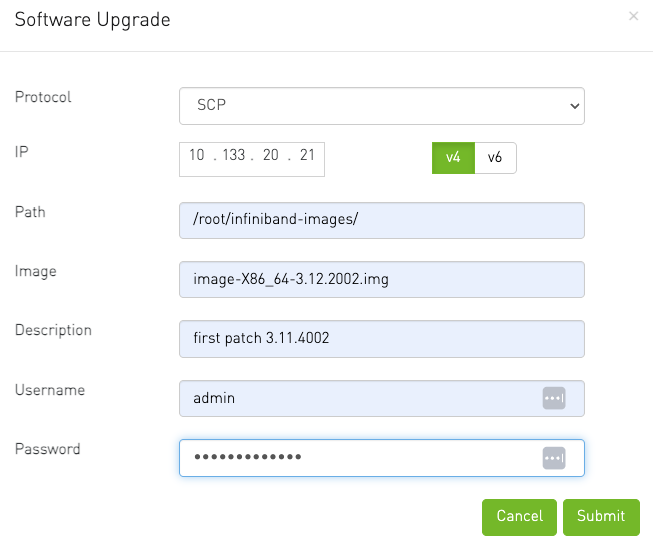
Submit the job.
Monitor the submitted Job.
Navigate to the JOBS tab in UFM to track progress.
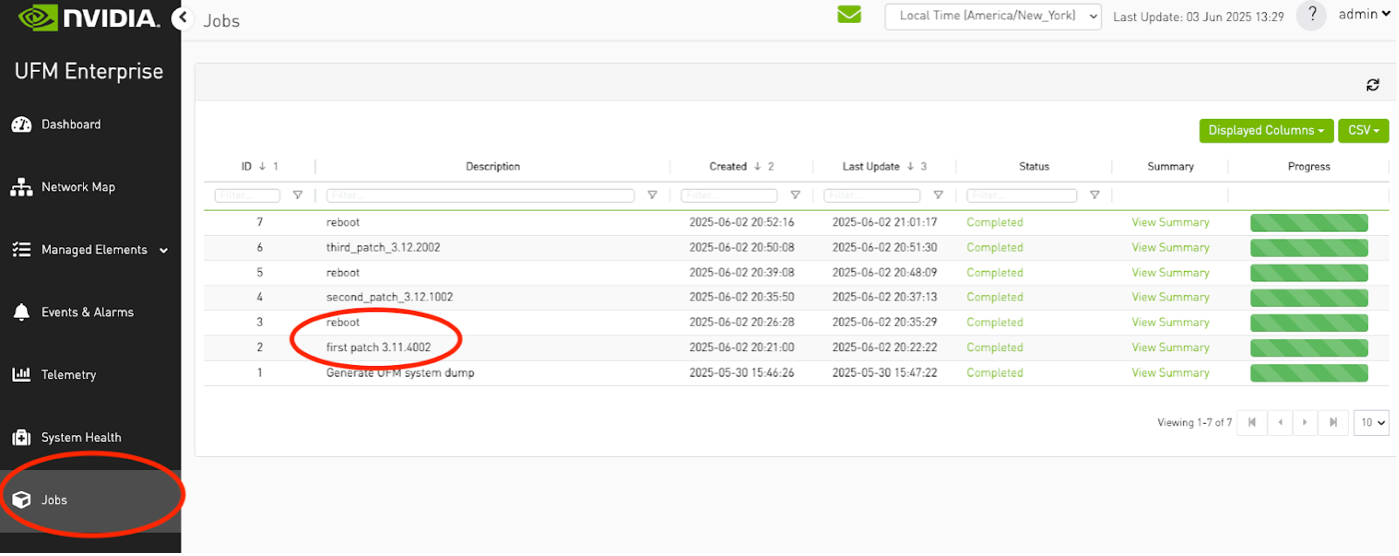
When the job completes, check the Job Summary column for the status. A successful update will be indicated by a green progress bar and a
Completedstatus as shown in the screen below.
Note
After each patch is successfully applied, a manual reboot is required for the changes to take effect.
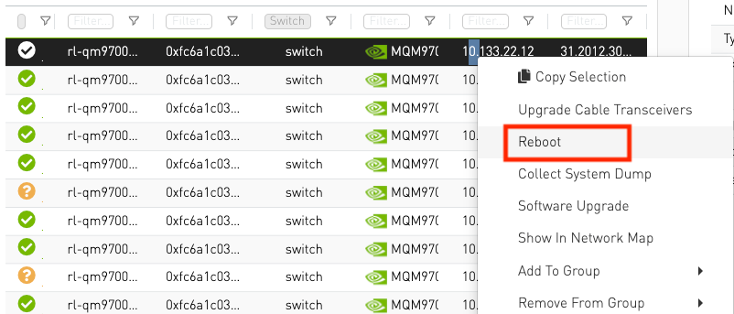
Reboot the InfiniBand Switches to complete the upgrade process. To reboot the switch, simply right-click on it and select Reboot from the context menu.
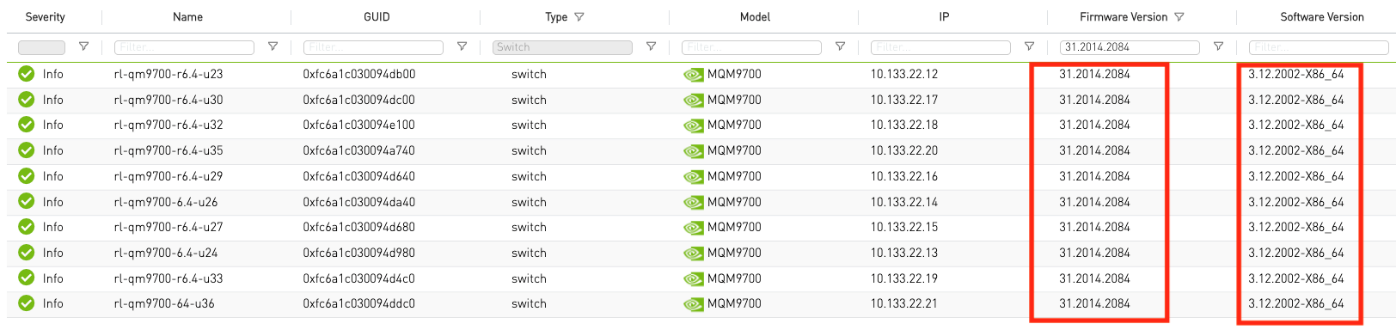
Post-Upgrade Validation. To confirm the upgrade was successful, verify that each upgraded switch displays the correct firmware and software versions expected for your environment. The image below provides an example—ensure the versions shown align with your intended upgrade targets.
InfiniBand Transceivers/Cable Firmware Upgrade#
Transceiver/cable firmware may need to be updated for stability reasons. The upgrade process can be accomplished by using management tools like UFM (Unified Fabric Manager) or the Mellanox Firmware Tools (MFT).
Follow the steps in the following link to use UFM to upgrade the transceiver/cable firmware: UFM Cable/Transceiver Firmware Upgrade.