


SuperPOD / BasePOD Software Minor Updates Using BCM#
High-Level Steps#
Update the Active Headnode first: Begin by updating the active headnode using apt.
Verify operational status: After the update, ensure the active headnode is functioning correctly.
Repeat for remaining Headnodes: Proceed to update the passive headnode following the same steps.
Update the software images managed by BCM
Update the WLM managed by BCM
BCM Headnode Updates#
Preparation for Updating BCM#
Confirm the current version of BCM. This environment is running version 10.23.12, and as part of this process, will be updated to version 10.25.03.
root@demeter-headnode-01:~# cm-package-release-info -f cmdaemon
Name      Version    Release(s)
--------  ---------  ------------
cmdaemon  156921     10.23.12
Confirm HA Status. Ensure the passive node is not running cluster services and confirm its status using the command below.
Note
An asterisk (*) indicates the active node.
root@demeter-headnode-01:~# cmha status
Node Status: running in active mode

demeter-headnode-01* -> demeter-headnode-02
mysql         [  OK  ]
ping          [  OK  ]
status        [  OK  ]

demeter-headnode-02 -> demeter-headnode-01*
mysql         [  OK  ]
ping          [  OK  ]
status        [  OK  ]
On the active headnode, take a manual backup of the MySQL database and store it on a safe location in case of a disaster recovery scenario.
root@demeter-headnode-01:~# cmdaemon-backup manual
root@demeter-headnode-01:~# ls /var/spool/cmd/backup/manual*
manual-25-06-25_13-19-59_Wed.sql.gz

# In this example, /cm/shared/ is a NFS storage server
root@demeter-headnode-01:~# cp /var/spool/cmd/backup/manual-25-06-25_13-19-59_Wed.sql.gz /cm/shared/backups
On the headnode, gather the files which are managed by BCM with
filewriteinfo. The output will be used later to help determine whether package changes should be accepted or not.root@demeter-headnode-01:~# cmsh [demeter-headnode-01]% device use demeter-headnode-01 [demeter-headnode-01->device[demeter-headnode-01]]% filewriteinfo
Check what software image is being used by the DGX/Kubernetes/Slurm nodes. In this case, the image used by the DGXs is
dgx-os-6.1-h100-imagewith the number in the “Nodes” column indicating how many nodes are using it.root@demeter-headnode-01:~# cmsh -c 'softwareimage list' Name (key) Path (key) Kernel version Nodes ---------------------- ---------------------------------------- ------------------- -------- default-image /cm/images/default-image 5.19.0-45-generic 0 dgx-os-6.1-a100-image /cm/images/dgx-os-6.1-a100-image 5.15.0-1042-nvidia 0 dgx-os-6.1-h100-image /cm/images/dgx-os-6.1-h100-image 5.15.0-1042-nvidia 31 k8s-image /cm/images/k8s-image 5.19.0-45-generic 0 slogin-image /cm/images/slogin-image 5.19.0-45-generic 2
To confirm which image the DGX nodes are using, follow the steps below. Only use one node to verify the correct image is being used – there’s no need to access all 31 nodes.
root@demeter-headnode-01:~# cmsh
[demeter-headnode-01]% device
[demeter-headnode-01->device]% use dgx-01
[demeter-headnode-01->device[dgx-01]]% show
# output truncated
Power control                           ipmi0
Custom power script
Custom power script argument
Power distribution units
IO scheduler
Kernel version                          5.15.0-1042-nvidia (software image:dgx-os-6.1-h100-image)
Kernel parameters                       rd.driver.blacklist=nouveau systemd.unified_cgroup_hierarchy=0 systemd.legacy_systemd_cgroup_controller (software imag+
Kernel output console                   tty0 (software image:dgx-os-6.1-h100-image)
Boot loader                             syslinux (dgx-h100)
Boot loader protocol                    TFTP (dgx-h100)
Boot loader file
Kernel modules                          55 (software image:dgx-os-6.1-h100-image)
FIPS                                    no (dgx-h100)
Template node                           no
Backup the DGX/Kubernetes/Slurm software images before updating them from the Cluster Management Shell (cmsh) environment. Below is an example for backing up the DGX software image.
root@demeter-headnode-01:~# cmsh
[demeter-headnode-01]% softwareimage
[demeter-headnode-01->softwareimage]% ls
Name (key)             Path (key)                               Kernel version      Nodes
---------------------- ---------------------------------------- ------------------- --------
default-image          /cm/images/default-image                 5.19.0-45-generic   0
dgx-os-6.1-a100-image  /cm/images/dgx-os-6.1-a100-image         5.15.0-1042-nvidia  0
dgx-os-6.1-h100-image  /cm/images/dgx-os-6.1-h100-image         5.15.0-1042-nvidia  31
k8s-image              /cm/images/k8s-image                     5.19.0-45-generic   0
slogin-image           /cm/images/slogin-image                  5.19.0-45-generic   2
[demeter-headnode-01->softwareimage]% clone dgx-os-6.1-h100-image dgx-os-6.1-h100-image-orig
[demeter-headnode-01->softwareimage*[dgx-os-6.1-h100-image-orig*]]% commit
Note
If Slurm is installed and used to run workloads, stop the Slurm services (slurmdbd.service and slurmctld.service on the headnodes, and slurmd.service on the DGXs) before proceeding to Step 2. Then perform
apt updateandapt upgrade. Stopping the Slurm services minimizes Slurm database sync issues caused byapt upgrade.root@demeter-headnode-01:~# cmsh [demeter-headnode-01]% device [demeter-headnode-01->device]% foreach -l slurmserver ( services; stop slurmctld ) [demeter-headnode-01->device]% foreach -l slurmaccounting ( services; stop slurmdbd ) [demeter-headnode-01->device]% quit # Validate the services are not running root@demeter-headnode-01:~# systemctl status slurmctld.service root@demeter-headnode-01:~# systemctl status slurmdbd.service root@demeter-headnode-02:~# systemctl status slurmctld.service root@demeter-headnode-02:~# systemctl status slurmdbd.service
Update the BCM Active Headnode#
Note
Running apt update will refresh/update the package repository metadata of the various components in the BCM 10 environment. It is not recommended to update Slurm as part of the BCM update process; it should be handled separately.
To prevent Slurm or any other package from being updated, use the
apt-markcommand.root@demeter-headnode-01:~# apt-mark hold slurm23.02*
Validate the six Slurm packages are on hold.
root@demeter-headnode-01:~# apt-mark showhold
slurm23.02
slurm23.02-client
slurm23.02-contribs
slurm23.02-devel
slurm23.02-perlapi
slurm23.02-slurmdbd
Validate the Kubernetes packages are on hold as well (this should be the default behavior).
root@demeter-headnode-01:~# apt-mark showhold
kubeadm
kubelet
kubectl
In the example below, since there are no critical dependencies, we will proceed with updating all packages.
root@demeter-headnode-01:~# apt update && apt upgrade
During the update process, make sure to keep (N) the
cmd.conflocal file which will retain the current database configuration.Configuration file '/cm/local/apps/cmd/etc/cmd.conf' ==> Modified (by you or by a script) since installation. ==> Package distributor has shipped an updated version. What would you like to do about it ? Your options are: Y or I : install the package maintainer's version N or O : keep your currently-installed version D : show the differences between the versions Z : start a shell to examine the situation The default action is to keep your current version. *** cmd.conf (Y/I/N/O/D/Z) [default=N] N
Select default action (N) when prompted during the
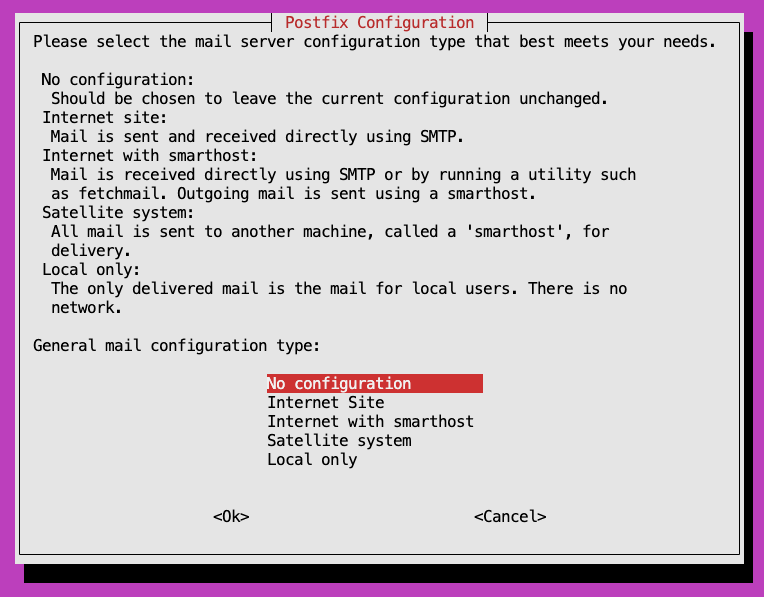
apt upgradeprocess if they are part of the files managed by BCM (from the output of thefilewriteinfocommand from step 4). This will ensure the upstream package updates do not overwrite BCM-managed files.For the SMTP prompt, select the option which is appropriate for the system.
For files not managed by BCM, it is best practice to compare the changes and accept (Y) the upstream package updates as they may include bug fixes and enhancements.
Configuration file '/etc/network/if-down.d/resolved'
 ==> Modified (by you or by a script) since installation.
 ==> Package distributor has shipped an updated version.
   What would you like to do about it ?  Your options are:
    Y or I  : install the package maintainer's version
    N or O  : keep your currently-installed version
      D     : show the differences between the versions
      Z     : start a shell to examine the situation
 The default action is to keep your current version.
*** resolved (Y/I/N/O/D/Z) [default=N]Y
Configuration file '/etc/network/if-up.d/resolved'
 ==> Modified (by you or by a script) since installation.
 ==> Package distributor has shipped an updated version.
   What would you like to do about it ?  Your options are:
    Y or I  : install the package maintainer's version
    N or O  : keep your currently-installed version
      D     : show the differences between the versions
      Z     : start a shell to examine the situation
 The default action is to keep your current version.
*** resolved (Y/I/N/O/D/Z) [default=N]Y
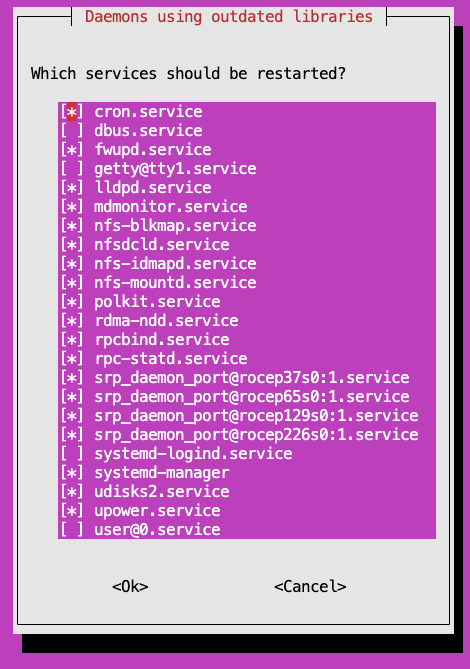
Keep the default selections when prompted which services to restart.
Reboot the Active Node.
root@demeter-headnode-01:~# reboot
Validation#
After the headnode has rebooted, use the
cmshcommand to confirm that the headnode has started successfully and is up.root@demeter-headnode-01:~# cmsh -c 'device list' Type Hostname (key) MAC Category IP Network Status ---------------------- -------------------- ------------------ ---------------- --------------- -------------- ----------- HeadNode demeter-headnode-02 AA:BB:CC:DD:EE:F1 10.133.20.5 managementnet [ UP ], HeadNode demeter-headnode-01 AA:BB:CC:DD:EE:F0 10.133.20.4 managementnet [ UP ]
Verify that the node has been updated to the latest BCM version.
root@demeter-headnode-01:~# cm-package-release-info -f cmdaemon
Name      Version    Release(s)
--------  ---------  ------------
cmdaemon  158589     10.25.03
Update the Passive Headnode#
Repeat all the steps in the previous sections (Update Active Headnode & Validation) on the passive headnode.
At this point, both headnodes will be running the latest version.
Finally, run the command below to confirm it was updated successfully.
root@demeter-headnode-02:~# cm-package-release-info -f cmdaemon
Name      Version    Release(s)
--------  ---------  ------------
cmdaemon  158589     10.25.03
Promote the Passive Headnode#
With the headnodes updated and verified to be running the same CM Daemon version, the next step is to validate HA functionality by promoting the passive node to active.
Initiate a failover.
root@demeter-headnode-02:~# cmha makeactive

===========================================================================
This is the passive head node. Please confirm that this node should become
the active head node. After this operation is complete, the HA status of
the head nodes will be as follows:

demeter-headnode-02 will become active head node (current state: passive)
demeter-headnode-01 will become passive head node (current state: active)
===========================================================================

Continue(c)/Exit(e)? c

Initiating failover.............................. [  OK  ]

demeter-headnode-02 is now active head node, makeactive successful
Run the
cmha statuscommand again to verify that headnode 2 is now the active headnode. Validate the active headnode by the asterisks (*) beside the headnode name.root@demeter-headnode-02:~# cmha status Node Status: running in active mode demeter-headnode-02* -> demeter-headnode-01 mysql [ OK ] ping [ OK ] status [ OK ] demeter-headnode-01 -> demeter-headnode-02* mysql [ OK ] ping [ OK ] status [ OK ]
After validating HA is functioning between the nodes, it is recommended to make the primary headnode active.
(Optional) If Slurm services were stopped previously, it is necessary to start them after the updates are completed.
root@demeter-headnode-01:~# cmsh
[demeter-headnode-01]% device
[demeter-headnode-01->device]% foreach -l slurmserver ( services; start slurmctld )
[demeter-headnode-01->device]% foreach -l slurmaccounting ( services; start slurmdbd )
[demeter-headnode-01->device]% foreach -l slurmclient ( services; start slurmd )
[demeter-headnode-01->device]% quit
root@demeter-headnode-01:~# systemctl status slurmctld.service
root@demeter-headnode-01:~# systemctl status slurmdbd.service

root@demeter-headnode-02:~# systemctl status slurmctld.service
root@demeter-headnode-02:~# systemctl status slurmdbd.service