


Update Individual Software Packages With BCM#
DGX BasePOD and SuperPOD administrators can update individual SW packages or components to address specific dependency requirements. The following are high level steps applicable to packages in this section:
Update the package within the DGX OS image on the headnode.
Verify the update(s) on one of the DGX nodes.
Apply the updated DGX OS using
imageupdatecommand within the Cluster Management Shell (cmsh) to all the DGX nodes.
Note
An exception is the GPU Driver updates which require a reboot.
CUDA Toolkit#
Chroot to the DGX OS image used by the DGX node category. A best practice is to save a copy of the image in case you need to roll back to a prior DGX OS release / version / state. Save a copy by using clone image function within
cmsh.root@demeter-headnode-01:~# cm-chroot-sw-img /cm/images/dgx-os-6.3.2-h100-image
Run
apt updateto refresh the local package repository metadata (list of available upgradable packages and their versions).root@dgx-os-6:/# apt update
Install the latest supported CUDA toolkit for the DGX OS version running on the DGX node. Refer to the DGX OS release notes for supported version(s). Following is an example updating CUDA Toolkit to 12.4.
root@dgx-os-6:/# apt install cuda-toolkit-12-4
Verify that the CUDA toolkit is now installed and then exit chroot.
root@dgx-os-6:/# apt list --installed cuda-toolkit-12-4
Update one of the DGX nodes to the updated DGX OS image and verify the update. Exit
cmshonly after you see the “Provisioning completed” message.Note
A reboot may be required if the image applied has different release and/or kernel version than the DGX node.
root@demeter-headnode-01:~# cmsh
[demeter-headnode-01]% device
[demeter-headnode-01->device]% use dgx-01
[demeter-headnode-01->device[dgx-01]]% imageupdate -w
SSH to the DGX node.
root@demeter-headnode-01:~# ssh dgx-01
Check the CUDA compiler version.
root@dgx-01:~# nvcc --version
Use
nvidia-smicommand to display information about the installed GPUs, driver version, and CUDA version, confirming that the system recognizes the GPUs and the driver is functioning.root@dgx-01:~# nvidia-smi Mon Jun 2 23:24:46 2025 +-----------------------------------------------------------------------------------------+ | NVIDIA-SMI 550.163.01 Driver Version: 550.163.01 CUDA Version: 12.4 | |-----------------------------------------+------------------------+----------------------+ | GPU Name Persistence-M | Bus-Id Disp.A | Volatile Uncorr. ECC | | Fan Temp Perf Pwr:Usage/Cap | Memory-Usage | GPU-Util Compute M. | | | | MIG M. | |=========================================+========================+======================| | 0 NVIDIA H100 80GB HBM3 On | 00000000:1B:00.0 Off | 0 | | N/A 29C P0 70W / 700W | 1MiB / 81559MiB | 0% Default | | | | Disabled | +-----------------------------------------+------------------------+----------------------+ | 1 NVIDIA H100 80GB HBM3 On | 00000000:43:00.0 Off | 0 | | N/A 29C P0 69W / 700W | 1MiB / 81559MiB | 0% Default | | | | Disabled | +-----------------------------------------+------------------------+----------------------+ | 2 NVIDIA H100 80GB HBM3 On | 00000000:52:00.0 Off | 0 | | N/A 30C P0 69W / 700W | 1MiB / 81559MiB | 0% Default | | | | Disabled | +-----------------------------------------+------------------------+----------------------+ | 3 NVIDIA H100 80GB HBM3 On | 00000000:61:00.0 Off | 0 | | N/A 31C P0 71W / 700W | 1MiB / 81559MiB | 0% Default | | | | Disabled | +-----------------------------------------+------------------------+----------------------+ | 4 NVIDIA H100 80GB HBM3 On | 00000000:9D:00.0 Off | 0 | | N/A 31C P0 71W / 700W | 1MiB / 81559MiB | 0% Default | | | | Disabled | +-----------------------------------------+------------------------+----------------------+ | 5 NVIDIA H100 80GB HBM3 On | 00000000:C3:00.0 Off | 0 | | N/A 29C P0 70W / 700W | 1MiB / 81559MiB | 0% Default | | | | Disabled | +-----------------------------------------+------------------------+----------------------+ | 6 NVIDIA H100 80GB HBM3 On | 00000000:D1:00.0 Off | 0 | | N/A 31C P0 73W / 700W | 1MiB / 81559MiB | 0% Default | | | | Disabled | +-----------------------------------------+------------------------+----------------------+ | 7 NVIDIA H100 80GB HBM3 On | 00000000:DF:00.0 Off | 0 | | N/A 34C P0 71W / 700W | 1MiB / 81559MiB | 0% Default | | | | Disabled | +-----------------------------------------+------------------------+----------------------+ +-----------------------------------------------------------------------------------------+ | Processes: | | GPU GI CI PID Type Process name GPU Memory | | ID ID Usage | |=========================================================================================| | No running processes found | +-----------------------------------------------------------------------------------------+
To verify CUDA functionality, you can download CUDA sample directory from NVIDIA’s GitHub repository, build and run a sample to verify CUDA is working properly.
root@dgx-01:~# git clone https://github.com/nvidia/cuda-samples.git
Navigate to one of the CUDA samples directories, such as deviceQuery.
root@dgx-01:~# cd cuda-samples/Samples/1_Utilities/deviceQuery
Build the testing sample using CMake, then run the sample.
root@dgx-01:~/cuda-samples/Samples/1_Utilities/deviceQuery# mkdir build && cd build
root@dgx-01:~/cuda-samples/Samples/1_Utilities/deviceQuery/build# cmake ..
root@dgx-01:~/cuda-samples/Samples/1_Utilities/deviceQuery/build# make -j$(nproc)
root@dgx-01:~/cuda-samples/Samples/1_Utilities/deviceQuery/build# ./deviceQuery
./deviceQuery Starting...

CUDA Device Query (Runtime API) version (CUDART static linking)

Detected 8 CUDA Capable device(s)

Device 0: "NVIDIA H100 80GB HBM3"
CUDA Driver Version / Runtime Version          12.4 / 12.4
CUDA Capability Major/Minor version number:    9.0
.
[output truncated]
.
> Peer access from NVIDIA H100 80GB HBM3 (GPU7) -> NVIDIA H100 80GB HBM3 (GPU3) : Yes
> Peer access from NVIDIA H100 80GB HBM3 (GPU7) -> NVIDIA H100 80GB HBM3 (GPU4) : Yes
> Peer access from NVIDIA H100 80GB HBM3 (GPU7) -> NVIDIA H100 80GB HBM3 (GPU5) : Yes
> Peer access from NVIDIA H100 80GB HBM3 (GPU7) -> NVIDIA H100 80GB HBM3 (GPU6) : Yes

deviceQuery, CUDA Driver = CUDART, CUDA Driver Version = 12.4, CUDA Runtime Version = 12.4, NumDevs = 8
Result = PASS
After verifying CUDA is working properly, apply the updated DGX OS image to the remaining DGX nodes (this assumes that the updated image is being used by the DGX nodes category). Exit
cmshonly after you see the “Provisioning completed” message.root@demeter-headnode-01:~# cmsh [demeter-headnode-01]% device [demeter-headnode-01->device]% imageupdate -w -c dgx-h100
DCGM#
If updating from a DGX OS release earlier than 6.3.2, you must manually upgrade the datacenter-gpu-manager package from version 3.x to version 4.x. Refer to the instructions in the Installation section of the DCGM documentation. The steps below are best practices when using a chroot environment.
Before updating DCGM, make sure existing datacenter GPU manager system services are stopped.
root@demeter-headnode-01:~# pdsh -w dgx-[01-31] systemctl stop nvidia-dcgm
Chroot to the DGX OS image on the headnode that is being used by the DGX nodes. It is always a best practice to save a copy of the image in case you need to roll back to a prior DGX OS release / version / state. You can save a copy by using clone image function within
cmsh.root@demeter-headnode-01:~# cm-chroot-sw-img /cm/images/dgx-os-6.3.2-h100-image
On the image, check the current DCGM version.
root@dgx-os-6:/# dcgmi --version

dcgmi  version: 3.1.8
Remove any installations of the datacenter-gpu-manager and datacenter-gpu-manager-config packages.
root@dgx-os-6:/# dpkg --list datacenter-gpu-manager &> /dev/null && apt purge --yes datacenter-gpu-manager
root@dgx-os-6:/# dpkg --list datacenter-gpu-manager-config &> /dev/null && apt purge --yes datacenter-gpu-manager-config
Update the package registry cache.
root@dgx-os-6:/# apt update
Install the datacenter-gpu-manager-4 package corresponding to the system CUDA version. You can verify the CUDA version installed in the cloned image by issuing the following command, in this case the CUDA version is 12.
root@dgx-os-6:/# ls /usr/local/ | grep cuda
root@dgx-os-6:/# apt install --yes --install-recommends datacenter-gpu-manager-4-cuda12
Verify that the version of DCGMI is updated and then exit chroot.
root@dgx-os-6:/# dcgmi --version

dcgmi  version: 4.2.3
Apply the updated DGX OS image to one of the DGX nodes to validate DCGM functionality. Exit
cmshonly after you see the “Provisioning completed” message.Note
A reboot may be required if the image applied has different release and/or kernel version than the DGX node.
root@demeter-headnode-01:~# cmsh
[demeter-headnode-01]% device
[demeter-headnode-01->device]% imageupdate -w dgx-01
SSH to the DGX node. Verify DCGM is active.
root@dgx-01:~# systemctl status nvidia-dcgm
● nvidia-dcgm.service - NVIDIA DCGM service
Loaded: loaded (/lib/systemd/system/nvidia-dcgm.service; enabled; vendor preset: enabled)
Active: active (running) since Tue 2025-06-03 21:45:34 PDT; 39min ago
Main PID: 82283 (nv-hostengine)
Tasks: 8 (limit: 629145)
Memory: 65.4M
        CPU: 22min 25.362s
CGroup: /system.slice/nvidia-dcgm.service
        └─82283 /usr/bin/nv-hostengine -n --service-account nvidia-dcgm

Jun 03 21:45:34 dgx-01 systemd[1]: Started NVIDIA DCGM service.
Jun 03 21:45:36 dgx-01 nv-hostengine[82283]: DCGM initialized
Jun 03 21:45:36 dgx-01 nv-hostengine[82283]: Started host engine version 4.2.3 using port number: 5555
To verify DCGM functionality, use
dcgmito query the system. You should see a listing of all supported GPUs (and any NVSwitches) found in the system.root@dgx-01:~# dcgmi discovery -l 8 GPUs found. +--------+----------------------------------------------------------------------+ | GPU ID | Device Information | +--------+----------------------------------------------------------------------+ | 0 | Name: NVIDIA H100 80GB HBM3 | | | PCI Bus ID: 00000000:1B:00.0 | | | Device UUID: GPU-1c982352-da78-c318-7424-27271347284e | +--------+----------------------------------------------------------------------+ | 1 | Name: NVIDIA H100 80GB HBM3 | | | PCI Bus ID: 00000000:43:00.0 | | | Device UUID: GPU-4247ca58-0e26-a18a-780e-5a01bffb8630 | +--------+----------------------------------------------------------------------+ | 2 | Name: NVIDIA H100 80GB HBM3 | | | PCI Bus ID: 00000000:52:00.0 | | | Device UUID: GPU-5adb0f97-f5aa-c51d-7e02-6139a9a62f7f | +--------+----------------------------------------------------------------------+ | 3 | Name: NVIDIA H100 80GB HBM3 | | | PCI Bus ID: 00000000:61:00.0 | | | Device UUID: GPU-1da404d8-6973-4e78-4f8e-fa9334193c6c | +--------+----------------------------------------------------------------------+ | 4 | Name: NVIDIA H100 80GB HBM3 | | | PCI Bus ID: 00000000:9D:00.0 | | | Device UUID: GPU-3505b245-a831-c969-83e3-15f53ba5c109 | +--------+----------------------------------------------------------------------+ | 5 | Name: NVIDIA H100 80GB HBM3 | | | PCI Bus ID: 00000000:C3:00.0 | | | Device UUID: GPU-f91c8a55-9f7c-e9b8-f4cc-ea402d8d2fc8 | +--------+----------------------------------------------------------------------+ | 6 | Name: NVIDIA H100 80GB HBM3 | | | PCI Bus ID: 00000000:D1:00.0 | | | Device UUID: GPU-7293efb3-9d26-53dd-cee2-5c2f10426b70 | +--------+----------------------------------------------------------------------+ | 7 | Name: NVIDIA H100 80GB HBM3 | | | PCI Bus ID: 00000000:DF:00.0 | | | Device UUID: GPU-e4e0bb86-436a-c346-a73d-be11539c0d34 | +--------+----------------------------------------------------------------------+ 4 NvSwitches found. +-----------+ | Switch ID | +-----------+ | 0 | | 2 | | 3 | | 1 | +-----------+ 0 ConnectX found. +----------+ | ConnectX | +----------+ +----------+ 0 CPUs found. +--------+----------------------------------------------------------------------+ | CPU ID | Device Information | +--------+----------------------------------------------------------------------+ +--------+----------------------------------------------------------------------+
After verifying DCGM is working properly, exit from the testing DGX node. On the headnode, use
cmshto apply the updated DGX OS image to the remaining DGX nodes (this assumes that the updated image is being used by the DGX nodes category). Exitcmshonly after you see the “Provisioning completed” message.root@demeter-headnode-01:~# cmsh [demeter-headnode-01]% device [demeter-headnode-01->device]% imageupdate -w -c dgx-h100
Enroot#
Enroot and enroot+caps packages are part of the BCM software image since release 10.23.10.
You can update enroot on the headnodes by using
apton the headnodes.root@demeter-headnode-01:~# apt update root@demeter-headnode-01:~# apt install enroot enroot+caps
There are two methods to update the enroot environment. Either utilizing
apt update(3a) or obtaining the package directly from the repo (3b).To update enroot for the DGX nodes, chroot to the DGX OS image on the headnode and use
aptto update enroot. Exit chroot when enroot is updated.root@demeter-headnode-01:~# cm-chroot-sw-img /cm/images/dgx-os-6.3.2-h100-image/ root@dgx-os-6:/# enroot version 3.4.1 root@dgx-os-6:/# apt update root@dgx-os-6:/# apt list --upgradable | grep enroot* WARNING: apt does not have a stable CLI interface. Use with caution in scripts. enroot+caps/BCM 10.0 3.5.0-100008-cm10.0-07e3dbc1dd amd64 [upgradable from: 3.4.1-100005-cm10.0-dde153f138] enroot/BCM 10.0 3.5.0-100008-cm10.0-07e3dbc1dd amd64 [upgradable from: 3.4.1-100005-cm10.0-dde153f138] root@dgx-os-6:/# apt install enroot enroot+caps root@dgx-os-6:/# enroot version 3.5.0
To update enroot from the NVIDIA repository begin by downloading the preferred enroot version.
root@demeter-headnode-01:~# cp ./enroot_3.5.0-1_amd64.deb /cm/images/dgx-os-6.3.2-h100-image
root@demeter-headnode-01:~# cp ./enroot+caps_3.5.0-1_amd64.deb /cm/images/dgx-os-6.3.2-h100-image
root@demeter-headnode-01:~# cm-chroot-sw-img /cm/images/dgx-os-6.3.2-h100-image/
root@dgx-os-6:/# apt install ./enroot+caps_3.5.0-1_amd64.deb ./enroot_3.5.0-1_amd64.deb
Apply the updated DGX OS image to the DGX nodes within
cmsh. Exitcmshonly after you see the “Provisioning completed” message.root@demeter-headnode-01:~# cmsh [demeter-headnode-01]% device [demeter-headnode-01->device]% imageupdate -w -c dgx-h100
GPU Driver#
Identify the validated GPU Driver branch and version for your DGX architecture and DGX OS release from the DGX SuperPOD Release Notes. In this example we are updating (and changing) the GPU driver from branch 535 to branch 550. More information about changing GPU driver branch can be found here. For GPU driver update within the same branch,
apt update/upgradewill cover the update.Chroot into the DGX OS image being used by the DGXs on the headnode. Verify the installed GPU Driver branch and version.
root@demeter-headnode-01:~# cm-chroot-sw-img /cm/images/dgx-os-6.3.2-h100-image/
root@dgx-os-6:/# apt list --installed nvidia-driver*server
Listing... Done
nvidia-driver-535-server/jammy-updates,jammy-security,now 535.247.01-0ubuntu0.22.04.1 amd64 [installed]
Use
apt-mark unholdto unhold any packages that should be automatically updated, such as the linux kernel and headers.Note
If the MLNX OFED packages were deployed using the BCM repository, these will be on hold and prevent kernel updates.
root@dgx-os-6:/# apt-mark unhold linux-*
Install the latest DGX kernel version. If you were prompted a screen about newer kernel is available, select <OK> to continue.
root@dgx-os-6:/# apt install -y linux-nvidia
Update the local package database.
root@dgx-os-6:/# apt update
root@dgx-os-6:/# apt list nvidia-driver*server
Listing... Done
nvidia-driver-418-server/jammy-updates,jammy-security 418.226.00-0ubuntu5~0.22.04.1 amd64
nvidia-driver-440-server/jammy-updates,jammy-security 450.248.02-0ubuntu0.22.04.1 amd64
nvidia-driver-450-server/jammy-updates,jammy-security 450.248.02-0ubuntu0.22.04.1 amd64
nvidia-driver-460-server/jammy-updates,jammy-security 470.256.02-0ubuntu0.22.04.1 amd64
nvidia-driver-470-server/jammy-updates,jammy-security 470.256.02-0ubuntu0.22.04.1 amd64
nvidia-driver-510-server/jammy-updates,jammy-security 515.105.01-0ubuntu0.22.04.1 amd64
nvidia-driver-515-server/jammy-updates,jammy-security 525.147.05-0ubuntu2.22.04.1 amd64
nvidia-driver-525-server/jammy-updates,jammy-security 525.147.05-0ubuntu2.22.04.1 amd64
nvidia-driver-535-server/jammy-updates,jammy-security,now 535.247.01-0ubuntu0.22.04.1 amd64 [installed]
nvidia-driver-550-server/jammy-updates,jammy-security 550.163.01-0ubuntu0.22.04.1 amd64
nvidia-driver-565-server/jammy-updates 565.57.01-0ubuntu0.22.04.4 amd64
nvidia-driver-570-server/jammy-updates,jammy-security 570.133.20-0ubuntu0.22.04.1 amd64
First check the packages installation (with the
--dry-runoption) and then install the NVIDIA GPU driver (without the--dry-runoption). Replace the release version used as an example (550) with the release you want to install.root@dgx-os-6:/# apt install -y nvidia-driver-550-server linux-modules-nvidia-550-server-nvidia libnvidia-nscq-550 nvidia-modprobe nvidia-fabricmanager-550 nv-persistence-mode --dry-run root@dgx-os-6:/# apt install -y nvidia-driver-550-server linux-modules-nvidia-550-server-nvidia libnvidia-nscq-550 nvidia-modprobe nvidia-fabricmanager-550 nv-persistence-mode
Verify the GPU driver branch and version installed and then exit chroot.
root@dgx-os-6:/# apt list --installed | grep nvidia-driver

WARNING: apt does not have a stable CLI interface. Use with caution in scripts.

nvidia-driver-550-server/jammy-updates,jammy-security,now 550.163.01-0ubuntu0.22.04.1 amd64 [installed]
Select the updated DGX kernel to be used for the updated DGX OS image in
cmsh. Wait until you see the “Initial ramdisk for image dgx-os-6.3.2-h100-image was generated successfully” message before exitingcmsh.Note
Please type set kernelversion and then hit the Tab key twice for tab completion to select the updated version.
root@demeter-headnode-01:~# cmsh
[demeter-headnode-01]% softwareimage
[demeter-headnode-01->softwareimage]% use dgx-os-6.3.2-h100-image
[demeter-headnode-01->softwareimage[dgx-os-6.3.2-h100-image]]% set kernelversion 5.15.0-1078-nvidia
[demeter-headnode-01->softwareimage*[dgx-os-6.3.2-h100-image*]]% commit
Sun Jun  1 22:15:28 2025 [notice] demeter-headnode-01: Initial ramdisk for image dgx-os-6.3.2-h100-image is being generated
Sun Jun  1 22:16:15 2025 [notice] demeter-headnode-01: Initial ramdisk for image dgx-os-6.3.2-h100-image was generated successfully
Apply the updated DGX OS image to one of the DGX nodes and reboot the DGX node as a new kernel has been updated.
root@demeter-headnode-01:~# cmsh
[demeter-headnode-01]% device
[demeter-headnode-01->device]% use dgx-01
[demeter-headnode-01->device[dgx-01]]% reboot
Once the DGX node has rebooted, SSH to it, run
nvidia-smito verify the GPU Driver branch and version installed.root@demeter-headnode-01:~# ssh dgx-01 root@dgx-01:~# nvidia-smi Wed Jun 4 23:47:57 2025 +-----------------------------------------------------------------------------------------+ | NVIDIA-SMI 550.163.01 Driver Version: 550.163.01 CUDA Version: 12.4 | |-----------------------------------------+------------------------+----------------------+ | GPU Name Persistence-M | Bus-Id Disp.A | Volatile Uncorr. ECC | | Fan Temp Perf Pwr:Usage/Cap | Memory-Usage | GPU-Util Compute M. | | | | MIG M. | |=========================================+========================+======================| | 0 NVIDIA H100 80GB HBM3 On | 00000000:1B:00.0 Off | 0 | | N/A 28C P0 70W / 700W | 1MiB / 81559MiB | 0% Default | | | | Disabled | +-----------------------------------------+------------------------+----------------------+ | 1 NVIDIA H100 80GB HBM3 On | 00000000:43:00.0 Off | 0 | | N/A 28C P0 69W / 700W | 1MiB / 81559MiB | 0% Default | | | | Disabled | +-----------------------------------------+------------------------+----------------------+ | 2 NVIDIA H100 80GB HBM3 On | 00000000:52:00.0 Off | 0 | | N/A 31C P0 69W / 700W | 1MiB / 81559MiB | 0% Default | | | | Disabled | +-----------------------------------------+------------------------+----------------------+ | 3 NVIDIA H100 80GB HBM3 On | 00000000:61:00.0 Off | 0 | | N/A 31C P0 71W / 700W | 1MiB / 81559MiB | 0% Default | | | | Disabled | +-----------------------------------------+------------------------+----------------------+ | 4 NVIDIA H100 80GB HBM3 On | 00000000:9D:00.0 Off | 0 | | N/A 29C P0 71W / 700W | 1MiB / 81559MiB | 0% Default | | | | Disabled | +-----------------------------------------+------------------------+----------------------+ | 5 NVIDIA H100 80GB HBM3 On | 00000000:C3:00.0 Off | 0 | | N/A 27C P0 70W / 700W | 1MiB / 81559MiB | 0% Default | | | | Disabled | +-----------------------------------------+------------------------+----------------------+ | 6 NVIDIA H100 80GB HBM3 On | 00000000:D1:00.0 Off | 0 | | N/A 30C P0 72W / 700W | 1MiB / 81559MiB | 0% Default | | | | Disabled | +-----------------------------------------+------------------------+----------------------+ | 7 NVIDIA H100 80GB HBM3 On | 00000000:DF:00.0 Off | 0 | | N/A 33C P0 70W / 700W | 1MiB / 81559MiB | 0% Default | | | | Disabled | +-----------------------------------------+------------------------+----------------------+ +-----------------------------------------------------------------------------------------+ | Processes: | | GPU GI CI PID Type Process name GPU Memory | | ID ID Usage | |=========================================================================================| | No running processes found | +-----------------------------------------------------------------------------------------+
Log out from the DGX node. Reboot the remaining DGX nodes within
cmsh(assumes that all the DGX nodes are set to use the updated DGX OS image).root@demeter-headnode-01:~# cmsh [demeter-headnode-01]% device [demeter-headnode-01->device]% reboot -c dgx-h100
MOFED (Mellanox OFED) Managed by BCM – (Preferred Method)#
NVIDIA recommends DGX BasePOD and SuperPOD customers to update the latest MOFED drivers using BCM software that are managed by through the BCM repository and the following steps. Consider the transition to DOCA OFED outlined in the next section.
Update steps via BCM: (DGX OS 6)
Install the desired MOFED package from the BCM repository.
apt update && apt install mlnx-ofed24.10 -y
Check if the desired kernel version is selected on the image which will have the MLNX package installed and set it if not already done. The package will build the kernel modules against this version.
root@demeter-headnode-01:~# cmsh [demeter-headnode-01]% softwareimage [demeter-headnode-01->softwareimage]% use dgx-os-6.3.2-h100-image [demeter-headnode-01->softwareimage[dgx-os-6.3.2-h100-image]]% get kernelversion 5.15.0-1046-nvidia [demeter-headnode-01->softwareimage[dgx-os-6.3.2-h100-image]]% set kernelversion 5.15.0-1078-nvidia [demeter-headnode-01->softwareimage*[dgx-os-6.3.2-h100-image*]]% commit Sun Jun 1 22:15:28 2025 [notice] demeter-headnode-01: Initial ramdisk for image dgx-os-6.3.2-h100-image is being generated Sun Jun 1 22:16:15 2025 [notice] demeter-headnode-01: Initial ramdisk for image dgx-os-6.3.2-h100-image was generated successfully [demeter-headnode-01->softwareimage[dgx-os-6.3.2-h100-image]]% quit
Install the MLNX Package onto the image.
root@demeter-headnode-01:~# /cm/local/apps/mlnx-ofed24.10/current/bin/mlnx-ofed24.10-install.sh -s dgx-os-6.3.2-h100-image Mellanox OFED installation, version: 24.10-2.1.8.0 for x86_64. On " dgx-os-6.3.2-h100-image " software image, for kernel version: 5.15.0-1078-nvidia. Log file: /var/log/cm-ofed.log Package directory: /cm/local/apps/mlnx-ofed24.10/24.10-2.1.8.0-ubuntu22.04/DEBS/x86_64 removing: dapl2-utils ibacm ibsim-utils ibutils ibverbs-providers ibverbs-providers:amd64 ibverbs-utils infiniband-diags libdapl2 libibdm1 libibmad5 libibmad5:amd64 libibnetdisc5 libibnetdisc5:amd64 libibumad3 libibverbs1 libipathverbs1 libmlx4-1 libmlx5-1 libmthca1 libopensm2 libopensm9 libosmcomp5 libosmvendor5 librdmacm1 librdmacm1:amd64 libumad2sim0 mstflint opensm openvswitch-switch perftest rdmacm-utils rdma-core srptools purging: opensm infiniband-diags infiniband-diags srptools libosmvendor5 infiniband-diags ibacm srptools libdapl2 ibverbs-providers:amd64 ibacm opensm libosmvendor5 opensm libosmvendor5 libopensm9 opensm libdapl2 srptools ibacm purging: rdma-core Package directory: /cm/local/apps/mlnx-ofed24.10/24.10-2.1.8.0-ubuntu22.04/DEBS/x86_64 installing: /cm/local/apps/mlnx-ofed24.10/24.10-2.1.8.0-ubuntu22.04/DEBS/x86_64/ofed-scripts_24.10.OFED.24.10.2.1.8-1_amd64.deb installing: /cm/local/apps/mlnx-ofed24.10/24.10-2.1.8.0-ubuntu22.04/DEBS/x86_64/mlnx-tools_24.10-0.2410068_amd64.deb installing: /cm/local/apps/mlnx-ofed24.10/24.10-2.1.8.0-ubuntu22.04/DEBS/x86_64/mlnx-ofed-kernel-utils_24.10.OFED.24.10.2.1.8.1-1_amd64.deb installing: /cm/local/apps/mlnx-ofed24.10/24.10-2.1.8.0-ubuntu22.04/DEBS/x86_64/mlnx-ofed-kernel-dkms_24.10.OFED.24.10.2.1.8.1-1_all.deb installing: /cm/local/apps/mlnx-ofed24.10/24.10-2.1.8.0-ubuntu22.04/DEBS/x86_64/iser-dkms_24.10.OFED.24.10.2.1.8.1-1_all.deb installing: /cm/local/apps/mlnx-ofed24.10/24.10-2.1.8.0-ubuntu22.04/DEBS/x86_64/isert-dkms_24.10.OFED.24.10.2.1.8.1-1_all.deb installing: /cm/local/apps/mlnx-ofed24.10/24.10-2.1.8.0-ubuntu22.04/DEBS/x86_64/srp-dkms_24.10.OFED.24.10.2.1.8.1-1_all.deb installing: /cm/local/apps/mlnx-ofed24.10/24.10-2.1.8.0-ubuntu22.04/DEBS/x86_64/mlnx-nfsrdma-dkms_24.10.OFED.24.10.2.1.8.1-1_all.deb installing: /cm/local/apps/mlnx-ofed24.10/24.10-2.1.8.0-ubuntu22.04/DEBS/x86_64/mlnx-nvme-dkms_24.10.OFED.24.10.2.1.8.1-1_all.deb installing: /cm/local/apps/mlnx-ofed24.10/24.10-2.1.8.0-ubuntu22.04/DEBS/x86_64/kernel-mft-dkms_4.30.1.113-1_all.deb installing: /cm/local/apps/mlnx-ofed24.10/24.10-2.1.8.0-ubuntu22.04/DEBS/x86_64/knem-dkms_1.1.4.90mlnx3-OFED.23.10.0.2.1.1_all.deb installing: /cm/local/apps/mlnx-ofed24.10/24.10-2.1.8.0-ubuntu22.04/DEBS/x86_64/xpmem-dkms_2.7.4-1.2410068_all.deb installing: rdma-core:amd64 libibverbs1:amd64 ibverbs-utils:amd64 ibverbs-providers:amd64 libibverbs-dev:amd64 libibverbs1-dbg:amd64 libibumad3:amd64 libibumad-dev:amd64 ibacm:amd64 librdmacm1:amd64 rdmacm-utils:amd64 librdmacm-dev:amd64 ibdump:amd64 libibmad5:amd64 libibmad-dev:amd64 libopensm:amd64 opensm:amd64 opensm-doc:amd64 libopensm-devel:amd64 libibnetdisc5:amd64 infiniband-diags:amd64 mft:amd64 perftest:amd64 ibutils2:amd64 ibsim:amd64 ibsim-doc:all ucx:amd64 sharp:amd64 hcoll:amd64 knem:amd64 openmpi:all mpitests:amd64 xpmem:all libxpmem0:amd64 libxpmem-dev:amd64 dpcp:amd64 srptools:amd64 mlnx-ethtool:amd64 mlnx-iproute2:amd64 rshim:amd64 ibarr:amd64 installing: /cm/local/apps/mlnx-ofed24.10/24.10-2.1.8.0-ubuntu22.04/DEBS/x86_64/mlnx-fw-updater_24.10-2.1.8.0_amd64.deb installing: /cm/local/apps/mlnx-ofed24.10/24.10-2.1.8.0-ubuntu22.04/DEBS/x86_64/mlnx-ofed24.10-modules_24.10.2.1.8.0-100005-cm10.0-574d108822_all.deb Update kernel module dependencies. Enable openibd service. marking package "linux-generic" as held back marking package "linux-headers-generic" as held back marking package "linux-image-generic" as held back Creating ramdisk image. Installed Mellanox OFED stack DEB packages on " dgx-os-6.3.2-h100-image " software image. Done. root@demeter-headnode-01:~#
Check the installation from the image.
root@demeter-headnode-01:~# cm-chroot-sw-img /cm/images/dgx-os-6.1-h100-image root@dgx-os-6.3.2-h100-image:/# ofed_info -s MLNX_OFED_LINUX-24.10-2.1.8.0: root@dgx-os-6.3.2-h100-image:/# apt list --installed | grep -i ofed WARNING: apt does not have a stable CLI interface. Use with caution in scripts. iser-dkms/now 24.10.OFED.24.10.2.1.8.1-1 all [installed,local] isert-dkms/now 24.10.OFED.24.10.2.1.8.1-1 all [installed,local] knem-dkms/now 1.1.4.90mlnx3-OFED.23.10.0.2.1.1 all [installed,local] knem/now 1.1.4.90mlnx3-OFED.23.10.0.2.1.1 amd64 [installed,local] mlnx-nfsrdma-dkms/now 24.10.OFED.24.10.2.1.8.1-1 all [installed,local] mlnx-nvme-dkms/now 24.10.OFED.24.10.2.1.8.1-1 all [installed,local] mlnx-ofed-kernel-dkms/now 24.10.OFED.24.10.2.1.8.1-1 all [installed,local] mlnx-ofed-kernel-utils/now 24.10.OFED.24.10.2.1.8.1-1 amd64 [installed,local] mlnx-ofed24.10-modules/now 24.10.2.1.8.0-100005-cm10.0-574d108822 all [installed,local] ofed-scripts/now 24.10.OFED.24.10.2.1.8-1 amd64 [installed,local] srp-dkms/now 24.10.OFED.24.10.2.1.8.1-1 all [installed,local] root@dgx-os-6.3.2-h100-image:/# dkms status | grep ofed mlnx-ofed-kernel/24.10.OFED.24.10.2.1.8.1, 5.15.0-1078-nvidia, x86_64: installed root@dgx-os-6.3.2-h100-image:/# exit root@demeter-headnode-01:~#
Reboot one of the DGX nodes to check the MLNX OFED updated properly and started correctly.
root@demeter-headnode-01:~# pdsh -w dgx-01 reboot dgx-01: Connection to dgx-01 closed by remote host.
Once verified the DGX node booted up with the updated DGX OS, proceed to reboot the remaining DGX nodes.
root@demeter-headnode-01:~# pdsh -w dgx-[02-31] reboot
MOFED (Mellanox OFED) Not Managed by BCM#
NVIDIA recommends DGX BasePOD and SuperPOD customers to update the latest MOFED drivers using BCM software that are deployed directly on the images and the following steps. Consider the transition to DOCA OFED outlined in the next section.
Update steps via chroot: (DGX OS 6)
Download newer package from Mellanox Repo (e.g.,
MLNX_OFED_LINUX-23.10-0.5.5.0-ubuntu22.04-x86_64.tgz).Copy
MLNX_OFED_LINUX-23.10-0.5.5.0-ubuntu22.04-x86_64.tgzto headnode.
Check what software image is being used by the DGX nodes. In this case, the image used by the DGXs is dgx-os-6.1-h100-image with the number in the “Nodes” column indicates how many nodes are using it. Note the Kernel version which will be used at a later step.
root@demeter-headnode-01:~# cmsh -c 'softwareimage list' Name (key) Path (key) Kernel version Nodes ---------------------- ---------------------------------------- ------------------- -------- default-image /cm/images/default-image 5.19.0-45-generic 0 dgx-os-6.1-a100-image /cm/images/dgx-os-6.1-a100-image 5.15.0-1042-nvidia 0 dgx-os-6.1-h100-image /cm/images/dgx-os-6.1-h100-image 5.15.0-1042-nvidia 31 k8s-image /cm/images/k8s-image 5.19.0-45-generic 0
Copy the file to the image directory.
cp MLNX_OFED_LINUX-23.10-0.5.5.0-ubuntu22.04-x86_64.tgz /cm/images/dgx-os-6.1-h100-image/tmp/
On the headnode, chroot to the target DGX OS image.
cm-chroot-sw-img /cm/images/dgx-os-6.1-h100-image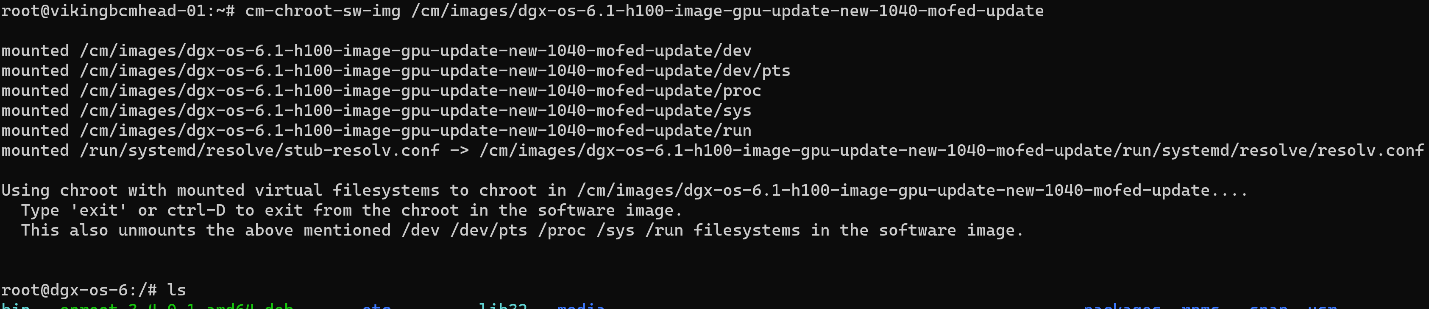
Extract the files:
cd /tmp tar -xzvf MLNX_OFED_LINUX-23.10-0.5.5.0-ubuntu22.04-x86_64.tgz # Change into the new directory cd MLNX_OFED_LINUX-23.10-0.5.5.0-ubuntu22.04-x86_64
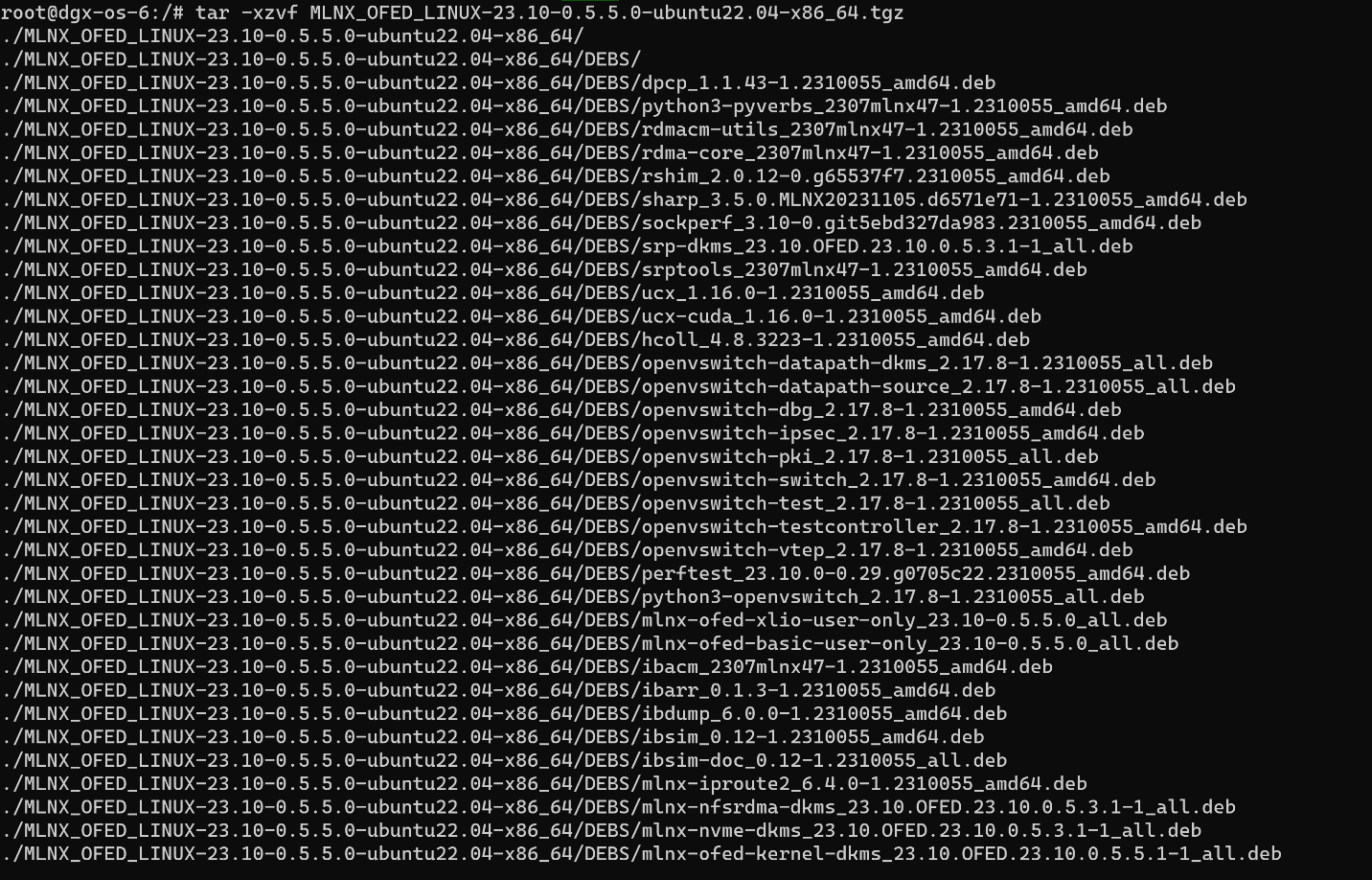

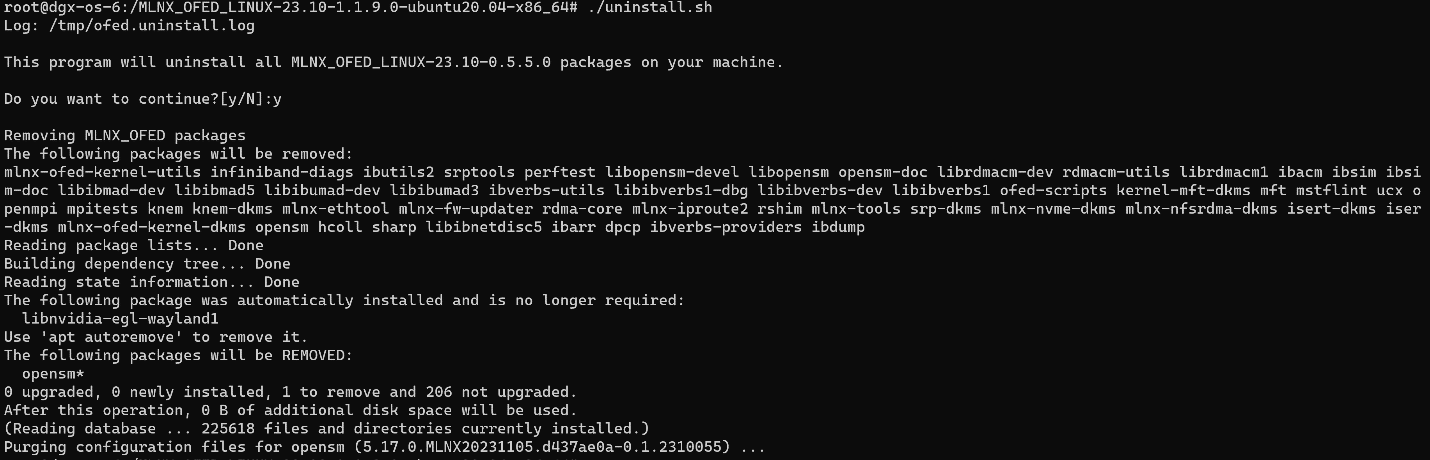
Uninstall the existing version.
./uninstall.sh
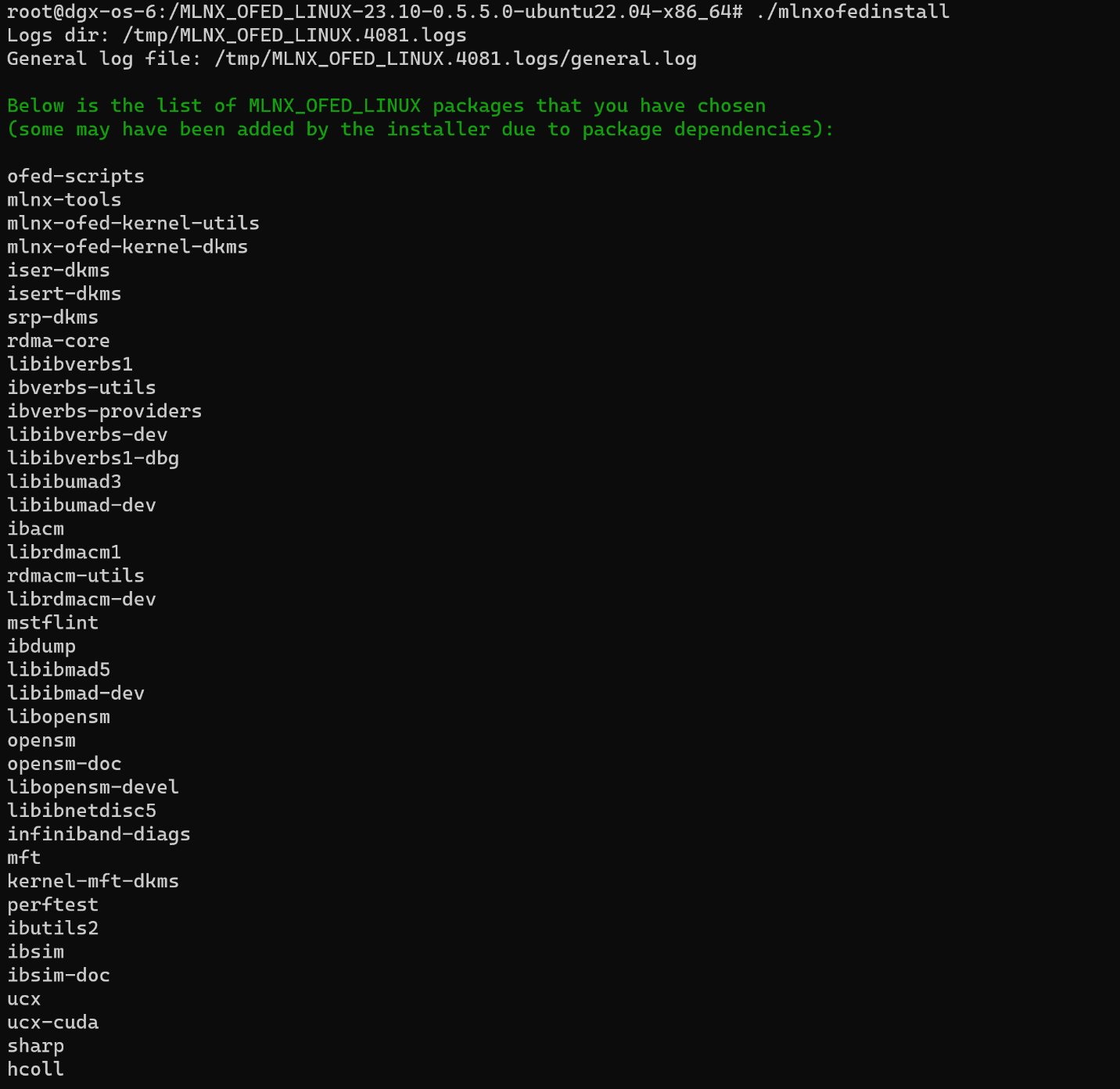
Install the new version specifying the kernel version used by the DGX nodes determined earlier.
./mlnxofedinstall --without-dkms --add-kernel-support --kernel 5.15.0-1042-nvidia --without-fw-update --force
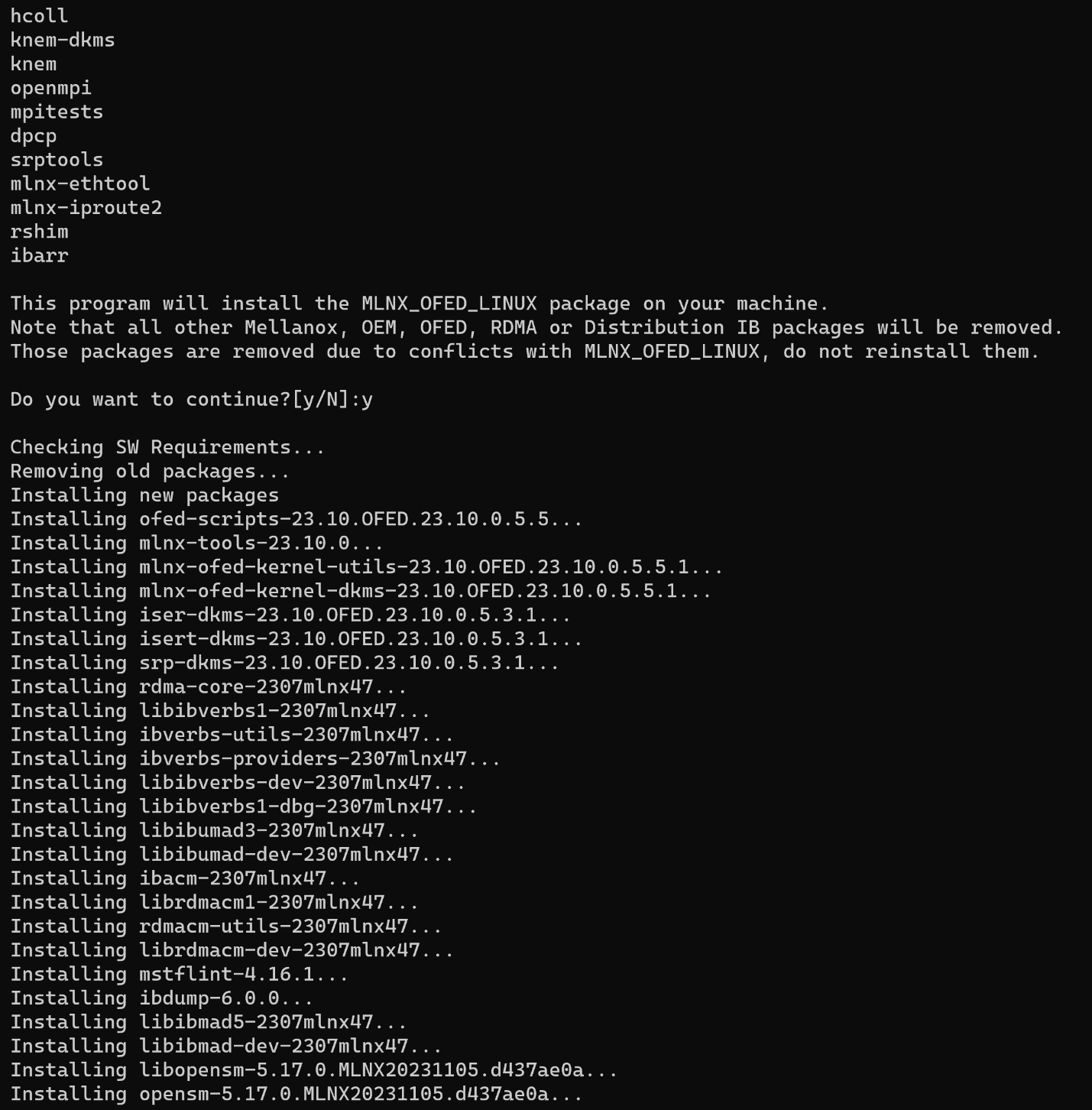
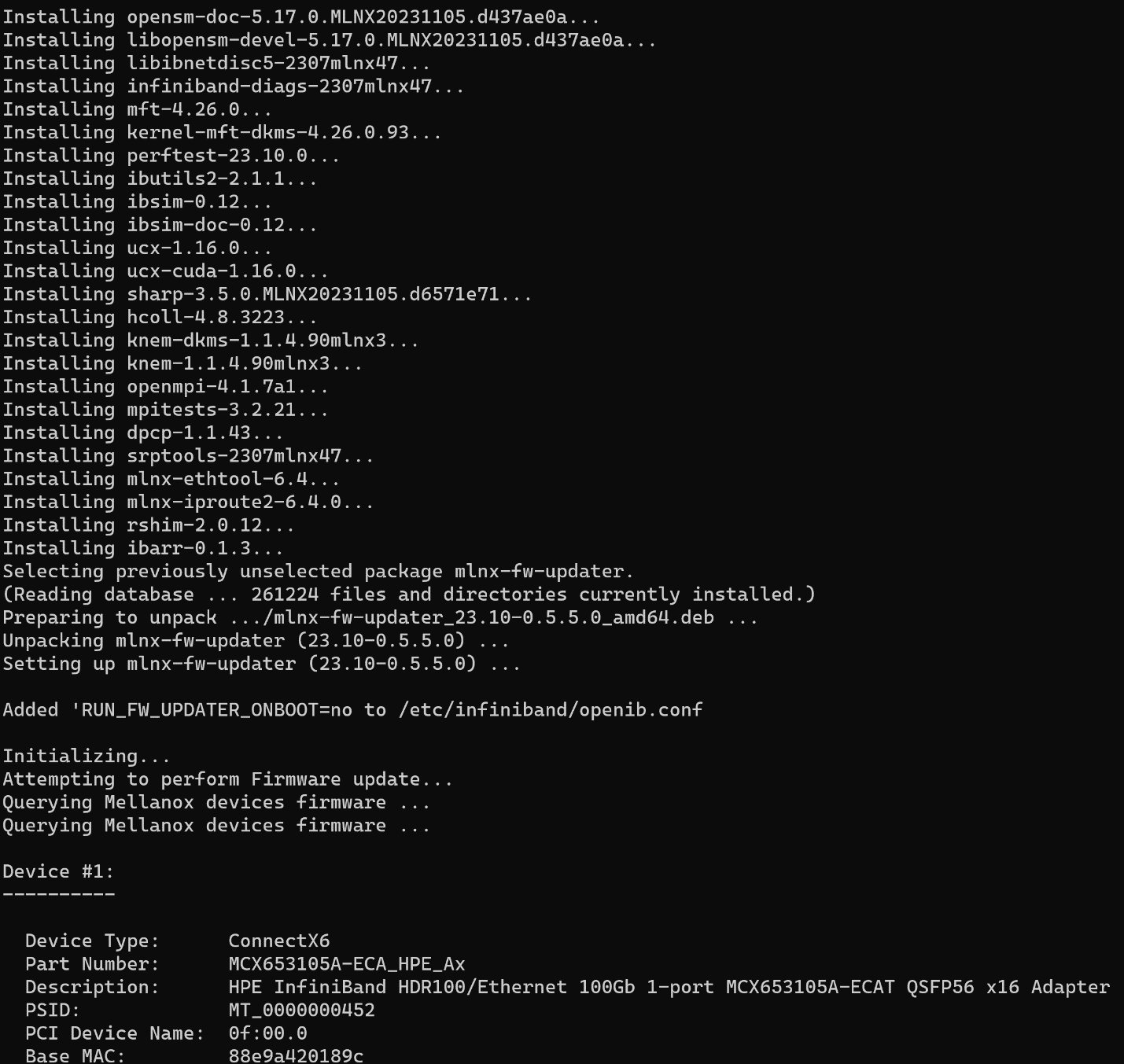
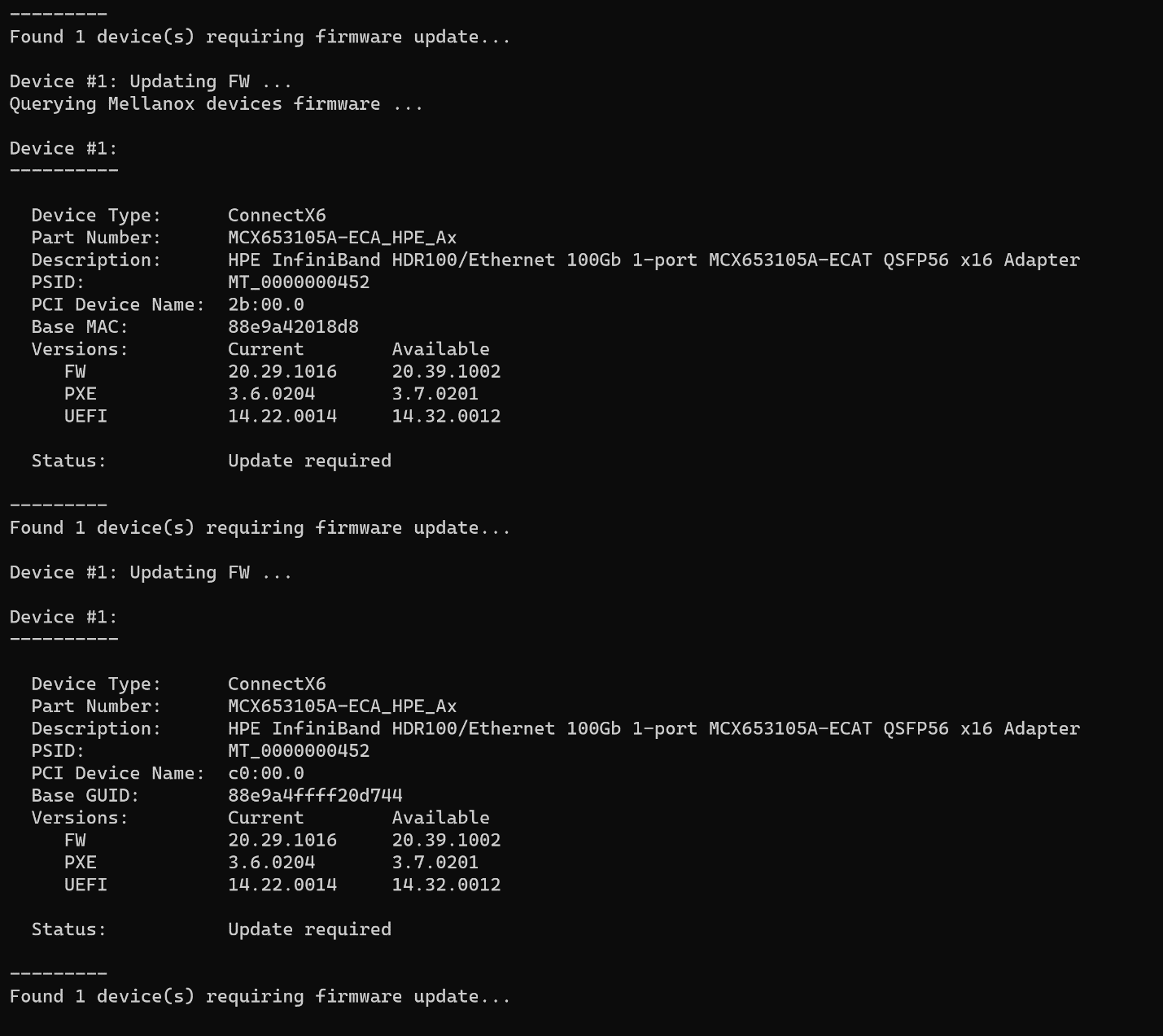
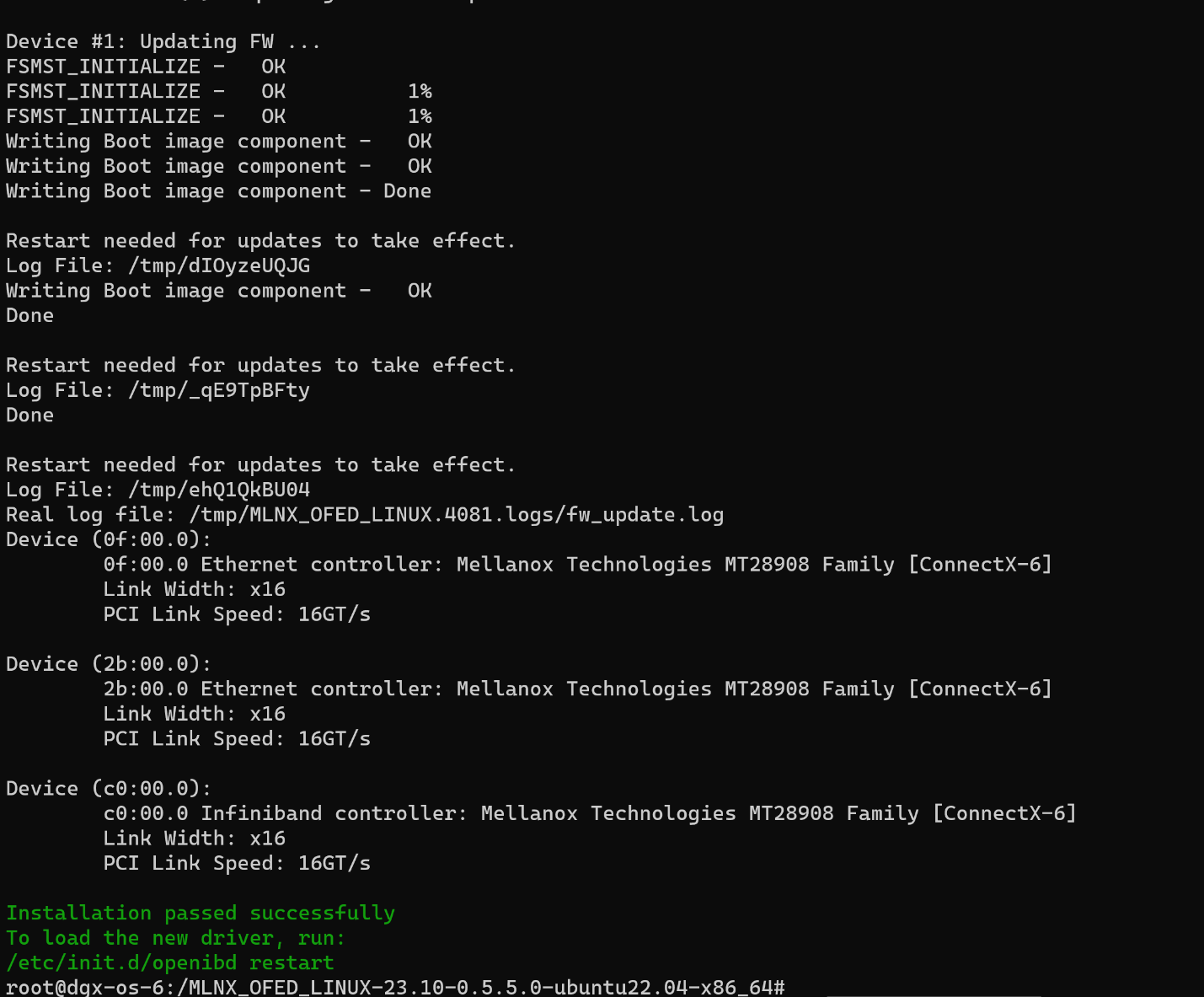
If an error for ucx-cuda is encountered, do the following additional steps.

# Clean up failed packages root@dgx-os-6:/# apt --fix-broken install # Install MOFED without the ucx-cuda package root@dgx-os-6:/# ./mlnxofedinstall --without-dkms --add-kernel-support --kernel 5.15.0-1042-nvidia --without-fw-update --force --without-ucx-cuda # Validate the version of ucx installed root@dgx-os-6:/# apt list ucx # Download the latest ucx-cuda version matching the version of ucx, in this case 1.16. # The latest 1.16 version removed the dependency encountered in the previous step. root@dgx-os-6:/# wget https://github.com/openucx/ucx/releases/download/v1.16.0/ucx-1.16.0-ubuntu22.04-mofed5-cuda12-x86_64.tar.bz2 # Extract the files root@dgx-os-6:/# tar -xvjf ucx-1.16.0-ubuntu22.04-mofed5-cuda12-x86_64.tar.bz2 # Install the ucx-cuda package root@dgx-os-6:/# dpkg -i ucx-cuda-1.16.0.deb # Validate the version of the ucx-cuda installed root@dgx-os-6:/# apt list ucx-cuda Listing… Done ucx-cuda/now 1.16.e4bb802 amd64 [installed,local]
Validate the version on the image.
root@dgx-os-6:/# ofed_info -s MLNX_OFED_LINUX-23.10-0.5.5.0:
Reinstall additional packages for H100/H200 Systems then exit chroot.
# H100 Based Systems root@dgx-os-6:/# apt install -y dgx-h100-system-configurations kdump-tools linux-crashdump nvidia-crashdump nvsm # H200 Based Systems root@dgx-os-6:/# apt install -y dgx-h200-system-configurations kdump-tools linux-crashdump nvidia-crashdump nvsm root@dgx-os-6:/# exit
Create the ramdisk of the new image.
root@demeter-headnode-01:~# cmsh [demeter-headnode-01]% softwareimage [demeter-headnode-01->softwareimage]% use dgx-os-6.1-h100-image [demeter-headnode-01->softwareimage[dgx-os-6.1-h100-image]]% createramdisk
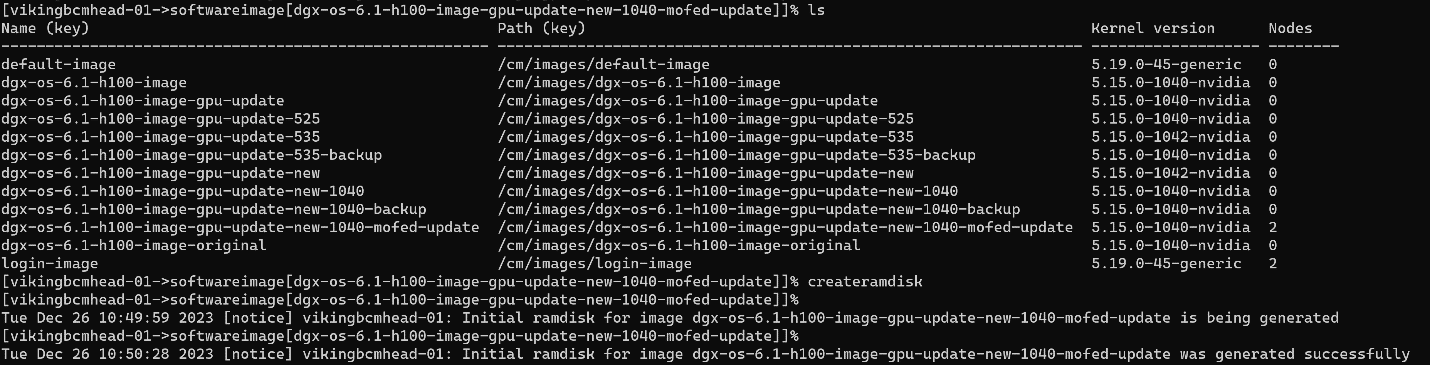
Validate the new image is applied to the expected category of DGX nodes.
root@demeter-headnode-01:~# cmsh [demeter-headnode-01]% category [demeter-headnode-01->category]% list
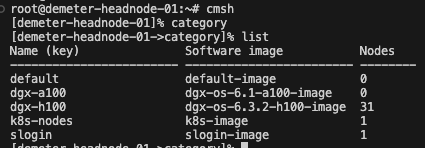
Reboot the node category to apply it system wide or reboot each individual node at a time.
root@demeter-headnode-01:~# cmsh
[demeter-headnode-01]% device
[demeter-headnode-01->device]% reboot -c dgx-h100
Verify the MOFED version is updated on the DGX nodes after the reboots are completed.
pdsh -w dgx-[01-31] ofed_info -s | sort
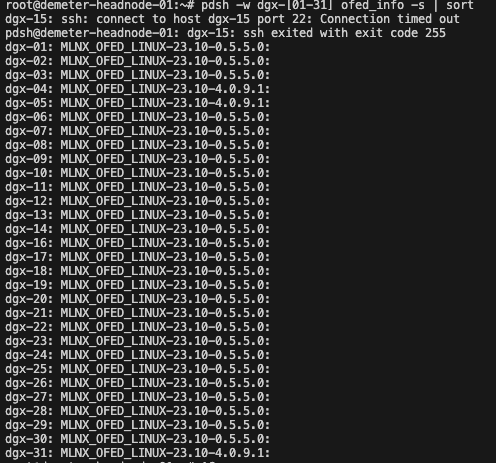
DOCA OFED Transition#
Since MOFED has now migrated to DOCA, NVIDIA recommends DGX BasePOD and SuperPod customers to update the latest DOCA drivers using BCM software and the following steps.
Update steps via BCM to the DGX OS 6
Switch to the target image.
cm-chroot-sw-img /cm/images/dgx-os-6.3.2-h100-image-DOCA/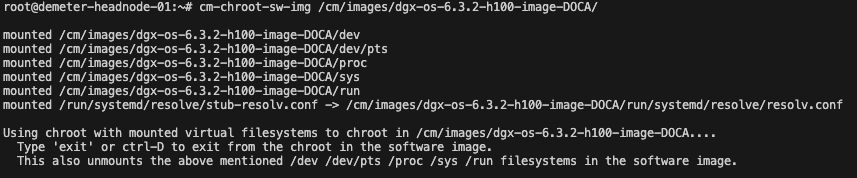
Remove the existing MOFED or old DOCA versions following the instructions found on the DOCA Installation and Upgrade guide.
# Uninstall DOCA packages
for f in $( dpkg --list | grep -E 'doca|flexio|dpa-gdbserver|dpa-stats|dpaeumgmt' | awk '{print $2}' ); do echo $f ; sudo apt remove --purge $f -y ; done

# Uninstall OFED packages
/usr/sbin/ofed_uninstall.sh --force

apt autoremove
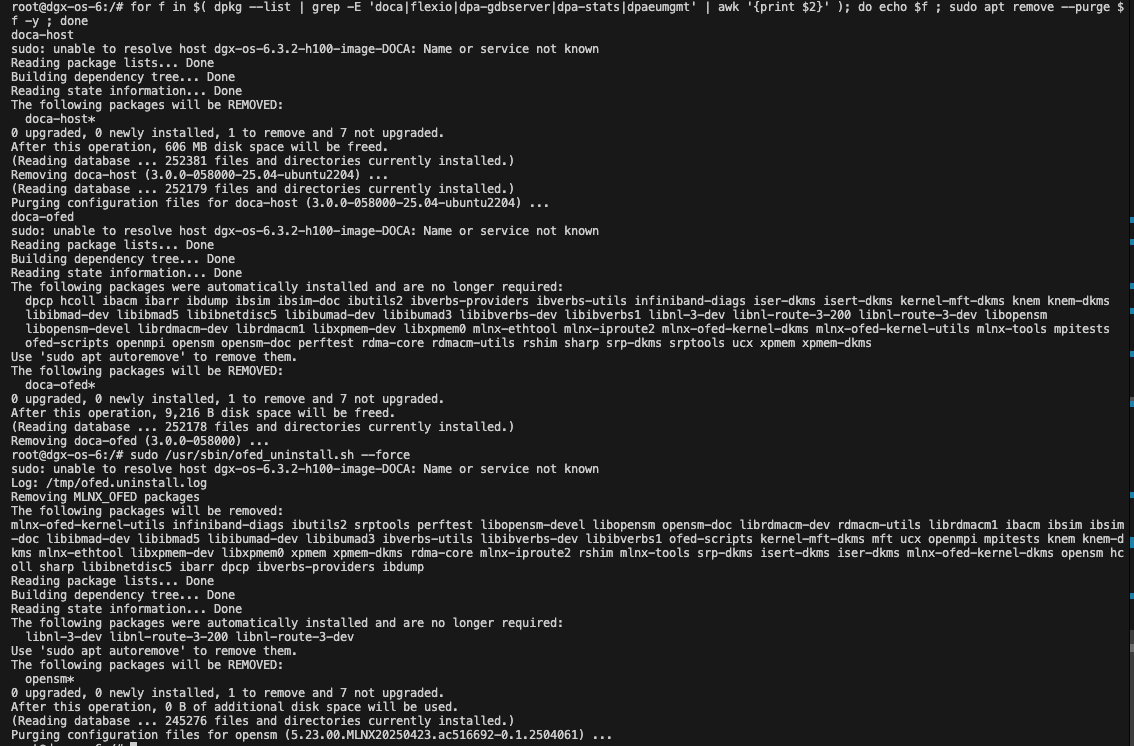
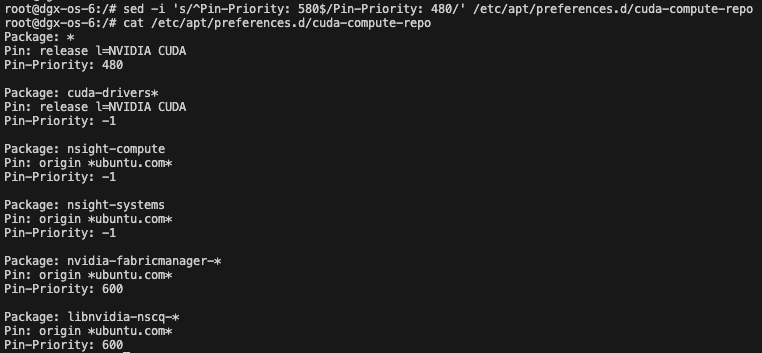
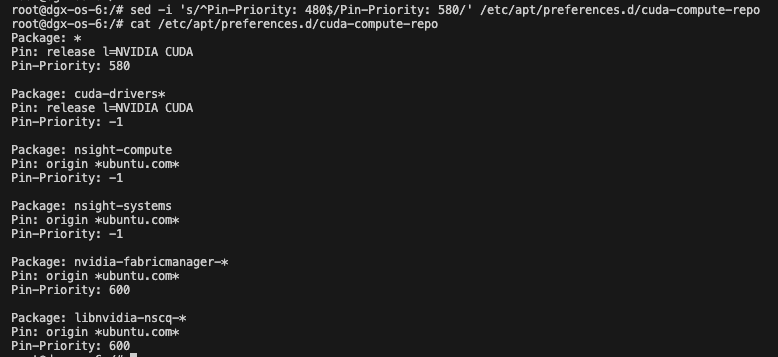
Change the CUDA repo preferences from the default of 580 to 480 as the newly added repo will have the default value of 500. Otherwise, the MFT package will install at an earlier version which is incompatible with the DOCA driver. This will be changed to default after the install procedure is completed.
sed -i 's/^Pin-Priority: 580$/Pin-Priority: 480/' /etc/apt/preferences.d/cuda-compute-repo
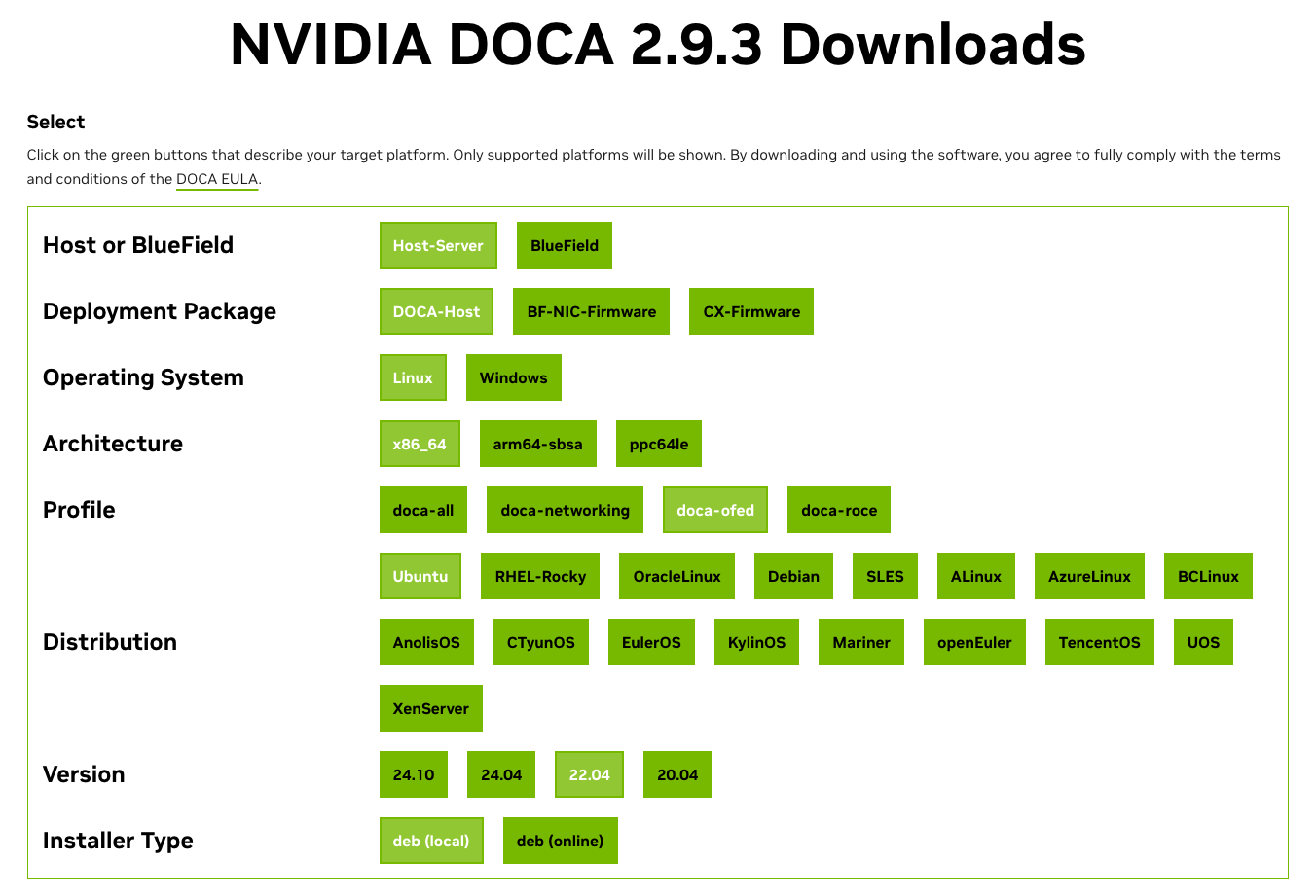
Go to the DOCA downloads page and select the appropriate OS and package. The instructions assume a local installer. The system here is based on DGX OS 6, which is an Ubuntu x86 version 22.04.
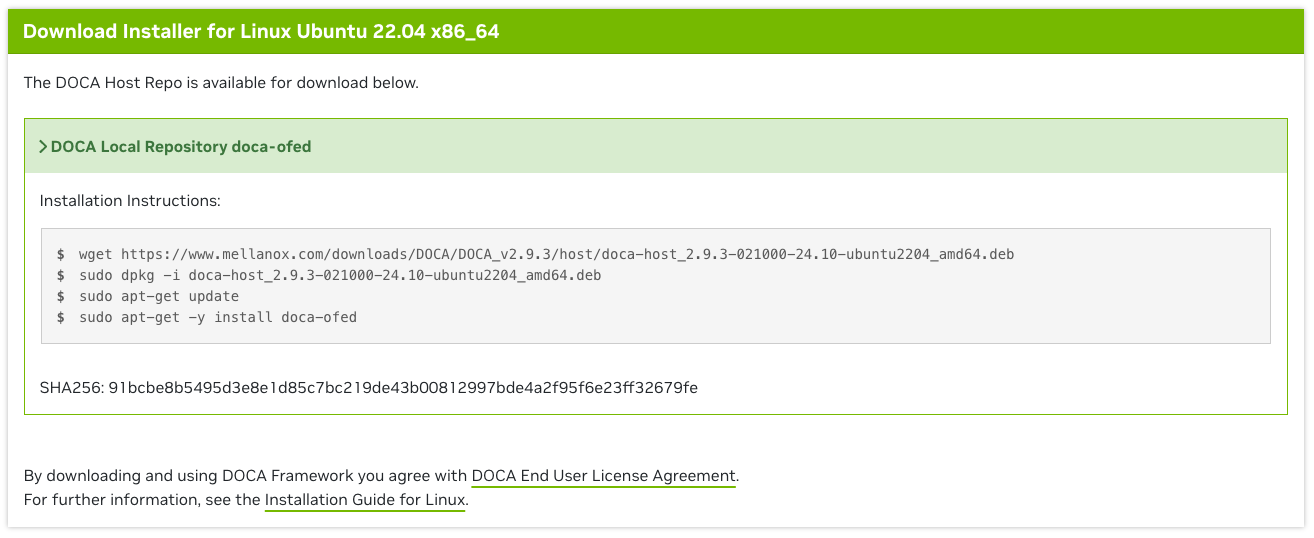
By selecting the appropriate system and the deb(local) or the offline installer instruction will be displayed. The local mode is preferred since it will have all the packages necessary to manage the Connect-X based cards. Copy out the output into the BCM image.
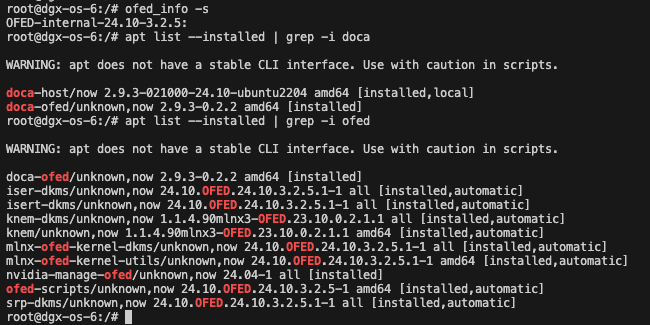
Once the installation is completed, validate the DOCA version and the driver versions are installed.
ofed_info -s
apt list --installed | grep -i doca
apt list --installed | grep -i ofed
Change the CUDA repo preferences back to the default.
sed -i 's/^Pin-Priority: 480$/Pin-Priority: 580/' /etc/apt/preferences.d/cuda-compute-repo
Perform steps 10-14 in the MOFED section to apply and validate the new drivers.