

NVIDIA Mission Control autonomous job recovery (air-gapped)#
Install NVIDIA Mission Control autonomous job recovery in air-gapped mode using the BCM cm-mission-control-setup wizard. The bundle must be present in the current directory and the local registry must be configured to pull images from the bundle.
For a Run:ai mode deployment, complete these prerequisites before you install Mission Control autonomous job recovery:
Use separate admin and user/workload Kubernetes clusters.
Deploy the user/workload Kubernetes cluster with the Kubeflow Training Operator.
Complete the Run:ai Installation on the user/workload Kubernetes cluster and verify that Run:ai is operational.
Leave the Run:ai advice restart controller disabled until after Mission Control autonomous job recovery is installed. Enable it as described in Enable the Run:ai integration.
Download all Mission Control autonomous job recovery files and related packages with the
nmc-airgaptool. Follow Downloading NVIDIA Mission Control Artifacts with nmc-airgap and Helper Scripts to download and transfer the bundle.Install the Mission Control autonomous job recovery plugin package from the bundle on all BCM head nodes. The installation wizard fails if this package is not installed on every BCM head node:
dpkg -i bundle/files/cm-setup-ajr-*.deb
For Run:ai mode, complete the following steps before deploying the Mission Control autonomous job recovery user-cluster operators. The same requirements apply to connected and air-gapped installations.
Confirm that the installed
cm-setup-ajrpackage includes the placement change introduced in version 2.5.9. It gives the advice and job operators required affinity for either thecontrol-plane,master, orrunai-systemrole label and tolerations for standard control-plane and masterNoScheduletaints.Require the control-plane role for both
heimdall/heimdall-advice-operatorandheimdall/heimdall-job-operatorin their initial installation values. The installer’s role alternatives alone permit a node with only the system label. Add a control-plane node selector for each operator; the installer preserves configured selectors alongside its required affinity.For control-plane role labels with empty values, use the following chart values fragment:
nodeSelector:
  node-role.kubernetes.io/control-plane: ""
Inspect the destination nodes’ labels and use the actual label value if it differs. Preserve existing selectors as additional constraints.
Before deployment, verify that both operators’ rendered pod templates require control-plane placement and tolerate the destination nodes’ taints. Keep the
heimdall-log-collectorDaemonSet on the nodes whose logs it collects, including compute nodes.
Follow the Mission Control autonomous job recovery installation guide at Installation Guide for NVIDIA Mission Control autonomous job recovery with the following notes and modifications:
3.1 Configure the local artifact sources before starting the wizard.
Export the following variables in the shell where you run the wizard. Replace the paths and registry addresses with the locations in your environment:
export REGISTRY="master.cm.cluster:5000/nvidia/nv-mission-control"
export HELM_REPO_URL="file:///root/ajr/bundle/helm"
export ALLOY_HELM_REPO_URL="oci://master.cm.cluster:5000/helm-charts/alloy"
export ALLOY_REGISTRY="master.cm.cluster:5000"
REGISTRYis the local image prefix for Mission Control autonomous job recovery images.HELM_REPO_URLis the absolutefile://directory containing thewarthog-<version>.tgzchart archive. In Run:ai mode, this directory must also contain theheimdall-log-collector,heimdall-advice-operator, andheimdall-job-operatorchart archives at the versions required by the bundle.ALLOY_HELM_REPO_URLis the local Grafana Alloy chart source used in Slurm mode.ALLOY_REGISTRYis the registry for the Grafana Alloy images used in Slurm mode.
Import the chart and container images before you run the wizard, as described in Importing Artifacts into the Air-Gapped Environment.
REGISTRYredirects only Mission Control autonomous job recovery images. Other bundled images retain their own chart settings and must also be available through the configured local sources.The installer saves these settings in its configuration and resolves the core service image version from the local chart archive. Enter the endpoint FQDN in the wizard, using the DNS name that matches your TLS certificate. In Slurm mode, the installer configures the BCM read-only LDAP password. No package-file patch is required.
Install and configure NMC Gateway (air-gapped) before deploying Mission Control autonomous job recovery. The shared Gateway HTTPS listener and its certificate must accept the endpoint FQDN, and the listener must allow routes from
heimdall. Follow Create the TLS secret for the certificate and Reach the NMC interfaces for DNS and BCM head node forwarding.3.2 Run the
cm-mission-control-setupwizard with the--skip-packagesoption, which is required in air-gapped environments:cm-mission-control-setup --skip-packages3.3 The Helm chart repository is not used when installing Mission Control autonomous job recovery in air-gapped mode. If prompted, enter placeholder values for the Helm repository username and password.
3.4 During the installation wizard, the air-gapped flow differs from the connected guide on the following screens:
The installer reads the Warthog chart version from the chart metadata in the local directory specified by
HELM_REPO_URL. In Run:ai mode, it reads the log collector, advice operator, and job operator versions in the same way and skips their version prompts. Local chart versions take precedence over wizard selections and saved configuration.If the directory contains multiple versions of a chart, the installer selects the highest version. To install the versions from your release bundle, use a directory that contains only that bundle’s charts.
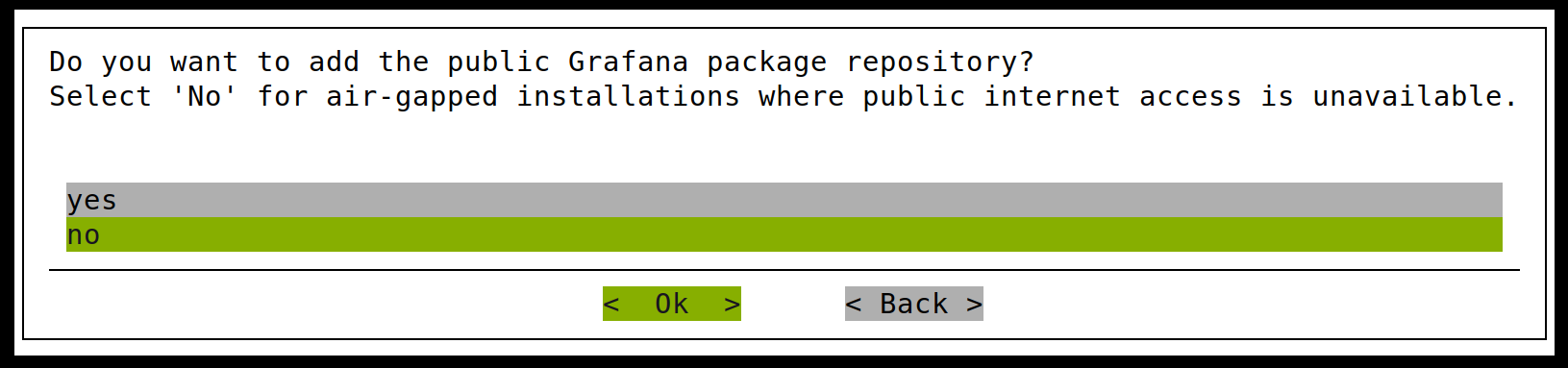
The Grafana public package repository prompt appears only in Slurm mode. Select no because this repository is not reachable in air-gapped mode. In Run:ai mode, the wizard omits this screen.
In Slurm mode, the wizard then prompts for the location of the Grafana Alloy packages downloaded by the
nmc-airgaptool. Enter the package location in the Path field, or select a folder with the directory picker and select OK. The wizard verifies that the required packages are present before proceeding. The Alloy packages are installed in the required images during deployment.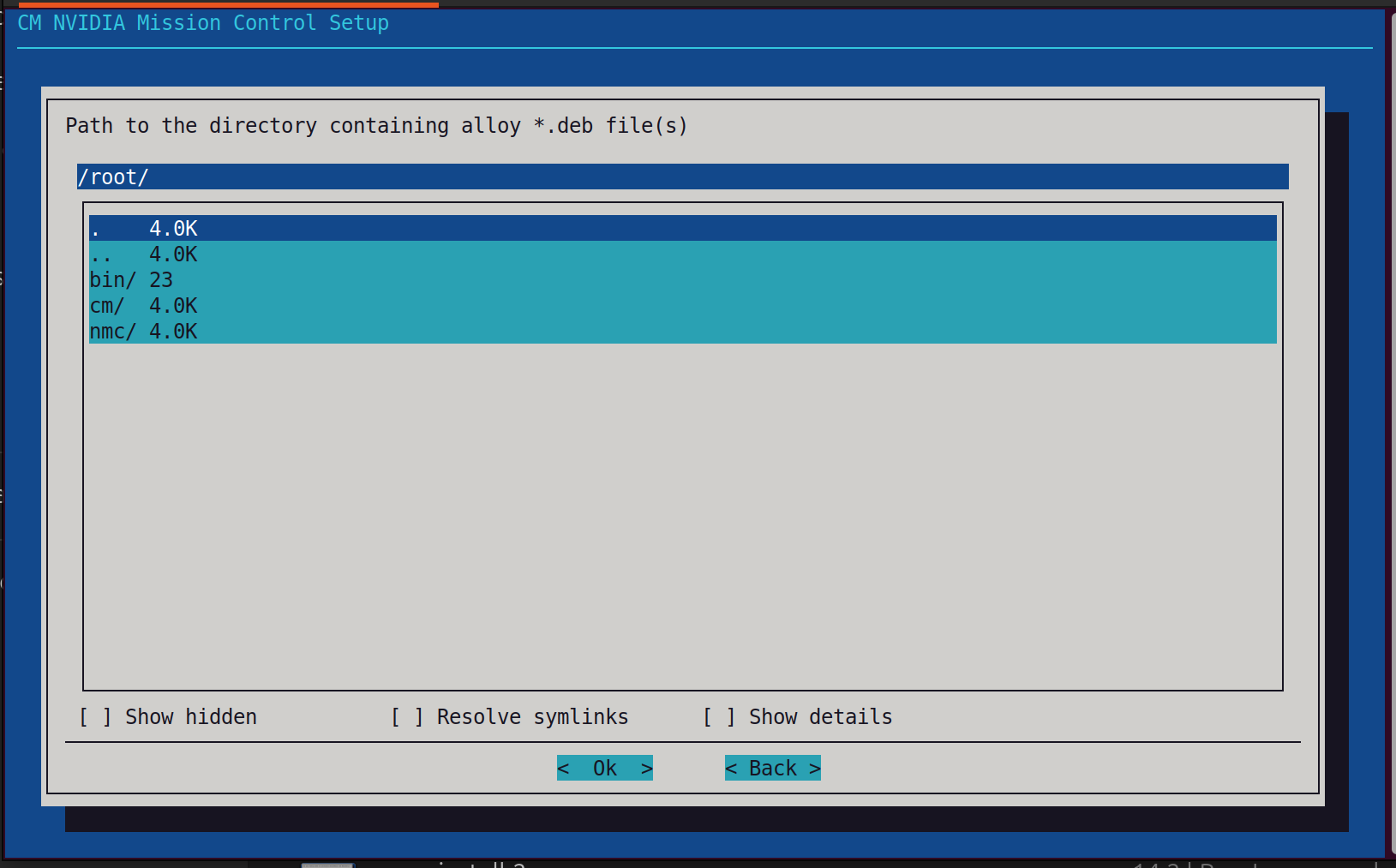
On the final screen, you must select Save config & deploy for the Alloy packages to be deployed during the air-gapped installation.
After you deploy Mission Control autonomous job recovery in Run:ai mode, switch to the user cluster and verify the named Deployments and their pods:
module switch kubernetes/k8s-user
kubectl -n heimdall get deployment heimdall-advice-operator -o yaml
kubectl -n heimdall get deployment heimdall-job-operator -o yaml
kubectl -n heimdall get pods -o wide
Both operators must be Ready on the intended control-plane nodes, and their templates must enforce that placement for replacement pods. Verify operator health and confirm that the log collector still covers compute nodes. Stop if either operator is missing, remains Pending, or permits compute-node placement.
After the installation finishes, complete Mission Control autonomous job recovery post-installation steps and Mission Control autonomous job recovery verification steps. In Run:ai mode, complete Enable the Run:ai integration before those steps.