
Staging and Installing Artifacts#
Complete Initial Host Preparations before starting these steps.
Perform all steps in this topic on the active BCM head node of the air-gapped BCM cluster.
This topic deploys both Kubernetes clusters that NVIDIA Mission Control uses: k8s-admin and k8s-user. Steps that apply to both clusters are performed once. Steps that need a per-cluster action call out each cluster separately.
Reference environment#
Air-gapped (no internet) BCM cluster
Kubernetes version 1.35 (use
1.35in wizard and configuration)BCM version 11.34
Ubuntu 24.04
Prerequisites#
airgapped.tgzis present on the active BCM head node (transferred via USB or other removable media).The cluster has no internet access.
You have root access on the active BCM head node.
Shared storage meets Shared Storage Requirements on every node selected for
k8s-admin.The Run:ai air-gapped tarball is included in the transferred archive, as described in Initial Host Preparations.
Step 1: BCM Setup Assistant#
The cm-kubernetes-setup tool, included with BCM 11, handles Kubernetes installation. Running the wizard generates /root/cm-kubernetes-setup.conf, which later deploys the k8s-admin administrative cluster. You then generate a second configuration for the k8s-user cluster. Save both configurations before you continue.
Generate the k8s-admin configuration#
From the active BCM head node, run the setup wizard in air-gap mode:
cm-kubernetes-setup --airgap-registry master.cm.cluster:5000 --airgap-registry-as-helm
Replace master.cm.cluster:5000 if your container registry uses a different address.
Important
For an air-gapped deployment, select Save config & exit at the end of the wizard (step 30). Do not deploy yet — complete Steps 2–7 in this topic before you deploy in Step 8.
Setup steps#
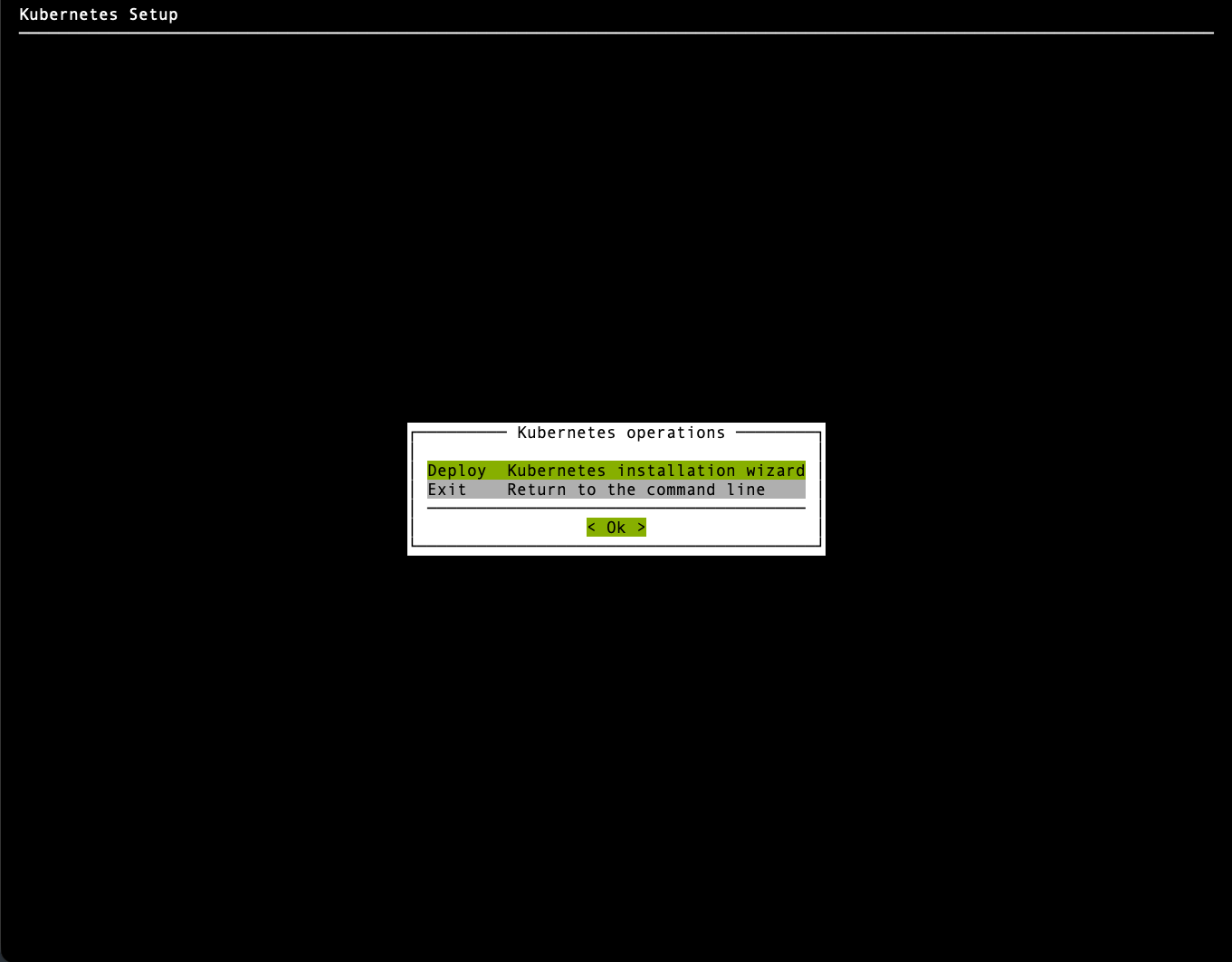
Choose Deploy and then select Ok.
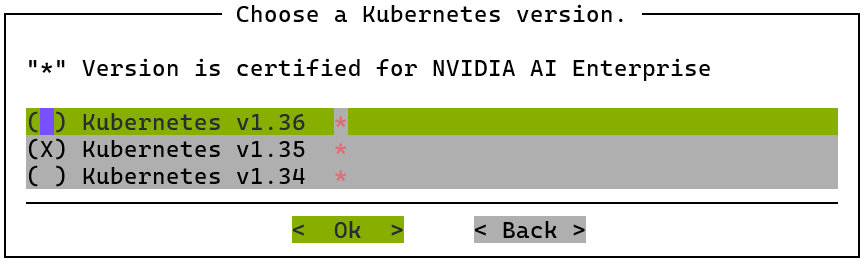
Choose Kubernetes version v1.35 and then select Ok.
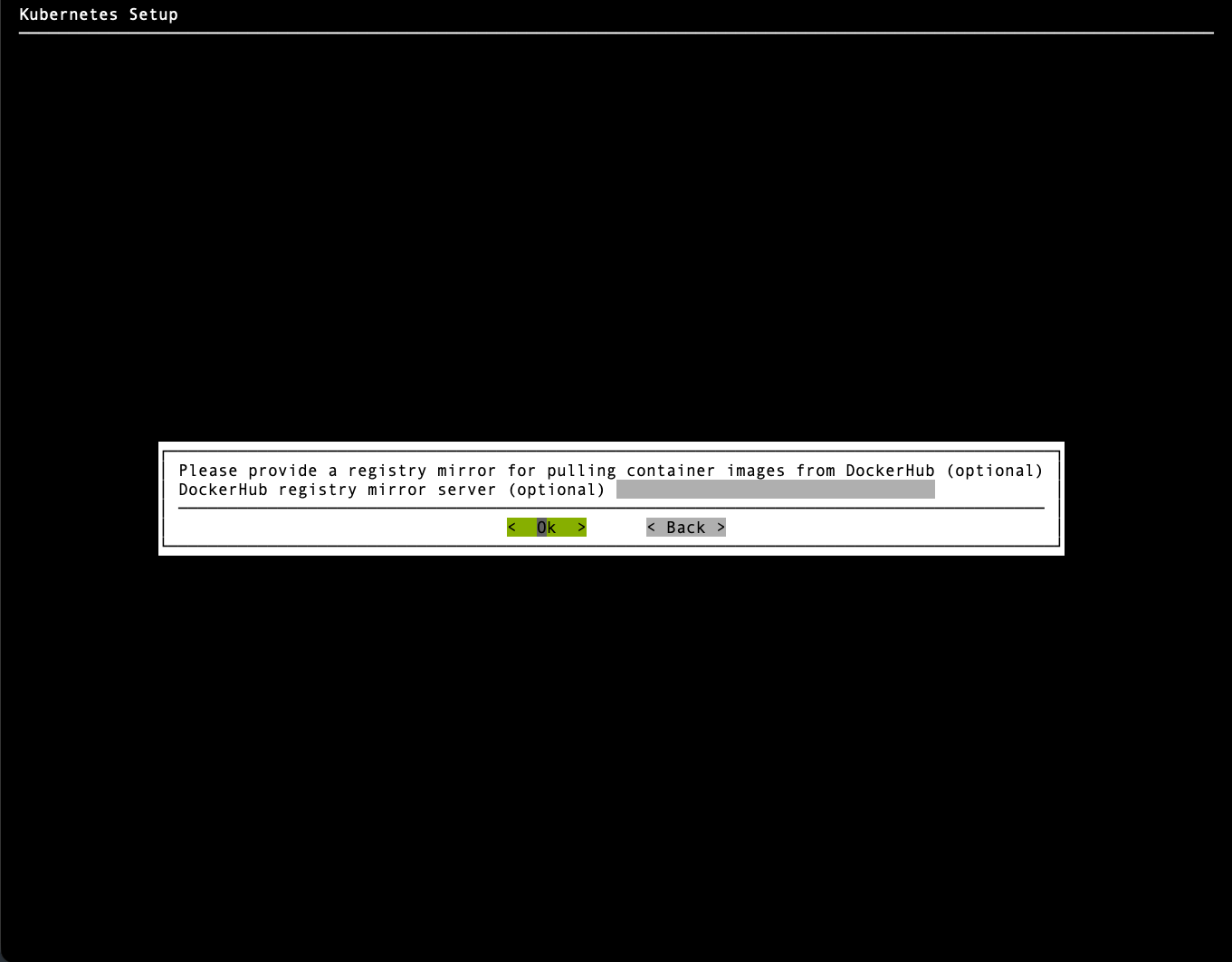
Provide a container registry mirror, if available; otherwise leave blank.
Set Kubernetes cluster name to
k8s-admin. The wizard creates the module configuration using this name.a. Subnets must be in private address space (per RFC 1918). Use the defaults unless there is a conflict with existing internal subnets.
b. Configure the domain names to match the Kubernetes External FQDN, using the same domain as in your DNS records.
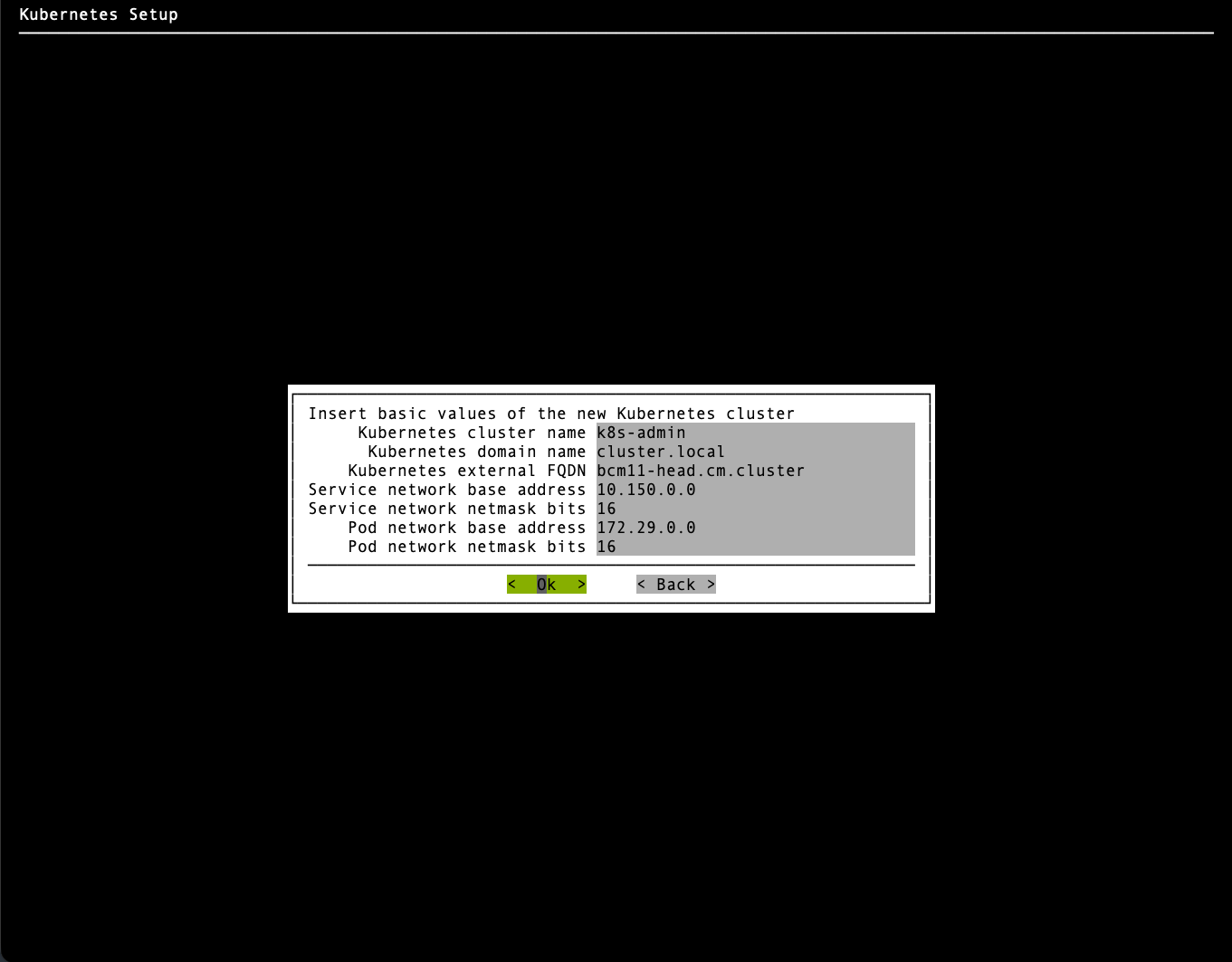
c. Verify that the subnets do not overlap with your existing private IP ranges. The Pod Network subnet cannot be changed without reinstalling the cluster.
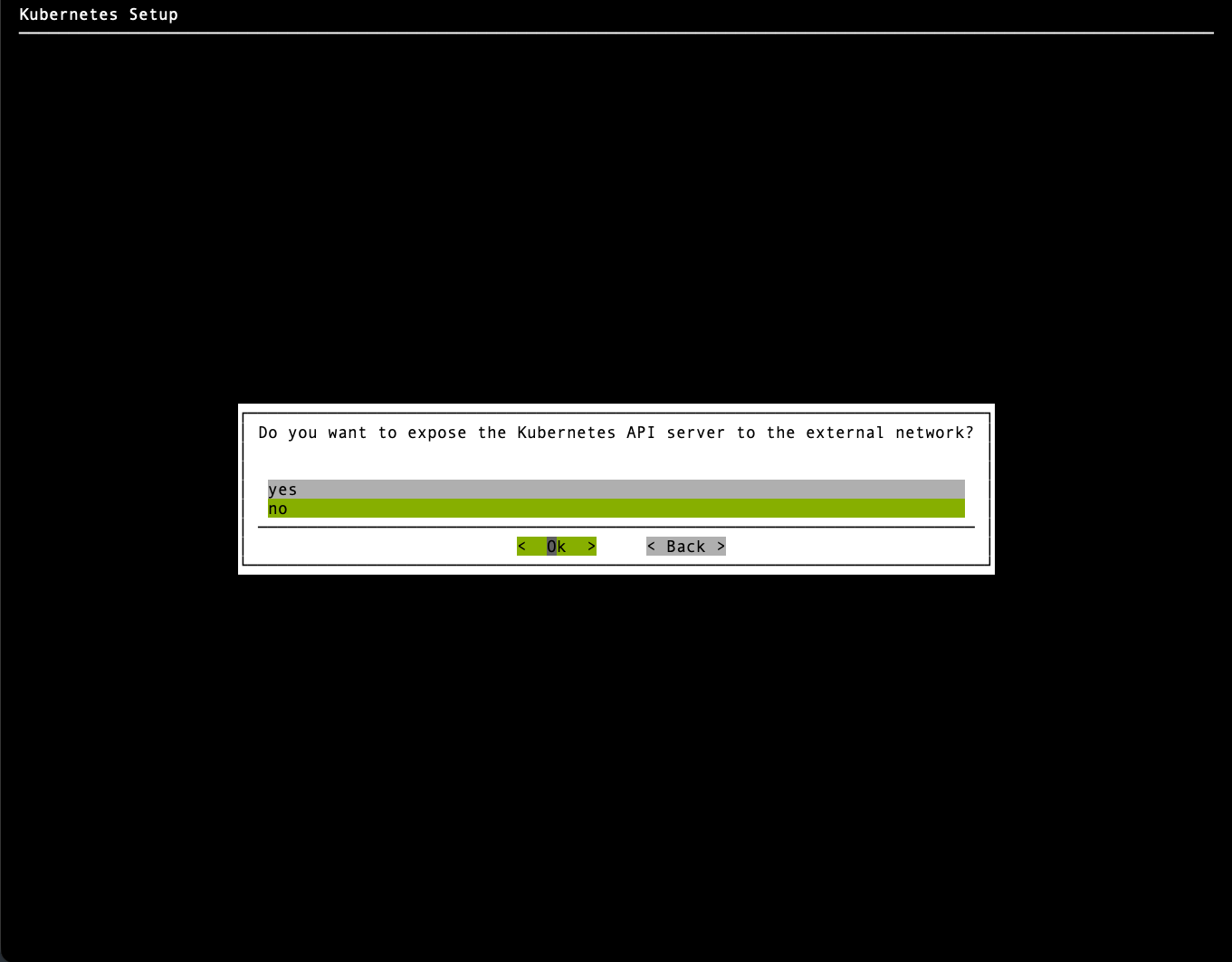
When asked to expose the Kubernetes API servers to the external network, choose no and then select Ok.
The external network is defined in the BCM base partition:
cmsh -c "partition get base externalnetwork"
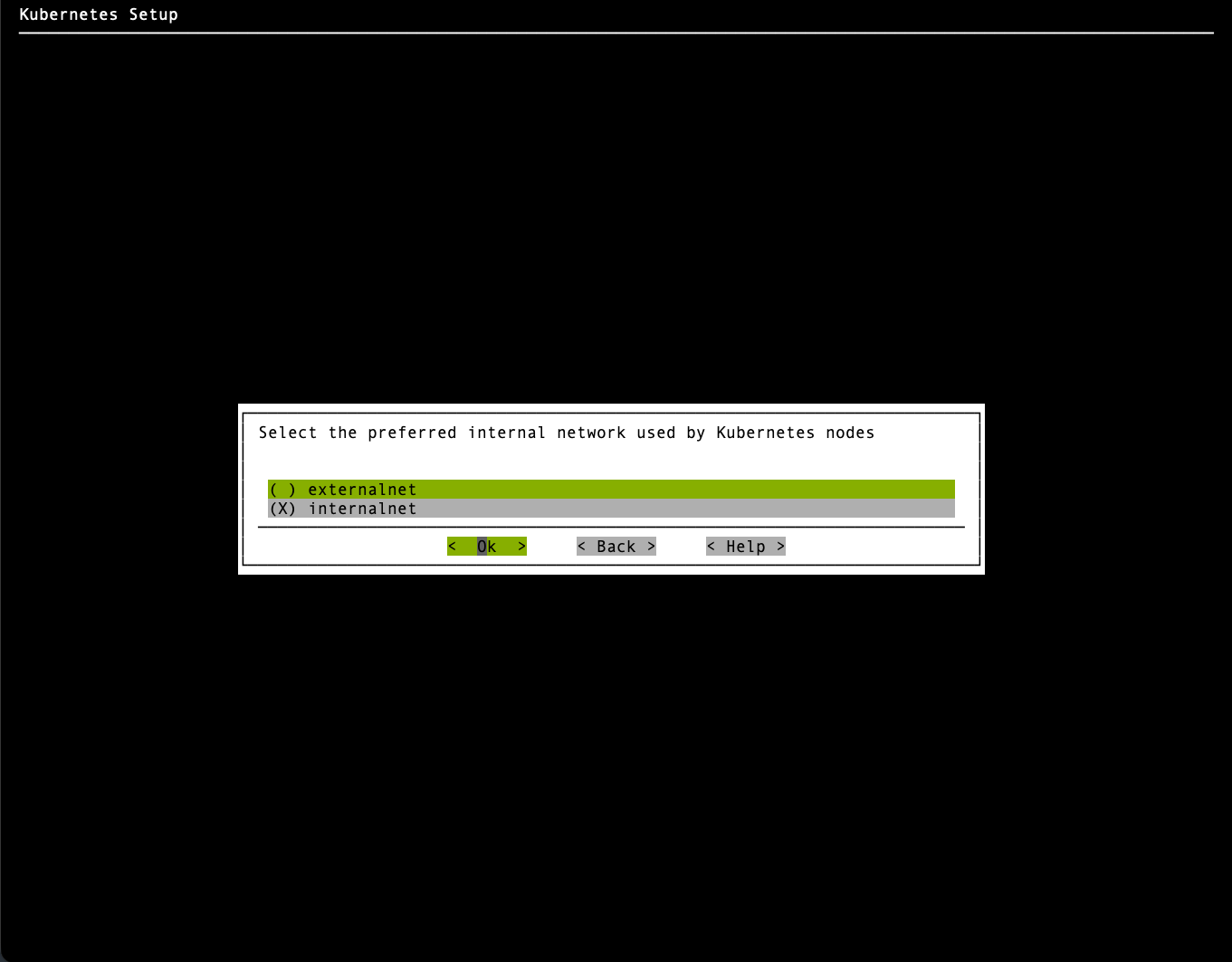
Choose the internal network that the Kubernetes nodes will use.
In a DGX SuperPOD deployment, management and compute nodes may be on different BCM networks. Select the network configured for the Kubernetes nodes you select in the following steps.
Select at least three Kubernetes control plane nodes for the
k8s-admincluster.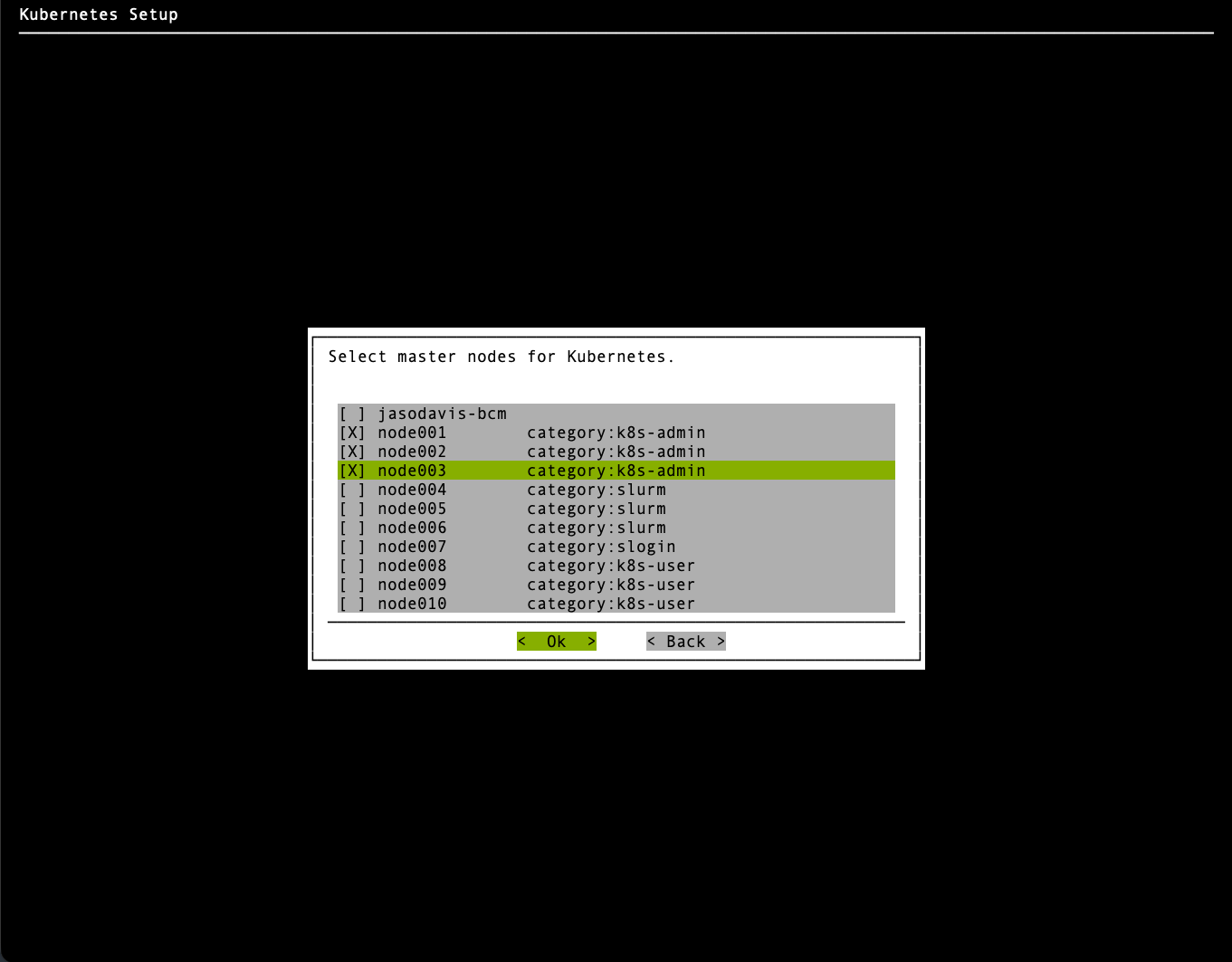
Choose the BCM node categories for the Kubernetes worker node pool.
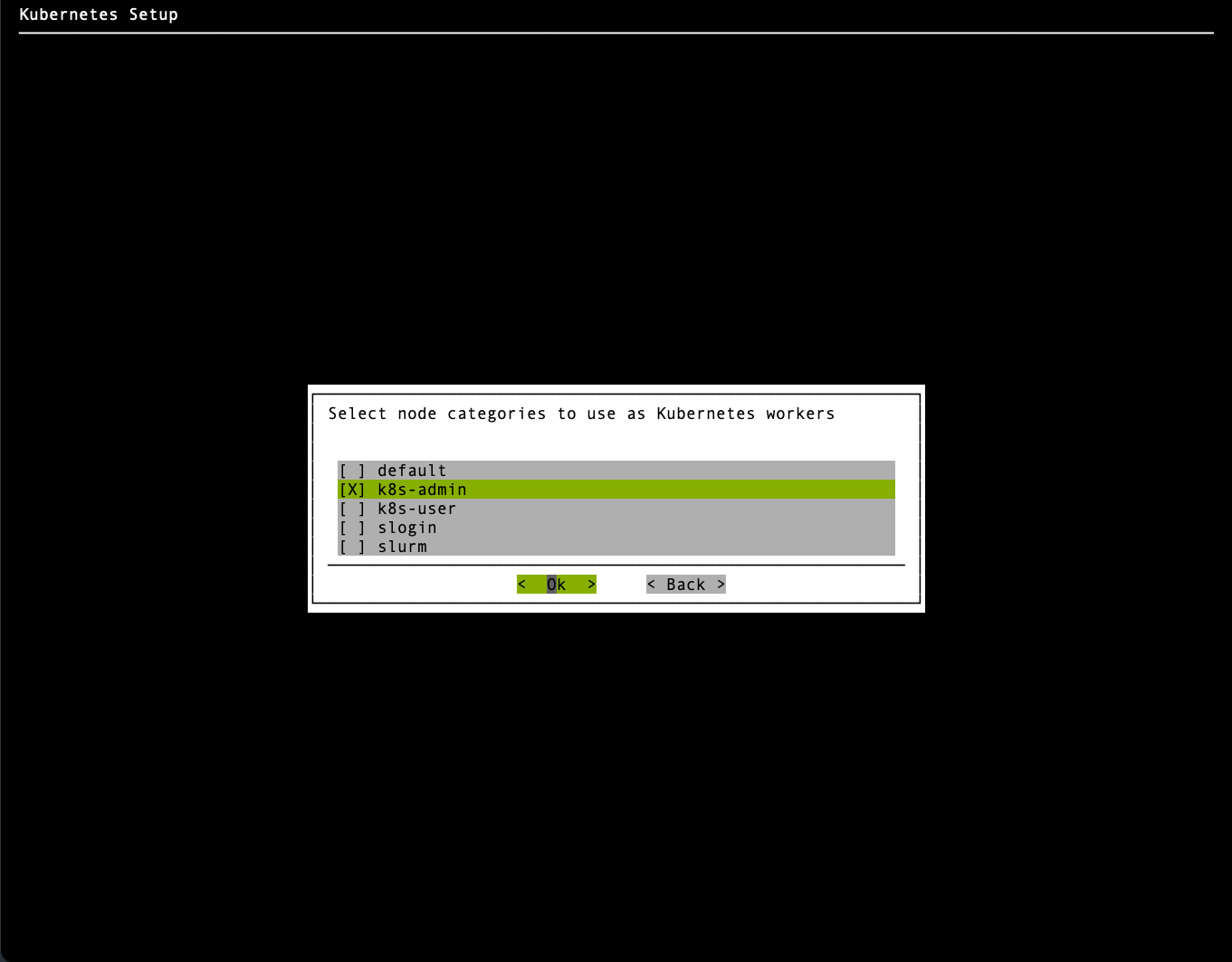
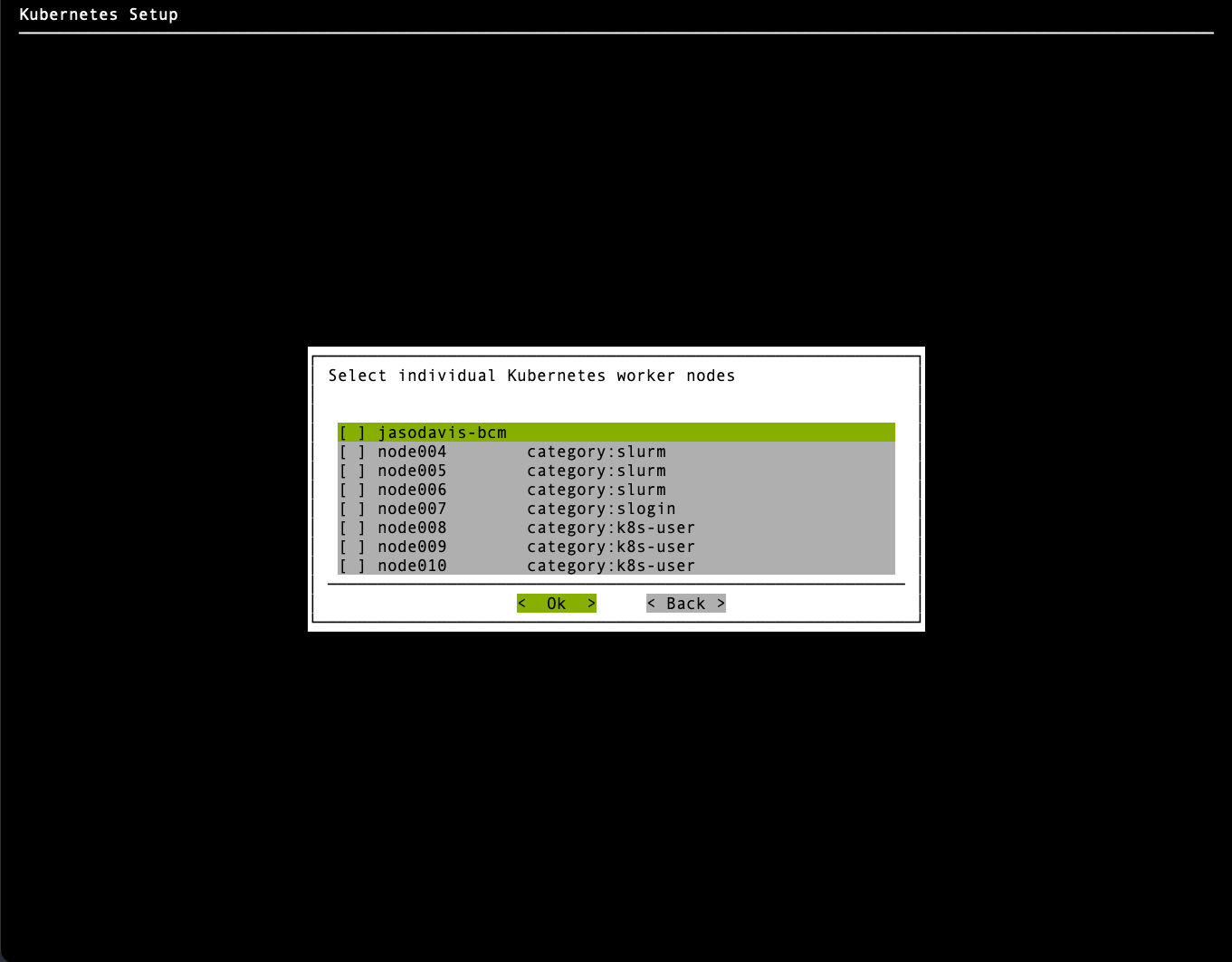
Optional — On the Choose individual Kubernetes worker nodes screen, do not make any selections. Press Ok to continue.
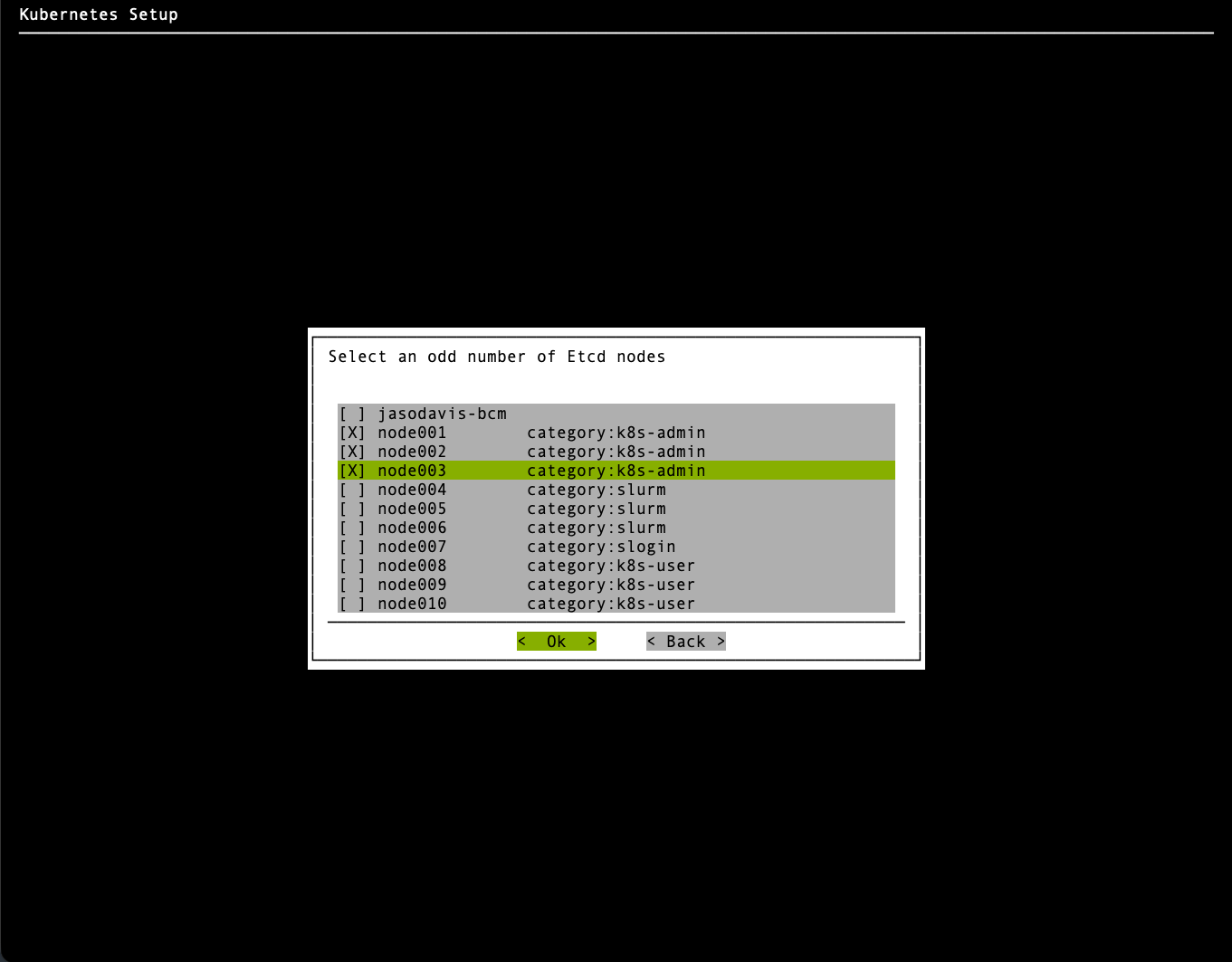
Choose the etcd nodes and then select Ok.
Choose the same three nodes as the Kubernetes control plane nodes.
Note
etcd is a distributed key-value store used as the default storage backend for Kubernetes. For more information, refer to the etcd documentation.
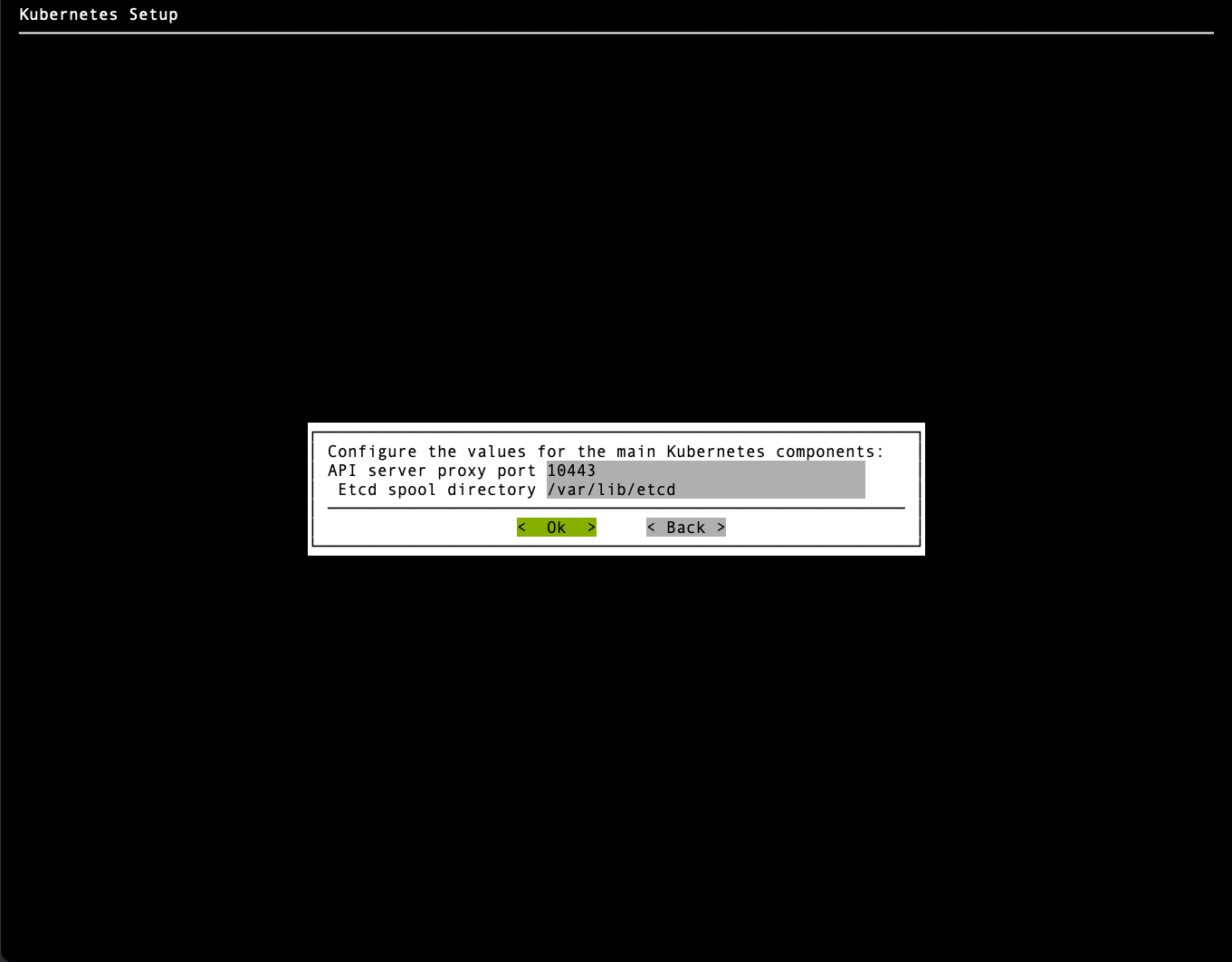
Set the ports as shown in the following example and do not modify the etcd spool directory.
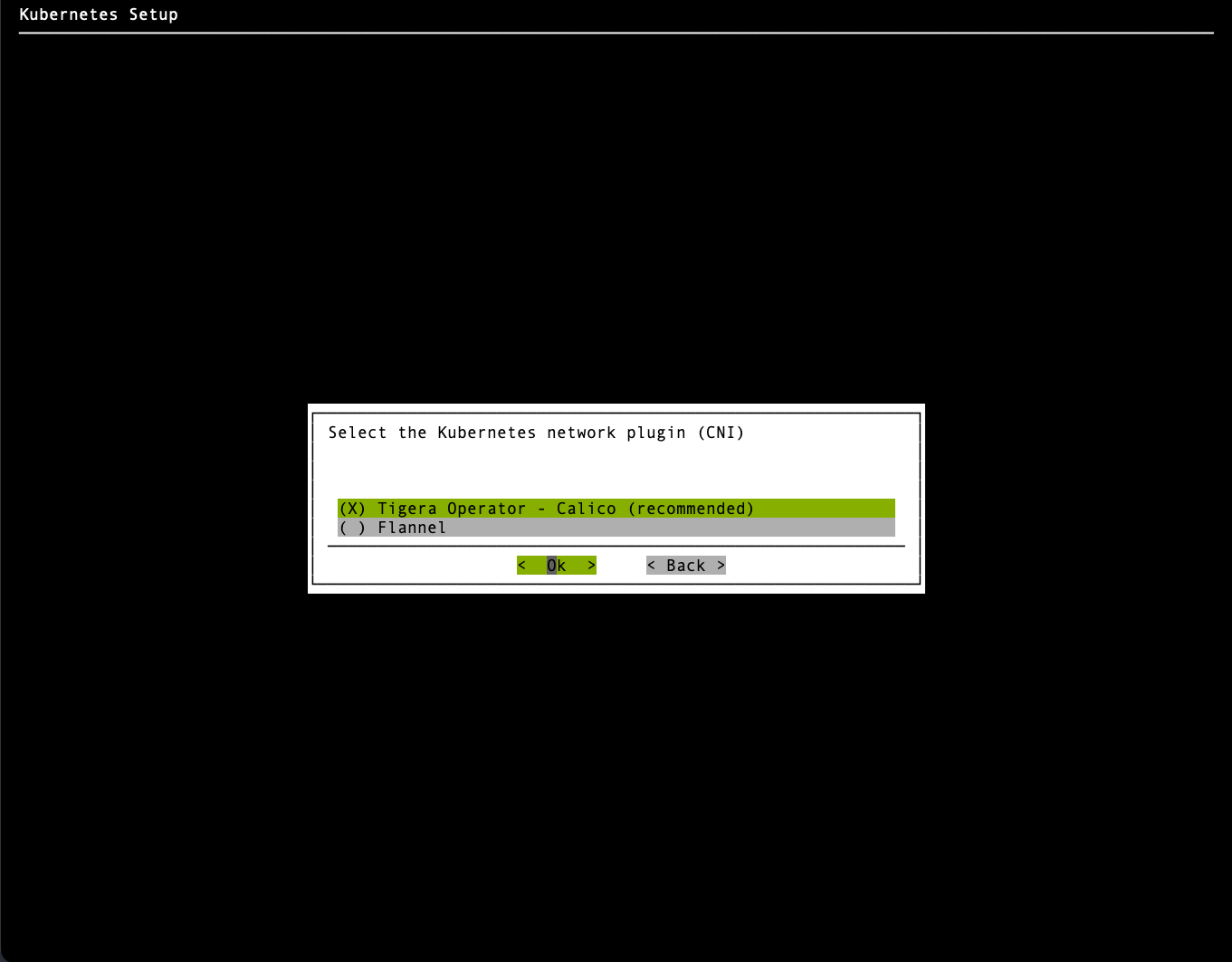
Choose Calico as the network plugin and then select Ok.
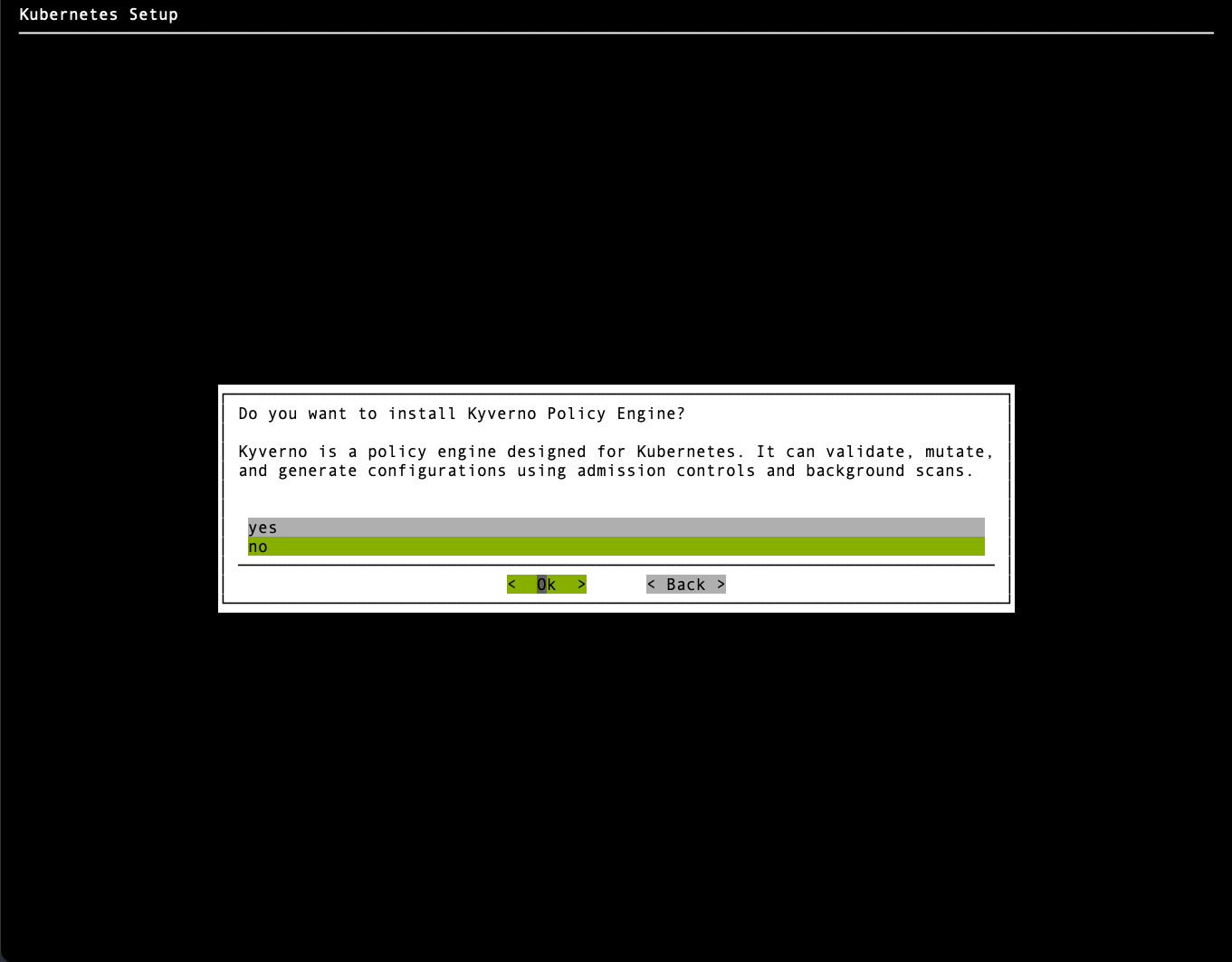
When asked to install the Kyverno Policy Engine, choose no and then select Ok. You install Kyverno later, during security hardening, as described in Kubernetes Security Policies (Air-Gapped).
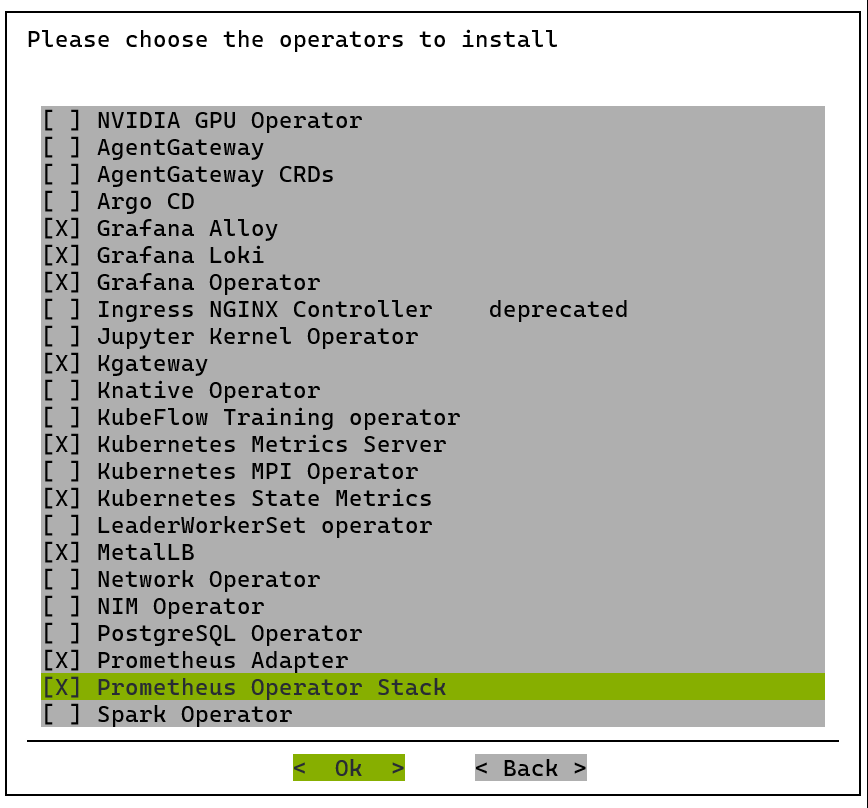
Choose the following operators to be installed and then select Ok:
Grafana Alloy
Grafana Loki
Grafana Operator
Kgateway
Kubernetes Metrics Server
Kubernetes State Metrics
MetalLB
Prometheus Adapter
Prometheus Operator Stack
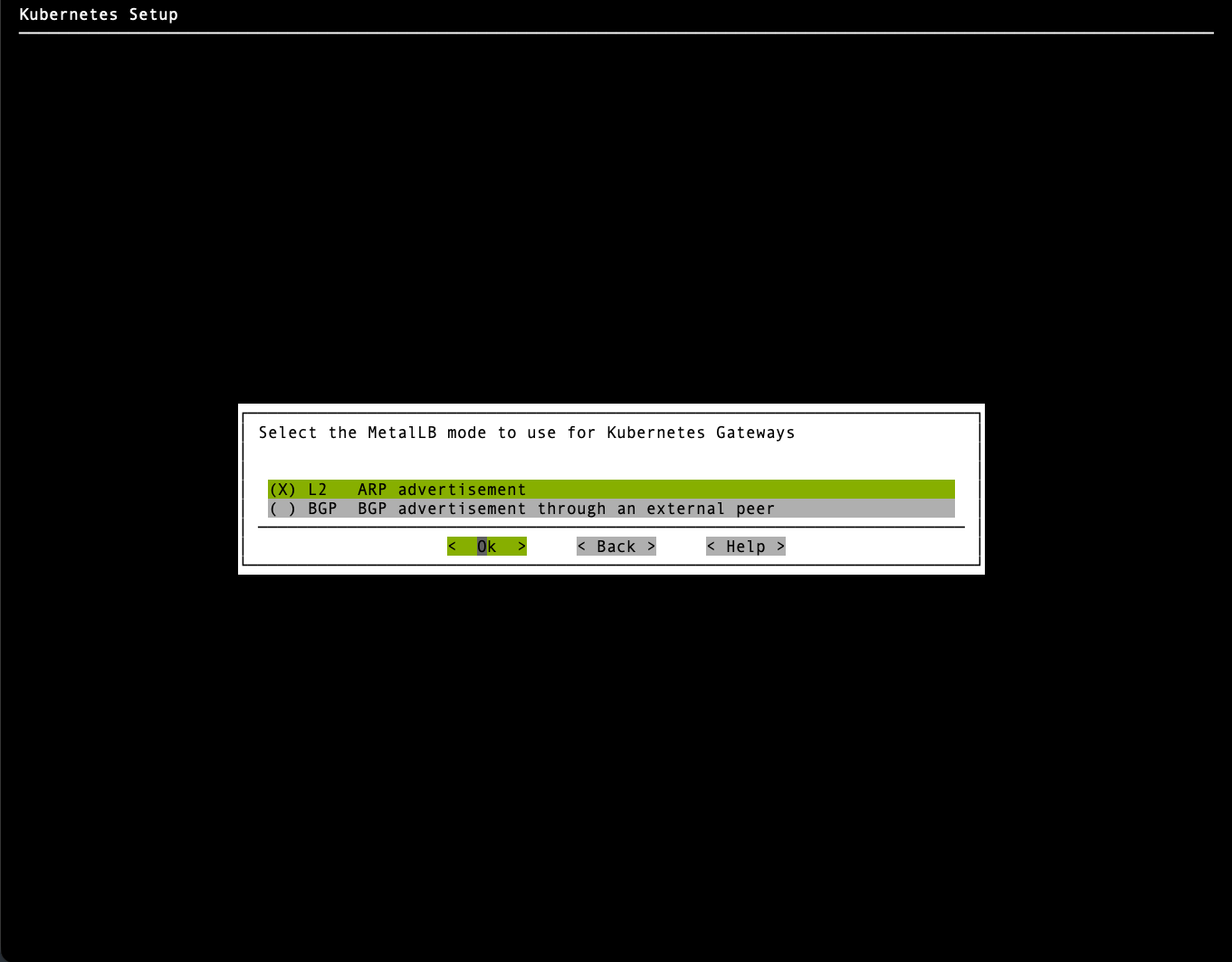
Select the MetalLB mode for Kubernetes Gateways. Choose L2 (ARP advertisement) unless your environment requires BGP, then select Ok.
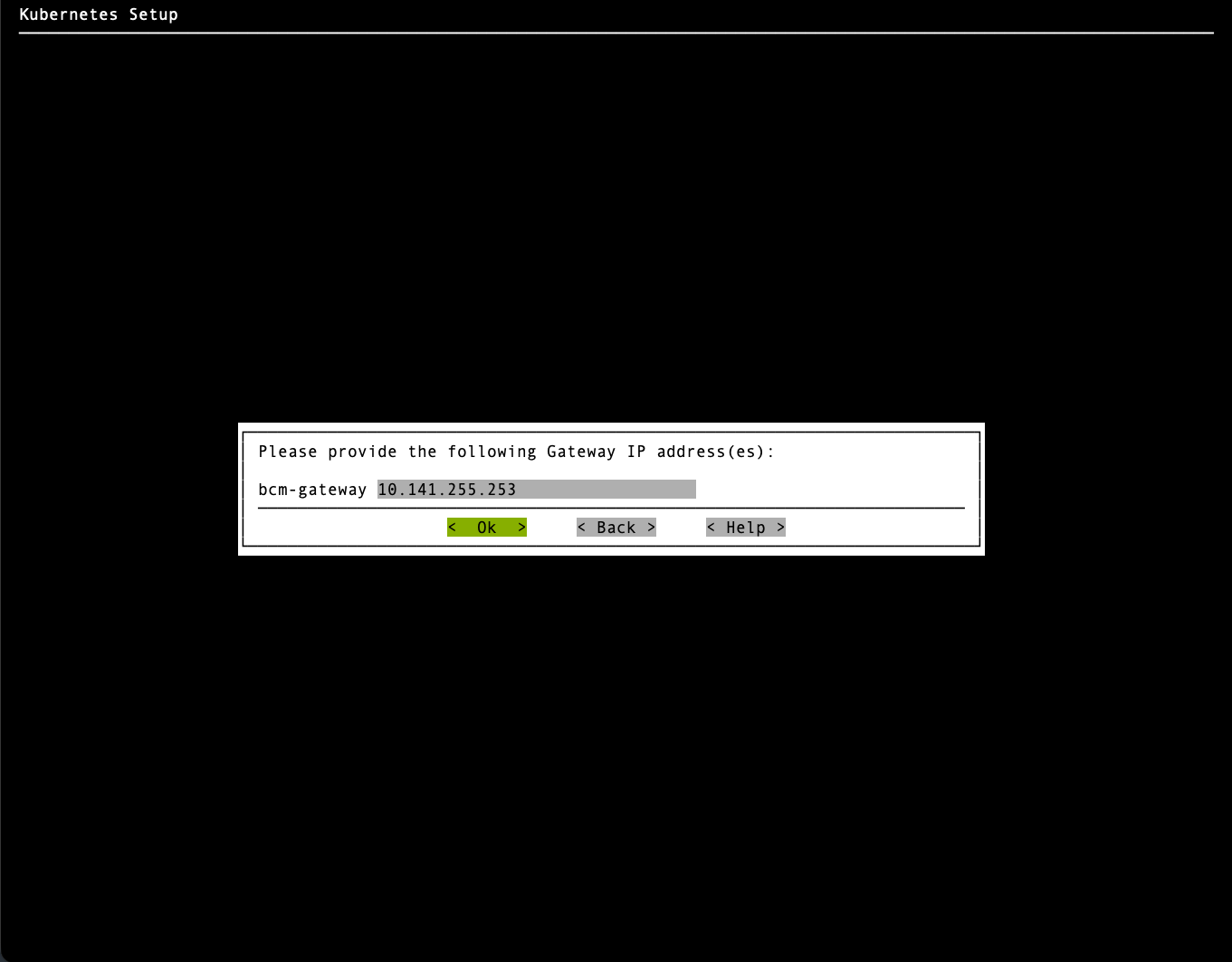
Provide the BCM gateway IP address when prompted. Select the default prefilled value unless your environment requires a different gateway, then select Ok.
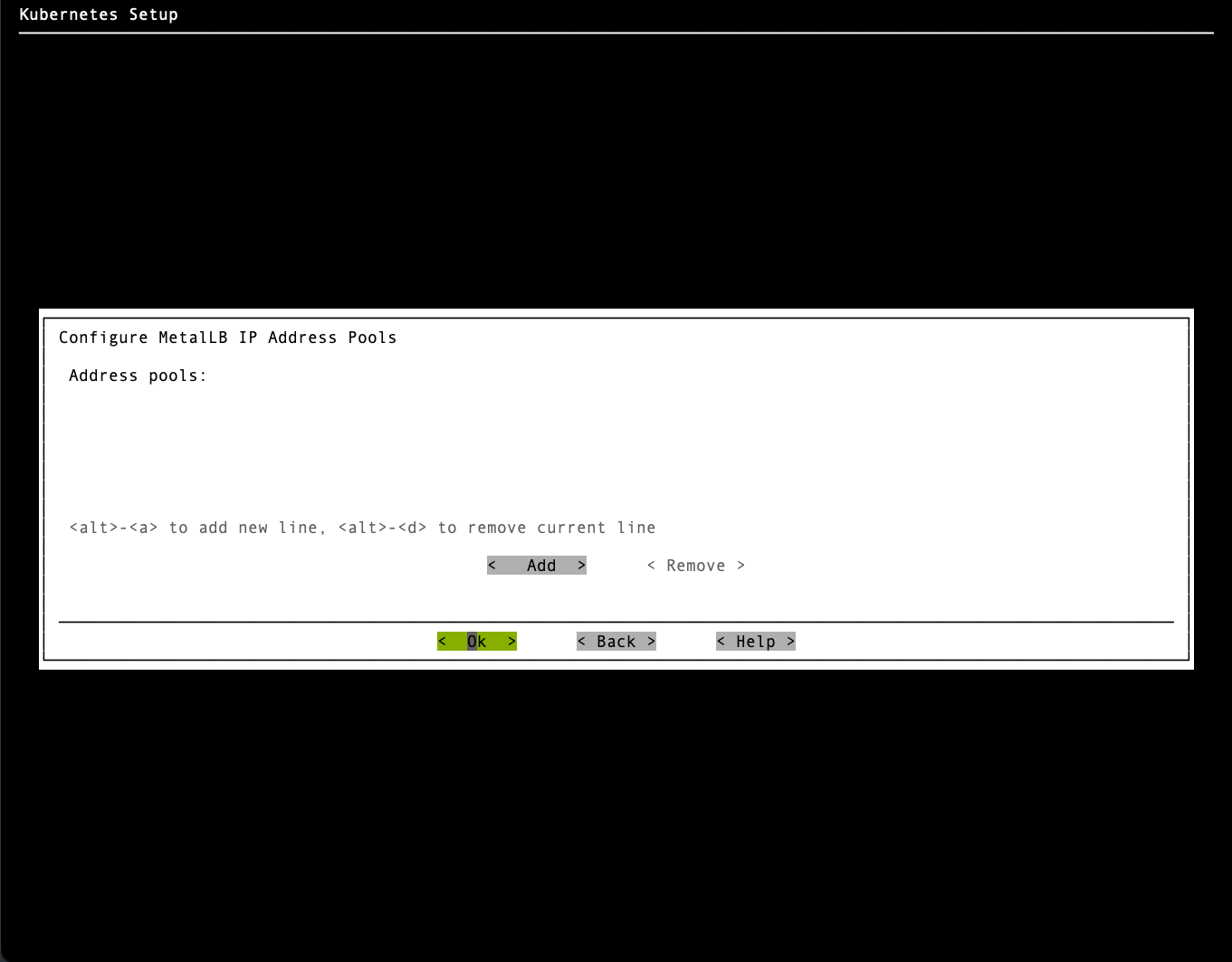
Leave the MetalLB IP address pools blank unless your environment requires them, then select Ok.
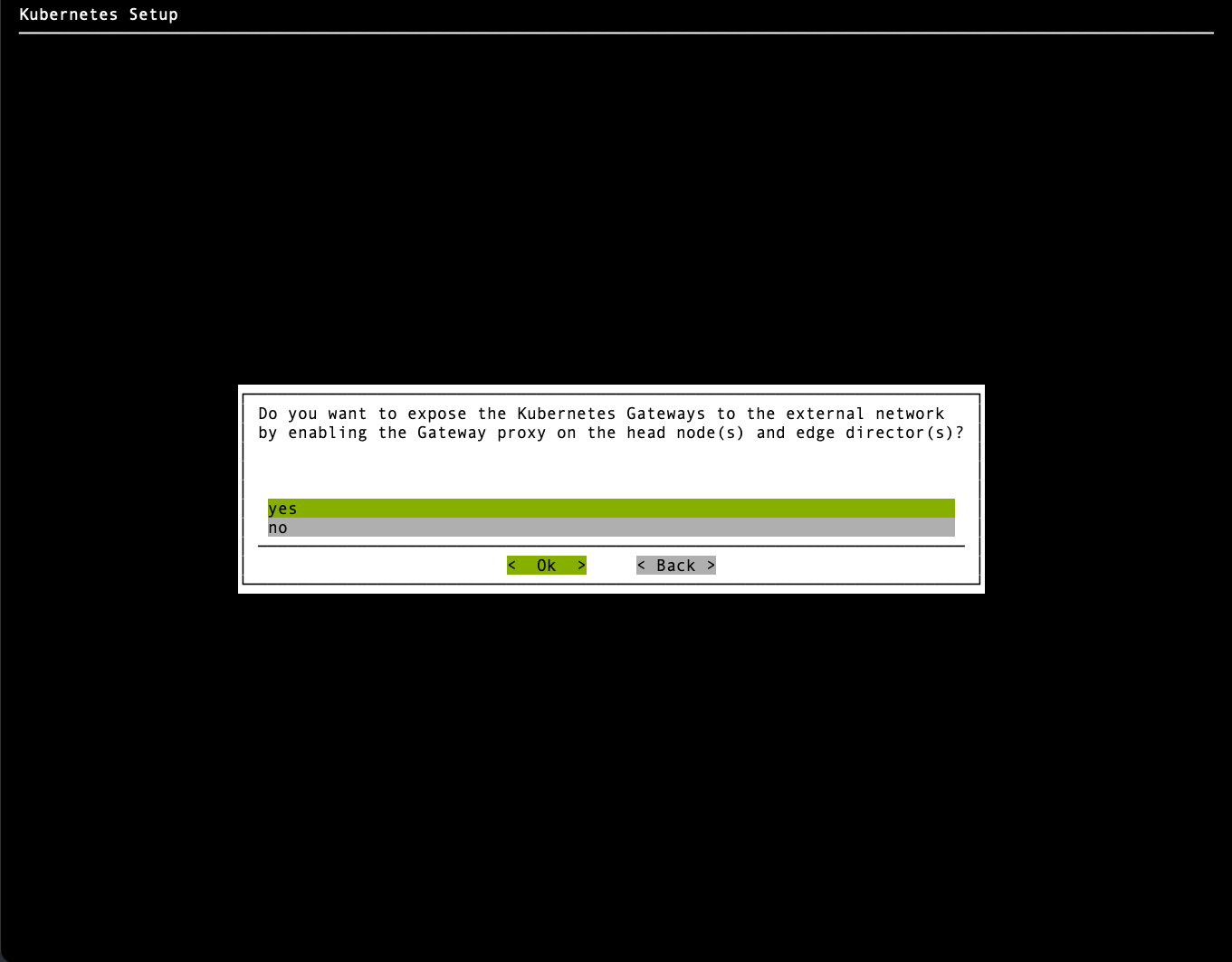
Choose yes when asked to expose the Kubernetes Gateway over external network via Proxy and then select Ok.
Keep the default Gateway proxy port of
443and then select Ok.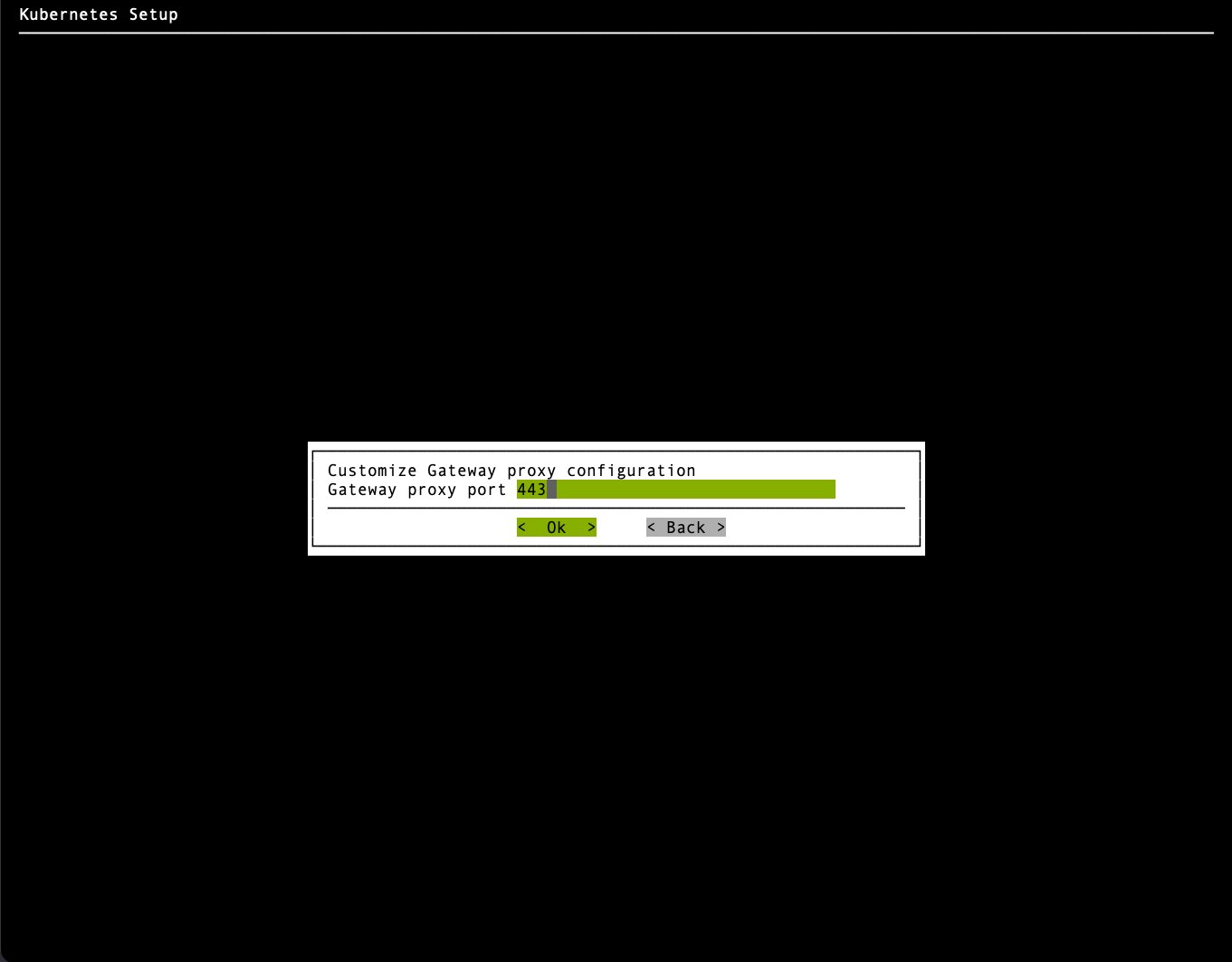
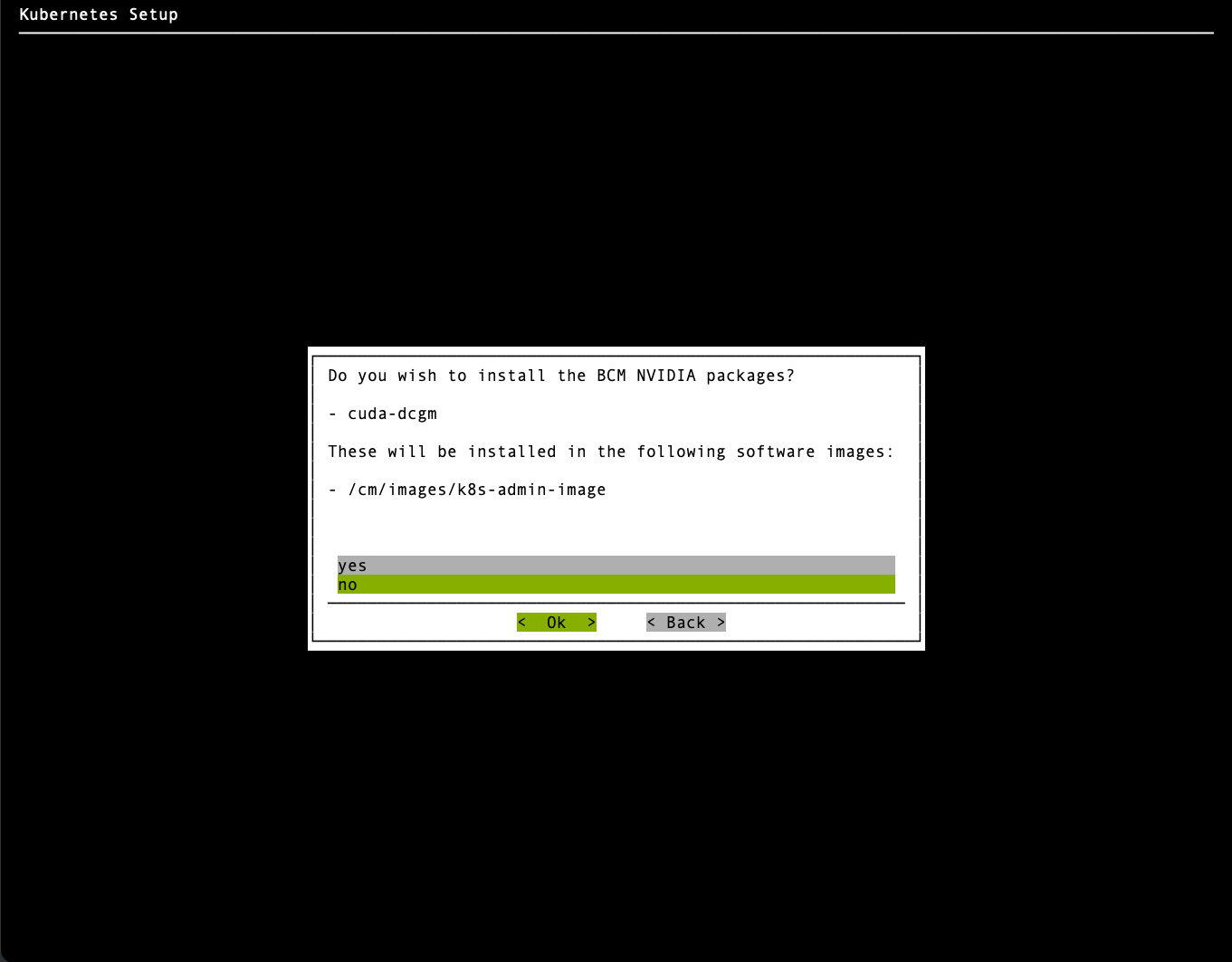
When asked to install BCM NVIDIA packages, choose no and then select Ok.
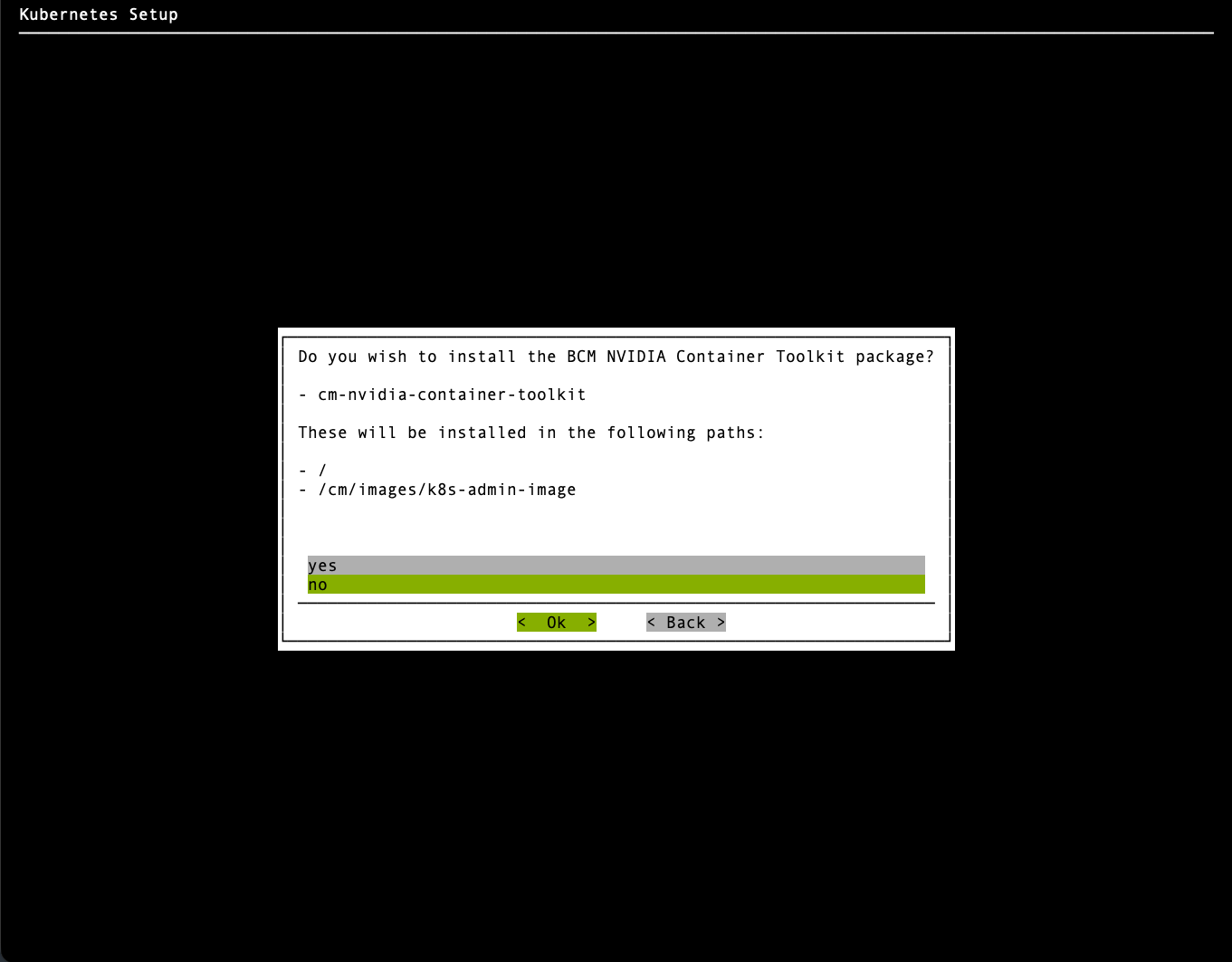
When asked to install the BCM NVIDIA Container Toolkit, choose no and then select Ok.
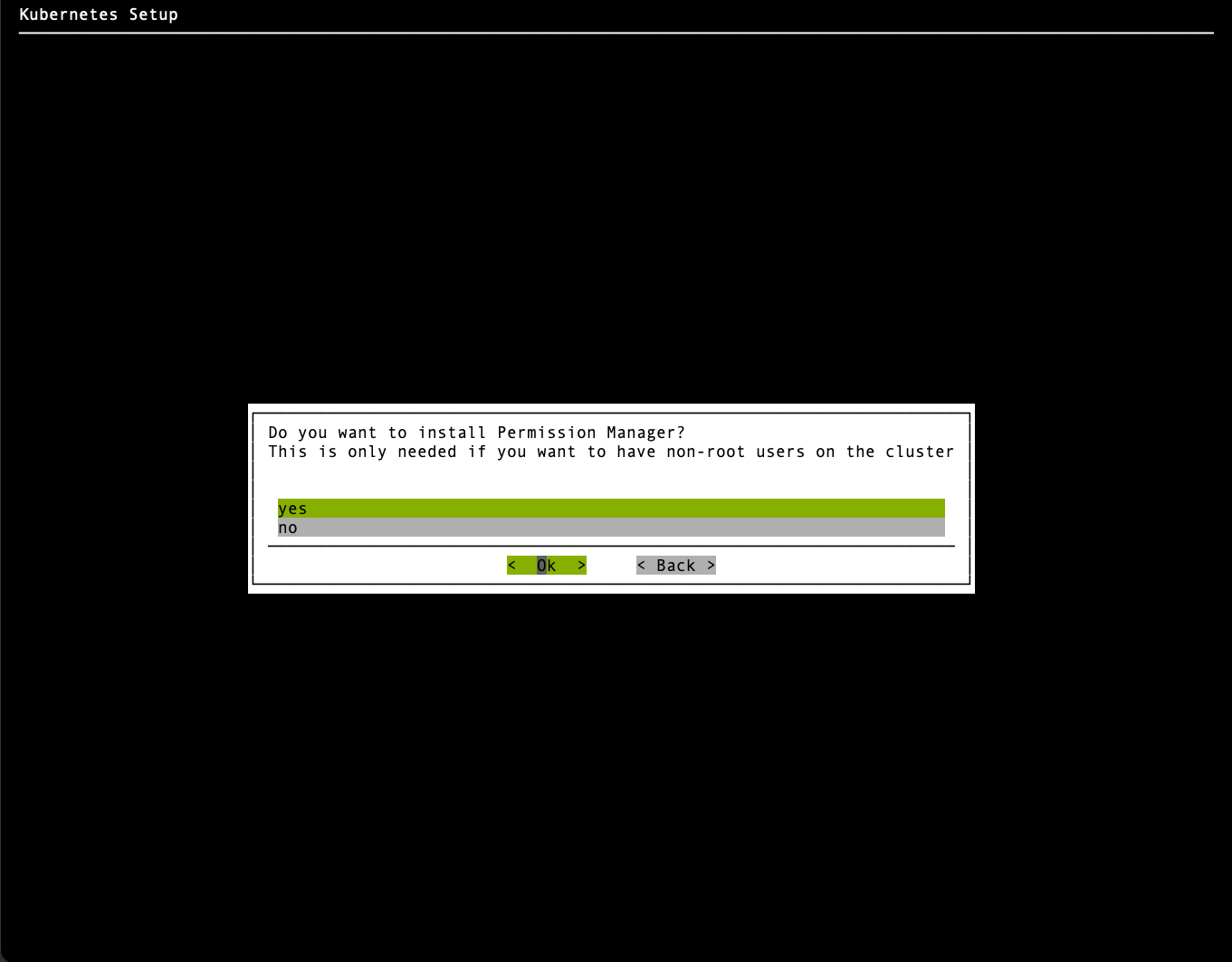
When asked to install the Permissions Manager, choose yes and then select Ok.
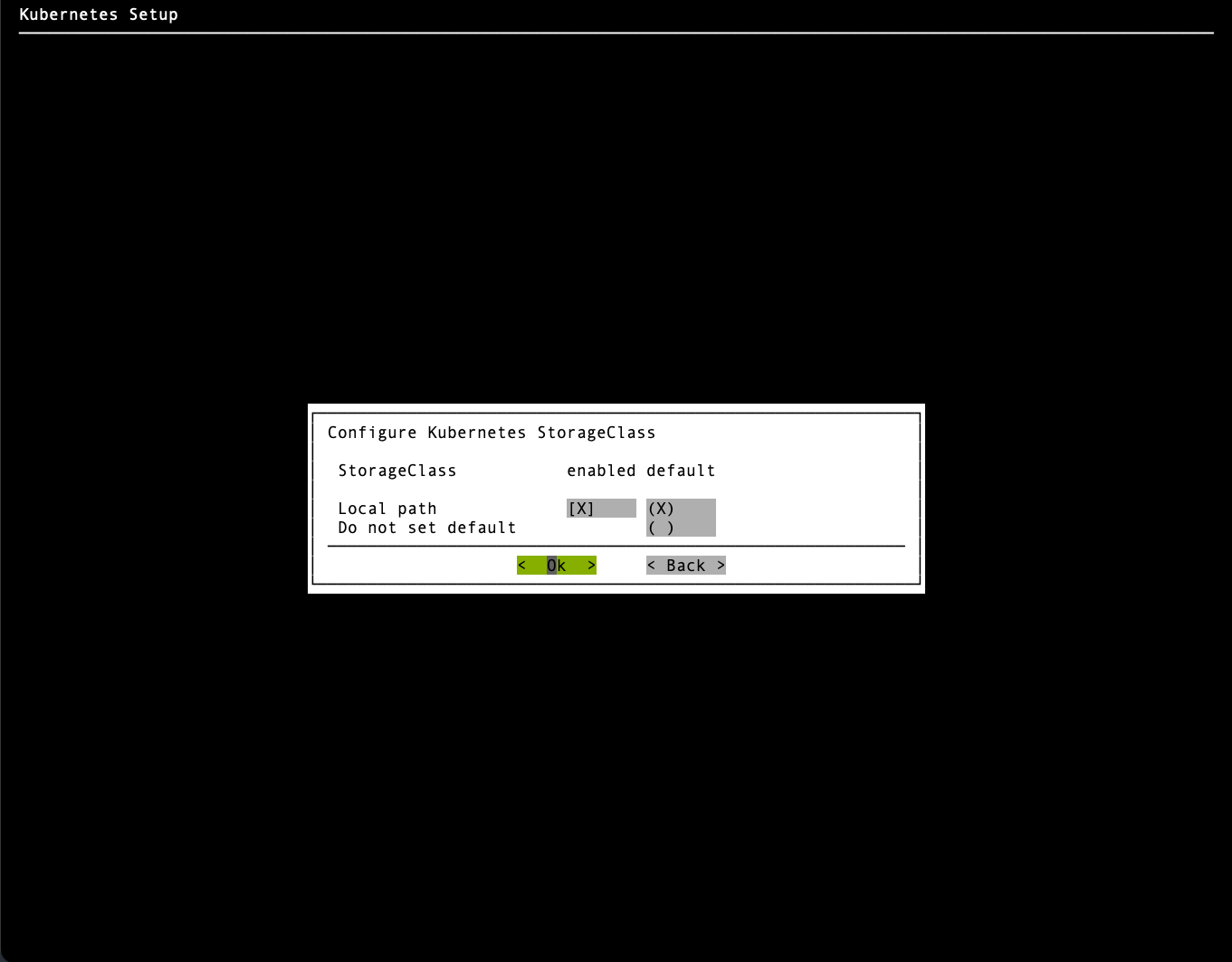
Keep the default Local path selection and then select Ok.
Keep the default Kubernetes storage-pool path,
/cm/shared/apps/kubernetes/k8s-admin/var/volumes, and then select Ok.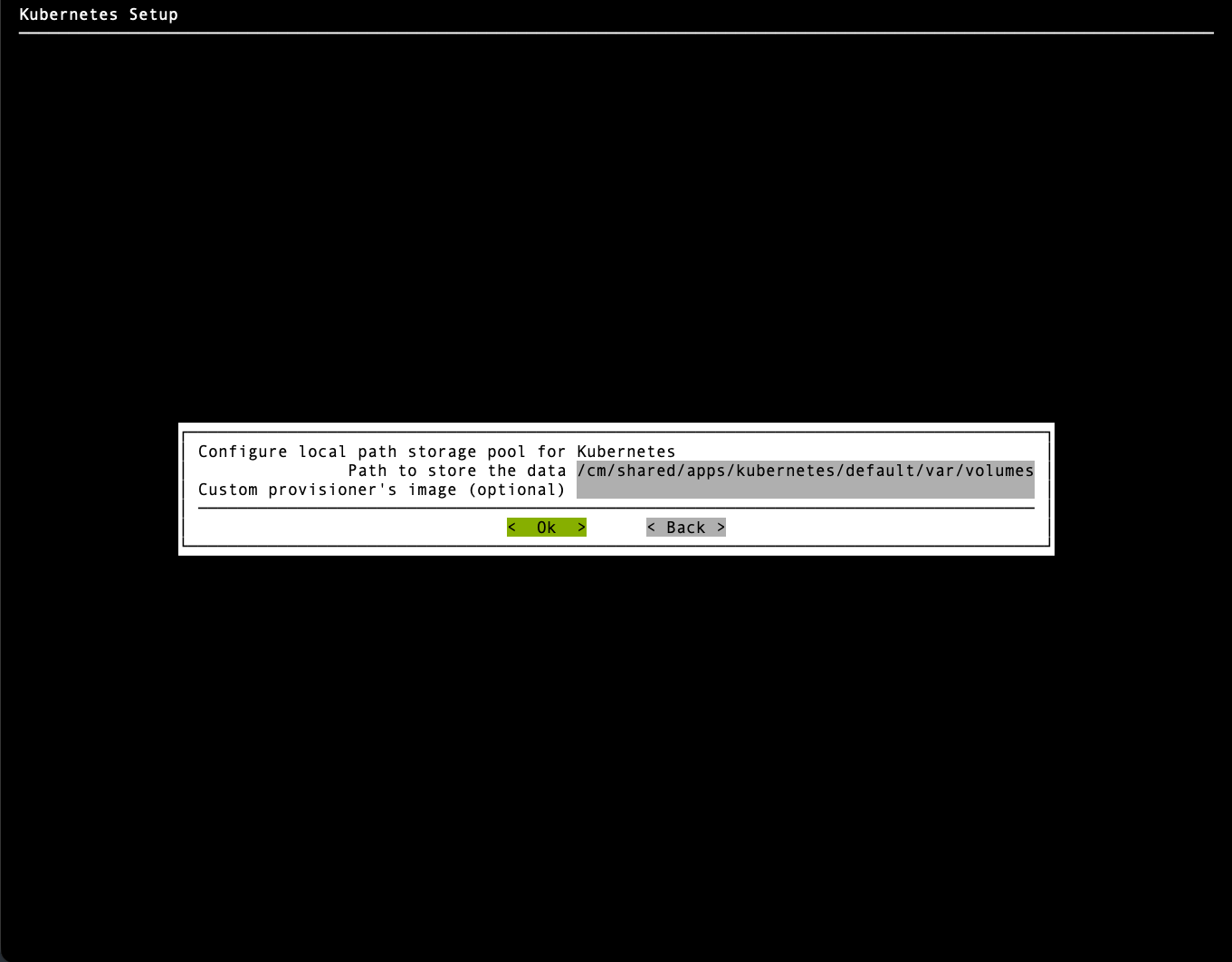
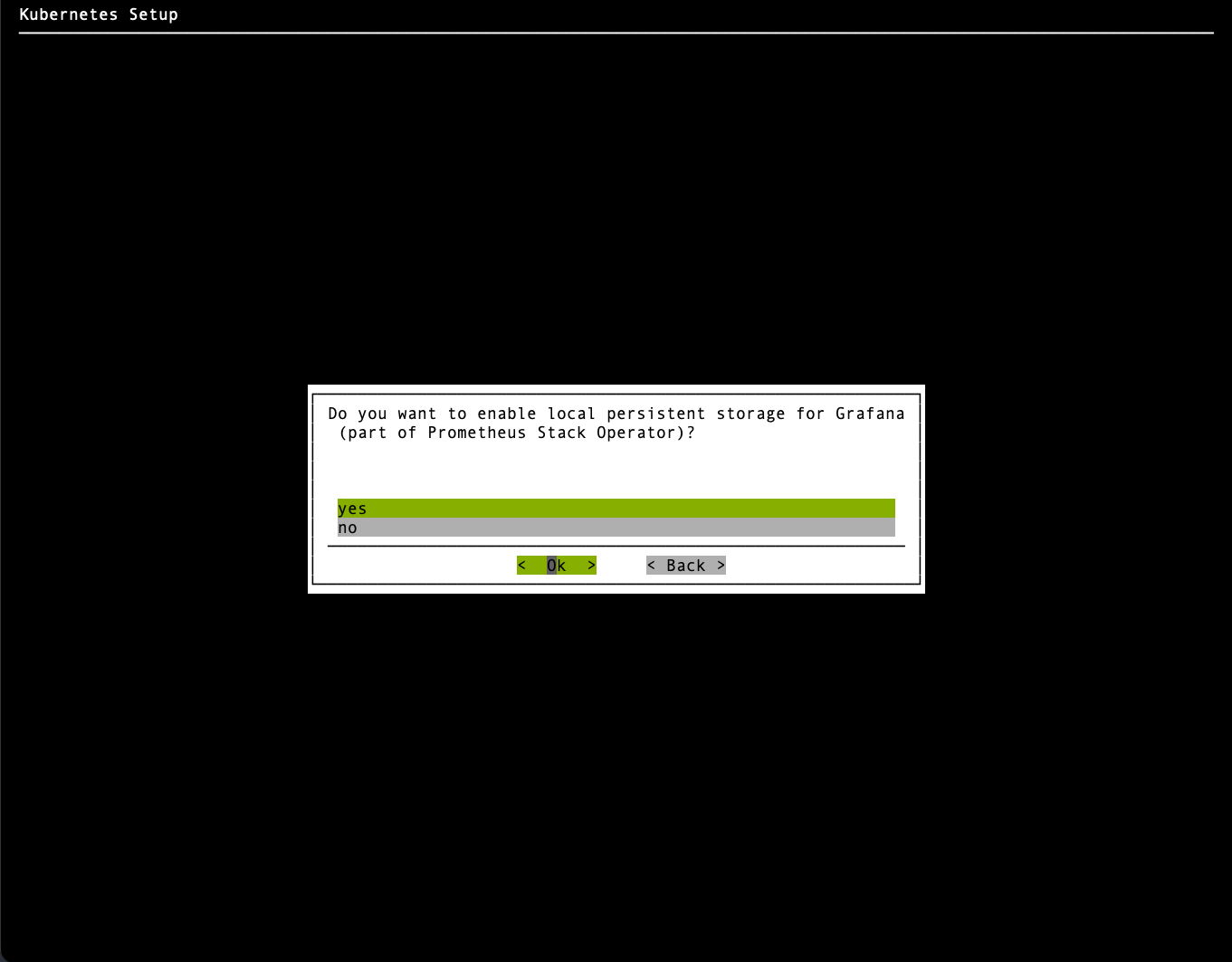
Choose yes to enable local persistent storage for Grafana and then select Ok.
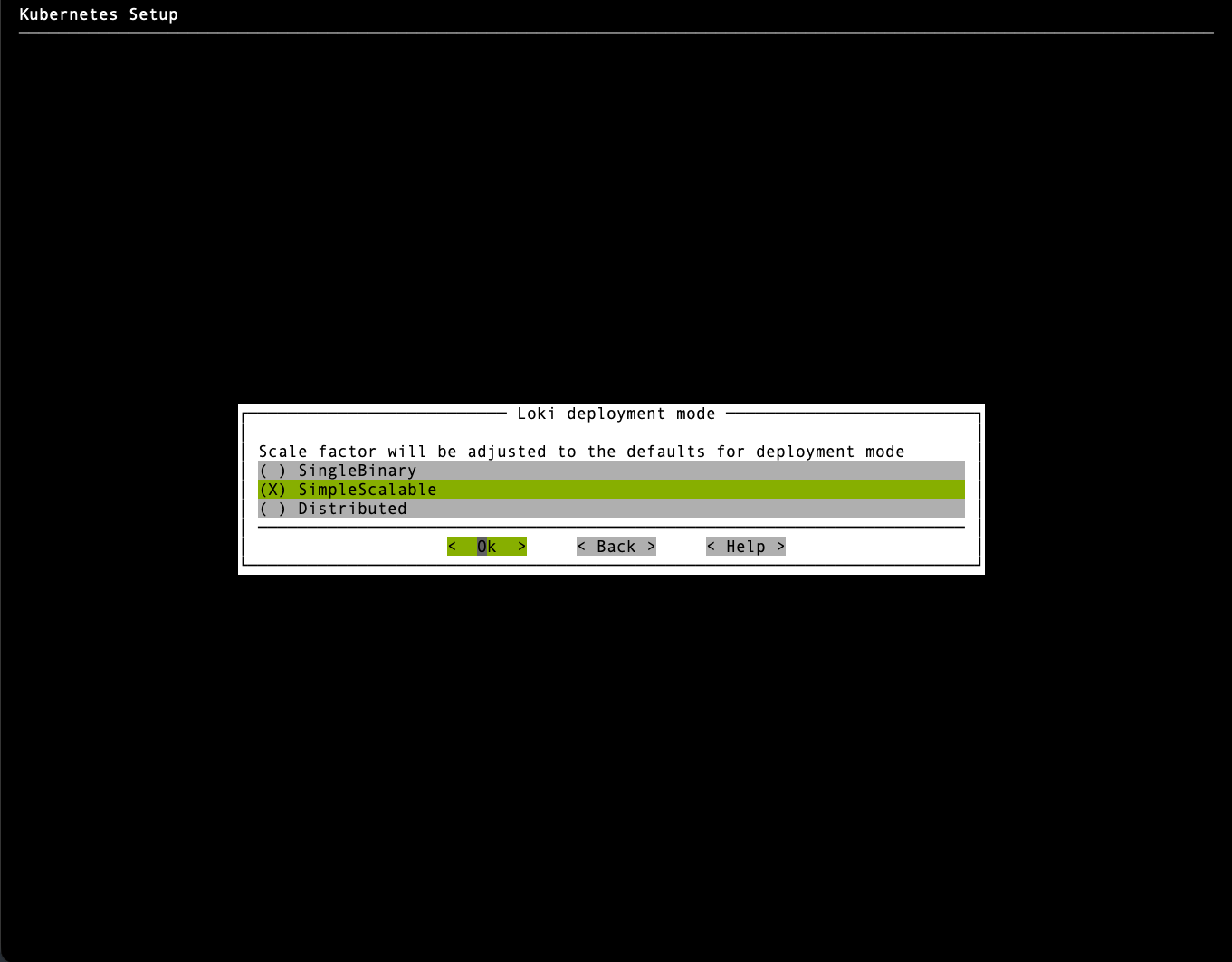
Choose SimpleScalable for the Loki deployment mode and then select Ok.
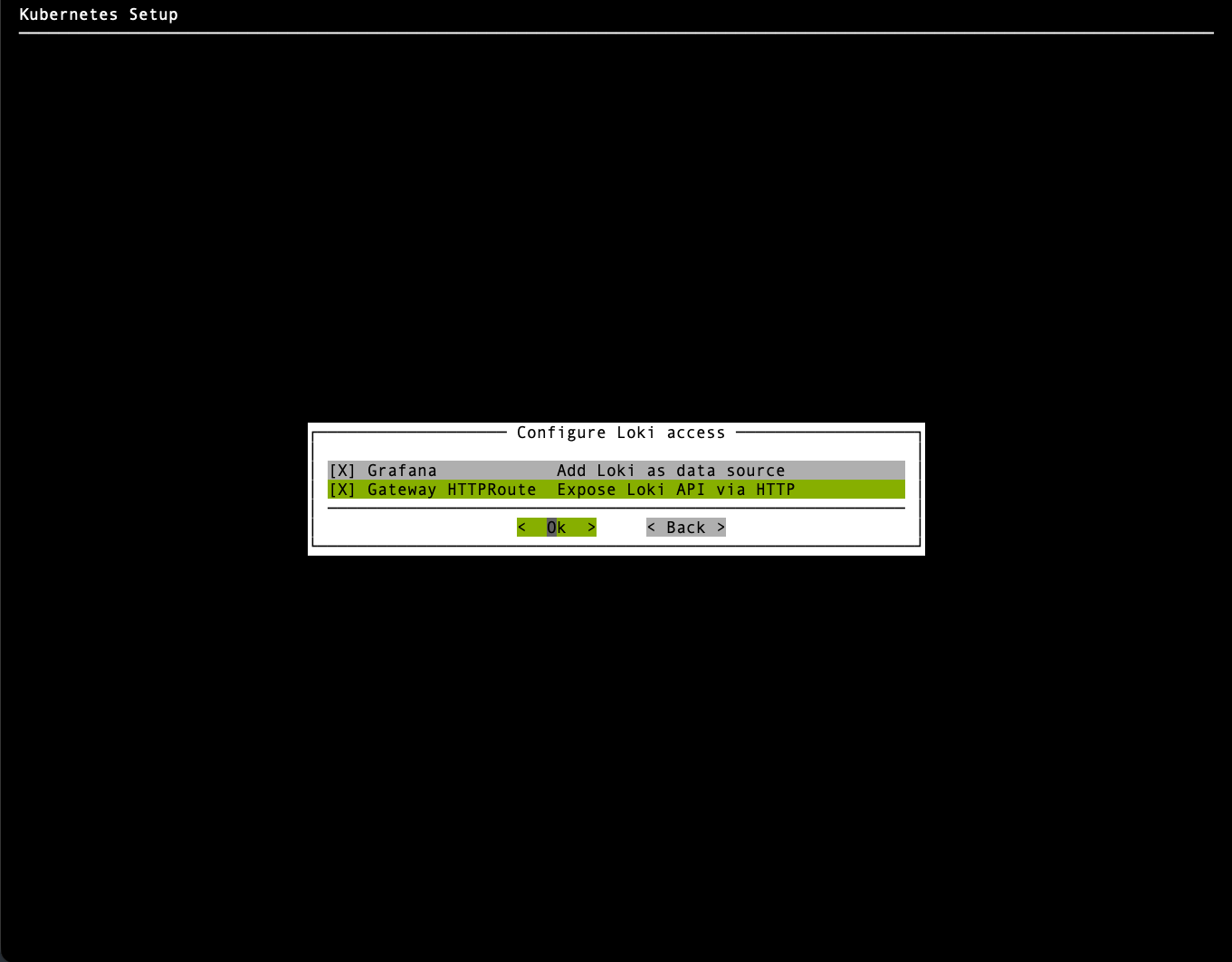
Select both options for Loki access and then select Ok.
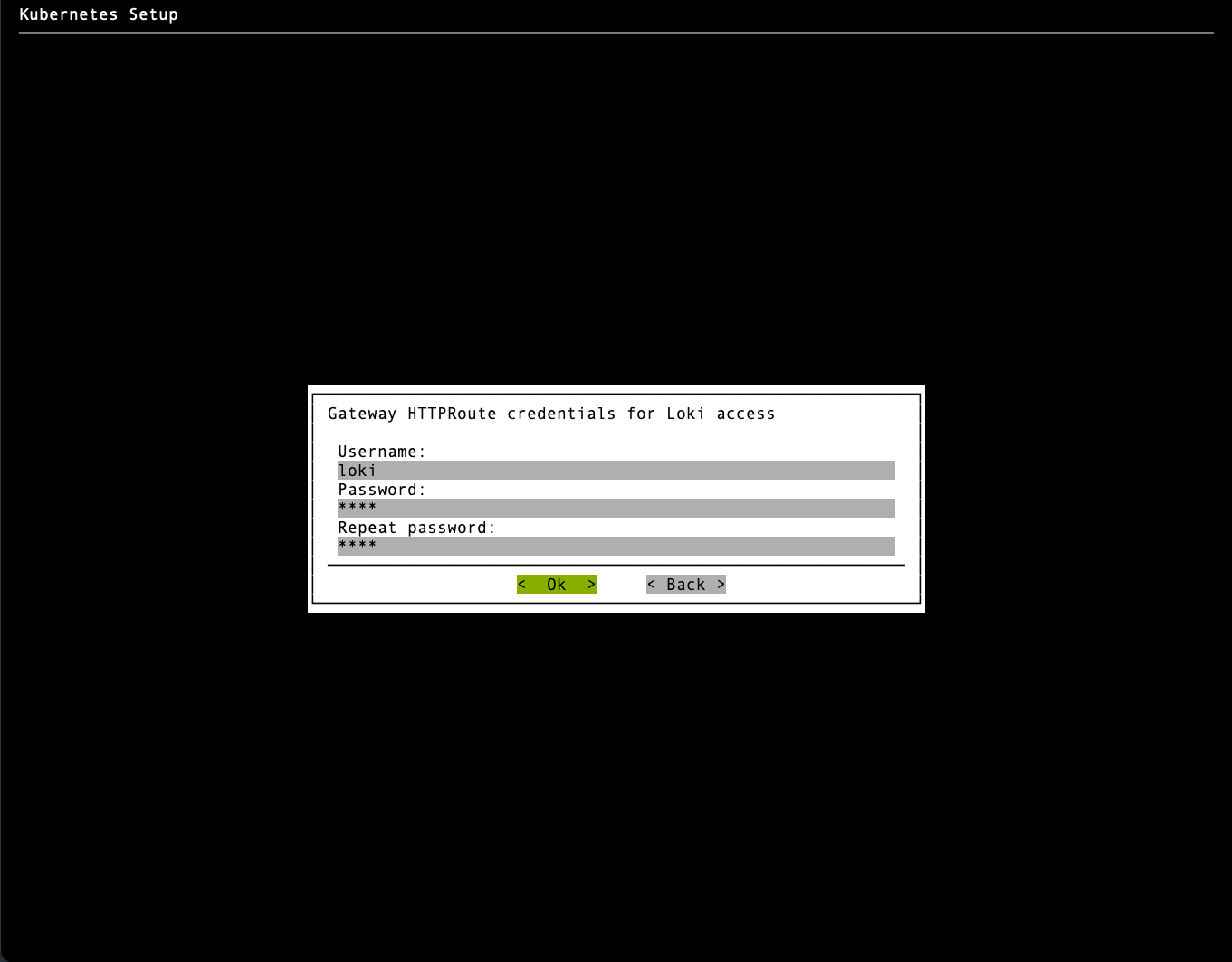
Configure the Username and Password for Loki (basic authentication).
Set both to loki; they can be changed later.
Select the pod_logs and varlog options for Grafana Alloy and then select Ok.
pod_logscollects logs from Kubernetes containers, andvarlogcollects logs from/var/logon Kubernetes worker nodes. NVIDIA Mission Control autonomous job recovery requires both log sources for hardware fault detection and attribution.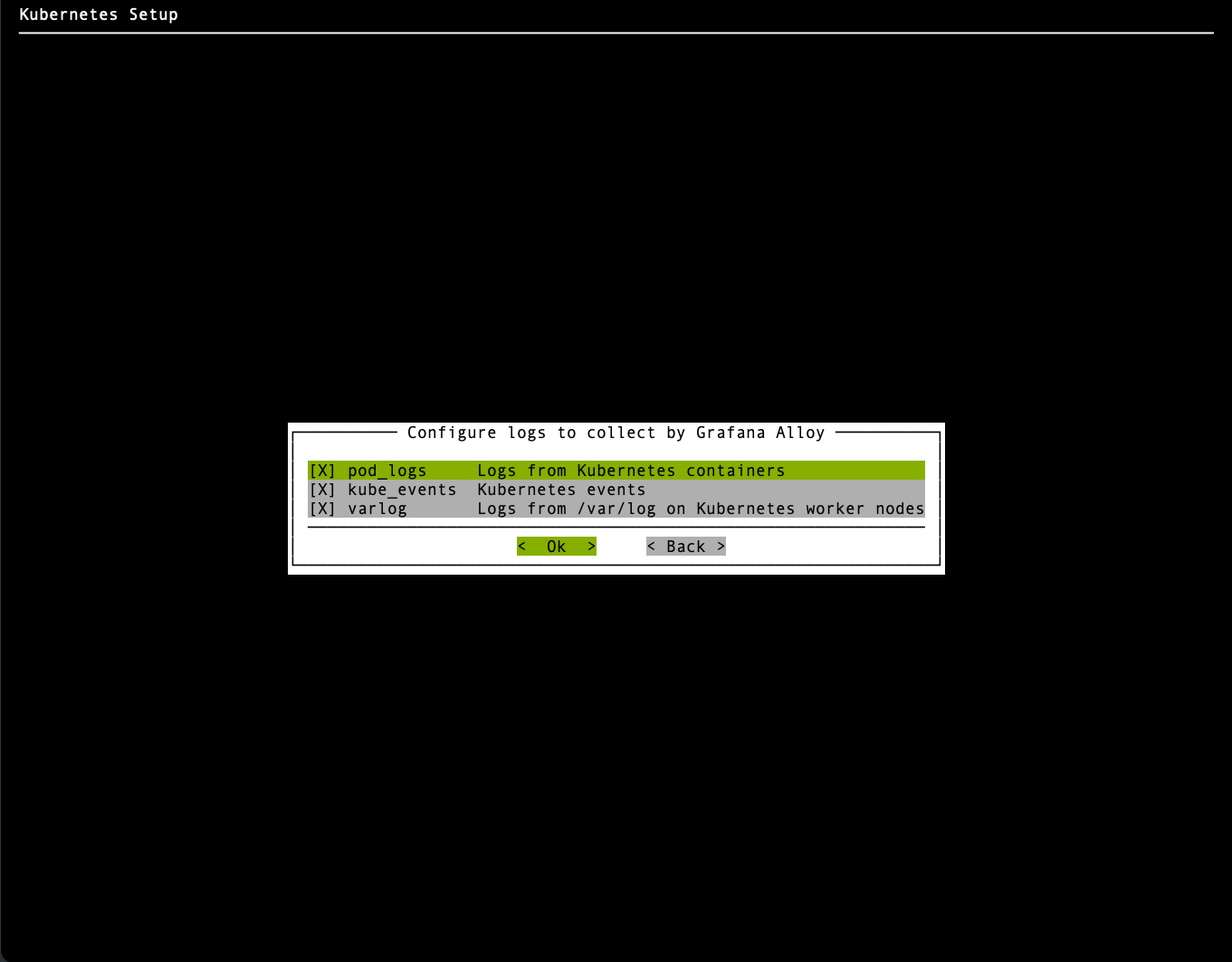
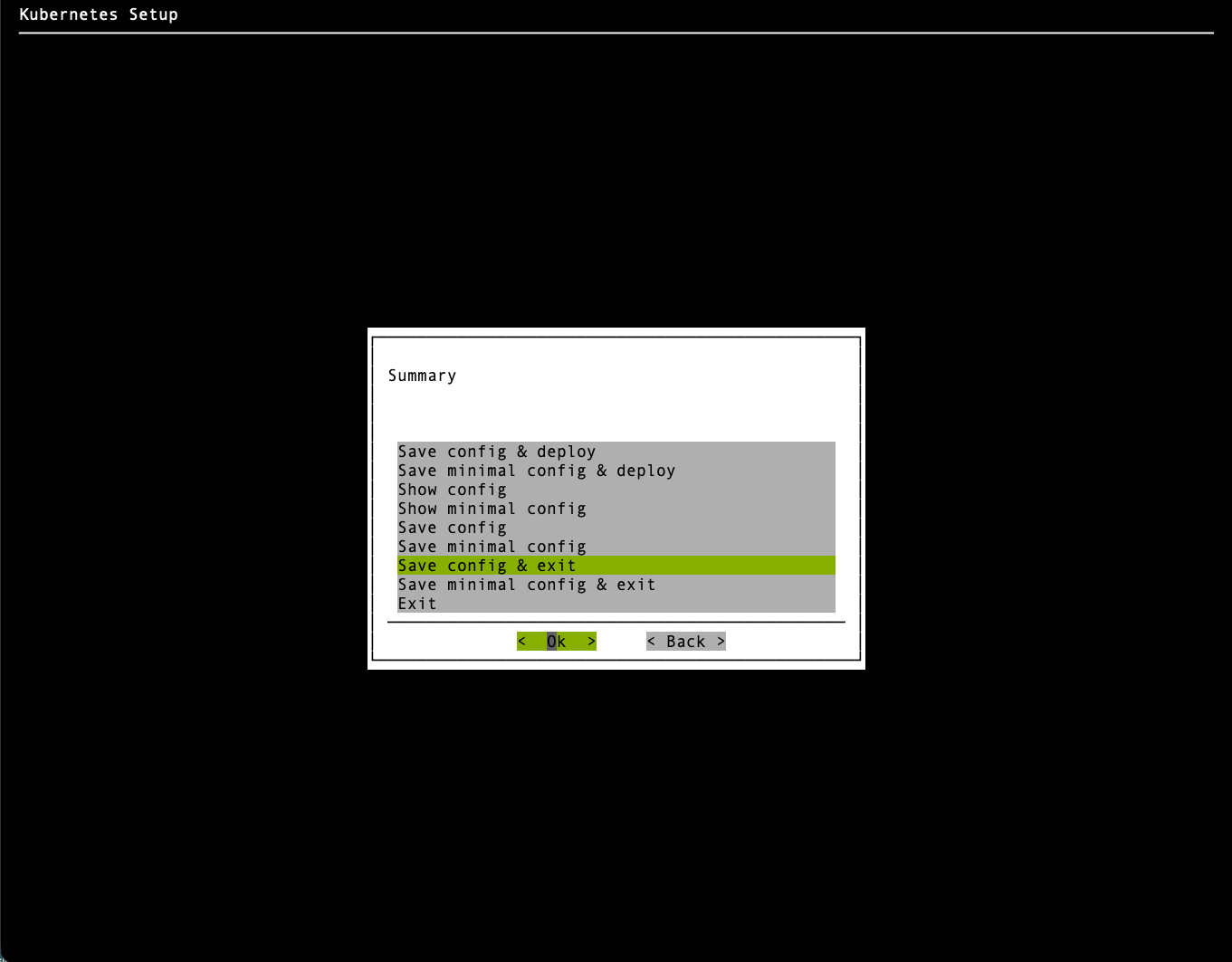
Choose Save config & exit and then select Ok.
The wizard saves the complete configuration to
/root/cm-kubernetes-setup.confand displays the command that deploys it. Kubernetes is not deployed at this stage.Do not choose Save minimal config & exit. The minimal form omits every value that matches a default, and Step 7 in this topic verifies specific settings in the saved file.
Preserve the k8s-admin configuration#
Both the k8s-admin and k8s-user procedures use the same default configuration filename. Generating the second configuration can overwrite the first. Copy the saved k8s-admin configuration to a distinct name before you generate the k8s-user configuration:
cp /root/cm-kubernetes-setup.conf /root/cm-kubernetes-setup-k8s-admin.conf
Generate the k8s-user configuration#
Start the wizard again with the same air-gap options:
cm-kubernetes-setup --airgap-registry master.cm.cluster:5000 --airgap-registry-as-helm
Complete the wizard by following the Generate the Deployment Configuration procedure in the NVIDIA Run:ai air-gapped deployment guide, including the configuration-file prerequisites that procedure lists. Select Save config & exit at the end of the procedure. Then return to these instructions.
For k8s-user, use the k8s-system-user node category for the control plane nodes and the GPU worker node category for the worker nodes. The cluster name is k8s-user.
Important
Both configuration files must be preserved separately. After the k8s-user wizard finishes, copy the new file to a distinct name, and confirm that both files exist and describe the correct cluster before you continue:
cp /root/cm-kubernetes-setup.conf /root/cm-kubernetes-setup-k8s-user.conf
ls -l /root/cm-kubernetes-setup-k8s-admin.conf /root/cm-kubernetes-setup-k8s-user.conf
If the k8s-admin file was overwritten, regenerate it before you continue.
The remainder of this topic uses /root/cm-kubernetes-setup-k8s-admin.conf and /root/cm-kubernetes-setup-k8s-user.conf as the two saved configurations.
Step 2: Extract the air-gapped archive#
Extract the shared tarball once on the active BCM head node. Both clusters use the extracted content:
tar -xvf airgapped.tgz
The tarball extracts to an airgapped directory.
Ubuntu-specific requirement#
On Ubuntu systems, move the extracted directory to /tmp/airgapped. The apt user (_apt) cannot access packages under /root, which causes File not found errors during package installation.
mv airgapped /tmp/airgapped
cd /tmp/airgapped
On Rocky Linux or RHEL BCM head nodes:
cd airgapped
Note
A future BCM update is expected to remove the Ubuntu /tmp requirement.
Add the air-gap helper scripts to PATH if they are not already available:
export PATH=$PATH:$K8S_AG_SCRIPTS
Step 3: Install Packages on the BCM Head Node#
Install packages from the air-gapped tarball onto the BCM head node. BCM determines the required software images from the saved configuration file. Run the command once for each saved configuration.
First, run it with the saved k8s-admin configuration:
cm-kubernetes-setup --airgap-install-system-packages -c /root/cm-kubernetes-setup-k8s-admin.conf
Then run it with the saved k8s-user configuration. This installs packages into the k8s-user control-plane and GPU-worker software images:
cm-kubernetes-setup --airgap-install-system-packages -c /root/cm-kubernetes-setup-k8s-user.conf
On a BCM high-availability (HA) cluster, run this step only on the active BCM head node.
BCM updates software images and uses CMDaemon to install packages on the
passive BCM head node. When this step completes, both BCM head nodes have kubeadm,
kubelet, helm, cm-containerd, and cm-etcd installed.
Multi-architecture clusters#
The package source must include every CPU architecture referenced by software images in the Kubernetes cluster. Package installation targets each architecture automatically.
Step 4: Set up the container registry#
Follow this step once. Both clusters reuse the same container registry.
Configure the local container registry:
cm-container-registry-setup --skip-packages
Deploy container registry#
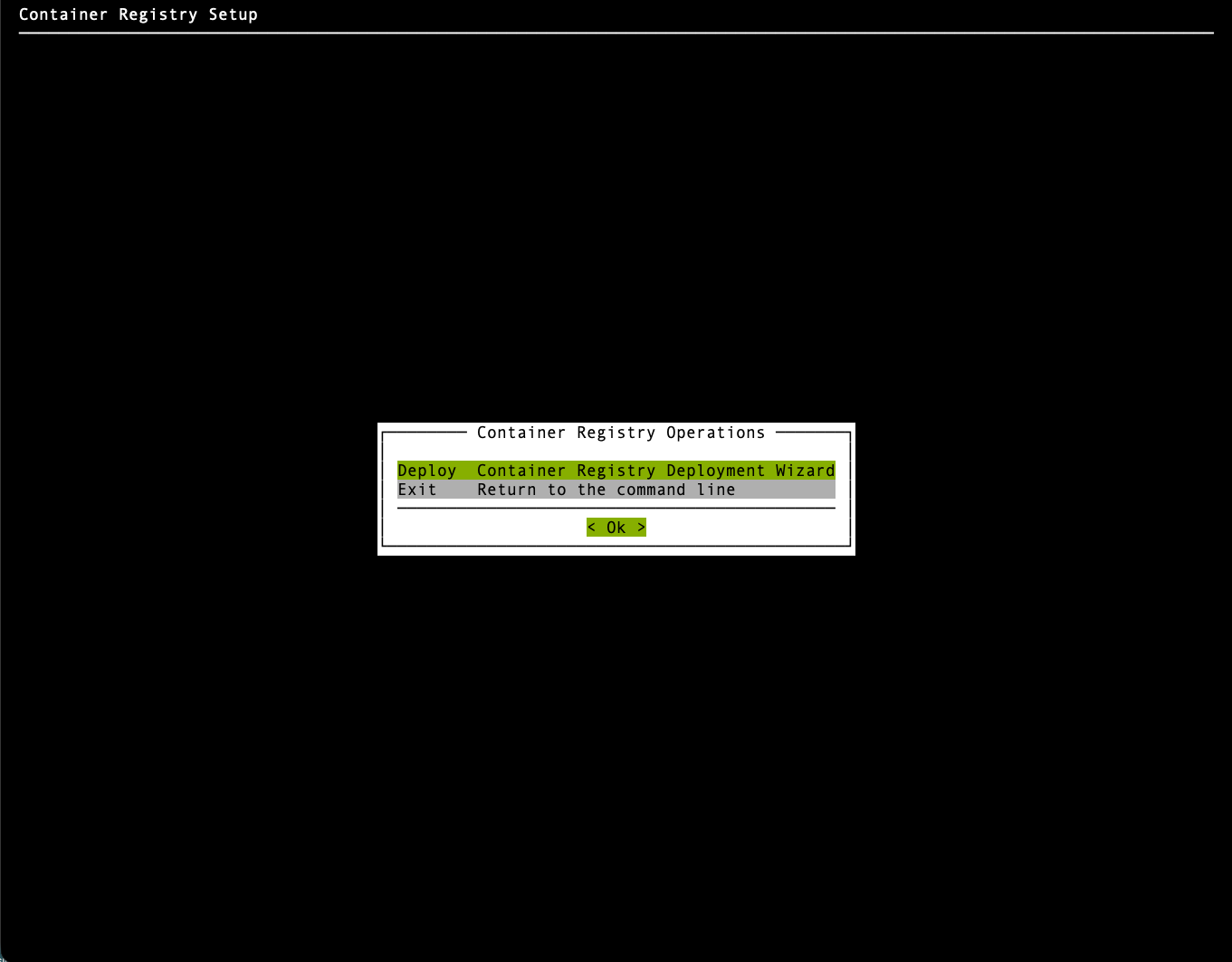
Select Deploy Container Registry Deployment Wizard and select Ok.
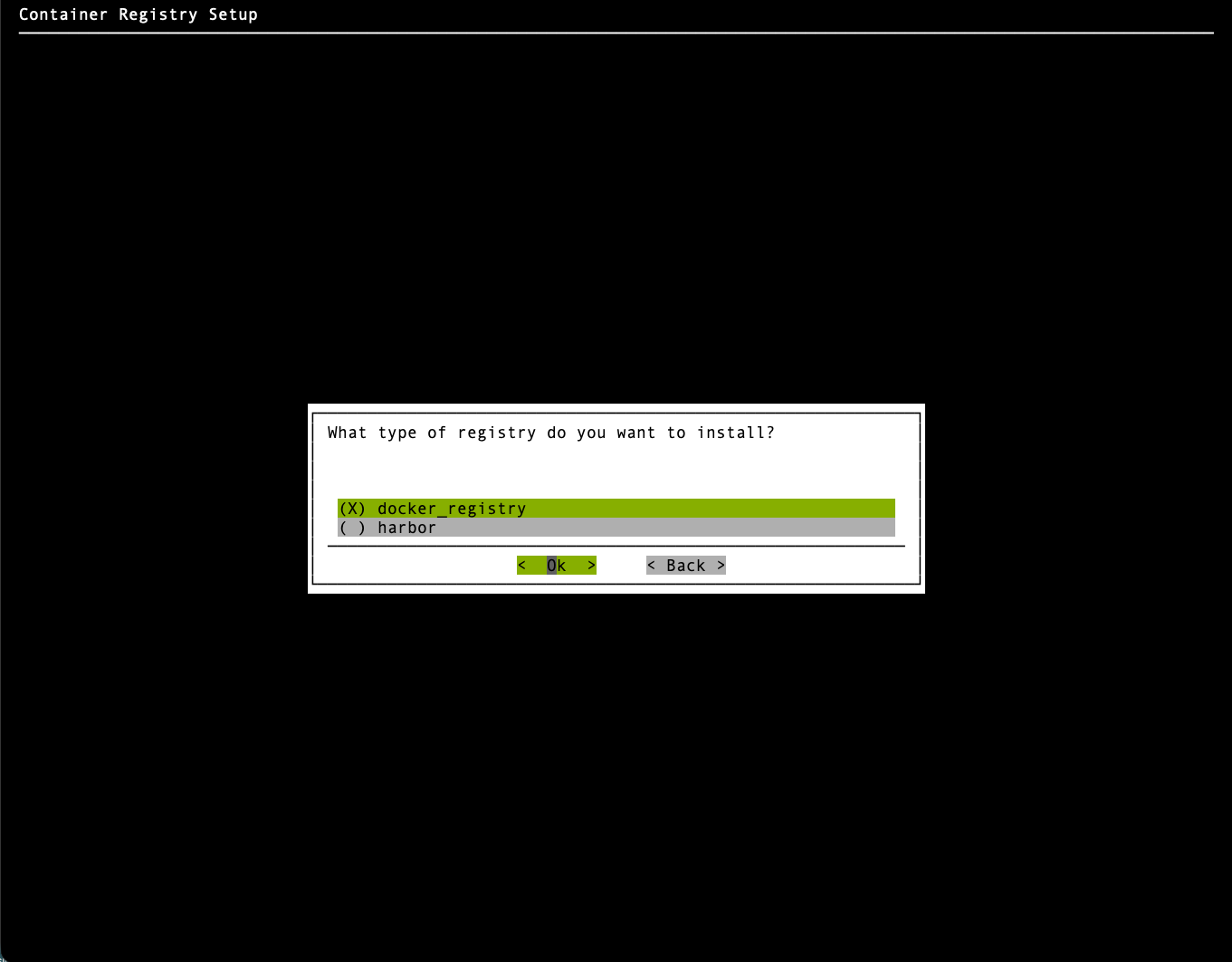
Registry type#
Select docker_registry and select Ok.
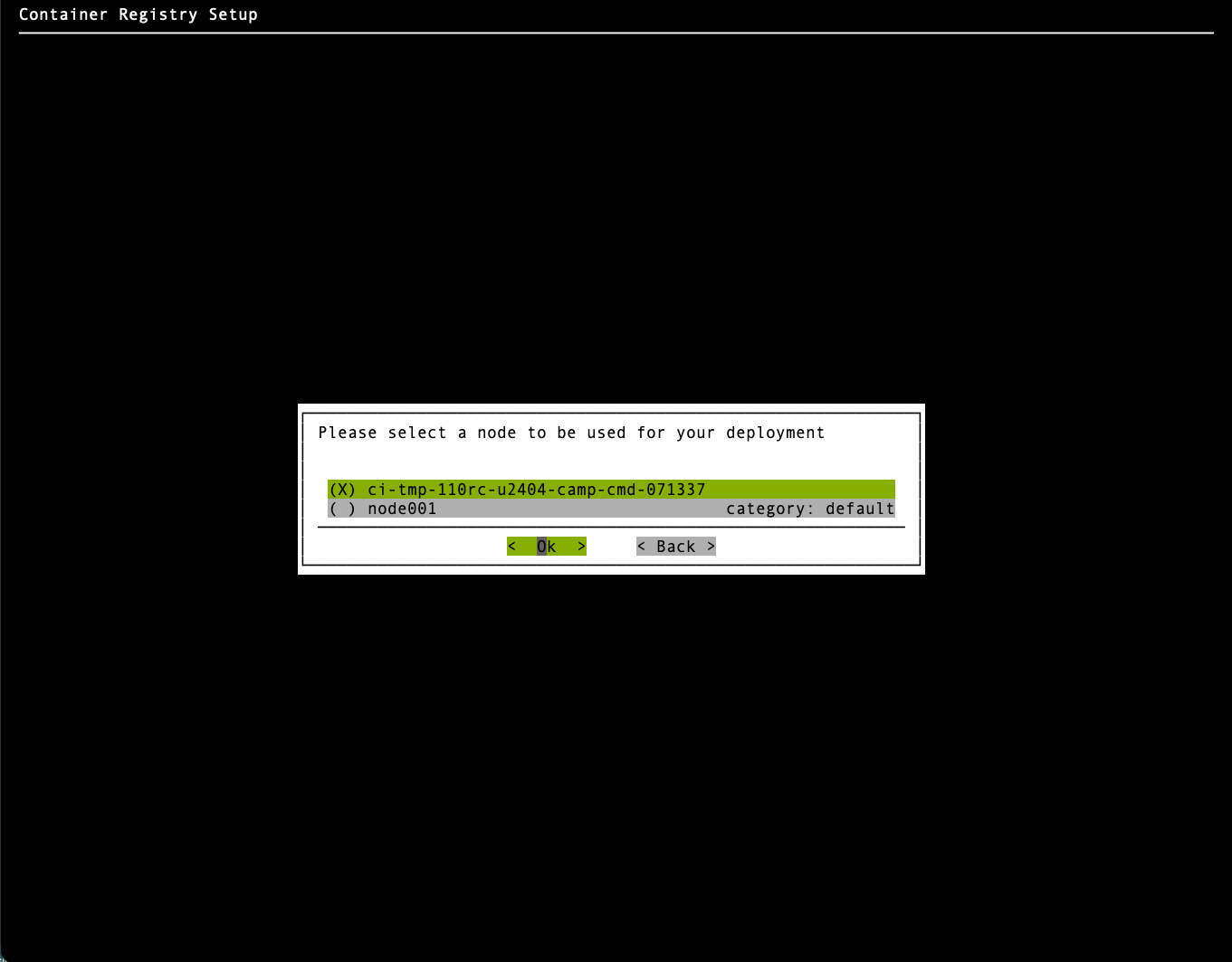
Node for deployment#
Select the active BCM head node and select Ok.
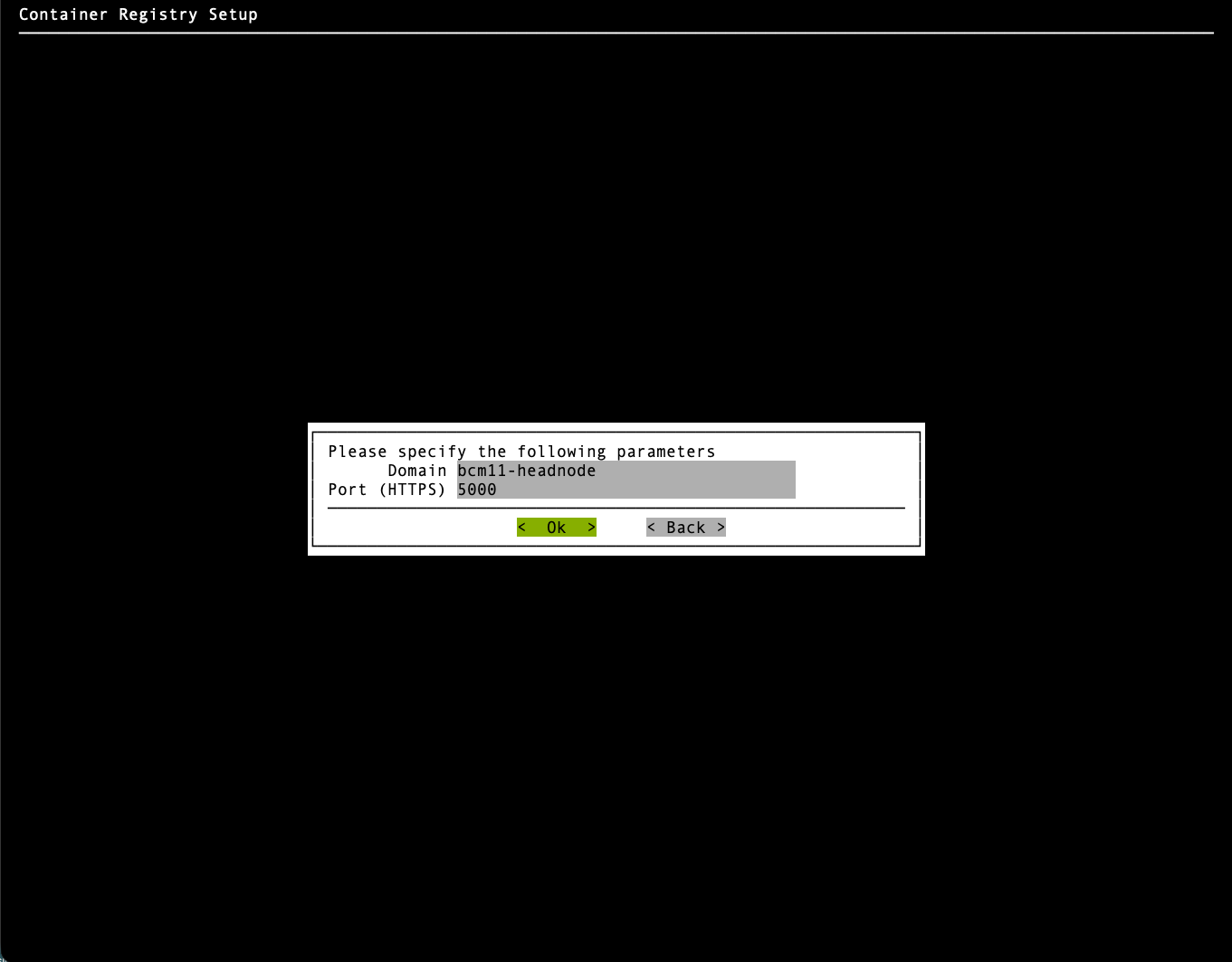
Domain and port#
Set the domain and HTTPS port (5000). Use master.cm.cluster as the domain unless your environment requires a different name.
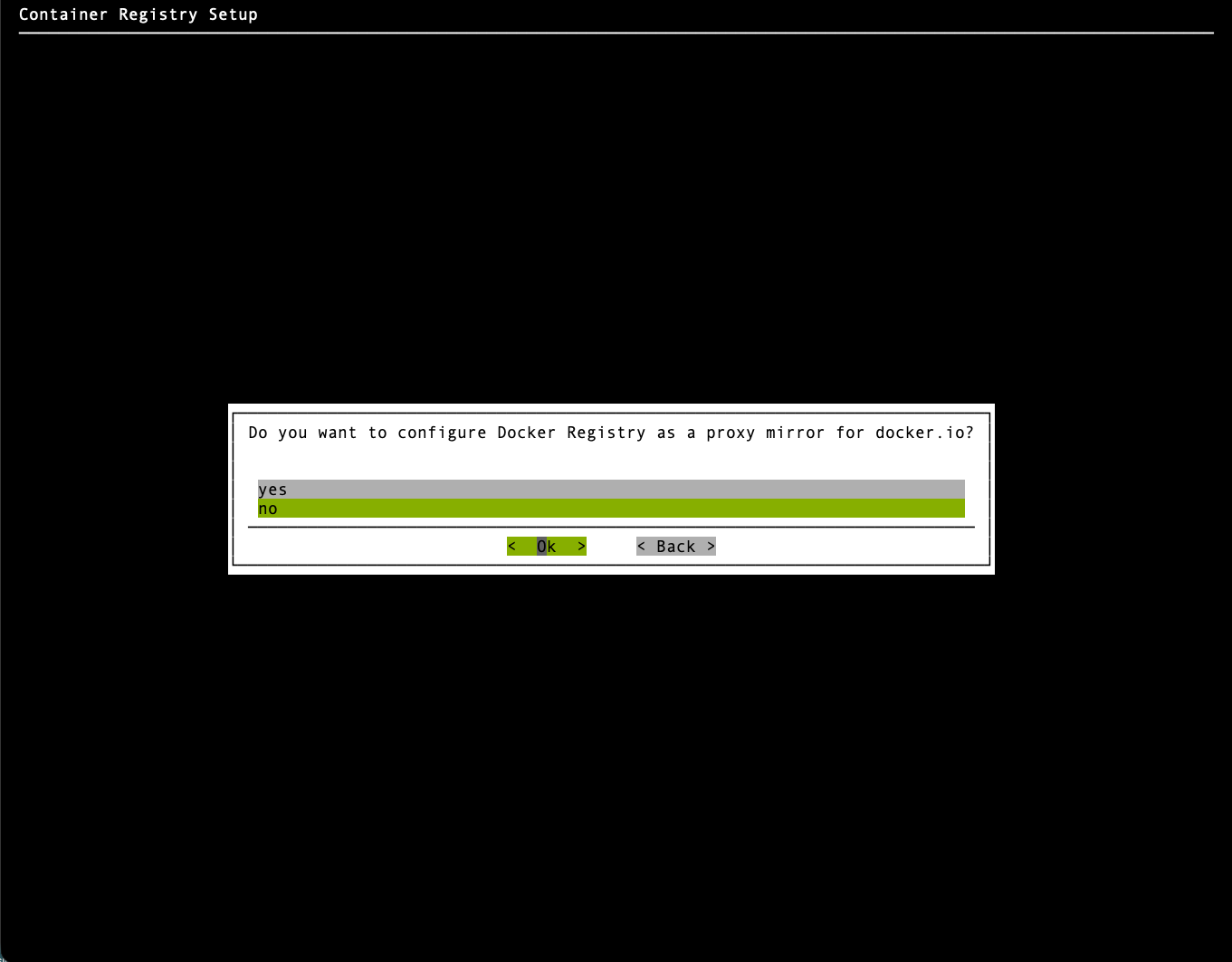
Proxy mirror configuration#
Select no and select Ok.
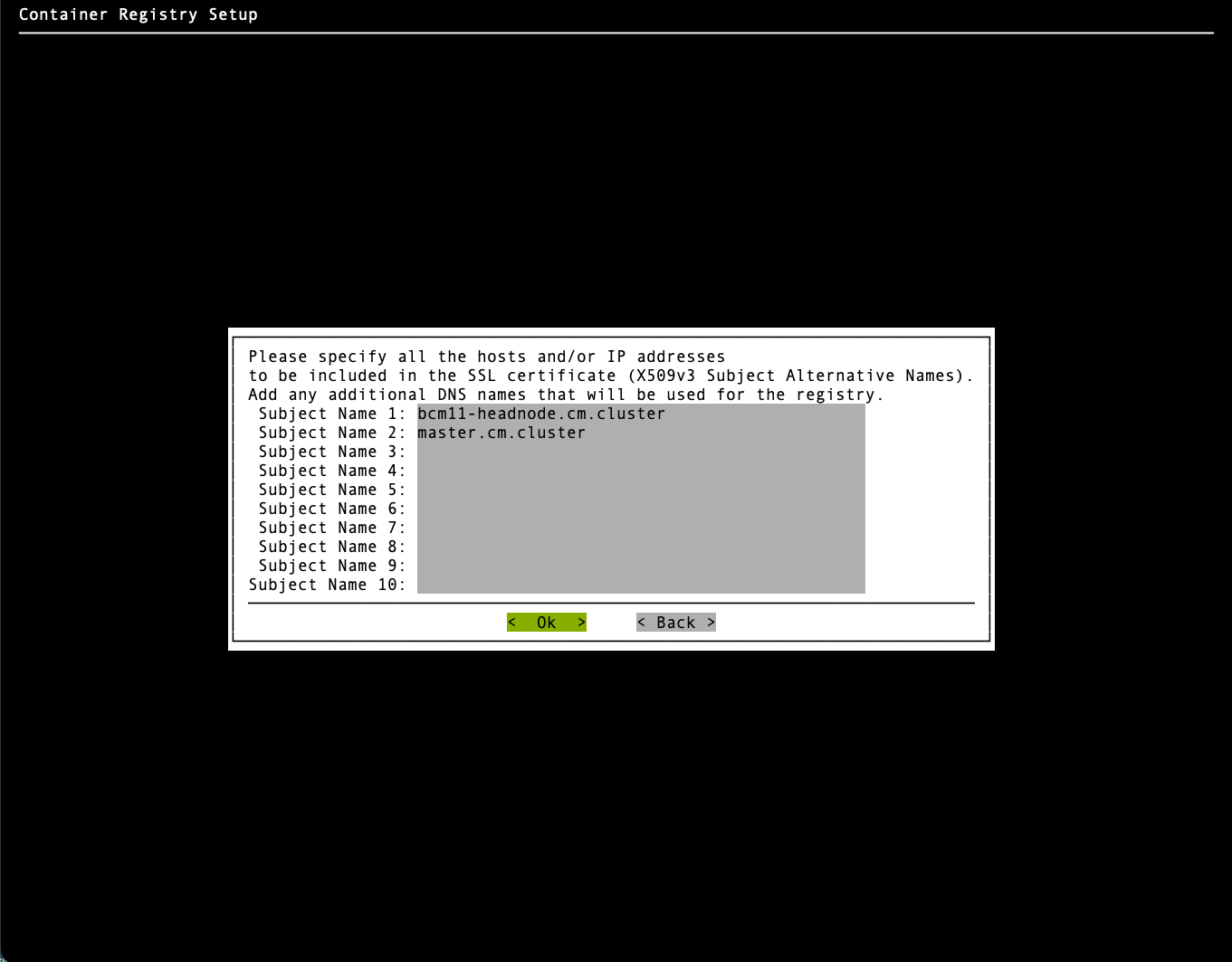
SSL certificate Subject Alternative Names#
Ensure the container registry hostname is included in the SSL certificate Subject Alternative Names. Set a custom domain name or additional SAN: master.cm.cluster.
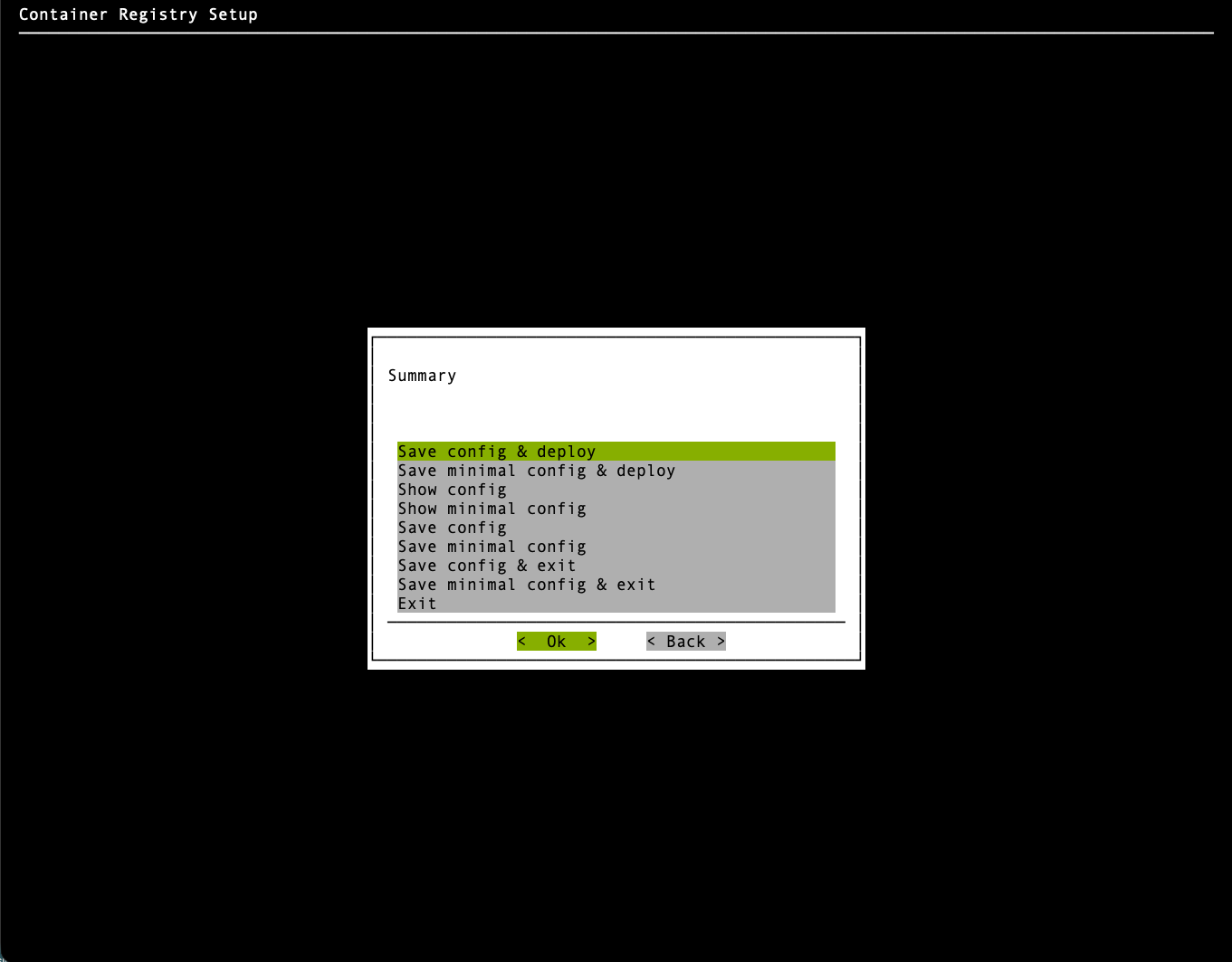
Save and deploy#
Select Save config & deploy and select Ok.
The domain master.cm.cluster is referenced throughout the remainder of this guide and in /root/cm-kubernetes-setup.conf.
Step 5: Install Docker#
Follow this step once.
Install and configure Docker on the active BCM head node:
cm-docker-setup --skip-packages
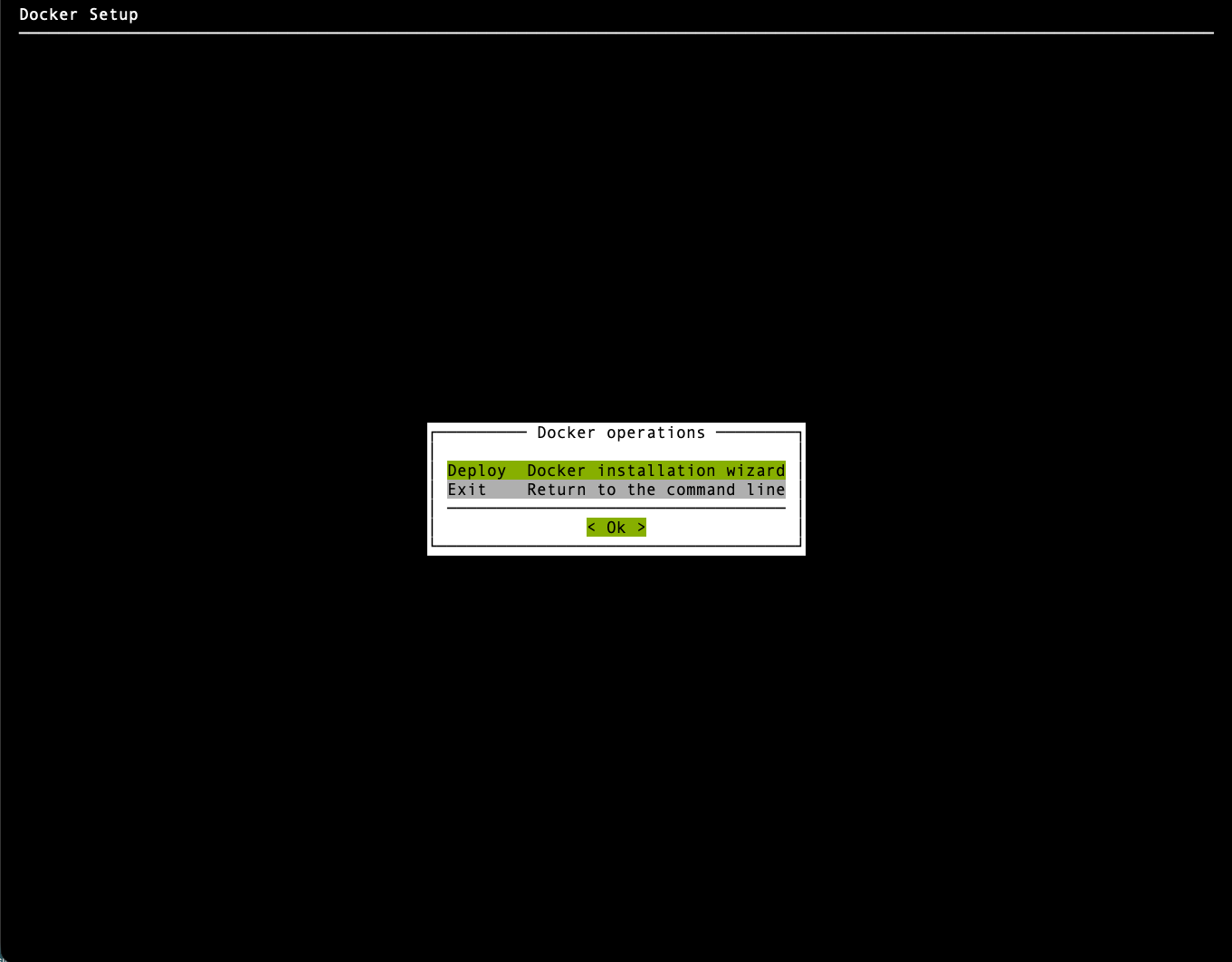
Docker installation wizard#
Select Deploy Docker installation wizard and select Ok.
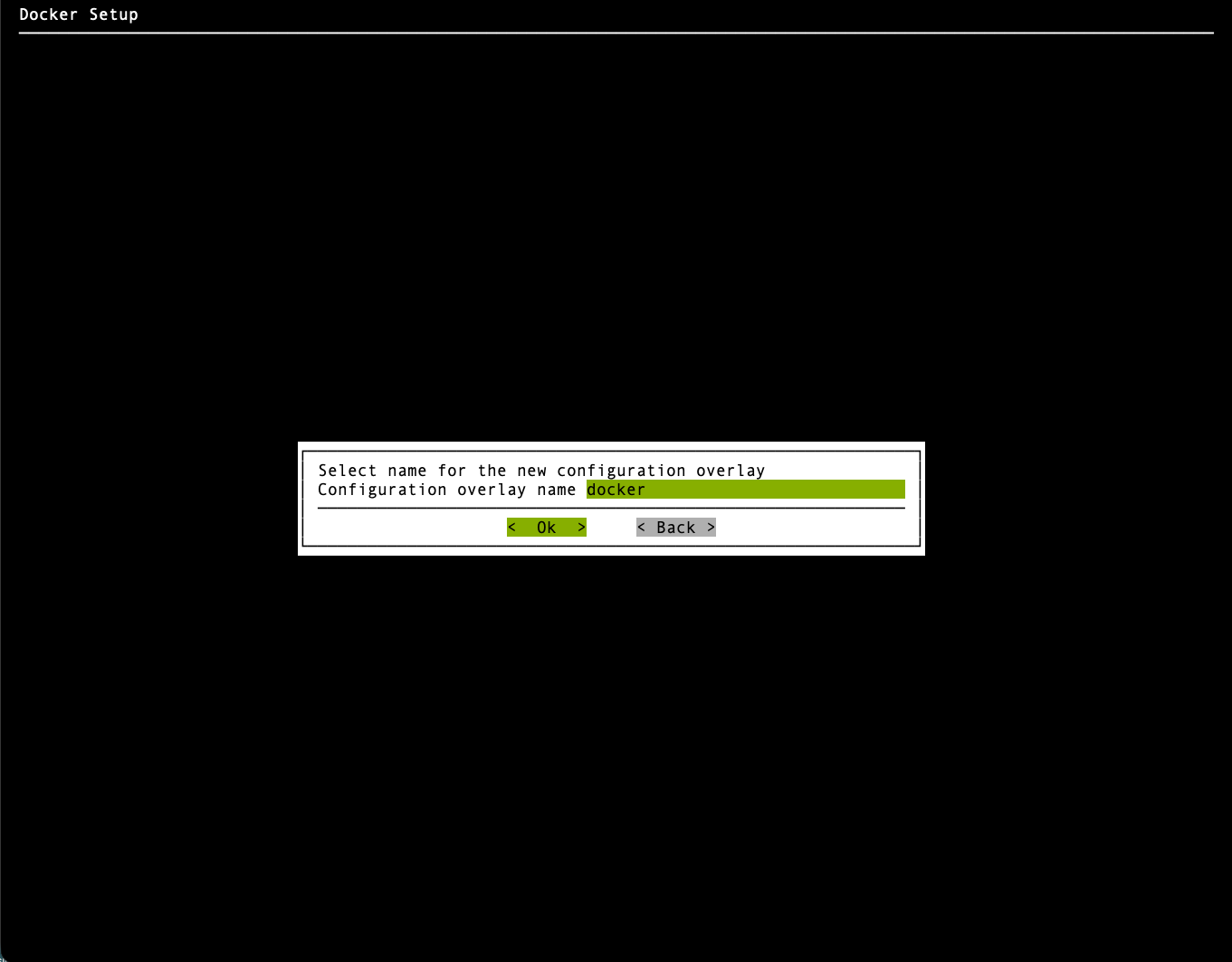
Configuration overlay#
Keep the default configuration overlay name docker and select Ok.
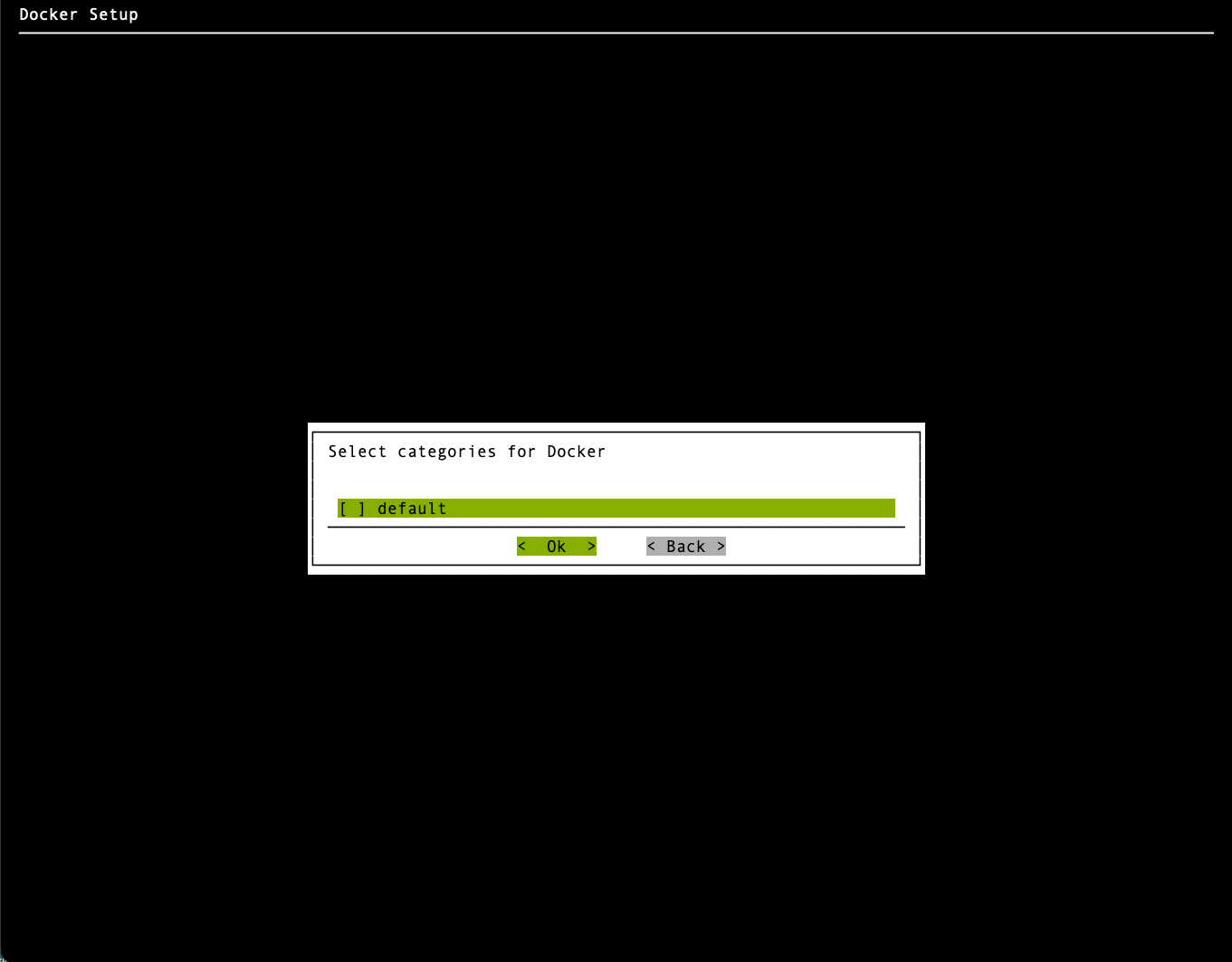
Categories for Docker#
Leave all categories unselected and select Ok.
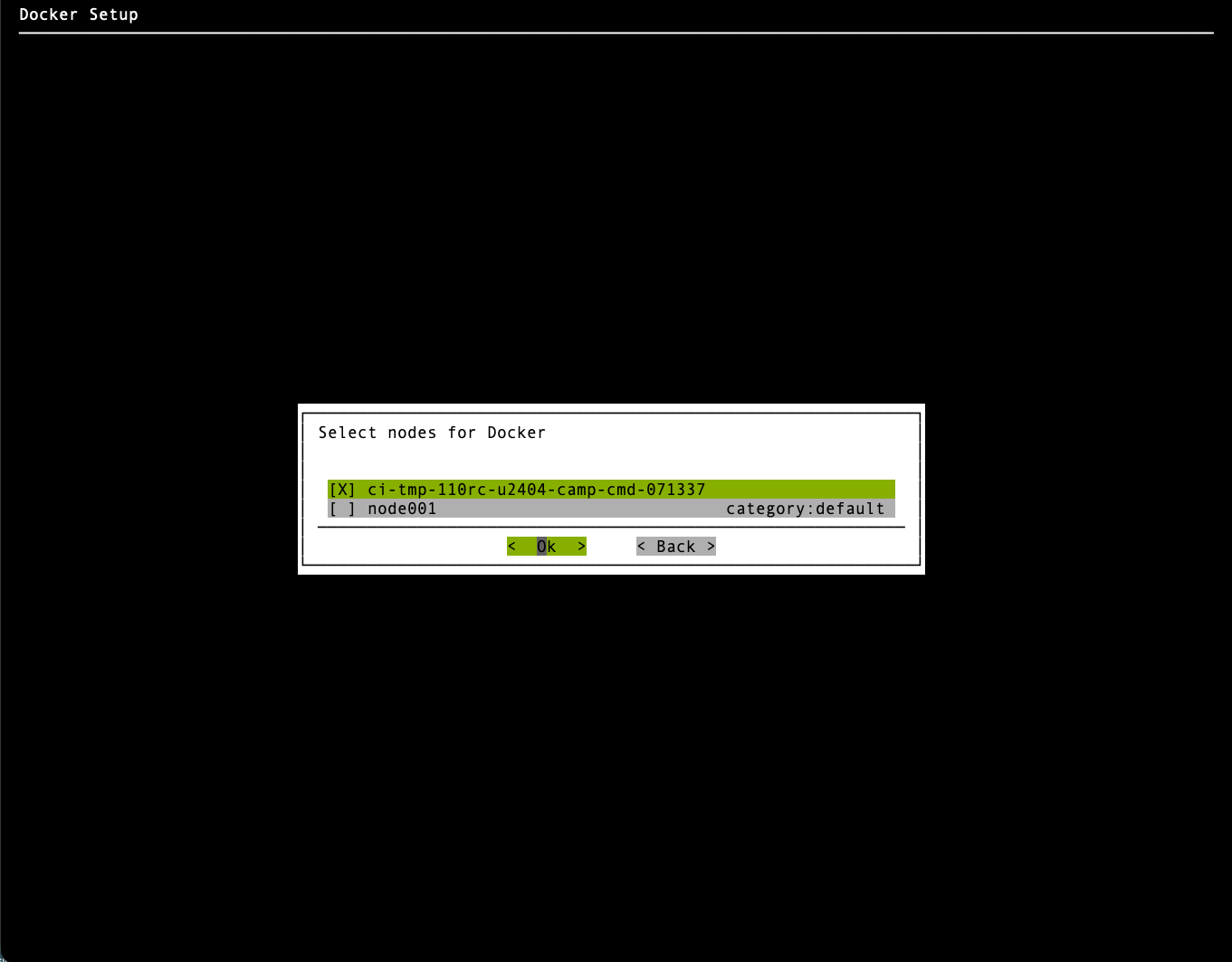
Nodes for Docker#
Select the active BCM head node and select Ok.
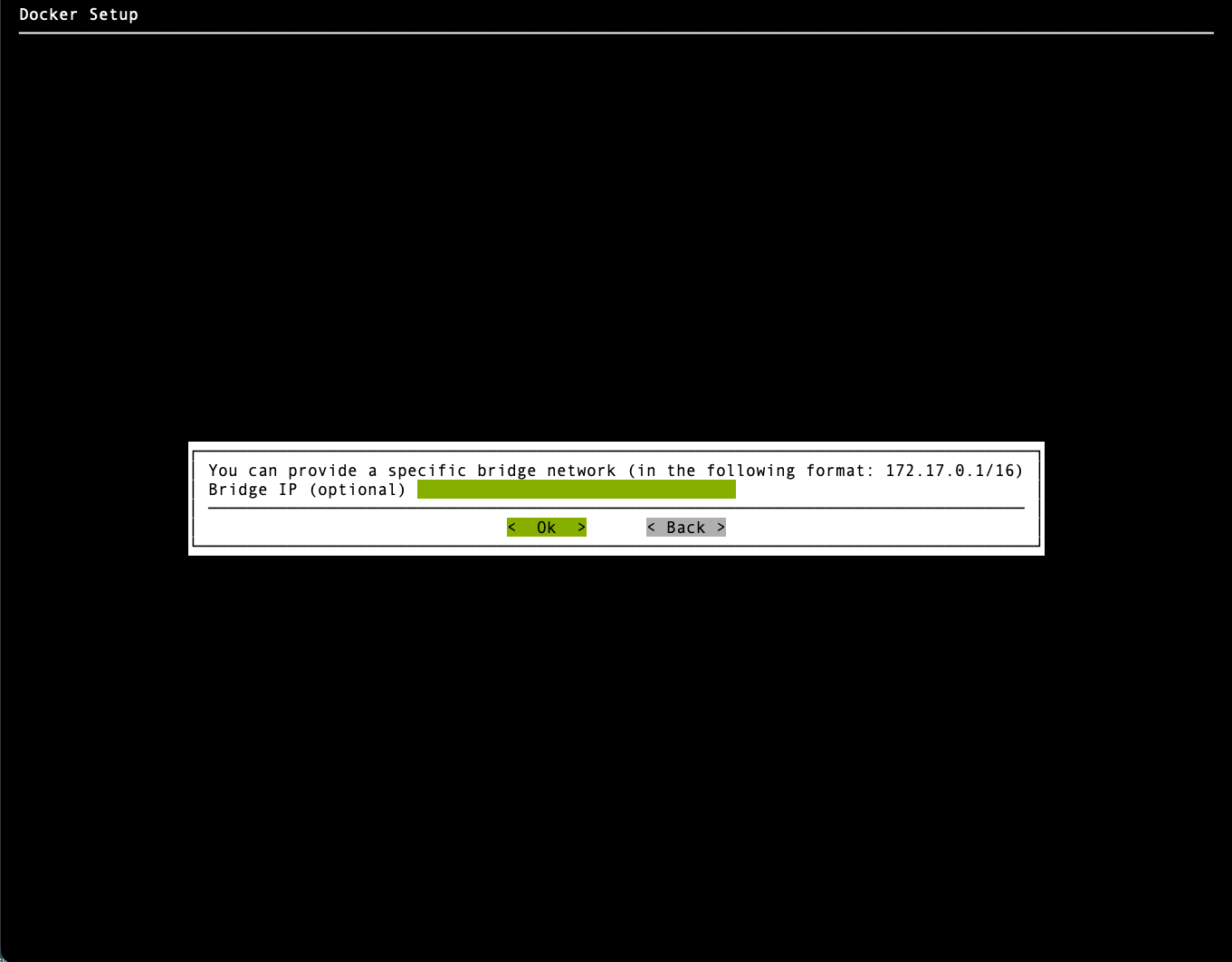
Bridge network#
Leave the bridge IP blank and select Ok.
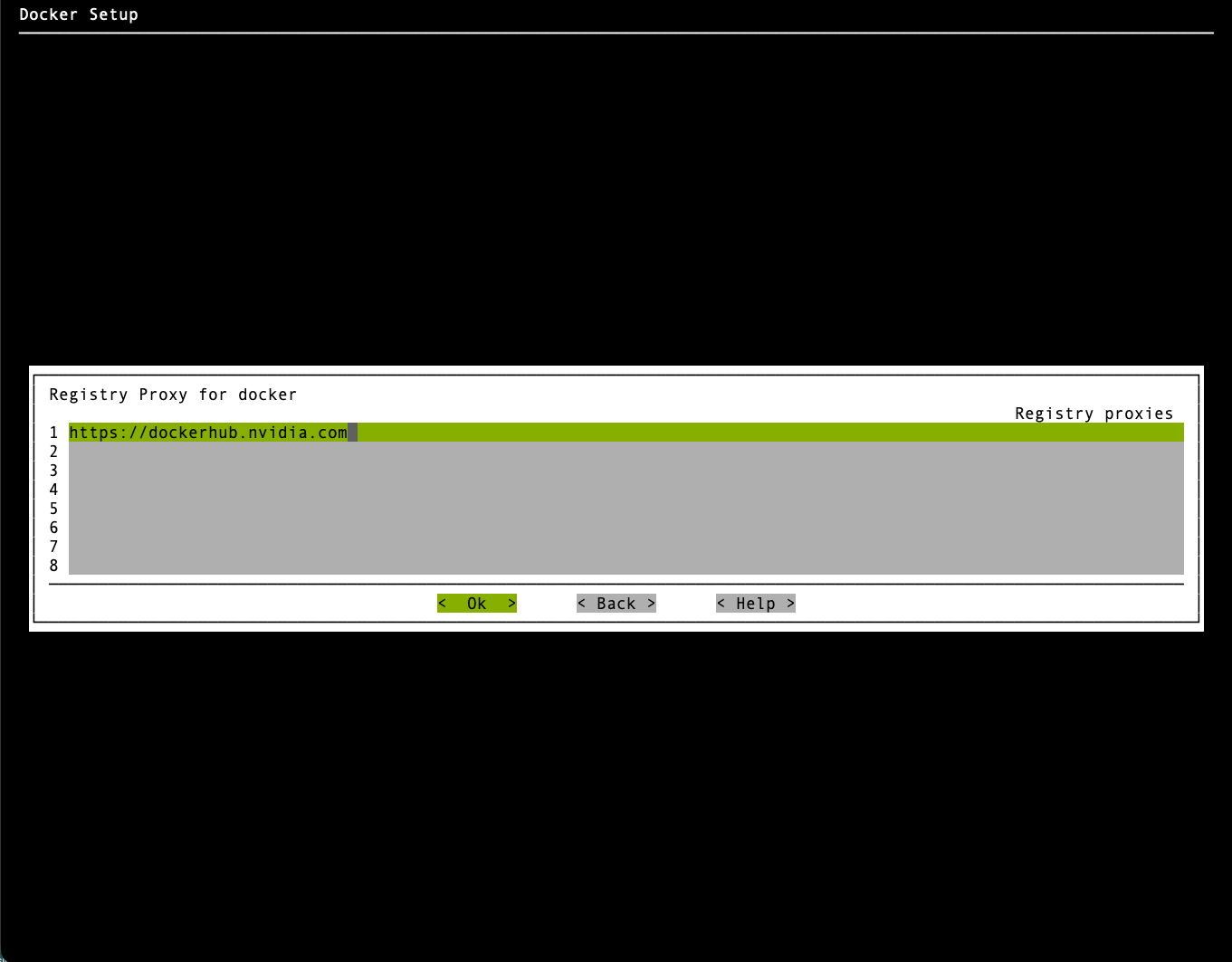
Registry proxy#
Configure registry proxies as shown and select Ok.
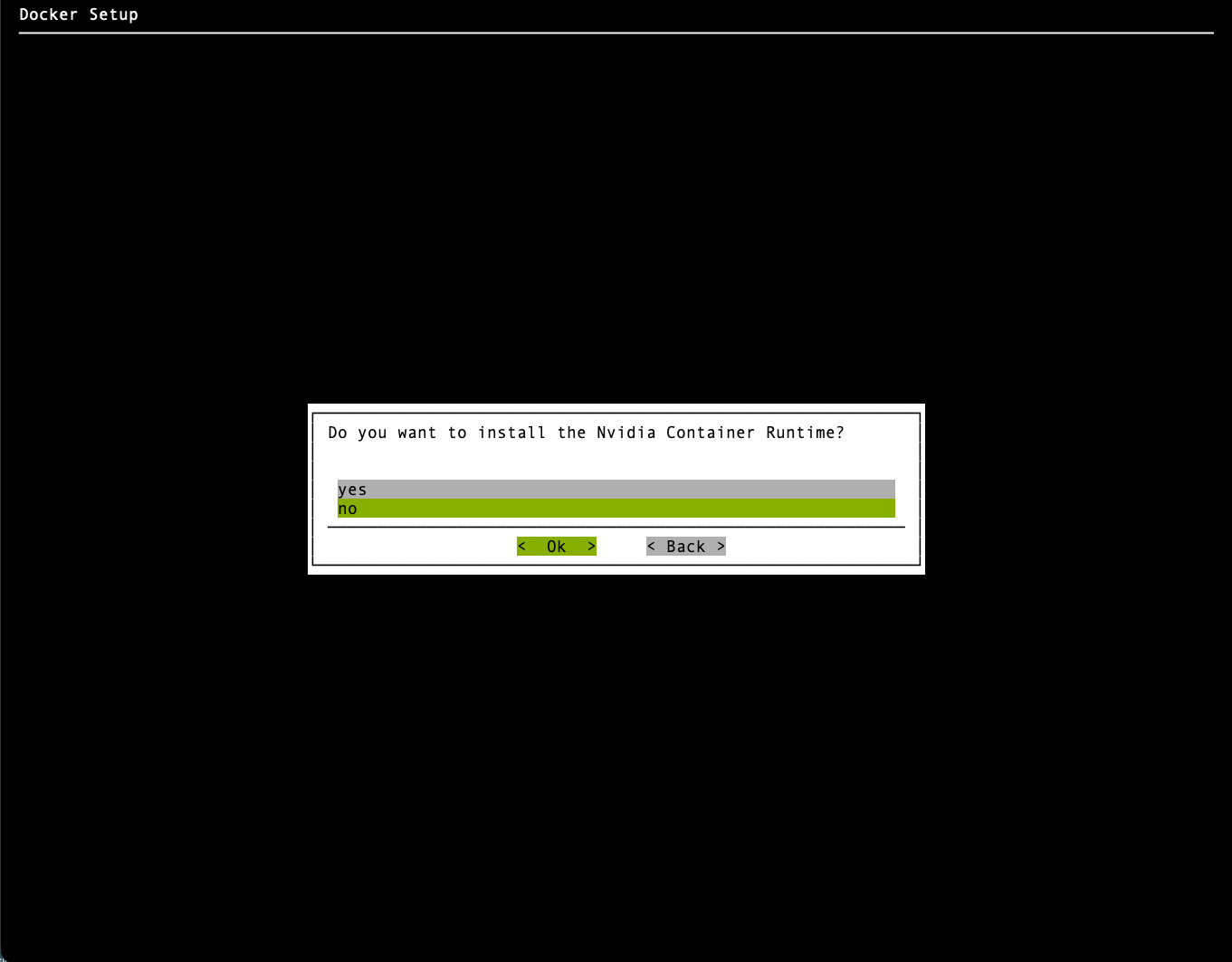
NVIDIA Container Runtime#
Select no and select Ok.
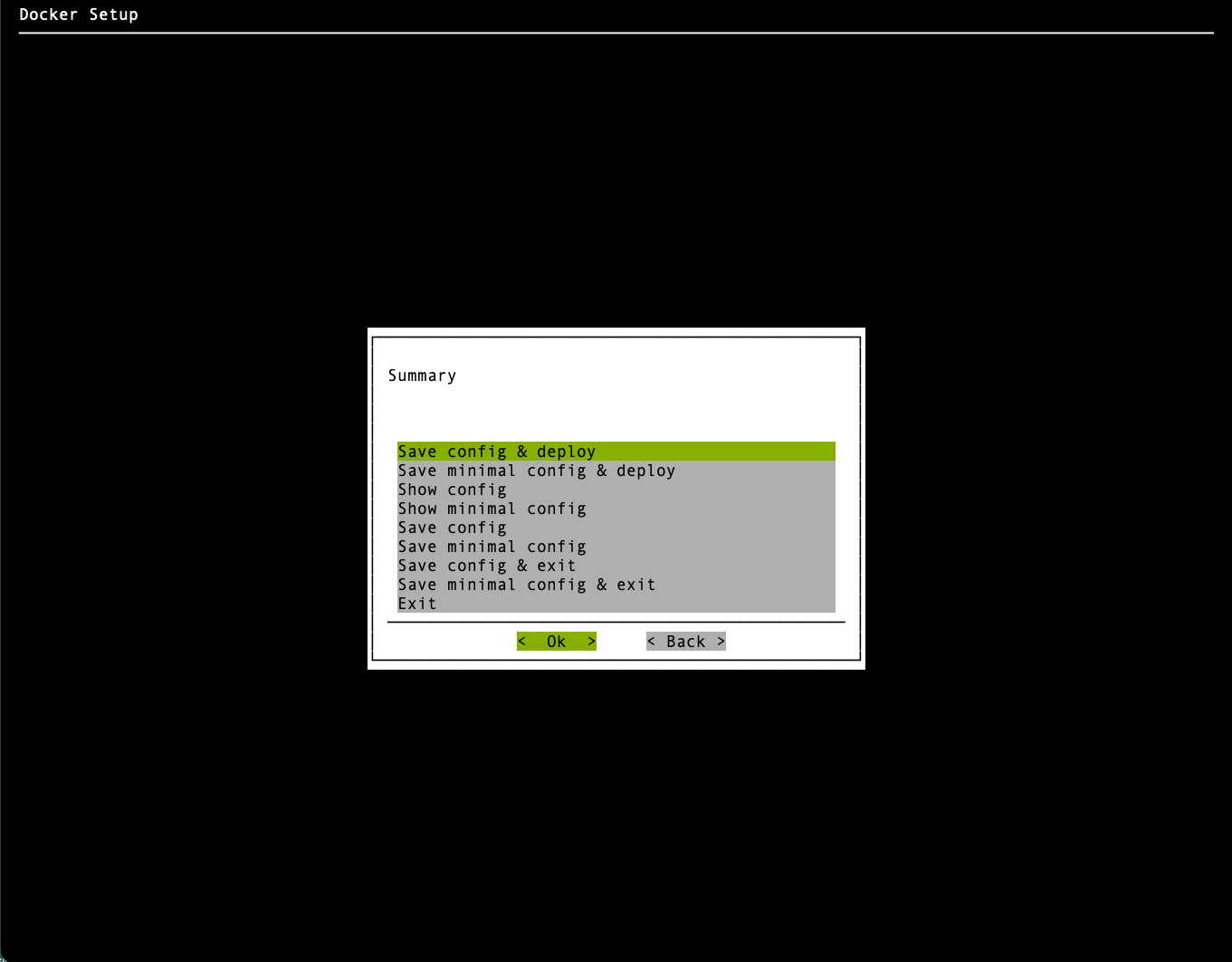
Save and deploy#
Select Save config & deploy and select Ok.
Verify Docker is running:
module load docker
docker ps
Expected output:
CONTAINER ID IMAGE COMMAND CREATED STATUS PORTS NAMES
Docker service initialization may take a few seconds. docker login is not required — images are not pulled from Docker Hub in the air-gapped environment.
Step 6: Push container images and Helm charts#
From the airgapped directory, push the complete shared container-image set to the local registry once:
cm-kubernetes-setup --airgap-push-container-images -c /root/cm-kubernetes-setup-k8s-admin.conf
Both saved configurations point at the same local registry, and the push reads the image set from the extracted k8s-images directory, not from the configuration. One push therefore covers both clusters.
Run the Helm-chart helper against both saved configurations to validate each cluster’s chart requirements:
cm-kubernetes-setup --airgap-push-helm-charts -c /root/cm-kubernetes-setup-k8s-admin.conf
cm-kubernetes-setup --airgap-push-helm-charts -c /root/cm-kubernetes-setup-k8s-user.conf
With identical inputs and destinations, the second invocation uploads the same charts again. This is expected.
Extract the shared CRD files once:
$K8S_AG_SCRIPTS/extract_crds.sh
Multi-architecture clusters#
Download container images for every CPU architecture your Kubernetes workloads require on the preparation host. All images for the architectures you downloaded are pushed to the registry, regardless of the BCM head node’s own architecture.
Step 7: Prepare the air-gapped configuration#
Edit both saved configurations, /root/cm-kubernetes-setup-k8s-admin.conf and /root/cm-kubernetes-setup-k8s-user.conf. In each file, verify the registry, Helm repository, and CA settings, and confirm that the airgap section matches the following. Update any values that differ before proceeding:
modules:
  kubernetes:
    airgap:
      helm:
        ca: '/cm/local/apps/containerd/var/etc/certs.d/master.cm.cluster:5000/ca.crt'
        repo: 'oci://master.cm.cluster:5000/helm-charts'
      registry: 'master.cm.cluster:5000'
      registry_username: ''
      registry_password: ''
Important
Verify each field in both configuration files. Pay particular attention to helm.ca, helm.repo, and registry — incorrect values will cause deployment failures in the air-gapped environment.
Adjust hostnames and paths only if your container registry uses a different address than master.cm.cluster:5000.
Step 8: Deploy Kubernetes#
Deploy k8s-admin first, and then k8s-user. Use each cluster’s own configuration.
Deploy the Administrative Cluster#
Deploy k8s-admin with its prepared configuration:
cm-kubernetes-setup -c /root/cm-kubernetes-setup-k8s-admin.conf
Patch the User-Cluster Configuration#
After the administrative cluster deployment completes, patch /root/cm-kubernetes-setup-k8s-user.conf, saved in Step 1 and prepared in Step 7. Complete the following steps before deploying the user cluster:
Verify that
modules.kubernetes.master.nodescontains only the intended user-cluster control-plane nodes and thatmaster.labelsincludesnode-role.kubernetes.io/control-plane. GPU compute nodes must not have that role label. Confirm sufficient CPU, memory, and compatible image architectures on the control-plane nodes.On the active BCM head node, run the following command to create
/root/k8s-user-service-placement.patch. Copy the entire block, including the closingPATCHline. The quoted heredoc delimiter preserves the patch contents without shell expansion. Before using it, confirm that Kgateway’s values do not already contain acontrollermapping and that Calico’s installation values do not already containcontrolPlaneNodeSelectorortyphaDeployment. If any exists, review the existing placement settings instead of adding a duplicate YAML key:cat > /root/k8s-user-service-placement.patch <<'PATCH' --- cm-kubernetes-setup-k8s-user.conf +++ cm-kubernetes-setup-k8s-user.conf @@ -610,6 +610,9 @@ name: kgateway namespace: kgateway-system values: + controller: + nodeSelector: + node-role.kubernetes.io/control-plane: "" gatewayClassParametersRefs: kgateway: name: kgateway @@ -1395,6 +1398,14 @@ namespace: tigera-operator values: installation: + controlPlaneNodeSelector: + node-role.kubernetes.io/control-plane: "" + typhaDeployment: + spec: + template: + spec: + nodeSelector: + node-role.kubernetes.io/control-plane: "" calicoNetwork: bgp: Enabled ipPools: PATCH
This command creates the patch file; it does not apply the patch. Calico’s
installation.typhaDeployment.spec.template.spec.nodeSelectorpins Typha explicitly. Retaininstallation.controlPlaneNodeSelectorfor other Calico control-plane components; it does not constrain Typha in the tested operator. Calico node DaemonSets retain their compute-node placement. Kgateway’scontroller.nodeSelectorpins the controller while retaining its existing control-plane toleration. The patch does not match or change chart-version values. Registry settings, network configuration, and node assignments remain unchanged. Matching the patch does not establish chart compatibility; verify that the selected charts support these values. The fields were checked with Tigera Operatorv3.32.1and Kgateway2.3.6.Check the patch against the saved configuration without modifying it:
patch --dry-run --batch --forward --fuzz=0 \
  /root/cm-kubernetes-setup-k8s-user.conf \
  /root/k8s-user-service-placement.patch
Both hunks must pass and the command must exit successfully. Line offsets are acceptable because preceding configuration can differ between sites. If a hunk fails, stop. The surrounding configuration can differ from the example or contain prior placement changes. Do not remove context or increase fuzz to force the patch to apply.
After the dry run passes, apply the patch:
patch --batch --forward --fuzz=0 \
  /root/cm-kubernetes-setup-k8s-user.conf \
  /root/k8s-user-service-placement.patch
Verify that the saved configuration contains all three selector mappings at the paths shown in the patch. The empty selector value matches the standard control-plane labels generated by this wizard. Both services must remain Pending if eligible control-plane nodes are unavailable; GPU workers are not a fallback.
If you need to regenerate the configuration before deployment, rerun the cm-kubernetes-setup TUI wizard and select Save config & exit. Repeat the configuration preparation and patch steps on the newly generated file.
Deploy the User Cluster#
Deploy k8s-user using the patched configuration:
cm-kubernetes-setup -c /root/cm-kubernetes-setup-k8s-user.conf
The setup process reboots the Kubernetes nodes. After each deployment, repeat both checks in Verify Shared Storage for all nodes of the cluster that you just deployed. Do not install more components until every node passes.
After the user cluster is deployed, switch to its module on the active BCM head node and verify placement and readiness:
module switch kubernetes/k8s-user
kubectl get nodes -l node-role.kubernetes.io/control-plane -o wide
kubectl get pods -A -o wide
kubectl -n calico-system get deployment calico-typha -o yaml
kubectl -n kgateway-system get deployment kgateway -o yaml
Both named Deployments must include node-role.kubernetes.io/control-plane: "" in spec.template.spec.nodeSelector, and their pods must be Ready on the intended control-plane nodes. Pods currently running on control-plane nodes do not prove that future pods are restricted there. Verify generated gateway proxy placement separately. Keep the Calico node agents on compute nodes. Stop before installing more components if a required resource is missing, remains Pending, or permits compute-node placement.
This completes the air-gapped Kubernetes cluster deployment. Continue with Overview and Prerequisites for NMC Components and the preparation steps that follow it. You install Run:ai onto k8s-user later, in Run:ai Installation, after registry mirroring and the NMC artifacts are in place.
Post-installation notes#
Software images#
Step 3 installs packages from the air-gapped tarball into software images referenced by each saved configuration. When deploying new software images for worker nodes in an air-gapped cluster, BCM cannot automatically provision them as it does in connected clusters.
When worker nodes in an air-gapped cluster need a software image that lacks the Kubernetes packages, install the packages into that image before the nodes boot from it. This applies to new workers and to existing workers that move to a new image, such as a new DGX OS release.
Assign the new image to the nodes or their category, and commit. Do not reboot the nodes yet.
From the
airgappeddirectory, runcm-kubernetes-setup --airgap-install-system-packages -c <config>with a configuration that names those nodes or categories. The installer targets the image currently assigned to them.For new workers, add the nodes or their category to the cluster’s worker configuration overlay.
Reboot the nodes so that they boot from the prepared image.