

Kubernetes Installation#
Install Kubernetes with the cm-kubernetes-setup tool included with NVIDIA Base Command Manager (BCM) 11.
The NVIDIA Mission Control software stack uses two Kubernetes clusters on DGX GB200, GB300, and VR200 systems. This section describes how to create the k8s-admin cluster, which hosts administrative services.
After deploying the administrative cluster, prepare the separate k8s-user cluster as described in Prepare and Deploy the User Cluster. Configure Typha and gateway placement before deploying that cluster.
Important
Complete Shared Storage Requirements before you run the setup
wizard. Do not create k8s-admin until every selected node mounts
/cm/shared from the same NFS source.
Names Used in This Section#
The following terms distinguish the host where you run BCM setup tools from the Kubernetes clusters and their BCM node categories:
- BCM head node
The server running Base Command Manager. Run the setup wizard on the active BCM head node. The Kubernetes control plane nodes selected in the wizard belong to the cluster you are deploying; they are not the BCM head node.
k8s-adminThe Kubernetes cluster created in this section. It hosts the administrative services of the NVIDIA Mission Control software stack.
k8s-userThe second Kubernetes cluster. It hosts Run:ai and the GPU Operator.
k8s-system-adminA BCM node category containing the Kubernetes admin control plane nodes for the
k8s-admincluster.k8s-system-userA BCM node category containing the Kubernetes user control plane nodes for the
k8s-usercluster.
The two clusters use separate nodes, grouped in their corresponding BCM categories.
After you create k8s-admin, load its environment module on the BCM head node to target
it with kubectl:
module load kubernetes/k8s-admin
The k8s-user cluster has its own module, kubernetes/k8s-user. Use the
k8s-admin module for the verification commands in this section.
BCM Setup Assistant#
To set up the k8s-admin cluster, complete the following steps:
On the active BCM head node, run
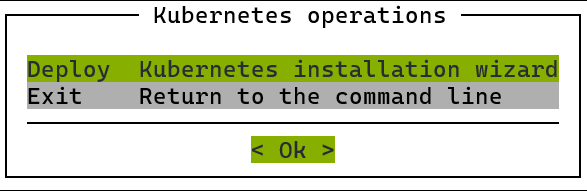
cm-kubernetes-setup.Choose Deploy and then select Ok.
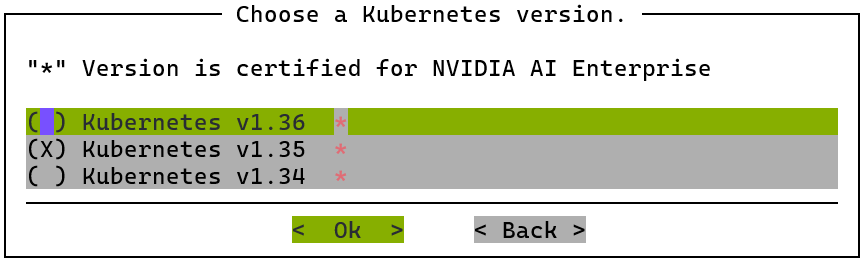
Choose Kubernetes version v1.35 and then select Ok.
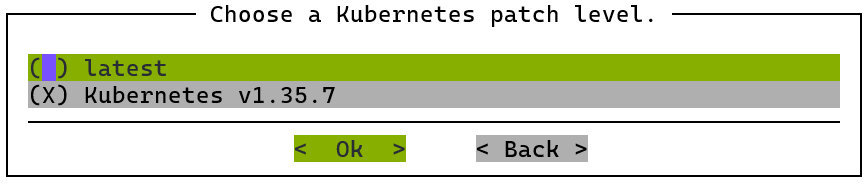
Choose Kubernetes patch level v1.35.7 and then select Ok.
If the selected Kubernetes version differs from the installed packages, a version conflict message might appear. Confirm that you selected v1.35.7 before you select Ok. If you selected a different version, select Back and correct your selection.
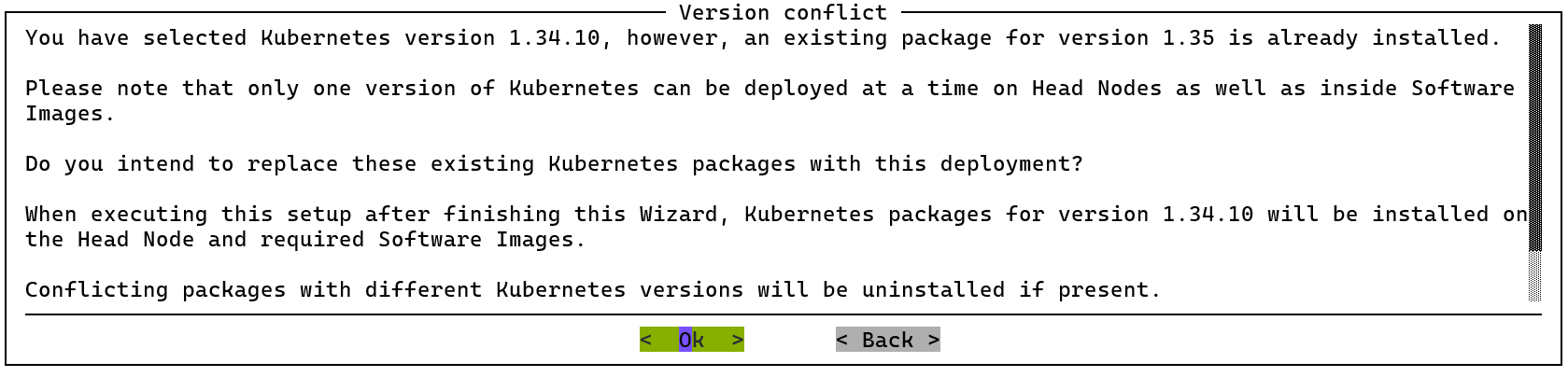
Figure 3 This example shows a conflict with version 1.34.10 selected. Select v1.35.7 for this installation.#
Enter a container registry mirror if one is available. Otherwise, leave the field blank.

Set Kubernetes cluster name to
k8s-admin. The wizard creates a module configuration with this name.Use private address ranges for the service and pod networks. Keep the default subnets unless they conflict with your network. For background, refer to the Kubernetes documentation on IP masquerading.
Set Kubernetes external FQDN to the fully qualified domain name (FQDN) configured in your site’s DNS records.
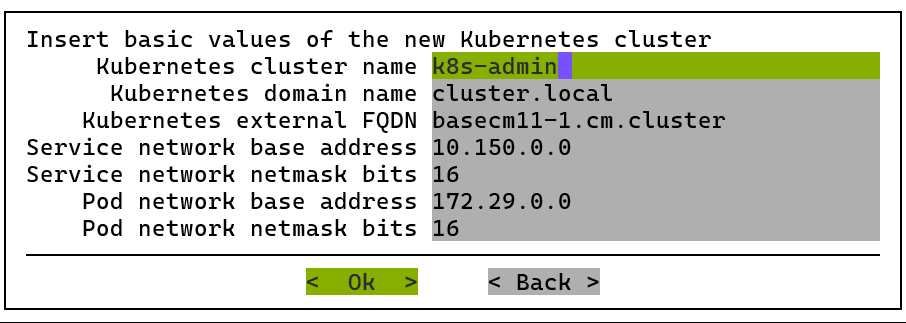
Confirm that the service and pod subnets do not overlap with your existing private IP ranges. You cannot change the pod network subnet without reinstalling the cluster.
Choose no when asked to expose the Kubernetes API servers to the cluster’s external network, and then select Ok.
To identify the external network defined in the BCM base partition, run:
cmsh -c "partition get base externalnetwork"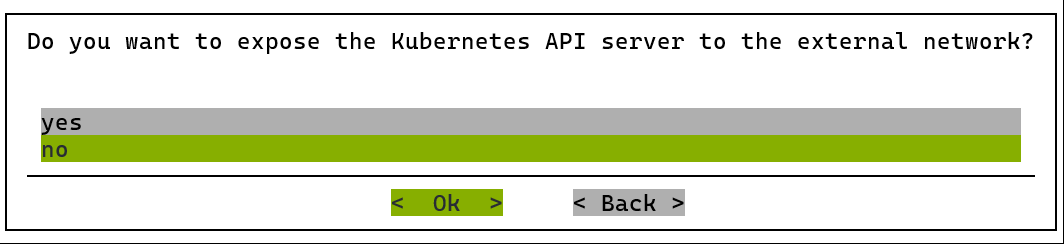
Select
internalnetas the internal network for the Kubernetes nodes. Select it by name: the wizard lists the networks defined on your cluster, so its position can differ from the following screenshot.In a DGX SuperPOD deployment, the management and compute nodes can use different BCM networks. Choose the management nodes’ network.
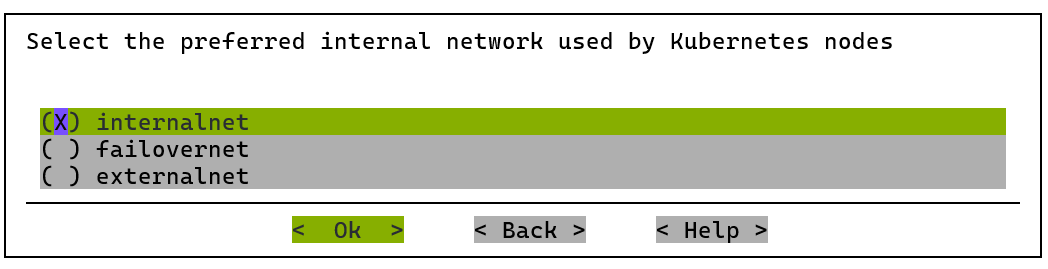
Select the three control-plane nodes in the
k8s-system-admincategory.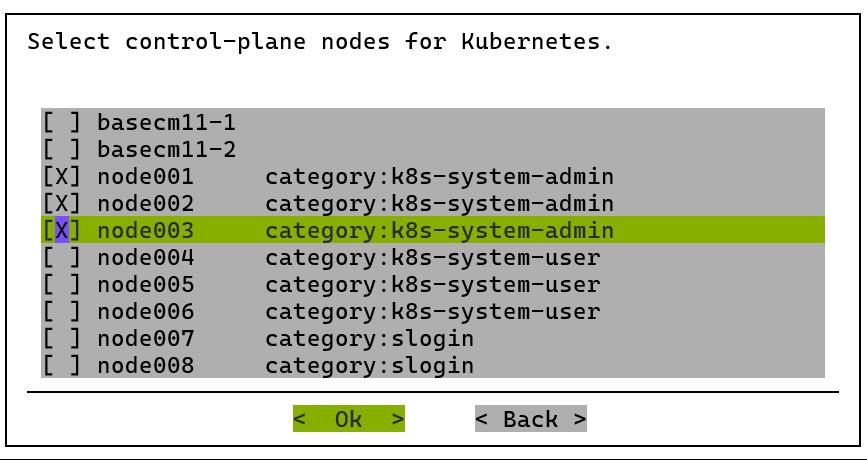
Choose the BCM node category for the Kubernetes worker node pool. Select
k8s-system-admin, the same category as the control nodes selected in the preceding step. These three nodes provide the control plane, etcd, and worker pool fork8s-admin. Do not selectk8s-system-user, because those nodes belong to thek8s-usercluster.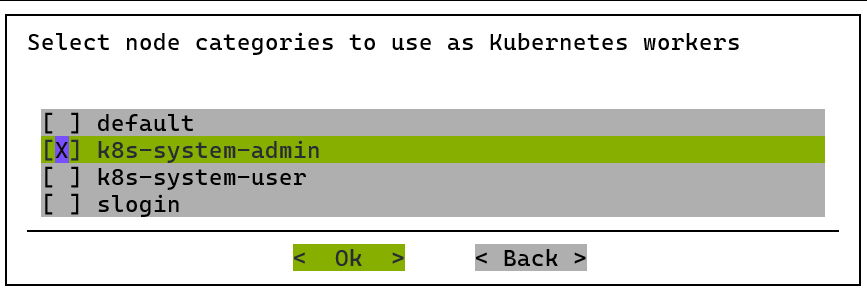
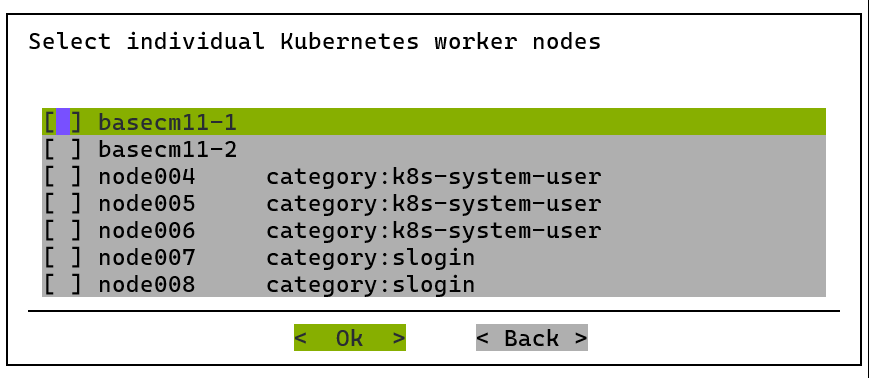
On the Choose individual Kubernetes worker nodes screen, leave all nodes unselected and select Ok. The category selected in the preceding step supplies the worker nodes.
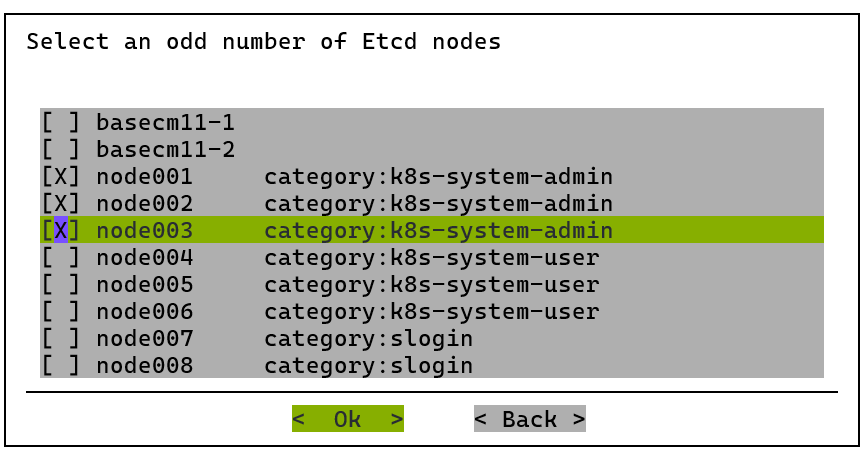
Choose the Etcd nodes and then select Ok.
Choose the same three nodes as the Kubernetes control-plane nodes.
Note
Etcd is an open source, distributed, consistent key-value store for shared configuration and scheduler coordination of distributed systems or clusters. It is used as the default storage backend for Kubernetes. For more information on Etcd, refer to the Etcd documentation.
Set the ports as shown in the following example and do not modify the Etcd spool directory.
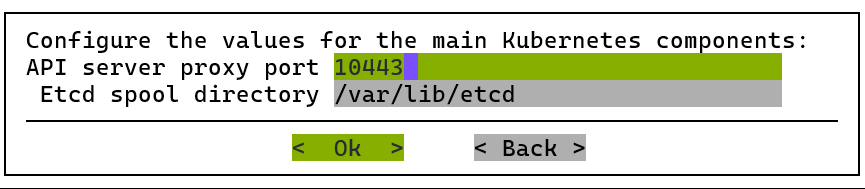
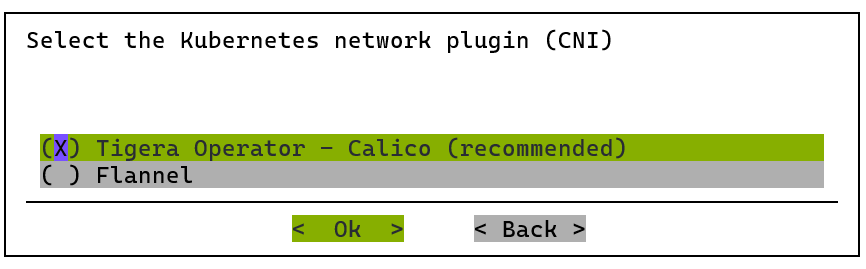
Choose Calico as the network plugin and then select Ok.
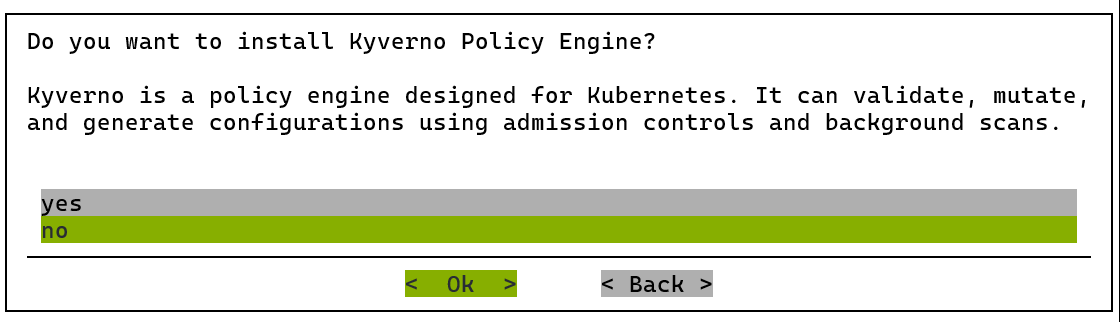
Choose no when asked to install Kyverno Policy Engine, and then select Ok. You can enable Kyverno later.
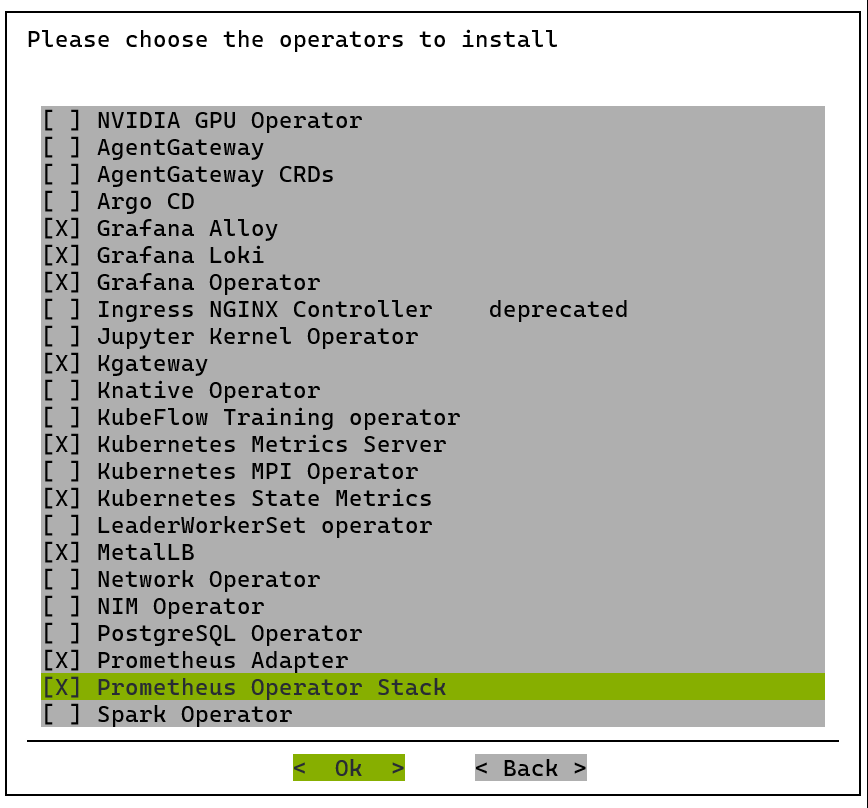
Select the following operators, and then select Ok:
Grafana Alloy
Grafana Loki
Grafana Operator
Kgateway
Kubernetes Metrics Server
Kubernetes State Metrics
MetalLB
Prometheus Adapter
Prometheus Operator Stack
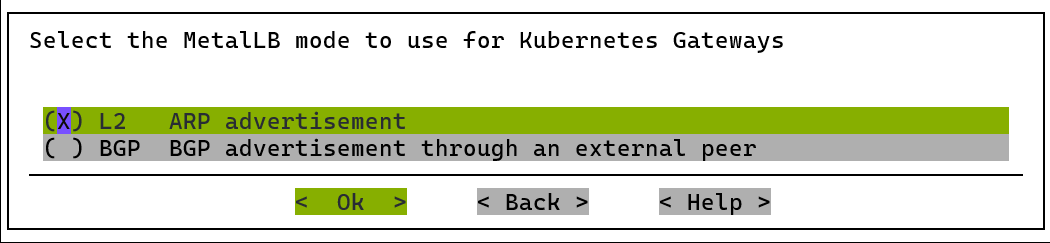
Select the MetalLB mode for Kubernetes Gateways. Choose L2 (ARP advertisement) unless your environment requires BGP, then select Ok.
Enter the BCM gateway IP address. Keep the prefilled value unless your environment requires a different gateway, and then select Ok.
This is the BCM gateway address, not the separate load-balancer address you reserve for NMC Gateway. For that address, refer to NMC Gateway configuration.

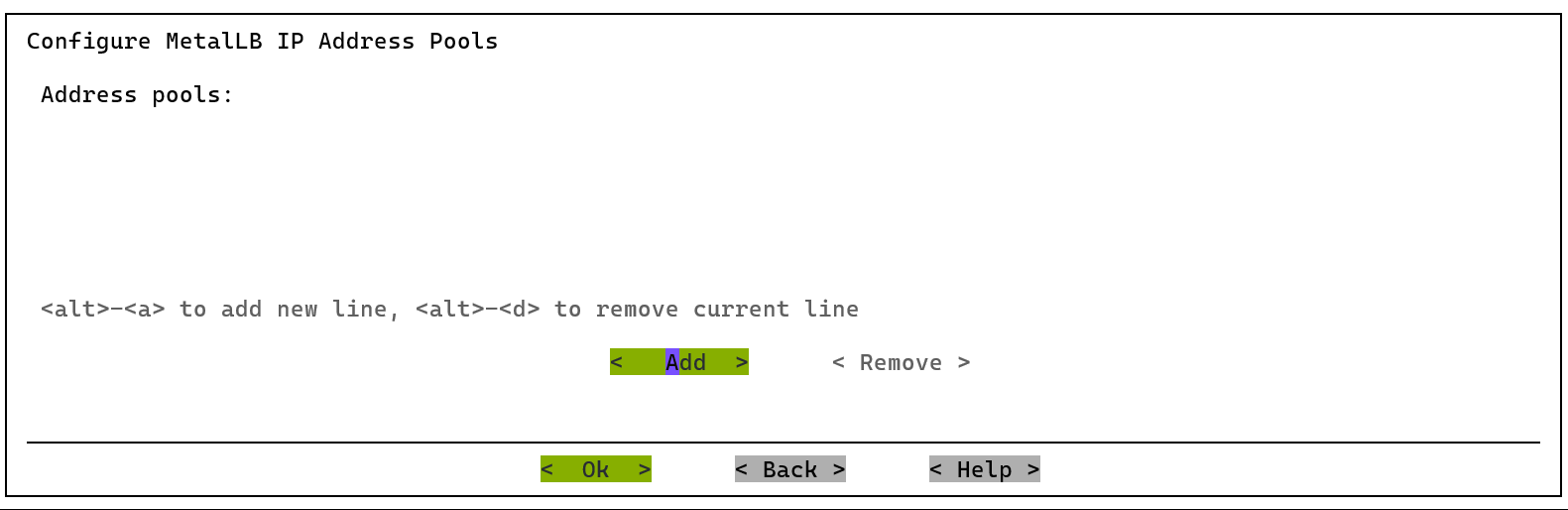
Leave the MetalLB IP address pools blank unless your environment requires them, then select Ok.
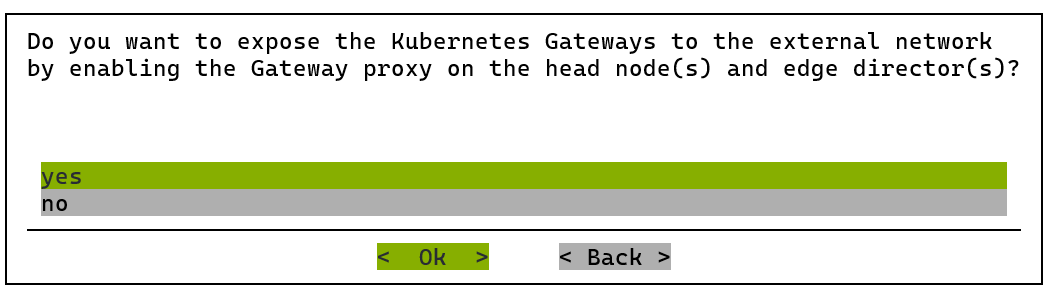
Choose yes to enable the Gateway proxy on the head nodes and edge directors, and then select Ok. This exposes the Kubernetes Gateways to the external network.
Keep the default Gateway proxy port of
443and then select Ok.
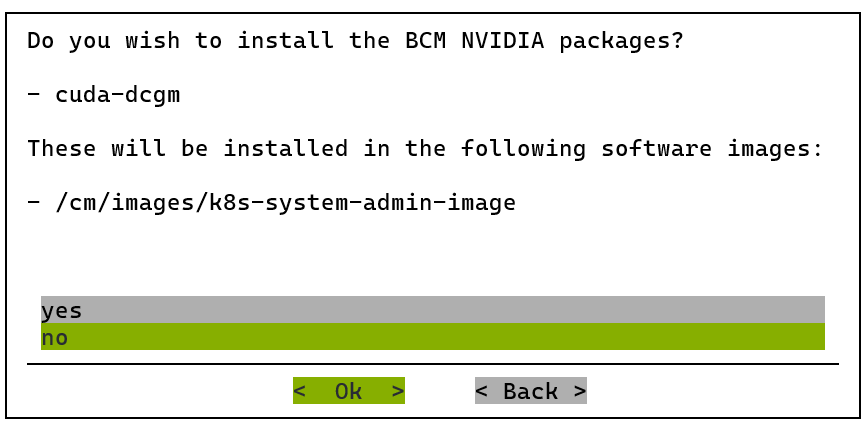
Choose no when asked to install BCM NVIDIA packages, and then select Ok.
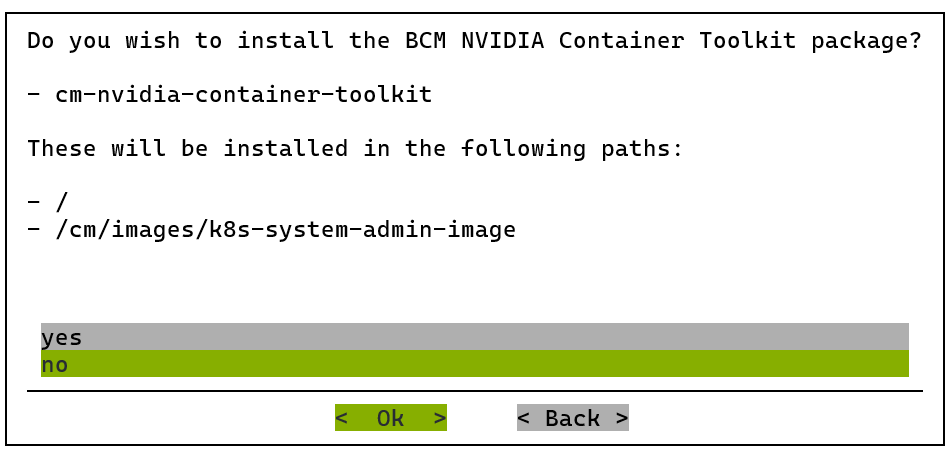
Choose no when asked to install the BCM NVIDIA Container Toolkit package, and then select Ok.
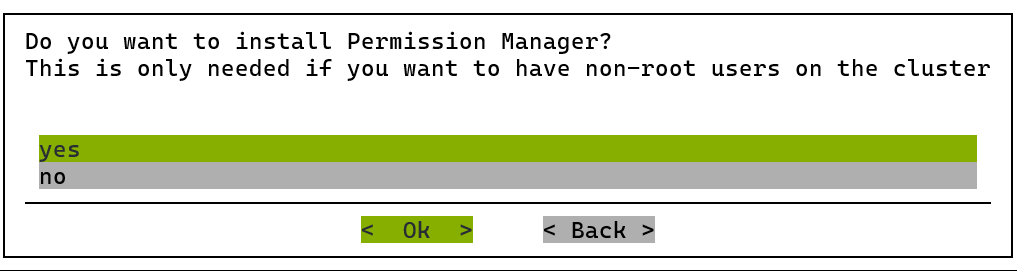
Choose yes to install the Permission Manager and then select Ok.
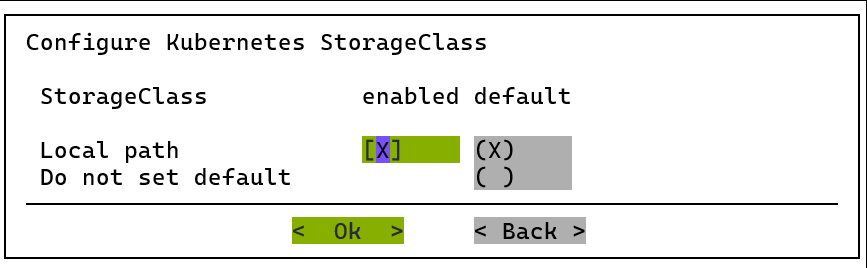
Choose Local path as the StorageClass and press Enter. A wizard issue prevents this selection from working with Tab.
If you press Tab by mistake, press r to retry and return to this screen.
Keep the default Kubernetes storage-pool path,
/cm/shared/apps/kubernetes/k8s-admin/var/volumes, and then select Ok.
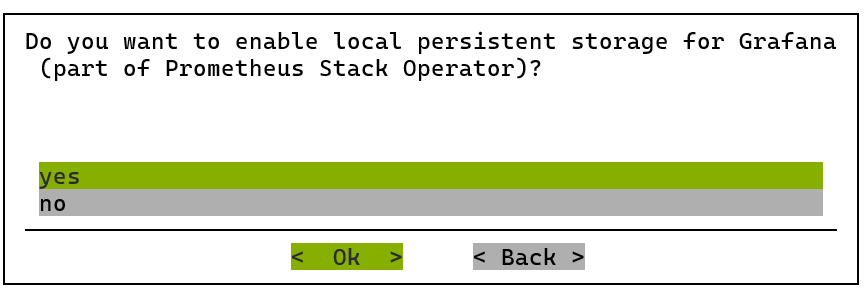
Choose yes to enable local persistent storage for Grafana and then select Ok.
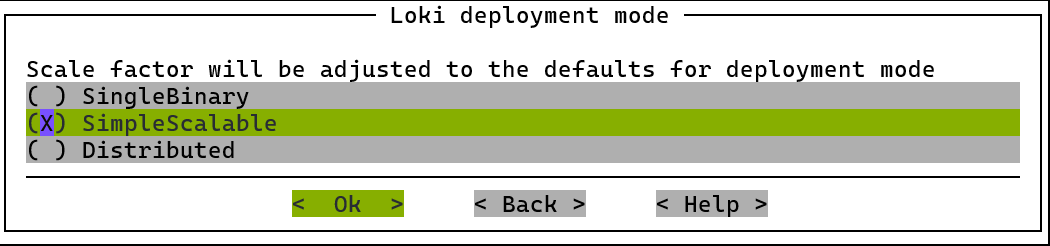
Choose SimpleScalable for the Loki deployment mode and then select Ok.
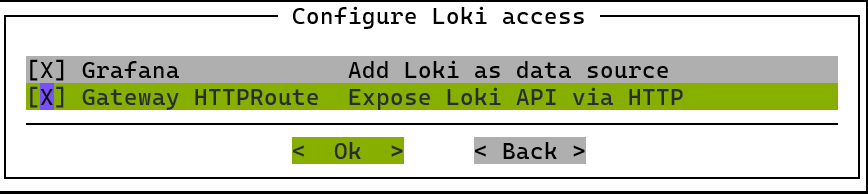
Select both options for Loki access and then select Ok.
Configure the Username and Password for Loki access through the Gateway HTTPRoute. Confirm the password in Repeat password.
Set the username and password to
loki. You can change them later.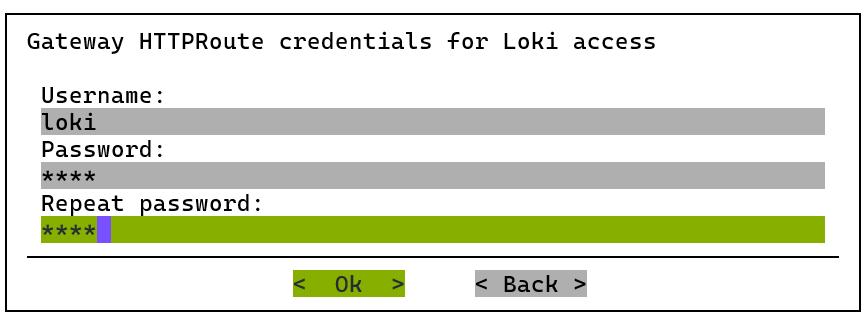
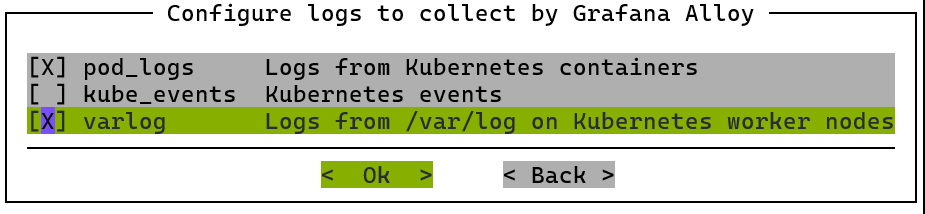
Select the pod_logs and varlog options for Grafana Alloy and then select Ok.
pod_logscollects logs from Kubernetes containers andvarlogcollects/var/logfrom the Kubernetes worker nodes.Mission Control autonomous job recovery requires both for hardware fault detection and attribution.
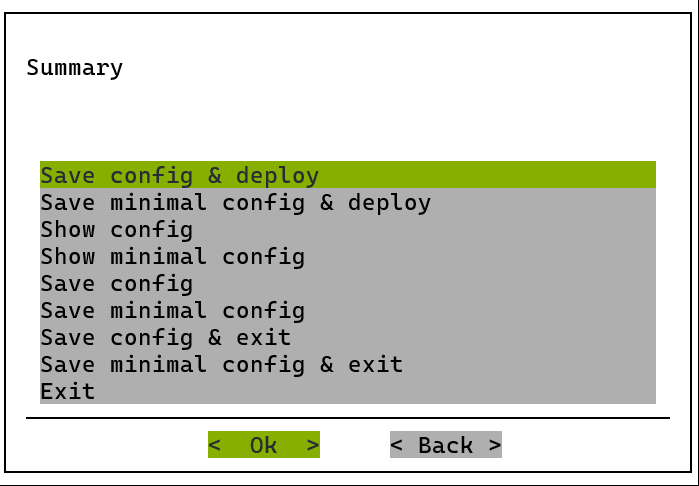
Choose save config & deploy and then select Ok.
Deployment begins after this step. During deployment, all nodes in the Kubernetes cluster reboot. The installer waits up to 15 minutes for them to come back online.
When the deployment finishes, the installer prints a summary like the following example.
Example Deployment Summary
#### stage: kubernetes: Print Summary
Installation completed. Pods might still be initializing.

To add users to the cluster use: refer to `cm-kubernetes-setup --help'

To use kubectl load the module file: kubernetes/k8s-admin/1.35
Common URLs:
## Progress: 100

Progress: 100/100
################### Finished execution for 'Kubernetes Setup', status: completed

Kubernetes Setup finished!
Load the
k8s-adminmodule and check the cluster’s nodes and pods:# Load the module for the administrative cluster module load kubernetes/k8s-admin # Get the nodes in the cluster kubectl get nodes kubectl get pods -A
After the nodes reboot, repeat both checks in Verify Shared Storage for all
k8s-admincontrol and worker nodes. Do not install more components until every node passes.
Prepare and Deploy the User Cluster#
For a connected installation using Run:ai, run cm-kubernetes-setup on the active BCM head node to prepare a separate k8s-user cluster. Select the dedicated k8s-system-user control-plane nodes and the GPU worker category. Keep the administrative and user clusters on separate nodes.
Before creating k8s-user, apply the following patch to its saved cm-kubernetes-setup configuration. It pins shared services to dedicated control-plane nodes before their first deployment. Use the same procedure for connected and air-gapped installations.
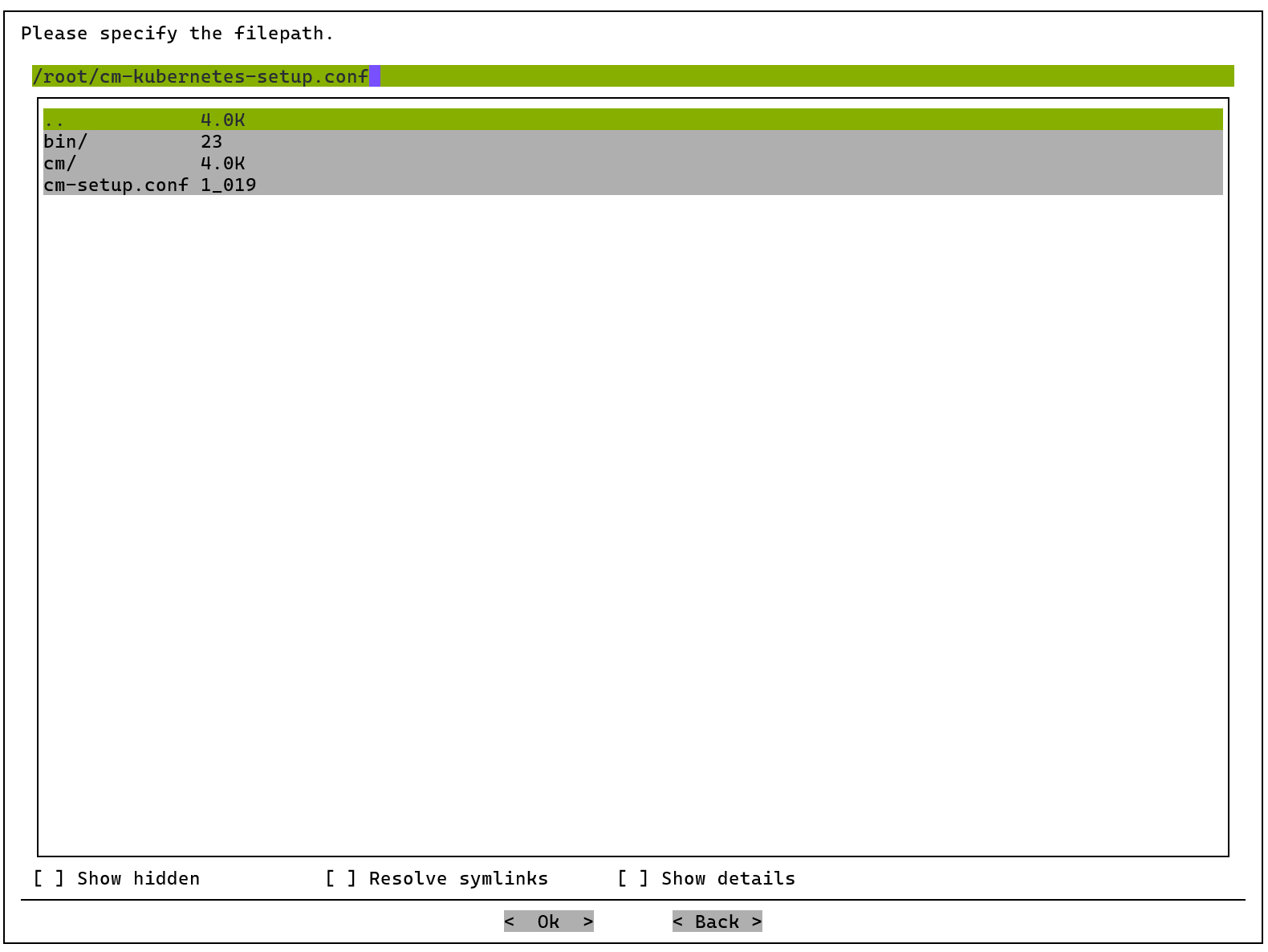
Select Save config & exit in the setup wizard. Save the user-cluster configuration as
/root/cm-kubernetes-setup-k8s-user.conf. Keep it separate from the administrative cluster’s configuration.Verify that
modules.kubernetes.master.nodescontains only the intended user-cluster control-plane nodes and thatmaster.labelsincludesnode-role.kubernetes.io/control-plane. GPU compute nodes must not have that role label. Confirm sufficient CPU, memory, and compatible image architectures on the control-plane nodes.On the active BCM head node, run the following command to create
/root/k8s-user-service-placement.patch. Copy the entire block, including the closingPATCHline. The quoted heredoc delimiter preserves the patch contents without shell expansion. Before using it, confirm that Kgateway’s values do not already contain acontrollermapping and that Calico’s installation values do not already containcontrolPlaneNodeSelectorortyphaDeployment. If any exists, review the existing placement settings instead of adding a duplicate YAML key:cat > /root/k8s-user-service-placement.patch <<'PATCH' --- cm-kubernetes-setup-k8s-user.conf +++ cm-kubernetes-setup-k8s-user.conf @@ -610,6 +610,9 @@ name: kgateway namespace: kgateway-system values: + controller: + nodeSelector: + node-role.kubernetes.io/control-plane: "" gatewayClassParametersRefs: kgateway: name: kgateway @@ -1395,6 +1398,14 @@ namespace: tigera-operator values: installation: + controlPlaneNodeSelector: + node-role.kubernetes.io/control-plane: "" + typhaDeployment: + spec: + template: + spec: + nodeSelector: + node-role.kubernetes.io/control-plane: "" calicoNetwork: bgp: Enabled ipPools: PATCH
This command creates the patch file; it does not apply the patch. Calico’s
installation.typhaDeployment.spec.template.spec.nodeSelectorpins Typha explicitly. Retaininstallation.controlPlaneNodeSelectorfor other Calico control-plane components; it does not constrain Typha in the tested operator. Calico node DaemonSets retain their compute-node placement. Kgateway’scontroller.nodeSelectorpins the controller while retaining its existing control-plane toleration. The patch does not match or change chart-version values. Registry settings, network configuration, and node assignments remain unchanged. Matching the patch does not establish chart compatibility; verify that the selected charts support these values. The fields were checked with Tigera Operatorv3.32.1and Kgateway2.3.6.Check the patch against the saved configuration without modifying it:
patch --dry-run --batch --forward --fuzz=0 \
  /root/cm-kubernetes-setup-k8s-user.conf \
  /root/k8s-user-service-placement.patch
Both hunks must pass and the command must exit successfully. Line offsets are acceptable because preceding configuration can differ between sites. If a hunk fails, stop. The surrounding configuration can differ from the example or contain prior placement changes. Do not remove context or increase fuzz to force the patch to apply.
After the dry run passes, apply the patch:
patch --batch --forward --fuzz=0 \
  /root/cm-kubernetes-setup-k8s-user.conf \
  /root/k8s-user-service-placement.patch
Verify that the saved configuration contains all three selector mappings at the paths shown in the patch. The empty selector value matches the standard control-plane labels generated by this wizard. Both services must remain Pending if eligible control-plane nodes are unavailable; GPU workers are not a fallback.
If you need to regenerate the configuration before deployment, rerun the cm-kubernetes-setup TUI wizard and select Save config & exit. Repeat the configuration preparation and patch steps on the newly generated file.
Deploy the user cluster using the patched configuration:
cm-kubernetes-setup -c /root/cm-kubernetes-setup-k8s-user.conf
After the user cluster is deployed, switch to its module on the active BCM head node and verify placement and readiness:
module switch kubernetes/k8s-user
kubectl get nodes -l node-role.kubernetes.io/control-plane -o wide
kubectl get pods -A -o wide
kubectl -n calico-system get deployment calico-typha -o yaml
kubectl -n kgateway-system get deployment kgateway -o yaml
Both named Deployments must include node-role.kubernetes.io/control-plane: "" in spec.template.spec.nodeSelector, and their pods must be Ready on the intended control-plane nodes. Pods currently running on control-plane nodes do not prove that future pods are restricted there. Verify generated gateway proxy placement separately. Keep the Calico node agents on compute nodes. Stop before installing more components if a required resource is missing, remains Pending, or permits compute-node placement.