

Installation Guide for NVIDIA Mission Control autonomous job recovery#
Introduction#
This guide explains how to install NVIDIA Mission Control autonomous job recovery, which is included in the NVIDIA Mission Control on-premises software bundle for DGX SuperPOD B200 and DGX SuperPOD GB200. Mission Control autonomous job recovery is a suite of microservices deployed in a Kubernetes cluster. It integrates components of the AI training lifecycle into a unified, automated workflow that minimizes downtime. The software automates manual and automated recovery processes and handles most AI workflow failures without input from model engineers. This capability increases productivity and helps you scale successful AI training practices across current and future generations of AI supercomputers.
Note: This project will download and install additional third-party open source software projects. Review the license terms of these open source projects before use.
Prerequisites#
Mission Control autonomous job recovery supports one workload manager per installation. At the beginning of the installation wizard, you must select either Slurm (NMC/BCM) mode or Run:AI (Kubernetes) mode. These modes are mutually exclusive. You can deploy Mission Control autonomous job recovery to a Slurm cluster or to a Run:ai cluster, but not both in the same installation.
Mission Control autonomous job recovery requires the following prerequisites, which NVIDIA Mission Control installs through the installation wizard:
BCM license that allows Mission Control autonomous job recovery installation
Kubernetes is deployed and configured with the
cm-kubernetes-setupwizard for Mission Control autonomous job recovery core services. In Slurm mode, this is the Kubernetes cluster selected for the Slurm deployment. In Run:ai mode, this is the admin Kubernetes cluster. Apply the following configuration changes and install the following packages on this cluster:Do not select Kyverno in the
cm-kubernetes-setupwizard. This applies only during installation: install Kyverno afterward, during security hardening, as described in Kubernetes Security Hardening.Prometheus Operator Stack is installed
Prometheus Adapter is installed
Grafana Loki is installed
Kubernetes Metrics Server is installed
Kubernetes State Metrics is installed
Local Path storage class is enabled with the default NFS-based storage path
Grafana Operator is installed
Kgateway is installed
MetalLB is installed
MySQL is installed on the BCM head node
Have credentials ready for the MySQL
rootaccount or another administrative account. The alternative account requires the globalCREATE USERprivilege, theCREATEprivilege for the Mission Control autonomous job recovery database, and the required database privileges withGRANT OPTION. TheCREATE USERprivilege permits the account to create and alter users.
NGC (NVIDIA GPU Cloud) token to pull the images from the registry. Refer to the next section to obtain one if you do not have it already.
For Slurm mode, the following additional prerequisites are required:
Slurm is deployed with the
cm-wlm-setupwizard. Follow Slurm Installation to install and validate it.Grafana Alloy is installed
On the Configure logs to collect by Grafana Alloy screen of the
cm-kubernetes-setupwizard, enable Logs from Kubernetes containers (pod_logs) and collection of logs in/var/log(varlog).Mission Control autonomous job recovery requires both log streams for hardware fault detection and attribution. The
varlogstream carries the NVRM Xid events used to attribute a hardware fault to the originating node.If the BCM head node is not a Kubernetes node, the Grafana Alloy DaemonSet does not run on it. BCM forwards compute-node syslog to the BCM head node for aggregation, so those logs reach no collector. In that case, configure a collector on the BCM head node that tails
/var/log/*logand pushes to Loki with the labeljob="varlogs".With the default Grafana Alloy configuration, store Mission Control autonomous job recovery logs under
/homeso that Alloy can collect and send them to Loki. This location is not a strict requirement. If you store job logs elsewhere, update the Alloy configuration to monitor the target directories.
For Run:ai mode, the following additional prerequisites are required:
The user/workload Kubernetes cluster is deployed with the Kubeflow Training Operator.
Run:ai is installed and operational on the user/workload Kubernetes cluster.
The Run:ai advice restart controller remains disabled until after Mission Control autonomous job recovery is installed. Enable it as described in Enable the Run:ai integration.
The admin Kubernetes cluster and the user/workload Kubernetes cluster are separate Kubernetes clusters.
The following image shows an example configuration produced with the BCM Setup Assistant (the cm-kubernetes-setup tool). Options and packages might differ. For operator installation instructions, refer to Kubernetes Installation.
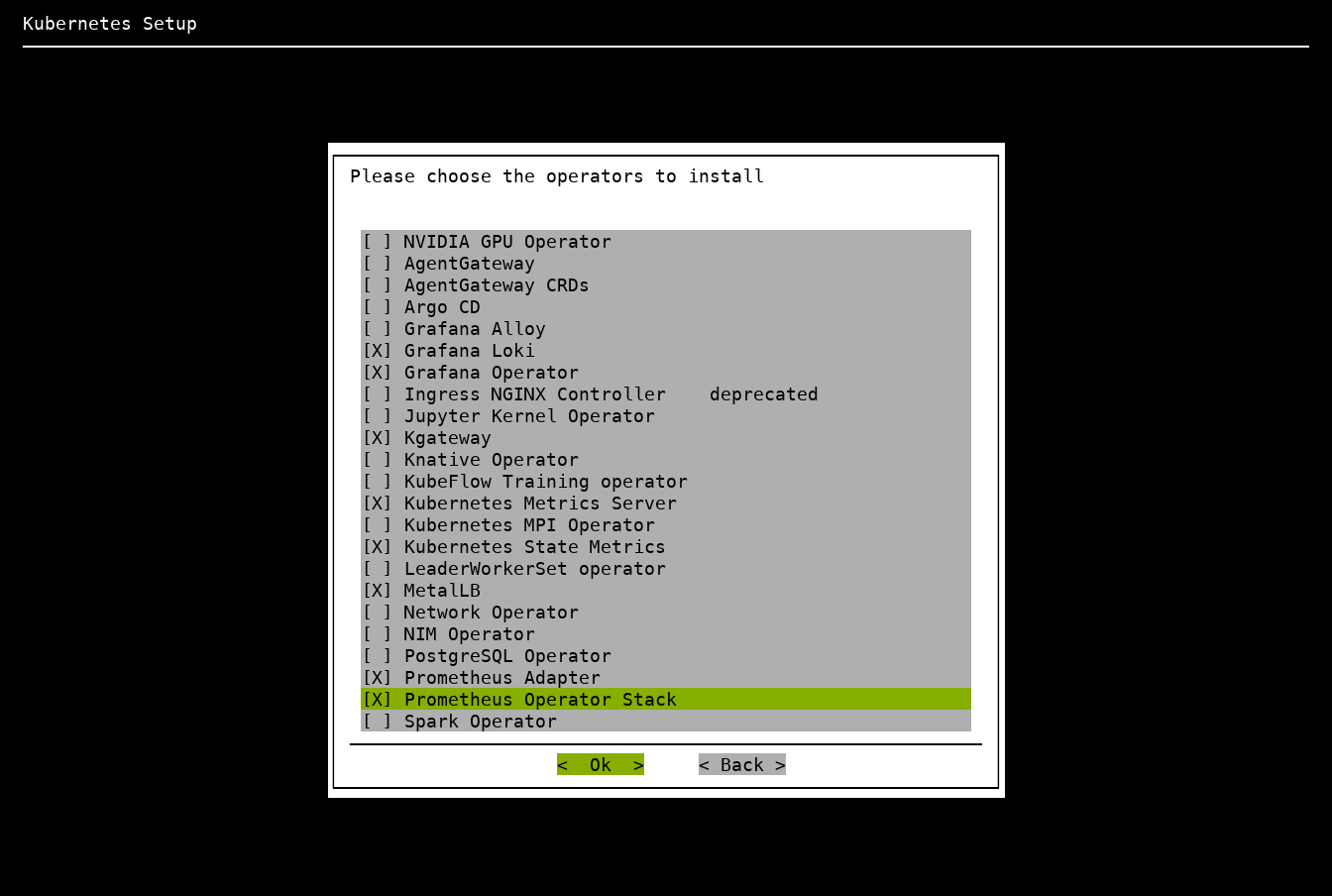
Install all prerequisites for the selected deployment mode before you begin the Mission Control autonomous job recovery installation.
User-Cluster Operator Placement#
For Run:ai mode, complete the following steps before deploying the Mission Control autonomous job recovery user-cluster operators. The same requirements apply to connected and air-gapped installations.
Confirm that the installed
cm-setup-ajrpackage includes the placement change introduced in version 2.5.9. It gives the advice and job operators required affinity for either thecontrol-plane,master, orrunai-systemrole label and tolerations for standard control-plane and masterNoScheduletaints.Require the control-plane role for both
heimdall/heimdall-advice-operatorandheimdall/heimdall-job-operatorin their initial installation values. The installer’s role alternatives alone permit a node with only the system label. Add a control-plane node selector for each operator; the installer preserves configured selectors alongside its required affinity.For control-plane role labels with empty values, use the following chart values fragment:
nodeSelector:
  node-role.kubernetes.io/control-plane: ""
Inspect the destination nodes’ labels and use the actual label value if it differs. Preserve existing selectors as additional constraints.
Before deployment, verify that both operators’ rendered pod templates require control-plane placement and tolerate the destination nodes’ taints. Keep the
heimdall-log-collectorDaemonSet on the nodes whose logs it collects, including compute nodes.
Before installing Mission Control autonomous job recovery#
The following additional steps are required before the Mission Control autonomous job recovery installation can begin:
Important
The steps in this section and the installation procedure differ for air-gapped environments. If you are installing Mission Control autonomous job recovery in an air-gapped environment, follow NVIDIA Mission Control autonomous job recovery (air-gapped) instead of this guide.
Obtain the NGC token (Skip if already done)
The software artifacts required for the deployment and operation of Mission Control autonomous job recovery are stored on NGC (NVIDIA GPU Cloud). For this reason an NGC token is necessary for the installation process to pull the required resources such as the Helm charts and the container images.
To obtain a valid NGC API token from the NGC console, you will need to have a subscription with the appropriate entitlement for artifacts in the NVIDIA Mission Control NGC collection of the NGC Catalog.
If your organization’s subscription hasn’t been activated yet, follow the instructions here to do so (must be organization owner).
Once the organization’s subscription has been activated, sign in as the organization owner: https://docs.nvidia.com/ngc/latest/ngc-user-guide.html#sign-in-account-owner
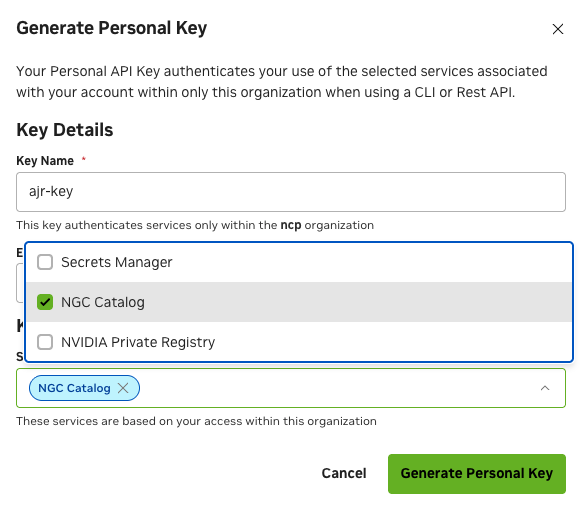
Once you’ve successfully gained access to the NGC console, generate an NGC API token (choose one):
Service Key: https://org.ngc.nvidia.com/service-keys
Personal API Key: https://docs.nvidia.com/ngc/latest/ngc-user-guide.html#generating-a-personal-api-key
Make sure to select ‘NGC Catalog’ under ‘Services Included’ when creating your personal key.
Create the Kubernetes namespace for Mission Control autonomous job recovery on the Kubernetes cluster where Mission Control autonomous job recovery core services will run. In Slurm mode, use the selected Kubernetes cluster. In Run:ai mode, use the admin Kubernetes cluster.
Create a file named
create-are-namespace.yamlon the active BCM head node with the following content:
apiVersion: v1
kind: Namespace
metadata:
  name: heimdall
Apply this file on the active BCM head node:
kubectl apply -f create-are-namespace.yaml
namespace/heimdall created
In Run:ai mode, the wizard creates the user/workload cluster namespace for the Run:ai Mission Control autonomous job recovery operators during deployment.
Configure alternate artifact sources only if your environment requires them. The installer uses the following production sources by default:
REGISTRY:nvcr.io/nvidia/nv-mission-controlfor Mission Control autonomous job recovery container images.HELM_REPO_URL:https://helm.ngc.nvidia.com/nvidia/nv-mission-controlfor the core chart and the Run:ai user-cluster operator charts.
To use different sources, export these variables in the shell where you start the wizard. Replace the values with your container image prefix and Helm repository URL:
export REGISTRY="nvcr.io/nvidia/nv-mission-control"
export HELM_REPO_URL="https://helm.ngc.nvidia.com/nvidia/nv-mission-control"
The installer saves these settings in its configuration.
REGISTRYchanges only Mission Control autonomous job recovery images; it does not redirect third-party images. Select the product version in the wizard. The installer applies the selected version to the core service images.Enter the endpoint FQDN in the wizard and use the matching DNS name and TLS certificate. No
AJR_FQDNenvironment variable or package-file patch is required. In Slurm mode, the installer reads the BCM read-only LDAP password automatically for dashboard authentication.
Configure TLS for Mission Control Autonomous Job Recovery Endpoints#
Mission Control autonomous job recovery attaches its chart-provided routes to
nmc-gateway/nmc-gateway. The shared NMC Gateway terminates TLS through its
https listener on port 443. Install and configure NMC Gateway
before you deploy Mission Control autonomous job recovery.
Choose an endpoint FQDN accepted by the listener, such as
ajr.customer-domain.com for a listener hostname of *.customer-domain.com. The
Gateway certificate must cover that FQDN. For certificate configuration, refer
to Bring your own certificate or Use a customer-managed issuer.
The listener must allow routes from the heimdall namespace. The installer
checks the listener hostname, namespace access, and assigned Gateway address
before deployment. You do not need a separate heimdall/ajr-cert TLS Secret.
Set up DNS resolution for Mission Control autonomous job recovery endpoints#
Configure the chosen endpoint FQDN using Reach the UIs. Resolve it to the BCM head-node external or floating IP when using the BCM head node Gateway proxy, or directly to the NMC Gateway load-balancer IP when clients can reach that address. Configure the forwarding rules before testing the BCM head node path.
Enter this same FQDN in the Mission Control autonomous job recovery wizard.
Mission Control autonomous job recovery installation#
After all prerequisites are met, start the Mission Control autonomous job
recovery installation with the cm-mission-control-setup wizard.
Select Install NVIDIA Mission Control autonomous job recovery when the wizard starts. Some steps may vary depending on the installation wizard version.
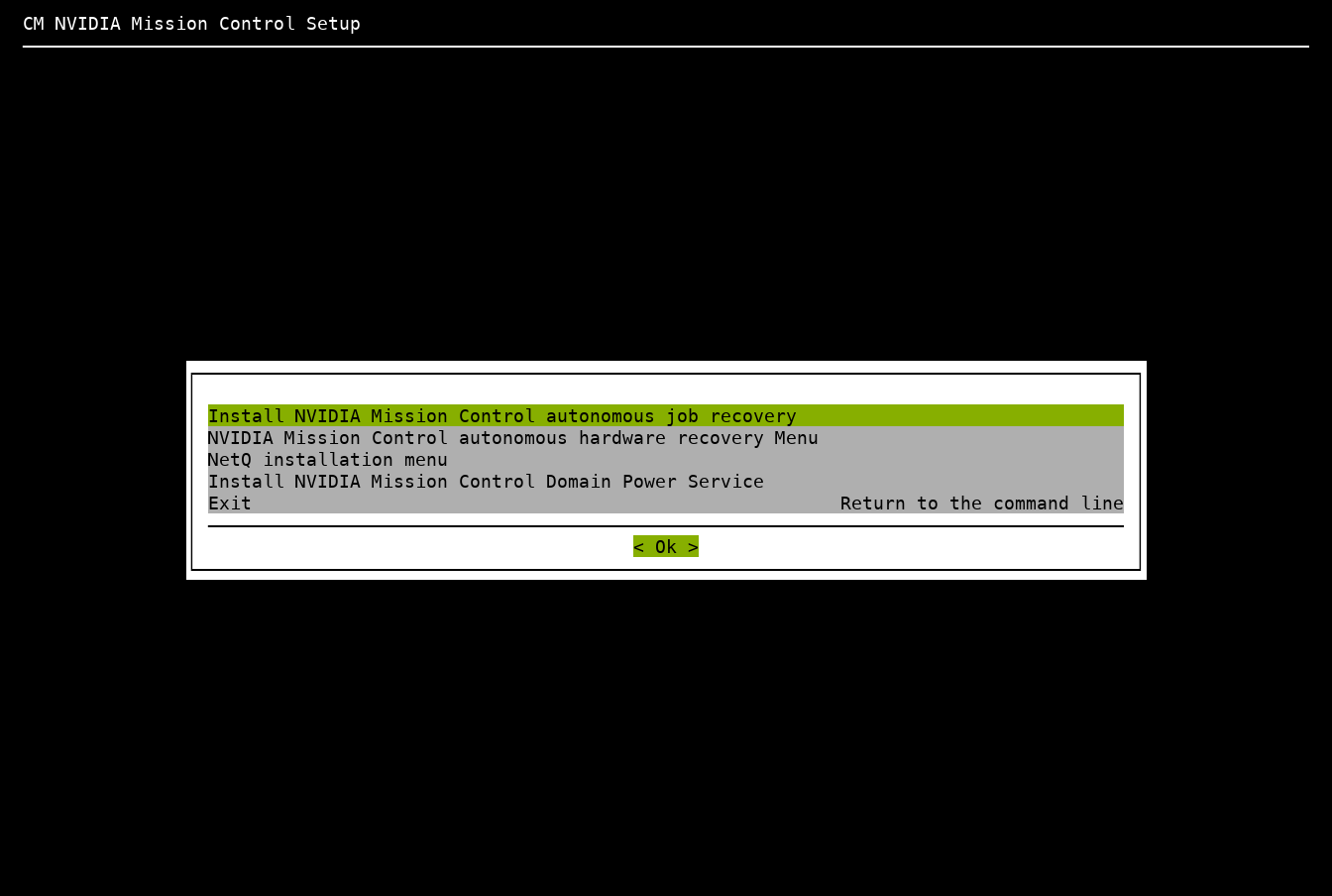
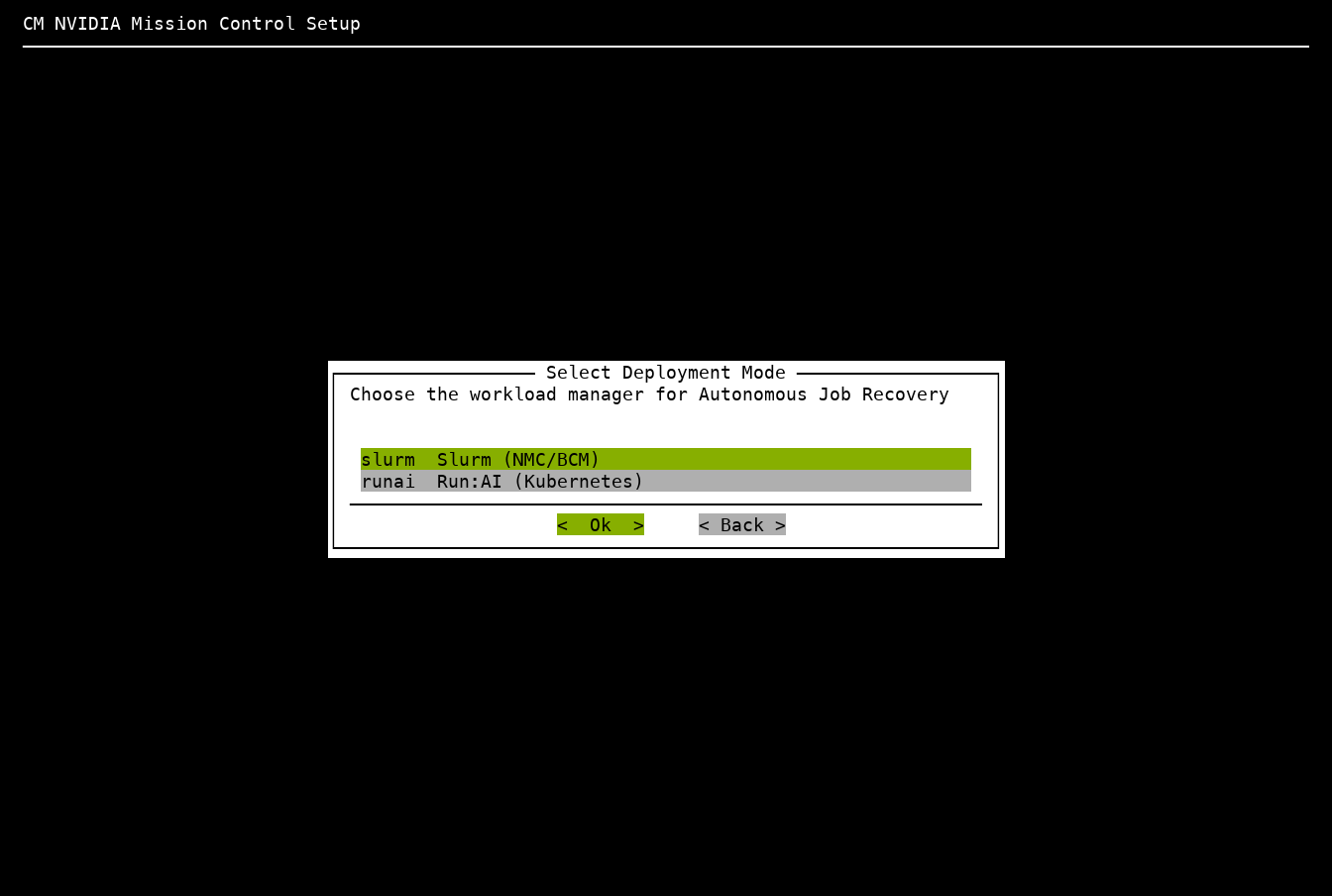
Next, select the deployment mode. Choose Slurm (NMC/BCM) to deploy Mission Control autonomous job recovery for a Slurm workload manager cluster, or choose Run:AI (Kubernetes) to deploy Mission Control autonomous job recovery for a Run:ai Kubernetes environment. This choice is permanent for the installation.
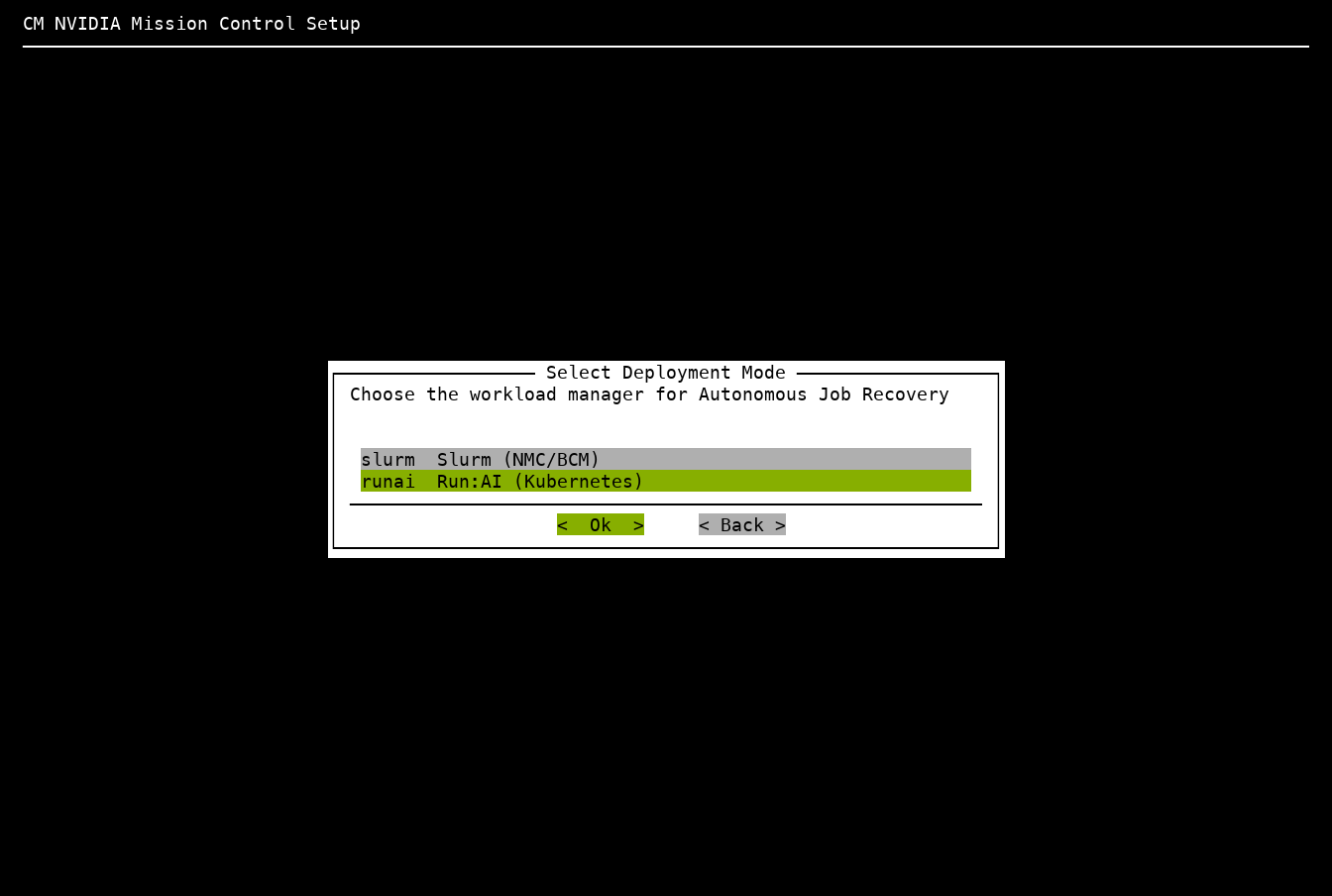
For a Slurm installation, select Slurm (NMC/BCM) instead:
After you select the deployment mode, the wizard prompts for the cluster information required by that mode:
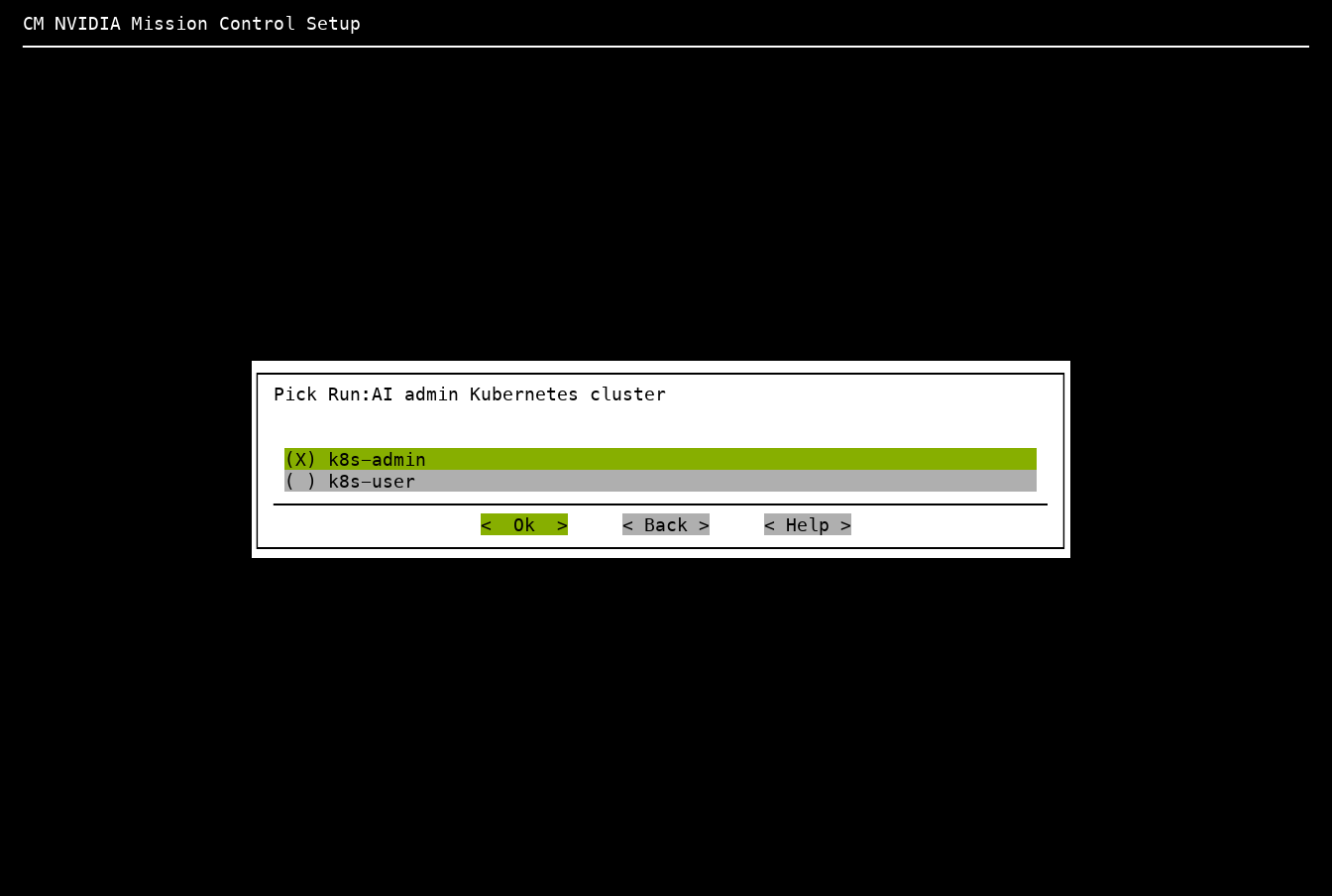
In Slurm mode, select the admin Kubernetes cluster for Mission Control autonomous job recovery core services. The installer can skip this prompt if only one Kubernetes cluster exists. After you enter the endpoint FQDN, select the Slurm workload manager (WLM) cluster. The installer can skip the Slurm cluster selection prompt if only one Slurm cluster exists.
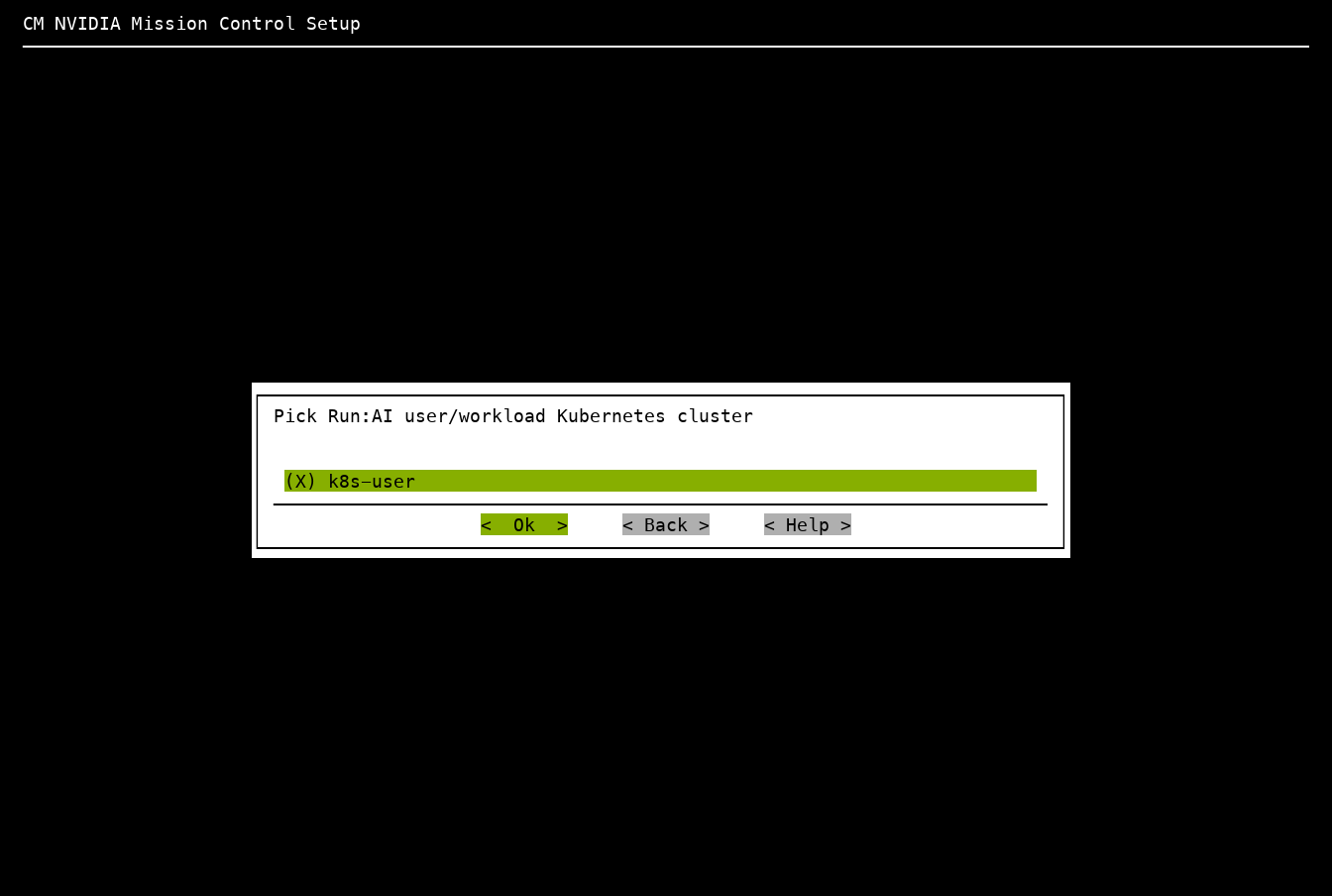
In Run:ai mode, select the admin Kubernetes cluster for Mission Control autonomous job recovery core services and then select the user/workload Kubernetes cluster where Run:ai workloads run. The admin and user/workload Kubernetes clusters must be separate clusters.
When prompted, select the admin Kubernetes cluster:
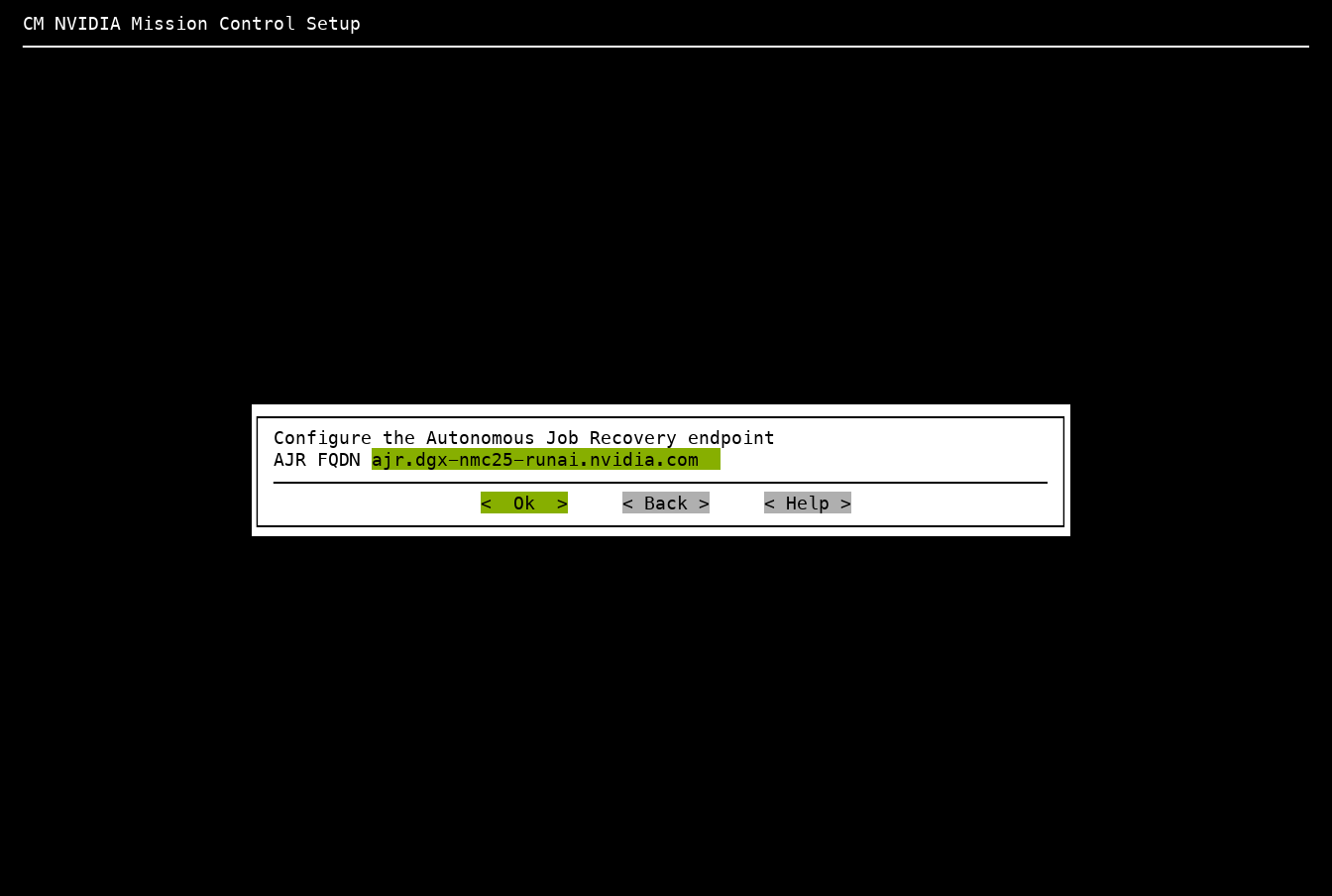
Next, enter the fully qualified domain name (FQDN) for the Mission Control autonomous job recovery endpoint. The FQDN must match the DNS record and the TLS certificate configured for NMC Gateway.
In Run:ai mode, the wizard then prompts for the user/workload Kubernetes cluster:
Common configuration prompts#
Mission Control autonomous job recovery requires a MySQL database. By default, the database is installed on the BCM head node. The installation wizard prompts for admin credentials to create the Mission Control autonomous job recovery MySQL database and user.
Enter root as the database user and the corresponding password for the MySQL root account.
Alternatively, enter the credentials for the MySQL administrative account described in the prerequisites.
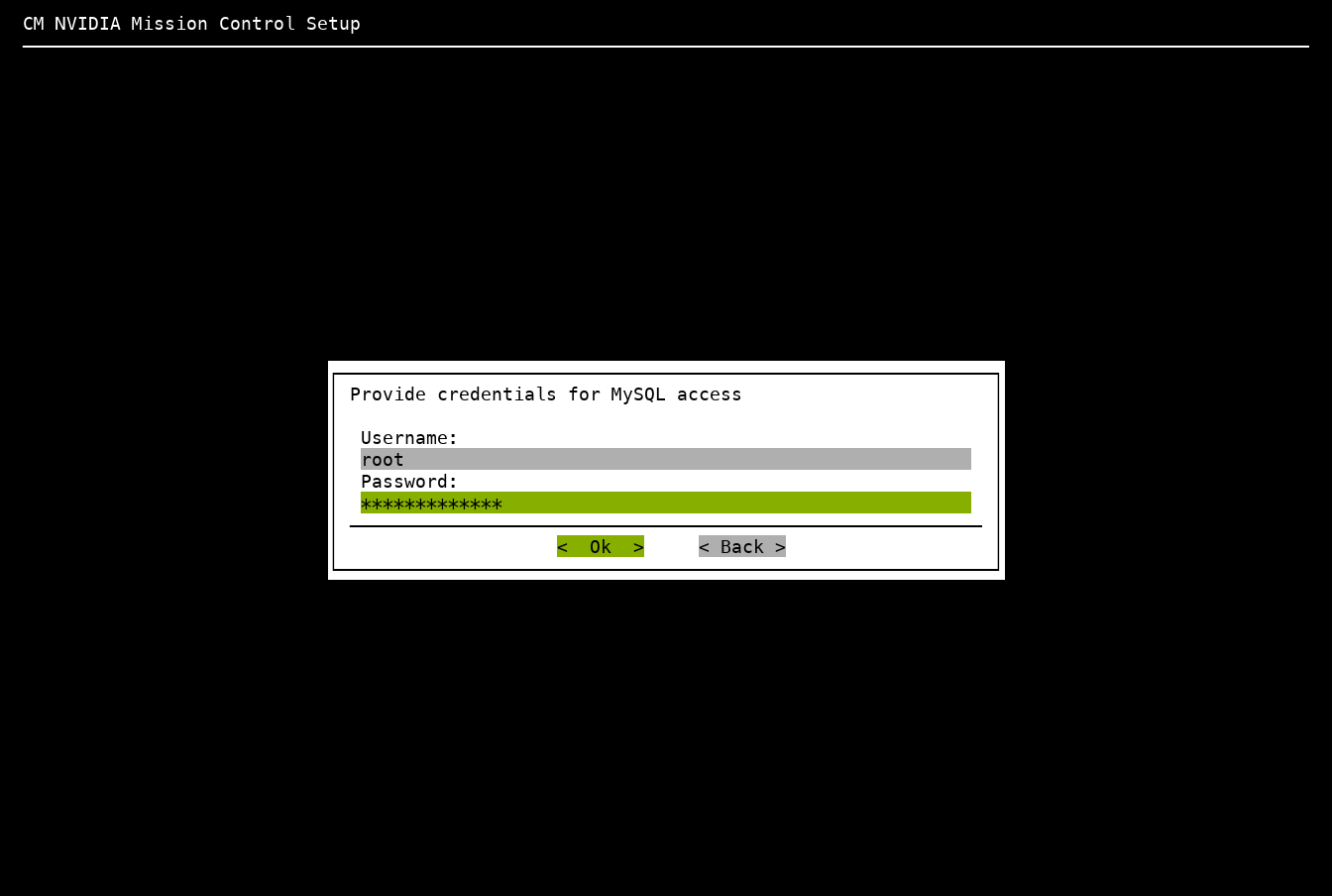
When prompted, provide credentials for the Helm chart repository. You must supply an NVIDIA Container Registry (NVCR) personal access token for the operator and container images.
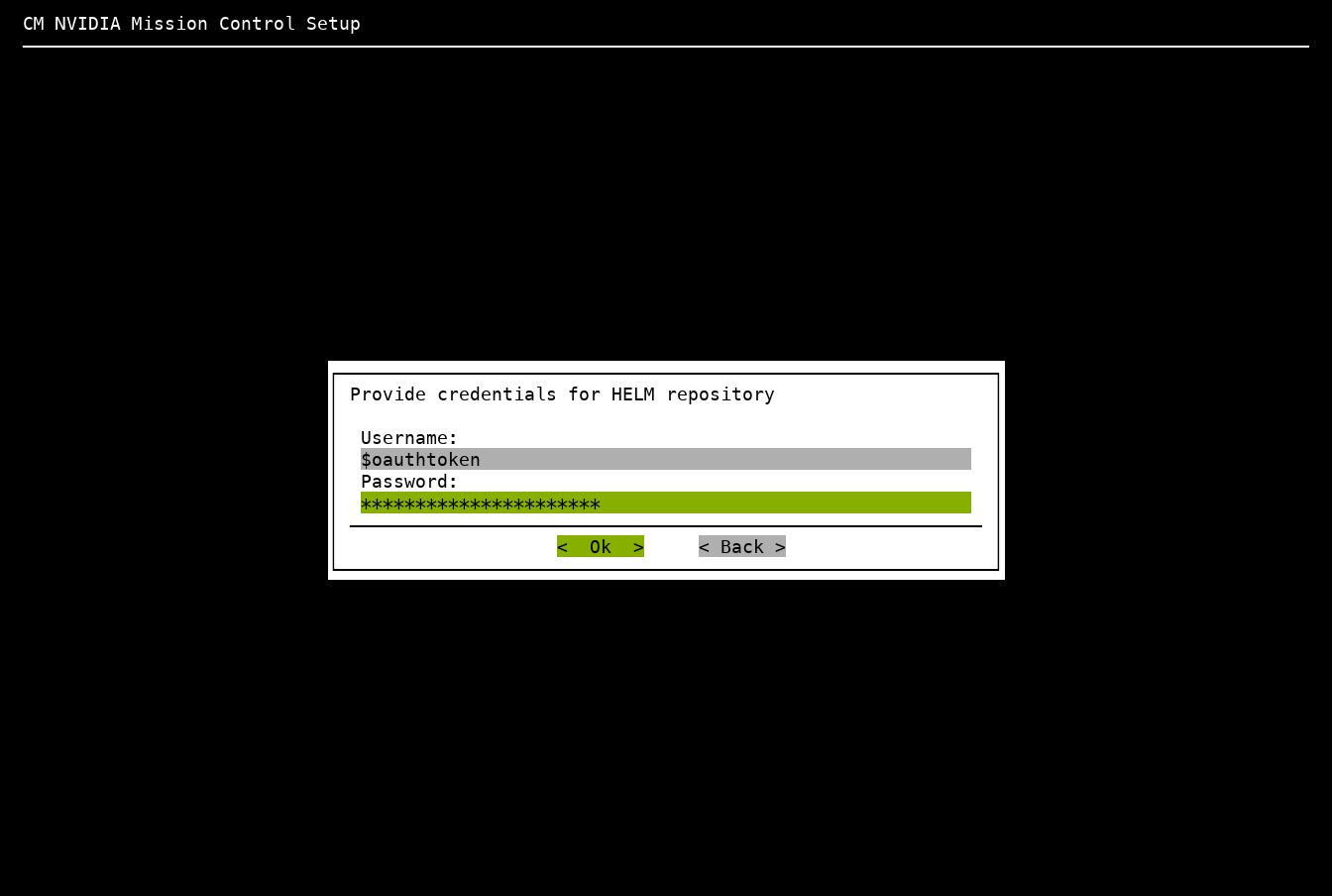
For a connected installation in either Slurm or Run:ai mode, select custom
for the Mission Control autonomous job recovery version. Do not select
1.7.0-patchN: automatic version selection can choose an older patch instead
of the latest available patch.
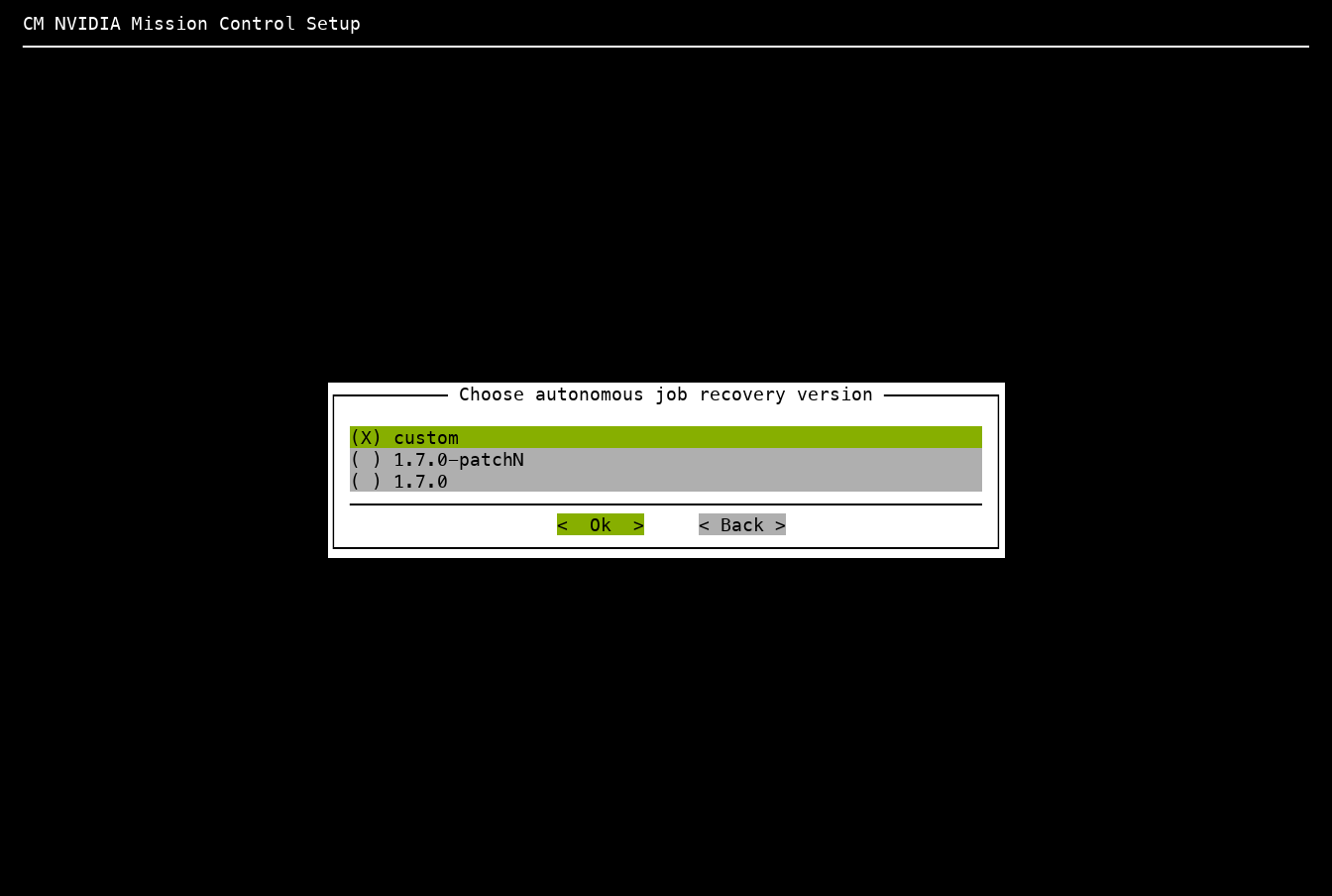
Enter 1.7.0-patch11 as the Warthog Helm chart version, and select Ok:
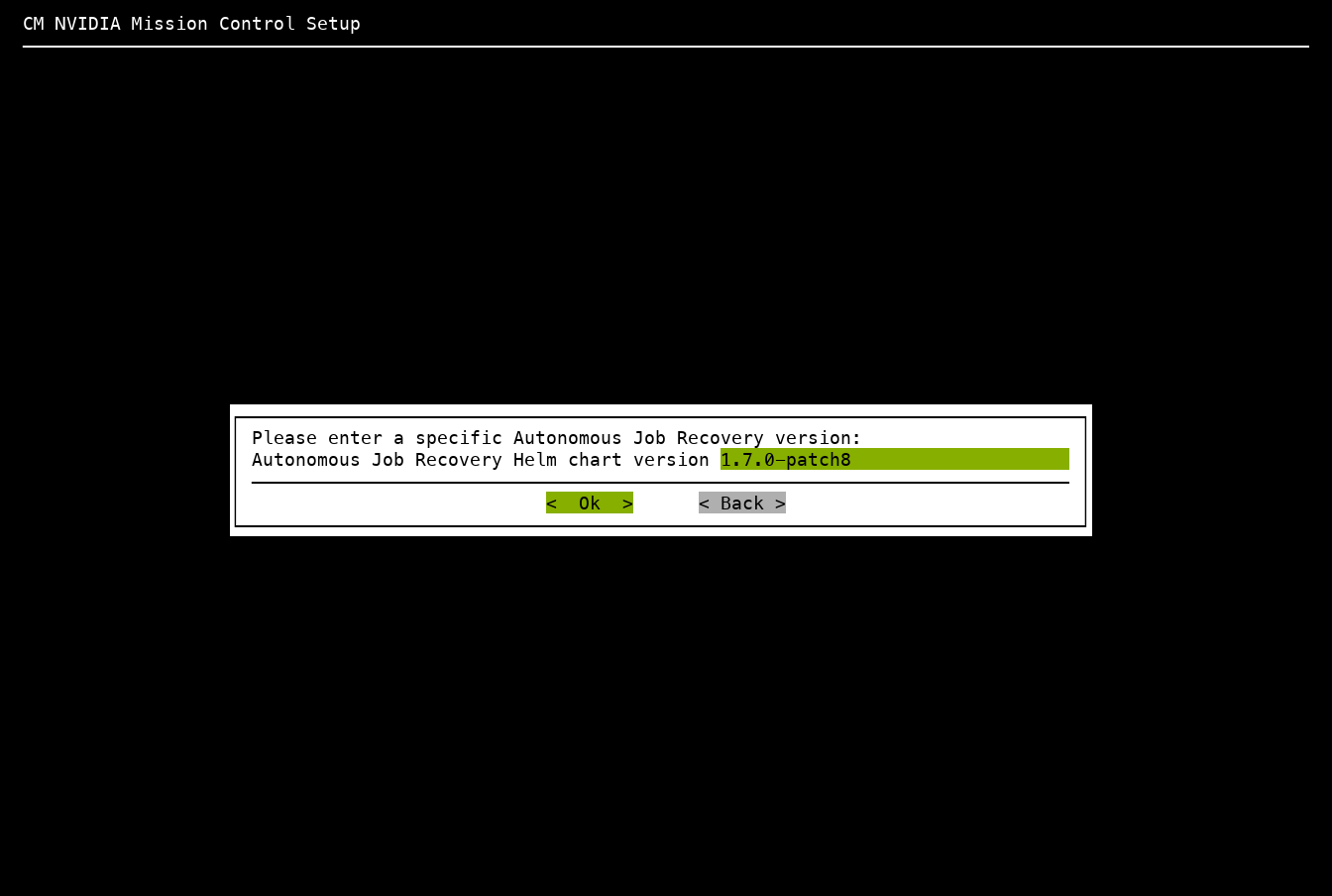
The versions in these screenshots are examples, not release recommendations. Use the chart versions for your NVIDIA Mission Control release. A Helm chart version can differ from its container image tag.
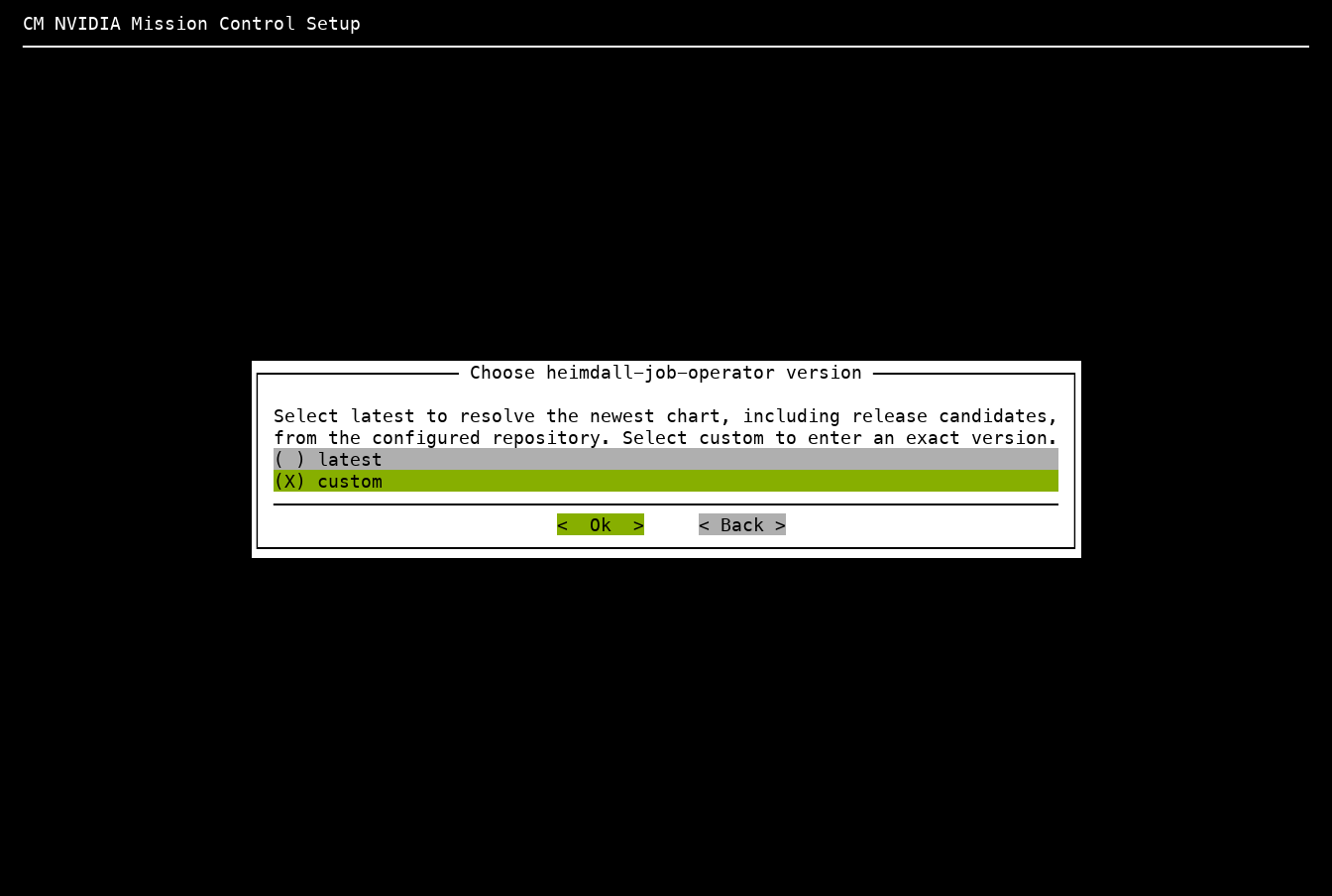
In Run:ai mode, the wizard next prompts for the Helm chart versions of
heimdall-log-collector, heimdall-advice-operator, and
heimdall-job-operator. Select latest to use the latest available version
of each chart in the configured Helm repository, including release-candidate
versions. Select custom to enter an exact version, such as the version in
your NVIDIA Mission Control release manifest. These chart versions are independent of the Warthog
chart version and the Run:ai product version.
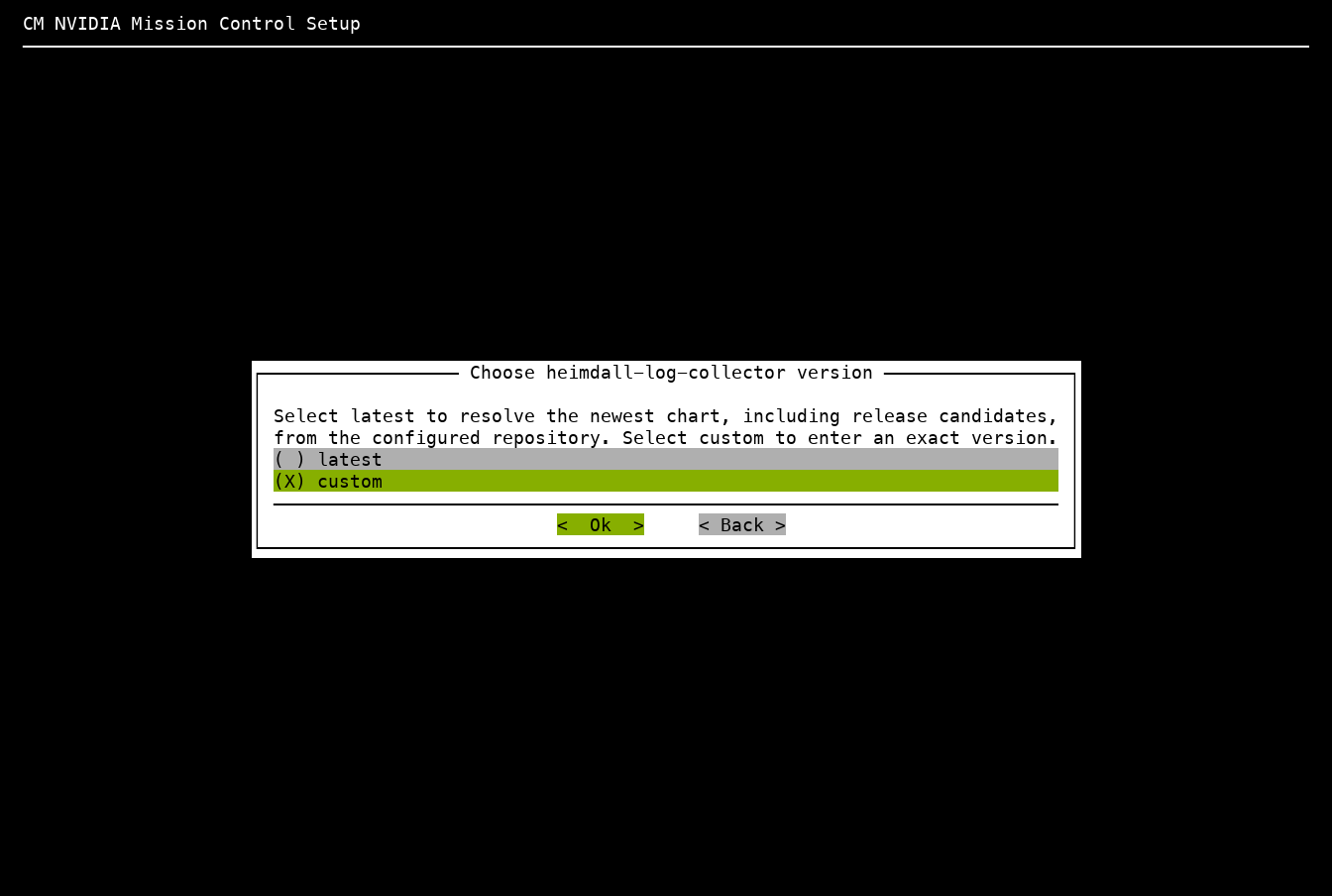
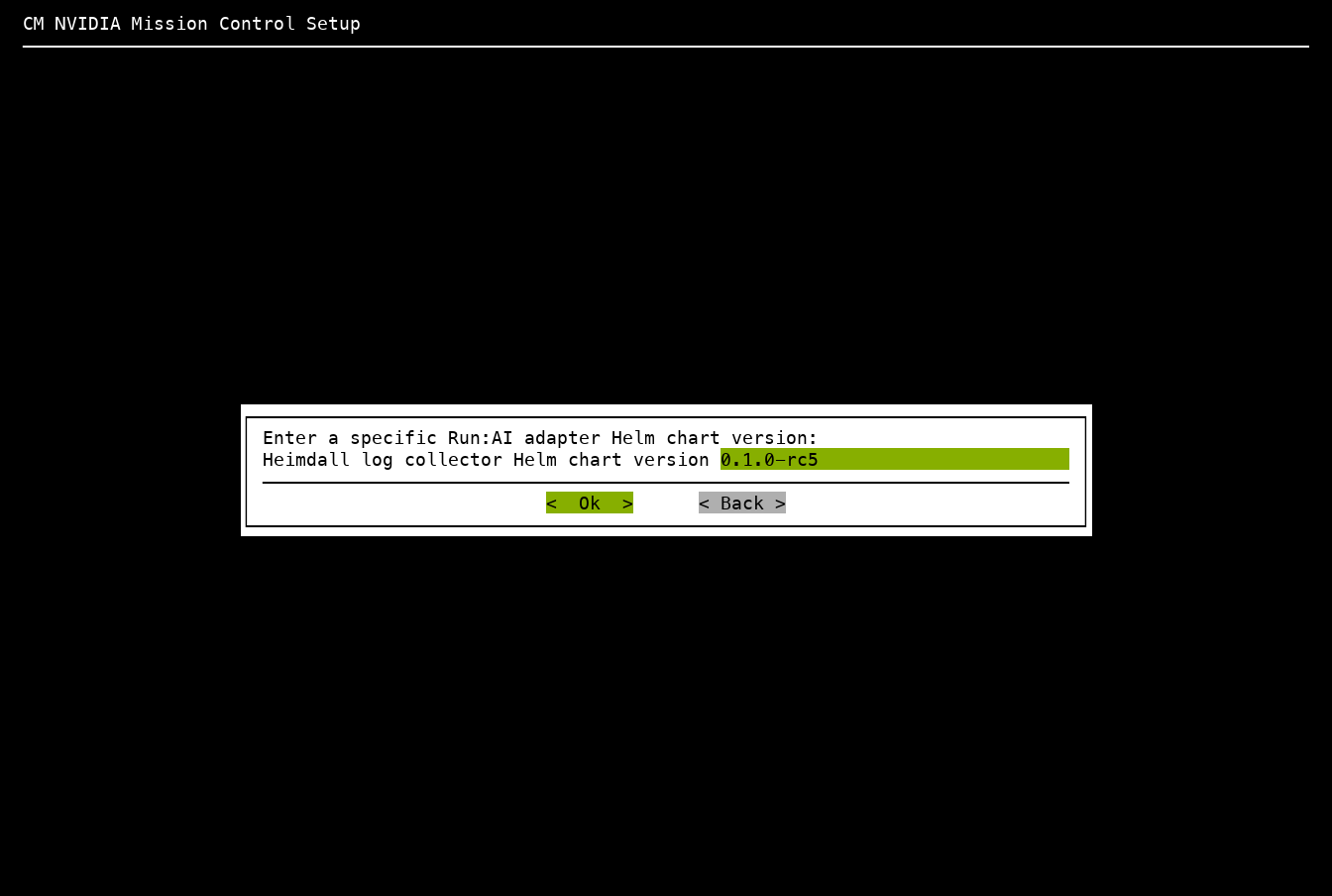
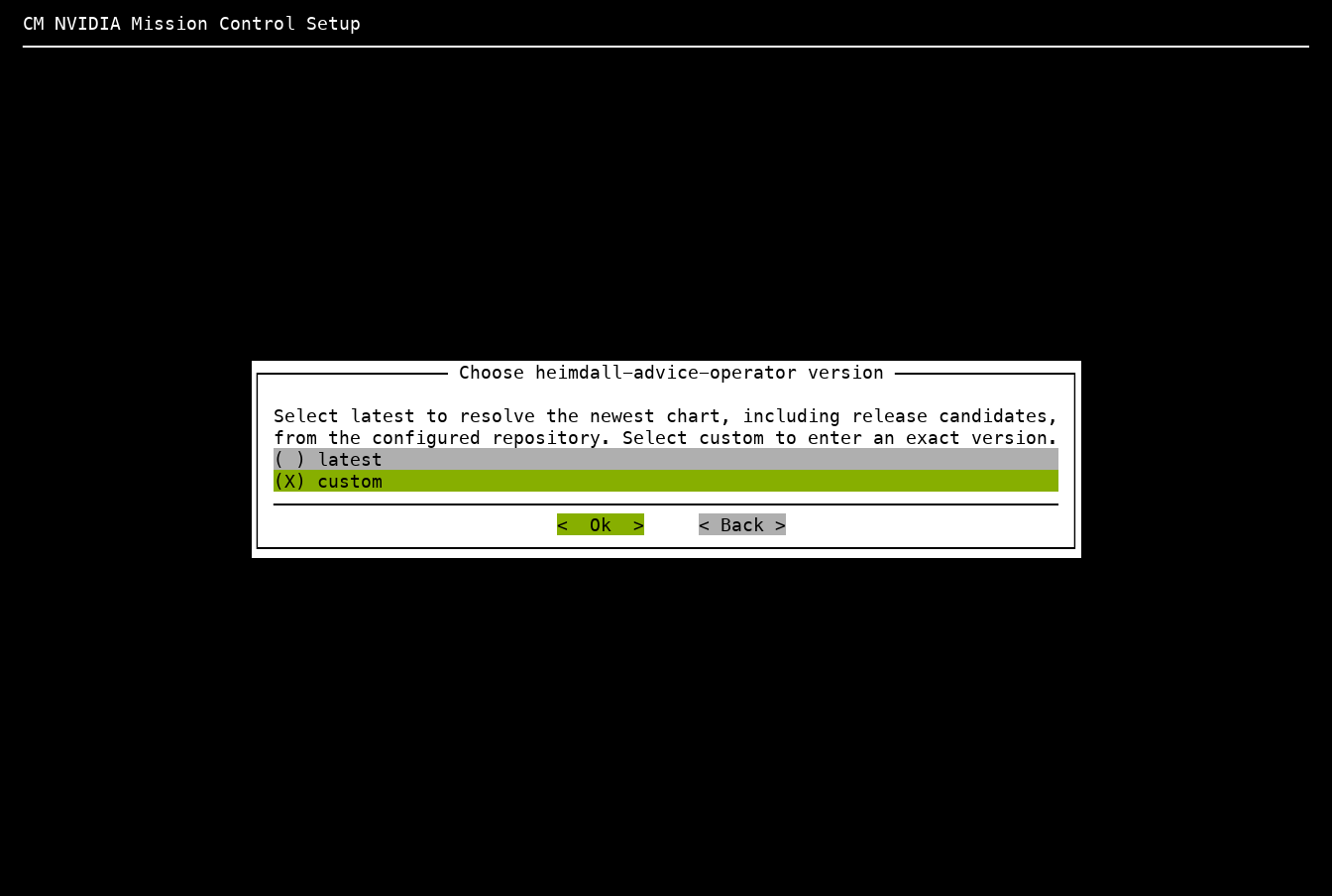
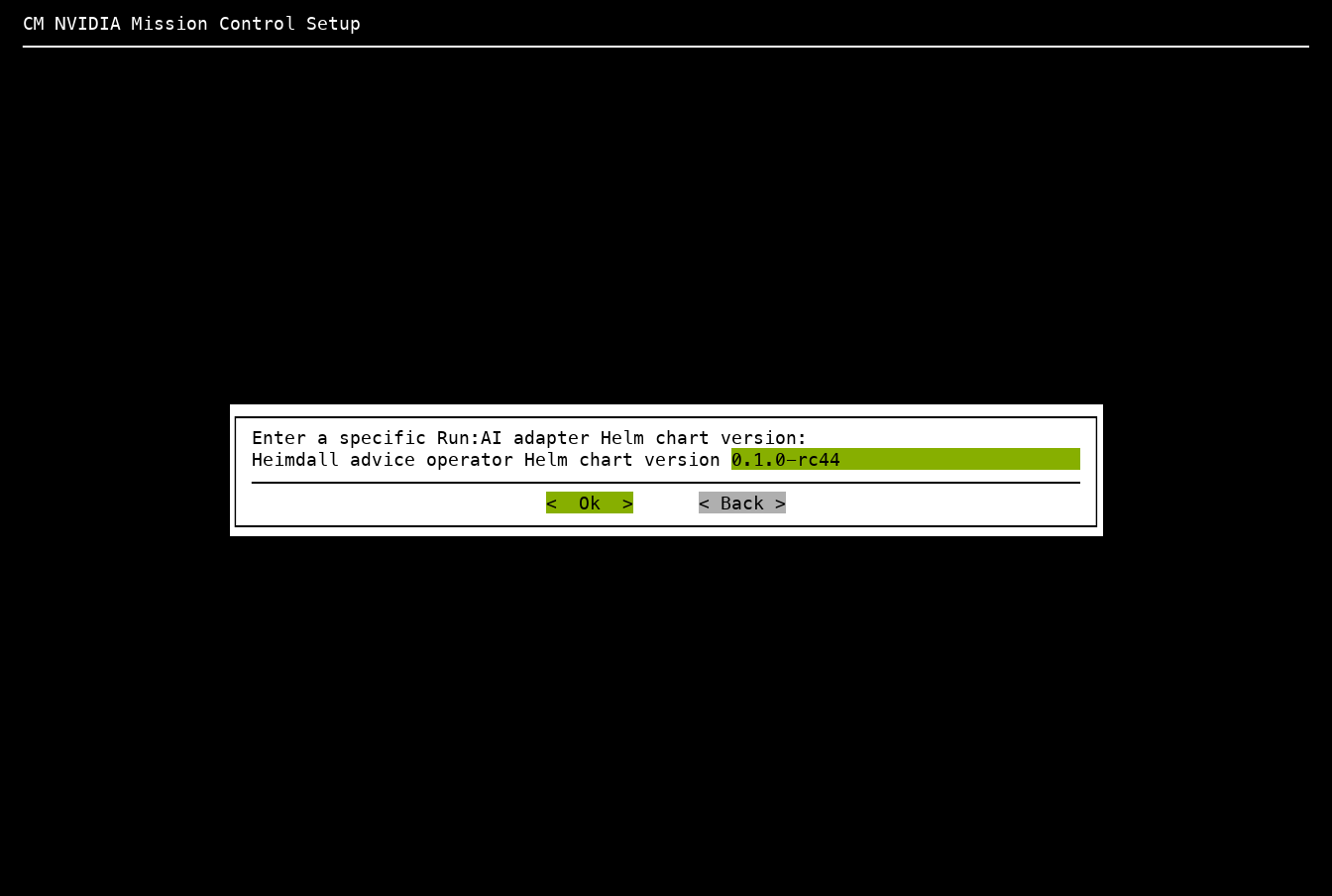
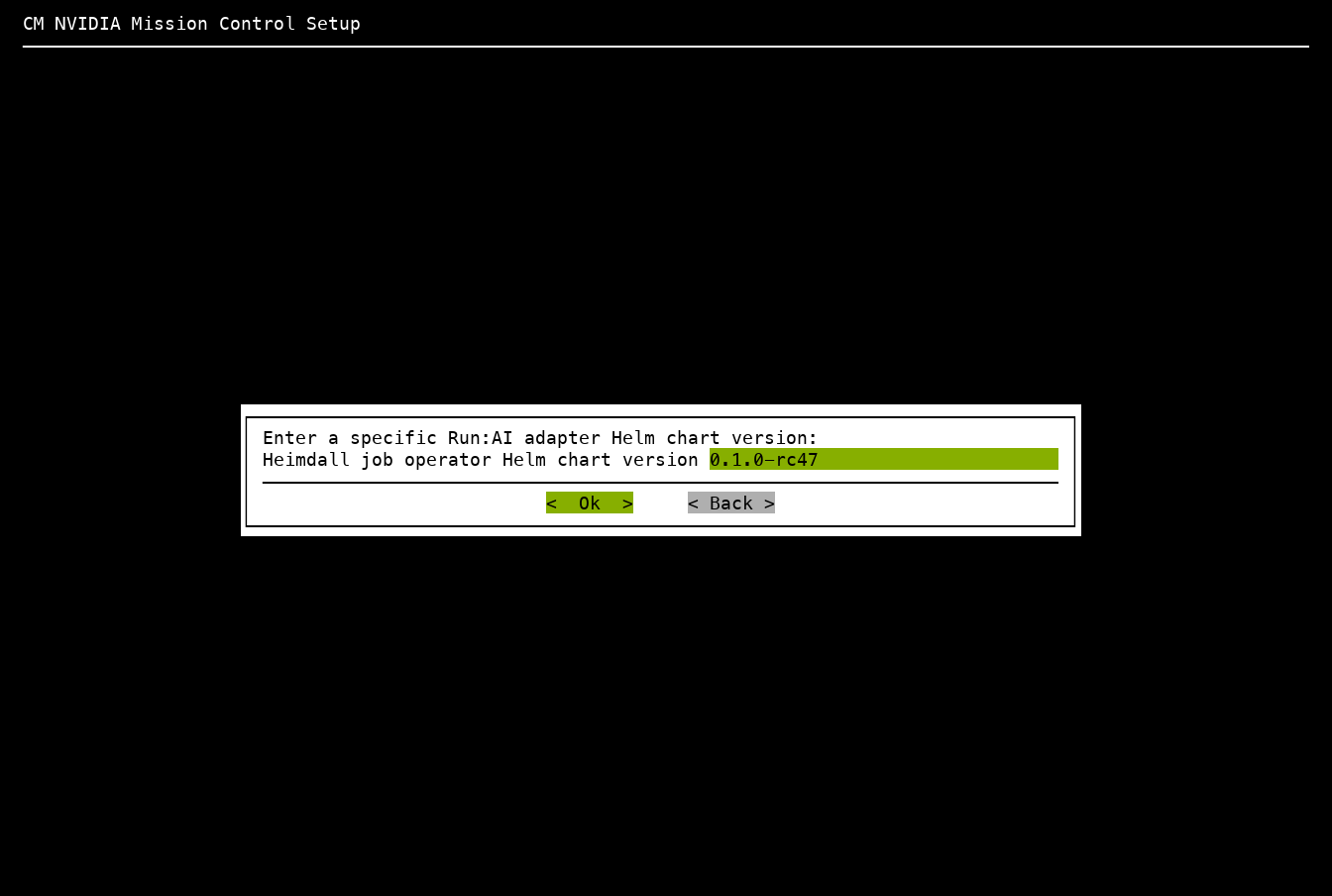
To select a specific version of each chart, select custom, enter its exact Helm chart version, and select Ok. The following screens show this sequence in wizard order.
First, choose the log collector chart version:
Enter the version in Heimdall log collector Helm chart version:
Next, choose the advice operator chart version:
Enter the version in Heimdall advice operator Helm chart version:
Finally, choose the job operator chart version:
Enter the version in Heimdall job operator Helm chart version:
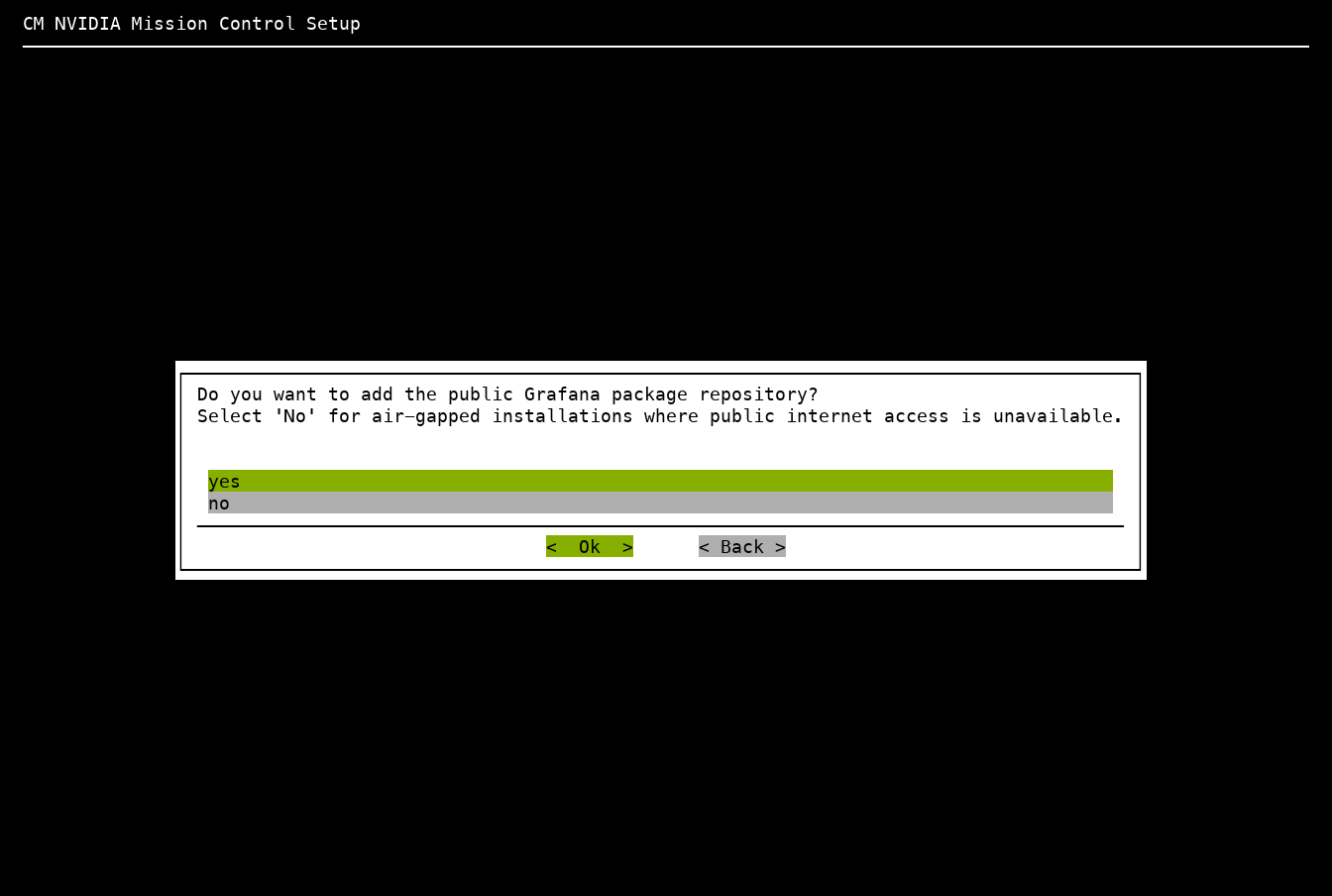
The Grafana public package repository prompt appears only in Slurm mode. Select yes to configure the Grafana public package repository. In Run:ai mode, the wizard omits this screen.
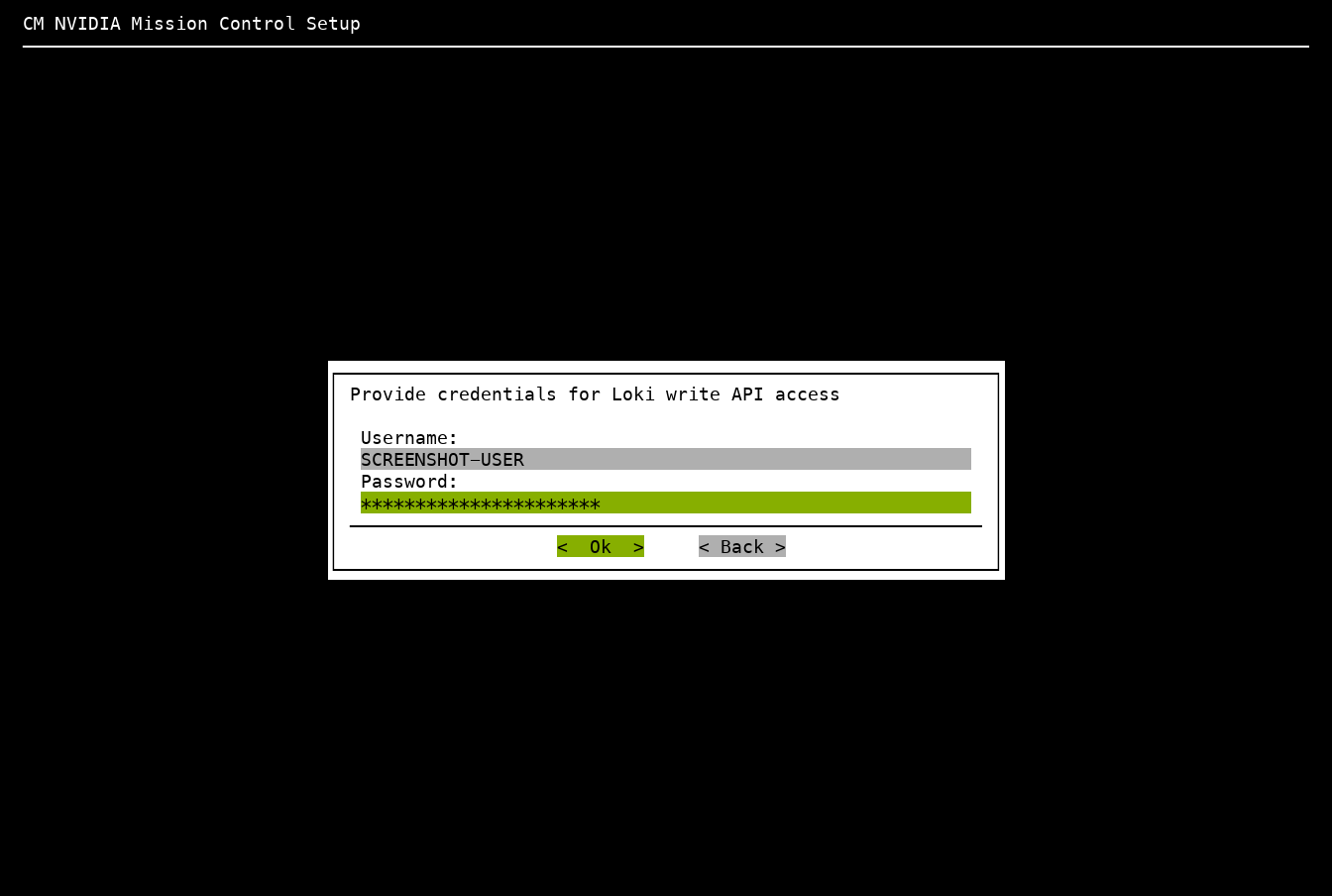
When prompted for Loki API credentials, provide credentials with write access to the Loki API. In Run:ai mode, these credentials are required by the Mission Control autonomous job recovery log collector that runs on the user/workload Kubernetes cluster.
AHR Integration#
The following prompts apply to both Slurm and Run:ai modes.
If NVIDIA Mission Control autonomous hardware recovery has been installed, the Mission Control autonomous job recovery installation wizard prompts you to enable integration with it. This is optional but enhances Mission Control autonomous job recovery capabilities.
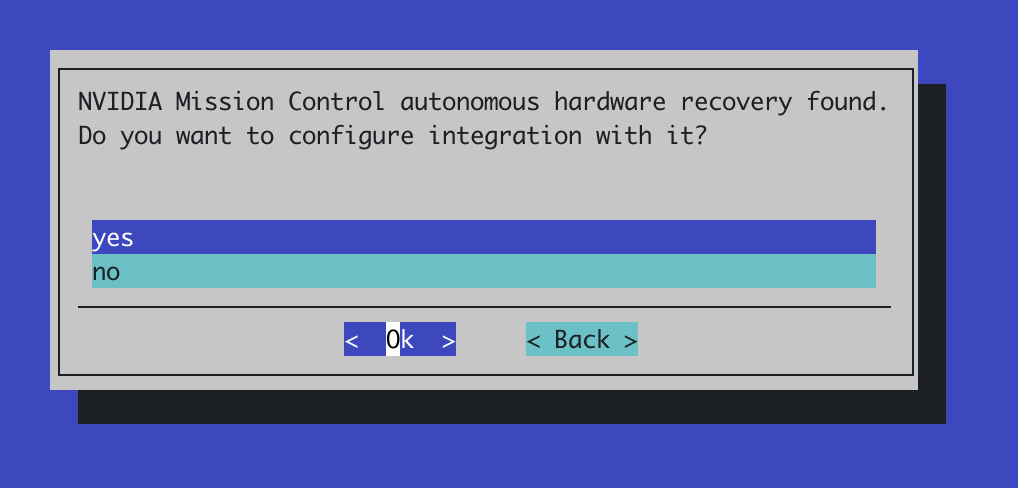
To enable the integration, select Yes and proceed to the configuration step:
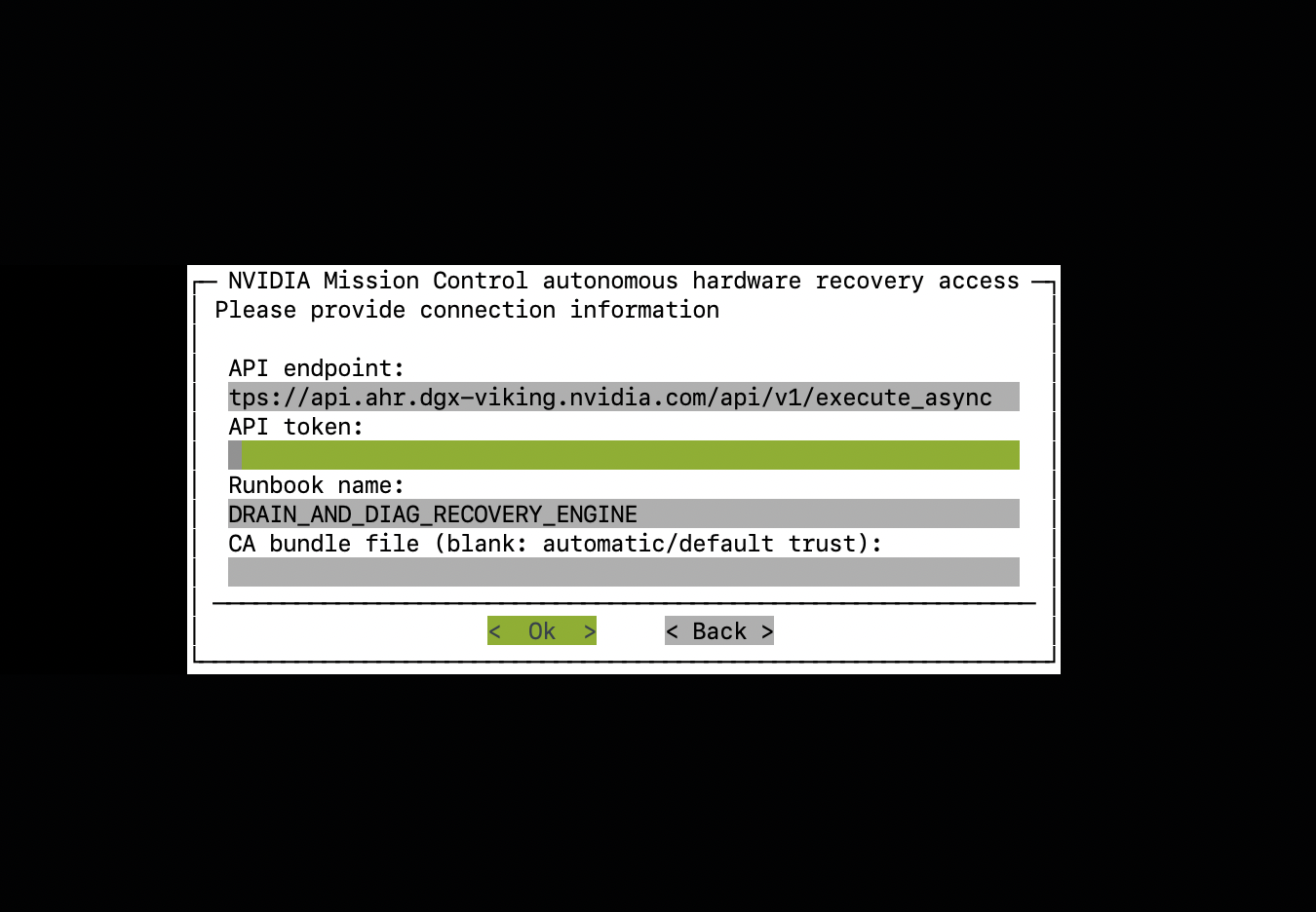
Enter the AHR API JWT token and verify the AHR API endpoint that Mission Control autonomous job recovery uses to communicate with the AHR backend. The token field has no default value, so you must enter a token. The API endpoint is prepopulated. Verify that it is correct for your environment and update it if needed. For instructions on determining the endpoint and generating the token, refer to Runbook Deployment - Manual Procedure in the NVIDIA Mission Control autonomous hardware recovery installation guide.
Configure CA bundle file (blank: automatic/default trust) for the certificate authority (CA) that signs the AHR certificate:
Leave the field blank if the system’s default CA store trusts the AHR certificate.
If AHR uses a private or self-signed CA, enter the path to a readable PEM CA bundle file.
Proceed to the next step after you verify the endpoint, enter the token, and configure the CA bundle field for your environment.
Note
To obtain the API token, follow Step 2 (Create Service Accounts) of the Runbook Deployment - Manual Procedure section in the NVIDIA Mission Control autonomous hardware recovery installation documentation.
Run:ai mode deployment#
In Run:ai mode, the wizard skips Slurm WLM selection and Slurm-specific
log-collection setup. The wizard installs Mission Control autonomous job
recovery core services on the admin Kubernetes cluster and installs the
following operators in the heimdall namespace on the user/workload
Kubernetes cluster:
heimdall-log-collectorheimdall-advice-operatorheimdall-job-operator
Complete the deployment#
After you complete the configuration prompts for the selected deployment mode, select Save config & exit in Run:ai mode. Apply the control-plane placement values for both user-cluster operators to the saved configuration, then deploy with that configuration. In Slurm mode, select Save config & exit to customize the installation or Save config & deploy to deploy immediately.
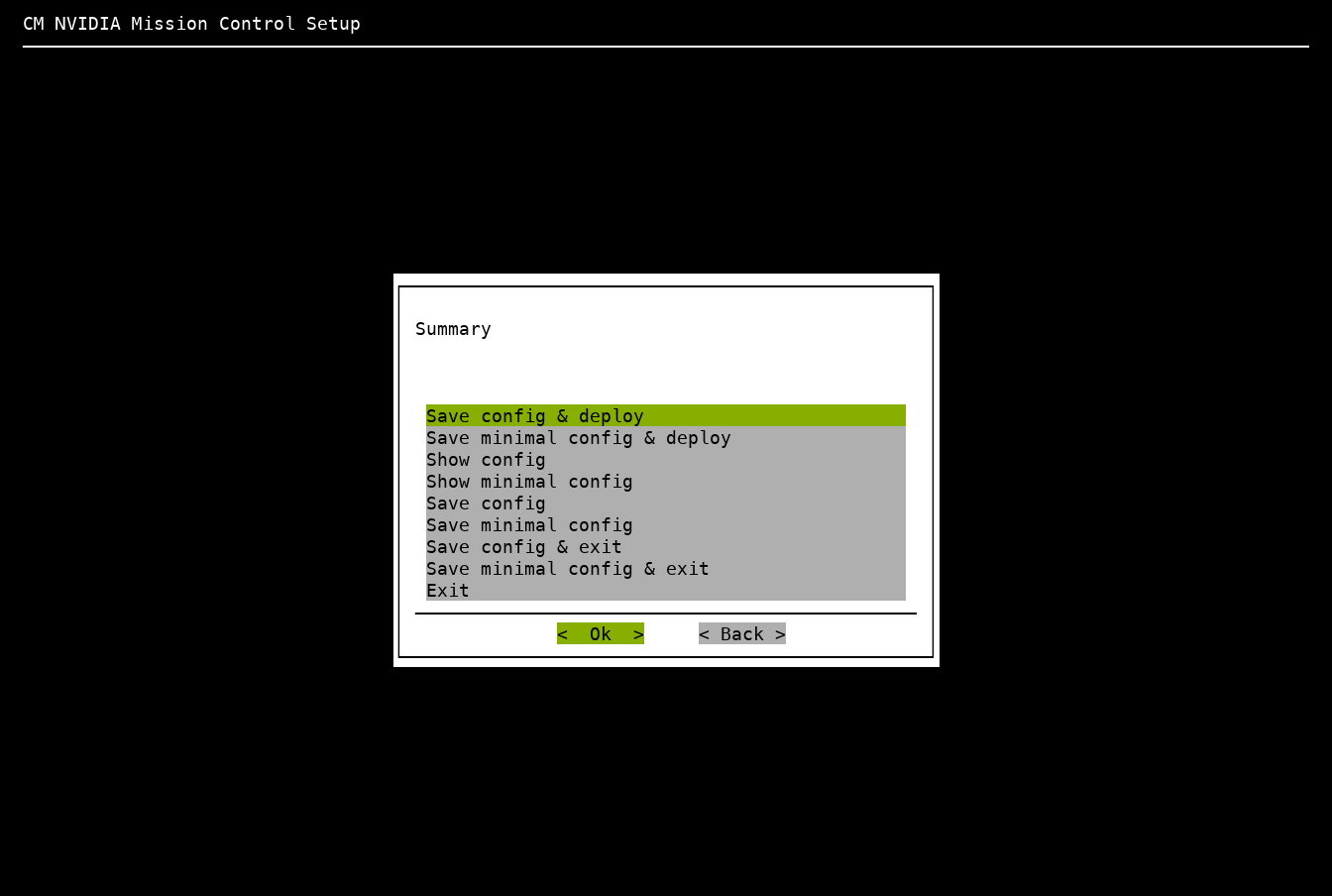
The installation wizard saves the collected information to the specified file for customization and performs the installation.
After you deploy Mission Control autonomous job recovery in Run:ai mode, switch to the user cluster and verify the named Deployments and their pods:
module switch kubernetes/k8s-user
kubectl -n heimdall get deployment heimdall-advice-operator -o yaml
kubectl -n heimdall get deployment heimdall-job-operator -o yaml
kubectl -n heimdall get pods -o wide
Both operators must be Ready on the intended control-plane nodes, and their templates must enforce that placement for replacement pods. Verify operator health and confirm that the log collector still covers compute nodes. Stop if either operator is missing, remains Pending, or permits compute-node placement.
Enable the Run:ai integration#
After a Run:ai mode installation completes, enable the Run:ai integration.
The Run:ai advice restart controller consumes the Mission Control autonomous
job recovery Advice custom resource, so do not enable the controller before
the advices.heimdall.nvidia.com custom resource definition exists.
Verify that the
Advicecustom resource definition exists on the user/workload Kubernetes cluster:kubectl --kubeconfig /root/.kube/config-<user-cluster-name> get crd \ advices.heimdall.nvidia.com
Enable the advice restart controller in
actionmode:kubectl --kubeconfig /root/.kube/config-<user-cluster-name> patch \ runaiconfig runai -n runai --type=merge \ -p '{"spec":{"advice-restart-controller":{"enabled":true,"mode":"action"}}}'
This command updates the existing Run:ai installation. Do not rerun a setup wizard or reinstall Run:ai.
Verify the configuration and wait for the controller deployment to become available:
kubectl --kubeconfig /root/.kube/config-<user-cluster-name> get \
  runaiconfig runai -n runai -o json | \
  jq -r '.spec["advice-restart-controller"]'
kubectl --kubeconfig /root/.kube/config-<user-cluster-name> rollout \
  status deployment -n runai -l app=advice-restart-controller \
  --timeout=5m
The configuration output must contain
enabled: trueandmode: action. The rollout command must report that the deployment rolled out successfully.
After you enable the integration, access the Grafana dashboards and complete the steps in Run:ai mode verification. The Mission Control autonomous job recovery dashboard is not deployed or supported in Run:ai mode. This restriction does not apply to the Grafana dashboards.
Mission Control autonomous job recovery post-installation steps#
To ensure that the Mission Control autonomous job recovery efficiency Grafana dashboard operates correctly, complete the following additional steps after a Slurm or Run:ai mode installation.
In Run:ai mode, Mission Control autonomous job recovery core services and the Grafana data source are configured from the admin Kubernetes cluster. The user/workload Kubernetes cluster runs the Mission Control autonomous job recovery Run:ai operators and does not change the MySQL data source configuration.
Update the password for the MySQL user heimdall-kpis-reader
Log in to the MySQL database as a root user and execute the following statements. Replace the password with a random generated one.
mysql> ALTER USER 'heimdall-kpis-reader' IDENTIFIED BY 'password';
Query OK, 0 rows affected (0.02 sec)
After Mission Control autonomous job recovery is installed, create a new mysql data source in Grafana using the heimdall-kpis-reader username and the password specified in the preceding step. Without it, the Mission Control autonomous job recovery efficiency Grafana dashboard will not function properly.
To add a new MySQL data source, access Grafana at
https://<headnode_ip_address>/grafana. Replace<headnode_ip_address>with the actual IP address. Refer to the Observability Stack Configuration guide for Grafana setup and authorization information.
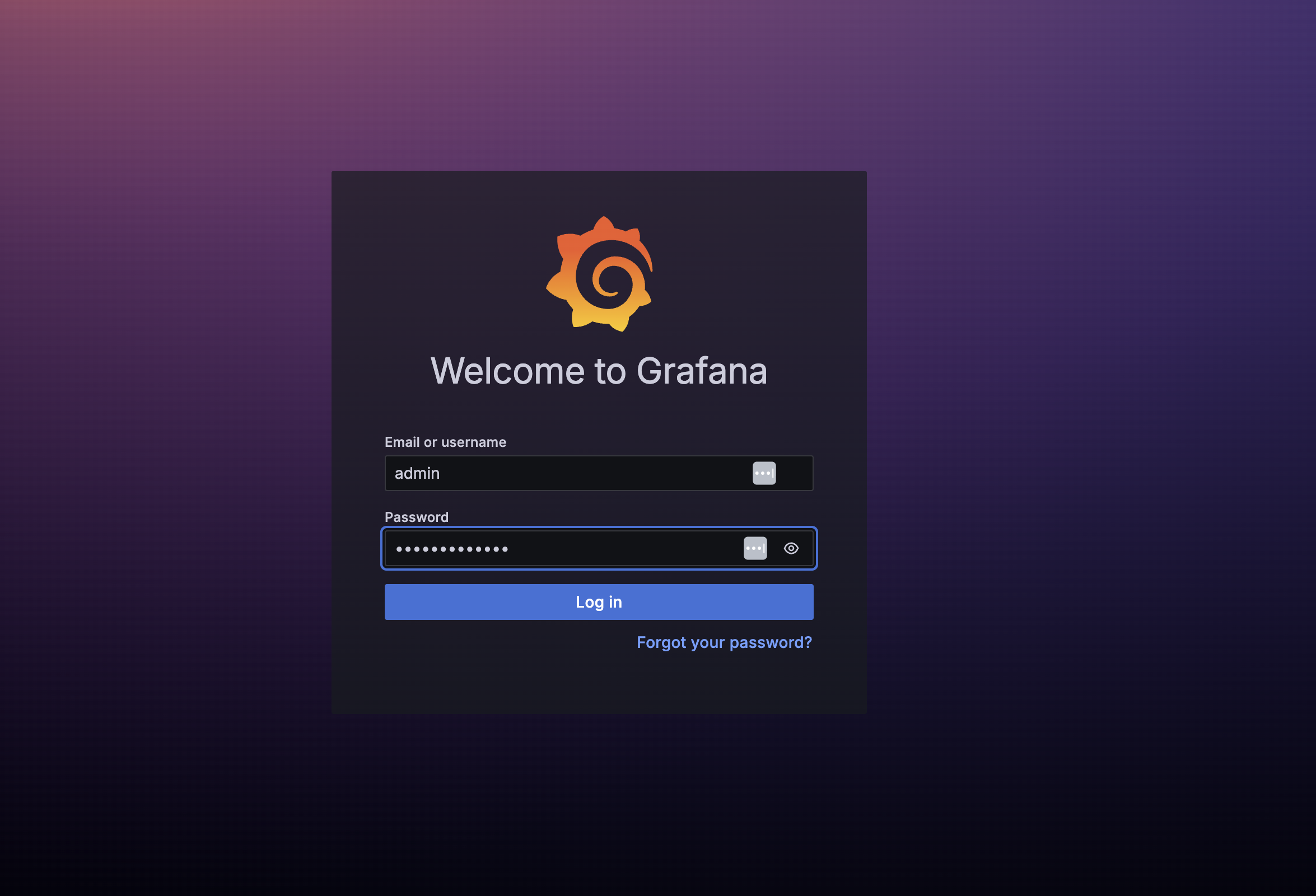
Log in to Grafana and click Data Sources in the Connections section. Select Add new data source and click on MySQL datasource in the SQL section.
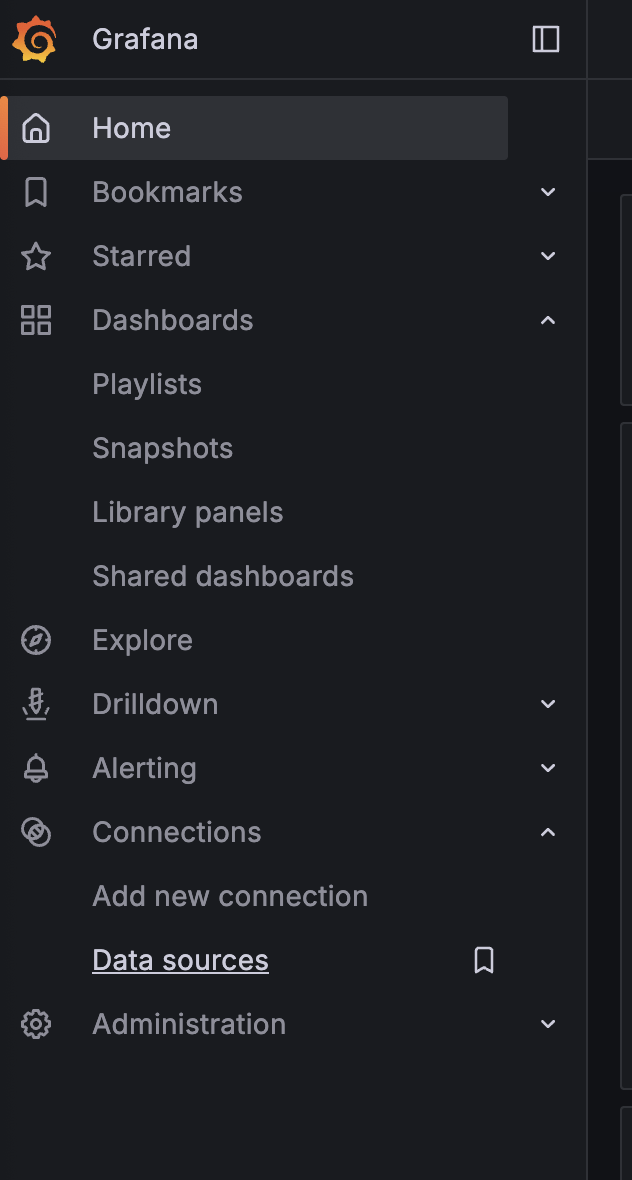
On the following screen, configure the following fields:
For the name, use ‘mysql’
For the Host URL, use ‘master:3306’
For the database, enter ‘heimdall’
For the username, use ‘heimdall-kpis-reader’
For the password, use the password specified during the creation of the heimdall-kpis-reader user.
Leave the rest of the fields with the default settings
Click the Save and Test button. A green popup with the “Database connection ok” message should appear.
Note
The Mission Control autonomous job recovery installation also creates a
GrafanaDatasource custom resource named kpis-reader-datasource. This resource is
applied by the Grafana operator and does not replace the manual step above. Verify
whether it reached Grafana:
kubectl get grafanadatasources -A
If the resource reports NO MATCHING INSTANCES, its Grafana instance selector does not
match the deployed Grafana, and the resource is never applied. Complete the manual data
source step above so that the efficiency dashboard has a working data source.
Mission Control autonomous job recovery verification steps#
After the preceding installation and configuration steps are completed, you can continue to validate the Mission Control autonomous job recovery deployment end to end.
Slurm mode verification#
Use the following Slurm batch script to verify basic Mission Control autonomous job recovery functionality in Slurm mode.
Sbatch script:
#!/bin/bash

#SBATCH -t 00:05:00
#SBATCH --comment='{"APS": {"auto_resume_mode": "requeue", "max_requeue_times": 1}}'

DATETIME=`date +'date_%y-%m-%d_time_%H-%M-%S'`
echo 'AJR light-weight fault simulation test (auto resume mode: requeue)'

# This srun command sets the output file for the job step. The job step sleeps for 30 seconds, prints a
# log line that Mission Control autonomous job recovery recognizes as a segmentation fault, sleeps for another 60 seconds, and exits with 1.

srun --output="$(pwd)/%x_%j_$DATETIME.log" bash -c \
      "echo 'Start time: $DATETIME' && echo 'Sleeping 30 seconds' && \
      sleep 30 && echo 'Rank0: (1) segmentation fault: artificial segfault' && \
      echo 'Sleep another 60 seconds' && \
      sleep 60 && exit 1"
Copy the contents of the preceding bash script and save it into a file in Slurm, e.g.:
bcm_sbatch_test_requeue.sh.The
--commentargument setsauto_resume_modetorequeueandmax_requeue_timesto1. These settings instruct Mission Control autonomous job recovery to requeue the job once, which reduces the test duration.Submit one job to Slurm with the
sbatchscript, note that you have to specify at least the job name (with -J option) and the partition name (with -p option) since they are not encoded in the script:sbatch -J ajr-verification-requeue-test -p <your_partition_name> bcm_sbatch_test_requeue.sh
The job will be submitted and the job ID will be displayed. Keep note of the job ID.
Monitor the job status using the
squeuecommand.squeue -u <your_user_id>
The log file of the Slurm job step will be created in the same directory where the sbatch script is located after the job starts execution. Since we encode the batch script execution time in the srun output file name, each job attempt will have its own log file. In this case, there will be 2 files created after the whole test is finished.
With the default Grafana Alloy configuration, place these log files under
/homeso that Alloy can collect and send them to Loki. Run thesbatchscript from a directory under/home, or updatesrun --outputin the script to use a path under/home. To store the logs in another directory, update the Alloy configuration to monitor that directory.In the Mission Control autonomous job recovery UI, verify that the job attempts are in the correct state and that the anomaly was persisted. Access the UI at
https://<FQDN>/mission-control/recovery-engine/dashboard/workflow, where<FQDN>is the endpoint entered in the installation wizard. Log in with an existing BCM user, or create a user by running the following command on the BCM head node:cmsh -c "user; add ajruser; set password testpassword; commit"
Replace ‘ajruser’ and ‘testpassword’ with appropriate username and a password.
The sequence should be:
The 1st job attempt is killed due to CRASH anomaly
The same job id is requeued and held to create a new job attempt.
The 2nd job attempt is released for execution.
The 2nd job attempt is killed due to CRASH anomaly
No more requeue because the maximum requeue limit has been reached.
To verify the CRASH anomaly, hover your cursor over the red triangle icon to view status information for the job ID you created in step 2. Refer to the following figure for an example.

Figure 4 Red triangle indicators (circled) showing hover locations for verification#
Confirm that the expected verification data appears in the tooltip.
Run:ai mode verification#
Complete the Kubernetes checks on the active BCM head node. Submit the verification workload from a client where the Run:ai CLI is configured. Replace the cluster names and Run:ai project in the commands with the values for your environment.
Verify that the Mission Control autonomous job recovery services are running on the admin Kubernetes cluster:
kubectl --kubeconfig /root/.kube/config-<admin-cluster-name> get pods \
  -n heimdall
All service pods must be in the
RunningorCompletedstate. Resolve anyPending,ImagePullBackOff, orCrashLoopBackOffstates before you continue.Verify the user-cluster operators and required custom resource definitions:
kubectl --kubeconfig /root/.kube/config-<user-cluster-name> get pods \
  -n heimdall
kubectl --kubeconfig /root/.kube/config-<user-cluster-name> get crd \
  pytorchjobs.kubeflow.org advices.heimdall.nvidia.com \
  heimdalljobs.heimdall.nvidia.com runaiconfigs.run.ai
The
heimdall-log-collector,heimdall-advice-operator, andheimdall-job-operatorpods must be ready. All four custom resource definitions must exist.Verify that the Run:ai advice restart controller is enabled and ready:
kubectl --kubeconfig /root/.kube/config-<user-cluster-name> get \
  runaiconfig runai -n runai -o json | \
  jq -r '.spec["advice-restart-controller"]'
kubectl --kubeconfig /root/.kube/config-<user-cluster-name> rollout \
  status deployment -n runai -l app=advice-restart-controller \
  --timeout=5m
The configuration must contain
enabled: trueandmode: action. The controller deployment must be available.Prepare the Run:ai CLI on the machine where you will submit the verification workload. Follow the Run:ai Install and Configure CLI guide to install the CLI, authenticate, and select the intended cluster and project. Installing the Run:ai platform does not automatically install the CLI on the BCM head node.
Check that the CLI is available and that you can list your clusters and projects:
command -v runai
runai version
runai cluster list
runai project list
Submit a short PyTorch training workload with the Mission Control autonomous job recovery workflow label. Use a container image that is available to your Run:ai project:
runai training pytorch submit ajr-verification \
  -p <runai-project> -i <pytorch-container-image> -g 1 \
  --no-master --workers 1 \
  --label heimdall.nvidia.com/workflow-id=ajr-verification \
  --command -- python3 -c \
  'import time; print("AJR verification job started"); time.sleep(60)'
Verify that the PyTorch job creates a corresponding
HeimdallJobon the user/workload Kubernetes cluster:kubectl --kubeconfig /root/.kube/config-<user-cluster-name> get \ pytorchjob ajr-verification -n runai-<runai-project> kubectl --kubeconfig /root/.kube/config-<user-cluster-name> get \ heimdalljob -n runai-<runai-project> \ -l heimdall.nvidia.com/workflow-id=ajr-verification
The
HeimdallJobstate progresses fromPendingtoRunningand then toCompleted. A successful workload does not create anAdviceresource.If your validation environment includes an approved fault-injection workload, submit it to verify the anomaly, advice, and restart path. Do not inject faults on production nodes. After the fault is detected, verify that an
Adviceresource identifies the test workload:kubectl --kubeconfig /root/.kube/config-<user-cluster-name> get advice \ -n runai-<runai-project> -o json | \ jq '.items[] | select(.spec.job.jobId == "<fault-job-name>")'
Verify that the Run:ai advice restart controller restarts the workload according to the generated advice.
Mission Control autonomous job recovery uninstallation#
Start the
cm-mission-control-setupwizard on the active BCM head node to uninstall Mission Control autonomous job recovery.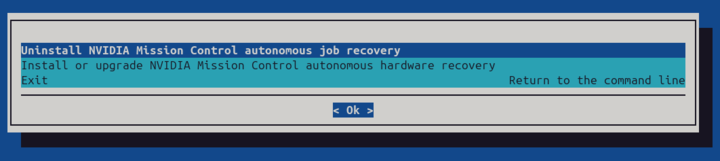
Select Uninstall NVIDIA Mission Control autonomous job recovery.
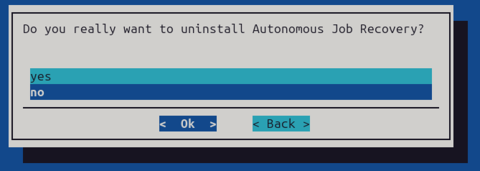
Confirm the uninstallation on the next page. The wizard uninstalls Mission Control autonomous job recovery and removes the
heimdallnamespace. For Run:ai mode installations, the wizard also removes the Mission Control autonomous job recovery operators from the configured user/workload Kubernetes cluster.Note
If the installation failed unexpectedly, the previous run may have left the deployment only partially created. In this situation the uninstall wizard can report errors while trying to remove objects that were never fully created. These errors are expected. Proceed past them and allow the uninstall to complete.
Existing data in MySQL database and ‘heimdall-kpis-reader’ MySQL user would not be affected. In case there is a need to perform complete uninstall, log in to MySQL database as root user and perform the following steps:
DROP USER IF EXISTS 'heimdall-kpis-reader'@'%';

DROP USER IF EXISTS 'heimdall_user'@'%';

DROP DATABASE heimdall;
This will remove ‘heimdall-kpis-reader’ and ‘heimdall_user’ MySQL users and related ‘heimdall’ database.
After Mission Control autonomous job recovery is uninstalled by the wizard, remove the unnecessary “aidot” Helm repository
# helm repo remove aidot
"aidot" has been removed from your repositories
If the installation failed unexpectedly, a
kube-log-forwardconfiguration overlay from the incomplete run can remain. Normally the uninstall wizard removes this overlay, but if the wizard aborted before completing, the overlay may still be present. While it exists, a subsequent installation fails at the Create Configuration Overlay stage with aduplicate overlay name 'kube-log-forward'error. Check for the overlay and remove it manually if present:cmsh -c "configurationoverlay; list" | grep kube-log-forward cmsh -c "configurationoverlay; remove kube-log-forward; commit"
List the configuration overlays again to confirm that there is no
kube-log-forwardentry.If the installation failed unexpectedly, the metrics collection setup may have left
slurm-nodesEndpoints andslurm-node-exportersServiceMonitor objects in theprometheusnamespace. Normally, the uninstall wizard removes these objects, but if the wizard aborted before completing, they may remain. While they exist, a subsequent installation fails at the metrics collection stage with a Kubernetes conflict error. These objects are created directly by the installer, not by the Prometheus Helm chart, so uninstalling Prometheus with Helm does not remove them. Check for these objects and manually remove them if present:kubectl -n prometheus get endpoints slurm-nodes kubectl -n prometheus get servicemonitor slurm-node-exporters kubectl -n prometheus delete endpoints slurm-nodes kubectl -n prometheus delete servicemonitor slurm-node-exporters
Third-Party Open Source Software Licenses#
Mission Control autonomous job recovery incorporates third-party open source software components. A complete list of the components and their license texts is available in the following file:
Please review the license terms of these open source projects before use.