

Autonomous Hardware Recovery Installation Guide#
NVIDIA Mission Control autonomous hardware recovery automates the testing, diagnosis, and repair of your SuperPODs. NVIDIA Mission Control autonomous hardware recovery (AHR) is delivered as a component of the NVIDIA Mission Control product. The core capabilities of AHR are as follows:
Automated Baseline Testing (GB200 only) NVIDIA Mission Control autonomous hardware recovery provides a “one click” mechanism to validate the SuperPOD hardware. For GB200, this includes tray, rack, and multi-rack testing. A comprehensive set of reports is included to facilitate tracking of the cluster bring-up progress.
Automated Health Checks (GB200 only) NVIDIA Mission Control autonomous hardware recovery provides a full suite of automated health checks that detect failures at the tray, rack, and system levels for GB200. In addition, system-wide health checks are performed by integrating with the UFM and NetQ network control planes.
Automated Break/Fix Workflows (coming soon) (GB200 only) NVIDIA Mission Control autonomous hardware recovery will provide a series of Break/Fix workflows to handle tray (GB200) failures. In addition, for GB200, NVIDIA Mission Control autonomous hardware recovery will include rack (NVL72) level Break/Fix. The Break/Fix workflows execute a series of diagnostic steps to determine the cause of the failure and potential repair steps. These diagnostics include OneDiags/IST field diags to facilitate RMA.
Firmware Upgrade (GB200/GB300) NVIDIA Mission Control autonomous hardware recovery provides functionality for upgrading, cycling, and verifying firmware and the corresponding OS. Firmware can be upgraded for Compute trays, Switches, Mellanox networking, and NVOS.
Note: Health Checks, and Break/Fix are GB200‑only and GB300 currently only has Firmware Upgrade support.
Deployment Diagram#
NVIDIA Mission Control autonomous hardware recovery leverages an agent based architecture with a stateful backend. The NVIDIA Mission Control autonomous hardware recovery agent is deployed on all computers managed by NVIDIA Mission Control autonomous hardware recovery e.g. on the compute nodes, the Kubernetes worker nodes, and/or on the BCM head nodes. The agent is installed in BCM’s image for distribution to the managed computers. The NVIDIA Mission Control autonomous hardware recovery backend runs on the admin Kubernetes nodes in the control plane. It is installed to the control plane via helm. For failover purposes, the backend includes a primary and secondary replica. Data is synchronized between the primary and secondary. Other Mission Control components (e.g. autonomous job recovery (AJR) or BCM) integrate with NVIDIA Mission Control autonomous hardware recovery via the backend’s APIs. There is no direct communication to the agents i.e. all usage of NVIDIA Mission Control autonomous hardware recovery is intermediated by the backend.
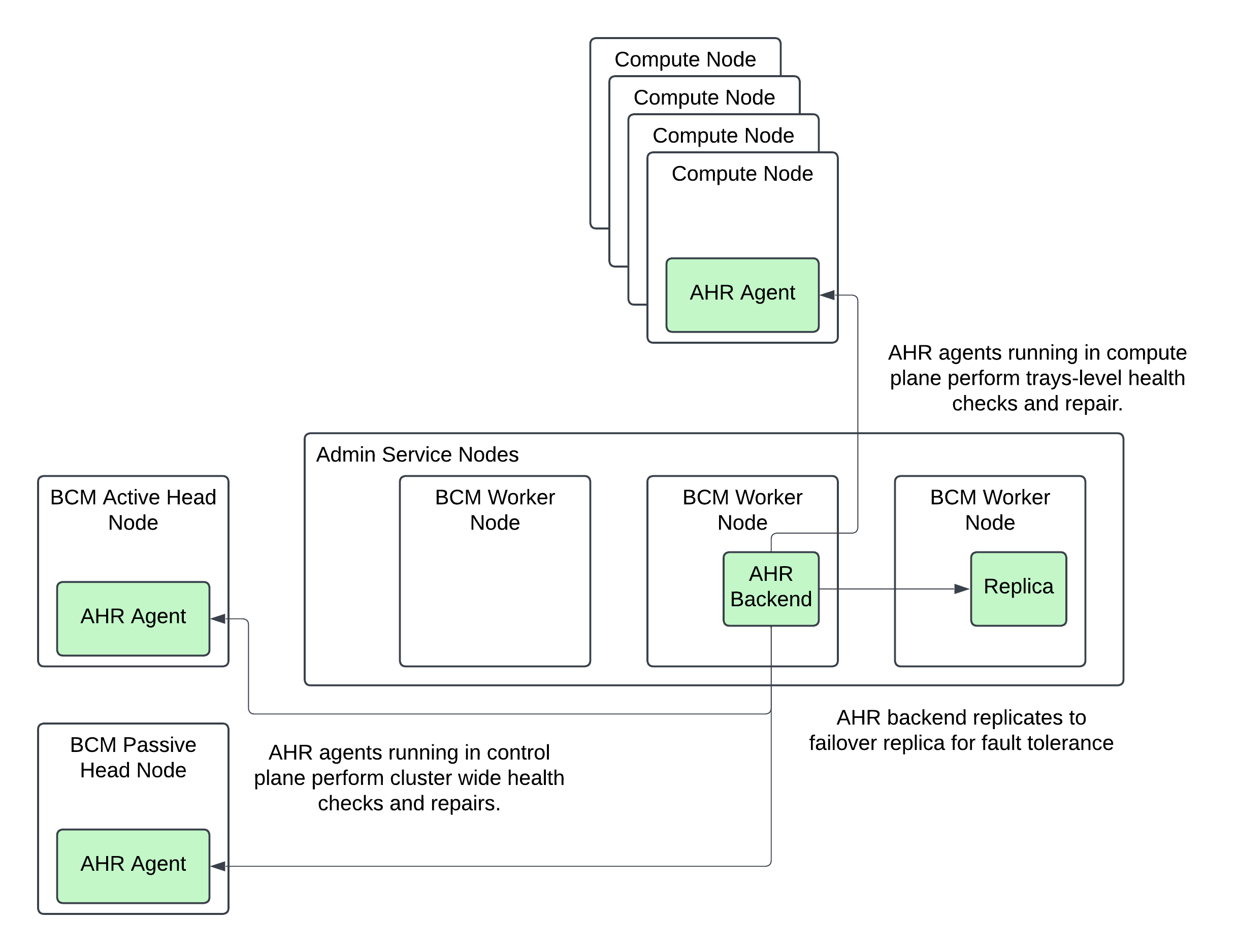
Figure: Mission Control overall architecture. NVIDIA Mission Control autonomous hardware recovery components in green.
Prerequisites#
BCM#
BCM license that allows AHR installation
At least 1 BCM user created for initial login to assign the AHR Administer permission to other users
Worker nodes for NVIDIA Mission Control autonomous hardware recovery backend#
CPU: 16 cores minimum
Memory: 32 GB minimum
Local storage:
500 GB available on the existing filesystem of the node for AHR backend application files
20 GB available under
/varfor AHR container images
Object storage (choose one of the following):
Local Ceph on the worker node — One storage device with at least 1.5 TB capacity and no existing filesystem. RAID devices are supported if no filesystem is present.
External object storage — Any S3-compatible service such as AWS S3, MinIO, Rook/Ceph, Wasabi, SeaweedFS, or Dell ECS. The BCM TUI wizard installation and manual installation procedures include setup details for AWS IAM credentials. Provision AWS IAM credentials before starting the installation. The credentials require the following permissions at a minimum:
{
  "Version": "2012-10-17",
  "Statement": [
    {
      "Sid": "S3BucketAdmin",
      "Effect": "Allow",
      "Action": "s3:*",
      "Resource": [
        "arn:aws:s3:::onprem-org-shoreline-mdkey-mr-*",
        "arn:aws:s3:::onprem-org-shoreline-mdkey-mr-*/*",
        "arn:aws:s3:::ss-arc-*-onprem-local*",
        "arn:aws:s3:::ss-arc-*-onprem-local*/*",
        "arn:aws:s3:::ss-arc-system-metadata-*",
        "arn:aws:s3:::ss-arc-system-metadata-*/*"
      ]
    },
    {
      "Sid": "AllowListAllBuckets",
      "Effect": "Allow",
      "Action": "s3:ListAllMyBuckets",
      "Resource": "arn:aws:s3:::*"
    }
  ]
}
NGC Token#
The software artifacts required for the deployment and operation of AHR are stored on NGC (NVIDIA GPU Cloud). For this reason an NGC token is necessary for the installation process to pull the required resources such as the Helm charts and the container images.
To obtain a valid NGC API token from the NGC console, you will need to have a subscription with the appropriate entitlement for artifacts in the NVIDIA Mission Control NGC collection of the NGC Catalog.
If your organization’s subscription hasn’t been activated yet, follow the instructions here to do so (must be organization owner): https://docs.nvidia.com/ngc/latest/ngc-user-guide.html#activating-your-subscription-offer-dependent
Once the organization’s subscription has been activated, sign in as the organization owner: https://docs.nvidia.com/ngc/latest/ngc-user-guide.html#sign-in-account-owner
Once you’ve successfully gained access to the NGC console, generate an NGC API token (choose one):
Service Key: https://org.ngc.nvidia.com/service-keys
Personal API Key: https://docs.nvidia.com/ngc/latest/ngc-user-guide.html#generating-a-personal-api-key
Make sure to select NGC Catalog under Services Included when creating your personal key:
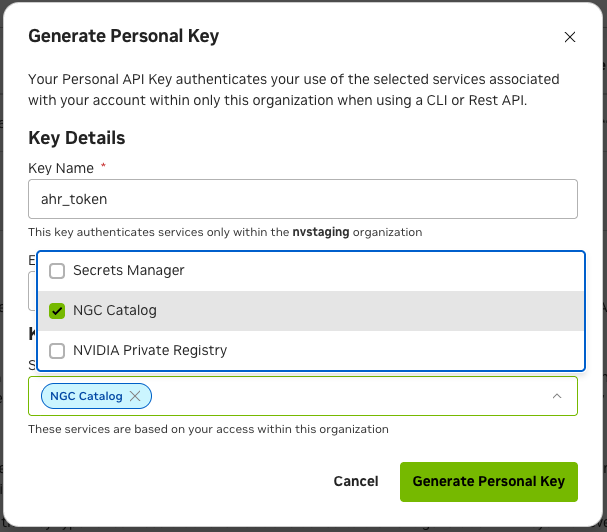
Save this token somewhere safe, as it will be referenced in later sections of this document.
Kubernetes control plane#
Kubernetes is deployed and configured with the
cm-kubernetes-setupwizard
Certificates for AHR endpoints#
AHR provides a web-based interface and additional endpoints for managing its operations. As part of the standard installation, AHR employs Transport Layer Security (TLS) encryption to protect all communications. You have the option to configure the environment’s TLS certificates with either a publicly-trusted certificate or a self-signed certificate.
Using publicly-trusted TLS certificates#
Choose a domain that will be used for the application’s endpoints in the customer’s environment, e.g. ahr.customer-domain.com.
Option 1: Have the customer’s IT team generate a wildcard certificate by a trusted certificate authority for the domain that was chosen, e.g. the certificates for the
ahr.customer-domain.comdomain would be forahr.customer-domain.com, *.ahr.customer-domain.com.Option 2: You can generate a publicly-trusted wildcard certificate yourself using a service like Let’s Encrypt with the certbot binary. Certificates generated this way must be rotated every 90 days so a certificate managed by the customer’s IT team (Option 1) is preferred. Instructions on how to generate a publicly-trusted certificate can be found in the Appendix’s Generating a publicly trusted tls certificate section
Using self-signed TLS certificates#
Alternatively, you can use a self-signed certificate. During the installation via BCM TUI Wizard, the installer provides an option to generate and configure a self-signed certificate automatically.
If you use the manual installation procedure, follow the instructions for manually generating self-signed certificates before you proceed with the installation.
DNS resolution for AHR UI access#
Add A records for the following AHR endpoints to the DNS zone for your TLS certificate domain (<ahr-domain>). These records are required to access the AHR UI from your local browser. Contact your DNS administrator to create these records. All three endpoints should resolve to the BCM head node’s external or floating IP address (the IP you used to SSH to the BCM head node):
<ahr-domain>api.<ahr-domain>ceph.<ahr-domain>
The ceph.<ahr-domain> record serves the object storage endpoint. The AHR UI reads the full output of an alarm or action directly from this endpoint. Without this record, the view more link on the alarm details page fails with Network Error · Failed to load full content. The output download buttons also fail silently. This record does not apply if you use External object storage.
If you do not have access to the DNS zone for <ahr-domain>, you can use your local /etc/hosts file for local domain resolution by appending the following to /etc/hosts:
<headnode-ip> <ahr-domain>
<headnode-ip> api.<ahr-domain>
<headnode-ip> ceph.<ahr-domain>
Run:ai (Kubernetes) GPU node scheduling#
Complete this section only if Run:ai schedules any of the GPU nodes in your cluster. AHR supports both Slurm-scheduled and Run:ai-scheduled GPU nodes.
Install Run:ai before AHR. The installation sequence places Run:ai ahead of the Autonomous Recovery Engine components, so that the Run:ai BCM node categories and the k8s-user cluster already exist when you install AHR. With Run:ai in place first, both of the following are available in a single pass through the AHR wizard:
Node categories. Run:ai compute nodes normally belong to their own BCM node category, with their own software image, separate from the Slurm compute nodes. The AHR agent must be installed on the Run:ai compute nodes, so select those categories during agent installation.
kubectl context. The AHR runbooks need the kubectl context name of the
k8s-usercluster that holds the Run:ai GPU nodes, as listed bykubectl config get-contexts -o name. The fleet-standard value iskubernetes-admin@k8s-user.
This is a sequencing recommendation, not a hard dependency: AHR does not require Run:ai to be present, and the k8s-user cluster does not need to exist before AHR is installed. If you install Run:ai after AHR, add the AHR agent to the new Run:ai node categories by following Adding the AHR Agent to a Node Category After Installation. If Run:ai does not use the fleet-standard kubectl context, run Deploy Runbooks again to supply the correct context.
After the AHR agent is installed on a node, it detects whether Run:ai is present on that node and tags the node accordingly, without an agent restart or reinstall. You do not need to reinstall the AHR agent on a node that already has it when Run:ai is added to that node later.
After you uninstall Run:ai from a node, manually remove /var/lib/runai from that node. The uninstaller leaves this path in place, and AHR continues to tag the node scheduler_system_type=runai while the path exists.
Virtual IP for the Kubernetes Gateway#
AHR requires an unassigned virtual IP on the internal network used by the Kubernetes cluster. This IP is used to create the Kubernetes gateway that handles incoming traffic to the AHR endpoints (shoreline-gateway).
The BCM TUI Wizard pre-populates this field with the highest IP that its gateway validation considers available. The validation excludes IPs assigned to devices in BCM, IPs used by BCM head node filesystem mounts, BCM dynamic ranges, and existing MetalLB address pools. It cannot detect an IP that is configured manually on a network interface but is absent from BCM inventory, or an IP used by an external system on the same Layer 2 network.
Before accepting the pre-populated IP or entering one manually, review the existing Kubernetes gateways and the IPv4 addresses configured on the BCM head nodes and each node category that uses the internal Kubernetes network:
kubectl get gateway -A --kubeconfig /root/.kube/config-k8s-admin
pdsh -g headnode 'ip -o -4 address show' | dshbak -c
pdsh -g category=<node-category> 'ip -o -4 address show' | dshbak -c
Replace <node-category> and repeat the command for each applicable category. Confirm that the IP does not appear in the output. Then confirm with your network administrator that no external device or manually managed service uses the IP.
Installation via BCM TUI Wizard#
The BCM TUI Wizard helps automate the installation of the AHR backend and agents across the cluster. To use the manual installation procedure, refer to the appendix.
Backend and Agent Installation#
Before you begin the installation of AHR with the BCM TUI Wizard, create the
autonomous-hardware-recoverynamespace with a specific label to allow container pulls from non-local registries. Run the following command to define the namespace in a file namedahr-namespace.yaml:cat <<EOF > ahr-namespace.yaml apiVersion: v1 kind: Namespace metadata: name: autonomous-hardware-recovery labels: zarf.dev/agent: ignore EOF
then run the following to apply the definition:
kubectl apply -f ahr-namespace.yaml --kubeconfig /root/.kube/config-k8s-admin
Create a BCM user to deploy the AHR application by running the following command. Replace
<strong-password>with a new value:cmsh -c 'user; add ahr; set password <strong-password>; commit;'
From the active BCM head node, run the
cm-mission-control-setupcommand and selectNVIDIA Mission Control autonomous hardware recovery Menu.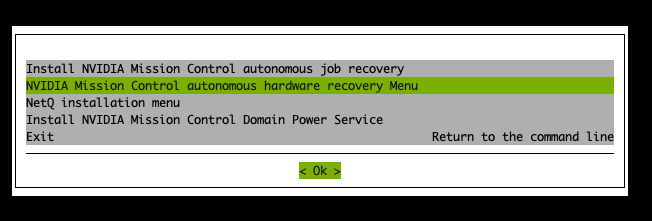
If this is the first time
cm-mission-control-setupis run on this BCM head node, you will also get a screen like the following:
Select
< Ok >to proceed each time this screen appears.Choose
Install or Upgradeand then select< OK >.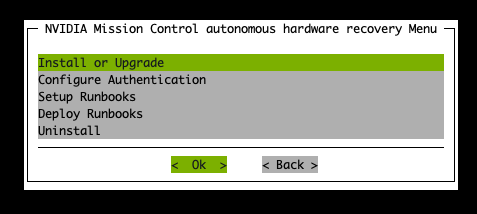
If more than one Kubernetes cluster is registered in BCM, select the cluster for the AHR backend deployment. Select the administrative cluster that hosts Mission Control services — named
k8s-adminin a fleet-standard setup, as described in Names Used in This Section. If only one Kubernetes cluster is registered, the wizard skips this screen and selects that cluster automatically.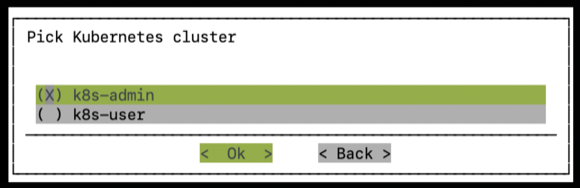
Provide the IP address to use for a Kubernetes gateway that handles incoming traffic to the AHR endpoints. The default value is the highest available IP address in the network used by the Kubernetes cluster.
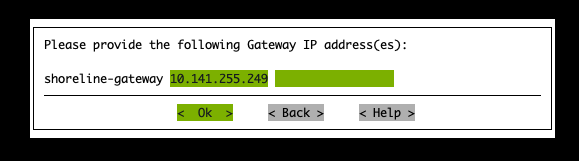
Note
The installer cannot detect manually configured or external IP assignments that are absent from its inventories. Verify that the pre-populated IP is unassigned before you continue. Refer to Virtual IP for the Kubernetes Gateway.
When prompted to select user, select the
ahruser you just created: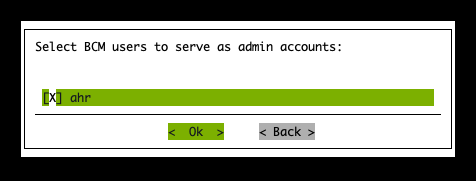
Use the NGC token you obtained in the Prerequisites section to provide credentials for the
nvcr.ioregistry.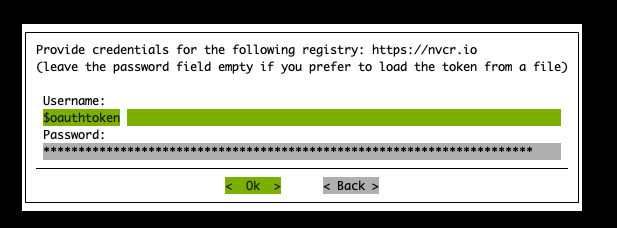
To have the installer create self-signed TLS certificates for your environment, select yes at the following screen. Otherwise, select no to provide your own publicly-trusted certificates.
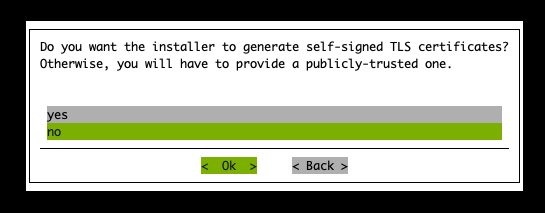
If
yesis selected:Enter the base domain that will be used to derive all AHR endpoint URLs. This value is also used as the endpoint for accessing the AHR UI:
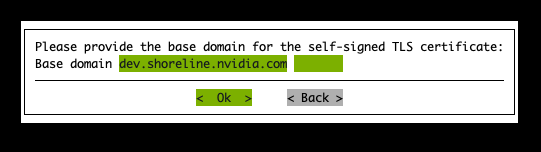
If
nois selected:When prompted for a wildcard TLS certificate, use the
ahr.crtandahr.keyfiles obtained from the Prerequisites section of this document.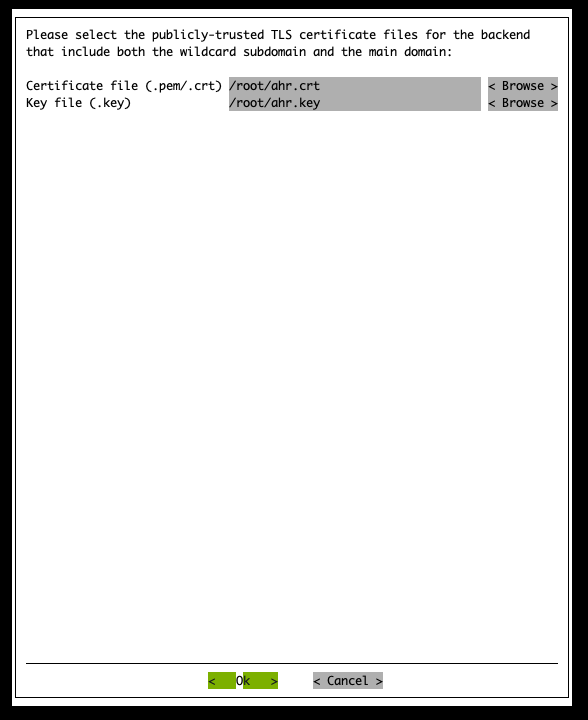
Select the node to use for the AHR backend pod.
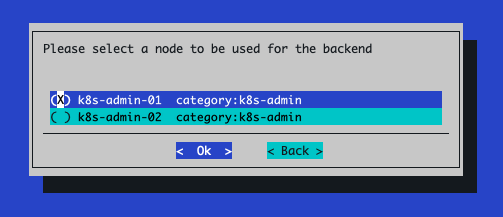
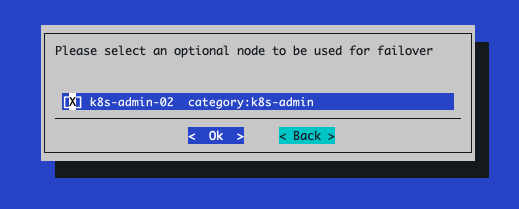
(Optional) Select a different node to use as the failover node. For more information on the failover feature, refer to Failover.
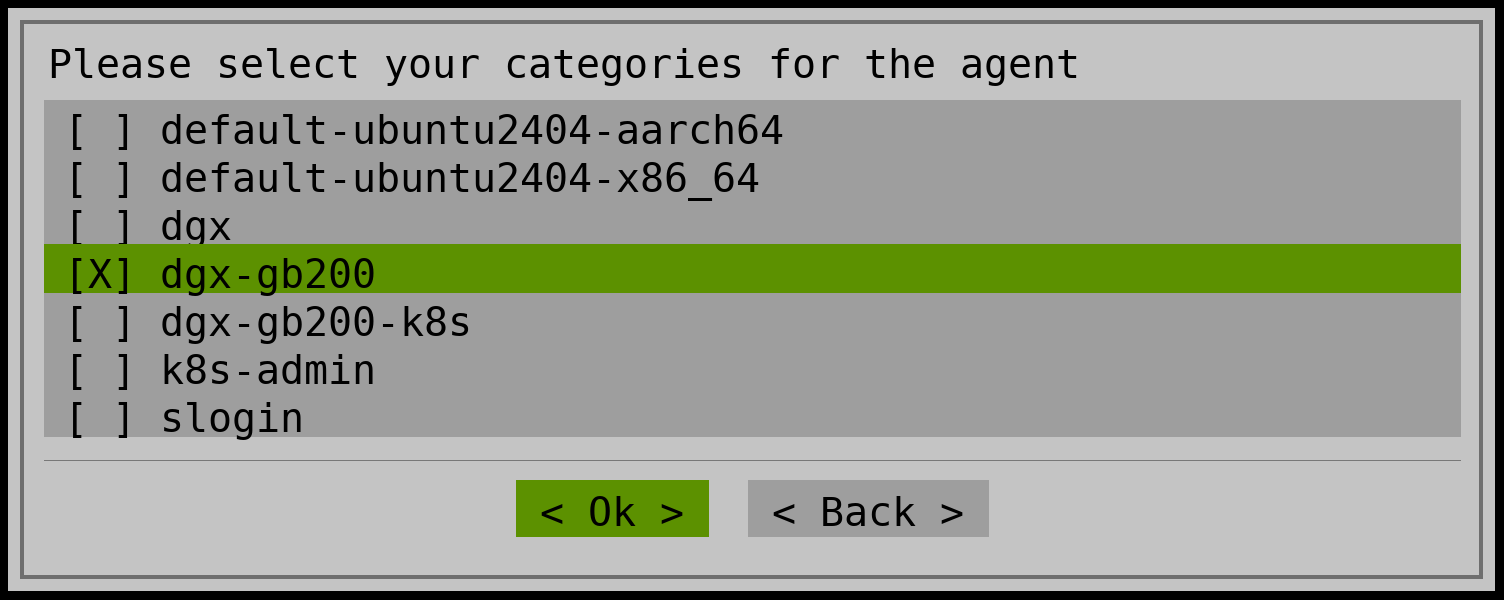
Select the node categories for the agent installation. These are usually the node categories used for GPU nodes in your environment.
Select every GPU compute category that AHR manages. Clusters that schedule some GPU nodes with Slurm and others with Run:ai keep them in separate categories with separate software images, and both categories need the AHR agent. Refer to Run:ai (Kubernetes) GPU node scheduling for the Run:ai prerequisites.
Moving a node into a category later does not install the agent on that node. If you miss a category here or create one after installing AHR, you can add the agent to it later by following Adding the AHR agent to a node category after installation.
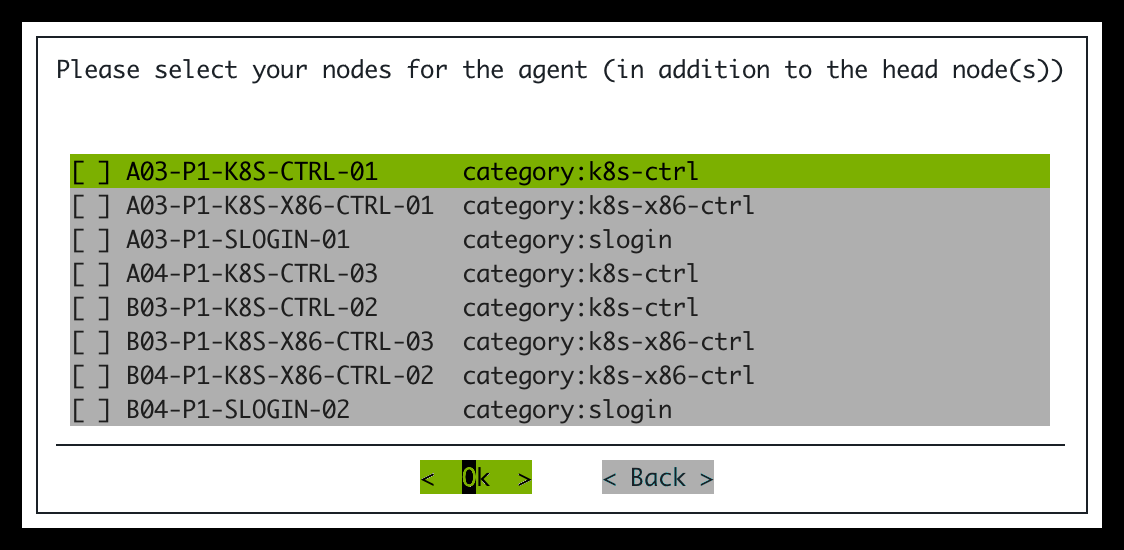
If prompted to select additional nodes for the agent, select any other individual nodes on which to install the AHR agent. The AHR agent is already installed on all BCM head nodes by default, so you do not need to select them.
You can customize the URLs used for the AHR backend endpoints, but the default values are typically sufficient. These values use the domain associated with the TLS certificates.
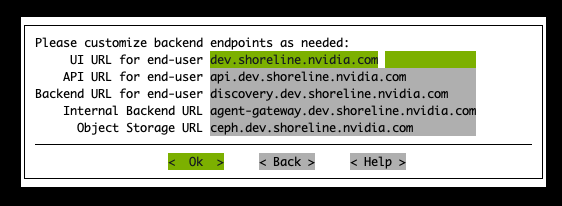
Selecting
< OK >attempts to verify that DNS resolution is working correctly for the endpoints listed in the preceding step. If there is an issue with DNS resolution for those endpoints, you can safely ignore the warnings.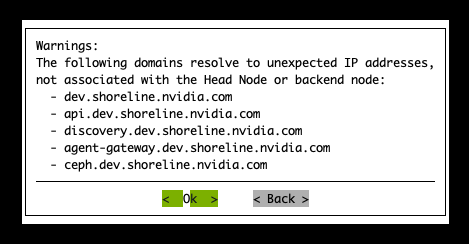
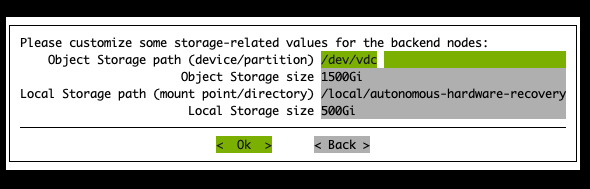
For storage configuration, the default sizes are typically sufficient, but verify that each storage path is correctly specified. The Object Storage path should reference a local storage device or partition without a filesystem. Leave this field blank if you use External object storage. The Local Storage path can reference any directory on the node selected for the AHR backend pod. If the directory does not already exist on the node, the installer creates it.
When prompted to select an option for monitoring, select Local Prometheus Stack. This option assumes the Prometheus Operator Stack and Grafana Operator were selected as operators during the
cm-kubernetes-setupexecution.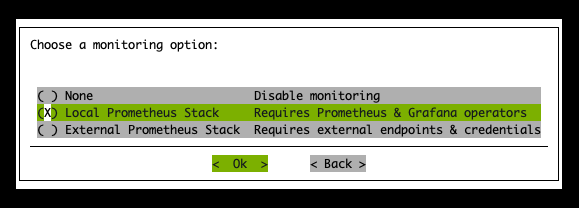
If you select None and need to enable monitoring later, follow the manual procedure for monitoring installation only.
The next screen depends on which object storage option you selected during the prerequisites.
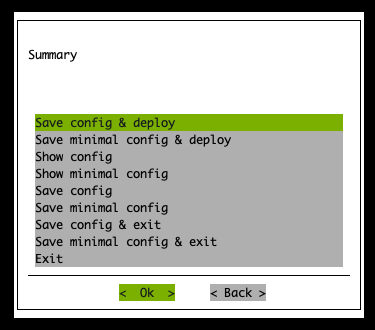
If the Local Ceph on the worker node option was chosen, simply select Save config & deploy:
If you chose External object storage, select Save config & exit.
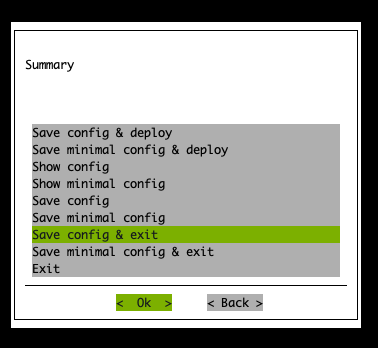
Adjust this config so that it uses your external object storage solution. First, back up the original config file:
export CONFIG_FILE_PATH=<relative-or-absolute-path-of-saved-config-file>
cp $CONFIG_FILE_PATH $CONFIG_FILE_PATH.orig
Next, add new values to the
cm-mission-control-setupconfig to account for your external object storage solution.export AWS_REGION=<region-in-which-object-storage-buckets-will-get-created> # can omit the following line if using standard AWS S3 export AWS_ENDPOINT_URL=<storage-service-endpoint-url>
Select the tab that matches how you want to provide S3 credentials, then run each code block in that tab:
export ACCESS_KEY_ID=<aws-access-key-id>
export SECRET_ACCESS_KEY=<aws-secret-access-key>
if ! grep -q 'use_external_ceph' cm-mission-control-setup.conf; then
    awk -v access_key="$ACCESS_KEY_ID" -v secret_key="$SECRET_ACCESS_KEY" -v aws_region="$AWS_REGION" -v endpoint_url="$AWS_ENDPOINT_URL" '
        /^[[:space:]]*init_values:[[:space:]]*$/ { init_found = 1; print; next }
        init_found && /^[[:space:]]*data:[[:space:]]*$/ {
            print;
            print "              use_external_ceph: true"
            print "              aws_region: " aws_region
            if (endpoint_url != "") {
                print "              aws_endpoint_url: " endpoint_url
            }
            print "              aws_secret:"
            print "                access_key: " access_key
            print "                secret_key: " secret_key
            init_found = 0; next
        }
        { print }' $CONFIG_FILE_PATH > $CONFIG_FILE_PATH.tmp
    if [ -f $CONFIG_FILE_PATH.tmp ]; then
        mv $CONFIG_FILE_PATH.tmp $CONFIG_FILE_PATH
    fi
fi
export K8S_SECRET_NAME=<name-of-existing-secret-containing-S3-creds>
export K8S_SECRET_ACCESS_KEY_KEY=<name-of-key-within-the-secret-for-the-access-key>
export K8S_SECRET_SECRET_KEY_KEY=<name-of-key-within-the-secret-for-the-secret-key>
if ! grep -q 'use_external_ceph' cm-mission-control-setup.conf; then
    awk -v access_key_key="$K8S_SECRET_ACCESS_KEY_KEY" -v secret_key_key="$K8S_SECRET_SECRET_KEY_KEY" -v aws_region="$AWS_REGION" -v secret_name="$K8S_SECRET_NAME" -v endpoint_url="$AWS_ENDPOINT_URL" '
        /^[[:space:]]*init_values:[[:space:]]*$/ { init_found = 1; print; next }
        init_found && /^[[:space:]]*data:[[:space:]]*$/ {
            print;
            print "              use_external_ceph: true"
            print "              aws_region: " aws_region
            if (endpoint_url != "") {
                print "              aws_endpoint_url: " endpoint_url
            }
            print "              ceph_secret:"
            print "                name: " secret_name
            print "                access_key: " access_key_key
            print "                secret_key: " secret_key_key
            init_found = 0; next
        }
        { print }' $CONFIG_FILE_PATH > $CONFIG_FILE_PATH.tmp
    if [ -f $CONFIG_FILE_PATH.tmp ]; then
        mv $CONFIG_FILE_PATH.tmp $CONFIG_FILE_PATH
    fi
fi
Run the installer with your modified config file:
cm-mission-control-setup -c $CONFIG_FILE_PATH
Runbook Setup and Deployment#
Install NVIDIA Run:ai before AHR, as shown in the installation sequence, so that the Run:ai kubectl context is available when you deploy the runbooks. Refer to Run:ai (Kubernetes) GPU node scheduling. AHR does not enforce this order. With AHR agent version release-29.2.16 or later and cm-setup-ahr version 2.5.1-bcm11 or later, AHR automatically detects Run:ai GPU nodes. You do not need to reinstall the AHR agent if you install Run:ai after AHR. Earlier or mismatched component versions do not include this behavior.
From the active BCM head node, run the
cm-mission-control-setupcommand and selectNVIDIA Mission Control autonomous hardware recovery Menu.Note
In airgapped environments, run the command with the
--skip-packagesoption:cm-mission-control-setup --skip-packagesChoose
Setup Runbooksand then select< OK >.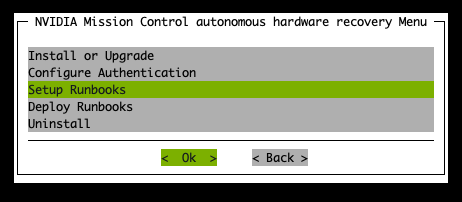
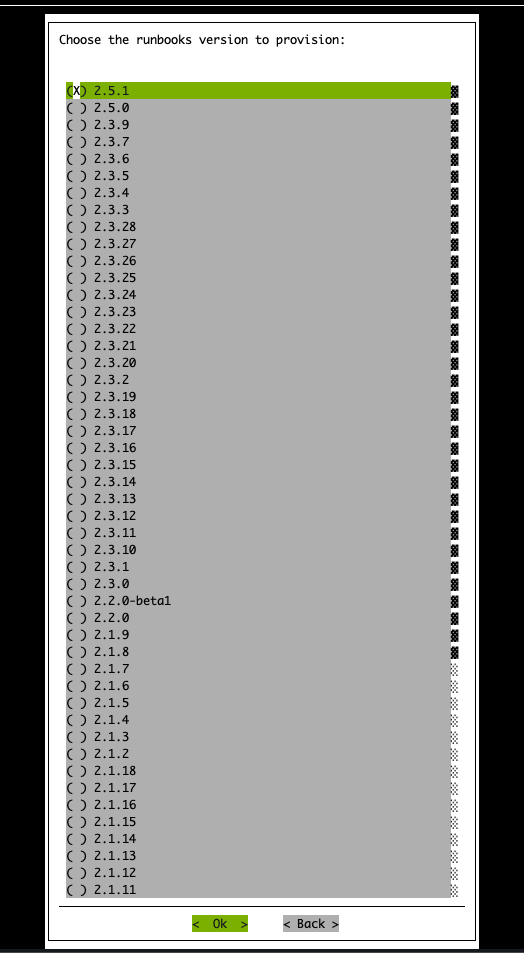
Select the runbooks version to publish.
Select Save config & deploy:
When prompted to save the config file, use a different file name than the original installation config file. For example, if the installation file was saved as
cm-mission-control-setup.conf, you can name this filecm-mission-control-setup_setup-runbooks.conf.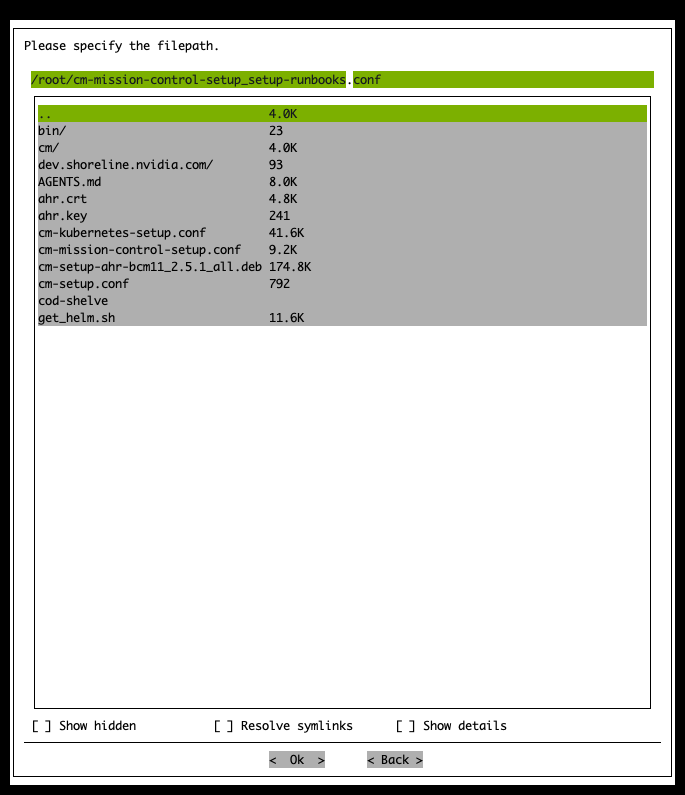
After the installer completes, rerun the
cm-mission-control-setupcommand and selectNVIDIA Mission Control autonomous hardware recovery Menu.Choose
Deploy Runbooksand then select< OK >.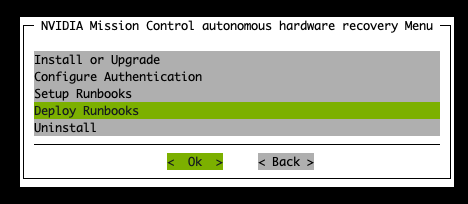
Select the appropriate GPU architecture for the nodes in your environment:
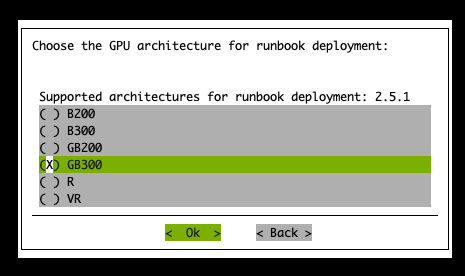
Indicate whether the runbooks should report to a CALLHOME server. The default is
no.A CALLHOME server exposes the support-case API that AHR uses to open support cases. Selecting
yesallows AHR to open them automatically: when a break/fix or diagnostic runbook detects a fault, it posts the system serial number, a description of the fault, and a diagnostic log, and a support case is created and its case ID returned. Selectingnostill deploys the support-ticket action, but the action exits without reporting anything.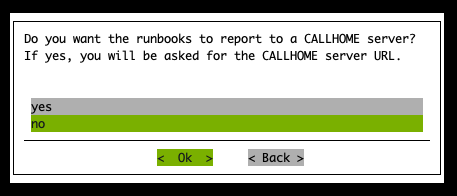
If you selected
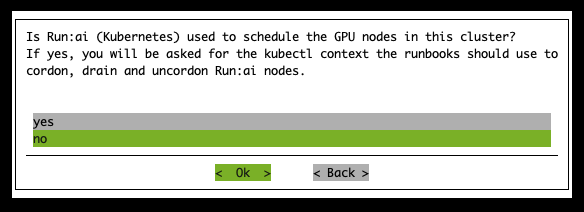
yesfor CALLHOME reporting, provide the base URL of a CALLHOME-compatible API. To report to NVIDIA, enterhttps://www.callhome.nves.nvidia.com. A non-NVIDIA endpoint must implement the API contract that AHR expects; a general support-portal webpage is not sufficient. For an air-gapped cluster, use a compatible internal relay. The action appends/api/v1/call-hometo the URL you provide. Do not include a trailing slash.When asked whether NVIDIA Run:ai schedules the GPU nodes in the cluster, select Yes for a Run:ai cluster. Select No for a Slurm-only cluster.
Note
Select Yes if you installed Run:ai earlier in the installation sequence. Selecting
nodoes not prevent you from adding Run:ai integration later. If Run:ai is installed later on the fleet-standard contextkubernetes-admin@k8s-user, and the AHR agent is already present on those nodes, no further action is required. If Run:ai uses a different kubectl context, run Deploy Runbooks again and answeryeshere to supply it. Refer to Run:ai (Kubernetes) GPU node scheduling.If you selected Yes, run the following command on the active BCM head node to list the available Kubernetes context names:
kubectl config get-contexts -o name
Enter the context for the user/workload Kubernetes cluster that contains the Run:ai GPU nodes. AHR runbooks use this context to cordon, drain, and uncordon Run:ai nodes. For example, enter
kubernetes-admin@k8s-userif that is the context name in your environment. The installer accepts letters, digits,_,.,@,:,/,+, and-in the context name.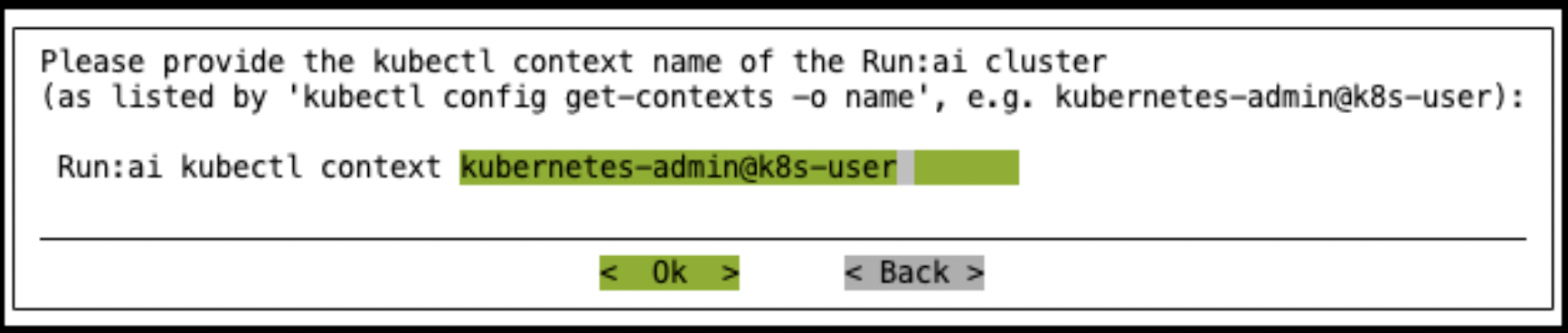
Assign a value for the
gpu_nodes_nameOpenTofu variable that AHR uses to build the node set that runbooks and alarms apply to by using the resource queryhosts | name=~"<gpu_nodes_name>". Use a regular expression that matches the hostnames of all GPU nodes in your cluster. Allowed special characters are*,.,-,_,[,],^,$,+, and?.For example, use
dgx-*to match all nodes whose names containdgx-, or a more specific pattern such asa*-*-s1-dgx-*for nodes named likea01-1-s1-dgx-01.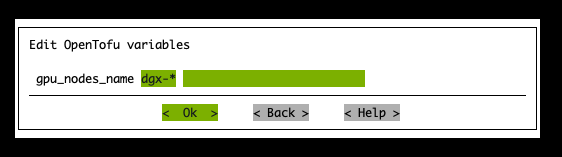
The next prompt shows a
tofu plansummary of the resources to deploy. Selectyesto deploy the resources.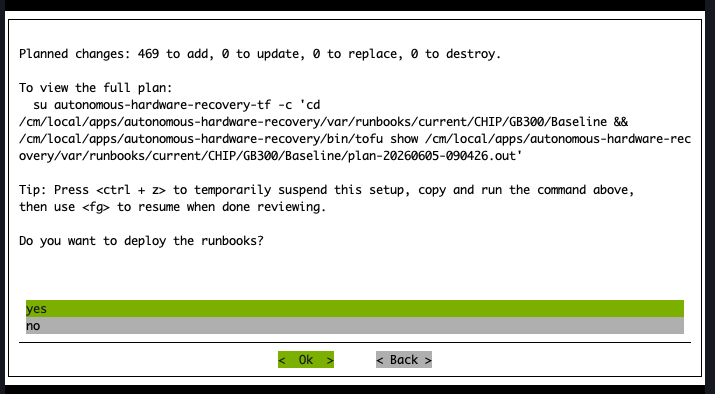
Select Save config & deploy:
When prompted to save the config file, use a different file name than the original installation config file. For example, if the installation file was saved as
cm-mission-control-setup.conf, you can name this filecm-mission-control-setup_deploy-runbooks.conf.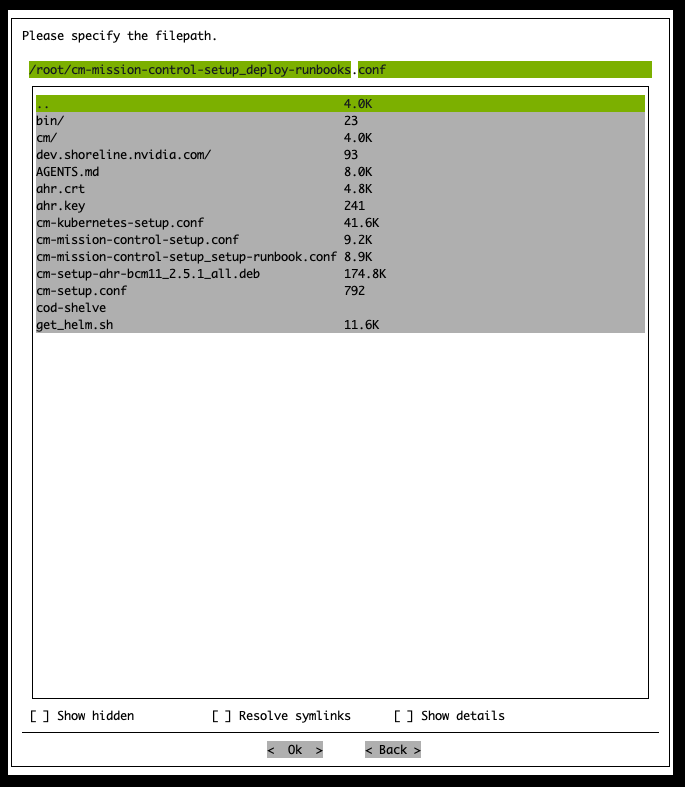
After the runbooks deployment completes, select
Closeto exit: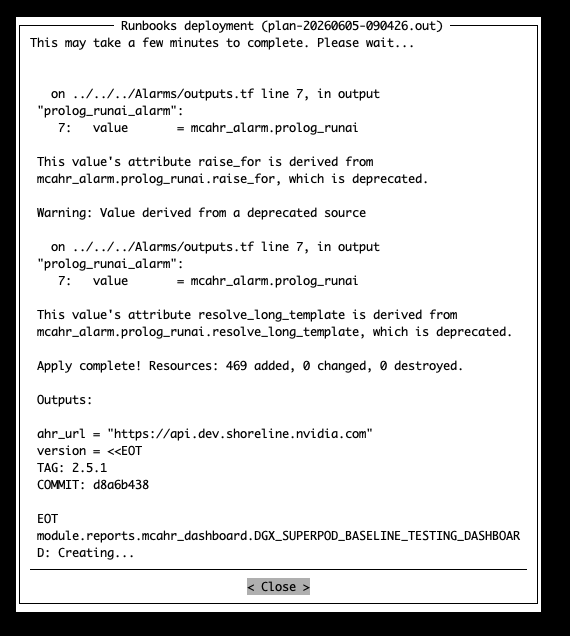
Post Runbook Deployment Configuration#
After the TUI-based installation completes, configure certificate access and container capabilities to enable runbook execution. These steps apply to GB200, GB300, B200, and B300 environments.
Configure CM API Certificate Access
The AHR agent requires BCM Cluster Manager (CM) API certificates to execute runbooks. If the
autonomous-hardware-recoveryuser does not have these certificates, runbook execution will fail with the following error:Failed to get cluster setup: CMMain::getClusterSetup, rpc: No error (0), http: 640, aborted: 0, error: Your certificate (profile:autonomous-hardware-recovery) does not allow access to CMMain::getClusterSetup
Copy the CM
admincertificates to theautonomous-hardware-recoveryuser’s home directory on all BCM head nodes. Run the following command from the primary BCM head node:pdsh -g headnode 'AGENT_USER=autonomous-hardware-recovery && \ HOME_DIR=$(getent passwd ${AGENT_USER} | cut -d: -f6) && \ sudo mkdir -p ${HOME_DIR}/.cm && \ sudo cp /root/.cm/admin.key ${HOME_DIR}/.cm/admin.key && \ sudo cp /root/.cm/admin.pem ${HOME_DIR}/.cm/admin.pem && \ sudo chown ${AGENT_USER}:${AGENT_USER} ${HOME_DIR}/.cm ${HOME_DIR}/.cm/admin.pem ${HOME_DIR}/.cm/admin.key && \ sudo chmod 600 ${HOME_DIR}/.cm/admin.key ${HOME_DIR}/.cm/admin.pem'
Set Enroot Container Capabilities
AHR runbooks use enroot to launch containers on the nodes running the AHR agent. Without the required Linux capabilities, container startup will fail with the following error:
enroot-aufs2ovlfs: failed to set capabilities: Operation not permitted
Set the required Linux capabilities for Enroot in each software image that has the AHR agent installed:
Set the agent category to apply the capabilities to:
export AGENT_CATEGORY=<name-of-agent-category-with-ahr-agent-installed>
Resolve the software image path and set the necessary capabilities inside the software image:
export AGENT_IMAGE_PATH=$(cmsh -c "category; use $AGENT_CATEGORY; get softwareimage" | xargs -I{} cmsh -c "softwareimage; use {}; get path" | grep "^/")

systemd-nspawn --directory=$AGENT_IMAGE_PATH --chdir=/root bash -c \
  "setcap cap_sys_admin,cap_mknod=ep /usr/bin/enroot-aufs2ovlfs && \
  setcap cap_sys_admin,cap_mknod=ep /usr/bin/enroot-mksquashovlfs"
Push the updated image to all nodes in the category:
cmsh -c "device; imageupdate -w -c $AGENT_CATEGORY"
Configure Keycloak Authentication#
AHR supports Keycloak-based authentication for secure access control through OIDC or SAML. Use this section to integrate Keycloak with AHR. Skip this section if you use BCM LDAP for AHR authentication.
Resolve the Keycloak Hostname from the Cluster#
Skip this procedure if the Keycloak hostname resolves from inside the Kubernetes cluster. In test environments that use a hostname without a DNS record, add a hostname-to-IP mapping to CoreDNS.
AHR’s Keycloak integration runs in a Kubernetes pod and resolves hostnames through CoreDNS. An entry in the BCM head node’s /etc/hosts file does not provide DNS resolution for that pod. If the pod cannot resolve the hostname, the setup wizard can report an error such as the following:
Failed to reach OIDC discovery endpoint https://<your-keycloak-hostname>/realms/nmc/.well-known/openid-configuration: :nxdomain
Before you begin, obtain the Keycloak hostname and its ingress or Gateway IP address from your Keycloak administrator. Use the hostname from the Keycloak Base URL or SAML Metadata URL in Enable AHR Keycloak Integration. If you already added an entry to the BCM head node’s /etc/hosts file, use the hostname and IP address from that entry.
On the active BCM head node, load the Kubernetes module:
module load kubernetes
Save the current CoreDNS configuration so that you can restore it if needed:
kubectl --kubeconfig /root/.kube/config-k8s-admin get configmap coredns -n kube-system -o jsonpath='{.data.Corefile}' > /tmp/Corefile.orig
Display the saved configuration:
cat /tmp/Corefile.origCopy the saved configuration into a new file, /tmp/Corefile. Add the following
hostsblock after thereadyline. Replace<keycloak-ip>and<your-keycloak-hostname>with the values for your Keycloak deployment:hosts { <keycloak-ip> <your-keycloak-hostname> fallthrough }Preserve the rest of your cluster’s configuration. The full examples use environment-specific addresses; do not replace your configuration with them.
Example CoreDNS Configuration Before the Change
.:53 {
    errors
    health {
       lameduck 5s
    }
    ready
    kubernetes cluster.local in-addr.arpa ip6.arpa {
       pods insecure
       fallthrough in-addr.arpa ip6.arpa
       ttl 30
    }
    prometheus :9153
    forward . 10.87.210.5 {
       max_concurrent 1000
    }
    cache 30 {
       disable success cluster.local
       disable denial cluster.local
    }
    loop
    reload
    loadbalance
}
Example CoreDNS Configuration with the Keycloak Mapping
.:53 {
    errors
    health {
       lameduck 5s
    }
    ready
    hosts {
       10.87.210.54 keycloak.nmc.aspen.nvidia.com
       fallthrough
    }
    kubernetes cluster.local in-addr.arpa ip6.arpa {
       pods insecure
       fallthrough in-addr.arpa ip6.arpa
       ttl 30
    }
    prometheus :9153
    forward . 10.87.210.5 {
       max_concurrent 1000
    }
    cache 30 {
       disable success cluster.local
       disable denial cluster.local
    }
    loop
    reload
    loadbalance
}
Apply the updated configuration:
kubectl --kubeconfig /root/.kube/config-k8s-admin create configmap coredns -n kube-system --from-file=Corefile=/tmp/Corefile --dry-run=client -o yaml | kubectl --kubeconfig /root/.kube/config-k8s-admin apply -f -
Wait about 30 seconds for CoreDNS to reload, then verify that the hostname resolves:
kubectl --kubeconfig /root/.kube/config-k8s-admin run dns-test --rm -i --tty --restart=Never --image=busybox:1.28 -- nslookup <your-keycloak-hostname>
The address returned for the Keycloak hostname must match the IP address in your
hostsblock. If it does not, check the mapping and apply the configuration again.Continue with Install Keycloak.
This procedure configures DNS resolution only. If Keycloak uses a self-signed TLS certificate, you must also configure certificate trust separately.
To restore the original CoreDNS configuration, run the following command:
kubectl --kubeconfig /root/.kube/config-k8s-admin create configmap coredns -n kube-system --from-file=Corefile=/tmp/Corefile.orig --dry-run=client -o yaml | kubectl --kubeconfig /root/.kube/config-k8s-admin apply -f -
Install Keycloak#
To install Keycloak in your environment, follow the instructions in the Keycloak documentation.
Create a Client in the Keycloak Console#
To integrate Keycloak with AHR, first create an OpenID Connect (OIDC) or SAML client in the Keycloak admin console. Choose the client type that matches how you want AHR to authenticate.
OIDC Client#
Sign in to the Keycloak admin console at
https://<your-keycloak-domain>/.Select or create the realm you want to use for AHR authentication.
In the left navigation, select Clients and then select Create client.
Configure the client:
Client type:
OpenID Connect(OIDC)Client ID:
nmc-ahrSelect Next.
Set Client authentication to On. This makes the client confidential and enables a client secret.
Under Authentication flow, ensure Standard flow is selected.
PKCE Method: either
S256orplainis supported. Leave unselected if no preference.Select Next.
Valid redirect URIs:
<APP_BASE_URL>/sso/v1/oidc/keycloak/consumeSelect Save.
Navigate to the Credentials tab to retrieve the Client secret. Record the value for Client Secret. You need this value when configuring AHR to authenticate with Keycloak.
SAML Client#
Note
If you set up an OIDC client by using the previous section’s instructions, skip this section.
In the Keycloak admin console, select Clients and then select Create client.
Configure the client:
Set Client type to
SAML.Set the Client ID to
<APP_BASE_URL>/v2/saml/keycloak/metadata.Select Next.
Add the following to Valid redirect URIs:
<APP_BASE_URL>/v2/saml/keycloak/consumeSelect Save.
After saving the client, configure the following:
On the Settings tab, under Signature and Encryption:
Sign documents: On
Sign assertions: On
On the Keys tab:
Client signature required: Off
For more detailed Keycloak client setup instructions, refer to the following Keycloak documentation:
Enable AHR Keycloak Integration#
Note
Self-signed TLS certificates are not currently supported for the Keycloak hostname. AHR’s OIDC/SAML discovery request does not use the CA bundle mounted during installation, so the setup wizard fails with a TLS/CA trust error (unknown_ca) if the Keycloak endpoint uses a self-signed certificate. Use a publicly-trusted certificate for your Keycloak deployment. A code fix is planned for a future NMC release.
From the active BCM head node, run the
cm-mission-control-setupcommand and selectNVIDIA Mission Control autonomous hardware recovery Menu.Choose
Configure Authenticationand then select< OK >.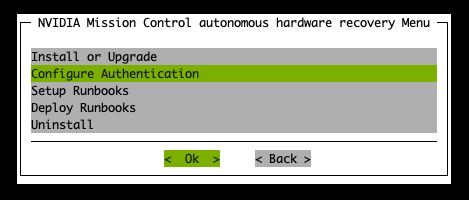
Select the authentication method that matches the client type you set up for AHR in the Keycloak console.
If you use the OIDC client type, select
Keycloak - OIDC: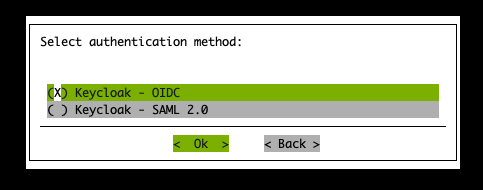
If you use the SAML client type, select
Keycloak - SAML 2.0: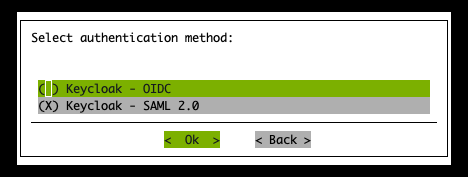
Provide the Keycloak client configuration:
If you use the OIDC client type:
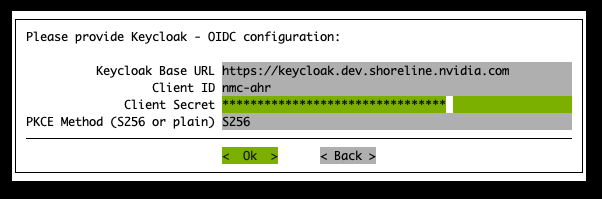
Keycloak Base URL:
https://<your-keycloak-domain>/realms/<realm-with-ahr-client>Client ID:
nmc-ahr(or the client ID chosen during OIDC client setup)Client Secret: The secret retrieved from the Credentials tab during OIDC client setup
PKCE Method (S256 or plain): The method chosen during OIDC client setup. Leave the default value,
S256, if you do not have a preference.
If you use the SAML client type:
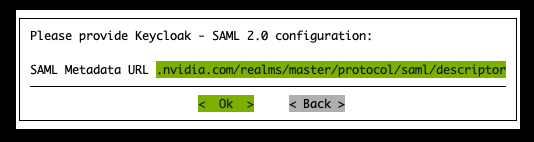
SAML Metadata URL:
https://<your-keycloak-domain>/realms/<realm-with-ahr-client>/protocol/saml/descriptor
Select Save config & deploy:
When prompted to save the config file, use a different file name than the original installation config file. For example, if the installation file was saved as
cm-mission-control-setup.conf, you can name this filecm-mission-control-setup_keycloak.conf.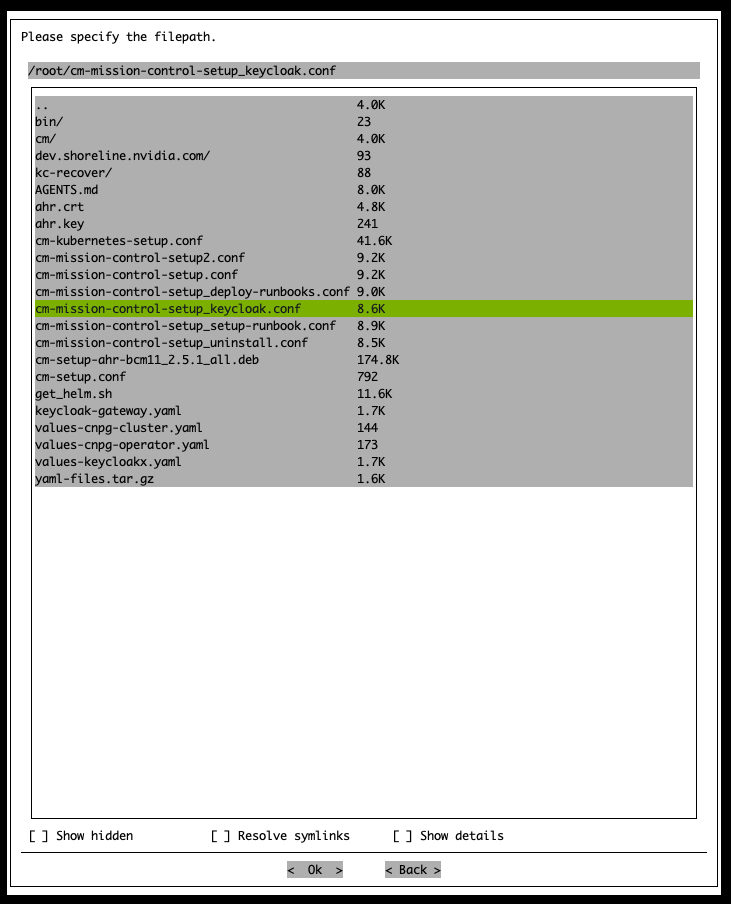
Login to the AHR UI#
If this environment was set up with self-signed TLS certificates, import the root
ca.crtfile to any browser that accesses the AHR UI to ensure your browser trusts this certificate. If the environment was set up with publicly-trusted TLS certificates provided to the installer, skip this step.Copy the contents of the
cert.crtfile to a location on the machine with the browser:cat /cm/local/apps/autonomous-hardware-recovery/etc/certs/cert.crtthen on the machine with the browser:
vi ca.crt
To trust the self-signed CA certificate in Firefox, follow these steps:
Open Firefox and go to Preferences (or Options on Windows).
Navigate to Privacy & Security and scroll down to the Certificates section.
Click View Certificates.
In the Certificate Manager window, select the Authorities tab.
Click Import.
Choose your self-signed CA certificate file (e.g.,
ca.crt).When prompted, check “Trust this CA to identify websites”.
Click OK to complete the import.
To trust the self-signed CA certificate in Chrome, follow these steps:
Open Chrome and navigate to
chrome://settings/certificatesUnder Custom, select Installed by you.
Next to Trusted Certificates, select Import.
Select the self-signed CA certificate file,
ca.crt.
In a browser, navigate to
https://<ahr-domain>/, using the domain you configured in the Prerequisites section. Log in using your BCM LDAP credentials or, if configured, your Keycloak user credentials.Enable the
Administerrole for the relevant users:Navigate to the Access Control page in the left sidebar.
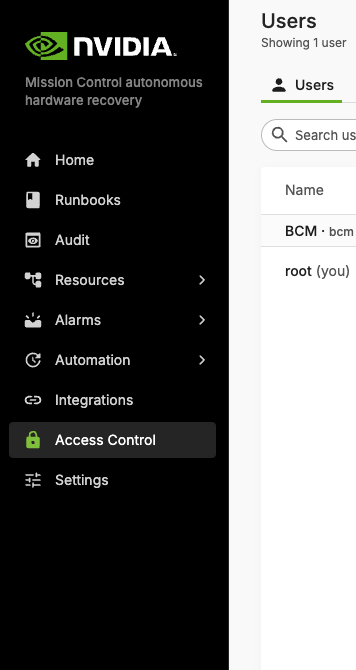
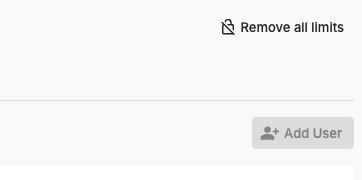
In the top right corner, click the Remove all limits button.
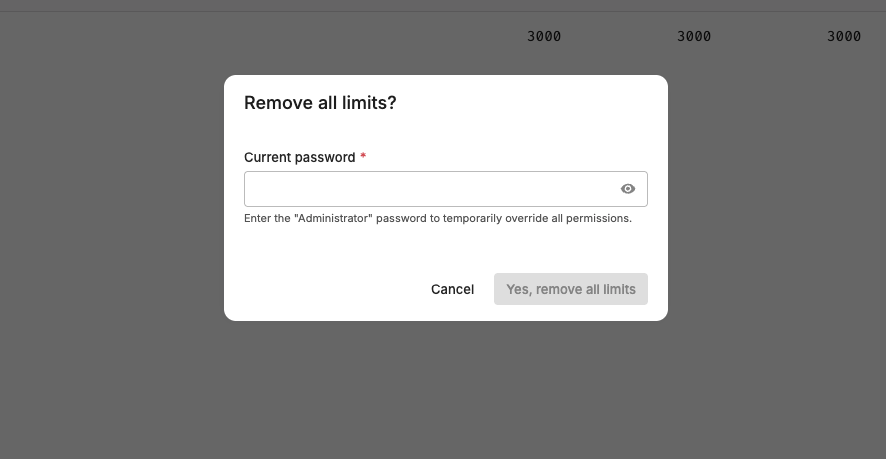
Enter the default password admin.
The bottom of your left sidebar should now say
Elevated privilegesfor your user.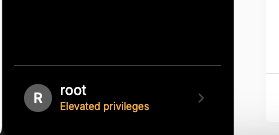
The Remove all limits button should now say Change Administrator password. Click this button to immediately change the default password to another value and save it somewhere safe.
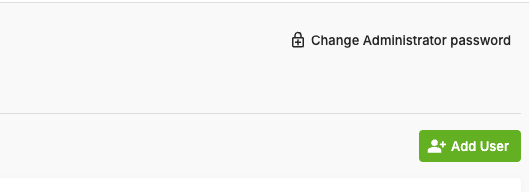
You can now grant the
Administerrole to other users by clicking Manage permissions and enabling the Administrator toggle.
Installation Validation#
To verify that the backend is running and agents are successfully registered:
Log in to the NVIDIA Mission Control Autonomous Hardware Recovery portal using your credentials, and navigate to the Runbooks section.
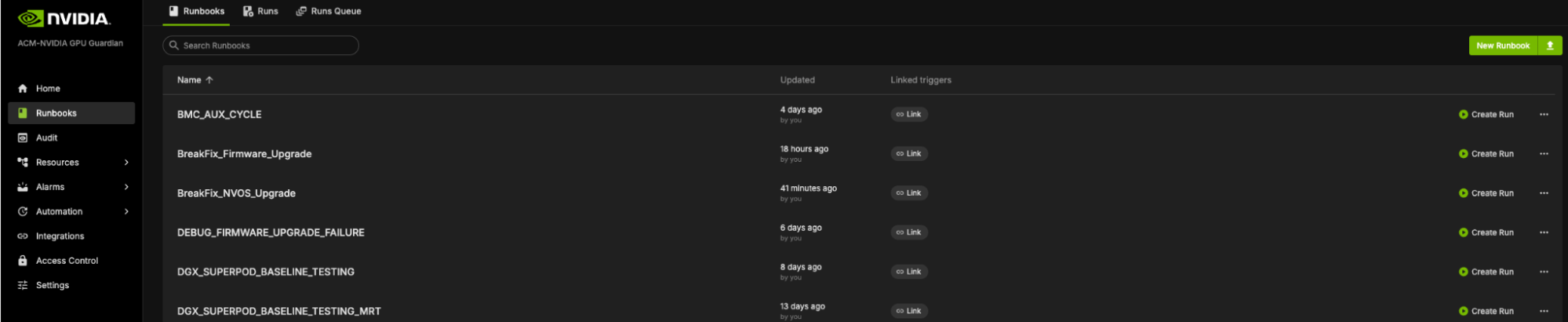
Select New Runbook in the top-right corner. The following example screen is displayed:

In the center pane, select Op Statement to create your first cell to query the resource.
Type
hostin the cell as your query and press Enter.Node inventory comes from the BCM API, so the query shows all nodes, as in the following example:
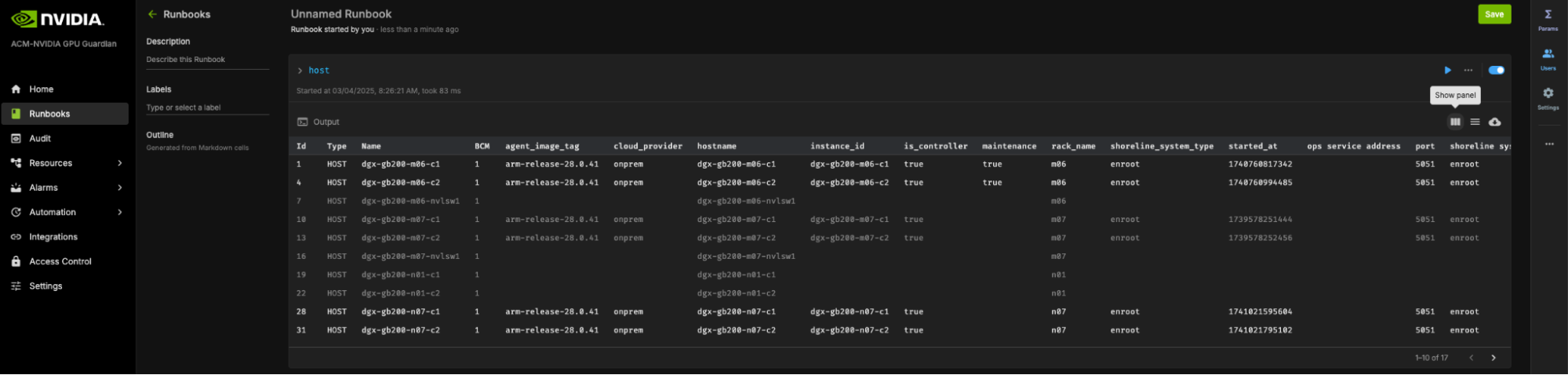
Grayed-out resources are not connected to the AHR backend. Resources that appear in black are connected to the AHR backend.
If Run:ai schedules any of the GPU nodes in your cluster, confirm that AHR has detected them. Query the
scheduler_system_typeattribute, for example,hosts | scheduler_system_type="runai". Nodes that AHR has tagged as Run:ai-scheduled appear in the results: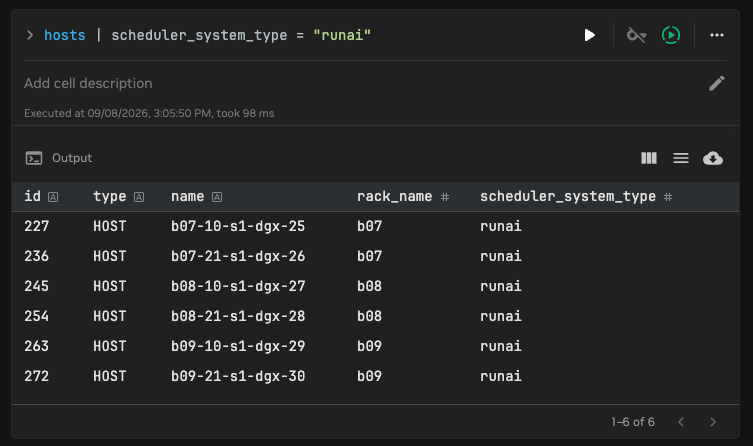
Uninstallation via BCM TUI Wizard#
From the active BCM head node, run the
cm-mission-control-setupcommand and selectNVIDIA Mission Control autonomous hardware recovery Menu.Choose
Uninstalland then select< OK >.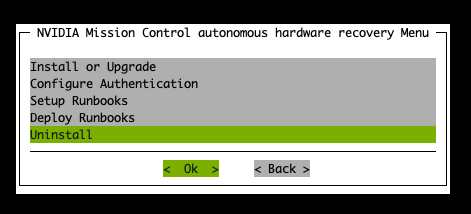
The next screen asks you to confirm the deletion of all AHR data in the cluster. The default selection is
no, so selectyesafter reading the confirmation.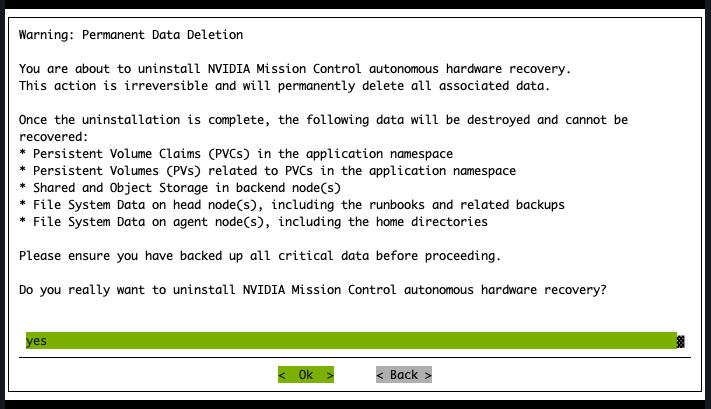
Select Save config & deploy:
When prompted to save the config file, use a different file name than the original installation config file. For example, if the installation file was saved as
cm-mission-control-setup.conf, you can name this filecm-mission-control-setup_uninstall.conf.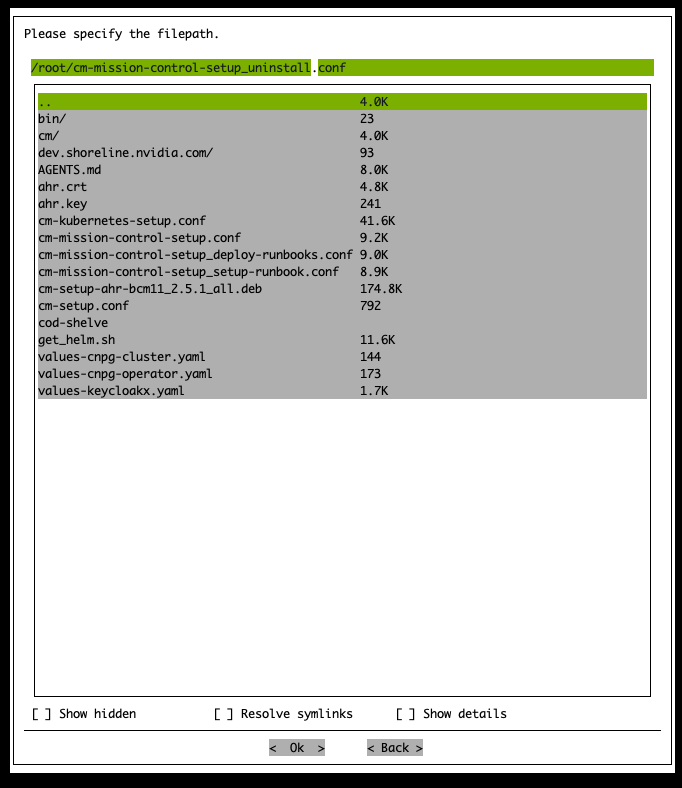
Note
Uninstall removes the autonomous-hardware-recovery namespace and its contents, associated PersistentVolumes, backend storage on the backend node or nodes, self-signed certificate files, and local DNS entries. Several of these steps log a warning and continue instead of failing when a resource cannot be removed, so uninstall can report success even when cleanup is incomplete.
Uninstall does not remove the following resources, which install creates outside the AHR namespace. Before retrying an install after a failure, check each of these instead of assuming uninstall removed everything:
AHR namespace resources. Confirm nothing remains:
kubectl get all -n autonomous-hardware-recovery --kubeconfig /root/.kube/config-k8s-admin
MetalLB gateway resources, in
metallb-system:kubectl get ipaddresspool,l2advertisement -n metallb-system --kubeconfig /root/.kube/config-k8s-admin
AHR dashboard entry on the BCM landing page, on each BCM head node:
ls /var/www/html/mission-control/autonomous-hardware-recovery/Self-signed root CA in the system trust store, on each BCM head node (if self-signed certificates were used):
ls /usr/local/share/ca-certificates/autonomous-hardware-recovery.crt
If errors persist after you confirm that the cluster is clean and retry the installation, contact AHR support with the specific error. Avoid manual kubectl patches, which can mask the underlying cause and diverge from a clean reinstall.
AHR Appendix#
Generating a publicly-trusted TLS certificate#
The following example demonstrates how to generate a certificate when your domain is managed with Route53 as your public DNS provider:
Generate wildcard certificates using certbot. Note: You need someone who can add DNS records to the customer’s DNS zone present when running this command. Replace the value with the correct domain when setting the
AHR_DOMAINvariable.export AHR_DOMAIN=ahr.customer-domain.com
apt-get update && apt-get install -y certbot

certbot certonly --manual \
  --preferred-challenges dns \
  --debug-challenges --agree-tos \
  -d "*.${AHR_DOMAIN}","${AHR_DOMAIN}"
Two TXT records will be produced. Add both to the DNS zone under the same entry (DNS standards allow for multiple distinct TXT records with the same name). Sample output of a DNS record to be added:
Please deploy a DNS TXT record under the name:

_acme-challenge.ahr.customer-domain.com.

with the following value:

zeLqHJbd7WG3JQCXZJbADYhWbk0kI8ADiw6KMVoS_Fk
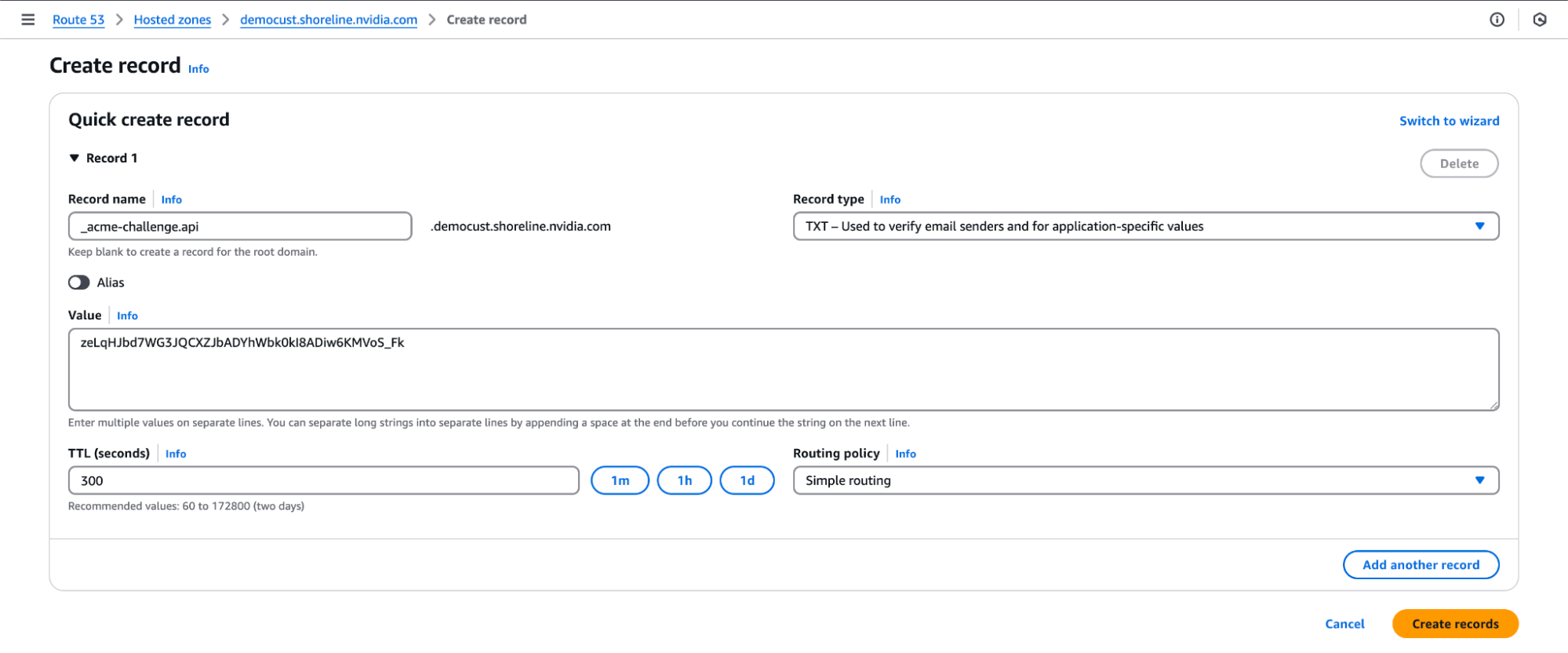
After you add all the DNS TXT records to your public DNS, you should see a message like this:
Successfully received certificate.
Certificate is saved at: /etc/letsencrypt/live/ahr.customer-domain.com/fullchain.pem
Key is saved at:         /etc/letsencrypt/live/ahr.customer-domain.com/privkey.pem
This certificate expires on 2025-07-24.
These files will be updated when the certificate renews.
Copy the generated certs to a directory named by domain in the local directory for easy access:
sh -c "cd /etc/letsencrypt/live/; tar -chf - ${AHR_DOMAIN}" | tar -xvf -
Save the copied
.keyand.crtfiles from the new directory somewhere safe; you will need them in a later installation step.cp ${AHR_DOMAIN}/privkey.pem ahr.key cp ${AHR_DOMAIN}/fullchain.pem ahr.crt
Later on, if installing AHR via the BCM TUI wizard, you will need this cert/key pair present in the directory from which
cm-mission-control-setupis to be run.
Monitoring and Observability Deployment in an Existing Environment#
Follow this procedure only if you selected None in the TUI at the prompt to enable monitoring and now need to deploy observability resources for AHR to the BCM-managed Grafana instance in an environment where AHR is already installed. If you deploy the backend entirely manually, skip this section because the constructed values file passed to the backend Helm chart in that procedure already includes the appropriate values to enable monitoring.
Set the appropriate values for your environment’s Grafana instance as environment variables.
GRAFANA_ENDPOINT- The URL used to access the Grafana instance deployed in the NVIDIA Mission Control environment. AHR-specific observability resources, including dashboards and alerts, are deployed to this URL. Set this value to the external or floating IP address of the active BCM head node in the formathttps://<external-ip>/grafana.Note
If you run an airgapped environment, the BCM head node’s external IP might not be routable from inside the Kubernetes pod network. In that case, use the Kubernetes-internal Grafana service URL instead, in the form
http://<service-name>.<namespace>.svc.cluster.local:<port>. The internal service serves at root/without TLS — do not append/grafana.To find the correct service name, namespace, and port for your environment, run:
kubectl get svc -A --kubeconfig /root/.kube/config-k8s-admin | grep grafana
For example, if the output shows service
kube-prometheus-stack-grafanain namespaceprometheuson port80, the URL would behttp://kube-prometheus-stack-grafana.prometheus.svc.cluster.local:80.You can verify the URL is reachable from the ops-tool pod with:
kubectl exec -n autonomous-hardware-recovery \
  $(kubectl get pod -n autonomous-hardware-recovery -l app=shoreline-ops-tool \
    -o jsonpath='{.items[0].metadata.name}') \
  -c ops-tool -- curl -sS -o /dev/null -w "%{http_code}" \
  "http://<service-name>.<namespace>.svc.cluster.local:<port>/api/health"
A
200response confirms connectivity.GRAFANA_USER- A user with permissions to provision dashboards and alerts through the API to the Grafana instance deployed in the NVIDIA Mission Control environment. Retrieve this value with the following command:kubectl --kubeconfig /root/.kube/config-k8s-admin --namespace prometheus get secrets kube-prometheus-stack-grafana -o jsonpath="{.data.admin-user}" | base64 -d ; echo
GRAFANA_PASSWORD- The password for the user defined forGRAFANA_USER. Retrieve this value with the following command:kubectl --kubeconfig /root/.kube/config-k8s-admin --namespace prometheus get secrets kube-prometheus-stack-grafana -o jsonpath="{.data.admin-password}" | base64 -d ; echo
Replace the placeholder values with your environment-specific values:
export GRAFANA_ENDPOINT=https://<headnode_ip>/grafana
export GRAFANA_USER="admin"
export GRAFANA_PASSWORD="xxxxx"
Create a
values-observability.yamlfile by running the following command:cat <<EOF > values-observability.yaml data: enable_monitoring: true fluent_bit: disable: true servicemonitor: enable: true namespace: prometheus labels: release: "kube-prometheus-stack" grafana: deploy_alerts: true deploy_dashboards: true url: "$GRAFANA_ENDPOINT" user: "$GRAFANA_USER" password: "$GRAFANA_PASSWORD" EOF
Upgrade the backend by merging the values in the
values-observability.yamlfile with the existing values used for the AHR backend installation:helm upgrade backend \ shoreline-onprem-backend/shoreline-onprem-backend \ -f values-observability.yaml \ --reuse-values \ --version "$(helm get values --kubeconfig /root/.kube/config-k8s-admin \ -n autonomous-hardware-recovery backend | grep platform_ver | cut -d '-' -f 2)" \ --namespace autonomous-hardware-recovery \ --kubeconfig /root/.kube/config-k8s-admin
Note
For airgapped environments where the Helm chart is stored locally, use the local chart tarball instead:
helm upgrade backend \
    /cm/local/apps/autonomous-hardware-recovery/var/charts/shoreline-onprem-backend-"$(helm get values \
        --kubeconfig /root/.kube/config-k8s-admin \
        -n autonomous-hardware-recovery backend | grep platform_ver | cut -d '-' -f 2)".tgz \
    -f values-observability.yaml \
    --reuse-values \
    --namespace autonomous-hardware-recovery \
    --kubeconfig /root/.kube/config-k8s-admin
Restart the ops-tool deployment to trigger dashboard and alert provisioning. The Grafana provisioning scripts run at container startup, so the ops-tool pod must be restarted after updating the Helm values:
kubectl rollout restart deployment shoreline-ops-tool -n autonomous-hardware-recovery --kubeconfig /root/.kube/config-k8s-admin
After the restart completes, the dashboards are visible in Grafana under the autonomous hardware recovery folder, and alerts are available in the list of Grafana-managed alerts.
Adding the AHR Agent to a Node Category After Installation#
Use this procedure when a BCM node category needs the AHR agent after AHR is already installed. The most common case is a Run:ai compute category that did not exist when AHR was installed, but the same procedure applies to any category that was missed during the agent installation step.
This is an additive operation. The new category is merged into the existing shoreline-agent configuration overlay, so the AHR backend, the runbooks, and the agents already installed in other categories remain unchanged. You do not need to uninstall or reinstall AHR.
Copy the configuration file that was saved during the original AHR installation, for example
cm-mission-control-setup.conf, and edit the copy to upgrade the agent without changing the backend or runbooks:plan: agent: upgrade backend: none runbook: none
Add the new category to the agent category list in the same file, keeping the categories that are already present.
From the active BCM head node, run the setup tool against the edited file:
cm-mission-control-setup -c <edited-config-file>
In airgapped environments, add the
--skip-packagesoption.Confirm that the nodes in the new category appear in the AHR UI under Resources after the agent starts.
Note
Run:ai does not need to be installed on the nodes before you add the agent to their category, and the agent does not need to be reinstalled afterward. After the agent is running on a node, it detects whether Run:ai is present and tags the node accordingly. Refer to Run:ai (Kubernetes) GPU node scheduling.
Installation - Manual Procedure#
Backend Install#
Run the following steps on the BCM head node to install the NVIDIA Mission Control autonomous hardware recovery backend on the Kubernetes. In this section, we will resolve the NVIDIA Mission Control autonomous hardware recovery endpoints, create some k8s artifacts for NVIDIA Mission Control autonomous hardware recovery, and install the NVIDIA Mission Control autonomous hardware recovery backend with Helm.
Before you begin the installation of AHR with the BCM TUI Wizard, you will need to create the
autonomous-hardware-recoverynamespace with a specific label to allow container pulls from non-local registries. Run the following command to define the namespace in a file titledahr-namespace.yamlcat <<EOF > ahr-namespace.yaml apiVersion: v1 kind: Namespace metadata: name: autonomous-hardware-recovery labels: zarf.dev/agent: ignore EOF
then run the following to apply the definition:
kubectl --kubeconfig /root/.kube/config-k8s-admin apply -f ahr-namespace.yaml
You will also need to create a BCM user with which to deploy the AHR application with by running the following command. Make sure to replace
<strong-password>with a new valuecmsh -c 'user; add ahr; set password <strong-password>; commit;'
Ensure the required API token permissions to the NVIDIA Mission Control autonomous hardware recovery profile exist in BCM
Check if the autonomous-hardware-recovery profile exists via
cmsh. It should already be present in the listcmsh -c 'profile list'
Example output:
Name (key)                    Services
----------------------------- -----------------------------------------------------------
admin
autonomous-hardware-recovery  CMDevice,CMUser
autonomous-job-recovery       CMDevice
bootstrap
cmhealth                      CMMon,CMMain,CMJob,CMDevice
cmpam                         CMJob,CMMain
litenode                      CMDevice,CMStatus,CMSession,CMMain,CMMon,CMNet,CMPart
monitoringpush                CMMon
mqtt                          CMDevice,CMMon,CMPart
node                          CMDevice,CMStatus,CMCert,CMSession,CMMain,CMPart,CMNet,CMP+
portal                        CMMain,CMKube,CMGui,CMJob,CMPart,CMMon,CMSession
power                         CMDevice,CMStatus,CMMain,CMJob
prs                           CMDevice,CMMon,CMJob
readonly                      CMKube,CMEtcd,CMDevice,CMStatus,CMNet,CMPart,CMMon,CMJob,C+
If the profile doesn’t exist, please reach out to NVIDIA support
Check if the certificate and key are present for the
autonomous-hardware-recoveryprofile. The certificate and key should already be present in/cm/local/apps/autonomous-hardware-recovery/etc/asautonomous-hardware-recovery.pemandautonomous-hardware-recovery.key. If the certificate and key are missing, generate them using the command below:root@headnode:~# cmsh [headnode]% cert [headnode->cert]% help createcertificate Name: createcertificate - Create a new certificate Usage: createcertificate <key-length> <common-name> <organization> <organizational-unit> <locality> <state> <country> <profile> <sys-login> <days> <key-file> <cert-file> Arguments: key-file Path to key file that will be generated cert-file Path to pem file that will be generated root@headnode:~# cmsh [headnode]% cert [headnode->cert]% createcertificate 2048 AHR "" "" "" "" US autonomous-hardware-recovery "" 36500 /cm/local/apps/autonomous-hardware-recovery/etc/autonomous-hardware-recovery.key /cm/local/apps/autonomous-hardware-recovery/etc/autonomous-hardware-recovery.pem
Verify that the
autonomous-hardware-recoveryprofile contains the following token permissions, and add any that are missing:GET_NVDOMAIN_INFO_TOKEN
GET_SYSINFO_COLLECTOR_TOKEN
GET_NETWORK_TOPOLOGY_TOKEN
GET_DEVICE_TOKEN
GET_GROUP_TOKEN
GET_RACK_TOKEN
[root@ts-tr-multiarch ~]# cmsh
[ts-tr-multiarch]% profile
[ts-tr-multiarch->profile]% use autonomous-hardware-recovery
[ts-tr-multiarch->profile[autonomous-hardware-recovery]]% get tokens
GET_DEVICE_TOKEN
GET_RACK_TOKEN
[ts-tr-multiarch->profile[autonomous-hardware-recovery]]% append tokens GET_NVDOMAIN_INFO_TOKEN
[ts-tr-multiarch->profile*[autonomous-hardware-recovery*]]% append tokens GET_SYSINFO_COLLECTOR_TOKEN
[ts-tr-multiarch->profile*[autonomous-hardware-recovery*]]% append tokens GET_NETWORK_TOPOLOGY_TOKEN
[ts-tr-multiarch->profile*[autonomous-hardware-recovery*]]% append tokens GET_GROUP_TOKEN
[ts-tr-multiarch->profile*[autonomous-hardware-recovery*]]% commit
Setup TLS certificates
Using the TLS certificates that were obtained from the Prerequisites section of this document, run the following to create K8s secrets for the certificates
kubectl create secret tls shoreline-api-certificate \
  --namespace=autonomous-hardware-recovery \
  --cert=ahr.crt \
  --key=ahr.key \
  --kubeconfig /root/.kube/config-k8s-admin

kubectl create secret tls shoreline-app-certificate \
  --namespace=autonomous-hardware-recovery \
  --cert=ahr.crt \
  --key=ahr.key \
  --kubeconfig /root/.kube/config-k8s-admin

kubectl create secret tls shoreline-discovery-certificate \
  --namespace=autonomous-hardware-recovery \
  --cert=ahr.crt \
  --key=ahr.key \
  --kubeconfig /root/.kube/config-k8s-admin

kubectl create secret tls shoreline-ceph-certificate \
  --namespace=autonomous-hardware-recovery \
  --cert=ahr.crt \
  --key=ahr.key \
  --kubeconfig /root/.kube/config-k8s-admin
Set the following environment variables in your environment
Note
Replace the placeholder values with your environment-specific values:
export AHR_DOMAIN=<domain-used-in-tls-certs>
export ACTIVE_HEADNODE_IP=<ip-of-active-headnode>
export AHR_GATEWAY_VIP=<unassigned-vip-for-shoreline-gateway>
export AHR_BACKEND_NODE=<worker-node-hostname>
export AHR_OBJECT_STORAGE_PATH=<filepath> # ex. /dev/vdc
export AHR_SHARED_STORAGE_PATH=/local/autonomous-hardware-recovery

# only include the following two lines if you are installing the environment with failover enabled
export AHR_FAILOVER_NODE=<worker-node-hostname>
export AHR_FAILOVER_OBJECT_STORAGE_PATH=<filepath>

export GRAFANA_ENDPOINT=https://<headnode-ip>/grafana
export GRAFANA_USER="admin"
export GRAFANA_PASSWORD="xxxxx"
export AHR_NGC_TOKEN=nvapi-XXXXXXX
# NMC 2.5 AHR versions, leave these as is
export AHR_VERSION=29.2.21
export AHR_PLATFORM_VER=release-$AHR_VERSION
export AHR_UI_VER=stable-29.2.11
AHR_DOMAIN- base domain used during TLS certificate creationAHR_BACKEND_NODE- worker node hostname where NVIDIA Mission Control autonomous hardware recovery backend pods will be installedAHR_FAILOVER_NODE(optional) - worker node hostname where NVIDIA Mission Control autonomous hardware recovery secondary/failover pods will be installedAHR_OBJECT_STORAGE_PATH- path to a dedicated unformatted disk (no filesystem) on theAHR_BACKEND_NODEworker node to be used for object storageAHR_FAILOVER_OBJECT_STORAGE_PATH(optional) - path to a dedicated unformatted disk (no filesystem) on theAHR_FAILOVER_NODEworker node to be used for object storageACTIVE_HEADNODE_IP- IP address of the active BCM head node/cm/local/apps/python3/bin/python3 -c ' import pythoncm.cluster, pythoncm.entity c = pythoncm.cluster.Cluster() kc = c.get_by_name("k8s-admin", "KubeCluster") hn = c.active_head_node() phn = c.passive_head_node() net = kc.internalNetwork if phn: vips = ( {i.ip for i in hn.interfaces if i.childType == "NetworkAliasInterface" and i.network == net} & {i.ip for i in phn.interfaces if i.childType == "NetworkAliasInterface" and i.network == net} ) if vips: print(vips.pop()); exit() for i in hn.interfaces: if i.childType != "NetworkAliasInterface" and i.network == net: print(i.ip); exit() '
AHR_GATEWAY_VIP- an unassigned virtual IP on the internal network used by the Kubernetes cluster, reserved for theshoreline-gatewayKubernetes Gateway. Refer to Virtual IP for the Kubernetes Gateway to select and verify an address.GRAFANA_ENDPOINT- This is the URL that will be used to access the Grafana instance deployed in the NVIDIA Mission Control environment and is where observability resources specific to the autonomous hardware recovery backend will be deployed to (dashboards and alerts). Set this to the external or floating IP of the active BCM head node in the formathttps://<external-ip>/grafana.Note
If you are running an airgapped environment, the BCM head node’s external IP may not be routable from inside the Kubernetes pod network. In that case, use the Kubernetes-internal Grafana service URL instead, in the form
http://<service-name>.<namespace>.svc.cluster.local:<port>. The internal service serves at root/without TLS — do not append/grafana.To find the correct service name, namespace, and port for your environment, run:
kubectl get svc -A --kubeconfig /root/.kube/config-k8s-admin | grep grafana
For example, if the output shows service
kube-prometheus-stack-grafanain namespaceprometheuson port80, the URL would behttp://kube-prometheus-stack-grafana.prometheus.svc.cluster.local:80.You can verify the URL is reachable from the ops-tool pod with:
kubectl exec -n autonomous-hardware-recovery \
  $(kubectl get pod -n autonomous-hardware-recovery -l app=shoreline-ops-tool \
    -o jsonpath='{.items[0].metadata.name}') \
  -c ops-tool -- curl -sS -o /dev/null -w "%{http_code}" \
  "http://<service-name>.<namespace>.svc.cluster.local:<port>/api/health"
A
200response confirms connectivity.GRAFANA_USER- The user with permissions to provision dashboards and alerts via API to the Grafana instance deployed in the NVIDIA Mission Control environment. This can be retrieved with the following command:kubectl --kubeconfig /root/.kube/config-k8s-admin --namespace prometheus get secrets kube-prometheus-stack-grafana -o jsonpath="{.data.admin-user}" | base64 -d ; echo
GRAFANA_PASSWORD- The password for the user defined forGRAFANA_USER. This can be retrieved with the following command:kubectl --kubeconfig /root/.kube/config-k8s-admin --namespace prometheus get secrets kube-prometheus-stack-grafana -o jsonpath="{.data.admin-password}" | base64 -d ; echo
AHR_NGC_TOKEN- The NGC token obtained from the Prerequisites of the document.
Note
Environments using external object storage instead of a local Ceph deployment will also need some additional environment variables set. Run the first code block below, then select the tab that matches how you want to provide S3 credentials for your object storage configuration and run the code blocks in that tab:
export AWS_REGION=<region-in-which-object-storage-buckets-will-get-created>
# If using AWS S3, would set the following line to https://s3.<region>.amazonaws.com
export AWS_ENDPOINT_URL=<storage-service-endpoint-url>
export ACCESS_KEY_ID=<aws-access-key-id>
export SECRET_ACCESS_KEY=<aws-secret-access-key>
export K8S_SECRET_NAME=<name-of-existing-secret-containing-S3-creds>
export K8S_SECRET_ACCESS_KEY_KEY=<name-of-key-within-the-secret-for-the-access-key>
export K8S_SECRET_SECRET_KEY_KEY=<name-of-key-within-the-secret-for-the-secret-key>
Resolve the NVIDIA Mission Control autonomous hardware recovery endpoints via the local DNS server (bind9) on the primary BCM head node
Ensure the
namedconfiguration is referencing thenamed.conf.includefilegrep -Fxq "include \"/etc/bind/named.conf.include\";" /etc/bind/named.conf || \ echo "include \"/etc/bind/named.conf.include\";" >> /etc/bind/named.conf
Create a zone file with DNS A records for each of the required NVIDIA Mission Control autonomous hardware recovery endpoints.
grep -q "zone \"$AHR_DOMAIN\"" /etc/bind/named.conf.include 2>/dev/null || cat << EOT >> /etc/bind/named.conf.include
zone "$AHR_DOMAIN" IN {
    type master;
    file "autonomous-hardware-recovery.zone";
};
EOT

cat << EOT > /etc/bind/autonomous-hardware-recovery.zone
\$TTL 86400
@    IN    SOA   ns.$AHR_DOMAIN. admin.$AHR_DOMAIN. (
                  2024053001 ; Serial
                  3600       ; Refresh
                  1800       ; Retry
                  604800     ; Expire
                  86400 )    ; Minimum TTL
;
@    IN    NS    ns.$AHR_DOMAIN.
ns   IN    A     $ACTIVE_HEADNODE_IP

@              IN    A    $AHR_GATEWAY_VIP
api            IN    A    $AHR_GATEWAY_VIP
ceph           IN    A    $AHR_GATEWAY_VIP
discovery      IN    A    $AHR_GATEWAY_VIP
agent-gateway  IN    A    $AHR_GATEWAY_VIP

EOT

systemctl restart named
Create the
shoreline-backendconfigurationoverlaycmsh -c "configurationoverlay; add shoreline-backend; set priority 500; append nodes $AHR_BACKEND_NODE; commit"
Note
If setting this environment up with failover enabled, you will also need to apply the configurationoverlay to the failover node by running:
cmsh -c "configurationoverlay; use shoreline-backend; append nodes $AHR_FAILOVER_NODE; commit"
Create the
generic::shoreline_backendrole and assign it to theshoreline-backendconfigurationoverlay/cm/local/apps/python3/bin/python3 << 'PYEOF' import pythoncm.cluster, pythoncm.entity c = pythoncm.cluster.Cluster() overlay = c.get_by_name('shoreline-backend', 'ConfigurationOverlay') role = pythoncm.entity.GenericRole(name='generic::shoreline_backend') role.excludeListSnippets = [ pythoncm.entity.ExcludeListSnippet( name='Default1', modeUpdate=True, modeSync=True, modeFull=False, modeGrab=False, modeGrabNew=False, noNewFiles=False, excludeList=[ '/local/autonomous-hardware-recovery', ], ), ] if existing := overlay.get_role_by_name('generic::shoreline_backend'): existing.excludeListSnippets = role.excludeListSnippets else: overlay.roles += [role] overlay.commit() print('Done') PYEOF
Important
AHR 29.2 and later serve the backend through a Kubernetes
Gatewayon kgateway, notingress-nginx. Before continuing, confirm thatkgateway(namespacekgateway-system) andMetalLB(namespacemetallb-system) are installed on thek8s-admincluster. Thecm-kubernetes-setupwizard installs both components. Refer to Kubernetes Installation. If your environment predates this change, refer to Uninstallation via BCM TUI Wizard and reinstall instead of attempting to patch an existingingress-nginxdeployment.Reserve
$AHR_GATEWAY_VIPfor theshoreline-gatewayKubernetes Gateway by creating a dedicated MetalLBIPAddressPoolandL2Advertisement. The AHR backend Helm chart creates theGatewayresource itself during installation; this pool must exist first so kgateway has an address to assign it.Create the AHR Gateway address pool and advertisement
cat <<EOF | kubectl --kubeconfig /root/.kube/config-k8s-admin apply -f -
apiVersion: metallb.io/v1beta1
kind: IPAddressPool
metadata:
  name: gateway-autonomous-hardware-recovery-shoreline-gateway
  namespace: metallb-system
spec:
  addresses:
    - "$AHR_GATEWAY_VIP/32"
  autoAssign: true
---
apiVersion: metallb.io/v1beta1
kind: L2Advertisement
metadata:
  name: gateway-autonomous-hardware-recovery-shoreline-gateway
  namespace: metallb-system
spec:
  ipAddressPools:
    - gateway-autonomous-hardware-recovery-shoreline-gateway
EOF
Note
The pool and advertisement names follow the pattern
gateway-<namespace>-<gateway-name>, matching what the BCM TUI wizard creates for theshoreline-gatewayGateway in theautonomous-hardware-recoverynamespace./32reserves this address exclusively for this Gateway.Create a
values.yamlfile for the AHR backend Helm chart. Run the first code block below, then select the tab that matches your object storage configuration and run the code blocks in that tab:FAILOVER_BLOCK="" FAILOVER_OBJ_STORAGE_BLOCK="" if [ -n "$AHR_FAILOVER_NODE" ]; then FAILOVER_BLOCK=$(cat <<INNER enable_failover: true backend_node_failover: "$AHR_FAILOVER_NODE" # local storage requirements on failover backend node shared_storage_path_failover: "/local/autonomous-hardware-recovery" shared_storage_size_failover: "500Gi" INNER ) FAILOVER_OBJ_STORAGE_BLOCK=$(cat <<INNER object_storage_path_failover: "$AHR_FAILOVER_OBJECT_STORAGE_PATH" object_storage_size_failover: "1500Gi" INNER ) fi
cat <<EOF > values.yaml
global:
  platform_ver: "$AHR_PLATFORM_VER"
  ui_ver: "$AHR_UI_VER"
  api_endpoint: "api.$AHR_DOMAIN"
  app_endpoint: "$AHR_DOMAIN"
  discovery_endpoint: "discovery.$AHR_DOMAIN"
  agent_gateway_endpoint: "agent-gateway.$AHR_DOMAIN"
  ceph_endpoint: "ceph.$AHR_DOMAIN"
  registry: "nvcr.io/nvidia/nv-mission-control"
  customer_id: "shorelinecust"
data:
  imageCredentials:
    password: "$AHR_NGC_TOKEN"
  bcm_headnode_ip: "$ACTIVE_HEADNODE_IP"
  backend_node: "$AHR_BACKEND_NODE"

  # ingress (Gateway API via kgateway; requires the MetalLB pool from the
  # earlier step, and kgateway + MetalLB installed on the cluster)
  enable_gateway_api: true
  enable_lb: false
  enable_transportserver: false
  gateway_api:
    # "kgateway-ha2" is deliberate -- it overrides the chart default of
    # "kgateway" and matches the GatewayClass the NMC 2.5 Kubernetes
    # Installation wizard creates. Do not change it to match the default.
    gatewayClassName: "kgateway-ha2"

  # local storage requirements on primary backend node
  shared_storage_path: "/local/autonomous-hardware-recovery"
  shared_storage_size: "500Gi"
  object_storage_path: "$AHR_OBJECT_STORAGE_PATH"
  object_storage_size: "1500Gi"

$FAILOVER_BLOCK
$FAILOVER_OBJ_STORAGE_BLOCK

  # monitoring and observability
  enable_monitoring: true # set to false to skip observability deployment
  servicemonitor:
    enable: true
    namespace: "prometheus"
    labels:
      release: "kube-prometheus-stack"
  fluent_bit:
    disable: true
  grafana:
    deploy_dashboards: true
    deploy_alerts: true
    url: "$GRAFANA_ENDPOINT"
    user: "$GRAFANA_USER"
    password: "$GRAFANA_PASSWORD"

  # container specific settings
  backend:
    limits:
      cpu: 8
      memory: 12Gi
    requests:
      cpu: 8
      memory: 12Gi
  ops_tool:
    BCM_ADMIN_ACCOUNTS: "['ahr']"
EOF
SECRET_BLOCK=""
if [ -n "$ACCESS_KEY_ID" ] && [ -n "$SECRET_ACCESS_KEY" ]; then
  SECRET_BLOCK=$(cat <<INNER
  aws_secret:
    access_key: "$ACCESS_KEY_ID"
    secret_key: "$SECRET_ACCESS_KEY"
INNER
  )
elif [ -n "$K8S_SECRET_NAME" ] && [ -n "$K8S_SECRET_ACCESS_KEY_KEY" ] && [ -n "$K8S_SECRET_SECRET_KEY_KEY" ]; then
  SECRET_BLOCK=$(cat <<INNER
  ceph_secret:
    name: "$K8S_SECRET_NAME"
    access_key: "$K8S_SECRET_ACCESS_KEY_KEY"
    secret_key: "$K8S_SECRET_SECRET_KEY_KEY"
INNER
  )
fi
cat <<EOF > values.yaml
global:
  platform_ver: "$AHR_PLATFORM_VER"
  ui_ver: "$AHR_UI_VER"
  api_endpoint: "api.$AHR_DOMAIN"
  app_endpoint: "$AHR_DOMAIN"
  discovery_endpoint: "discovery.$AHR_DOMAIN"
  agent_gateway_endpoint: "agent-gateway.$AHR_DOMAIN"
  ceph_endpoint: "ceph.$AHR_DOMAIN"
  registry: "nvcr.io/nvidia/nv-mission-control"
  customer_id: "shorelinecust"
data:
  imageCredentials:
    password: "$AHR_NGC_TOKEN"
  bcm_headnode_ip: "$ACTIVE_HEADNODE_IP"
  backend_node: "$AHR_BACKEND_NODE"

  # ingress (Gateway API via kgateway; requires the MetalLB pool from the
  # earlier step, and kgateway + MetalLB installed on the cluster)
  enable_gateway_api: true
  enable_lb: false
  enable_transportserver: false
  gateway_api:
    # "kgateway-ha2" is deliberate -- it overrides the chart default of
    # "kgateway" and matches the GatewayClass the NMC 2.5 Kubernetes
    # Installation wizard creates. Do not change it to match the default.
    gatewayClassName: "kgateway-ha2"

  # local storage requirements on primary backend node
  shared_storage_path: "/local/autonomous-hardware-recovery"
  shared_storage_size: "500Gi"

$FAILOVER_BLOCK

  # external object storage
  use_external_ceph: true
  aws_region: "$AWS_REGION"
  aws_endpoint_url: "$AWS_ENDPOINT_URL"
$SECRET_BLOCK

  # monitoring and observability
  enable_monitoring: true # set to false to skip observability deployment
  servicemonitor:
    enable: true
    namespace: "prometheus"
    labels:
      release: "kube-prometheus-stack"
  fluent_bit:
    disable: true
  grafana:
    deploy_dashboards: true
    deploy_alerts: true
    url: "$GRAFANA_ENDPOINT"
    user: "$GRAFANA_USER"
    password: "$GRAFANA_PASSWORD"

  # container specific settings
  backend:
    limits:
      cpu: 8
      memory: 12Gi
    requests:
      cpu: 8
      memory: 12Gi
  ops_tool:
    BCM_ADMIN_ACCOUNTS: "['ahr']"
EOF
Install the NVIDIA Mission Control autonomous hardware recovery backend helm chart with the
values.yamlfile that was just createdhelm repo add shoreline-onprem-backend \ https://helm.ngc.nvidia.com/nvidia/nv-mission-control \ --username='$oauthtoken' \ --password=${AHR_NGC_TOKEN} helm repo update helm upgrade --install backend \ shoreline-onprem-backend/shoreline-onprem-backend \ --namespace autonomous-hardware-recovery \ --version $AHR_VERSION \ --kubeconfig /root/.kube/config-k8s-admin \ -f values.yaml
The command will exit relatively quickly but it will take some time for all the AHR backend pods to initialize and stabilize - up to 15 minutes.
[Only if using self-signed certificates] Complete the post-install backend configuration steps.
Once all the backend pods are in the
Runningstate, you will need to login to the AHR UI to configure the BCM Connectivity integration so AHR has access to query the BCM API. Example output of the AHR backend pods in theRunningstate:# kubectl get pods -n autonomous-hardware-recovery NAME READY STATUS RESTARTS AGE shoreline-backend-0 1/1 Running 1 (8m13s ago) 12m shoreline-backup-29603545-fvn4b 0/1 Completed 0 10m shoreline-backup-29603550-7hg6j 0/1 Completed 0 5m9s shoreline-backup-29603555-cnf6s 0/1 Completed 0 9s shoreline-frontend-7b897569d5-wd5vk 1/1 Running 0 12m shoreline-local-path-provisioner-7b9cdc8c46-ttl7b 1/1 Running 0 12m shoreline-openbao-6fd644886-s2pjh 1/1 Running 0 12m shoreline-ops-tool-6c8774876c-nrhkg 2/2 Running 0 12m shoreline-system-metadata-5f5dcd6d6f-lw654 1/1 Running 0 12m shoreline-ui-579654749d-6xf7q 1/1 Running 0 12m shorelinebackend-otel-collector-56985447bd-ssw6x 1/1 Running 0
Note - integration configuration must happen before agent installation and requires
Administerpermission (set by default viaAHR_BCM_ADMIN_ACCOUNTSduring backend install)In a browser, navigate to
https://<ahr-domain>/, using the domain you configured in the Prerequisites section (same as what was set for theAHR_DOMAINenvironment variable earlier. Log in using your BCM LDAP credentials.You will need to enable the
Administerrole for the relevant users:Navigate to the Access Control page in the left sidebar.
In the top right corner, click the Remove all limits button.
Enter the default password admin.
The bottom of your left sidebar should now say
Elevated privilegesfor your user.
The Remove all limits button should now say Change Administrator password. Click this button to immediately change the default password to another value and save it somewhere safe.
You can now grant the
Administerrole to other users by clicking Manage permissions and enabling the Administrator toggle.
From the left menu bar, select “Integrations”.
Click the “Configure” button within the “BCM Connectivity” tile.
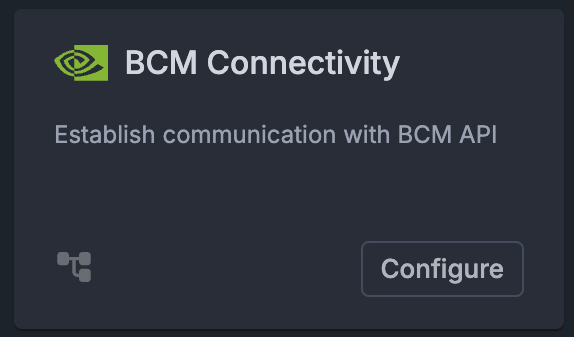
On the BCM Connectivity configuration page:
Enter a name for the integration (e.g., bcm_connectivity_configuration).
Set the “API certificate” field to the content of the
/cm/local/apps/autonomous-hardware-recovery/etc/autonomous-hardware-recovery.pemfile. Run the following on the BCM head node to view the contents of the file:cat /cm/local/apps/autonomous-hardware-recovery/etc/autonomous-hardware-recovery.pemSet the “API key” field to the content of the
/cm/local/apps/autonomous-hardware-recovery/etc/autonomous-hardware-recovery.keyfile. Run the following on the BCM head node to view the contents of the file:cat /cm/local/apps/autonomous-hardware-recovery/etc/autonomous-hardware-recovery.keyClick the “Apply” button on the top right.
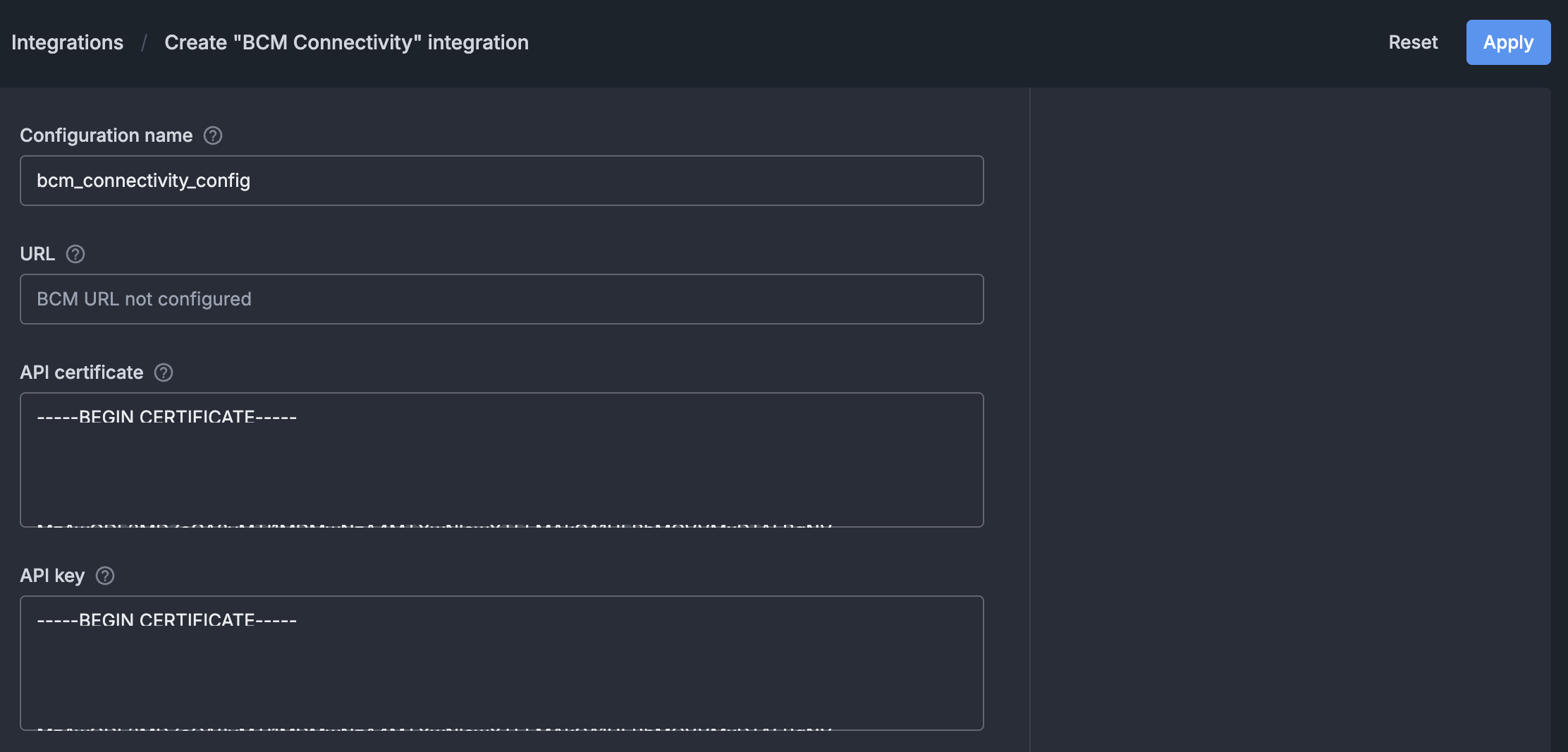
To check the BCM Connectivity integration health, a user with the
Administerpermission should click on the “Test” button on the top right.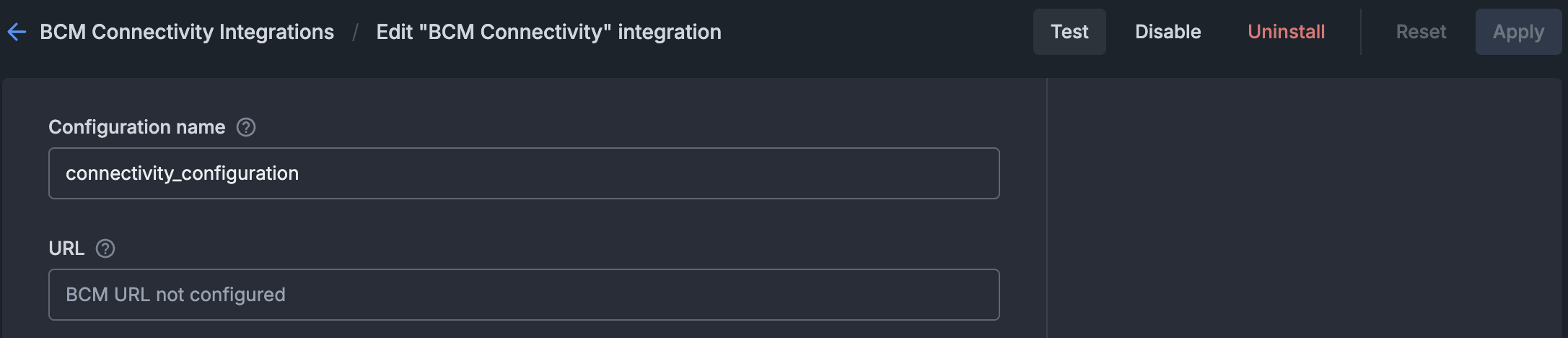
Agent Install#
Install NVIDIA Mission Control autonomous hardware recovery agents on 2 types of node: BCM head node and BCM compute nodes
Installation on BCM head nodes#
On BCM head nodes, NVIDIA Mission Control autonomous hardware recovery agents are installed directly. The following steps create the agent configuration and install the agent package. Run all commands on the primary BCM head node.
Get agent secret from backend pod and set
CUSTOMER_ID,AHR_DISCOVERY_URL,AHR_NGC_TOKEN, andAHR_UID_GIDexport AHR_VERSION=29.2.21 export AHR_AGENT_SECRET=$(kubectl --kubeconfig /root/.kube/config-k8s-admin exec -it -n autonomous-hardware-recovery deploy/shoreline-ops-tool -c ops-tool -- cat /mnt/ops-tool-data/agent_secret | tr -d '\r' | xargs echo -n) export CUSTOMER_ID=$(kubectl --kubeconfig /root/.kube/config-k8s-admin get configmap shoreline-variables -n autonomous-hardware-recovery -o jsonpath="{.data.CUSTOMER_ID}") export AHR_DISCOVERY_URL=$(kubectl --kubeconfig /root/.kube/config-k8s-admin get configmap shoreline-variables -n autonomous-hardware-recovery -o jsonpath="{.data.DISCOVERY_ENDPOINT}") # get the uid/gid of the autonomous-hardware-recovery user if it exists # otherwise, get the highest unused uid/gid amongst all the nodes in the bcm cluster export AHR_UID_GID=$(/cm/local/apps/python3/bin/python3 -c " import pwd, pythoncm.cluster, pythoncm.entity try: pw = pwd.getpwnam('autonomous-hardware-recovery') print(pw.pw_uid) except KeyError: c = pythoncm.cluster.Cluster() roots = [si.path for si in c.get_by_type(pythoncm.entity.SoftwareImage) if hasattr(si, 'path') and si.path] + ['/'] uids, gids = set(), set() for root in roots: for f, idx in [('/etc/passwd', 2), ('/etc/group', 2)]: path = root.rstrip('/') + f try: ids = {int(line.split(':')[idx]) for line in open(path) if len(line.split(':')) > idx} except: ids = set() if f == '/etc/passwd': uids |= ids else: gids |= ids if phn := c.passive_head_node(): import exec_helpers with exec_helpers.SSHClient(host=phn.hostname) as conn: for cmd, s in [('cat /etc/passwd', uids), ('cat /etc/group', gids)]: s |= {int(line.split(':')[2]) for line in conn.check_call(cmd).stdout_str.splitlines() if len(line.split(':')) > 2} print(next((i for i in range(999, 99, -1) if i not in uids and i not in gids), '')) ") && echo "AHR_UID_GID=$AHR_UID_GID" env | grep AHR
Set
AHR_NGC_TOKENto the NGC token obtained from the Prerequisites of the document.export AHR_NGC_TOKEN=nvapi-xxxxx
Download and install the Mellanox GPG on all BCM head nodes in the cluster
pdsh -g headnode 'ARCH=$(dpkg --print-architecture) && \
  REPO_ARCH=$([ "$ARCH" = "amd64" ] && echo "x86_64" || echo "arm64-sbsa") && \
  OS_VERSION=$(lsb_release -rs) && \
  DOCA_OS="ubuntu${OS_VERSION}" && \
  REPO_URL="https://linux.mellanox.com/public/repo/doca/3.2.1/${DOCA_OS}/${REPO_ARCH}" && \
  curl -fsSL "${REPO_URL}/GPG-KEY-Mellanox.pub" | gpg --dearmor -o /usr/share/keyrings/cm-mellanox-archive-keyring.gpg && \
  echo "deb [signed-by=/usr/share/keyrings/cm-mellanox-archive-keyring.gpg] ${REPO_URL}/ /" > /etc/apt/sources.list.d/cm-mellanox.list && \
  apt-get update'
Create the
autonomous-hardware-recoveryuser on BCM head nodes and in software imagespdsh -g headnode "getent group autonomous-hardware-recovery > /dev/null 2>&1 || addgroup --system --gid $AHR_UID_GID autonomous-hardware-recovery && \ id -u autonomous-hardware-recovery > /dev/null 2>&1 || \ adduser --system --uid $AHR_UID_GID --home /home/autonomous-hardware-recovery --ingroup autonomous-hardware-recovery --shell /bin/bash autonomous-hardware-recovery" # In each software image for IMG in $(cmsh -c "softwareimage; foreach * (get path)"); do systemd-nspawn --quiet --directory=$IMG bash -c \ "getent group autonomous-hardware-recovery > /dev/null 2>&1 || addgroup --system --gid $AHR_UID_GID autonomous-hardware-recovery && \ id -u autonomous-hardware-recovery > /dev/null 2>&1 || adduser --system --uid $AHR_UID_GID --home /home/autonomous-hardware-recovery --ingroup autonomous-hardware-recovery --shell /bin/bash autonomous-hardware-recovery" done
Create the
shoreline-agentconfigurationoverlayHEADNODES=$(cmsh -c "device; list -t HeadNode" | awk '$1=="HeadNode"{print $2}' | sort -u | tr '\n' ',' | sed 's/,$//') cmsh -c "configurationoverlay; add shoreline-agent; set priority 500; append nodes $HEADNODES; commit"
Create the
generic::shoreline_agentrole and assign it to theshoreline-agentconfigurationoverlay/cm/local/apps/python3/bin/python3 << 'PYEOF' import os, pythoncm.cluster, pythoncm.entity AHR_VERSION = os.environ["AHR_VERSION"] AHR_AGENT_SECRET = os.environ["AHR_AGENT_SECRET"] AHR_DISCOVERY_URL = os.environ["AHR_DISCOVERY_URL"] AHR_UID_GID = os.environ["AHR_UID_GID"] AHR_NGC_TOKEN = os.environ["AHR_NGC_TOKEN"] c = pythoncm.cluster.Cluster() overlay = c.get_by_name('shoreline-agent', 'ConfigurationOverlay') role = pythoncm.entity.GenericRole(name='generic::shoreline_agent') role.services = ['shoreline'] role.excludeListSnippets = [ pythoncm.entity.ExcludeListSnippet( name='Default1', modeUpdate=True, modeSync=True, modeFull=True, modeGrab=True, modeGrabNew=True, noNewFiles=True, excludeList=[ '/cm/local/apps/slurm/var/epilogs/60-epilog-ahr.sh', '/cm/local/apps/slurm/var/prologs/60-prolog-ahr.sh', '/home/autonomous-hardware-recovery/.config/enroot/*', '/home/autonomous-hardware-recovery/scripts/slurm/*', '/run/shoreline/*', '/var/lib/shoreline/agent/databases/*', '/var/lib/shoreline/agent/onprem/*', '/var/lib/shoreline/agent/scraper.yml', '/var/lib/shoreline/enroot-cache/*', '/var/lib/shoreline/enroot-data/*', '/var/lib/shoreline/shoreline_runbooks/*', ], ), pythoncm.entity.ExcludeListSnippet( name='Default2', modeUpdate=True, modeSync=True, modeFull=False, modeGrab=True, modeGrabNew=True, noNewFiles=True, excludeList=[ '/etc/shoreline/agent_ssh/*', ], ), ] role.extraEnvironment = [] for k, v in { 'version': AHR_VERSION, 'backend_address': AHR_DISCOVERY_URL, 'secret': AHR_AGENT_SECRET, 'pkg_registry_url': 'https://api.ngc.nvidia.com/v2/org/nvidia/team/nv-mission-control/resources', 'pkg_registry_password': AHR_NGC_TOKEN, 'registry_username': '$oauthtoken', 'registry_password': AHR_NGC_TOKEN, 'agent_registry': 'nvcr.io', 'registry_ca_cert_path': '', 'image': 'nvidia/nv-mission-control/shoreline-agent', 'username': 'autonomous-hardware-recovery', 'home_dir': '/home/autonomous-hardware-recovery', 'uid': AHR_UID_GID, 'gid': AHR_UID_GID, 'agent_files_directory': '/var/lib/shoreline/agent', 'ssh_port': '22', 'customer_id': 'shorelinecust', }.items(): env = pythoncm.entity.GenericRoleEnvironment() env.name = k env.value = str(v) role.extraEnvironment.append(env) if existing := overlay.get_role_by_name('generic::shoreline_agent'): existing.services = role.services existing.excludeListSnippets = role.excludeListSnippets existing.extraEnvironment = role.extraEnvironment else: overlay.roles += [role] overlay.commit() print('Done') PYEOF
Create agent.config
cat <<EOF > /cm/local/apps/autonomous-hardware-recovery/etc/agent.config
### Agent Information
AGENT_VERSION=$AHR_VERSION
BACKEND_ADDRESS=$AHR_DISCOVERY_URL:443
SECRET=$AHR_AGENT_SECRET
CUSTOMER_ID=$CUSTOMER_ID

### Enroot Configuration
USE_ENROOT=1
FORCE_ON_PREM=true
ALLOW_SUDO=true

### NVCR
PKG_PATH_D="https://api.ngc.nvidia.com/v2/org/nvidia/team/nv-mission-control/resources/shoreline_vm_package_distro/versions"
SHORELINE_PKG_DEB="\${PKG_PATH_D}/\${AGENT_VERSION}-enroot/files/shoreline_\${AGENT_VERSION}-enroot.deb"
PKG_CURL_CMD="-L -H 'Authorization: Bearer ${AHR_NGC_TOKEN}'"
AGENT_IMAGE=nvidia/nv-mission-control/shoreline-agent
AGENT_IMAGE_TAG='release-${AHR_VERSION}-multiarch-lt'
AGENT_REGISTRY=nvcr.io
DOCKER_USERNAME=\\\$oauthtoken
DOCKER_TOKEN='$AHR_NGC_TOKEN'

### OTHER Config
AGENT_FILES_DIRECTORY='/var/lib/shoreline/agent'
SSH_PORT='22'
AGENT_MOUNT_ON_PREM=true
DISCOVER_GPU=true
DISCOVER_GPU_ONCE=true
AGENT_NAME_SCRIPT=/usr/lib/shoreline/bcmAgentName.sh
SKIP_TAGS_REGEX="^(hostname|driver_version|bus_id|gpu_serial|uuid)$"
MAX_ALARM_QUERY_WORKERS=10
AGENT_MEMORY_LIMIT=1G
NODE_IP=127.0.0.1
AGENT_UID=$AHR_UID_GID
AGENT_GID=$AHR_UID_GID
AGENT_USER='autonomous-hardware-recovery'
AGENT_GROUP='autonomous-hardware-recovery'
AGENT_USER_HOME_DIR='/home/autonomous-hardware-recovery'
REGISTRATION_BACKOFF_INITIAL_DELAY=30000
REGISTRATION_BACKOFF_MAX_DELAY=900000
SYSTEM_USER_NAME=NVIDIA
PERMISSIONS_USER_NAME=NVIDIA
EOF
Copy the installation script and
agent.configfile to all BCM head nodespdsh -g headnode 'mkdir -p /etc/shoreline' pdcp -g headnode /cm/local/apps/autonomous-hardware-recovery/etc/agent.config /etc/shoreline/agent.config
Download agent Debian package and install on all BCM head nodes
PACKAGE_URL="https://api.ngc.nvidia.com/v2/org/nvidia/team/nv-mission-control/resources/shoreline_vm_package_distro/versions/${AHR_VERSION}-enroot/files/shoreline_${AHR_VERSION}-enroot.deb"
PACKAGE_DIR="/cm/local/apps/autonomous-hardware-recovery/var/packages"

pdsh -g headnode \
  "mkdir -p $PACKAGE_DIR && \
   curl -sS --fail-with-body -L \
     -H 'Authorization: Bearer $AHR_NGC_TOKEN' \
     '$PACKAGE_URL' \
     --output '$PACKAGE_DIR/shoreline_${AHR_VERSION}-enroot.deb'"

pdsh -g headnode \
  "DEBIAN_FRONTEND=noninteractive apt install -y /cm/local/apps/autonomous-hardware-recovery/var/packages/shoreline_$AHR_VERSION-enroot.deb --option Dpkg::Options::=--force-confmiss"
Restart the
shorelineservice on all BCM head nodesUSERNAME="autonomous-hardware-recovery" pdsh -g headnode \ "test -d /etc/shoreline && chown -R ${USERNAME}:${USERNAME} /etc/shoreline || true && \ test -d /var/lib/shoreline && chown -R ${USERNAME}:${USERNAME} /var/lib/shoreline || true && \ systemctl daemon-reload && systemctl restart shoreline"
If both the backend and agent have been configured properly, the agents will register successfully on the backend. For instructions on verifying backend health and agent connectivity, refer to Installation Validation.
Installation on GPU nodes via BCM software image#
On BCM compute nodes, NVIDIA Mission Control autonomous hardware recovery agents are installed as part of a BCM software image. The following steps configure BCM to monitor and start the NVIDIA Mission Control autonomous hardware recovery agent service, create the agent configuration, run the install script within the software image, and sync the image to all compute nodes that share it. Run this procedure on the primary headnode only after the agent has been installed on the headnodes in the cluster.
Note
You will need to run through this procedure for each agent node category the AHR agent needs to be installed on.
Set the appropriate agent category to reference in the commands
export AGENT_CATEGORY=<category-of-node-to-install-ahr-agent-on>
export AHR_VERSION=29.2.21
export AGENT_IMAGE_PATH=$(cmsh -c "category; use $AGENT_CATEGORY; get softwareimage" | xargs -I{} cmsh -c "softwareimage; use {}; get path" | grep "^/")
Append the selected agent node category to the
shoreline-agentconfigurationoverlaycmsh -c "configurationoverlay; use shoreline-agent; append categories $AGENT_CATEGORY; commit"
Copy
agent.configfile and agent Debian package created during the agent installation on BCM head nodes to the software image and install the packagemkdir -p ${AGENT_IMAGE_PATH}/etc/shoreline rsync /cm/local/apps/autonomous-hardware-recovery/etc/agent.config ${AGENT_IMAGE_PATH}/etc/shoreline/agent.config mkdir -p ${AGENT_IMAGE_PATH}/cm/local/apps/autonomous-hardware-recovery/var/packages rsync /cm/local/apps/autonomous-hardware-recovery/var/packages/shoreline_${AHR_VERSION}-enroot.deb ${AGENT_IMAGE_PATH}/cm/local/apps/autonomous-hardware-recovery/var/packages/shoreline_${AHR_VERSION}-enroot.deb
Copy the Mellanox repo files created during the agent installation on BCM head nodes into the software image:
mkdir -p ${AGENT_IMAGE_PATH}/usr/share/keyrings ${AGENT_IMAGE_PATH}/etc/apt/sources.list.d

rsync /usr/share/keyrings/cm-mellanox-archive-keyring.gpg ${AGENT_IMAGE_PATH}/usr/share/keyrings/cm-mellanox-archive-keyring.gpg

rsync /etc/apt/sources.list.d/cm-mellanox.list ${AGENT_IMAGE_PATH}/etc/apt/sources.list.d/cm-mellanox.list

systemd-nspawn --directory=$AGENT_IMAGE_PATH --chdir=/root --bind-ro=/etc/resolv.conf:/etc/resolv.conf --setenv=SUDO_CMD="sudo -h 127.0.0.1" --setenv=DEBIAN_FRONTEND=noninteractive bash -c "mount -o remount,size=10G /tmp && apt-get update && update-ca-certificates"
Install agent Debian package in software image:
# Pre-stage the .sqsh file created via enroot import during agent installation on the headnode
mkdir -p ${AGENT_IMAGE_PATH}/var/lib/shoreline/agent/image

rsync /var/lib/shoreline/agent/image/shoreline-agent-release-${AHR_VERSION}-multiarch-lt.sqsh ${AGENT_IMAGE_PATH}/var/lib/shoreline/agent/image/shoreline-agent-release-${AHR_VERSION}-multiarch-lt.sqsh

# Install Debian package
for mp in /dev/pts /dev; do
  mountpoint -q ${AGENT_IMAGE_PATH}${mp} && umount ${AGENT_IMAGE_PATH}${mp} || true
done

systemd-nspawn --directory=$AGENT_IMAGE_PATH --chdir=/root --bind-ro=/etc/resolv.conf:/etc/resolv.conf --setenv=SUDO_CMD="sudo -h 127.0.0.1" --setenv=DEBIAN_FRONTEND=noninteractive bash -c "mount -o remount,size=10G /tmp && apt update && apt install -y -o Dpkg::Options::=--force-confmiss /cm/local/apps/autonomous-hardware-recovery/var/packages/shoreline_$AHR_VERSION-enroot.deb"
Push out the update to all worker nodes using the selected software image
cmsh -c "device; imageupdate -w -c $AGENT_CATEGORY"
Restart the
shorelineservice on all nodes in the selected categoryUSERNAME="autonomous-hardware-recovery" pdsh -g category=$AGENT_CATEGORY \ "test -d /etc/shoreline && chown -R ${USERNAME}:${USERNAME} /etc/shoreline || true && \ test -d /var/lib/shoreline && chown -R ${USERNAME}:${USERNAME} /var/lib/shoreline || true && \ systemctl daemon-reload && systemctl restart shoreline"
[Only if using self-signed certificate] Complete the post-install agent configuration steps.
If both the backend and agent have been configured properly, the agents will register successfully on the backend. For instructions on verifying backend health and agent connectivity, refer to Installation Validation.
Runbook Deployment - Manual Procedure#
NVIDIA Mission Control autonomous hardware recovery uses OpenTofu, an open source infrastructure-as-code (IAC) tool, to automate the deployment of resources required to run baseline tests, health checks, and break/fix workflows. Please use OpenTofu version 1.10.8+ and follow the steps in this section to deploy the latest version of the NVIDIA Mission Control autonomous hardware recovery tests.
Install the
tofubinary on the BCM head node:apt-get update && apt-get install -y apt-transport-https ca-certificates curl gnupg install -m 0755 -d /etc/apt/keyrings curl -fsSL https://get.opentofu.org/opentofu.gpg | tee /etc/apt/keyrings/opentofu.gpg >/dev/null curl -fsSL https://packages.opentofu.org/opentofu/tofu/gpgkey | gpg --no-tty --batch --dearmor -o /etc/apt/keyrings/opentofu-repo.gpg >/dev/null chmod a+r /etc/apt/keyrings/opentofu.gpg /etc/apt/keyrings/opentofu-repo.gpg echo \ "deb [signed-by=/etc/apt/keyrings/opentofu.gpg,/etc/apt/keyrings/opentofu-repo.gpg] https://packages.opentofu.org/opentofu/tofu/any/ any main deb-src [signed-by=/etc/apt/keyrings/opentofu.gpg,/etc/apt/keyrings/opentofu-repo.gpg] https://packages.opentofu.org/opentofu/tofu/any/ any main" | \ tee /etc/apt/sources.list.d/opentofu.list > /dev/null chmod a+r /etc/apt/sources.list.d/opentofu.list apt-get update apt-get install tofu=1.10.8
Verify the binary was successfully installed by running:
tofu versionCreate Service Accounts for NVIDIA Mission Control autonomous hardware recovery API and Runbooks. These users are used to deploy the runbooks, during the Firmware Upgrade process, and also during the Break/Fix workflow to verify that the AHR agents are connected back to the backend. Note: We recommend creating a different user for each of the tasks to gain better access control and auditing.**
Login to NVIDIA Mission Control autonomous hardware recovery UI
https://{AHR_APP_URL}/with BCM LDAP CredentialsNavigate to the Access Control page in the left sidebar and then to the Users tab.
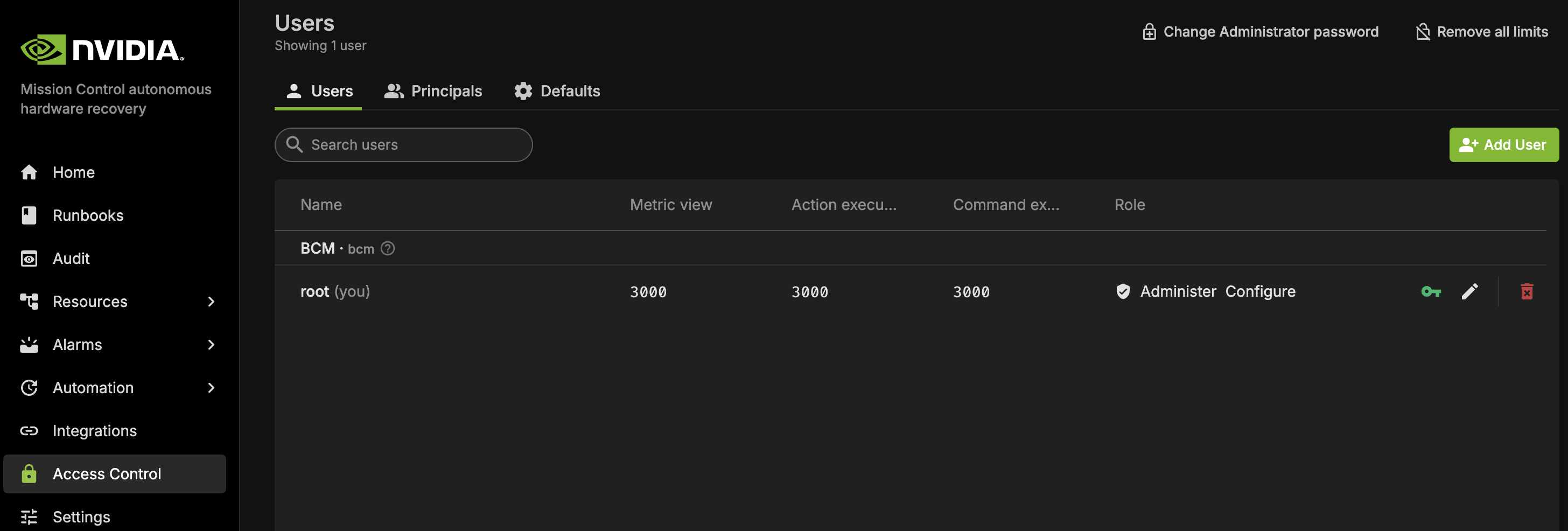
From there, you may either:
Use the default root user, or
Create a new user:
Click ‘Add User’ to create a new user, and apply the following settings:
Permission: Configure (for FW upgrade & Break/Fix) or Administer (for deployments)
Limits: Set all applicable limits to 3000
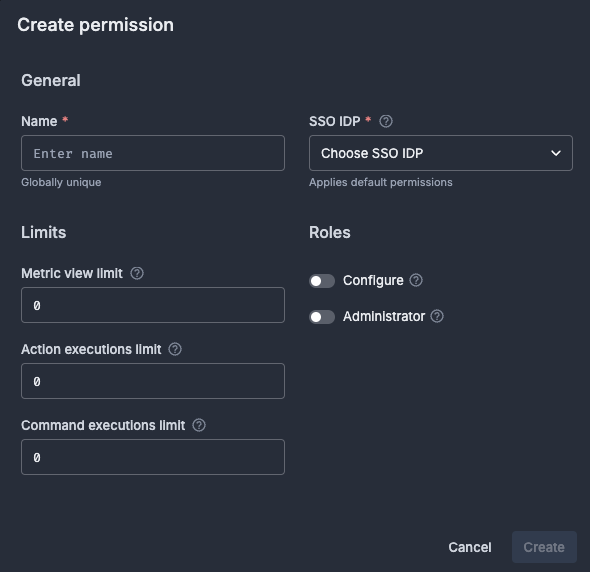
Once the user has been created, search for the user and click the Key icon to the right to generate an API Token. You must also provide an expiration based on the API key rotation policy.
 .
.Copy the token and use it to send requests to the AHR API.
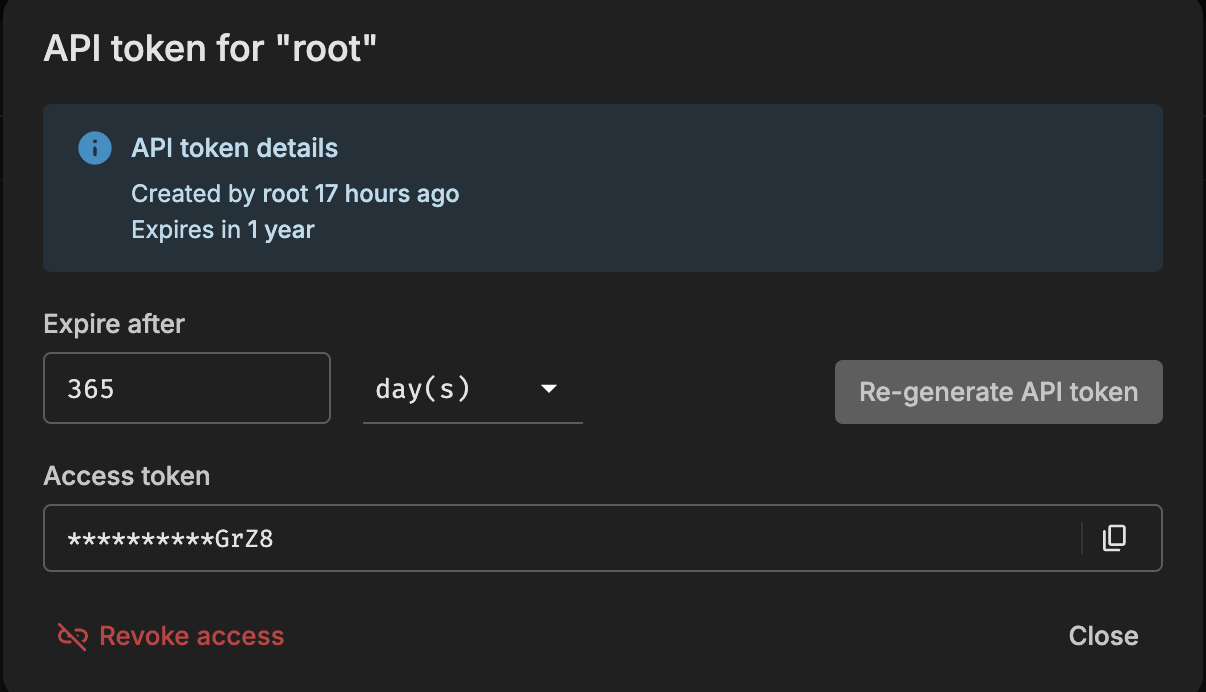
Add Secrets to AHR
Navigate to: Settings → Secrets
Click the
+icon to add new secrets. Create the following two secrets. Important: Ensure the key names exactly match the ones in the following list. These are referenced in the AHR runbooks:Secret 1
Name:
AHR_API_ENDPOINTValue: The API endpoint of your backend. Do not include
https://or a trailing slash.Example:
api-customer.nvidia.com
Secret 2
Name:
AHR_TOKENValue: The API token generated for the FW Upgrade and Break/Fix service user
Run the following commands to download and extract the appropriate artifacts package (
nmc-ahr.tgz) from the NGC registry, and place it on the BCM head node in the/cm/local/apps/autonomous-hardware-recovery/runbooks/folder. Set theAHR_NGC_TOKENvariable to the NGC token obtained from the Prerequisites of the document and theAHR_NGC_VERSIONvariable to the version of the runbooks to download. SetCHIPto either “B200”, “GB200”, or “GB300” to match your hardware.Set environment variables
export AHR_NGC_TOKEN=<ngc-token-used-during-installation>
export CHIP=GB300
export AHR_NGC_VERSION=2.3.22
export AHR_NGC_ORG=nvidia
export AHR_NGC_TEAM=nv-mission-control
Download the package and extract
curl -LO "https://api.ngc.nvidia.com/v2/org/${AHR_NGC_ORG}/team/${AHR_NGC_TEAM}/resources/nmc-ahr/versions/${AHR_NGC_VERSION}/files/nmc-ahr.tgz" -H "Authorization: Bearer ${AHR_NGC_TOKEN}" -H "Content-Type: application/json"

mkdir -p /cm/local/apps/autonomous-hardware-recovery/var/runbooks/downloaded
cp nmc-ahr.tgz /cm/local/apps/autonomous-hardware-recovery/var/runbooks/downloaded/nmc-ahr-$AHR_NGC_VERSION.tgz

cd /cm/local/apps/autonomous-hardware-recovery/var/runbooks
mkdir -p $AHR_NGC_VERSION
tar -xzvf downloaded/nmc-ahr-$AHR_NGC_VERSION.tgz -C $AHR_NGC_VERSION/
cd -
Deploy the runbooks via opentofu
In
/cm/local/apps/autonomous-hardware-recovery/runbooks/CHIP/${CHIP}/Baselinedirectory, create theterraform.tfvarsfile which includes these user inputs# terraform.tfvars # The hostname of the active headnode. Note: only one node is supported headnode_name="<headnode hostname>" # The name of the Slurm node from where to submit slurm jobs. Note: Only one node is supported slurm_node_name="<slurm_control_node hostname>" # The URL of the AHR API Endpoint ahr_url="https://your-instance.nvidia.com" # The jwt for the AHR API, found in Access Control ahr_token="<jwt>" # Absolute path to the user's home directory ahr_user_homedir="/shoreline" # Nvidia Container Registry token ** nvcr_token="<token>" # Set to false if automated support ticket feature is opted in, else by default it is disabled disable_callhome=true # Set this to the kubectl context that contains the Run:ai GPU nodes if your cluster # uses a different name. Otherwise, use the fleet-standard context. Leave it unset on # Slurm-only clusters. runai_k8s_context="kubernetes-admin@k8s-user" # NOTE: The variable 'gpu_nodes_name' applies only to the B200 chips # Provide a regex that includes all GPU nodes in your cluster (for example, dgx-*). Allowed special characters: *, ., -, _, [, ], ^, $, +, ?. gpu_nodes_name="<gpu_nodes regex>"
For the
nvcr_tokenvalue, use the NGC token obtained from the Prerequisites of the document (same token that was set as the value for theAHR_NGC_TOKENenvironment variable in the previous step).To resolve a known issue with BCM missing a required certificate, on ALL BCM head nodes, please do the following:
sudo mkdir -p /shoreline/.cm
sudo cp /root/.cm/admin.key /shoreline/.cm/admin.key
sudo cp /root/.cm/admin.pem /shoreline/.cm/admin.pem

sudo chown shoreline:shoreline /shoreline/.cm /shoreline/.cm/admin.pem /shoreline/.cm/admin.key
cdto the appropriate directory (with terraform.tfvars) and run opentofu commandscd /cm/local/apps/autonomous-hardware-recovery/runbooks/CHIP/${CHIP}/Baseline # Get value set for CUSTOMER_ID export CUSTOMER_ID=$(kubectl --kubeconfig /root/.kube/config-k8s-admin get configmap shoreline-variables -n autonomous-hardware-recovery -o jsonpath="{.data.CUSTOMER_ID}") # Set AWS environment variables for access ceph buckets export AWS_ENDPOINT_URL_S3=https://$(kubectl --kubeconfig /root/.kube/config-k8s-admin get configmap shoreline-variables -n autonomous-hardware-recovery -o jsonpath="{.data.CEPH_ENDPOINT}") export AWS_ACCESS_KEY_ID=$(kubectl --kubeconfig /root/.kube/config-k8s-admin get secret shoreline-secret -n autonomous-hardware-recovery -o jsonpath="{.data.aws-access-key-id}" | base64 -d) export AWS_SECRET_ACCESS_KEY=$(kubectl --kubeconfig /root/.kube/config-k8s-admin get secret shoreline-secret -n autonomous-hardware-recovery -o jsonpath="{.data.aws-secret-access-key}" | base64 -d) export AWS_DEFAULT_REGION=local tofu init \ -backend-config bucket="ss-arc-$CUSTOMER_ID-onprem-local-objects" \ -backend-config key="opentofu/${CHIP}/terraform.tfstate" # if terraform.tfvars does not exist, # you will be prompted for values # ignore any warnings in the plan tofu apply
After the
tofu applycompletes, configure certificate access and container capabilities to enable runbook execution. These steps apply to GB200, GB300, B200, and B300 environments.Configure CM API certificate access by copying the CM
admincertificates to theautonomous-hardware-recoveryuser’s home directory on all BCM head nodes. Run the following command from the primary BCM head node:pdsh -g headnode 'AGENT_USER=autonomous-hardware-recovery && \ HOME_DIR=$(getent passwd ${AGENT_USER} | cut -d: -f6) && \ sudo mkdir -p ${HOME_DIR}/.cm && \ sudo cp /root/.cm/admin.key ${HOME_DIR}/.cm/admin.key && \ sudo cp /root/.cm/admin.pem ${HOME_DIR}/.cm/admin.pem && \ sudo chown ${AGENT_USER}:${AGENT_USER} ${HOME_DIR}/.cm ${HOME_DIR}/.cm/admin.pem ${HOME_DIR}/.cm/admin.key && \ sudo chmod 600 ${HOME_DIR}/.cm/admin.key ${HOME_DIR}/.cm/admin.pem'
Set the required Linux capabilities for Enroot in each software image that has the AHR agent installed:
Set the agent category to apply the capabilities to:
export AGENT_CATEGORY=<name-of-agent-category-with-ahr-agent-installed>
Resolve the software image path and set the necessary capabilities inside the software image:
export AGENT_IMAGE_PATH=$(cmsh -c "category; use $AGENT_CATEGORY; get softwareimage" | xargs -I{} cmsh -c "softwareimage; use {}; get path" | grep "^/")

systemd-nspawn --directory=$AGENT_IMAGE_PATH --chdir=/root bash -c \
  "setcap cap_sys_admin,cap_mknod=ep /usr/bin/enroot-aufs2ovlfs && \
   setcap cap_sys_admin,cap_mknod=ep /usr/bin/enroot-mksquashovlfs"
Push the updated image to all nodes in the category:
cmsh -c "device; imageupdate -w -c $AGENT_CATEGORY"
Failover#
Overview#
Mission Control provides the option to run AHR in failover mode if an extra node for the installation is available. In this configuration, AHR is installed on two nodes — a primary and a secondary — with data replicating between the two to ensure data synchronization. This setup allows for transition to the secondary node in the event of hardware issues on the primary node, ensuring that AHR functionality can continue with minimal interruption.
Replication Verification#
If you selected the failover option, verify that data replication between the primary and secondary backend instances is occurring successfully.
Verify Ceph replication is set up properly
From the BCM head node run the following against the primary backend:
kubectl --kubeconfig /root/.kube/config-k8s-admin exec -it -n autonomous-hardware-recovery shoreline-ceph-0 -c ceph -- radosgw-admin sync status
The following is the expected output if the replication is running properly:
 metadata sync no sync (zone is master)
      data sync source: 71f9ccd2-97ff-4b92-aff1-d7a5324bb207 (shoreline-zone-shoreline-ceph-failover-0)
                        syncing
                        full sync: 0/128 shards
                        incremental sync: 128/128 shards
                        data is caught up with source
From the BCM head node run the following against the secondary (failover) backend:
kubectl --kubeconfig /root/.kube/config-k8s-admin exec -it -n autonomous-hardware-recovery shoreline-ceph-failover-0 -c ceph -- radosgw-admin sync status
The following is the expected output if the replication is running properly:
 metadata sync syncing
               full sync: 0/64 shards
               incremental sync: 64/64 shards
               metadata is caught up with master
     data sync source: 32af394d-ee8f-4d6b-a221-ebce96ce981b (shoreline-zone-shoreline-ceph-0)
                       syncing
                       full sync: 0/128 shards
                       incremental sync: 128/128 shards
                       data is caught up with source
Verify bucket data replication. On the BCM head node, run:
kubectl --kubeconfig /root/.kube/config-k8s-admin exec -it -n autonomous-hardware-recovery deployment/shoreline-openbao -c openbao -- /bin/sh

aws s3 ls s3://onprem-org-shoreline-mdkey-mr/ --endpoint-url http://shoreline-ceph-service:7480 --recursive

aws s3 ls s3://onprem-org-shoreline-mdkey-mr/ --endpoint-url http://shoreline-ceph-service-failover:7480 --recursive

exit
The contents of the two buckets should match.
Backup AHR databases. On the BCM head node, run:
kubectl --kubeconfig /root/.kube/config-k8s-admin exec -it -n autonomous-hardware-recovery deployment/shoreline-ops-tool -c ops-tool -- /bin/bash
Then, once in the ops-tool container, run:
python3

# Run in the python3 console
import ops_tool
# This command can take some time to run:
ops_tool.backup_backend("shorelinecust")
exit()

exit
Verify database backups. On the BCM head node, run:
### on the primary backend
kubectl --kubeconfig /root/.kube/config-k8s-admin exec -it -n autonomous-hardware-recovery deployment/shoreline-openbao -c openbao -- /bin/sh
aws s3 ls --endpoint-url http://shoreline-ceph-service:7480

### Choose the bucket that contains your change
aws s3 ls s3://ss-arc-shorelinecust-onprem-local --recursive | sort

### in the expected output, the db will contain the latest timestamp
### the following is just an example
2025-03-04 01:57:07     110592 7482318612660724179_shorelinecust_internal_configuration_1.db

exit
Verify OpenBao backup cron job. On the BCM head node, run:
### choose a completed shoreline-backup-xxxxxxxx pod
kubectl --kubeconfig /root/.kube/config-k8s-admin -n autonomous-hardware-recovery get pod
kubectl --kubeconfig /root/.kube/config-k8s-admin -n autonomous-hardware-recovery logs <backup pod>

### expected output in the log
upload: ./openbao.tar to s3://onprem-org-shoreline-mdkey-mr/openbao.tar

### other useful commands to get some details about cronjobs
kubectl get cronjobs -n autonomous-hardware-recovery --kubeconfig /root/.kube/config-k8s-admin
kubectl get cronjob shoreline-backup -n autonomous-hardware-recovery --kubeconfig /root/.kube/config-k8s-admin -o yaml
When to Initiate a Failover to the Secondary Node#
If a node becomes unhealthy due to a hardware issue that requires significant time to repair (e.g., disk failure, physical server issues), users can initiate a failover of AHR to the secondary node to allow for continued operation of AHR functionality.
Failover Procedure - Promote Secondary Node to Primary#
Promote Secondary Ceph to Primary
kubectl --kubeconfig /root/.kube/config-k8s-admin -n autonomous-hardware-recovery exec -it shoreline-ceph-failover-0 -c ceph -- /bin/bash
# Run in the ceph container
/scripts/ceph-promote.sh
exit
Scale up failover backend
kubectl --kubeconfig /root/.kube/config-k8s-admin -n autonomous-hardware-recovery create job --from=cronjob/shoreline-failover-scaleup shoreline-failover-scaleup-manual
Restore data from backup:
kubectl --kubeconfig /root/.kube/config-k8s-admin -n autonomous-hardware-recovery exec -it deployment/shoreline-ops-tool-failover -c ops-tool -- /bin/bash

# Run in the ops-tool container
/scripts/user-promote.sh

### Successful command output should look like the following:
# Command succeeded
# Successful restore for System Metadata
# Customer not found in backend before restore, skipping unassignment
# Successful restore for Backend, for customer ID $CUSTOMER_ID
# Successfully assigned customer back to backend after restore

exit
Verify database restoration:
kubectl --kubeconfig /root/.kube/config-k8s-admin -n autonomous-hardware-recovery exec -it shoreline-backend-failover-0 -c backend -- bash

ls -trl databases/$CUSTOMER_ID

### expected output - all databases have the timestamp of when user-promote.sh was run

exit
Create notebook_run_output folder for the old Runs to properly load:
kubectl --kubeconfig /root/.kube/config-k8s-admin -n autonomous-hardware-recovery exec -it shoreline-backend-failover-0 -c backend -- bash

# create notebook_run_output directory
mkdir /backend/databases/$CUSTOMER_ID/notebook_run_output

# Update notebook_run
dbclient time-partitioned-write $CUSTOMER_ID notebook_runs "UPDATE notebook_run SET status =12, state = 2 WHERE state NOT IN (2, 3, 10) AND checkpoint_json <> '{}';"

exit
Update values.yaml to bring up the failover stateful set as new primary backend:
helm get values --namespace autonomous-hardware-recovery backend --kubeconfig /root/.kube/config-k8s-admin > values-failover.yaml

### Use a text editor to modify this values-failover.yaml file
# Change the enable_failover key to false to shut down the broken primary backend
enable_failover: false

# Add the switch_backend_failover key and set it to true
switch_backend_failover: true
Perform helm upgrade using the
values-failover.yamlfile that was created to switch the secondary backend as primary backend and turn down the broken primary backend:helm upgrade backend shoreline-onprem-backend/shoreline-onprem-backend --values values-failover.yaml --version "$(helm --kubeconfig /root/.kube/config-k8s-admin get values -n autonomous-hardware-recovery backend | grep platform_ver | cut -d '-' -f 2)" --namespace autonomous-hardware-recovery --kubeconfig /root/.kube/config-k8s-admin
Verify previous primary backend is shut down:
### Check if the shoreline-backend statefulset disappears from the sts list
kubectl get sts -n autonomous-hardware-recovery --kubeconfig /root/.kube/config-k8s-admin

### Expected output should look like:
NAME                        READY   AGE
shoreline-backend-failover   1/1     95m
shoreline-ceph-failover      1/1     95m
Verify UI shows all previous runbook runs and actions are persisted
Retrigger Break-Fix Workflows#
Failover may involve some loss of recent data not backed up to secondary node yet, such as recent runbook outputs and resource tags. After a failover event occurs and the primary backend instance has been failed over to the secondary backend instance, you will want to execute an AHR runbook to ensure maintenance tags are reset, allowing the health check system to re-classify nodes accurately. This allows nodes still requiring break/fix to be promptly detected and returned to maintenance status, triggering the necessary repair workflows.
Ensure the steps under the NVIDIA Mission Control autonomous hardware recovery Runbook Deployment have been completed successfully
In the AHR UI, in the Runbooks section, search for the runbook titled
CLEAR_MAINTENANCE_TAGS:Execute this runbook by clicking the Create Run button at the top right and provided the appropriate rack name for the
RACK_NAMEparameter. If left empty, the runbook will be executed against all nodes.
Set Primary Node as the New Secondary Node#
Once the primary node’s issues have been resolved, you will want to add the primary node back to environment as the new secondary/failover node. To do so you will need to update the values.yaml file and run the helm upgrade again:
In values.yaml update enable_failover to true:
enable_failover: true
Run the helm upgrade again to bring up the previous primary backend as secondary
helm upgrade shorelinebackend shoreline-onprem-backend/shoreline-onprem-backend --values values.yaml --version "$(helm --kubeconfig /root/.kube/config-k8s-admin get values -n autonomous-hardware-recovery backend | grep platform_ver | cut -d '-' -f 2)" --namespace autonomous-hardware-recovery --kubeconfig /root/.kube/config-k8s-admin
BCM Connectivity Integration#
Login into the UI as a user with the
Administerrole.From the left menu bar, select Integrations.
Click the Configure button within the BCM Connectivity tile.
On the BCM Connectivity configuration page:
Enter a name for the integration (e.g., bcm_connectivity_configuration).
Set the API certificate field to the content of
/cm/local/apps/autonomous-hardware-recovery/etc/autonomous-hardware-recovery.pemfile (cat /cm/local/apps/autonomous-hardware-recovery/etc/autonomous-hardware-recovery.pemcan be run on BCM head node to view the contents of the file).Set the API key field to the content of
/cm/local/apps/autonomous-hardware-recovery/etc/autonomous-hardware-recovery.keyfile (cat /cm/local/apps/autonomous-hardware-recovery/etc/autonomous-hardware-recovery.keycan be run on BCM head node to view the content of the file).Click the Apply button on the top right.
To check the BCM Connectivity integration health, a user with the
Administerpermission should click the Test button on the top right.
Backend Setup with a Self-Signed Certificate Guide - Manual Procedure#
To configure the backend environment to work with a self-signed certificate, follow these steps:
Generate the CA root certificate and the server certificate (signed by the CA).
Install the backend as described in the manual installation procedure
Execute the post-installation steps after the backend installation.
Apply the post-installation steps after deploying the agent.
Detailed instructions for each step are in the following subsections.
Generating Self-Signed Certificate#
This guide outlines the procedure for generating a Certificate Authority (CA) and server certificate from scratch.
If an existing Certificate Authority (CA) or intermediate certificates are already available, proceed directly to Step 2 to generate the server certificate.
Generate CA certificate
Generate unencrypted private key:
openssl genrsa -out ca.key 4096
Create
ca.cnf:# ca.cnf [ req ] default_bits = 4096 prompt = no default_md = sha256 x509_extensions = v3_ca distinguished_name = dn [ dn ] C = US ST = California L = Santa Clara O = Shoreline OU = Dev CN = Shoreline Root CA [ v3_ca ] subjectKeyIdentifier = hash authorityKeyIdentifier = keyid:always,issuer basicConstraints = critical, CA:true keyUsage = critical, keyCertSign, cRLSign
Generate self-signed CA cert:
openssl req -x509 -new -key ca.key -out ca.crt -days 3650 -config ca.cnf -extensions v3_ca
Generate the server certificate (requires the CA certificate from Step 1).
Create server.cnf, setting the Common Name (CN) and Subject Alternative Names (SAN) to match your environment:
[ req ]
default_bits       = 2048
prompt             = no
default_md         = sha256
distinguished_name = dn
req_extensions     = req_ext

[ dn ]
C  = US
ST = CA
L  = Santa Clara
O  = Shoreline
OU = Dev
CN = your-instance.shoreline.nvidia.com

[ req_ext ]
subjectAltName = @alt_names

[ alt_names ]
DNS.1 = your-instance.shoreline.nvidia.com
DNS.2 = *.your-instance.shoreline.nvidia.com
Create key and CSR
openssl req -new -nodes -out server.csr -newkey rsa:2048 -keyout server.key -config server.cnf
Sign the server CSR with your CA
openssl x509 -req -in server.csr -CA ca.crt -CAkey ca.key -CAcreateserial \
    -out server.crt -days 8250 -extensions req_ext -extfile server.cnf
Create full chain and rename
server.keycat server.crt ca.crt > ahr.crt cp server.key ahr.key
To ensure your browser trusts this certificate when viewing the UI after installation, import the self-signed CA certificate generated in Step 1 (
ca.crt) into your local trust store. This is required to enable access to the site (secured with the server certificate) using browsers, curl, and other clients. If this certificate was generated on the BCM head node, copy theca.crtfile to your local machine first.To trust the self-signed CA certificate in Firefox, follow these steps:
Open Firefox and go to Preferences (or Options on Windows).
Navigate to Privacy & Security and scroll down to the Certificates section.
Click View Certificates.
In the Certificate Manager window, select the Authorities tab.
Click Import.
Choose your self-signed CA certificate file (e.g.,
ca.crt).When prompted, check Trust this CA to identify websites.
Click OK to complete the import.
To trust the self-signed CA certificate in Chrome, follow these steps:
Open Chrome and navigate to
chrome://settings/certificatesUnder Custom, click on Installed by you
Next to Trusted Certificates, click Import
Select the self-signed CA certificate file -
ca.crt
The
ahr.crtandahr.keyfiles generated during this procedure satisfy the certificate prerequisite that can be used when following the manual installation procedure.
Post-Install Backend Configuration#
After deploying AHR following the manual installation procedure, complete the following steps to configure the AHR backend container to trust the Ceph endpoint when using a self-signed certificate.
Note
Note: Repeat these steps after every backend upgrade performed through Helm.
Manual Application of the Self-Signed Certificate to the Backend#
Note
Note: If you do not already have an existing certificate and key, please refer to the section Generating Self-Signed Certificate to create the required ahr.crt and ahr.key files before proceeding.
Copy the ca.crt file that was created previously to your current directory and run the following command to create a ConfigMap with the CA certificate in the backend cluster:
kubectl create configmap -n autonomous-hardware-recovery custom-ca \
  --from-file=ca.crt=./ca.crt
Create
backendpatch.json:{ "spec": { "template": { "spec": { "volumes": [ { "emptyDir": {}, "name": "container-deps" }, { "emptyDir": { "sizeLimit": "10Mi" }, "name": "var-run-ceph" }, { "configMap": { "defaultMode": 420, "name": "shoreline-config" }, "name": "shoreline-config" }, { "configMap": { "defaultMode": 493, "name": "shoreline-scripts" }, "name": "shoreline-scripts" }, { "name": "shoreline-app-certificate", "secret": { "defaultMode": 420, "secretName": "shoreline-app-certificate" } }, { "name": "shoreline-api-certificate", "secret": { "defaultMode": 420, "secretName": "shoreline-api-certificate" } }, { "name": "shoreline-discovery-certificate", "secret": { "defaultMode": 420, "secretName": "shoreline-discovery-certificate" } }, { "name": "shoreline-ceph-certificate", "secret": { "defaultMode": 420, "secretName": "shoreline-ceph-certificate" } }, { "name": "custom-ca", "configMap": { "name": "custom-ca" } }, { "name": "ca-bundle", "emptyDir": {} } ], "initContainers": [ { "command": [ "sh", "-c", "[ -f /certificates/ca-key.pem ] || { /scripts/generate_certs.sh ; }; rm -f /mnt/container-deps/*" ], "image": "ubuntu:22.04", "imagePullPolicy": "IfNotPresent", "name": "generate-certs", "resources": {}, "terminationMessagePath": "/dev/termination-log", "terminationMessagePolicy": "File", "volumeMounts": [ { "mountPath": "/certificates", "name": "openbao-certificates" }, { "mountPath": "/scripts", "name": "shoreline-scripts" } ] }, { "name": "ca-bundle-builder", "image": "ubuntu:22.04", "command": [ "sh", "-c", "apt-get update && apt-get install -y ca-certificates && mkdir -p /usr/local/share/ca-certificates && cp /ca/ca.crt /usr/local/share/ca-certificates/custom-ca.crt && update-ca-certificates && cp /etc/ssl/certs/ca-certificates.crt /bundle/ca-certificates.crt" ], "volumeMounts": [ { "name": "custom-ca", "mountPath": "/ca" }, { "name": "ca-bundle", "mountPath": "/bundle" } ] } ] } } } }
Patch the backend statefulset with the file above:
kubectl patch statefulset shoreline-backend -n autonomous-hardware-recovery --type='merge' --patch "$(cat backendpatch.json)"
# Run the following line only if failover was enabled in this environment
kubectl patch statefulset shoreline-backend-failover -n autonomous-hardware-recovery --type='merge' --patch "$(cat backendpatch.json)"
Run another patch to mount
ca-certificates.crt:INDEX=$(kubectl get statefulset shoreline-backend -n autonomous-hardware-recovery -o json \ | jq -r '.spec.template.spec.containers | to_entries[] | select(.value.name=="backend") | .key') kubectl patch statefulset shoreline-backend -n autonomous-hardware-recovery --type='json' -p="[ { \"op\": \"add\", \"path\": \"/spec/template/spec/containers/${INDEX}/volumeMounts/-\", \"value\": { \"name\": \"ca-bundle\", \"mountPath\": \"/etc/ssl/certs/ca-certificates.crt\", \"subPath\": \"ca-certificates.crt\" } } ]" INDEX=$(kubectl get statefulset shoreline-backend-failover -n autonomous-hardware-recovery -o json \ | jq -r '.spec.template.spec.containers | to_entries[] | select(.value.name=="backend") | .key') kubectl patch statefulset shoreline-backend-failover -n autonomous-hardware-recovery --type='json' -p="[ { \"op\": \"add\", \"path\": \"/spec/template/spec/containers/${INDEX}/volumeMounts/-\", \"value\": { \"name\": \"ca-bundle\", \"mountPath\": \"/etc/ssl/certs/ca-certificates.crt\", \"subPath\": \"ca-certificates.crt\" } } ]"
Post-Install Agent Configuration#
After deploying the agent, perform the following steps to enable the agent to trust the discovery endpoint using the self-signed certificate.
Note
Note: These steps must also be repeated after every agent upgrade.
Manual Application of the Self-Signed Certificate on the Agent - BCM head nodes#
Add CA cert to the local store of all BCM head nodes:
pdcp -g headnode ca.crt /usr/local/share/ca-certificates/self-signed.crt
pdsh -g headnode 'update-ca-certificates'
Update the agent start script on all BCM head nodes by adding mount option at line 216 for the
.crtfile in/usr/lib/shoreline/startAgent.sh:pdsh -g headnode "grep -Fq ' --mount \"/etc/ssl/certs/ca-certificates.crt:/etc/ssl/certs/ca-certificates.crt\" \\' /usr/lib/shoreline/startAgent.sh || sed -i '216i \\ --mount \"/etc/ssl/certs/ca-certificates.crt:/etc/ssl/certs/ca-certificates.crt\" \\\\' /usr/lib/shoreline/startAgent.sh"
Reload and restart shoreline service on all BCM head nodes:
pdsh -g headnode "systemctl stop shoreline && systemctl daemon-reload && systemctl start shoreline && journalctl -xeu shoreline"
Manual Application of the Self-Signed Certificate on the Agent - Software Image#
Note
You will need to perform the following steps for EACH agent category
Copy the
ca.crtfile to the agent image category filesystem.cp ca.crt /cm/images/<agent-category>-image/usr/local/share/ca-certificates/self-signed.crt
For example, if the agent category was
default:cp ca.crt /cm/images/default-image/usr/local/share/ca-certificates/self-signed.crt
Update the ca certificates and update
startAgent.shin the software image:root@headnode:~# systemd-nspawn --chdir=/root --setenv=SUDO_CMD="sudo -h 127.0.0.1" -D /cm/images/<agent-node-software-image-name> root@default-image:~# bash -c "mount -o remount,size=10G /tmp" root@default-image:~# update-ca-certificates root@default-image:~# grep -q ' --mount "/etc/ssl/certs/ca-certificates.crt:/etc/ssl/certs/ca-certificates.crt" \\' /usr/lib/shoreline/startAgent.sh || sed -i '216i \ --mount "/etc/ssl/certs/ca-certificates.crt:/etc/ssl/certs/ca-certificates.crt" \\' /usr/lib/shoreline/startAgent.sh root@default-image:~# exit
Sync the image to nodes in agent category
root@headnode:~# cmsh
[headnode]% device
[headnode->device]% imageupdate -w -c <agent-category>
[headnode->device]% exit
[headnode]% exit
Restart the
shorelineservice on the nodes in the agent category:pdsh -g category=<agent-category> 'systemctl stop shoreline && systemctl daemon-reload && systemctl start shoreline && journalctl -xeu shoreline'
Application of self-signed certificate is completed.
If both the backend and agent have been configured properly, the agent will register successfully on the backend. For instructions on verifying backend health and agent connectivity, refer to Installation Validation.
Uninstallation - Manual Procedure#
Agent Uninstall#
Run the following procedure from the BCM head node:
Remove the AHR agent from the software image: For each agent node category where the AHR agent was installed, detach the category from the
shoreline-agentconfiguration overlay, remove theshorelineDebian package from the category’s software image, and clean up the agent files, staged Debian package, andautonomous-hardware-recoveryuser and group that were created inside the image during agent installation.Set the agent category:
export AGENT_CATEGORY=<category-of-node-with-ahr-agent-installed>
Remove the agent category from the
shoreline-agentconfiguration overlay:cmsh -c "configurationoverlay; use shoreline-agent; removefrom categories $AGENT_CATEGORY; commit"
Remove the
shorelineDebian package that was installed during agent installation:export AGENT_IMAGE_PATH=$(cmsh -c "category; use $AGENT_CATEGORY; get softwareimage" | xargs -I{} cmsh -c "softwareimage; use {}; get path" | grep "^/") systemd-nspawn --directory=$AGENT_IMAGE_PATH --chdir=/root --bind-ro=/etc/resolv.conf:/etc/resolv.conf --setenv=SUDO_CMD="sudo -h 127.0.0.1" --setenv=DEBIAN_FRONTEND=noninteractive bash -c "apt purge -y shoreline"
You may encounter the following warning in the output:
System has not been booted with systemd as init system (PID 1). Can't operate.
Failed to connect to bus: Host is down
This only occurs when the package removal is run from within the software image and can be safely ignored.
After removing the agent package, delete the remaining agent files, the staged Debian package, and the
autonomous-hardware-recoveryuser and group that agent installation created in the software image:systemd-nspawn \ --directory=$AGENT_IMAGE_PATH \ --chdir=/root \ --bind-ro=/etc/resolv.conf:/etc/resolv.conf \ --setenv=SUDO_CMD="sudo -h 127.0.0.1" \ --setenv=DEBIAN_FRONTEND=noninteractive \ bash -c " rm -rf /var/lib/shoreline && \ rm -rf /etc/sudoers.d/99-shoreline-user && \ rm -rf /etc/shoreline && \ rm -rf /cm/local/apps/autonomous-hardware-recovery/var/packages && \ { id -u autonomous-hardware-recovery > /dev/null 2>&1 && deluser --remove-home autonomous-hardware-recovery || true; } && \ { getent group autonomous-hardware-recovery > /dev/null 2>&1 && delgroup autonomous-hardware-recovery || true; } "
Note
The Mellanox DOCA repo files (
/usr/share/keyrings/cm-mellanox-archive-keyring.gpgand/etc/apt/sources.list.d/cm-mellanox.list) staged during the agent installation are not removed by default because they may be shared with other NVIDIA software. If you are certain no other software depends on them, they can be removed manually from the software image.Run the following command to sync the updated image to the worker nodes:
cmsh -c "device; imageupdate -w -c $AGENT_CATEGORY"
Then reload the systemd manager configuration on the nodes in this agent category:
pdsh -g category=$AGENT_CATEGORY 'systemctl daemon-reload'
Remove the AHR agent from the BCM head nodes: Uninstall the agent and remove its files from all BCM head nodes:
pdsh -g headnode './vm_base_install.sh uninstall -c /etc/shoreline/agent.config'
pdsh -g headnode 'rm -rf /var/lib/shoreline'
pdsh -g headnode 'rm -rf /etc/sudoers.d/99-shoreline-user'
pdsh -g headnode 'rm -rf /cm/local/apps/autonomous-hardware-recovery/etc/agent.config'
Remove the
shoreline-agentrole fromconfigurationoverlaycmsh -c "configurationoverlay; remove shoreline-agent; commit"
Backend Uninstall#
Run the following procedure from the BCM head node:
Get current values for node names and storage paths:
export AHR_BACKEND_NODE=$(helm --kubeconfig /root/.kube/config-k8s-admin get values -n autonomous-hardware-recovery backend --all  | grep backend_node: | awk '{print $2}')
export AHR_FAILOVER_NODE=$(helm --kubeconfig /root/.kube/config-k8s-admin get values -n autonomous-hardware-recovery backend --all  | grep backend_node_failover: | awk '{print $2}')
export AHR_SHARED_STORAGE_PATH=$(helm --kubeconfig /root/.kube/config-k8s-admin get values -n autonomous-hardware-recovery backend --all  | grep shared_storage_path: | awk '{print $2}')
export AHR_OBJECT_STORAGE_PATH=$(helm --kubeconfig /root/.kube/config-k8s-admin get values -n autonomous-hardware-recovery backend --all  | grep object_storage_path: | awk '{print $2}')
export AHR_FAILOVER_OBJECT_STORAGE_PATH=$(helm --kubeconfig /root/.kube/config-k8s-admin get values -n autonomous-hardware-recovery backend --all  | grep object_storage_path_failover: | awk '{print $2}')
env | grep AHR
Uninstall the backend helm chart
helm uninstall backend -n autonomous-hardware-recovery --wait --cascade foreground --kubeconfig /root/.kube/config-k8s-admin
Delete all persistent volume claims (pvcs) associated with the AHR backend
kubectl delete pvc --all -n autonomous-hardware-recovery --kubeconfig /root/.kube/config-k8s-admin
Delete persistent volumes associated with the AHR backend
kubectl --kubeconfig /root/.kube/config-k8s-admin delete pv $(kubectl --kubeconfig /root/.kube/config-k8s-admin get pv -o json | jq -r '.items[] | select(.status.phase == "Released") | select(.spec.claimRef.namespace == "autonomous-hardware-recovery" ) | .metadata.name')
Delete the AHR namespace:
kubectl delete ns autonomous-hardware-recovery --kubeconfig /root/.kube/config-k8s-admin
Wipe the disk device used for $AHR_OBJECT_STORAGE_PATH
ssh $AHR_BACKEND_NODE blkdiscard -f $AHR_OBJECT_STORAGE_PATH
# Run the following line only if failover was enabled in this environment
ssh $AHR_FAILOVER_NODE blkdiscard -f $AHR_FAILOVER_OBJECT_STORAGE_PATH
Clean $AHR_SHARED_STORAGE_PATH on nodes
ssh $AHR_BACKEND_NODE rm -rf $AHR_SHARED_STORAGE_PATH/*
# Run the following line only if failover was enabled in this environment
ssh $AHR_FAILOVER_NODE rm -rf $AHR_SHARED_STORAGE_PATH/*
Remove the
shoreline-backendconfigurationoverlay (and its associated role)cmsh -c "configurationoverlay; remove shoreline-backend; commit"
Remove
shoreline-backendlabelsetscmsh -c "kubernetes; use k8s-admin; labelsets; remove shoreline-backend; commit"
Remove the
ahrBCM user:cmsh -c "user; remove ahr; commit"
Remove the cached Helm repo credential from the primary BCM head node:
helm repo remove shoreline-onprem-backend
Remove AHR Runbooks#
Delete the runbooks directory
rm -rf /cm/local/apps/autonomous-hardware-recovery/var/runbooks
Replacing Certificates in an Existing Environment#
Whether publicly-trusted or self-signed, you can replace the existing certificates of a running backend using the following procedure. The procedure assumes you have already obtained a new, valid cert/key pair from following the process in either the Prerequisites section or the Self-signed Certificate Guide.
Set the locations of your certificate and key files. If they are in your current working directory on the BCM head node, you would run
path_to_cert="./ahr.crt"
path_to_privkey="./ahr.key"
Create a kubernetes resource definition for the base64-encoded versions of the cert and key files
cert_base64=$(sudo cat "${path_to_cert}" | base64 -w 0)
privatekey_base64=$(sudo cat "${path_to_privkey}" | base64 -w 0)

cat <<EOF > ahr-certificates.yaml
apiVersion: v1
kind: Secret
metadata:
  name: shoreline-api-certificate
  namespace: autonomous-hardware-recovery
type: kubernetes.io/tls
data:
  tls.crt: ${cert_base64}
  tls.key: ${privatekey_base64}
---
apiVersion: v1
kind: Secret
metadata:
  name: shoreline-app-certificate
  namespace: autonomous-hardware-recovery
type: kubernetes.io/tls
data:
  tls.crt: ${cert_base64}
  tls.key: ${privatekey_base64}
---
apiVersion: v1
kind: Secret
metadata:
  name: shoreline-discovery-certificate
  namespace: autonomous-hardware-recovery
type: kubernetes.io/tls
data:
  tls.crt: ${cert_base64}
  tls.key: ${privatekey_base64}
---
apiVersion: v1
kind: Secret
metadata:
  name: shoreline-ceph-certificate
  namespace: autonomous-hardware-recovery
type: kubernetes.io/tls
data:
  tls.crt: ${cert_base64}
  tls.key: ${privatekey_base64}
EOF
Apply the new certificates to the cluster. Note that this will overwrite the existing certificates
kubectl --kubeconfig ~/.kube/config-k8s-admin apply -f ahr-certificates.yaml
Restart the nginx process to pick up the new certs without bringing down the AHR backend pod.
kubectl --kubeconfig ~/.kube/config-k8s-admin exec -n autonomous-hardware-recovery shorelinebackend-0 -c ui -- kill -HUP 1
You may need to run this command twice to get the process to start using the new certs