

Observability Stack Configuration#
The BCM cm-kubernetes-setup wizard deploys the foundational observability components in Kubernetes by default. Additional configuration enables time-series and logging data sources from BCM.
Configure storage and retention for Prometheus#
Create a new YAML file on the BCM head node for this setup:
cat << EOF > prom_config.yaml
prometheus:
  prometheusSpec:
    retention: 90d
    additionalArgs:
      - name: storage.tsdb.no-lockfile
        value: ""
    storageSpec:
      volumeClaimTemplate:
        spec:
          accessModes: ["ReadWriteOnce"]
          storageClassName: local-path
          resources:
            requests:
              storage: 300Gi
EOF
Note
The preceding prom_config.yaml sets a 90-day retention period. The
local-path StorageClass uses the shared storage pool selected during
Kubernetes installation.
Estimate your storage requirements before setting a longer retention period.
Install/upgrade CRDs:
kubectl apply --server-side -f https://raw.githubusercontent.com/prometheus-community/helm-charts/refs/tags/kube-prometheus-stack-87.18.0/charts/kube-prometheus-stack/charts/crds/crds/crd-alertmanagerconfigs.yaml
kubectl apply --server-side -f https://raw.githubusercontent.com/prometheus-community/helm-charts/refs/tags/kube-prometheus-stack-87.18.0/charts/kube-prometheus-stack/charts/crds/crds/crd-alertmanagers.yaml
kubectl apply --server-side -f https://raw.githubusercontent.com/prometheus-community/helm-charts/refs/tags/kube-prometheus-stack-87.18.0/charts/kube-prometheus-stack/charts/crds/crds/crd-podmonitors.yaml
kubectl apply --server-side -f https://raw.githubusercontent.com/prometheus-community/helm-charts/refs/tags/kube-prometheus-stack-87.18.0/charts/kube-prometheus-stack/charts/crds/crds/crd-probes.yaml
kubectl apply --server-side -f https://raw.githubusercontent.com/prometheus-community/helm-charts/refs/tags/kube-prometheus-stack-87.18.0/charts/kube-prometheus-stack/charts/crds/crds/crd-prometheusagents.yaml
kubectl apply --server-side -f https://raw.githubusercontent.com/prometheus-community/helm-charts/refs/tags/kube-prometheus-stack-87.18.0/charts/kube-prometheus-stack/charts/crds/crds/crd-prometheuses.yaml
kubectl apply --server-side -f https://raw.githubusercontent.com/prometheus-community/helm-charts/refs/tags/kube-prometheus-stack-87.18.0/charts/kube-prometheus-stack/charts/crds/crds/crd-prometheusrules.yaml
kubectl apply --server-side -f https://raw.githubusercontent.com/prometheus-community/helm-charts/refs/tags/kube-prometheus-stack-87.18.0/charts/kube-prometheus-stack/charts/crds/crds/crd-scrapeconfigs.yaml
kubectl apply --server-side -f https://raw.githubusercontent.com/prometheus-community/helm-charts/refs/tags/kube-prometheus-stack-87.18.0/charts/kube-prometheus-stack/charts/crds/crds/crd-servicemonitors.yaml
kubectl apply --server-side -f https://raw.githubusercontent.com/prometheus-community/helm-charts/refs/tags/kube-prometheus-stack-87.18.0/charts/kube-prometheus-stack/charts/crds/crds/crd-thanosrulers.yaml
With the configuration file in place, apply these values to the K8s cluster
helm upgrade kube-prometheus-stack prometheus-community/kube-prometheus-stack \
  -n prometheus -f prom_config.yaml --reuse-values --version 87.18.0
Configure storage and retention for Loki#
This will require a redeployment of the Helm chart for Loki as we need to set a new storage value and we can’t resize this live.
Create a new YAML file on the BCM head node for this setup:
cat << EOF > loki_config.yaml
backend:
  replicas: 3
chunksCache:
  writebackSizeLimit: 500MB
commonConfig:
  replication_factor: 3
compactor:
  replicas: 0
deploymentMode: SimpleScalable
distributor:
  maxUnavailable: 0
  replicas: 0
indexGateway:
  maxUnavailable: 0
  replicas: 0
ingester:
  replicas: 0
loki:
  limits_config:
    ingestion_rate_mb: 75
    ingestion_burst_size_mb: 150
    per_stream_rate_limit: 16MB
    per_stream_rate_limit_burst: 64MB
    retention_period: 90d
  auth_enabled: false
  commonConfig:
    replication_factor: 3
  schemaConfig:
    configs:
    - from: '2025-09-04'
      index:
        period: 24h
        prefix: loki_index_
      object_store: s3
      schema: v13
      store: tsdb
  storage:
    type: s3
    bucketNames:
     chunks: loki-chunks-bucket
     ruler: loki-ruler-bucket
     admin: loki-admin-bucket
minio:
  enabled: true
  persistence:
    size: 500Gi
querier:
  maxUnavailable: 0
  replicas: 0
queryFrontend:
  maxUnavailable: 0
  replicas: 0
queryScheduler:
  replicas: 0
read:
  replicas: 3
singleBinary:
  replicas: 0
write:
  replicas: 3
EOF
Uninstall the existing Helm chart:
helm uninstall loki -n loki
Delete any lingering PVCs:
kubectl delete pvc --all -n loki
Install the Helm chart for Loki, using the new values:
helm install loki grafana/loki -n loki -f loki_config.yaml
Enable Prometheus scrape endpoint in BCM#
On the BCM head node (both BCM head nodes, if configured for HA) using
sedto inline edit the configuration:sed -i 's/# EnablePrometheusExporterService = true/EnablePrometheusExporterService = true/g' /cm/local/apps/cmd/etc/cmd.conf
Disable certificate-based authentication for the scrape endpoint, and enable extra information to be added to the metrics:
cm-manipulate-advanced-config.py PrometheusExporterExtraInfo=1 PrometheusExporterInfo=1 PrometheusExporterEnum=0 PrometheusExporterRequireCertificate=0 PrometheusLabelIncludeSerialNumber=1 PrometheusLabelIncludePartNumber=1 PrometheusLabelIncludeSystemName=1 MaxMeasurablesPerProducer=1600
If you have integrated your BMS with BCM, then you will additionally need a config like so:
cm-manipulate-advanced-config.py PushMonitoringDeviceStatusMetrics=CDUStatus,CDULiquidSystemPressure,CDULiquidReturnTemperature
Restart the cmd service:
systemctl restart cmd
After cmd restarts, run the following to validate that metrics is being successfully exported through curl:
curl -sk https://localhost:8081/exporter | tail -n 2
The exporter could take some time to start from restart of cmd:
writetime_total{base_type="Device",category="default",hostname="node001",type="PhysicalNode",parameter="vda"} 0
writetime_total{base_type="Device",category="default",hostname="node001",type="PhysicalNode",parameter="vdb"} 3882985
Configure Prometheus to scrape metrics from BCM endpoint#
With Prometheus deployed earlier through the BCM K8s wizard, interaction with the Prometheus operator is required to make configuration changes, enabling this data source.
Prepare the configuration files#
K8s typically uses YAML files with custom values to make configuration changes. Create three of these YAML files on the BCM head node for this setup.
bcm_prom_endpoint.yaml:
cat << EOF > /tmp/bcm_prom_endpoint.yaml
apiVersion: v1
kind: Endpoints
metadata:
  name: external-bcmexporter
  namespace: prometheus
  labels:
    app: external-bcmexporter
subsets:
  - addresses:
$(cmsh -c 'device; list -f ip:0 -t headnode' | xargs -I{} echo "    - ip: {}")
    ports:
    - name: metrics
      port: 8081
EOF
Note
Replace $(cmsh -c 'device; list -f ip:0 -t headnode' | xargs -I{} echo " - ip: {}")
in the preceding YAML file with the command output from the BCM head node.
The output produces one - ip: <IP of head node> entry for each BCM head node.
bcm_prom_svc.yaml:
cat << EOF > /tmp/bcm_prom_svc.yaml
apiVersion: v1
kind: Service
metadata:
  name: external-bcmexporter
  namespace: prometheus
  labels:
    app: external-bcmexporter
spec:
  clusterIP: None
  ports:
  - name: metrics
    port: 8081
    targetPort: 8081
EOF
bcm_prom_svcmon.yaml:
cat << EOF > /tmp/bcm_prom_svcmon.yaml
apiVersion: monitoring.coreos.com/v1
kind: ServiceMonitor
metadata:
  name: external-bcmexporter
  namespace: prometheus
  labels:
    release: kube-prometheus-stack
spec:
  endpoints:
  - port: metrics
    interval: 30s
    path: /exporter
    scheme: https
    tlsConfig:
      insecureSkipVerify: true
  selector:
    matchLabels:
      app: external-bcmexporter
  namespaceSelector:
    matchNames:
      - prometheus
EOF
With these configuration files in place, apply these values to the K8s cluster:
kubectl apply -f /tmp/bcm_prom_endpoint.yaml
kubectl apply -f /tmp/bcm_prom_svc.yaml
kubectl apply -f /tmp/bcm_prom_svcmon.yaml
Configure Prometheus to scrape metrics from DCGM endpoints#
As with the scraping of metrics from the BCM Prometheus endpoint, we also need to configure the Prometheus instance in K8s to scrape the dcgm-exporter service from each GB200 compute tray.
Prepare the configuration files#
Select the Ubuntu release of the DGX software image:
The datacenter-gpu-manager-exporter package is already installed. No package download or installation is required.
On an internet-connected host, run the command for the target DGX node architecture, regardless of the download host architecture. Replace the example package version in the URL if your deployment requires a different version.
For x86_64 DGX nodes:
curl -fLO "https://developer.download.nvidia.com/compute/cuda/repos/ubuntu2604/x86_64/datacenter-gpu-manager-exporter_4.8.4.3955-1_amd64.deb"
For aarch64 DGX nodes:
curl -fLO "https://developer.download.nvidia.com/compute/cuda/repos/ubuntu2604/sbsa/datacenter-gpu-manager-exporter_4.8.4.3955-1_arm64.deb"
Transfer the downloaded package to the BCM head node. The download host does not need to run BCM or match the DGX node architecture. Copy the package to /cm/images/<image name>/tmp/dcgm-exporter.deb. Then install it inside that image:
cm-chroot /cm/images/<image name>
dpkg -i /tmp/dcgm-exporter.deb
exit
Enable the dcgm-exporter service on the software image:
cm-chroot-sw-img /cm/images/<image name> << EOF
  systemctl enable nvidia-dcgm-exporter.service
  exit
EOF
Enable the XID errors count metric on the software image used for DGX nodes:
echo "DCGM_EXP_XID_ERRORS_COUNT, gauge, Count of XID Errors within user-specified time window (see xid-count-window-size param)." >> /cm/images/<image name>/etc/dcgm-exporter/default-counters.csv
Run an image update, writing the changes to active nodes:
cmsh -c "device; foreach -c dgx-gb200 (imageupdate -w)"
Using PDSH, restart the service.:
pdsh -g category=dgx-gb200 'systemctl restart nvidia-dcgm-exporter.service'
Create three YAML files on the BCM head node for this setup to define the external-dcgmexporter service monitor scraping. These files assume that your GB200 compute trays are in a category named dgx-gb200.
dcgm_prom_endpoint.yaml:
cat << EOF > /tmp/dcgm_prom_endpoint.yaml
apiVersion: v1
kind: Endpoints
metadata:
  name: external-dcgmexporter
  namespace: prometheus
  labels:
    app: external-dcgmexporter
subsets:
  - addresses:
$(cmsh -c 'device; list -c dgx-gb200 -t physicalnode -f ip:0' | xargs -I{} echo "    - ip: {}")
    ports:
    - name: metrics
      port: 9400
EOF
Note
Replace $(cmsh -c 'device; list -c dgx-gb200 -t physicalnode -f ip:0' | xargs -I{} echo " - ip: {}")
in the preceding YAML file with the command output from the BCM head node.
The output produces one - ip: <IP of dgx compute> entry for each DGX compute node
in the dgx-vr200 category.
dcgm_prom_svc.yaml:
cat << EOF > /tmp/dcgm_prom_svc.yaml
apiVersion: v1
kind: Service
metadata:
  name: external-dcgmexporter
  namespace: prometheus
  labels:
    app: external-dcgmexporter
spec:
  clusterIP: None
  ports:
  - name: metrics
    port: 9400
    targetPort: 9400
EOF
dcgm_prom_svcmon.yaml:
cat << EOF > /tmp/dcgm_prom_svcmon.yaml
apiVersion: monitoring.coreos.com/v1
kind: ServiceMonitor
metadata:
  name: external-dcgmexporter
  namespace: prometheus
  labels:
    release: kube-prometheus-stack
spec:
  endpoints:
  - port: metrics
    interval: 30s
    path: /metrics
    scheme: http
  selector:
    matchLabels:
      app: external-dcgmexporter
  namespaceSelector:
    matchNames:
      - prometheus
EOF
With these configuration files in place, we can now apply these values to the K8s cluster:
kubectl apply -f /tmp/dcgm_prom_endpoint.yaml
kubectl apply -f /tmp/dcgm_prom_svc.yaml
kubectl apply -f /tmp/dcgm_prom_svcmon.yaml
We can validate that DCGM exporter is working by issuing a curl to the endpoint listening on 9400/tcp:
pdsh -g category=dgx-gb200 'curl -s http://localhost:9400/metrics | grep DCGM | tail -n 1' | dshbak -c
----------------
b06-p1-dgx-06-c06
----------------
DCGM_EXP_XID_ERRORS_COUNT{gpu="3",UUID="GPU-843eece3-8d4c-82e2-0f6d-eddd48380b14",pci_bus_id="00000019:01:00.0",device="nvidia3",modelName="NVIDIA GB200",Hostname="b06-p1-dgx-06-c06",DCGM_FI_DRIVER_VERSION="570.172.08",window_size_in_ms="300000"} 0
----------------
b06-p1-dgx-06-c07
----------------
DCGM_EXP_XID_ERRORS_COUNT{gpu="3",UUID="GPU-2635e627-944b-5810-e599-78747aef0107",pci_bus_id="00000019:01:00.0",device="nvidia3",modelName="NVIDIA GB200",Hostname="b06-p1-dgx-06-c07",DCGM_FI_DRIVER_VERSION="570.172.08",window_size_in_ms="300000"} 0
----------------
b06-p1-dgx-06-c08
----------------
DCGM_EXP_XID_ERRORS_COUNT{gpu="3",UUID="GPU-059a99b0-8f4a-43ee-9e22-e843be6fbf78",pci_bus_id="00000019:01:00.0",device="nvidia3",modelName="NVIDIA GB200",Hostname="b06-p1-dgx-06-c08",DCGM_FI_DRIVER_VERSION="570.172.08",window_size_in_ms="300000"} 0
----------------
b06-p1-dgx-06-c09
----------------
DCGM_EXP_XID_ERRORS_COUNT{gpu="3",UUID="GPU-26d2e46e-ed78-f470-c5a1-09d9f76bb400",pci_bus_id="00000019:01:00.0",device="nvidia3",modelName="NVIDIA GB200",Hostname="b06-p1-dgx-06-c09",DCGM_FI_DRIVER_VERSION="570.172.08",window_size_in_ms="300000"} 0
Grafana and querying BCM metrics#
Access Grafana through the BCM head node at the HTTPS /grafana endpoint.
Using a web browser, navigate to
https://<headnode>/grafana.By default, the administrative account is admin. The password is generated at install time, this can be found by decoding the secret.:
kubectl get secret -n prometheus kube-prometheus-stack-grafana -o jsonpath="{.data.admin-password}" | base64 --decode; echo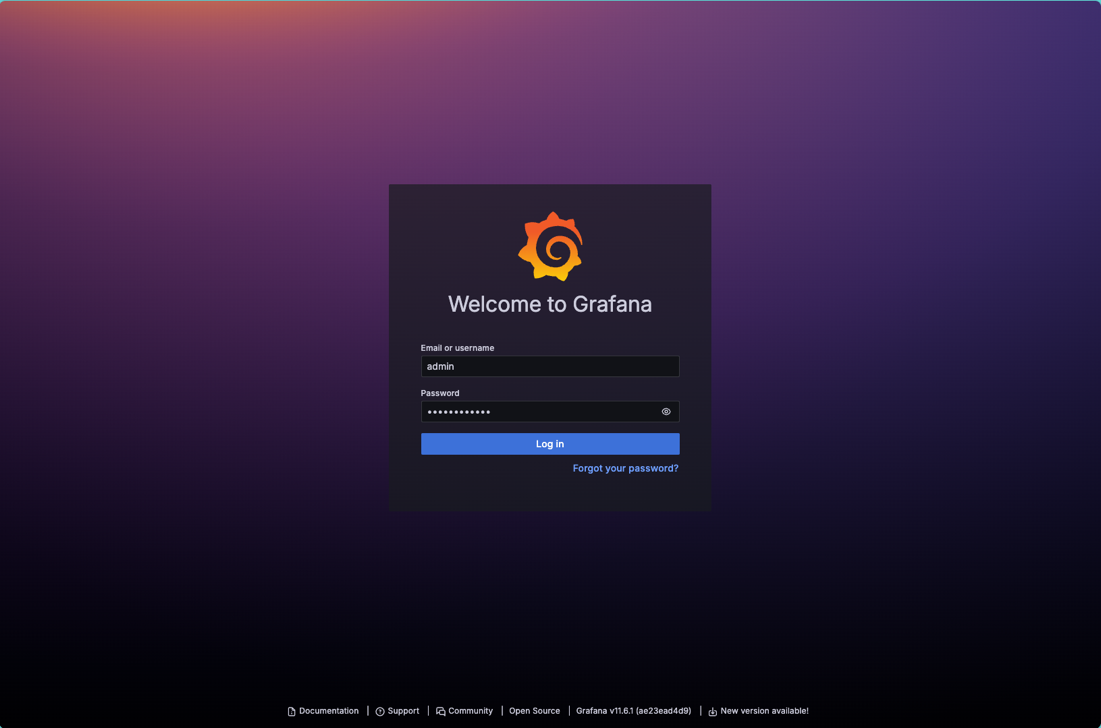
Once authenticated, click on Explore on the left.
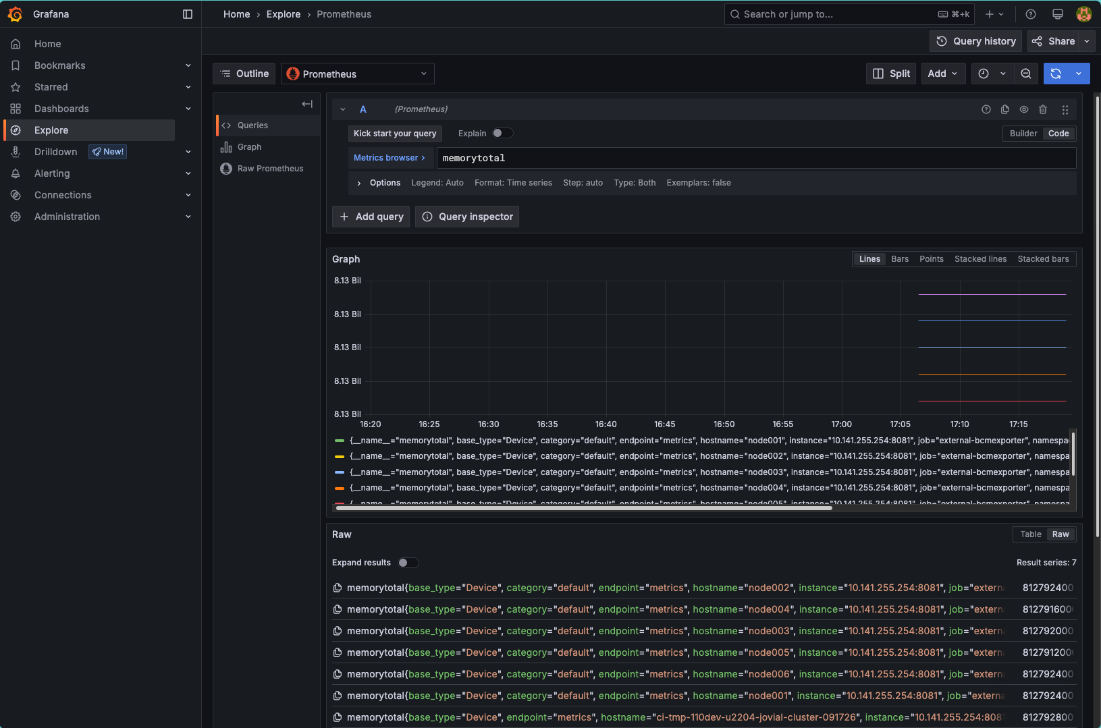
Once in the Explore interface, set the query editor to code and query the metric memorytotal.
BCM provides many metrics out of the box, a list of which can be found in Grafana by using the Metric browser selecting all metrics which include the label job with the value external-bcmexporter.
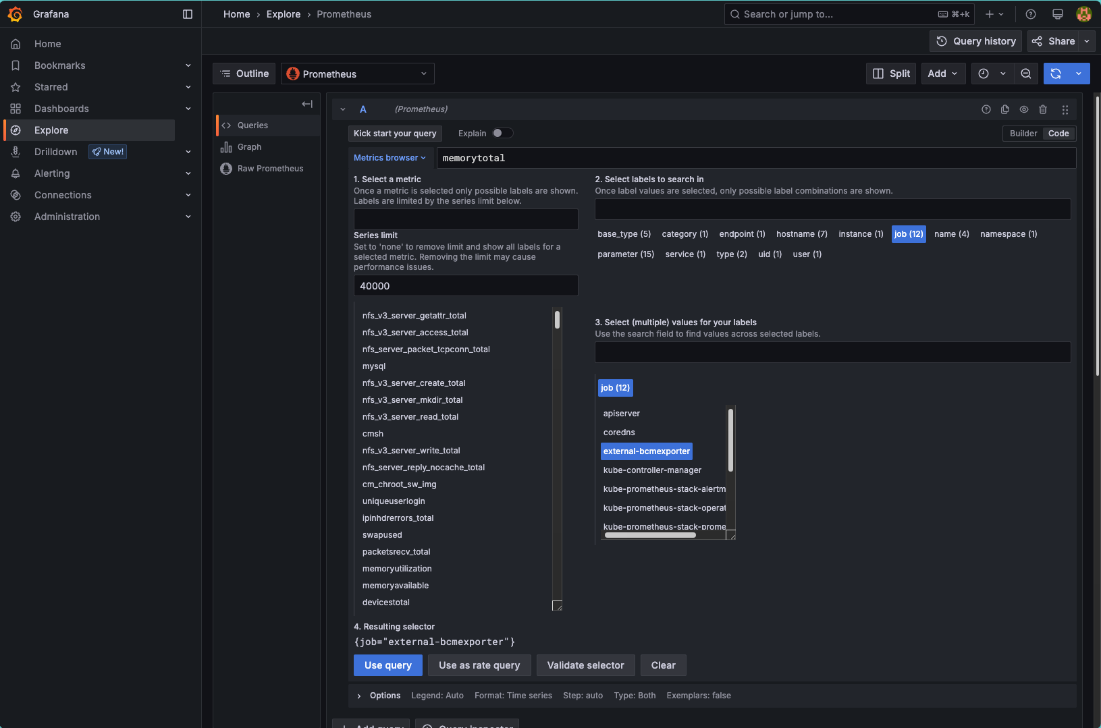
Available metrics from BCM can also be found by inspecting the output of the BCM Prometheus exporter endpoint.
The following CURL command will inspect the output of the BCM Prometheus exporter endpoint:
curl -sk https://localhost:8081/exporter | grep -Ev '# HELP|# TYPE' | cut -d '{' -f1 | sort -u

alertlevel
...
writetime_total
Forward Run:ai Metrics to the BCM Prometheus Exporter (Optional)#
Start a Kubernetes port-forward in a detached screen session:
screen -d -m kubectl -n runai port-forward sts/prometheus-runai 8888:9090
Note
The port-forward does not survive a BCM head node reboot, and nothing restarts it
automatically. Metric forwarding stops until you run the preceding command again.
Terminating the screen session has the same effect.
Add a Prometheus metric forwarder in BCM that reads metrics from the Run:ai Prometheus federation pod:
cmsh
partition use base
prometheusmetricforwarders
add runai
set urls http://localhost:8888/federate?match%5B%5D=%7B__name__%3D~%22runai_.*%22%7D
set method get
commit
Validate that the metrics are exported, using curl. The label set is abbreviated in the
following example:
curl -sk https://localhost:8081/exporter | grep '^runai_' | head -n2
runai_action_scheduling_latency_milliseconds{action="stalegangeviction",job="external-bcmexporter",namespace="prometheus",...} 0 1789483922392
runai_action_scheduling_latency_milliseconds{action="preempt",job="external-bcmexporter",namespace="prometheus",...} 0 1789483862392
Download the NVIS Run:ai dashboard:
wget https://support2.brightcomputing.com/nmc-obs-dashboards/nvis-runai-intelligence.json
Import the downloaded dashboard into Grafana:
Select Dashboards in the left panel.
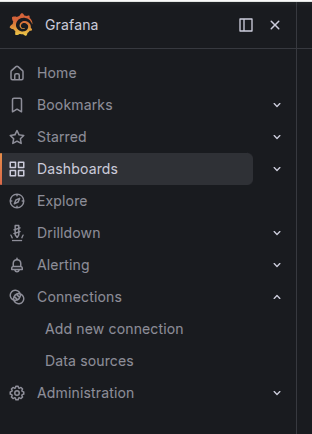
Select the New drop-down menu in the upper-right corner.
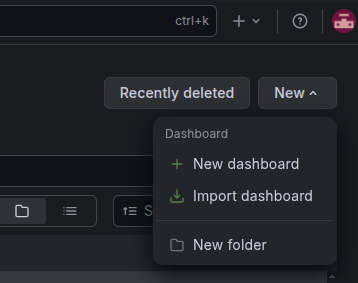
Select Import dashboard from the drop-down list.
Select Upload dashboard JSON file.
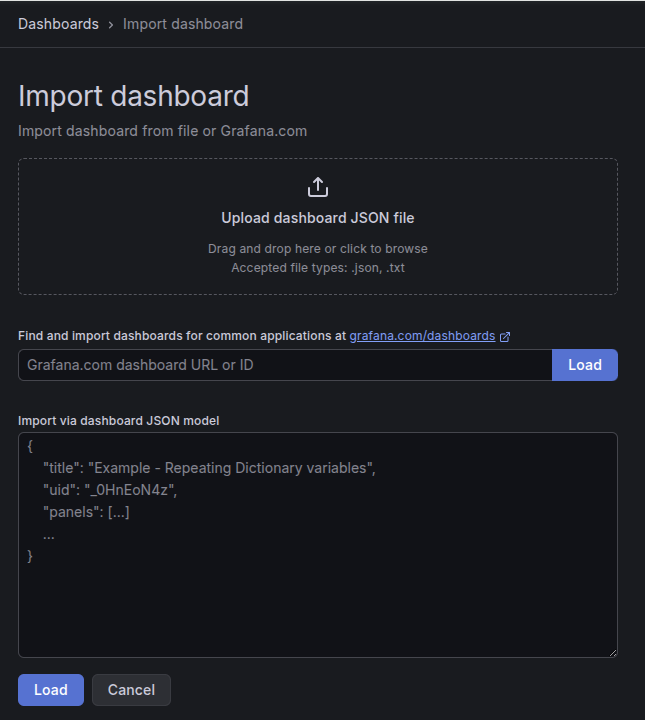
Select the downloaded JSON file in the pop-up window.

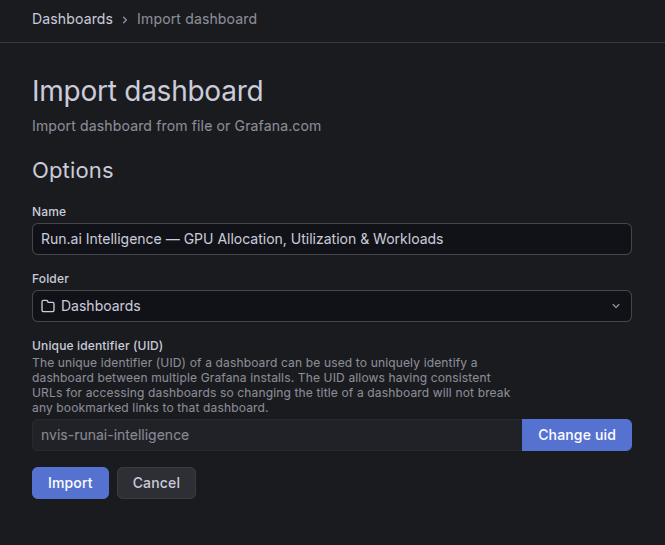
Select a folder for the dashboard, if needed, and then select Import.
Install NMC Grafana dashboards#
NVIDIA Mission Control provides a set of Grafana dashboards that consolidate monitoring data across the cluster. These dashboards help you track ongoing operations and troubleshoot issues. They serve as a starting point for visualizing infrastructure telemetry. Modify or extend them based on your facility’s capabilities.
Prerequisites#
Before installing the dashboards, configure rack metadata in BCM. Then install and configure the Infinity data source to process data from the BCM REST API and UFM REST API.
The NMC Grafana dashboards filter BCM metrics by rack using built-in queries and variables. If nodes are not assigned to racks in BCM, rack-scoped panels may display no data even when Prometheus is scraping metrics successfully.
Note
This procedure installs the Infinity plugin by listing it under grafana.plugins,
which downloads the plugin from the internet. It is therefore for internet-connected
installations only. For air-gapped deployments, install the plugin from the local
registry instead by following Install NMC Grafana dashboards.
Create the rack objects in BCM, using values that match your deployment:
cmsh -c "rack; add <rack-name>; set height <rack-height>; set x-coordinate <x-coordinate>; set y-coordinate <y-coordinate>; commit"Assign each node to its rack and rack unit. Run this command once for each node:
cmsh -c "device; use <node-name>; set rack <rack-name>; rackposition; deviceposition <rack-unit>; deviceheight <node-height>; commit"Confirm that BCM reports the rack for each node:
cmsh -c "device; use <node-name>; get rack"Create a user to access the BCM REST API. Create user apiuser with a unique password of your choosing (do not reuse a shared or previously published value) with a read-only BCM profile:
cmsh -c "user; add apiuser; set password <your-bcm-api-password>; set profile readonly; commit"Create a new file with the following values, substituting the BCM password you set above and your UFM REST API credentials. Keep each Infinity datasource’s allowed host scoped to its own API path:
cat << EOF > grafana_infinity.yaml
grafana:
  enabled: true
  plugins:
    - yesoreyeram-infinity-datasource
  additionalDataSources:
    - name: BCM API
      type: yesoreyeram-infinity-datasource
      access: proxy
      isDefault: false
      basicAuth: true
      basicAuthUser: apiuser
      jsonData:
        auth_method: 'basicAuth'
        allowedHosts:
          - https://master:8081/rest/v1/
        tlsSkipVerify: true
        timeoutInSeconds: 60
      secureJsonData:
        basicAuthPassword: <your-bcm-api-password>
    - name: UFM API
      type: yesoreyeram-infinity-datasource
      access: proxy
      isDefault: false
      basicAuth: true
      basicAuthUser: <your-ufm-api-user>
      jsonData:
        auth_method: 'basicAuth'
        allowedHosts:
          - https://master:11443/ufmRest/
        tlsSkipVerify: true
        timeoutInSeconds: 60
      secureJsonData:
        basicAuthPassword: <your-ufm-api-password>
EOF
Run the following command to apply the values
helm upgrade kube-prometheus-stack prometheus-community/kube-prometheus-stack \
  -n prometheus -f grafana_infinity.yaml --reuse-values --version 87.18.0
To access the UFM REST API, install a port-forwarding rule in BCM. Gather the UFM appliance IP address and substitute it in the following command sequence:
cmsh
partition use base
ufmsettings
set -e forward 443:11443
commit
Add the Loki Data Source#
The Kubernetes installation wizard deploys Loki but does not register it as a Grafana data source. NVIDIA Mission Control dashboards that display service logs, such as [Heimdall] Job Manager, resolve their log panels through a Loki data source. Without it, those panels are empty even though Loki is receiving logs.
Add the following entry to the
additionalDataSourceslist ingrafana_infinity.yaml:- name: Loki type: loki uid: loki url: http://loki-gateway.loki.svc.cluster.local:80 access: proxy isDefault: false
Apply the updated values:
helm upgrade kube-prometheus-stack prometheus-community/kube-prometheus-stack \
  -n prometheus -f grafana_infinity.yaml --reuse-values --version 87.18.0
In Grafana, select Connections > Data sources, select Loki, and confirm that the connection test succeeds.
Download#
The dashboards are packaged as a Helm chart (.tgz file). Download the package appropriate to the customer account type:
OEMs must have an NVOnline account with Site Access. Contact the NVIDIA account team to set up an account if needed.
Via NVIDIA Partners Portal - Content ID: 1151785
DGX Customers must be onboarded to NGC with entitlement to access the NMC collection to download the Helm chart directly.:
helm fetch "https://helm.ngc.nvidia.com/nvidia/nv-mission-control/charts/nmc-grafana-dashboards-27.3.8.tgz" \
  --username='$oauthtoken' \
  --password="$NGC_API_KEY"
Installation#
Upload the dashboard chart (
.tgzfile) to the BCM head node. Run the following commands from the directory that contains the chart.Enable dashboard folders in Grafana.
helm upgrade -n prometheus kube-prometheus-stack prometheus-community/kube-prometheus-stack \
  --reuse-values --version 87.18.0 \
  --set grafana.sidecar.dashboards.enabled=true \
  --set grafana.sidecar.dashboards.provider.foldersFromFilesStructure=true
Extract the chart, keep only the dashboards for this platform, and install the repackaged chart. Update the input filename if needed.
tar -xzvf nmc-grafana-dashboards-27.3.8.tgz -C /tmp/
find /tmp/nmc-grafana-dashboards/dashboards -mindepth 1 -maxdepth 1 -type d ! -name 'b200' -exec rm -rf -- {} +
tar -czvf /tmp/nmc-grafana-dashboards.tar.gz -C /tmp/ nmc-grafana-dashboards
helm upgrade --install -n prometheus nmc-dashboards /tmp/nmc-grafana-dashboards.tar.gz --set dgx_system=b200
Extract the chart, keep only the dashboards for this platform, and install the repackaged chart. Update the input filename if needed.
tar -xzvf nmc-grafana-dashboards-27.3.8.tgz -C /tmp/
find /tmp/nmc-grafana-dashboards/dashboards -mindepth 1 -maxdepth 1 -type d ! -name 'gb200' -exec rm -rf -- {} +
tar -czvf /tmp/nmc-grafana-dashboards.tar.gz -C /tmp/ nmc-grafana-dashboards
helm upgrade --install -n prometheus nmc-dashboards /tmp/nmc-grafana-dashboards.tar.gz --set dgx_system=gb200
Extract the chart, keep only the dashboards for this platform, and install the repackaged chart. Update the input filename if needed.
tar -xzvf nmc-grafana-dashboards-27.3.8.tgz -C /tmp/
find /tmp/nmc-grafana-dashboards/dashboards -mindepth 1 -maxdepth 1 -type d ! -name 'b300' -exec rm -rf -- {} +
tar -czvf /tmp/nmc-grafana-dashboards.tar.gz -C /tmp/ nmc-grafana-dashboards
helm upgrade --install -n prometheus nmc-dashboards /tmp/nmc-grafana-dashboards.tar.gz --set dgx_system=b300
Extract the chart, keep only the dashboards for this platform, and install the repackaged chart. Update the input filename if needed.
tar -xzvf nmc-grafana-dashboards-27.3.8.tgz -C /tmp/
find /tmp/nmc-grafana-dashboards/dashboards -mindepth 1 -maxdepth 1 -type d ! -name 'gb300' -exec rm -rf -- {} +
tar -czvf /tmp/nmc-grafana-dashboards.tar.gz -C /tmp/ nmc-grafana-dashboards
helm upgrade --install -n prometheus nmc-dashboards /tmp/nmc-grafana-dashboards.tar.gz --set dgx_system=gb300
Extract the chart, keep only the dashboards for this platform, and install the repackaged chart. Update the input filename if needed.
tar -xzvf nmc-grafana-dashboards-27.3.8.tgz -C /tmp/
find /tmp/nmc-grafana-dashboards/dashboards -mindepth 1 -maxdepth 1 -type d ! -name 'vrnvl72' -exec rm -rf -- {} +
tar -czvf /tmp/nmc-grafana-dashboards.tar.gz -C /tmp/ nmc-grafana-dashboards
helm upgrade --install -n prometheus nmc-dashboards /tmp/nmc-grafana-dashboards.tar.gz --set dgx_system=vrnvl72
Accessing dashboards#
In a browser, open:
https://<headnode>/grafanaLogin using default credentials
Navigate to Dashboards in the Grafana UI.
Deployed dashboards will be denoted with a number, for example:
01. SuperPOD Overall Dashboard
Customization and BMS integration#
The dashboards included in this Helm chart are provided as examples. They are fully functional out of the box but are intended to be customized to match the customer’s specific cluster environment.
One dashboard, BMS View of Cluster, is configured to use NVIDIA Cronus as the Building Management System (BMS) data source. It displays power, liquid cooling, environmental, and other facility-level metrics.
Most customers will need to:
Integrate their own BMS with NVIDIA BCM.
Update the dashboard’s data source and queries to reflect their own BMS setup.
These dashboards serve as a starting point for visualizing infrastructure telemetry. The customer is encouraged to modify or extend them based on the facility’s capabilities and telemetry available. In some dashboards we show what filtering by rack can look like, but you might need to customize the filters to fit your situation.
Adapt Dashboards to Non-DGX Systems#
The bundled dashboards assume DGX naming conventions. Some PromQL queries match literal strings such as DGX GB200 Compute Tray and the GB300 and VR200 equivalents, and the DCGM scrape procedure assumes a BCM node category named dgx-gb200. On OEM and other non-DGX GB200, GB300, and VR200 systems, these strings differ, so panels return no data even when Prometheus scrapes successfully. Treat an empty panel as a configuration gap, not as a healthy system.
To adapt the dashboards to your environment, complete the following steps:
Confirm your BCM category name. The procedures on this page use
dgx-gb200as an example. List your categories, and substitute your category name in every command that referencesdgx-gb200, including the image update, thepdshservice restart, and the address list indcgm_prom_endpoint.yaml:cmsh -c "category; list"Assign rack metadata to every node. The dashboards filter BCM metrics by rack through built-in variables, so rack-scoped panels display no data until each node has a rack assignment. If you skipped this configuration, create the rack objects and set the rack and rack position of each node as described in steps 1 through 3 of Prerequisites.
Normalize platform-specific strings at scrape time. In
bcm_prom_svcmon.yaml, add ametricRelabelingsblock to the endpoint. The block maps the system-name or part-number string of your platform onto a canonical label that the dashboards can query. The following example maps every system name that containsCompute Traytocomponent_type="compute_tray":endpoints: - port: metrics interval: 30s path: /exporter scheme: https tlsConfig: insecureSkipVerify: true metricRelabelings: - sourceLabels: [system_name] regex: '.*Compute Tray.*' targetLabel: component_type replacement: compute_tray
Set
sourceLabelsto the label that your exporter emits. The available labels depend on thePrometheusLabelInclude*settings that you enabled in Enable Prometheus scrape endpoint in BCM.Update the remaining dashboard queries. Export the dashboard JSON from Grafana, and search it for
DGX,Compute Tray,GB200,GB300, andVR200. Replace each literal match with the canonical label from step 3 or with a dashboard variable. Also review template variable definitions, legend formats, value mappings, and any alert rules that reuse the same expressions.
Reduce BCM monitoring directory size#
BCM maintains an internal monitoring directory used for rendering data in BaseView. In larger clusters, this directory can grow significantly over time. On the BCM head node, use the following script to check current usage:
/cm/local/apps/cmd/scripts/monitoring/cm-monitoring-disk-usage.py
Once the observability stack configured in this section is collecting data, you can reduce the metrics storage requirements from BCM and depend on the data retention of Prometheus and Loki to store the cluster historical data. The following steps reduce the maximal monitoring directory size by disabling consolidators and setting appropriate sample limits for data producers.
On the BCM head node, open
cmshand navigate to the monitoring setup context:[bcm-headnode-01]% monitoring [bcm-headnode-01->monitoring]% setup [bcm-headnode-01->monitoring->setup]%
Disable consolidators for all monitoring data producers:
[bcm-headnode-01->monitoring->setup]% foreach * (set consolidator none)
[bcm-headnode-01->monitoring->setup*]% commit
Configure the JobSampler to use
brightsampling (rather thanBoth) and limit the maximum number of retained samples:[bcm-headnode-01->monitoring->setup]% use jobsampler [bcm-headnode-01->monitoring->setup[JobSampler]]% set maximalsamples 1024 [bcm-headnode-01->monitoring->setup*[JobSampler*]]% jobmetricsettings [bcm-headnode-01->monitoring->setup*[JobSampler*]->jobmetricsettings]% set samplingtype bright [bcm-headnode-01->monitoring->setup*[JobSampler*]->jobmetricsettings*]% commit
Set
maximalsamplesto 1024 for all data producers:[bcm-headnode-01->monitoring->setup]% foreach * (set maximalsamples 1024) [bcm-headnode-01->monitoring->setup*]% commit
Disable monitoring backups:
[bcm-headnode-01->monitoring->setup]% device
[bcm-headnode-01->device]% foreach -t headnode (roles; use backup; set disabled yes)
[bcm-headnode-01->device]% commit
Verify the results:
/cm/local/apps/cmd/scripts/monitoring/cm-monitoring-disk-usage.pyExpected output after applying these settings:
Number of used entities:      350724
Number of used measurables:   20485
Number of measurables:        20485
Number of data producers:     105
Number of consolidators:      2

Current monitoring directory: /var/spool/cmd/monitoring
Monitoring directory size:    68.671 GB
Maximal directory size:       88.002 GB
Note
For lower numbers, clear the existing monitoring data after running these steps. Refer to section 14.8.4 of the BCM Administration Guide.
Configure Grafana Single Sign-On with Keycloak#
Configure Grafana to delegate user authentication to the nmc Keycloak
realm. Before you begin, install Keycloak and the observability stack.
You need the following information and access:
Administrative access to Keycloak and Grafana.
The public Grafana hostname, represented as
<grafana-hostname>.The Keycloak hostname, represented as
<keycloak-hostname>.DNS records that let the Grafana pod resolve
<keycloak-hostname>.A trusted TLS certificate on each endpoint.
Configure the Grafana Public URL#
Grafana must advertise its public URL so that Keycloak can redirect users
after authentication. Create /tmp/grafana-sso.yaml with the following
content. Replace <grafana-hostname> with the hostname that users enter to
access Grafana.
grafana:
  grafana.ini:
    server:
      root_url: https://<grafana-hostname>/grafana/
      serve_from_sub_path: true
Apply the values file with the command for your deployment.
helm upgrade kube-prometheus-stack prometheus-community/kube-prometheus-stack \
  -n prometheus --reuse-values -f /tmp/grafana-sso.yaml --version 87.18.0 \
  --wait --timeout 5m
Use the unpacked chart from your air-gapped installation bundle. The
following example uses /tmp/airgapped/helm-charts; replace this path
if you extracted the bundle elsewhere.
helm upgrade kube-prometheus-stack /tmp/airgapped/helm-charts/kube-prometheus-stack \
  -n prometheus --reuse-values -f /tmp/grafana-sso.yaml \
  --wait --timeout 5m
Create the Keycloak Client#
Sign in to the Keycloak administration console.
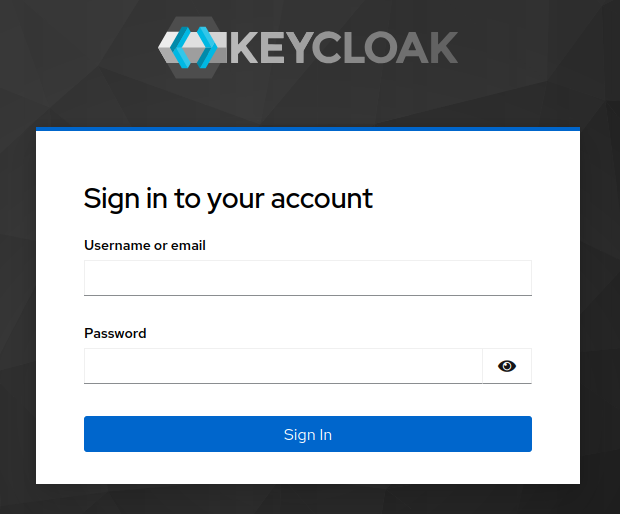
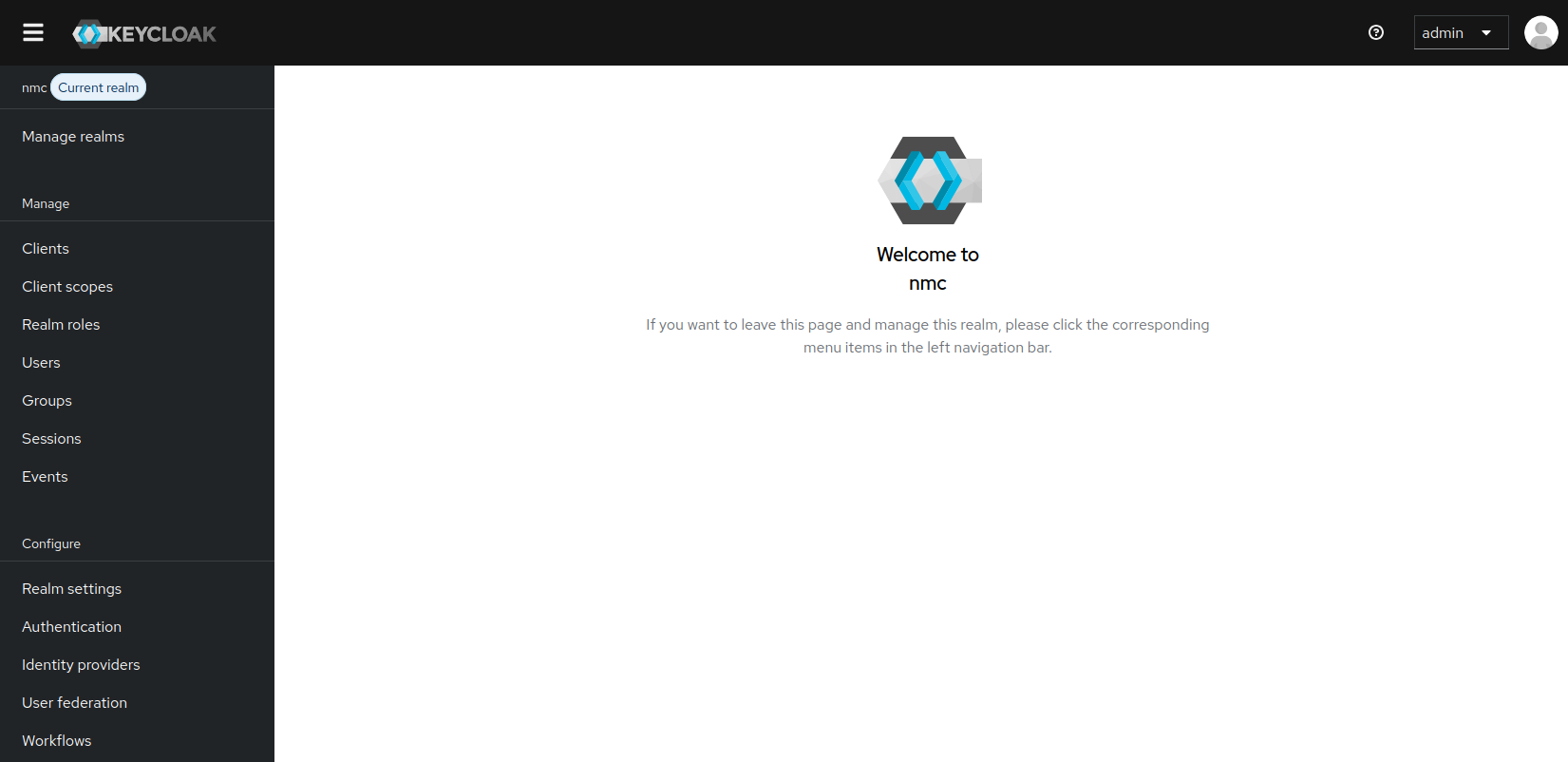
Select Manage realms, and then select the
nmcrealm.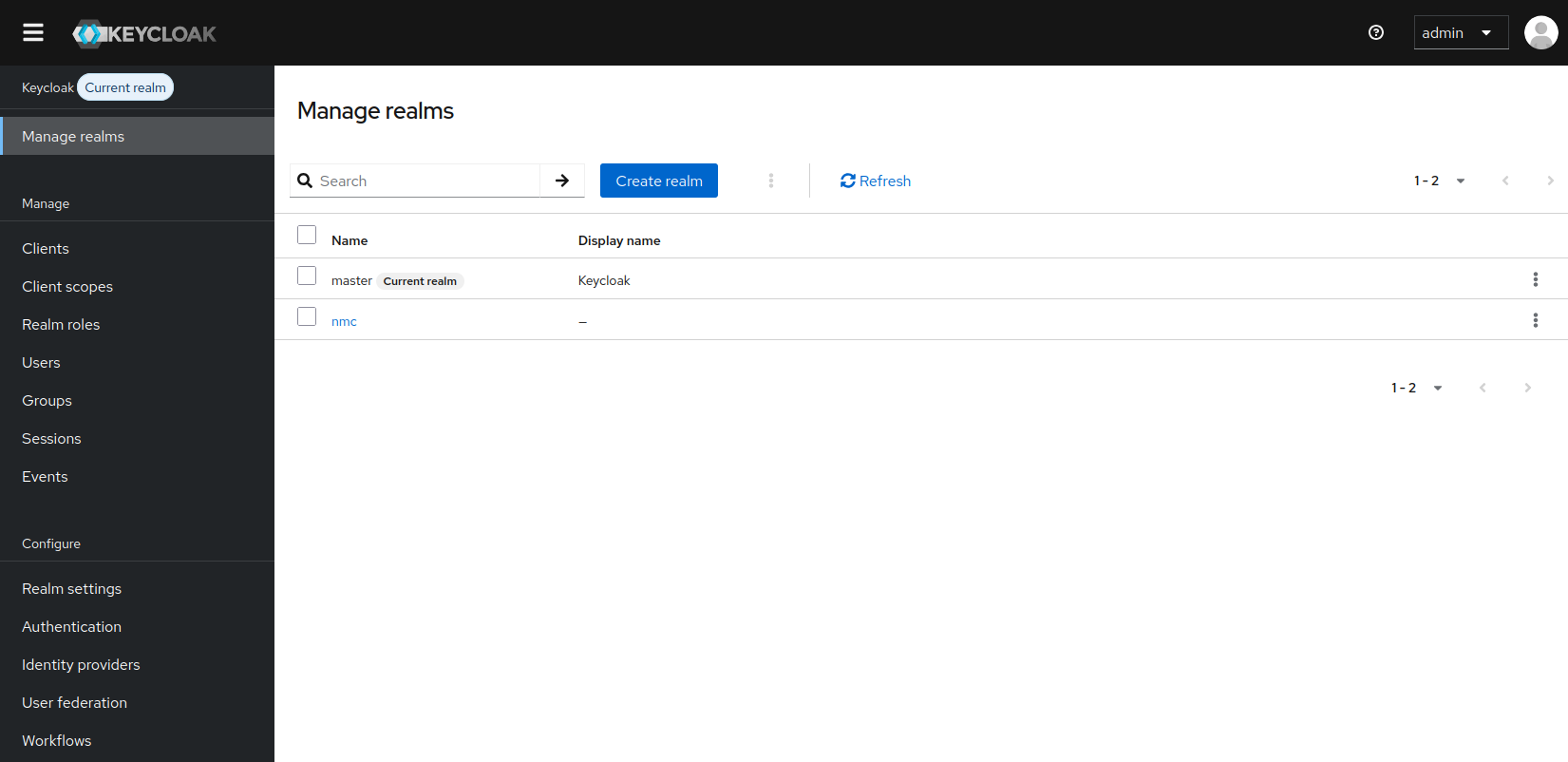
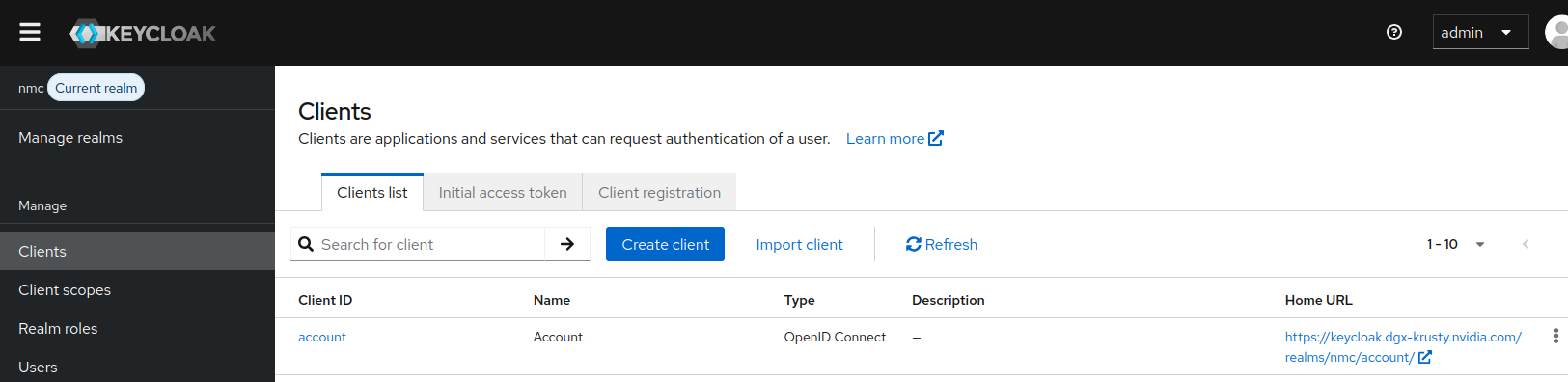
Select Clients > Create client.
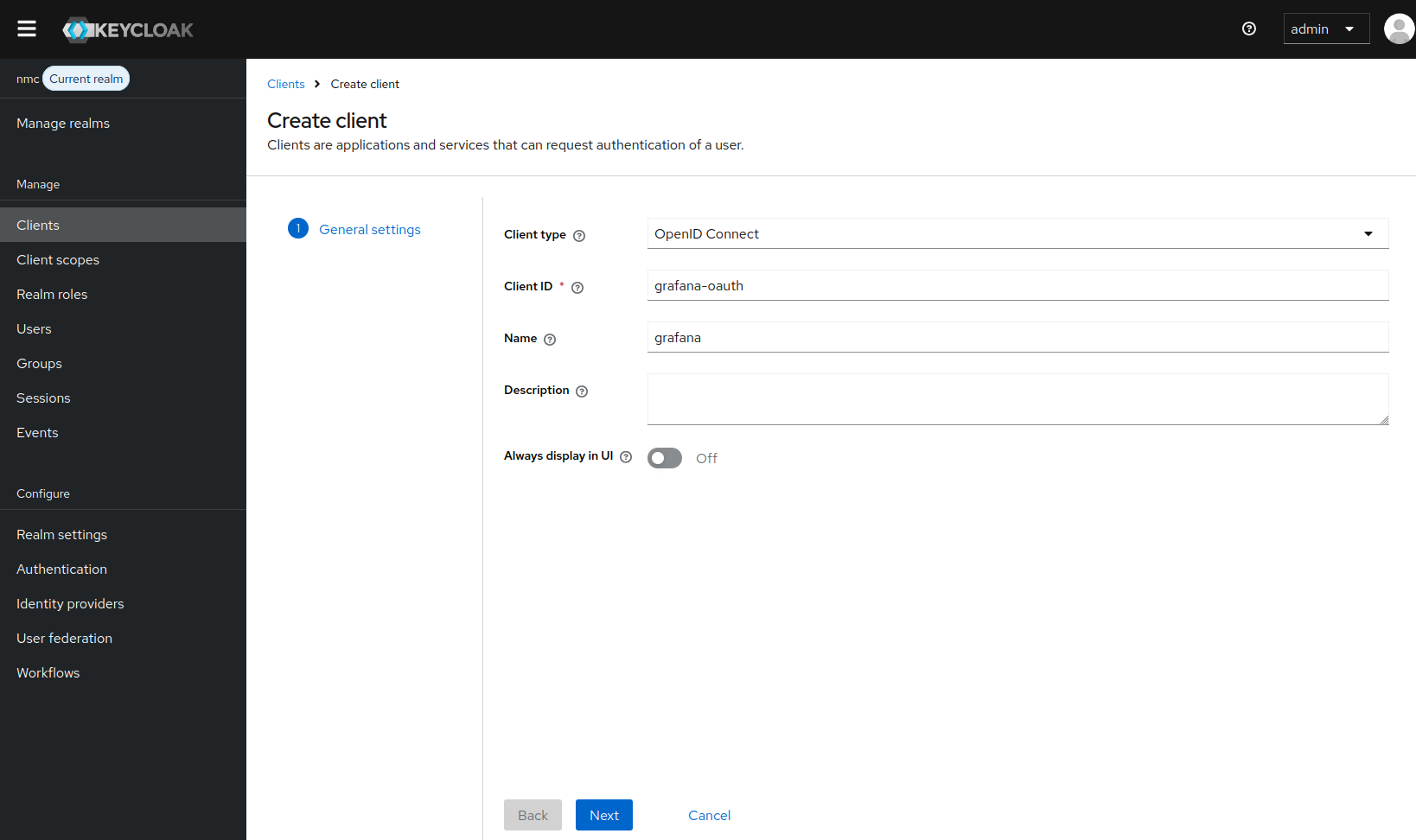
Enter the following values, and then select Next:
Client type:
OpenID ConnectClient ID:
grafana-oauthName:
Grafana
Enable Client authentication, select Standard flow, and clear Direct access grants. Leave the other authentication flows disabled, and then select Next.
Enter the following URLs, and then select Save:
Root URL:
https://<grafana-hostname>/grafana/Home URL:
https://<grafana-hostname>/grafana/Valid redirect URIs:
https://<grafana-hostname>/grafana/login/generic_oauthValid post logout redirect URIs:
https://<grafana-hostname>/grafana/Web origins:
https://<grafana-hostname>
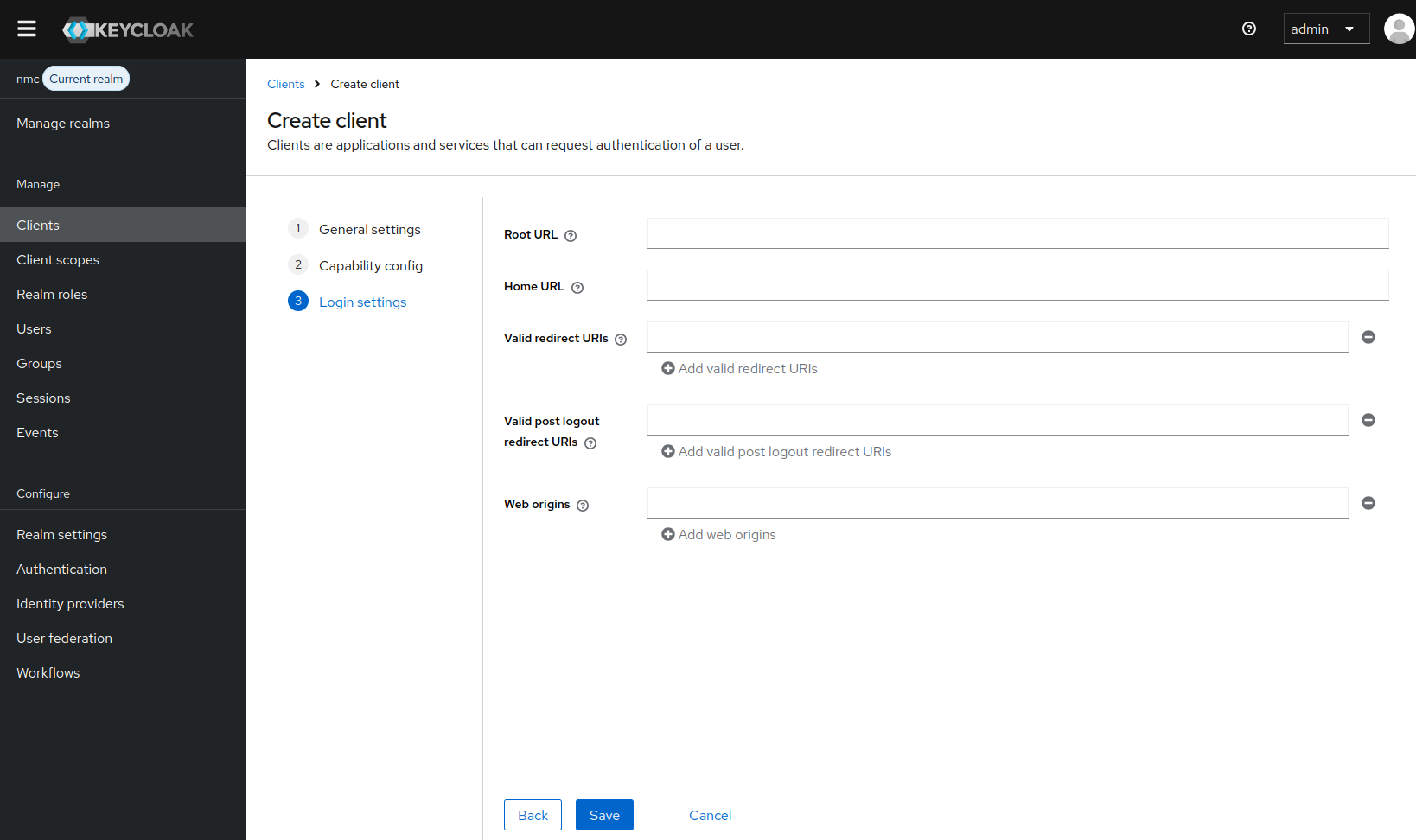
Open the Credentials tab and copy the value from Client secret. Store this value in an approved credential store.
Warning
Treat the client secret as a credential. Do not include it in logs, screenshots, documentation, or source control. If the secret is exposed, regenerate it in Keycloak before you continue.
Open the Client scopes tab and confirm that
email,profile, androleshave the Default assigned type.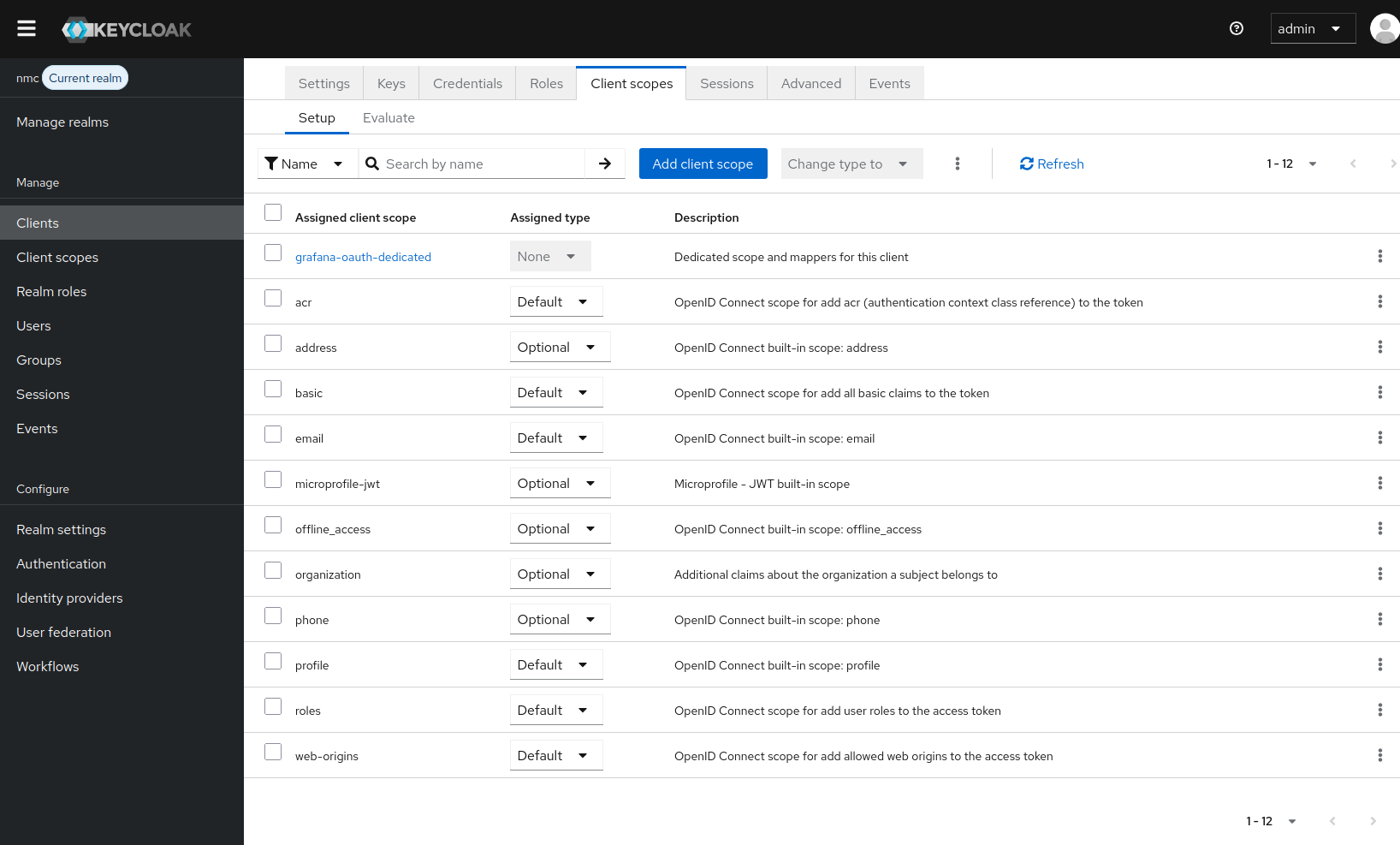
Enable Generic OAuth in Grafana#
Sign in to Grafana as an administrator.
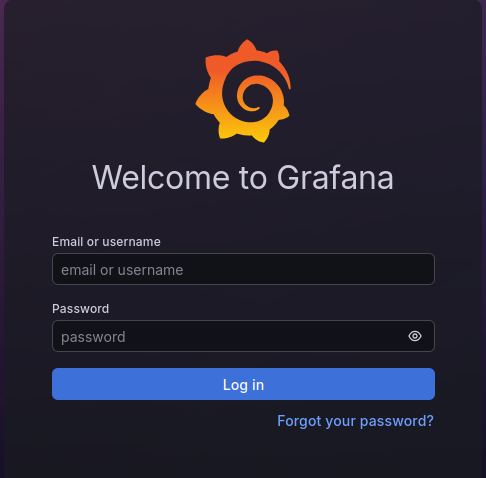
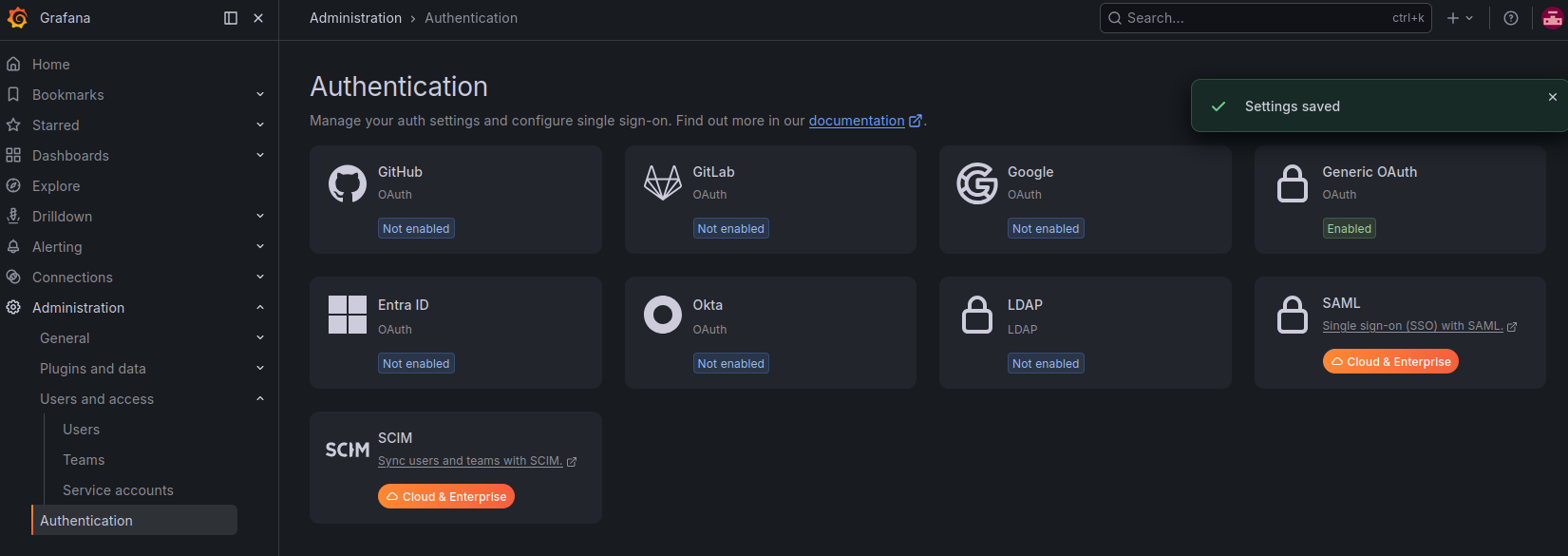
Select Administration > Authentication > Generic OAuth.
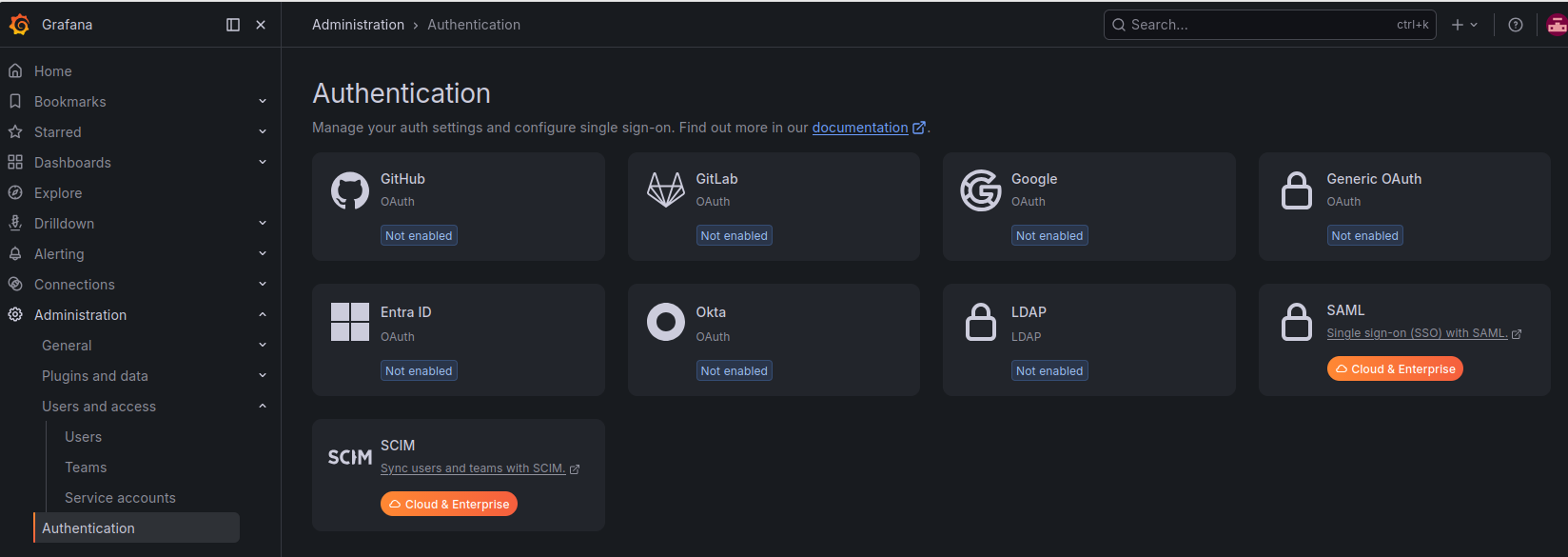
Enter the following values:
Table 4 Generic OAuth settings# Field
Value
Display name
OAuthClient ID
grafana-oauthClient secret
The secret that you copied from Keycloak
Scopes
openid profile emailAllow sign up
Enabled
Sign out redirect URL
https://<keycloak-hostname>/realms/nmc/protocol/openid-connect/logout?post_logout_redirect_uri=https%3A%2F%2F<grafana-hostname>%2Fgrafana%2F&client_id=grafana-oauthSelect Enter OpenID Connect Discovery URL, and then enter the following URL:
https://<keycloak-hostname>/realms/nmc/.well-known/openid-configurationGrafana uses the discovery document to populate the authorization, token, and user information endpoints.
Select Save and enable.
Warning
Do not enable TLS skip verify in a production deployment. Configure Grafana to trust the certificate authority that issued the Keycloak certificate. Use TLS skip verify only for temporary testing, because it disables certificate and hostname validation.
Verify Single Sign-On#
Open
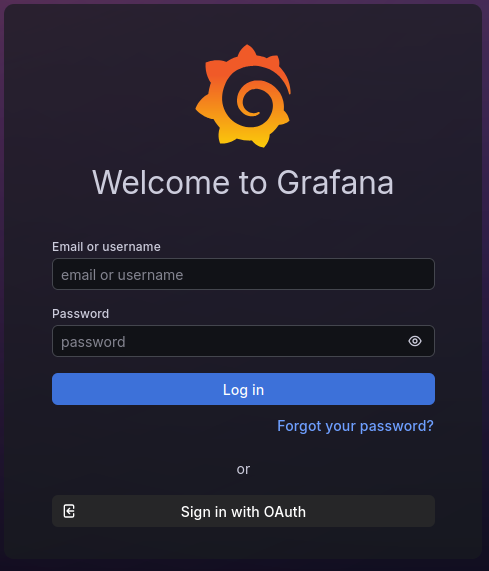
https://<grafana-hostname>/grafana/in a private browser window.Select Sign in with OAuth.
Sign in with an authorized user from the
nmcrealm.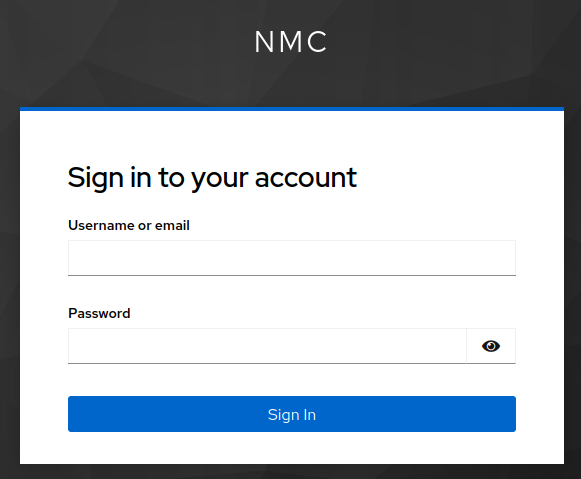
Note
Users must have an email address configured for Grafana generic OAuth/OIDC authentication. Without one, Grafana cannot retrieve the user information needed to complete sign-in.
Confirm that Grafana opens after Keycloak authenticates the user.