

Install GeForce Software with SDK Manager#
This section is intended to help you use the NVIDIA SDK Manager GUI to configure your development environment successfully.
System Prerequisites on Windows#
System Requirements#
Component |
Requirement |
Installation Method |
|---|---|---|
Operating System |
Windows 10 20H1 (version 2004 - 10.0.22621.0 or newer) |
Pre-installed / Manual |
GPU |
DirectX® Raytracing 1.1 API or higher DXR-Capable GPU |
Hardware |
Graphics Driver |
508.88 or newer |
Manual installation required |
Visual Studio |
2022 or newer |
Manual installation required |
NVIDIA Graphics Driver Installation#
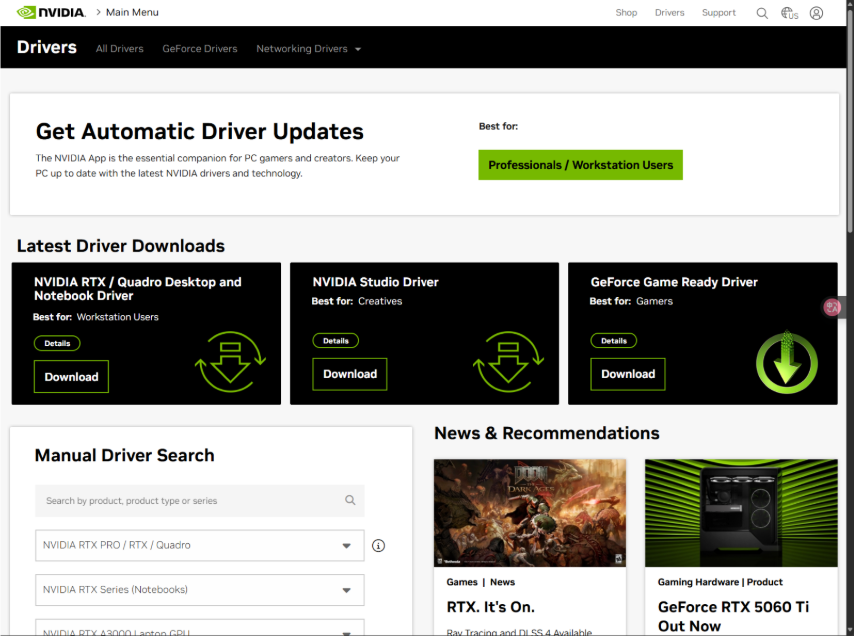
Install NVIDIA driver 580.88 or newer from NVIDIA Drivers.
There are three NVIDIA driver installation options:
Automatic Driver Updates – Let the system find and install the latest compatible driver.
Latest Driver Downloads – Manually select the most recent driver for your specific GPU model.
Manual Driver Search – Browse and choose from previous driver versions.
Select your preferred installation method to proceed.
Visual Studio Installation#
Go to the Visual Studio IDE page and download, then install Visual Studio 2022 or newer.
STEP 01: Set Up the Development Environment#
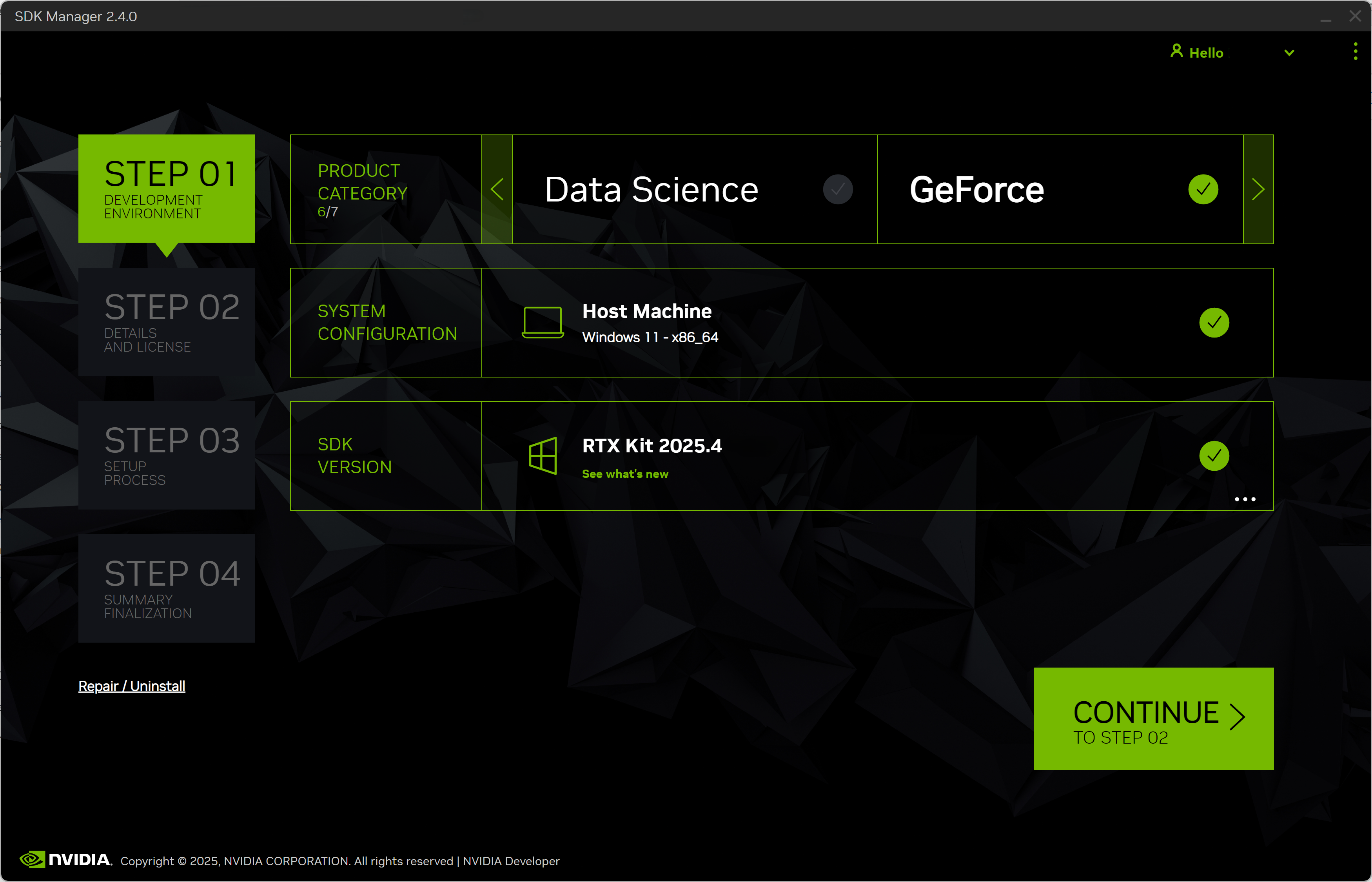
From the STEP 01 Development Environment window, select the following:
From the Product Category panel, select GeForece.
From the SDK Version panel, select the ARC-OTA software version.
An ellipsis (…) in the bottom right corner of a category box indicates that more than one option is available. Click on the ellipsis to show a drop-down menu of available options.
Note
Your display may differ from the one shown here. The information in this screen is populated from your NVIDIA user account access and permissions. If you don’t see your product category in the available selections, verify that your NVIDIA account is registered to the required programs.
Click Continue to proceed to the next step.
STEP 02: Review Components and Accept Licenses#
From STEP 02 Details and License, you can expand the host components and target components panels to review the components that will be installed on your system.
To review the licenses, click on the license agreements hyperlink at the bottom of the page.
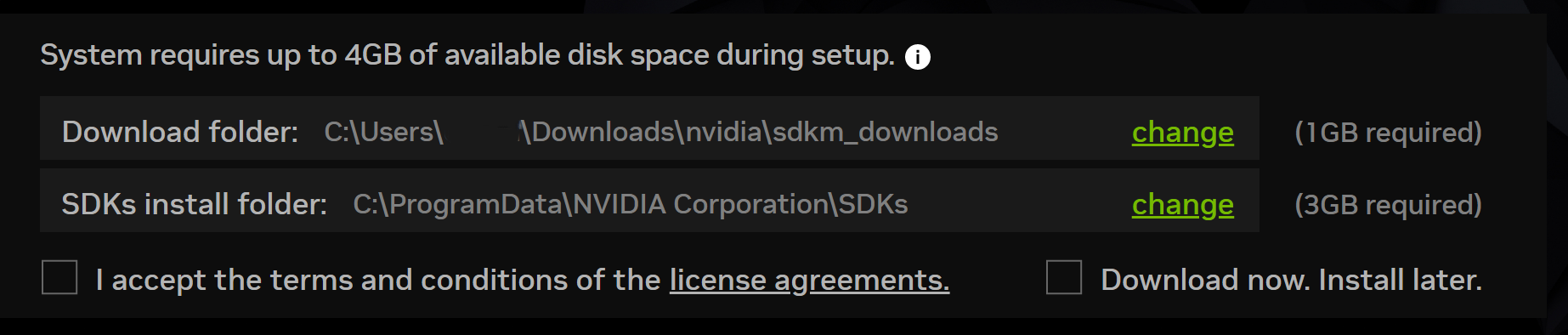
Enable the checkbox to accept the terms and conditions of the license agreements.
If you want SDK Manager to download all setup files to a location other than the default path, go to the Download folder located at the bottom of the screen, then update the path you want to use.
For more information about the Download & Install folders, refer to Offline Install.
Select Continue to proceed to the next step.
STEP 03: Installation#
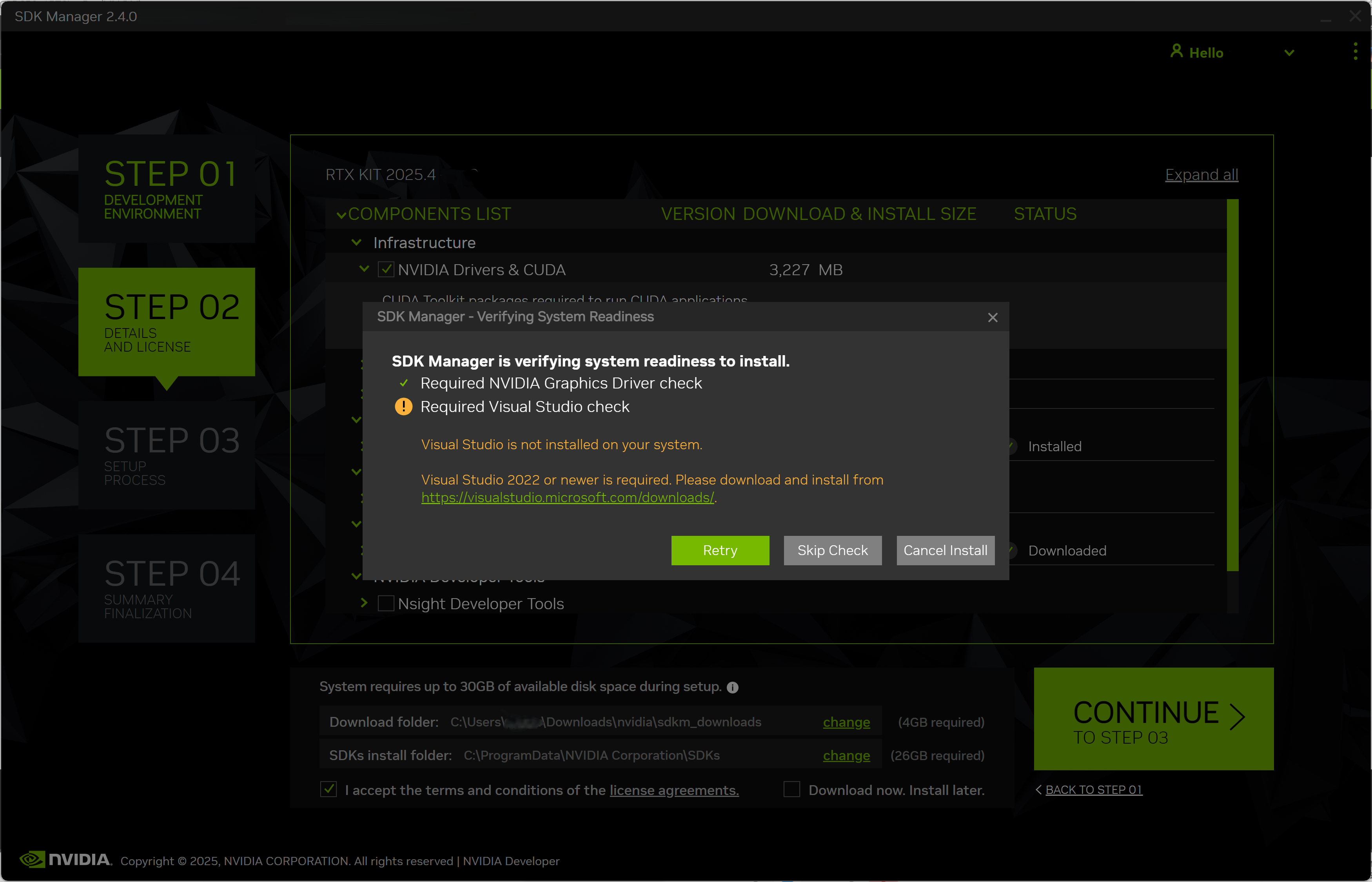
SDK Manaager checks your GPU driver and Visual Studio readiness before the installation begins. If it doesn’t meet GPU driver and Visual Studio requirements, a dialog appears with instructions to resolve this issue.
Refer to NVIDIA Graphics Driver Installation to install the driver.
Refer to Visual Studio Installation to install Visual Studio.
After completion, click Retry to rerun the check.
Note
Skipping the NVIDIA graphics driver or Visual Studio check may allow installation to complete, but it will cause runtime failures in applications that depend on the GPU or Visual Studio.
The display shows the progress of the download and installation of the software.
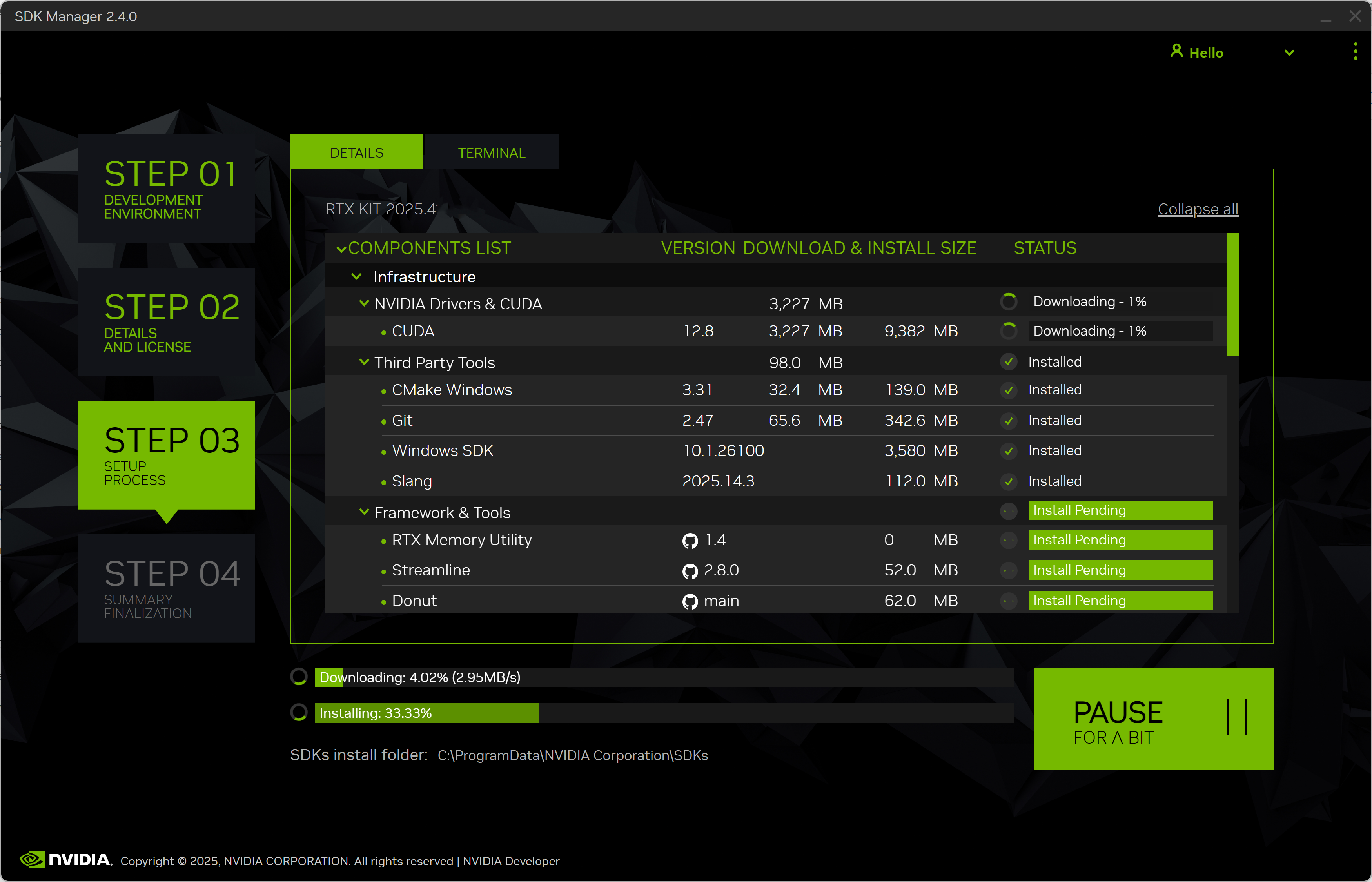
Select Pause / Resume to toggle the download and installation process.
At the top, you can toggle between the Details and Terminal tabs. The Terminal tab displays detailed information about the download and installation, with any errors highlighted.
On the Terminal tab, you can use the Filter text field to filter and search for specific information.
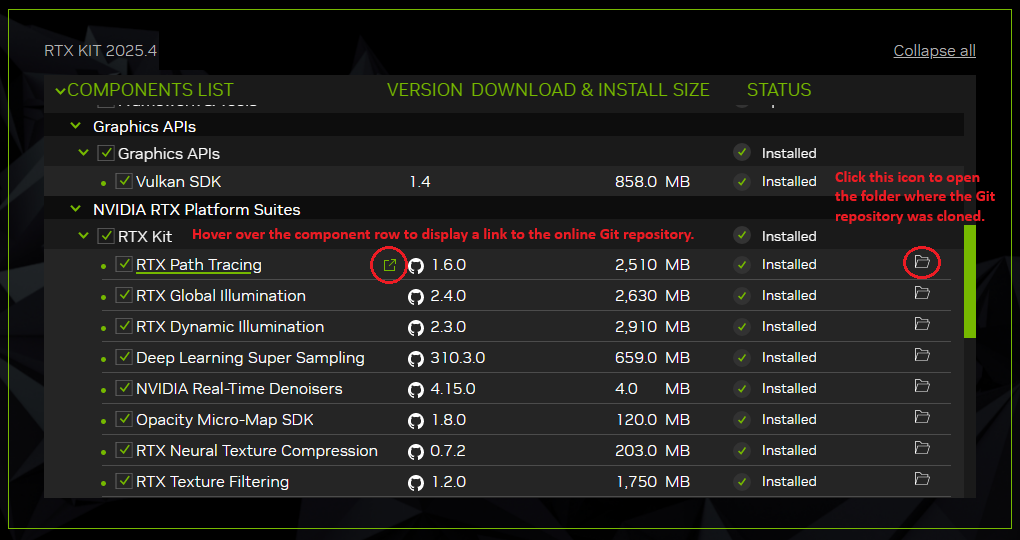
For a Git repo component, hovering over the component row in the UI displays a link to the online Git repository. After the repository is cloned, a folder icon appears at the end of the same row, indicating the local clone location.
STEP 04: Finalize Setup#
From STEP 04 Summary Finalization, there is a summary of the components that were installed, along with any warnings or errors that were encountered.
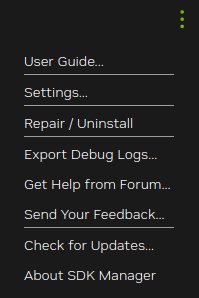
The Export Debug Logs link creates a ZIP file of all log files created during installation. This ZIP file is located in the same folder path where the SDK Manager installer downloaded all components.
Alternatively, click the menu icon in the top right corner of the window (”⋮”), and choose Export Debug Logs from the drop-down menu in the top-right corner.
Consult the Error Messages for information about any errors you may encounter.
Click Finish and Exit to complete the installation.
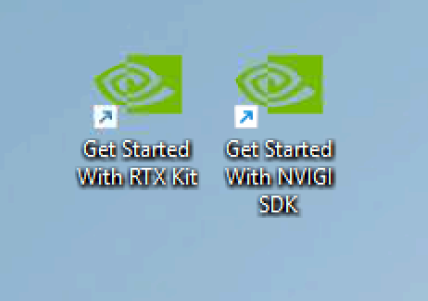
After installation, if you select the “Get Started with RTX Kit” group, two desktop shortcuts are created for RTX Kit and NVIGI SDK; selecting either shortcut opens your default browser with a “Get Started” guide for the corresponding SDK.
Repair and Uninstall#
To update or uninstall an SDK on your system, launch SDK Manager again.
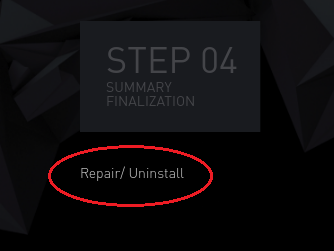
On Step 1, under the installation step numbers, click the Repair/Uninstall hyperlink.
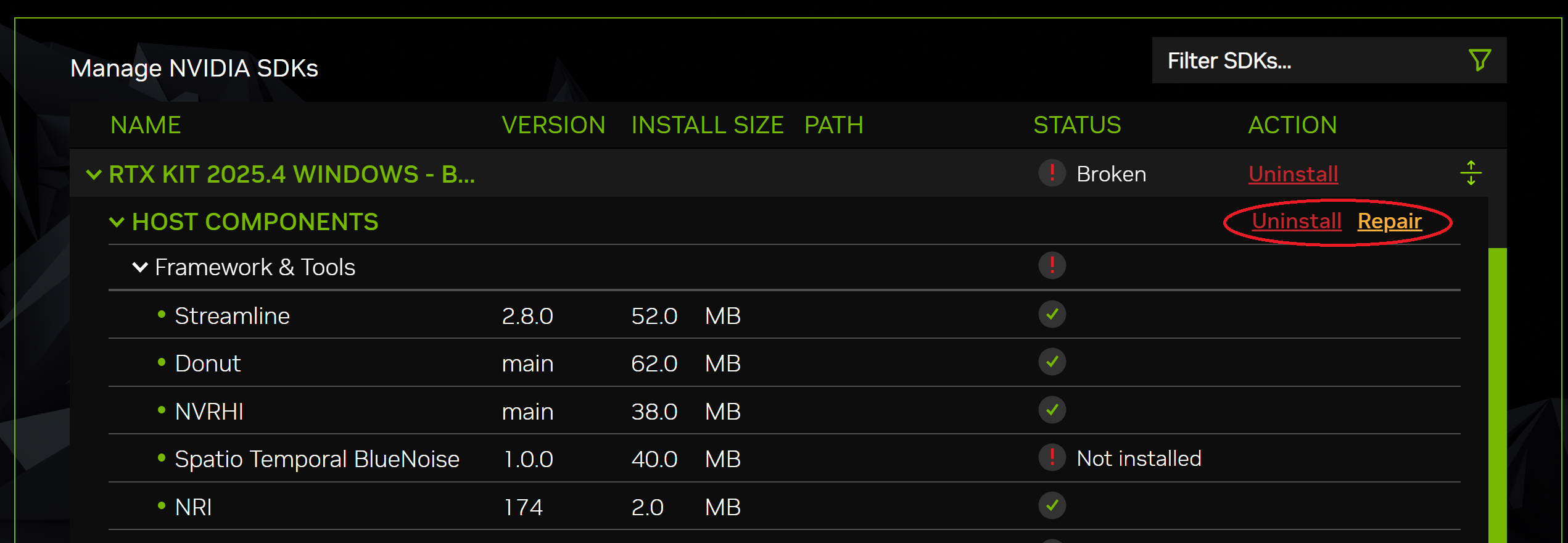
The Manage NVIDIA SDKs screen shows what has been installed on your system. You can select whether to repair a broken installation, update an existing SDK, or uninstall an SDK.
Recommended Recovery Steps#
There are many causes of various installation errors. Below is a checklist of common installation issues, which may help you recover from a broken installation.
Review the summary table to identify which component failed.
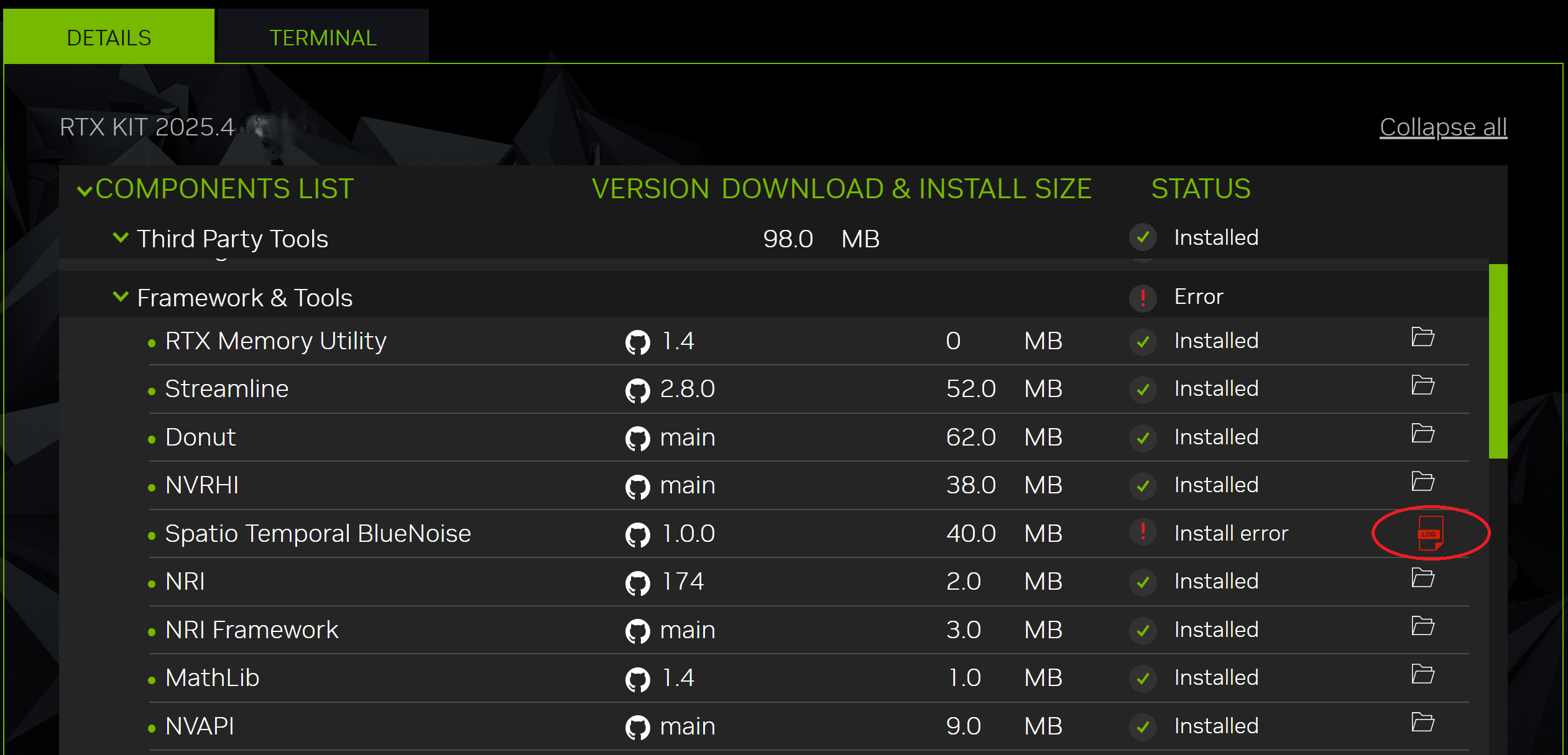
Expand the group with the “Error” status.
When you find the failed component, click the details icon to the right of Install Error to be redirected to the Terminal tab, which will display the exact error.
If the error is related to an environmental issue, such as a broken apt repository or missing prerequisite, try to fix it manually, then click the Retry Failed Items button.

Retrying the installation is also available in two other ways:
From STEP 01, use the Repair/Uninstall button to get to the Manage NVIDIA SDKs page. If needed, expand the SDK with the “Broken” status, then click Repair for the relevant part (Host or Target).
At STEP 01, select the required SDK and run through the installation again.
Finally, try to uninstall and reinstall the relevant SDK.