

Real-Time VLM Microservice#
Overview#
The Real-Time VLM Server is a FastAPI-based REST API service that provides real-time video understanding capabilities using Vision Language Models (VLM). It enables users to generate captions, process live video streams, and manage live streams through a comprehensive set of REST endpoints.
The server translates between HTTP requests/responses and the underlying Real-Time VLM Microservice components, providing a clean API interface for live stream processing operations.
Key Features#
VLM Caption Generation: Generate captions and alerts using Vision Language Models for live streams
Live Stream Support: Process RTSP live streams for real-time caption generation and alert detection
Streaming Responses: Server-Sent Events (SSE) for streaming output or Kafka messages
Asset Management: Comprehensive stream lifecycle management
Sampling Rate Management: Manage the image frames sampling for VLM inference of the live stream
Health Monitoring: Health check endpoints for service monitoring
Metrics: Prometheus metrics endpoint for observability
Architecture#
The following diagram illustrates the DeepStream Accelerated Pipeline architecture for the RTVI VLM Server:
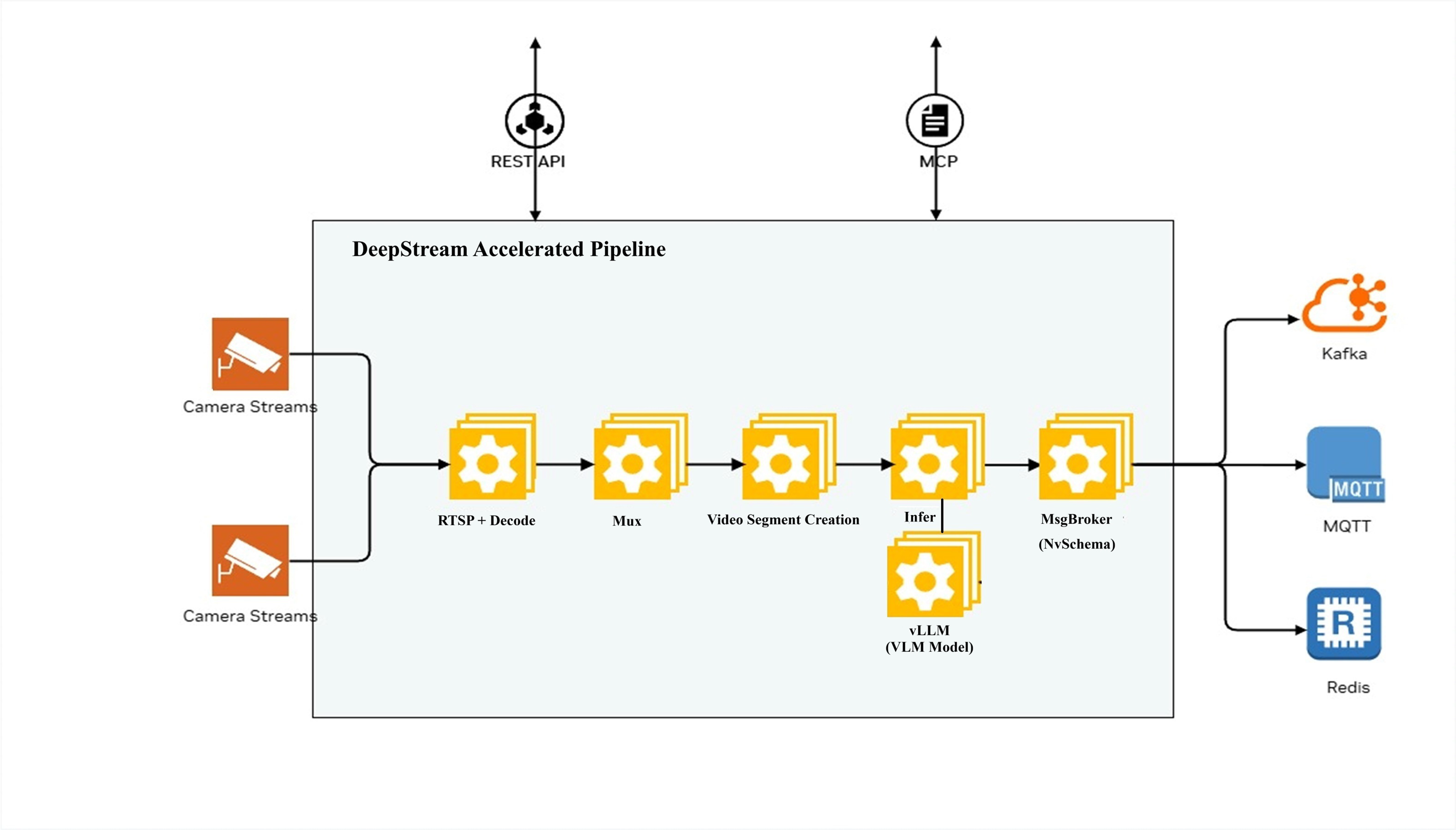
The pipeline processes camera streams through the following stages:
RTSP + Decode: Receives and decodes camera streams
Video Segment Creation: Creates video segments for processing
Infer: Performs inference using VLM models (with vLLM inference engine)
MsgBroker (NvSchema): Publishes messages to Kafka
The system can be configured and controlled via:
REST API: HTTP-based API for configuration and control
Models Supported#
The RTVI VLM Microservice is verified with the following VLM models:
cosmos-reason1: Cosmos Reason1 VLM model
cosmos-reason2: Cosmos Reason2 VLM model
Qwen3-VL-30B-A3B-Instruct (Hugging Face): Qwen3-VL VLM model
It supports both video and text prompt as input for caption generation.
Remote VLM model endpoints are tested with NVIDIA NIM or OpenAI compliant chat/completions endpoints.
API Reference#
For complete API documentation including all endpoints, request/response schemas, and interactive examples, see the Real-Time VLM API Reference.
The API is organized into the following categories:
Captions: Generate VLM captions and alerts for videos and live streams
Files: Upload and manage video/image files
Live Stream: Add, list, and manage RTSP live streams
Models: List available VLM models
Health Check: Service health and readiness probes
Metrics: Prometheus metrics endpoint
Metadata: Service metadata and version information
NIM Compatible: OpenAI-compatible endpoints for interoperability
All endpoints are prefixed with /v1. The API is available at
http://<host>:8000.
Deployment#
Prerequisites#
OS: Ubuntu 24.04 or compatible Linux distribution
Docker: Version 28.2+
Docker Compose: Version 2.36+
NVIDIA Driver: 580+
NVIDIA Container Toolkit: Latest version
Git LFS: For large file handling
Quick Start#
Prepare a folder where all the following files and scripts will be created.
Create the
compose.yamlfile.
Sample docker-compose.yml file#
version: '3.8'
services:
  rtvi-vlm:
    image: ${RTVI_IMAGE:-nvcr.io/nvidia/vss-core/vss-rt-vlm:3.0.0-26.01.4}
    shm_size: '16gb'
    runtime: nvidia
    user: "1001:1001"
    ports:
      - "${BACKEND_PORT?}:8000"
    volumes:
      - "${ASSET_STORAGE_DIR:-/dummy}${ASSET_STORAGE_DIR:+:/tmp/assets}"
      - "${MODEL_ROOT_DIR:-/dummy}${MODEL_ROOT_DIR:+:${MODEL_ROOT_DIR:-}}"
      - "${NGC_MODEL_CACHE:-rtvi-ngc-model-cache}:/opt/nvidia/rtvi/.rtvi/ngc_model_cache"
      - "${RTVI_LOG_DIR:-/dummy}${RTVI_LOG_DIR:+:/opt/nvidia/rtvi/log/rtvi/}"
      - "${RTVI_HF_CACHE:-rtvi-hf-cache}:/tmp/huggingface"
    environment:
      AZURE_OPENA I_API_KEY: "${AZURE_OPENAI_API_KEY:-}"
      AZURE_OPENAI_ENDPOINT: "${AZURE_OPENAI_ENDPOINT:-}"
      MODEL_PATH: "${MODEL_PATH:-}"
      MODEL_IMPLEMENTATION_PATH: "${MODEL_IMPLEMENTATION_PATH:-}"
      NGC_API_KEY: "${NGC_API_KEY:-}"
      HF_TOKEN: "${HF_TOKEN:-}"
      NV_LLMG_CLIENT_ID: "${NV_LLMG_CLIENT_ID:-}"
      NV_LLMG_CLIENT_SECRET: "${NV_LLMG_CLIENT_SECRET:-}"
      NVIDIA_API_KEY: "${NVIDIA_API_KEY:-NOAPIKEYSET}"
      NVIDIA_VISIBLE_DEVICES: "${NVIDIA_VISIBLE_DEVICES:-all}"
      OPENAI_API_KEY: "${OPENAI_API_KEY:-NOAPIKEYSET}"
      OPENAI_API_VERSION: "${OPENAI_API_VERSION:-}"
      VIA_VLM_OPENAI_MODEL_DEPLOYMENT_NAME: "${VIA_VLM_OPENAI_MODEL_DEPLOYMENT_NAME:-}"
      VIA_VLM_ENDPOINT: "${VIA_VLM_ENDPOINT:-}"
      VIA_VLM_API_KEY: "${VIA_VLM_API_KEY:-}"
      VLM_BATCH_SIZE: "${VLM_BATCH_SIZE:-}"
      VLM_MODEL_TO_USE: "${VLM_MODEL_TO_USE:-openai-compat}"
      NUM_VLM_PROCS: "${NUM_VLM_PROCS:-}"
      NUM_GPUS: "${NUM_GPUS:-}"
      VLM_INPUT_WIDTH: "${VLM_INPUT_WIDTH:-}"
      VLM_INPUT_HEIGHT: "${VLM_INPUT_HEIGHT:-}"
      ENABLE_DENSE_CAPTION: "${ENABLE_DENSE_CAPTION:-}"
      ENABLE_AUDIO: "${ENABLE_AUDIO:-false}"
      INSTALL_PROPRIETARY_CODECS: "${INSTALL_PROPRIETARY_CODECS:-false}"
      FORCE_SW_AV1_DECODER: "${FORCE_SW_AV1_DECODER:-}"
      RIVA_ASR_SERVER_URI: "${RIVA_ASR_SERVER_URI:-parakeet-ctc-asr}"
      RIVA_ASR_SERVER_IS_NIM: "${RIVA_ASR_SERVER_IS_NIM:-true}"
      RIVA_ASR_SERVER_USE_SSL: "${RIVA_ASR_SERVER_USE_SSL:-false}"
      RIVA_ASR_SERVER_API_KEY: "${RIVA_ASR_SERVER_API_KEY:-}"
      RIVA_ASR_SERVER_FUNC_ID: "${RIVA_ASR_SERVER_FUNC_ID:-}"
      RIVA_ASR_GRPC_PORT: "${RIVA_ASR_GRPC_PORT:-50051}"
      RIVA_ASR_HTTP_PORT: "${RIVA_ASR_HTTP_PORT:-}"
      ENABLE_RIVA_SERVER_READINESS_CHECK: "${ENABLE_RIVA_SERVER_READINESS_CHECK:-}"
      RIVA_ASR_MODEL_NAME: "${RIVA_ASR_MODEL_NAME:-}"
      LOG_LEVEL: "${LOG_LEVEL:-}"
      RTVI_EXTRA_ARGS: "${RTVI_EXTRA_ARGS:-}"
      RTVI_RTSP_LATENCY: "${RTVI_RTSP_LATENCY:-}"
      RTVI_RTSP_TIMEOUT: "${RTVI_RTSP_TIMEOUT:-}"
      RTVI_RTSP_RECONNECTION_INTERVAL: "${RTVI_RTSP_RECONNECTION_INTERVAL:-5}"
      RTVI_RTSP_RECONNECTION_WINDOW: "${RTVI_RTSP_RECONNECTION_WINDOW:-60}"
      RTVI_RTSP_RECONNECTION_MAX_ATTEMPTS: "${RTVI_RTSP_RECONNECTION_MAX_ATTEMPTS:-10}"
      VSS_CACHE_VIDEO_EMBEDS: "${VSS_CACHE_VIDEO_EMBEDS:-false}"
      VLM_DEFAULT_NUM_FRAMES_PER_SECOND_OR_FIXED_FRAMES_CHUNK: "${VLM_DEFAULT_NUM_FRAMES_PER_SECOND_OR_FIXED_FRAMES_CHUNK:-}"
      VSS_NUM_GPUS_PER_VLM_PROC: "${VSS_NUM_GPUS_PER_VLM_PROC:-}"
      VLM_SYSTEM_PROMPT: "${VLM_SYSTEM_PROMPT:-}"
      # OpenTelemetry Configuration (Full VIA Engine)
      ENABLE_VIA_HEALTH_EVAL: "${ENABLE_VIA_HEALTH_EVAL:-false}"
      # Standard OTEL environment variables (see https://opentelemetry.io/docs/specs/otel/configuration/sdk-environment-variables/)
      ENABLE_OTEL_MONITORING: "${ENABLE_OTEL_MONITORING:-false}"  # Set to 'true' to enable OpenTelemetry
      OTEL_RESOURCE_ATTRIBUTES: "${OTEL_RESOURCE_ATTRIBUTES:-}"
      OTEL_TRACES_EXPORTER: "${OTEL_TRACES_EXPORTER:-otlp}"
      OTEL_EXPORTER_OTLP_ENDPOINT: "${OTEL_EXPORTER_OTLP_ENDPOINT:-http://otel-collector:4318}"
      OTEL_METRIC_EXPORT_INTERVAL: "${OTEL_METRIC_EXPORT_INTERVAL:-60000}"  # Metrics export interval in milliseconds
      KAFKA_ENABLED: "${KAFKA_ENABLED:-true}"
      KAFKA_TOPIC: "${KAFKA_TOPIC:-vision-llm-messages}"
      KAFKA_INCIDENT_TOPIC: "${KAFKA_INCIDENT_TOPIC:-vision-llm-events-incidents}"
      KAFKA_BOOTSTRAP_SERVERS: "${KAFKA_BOOTSTRAP_SERVERS:-kafka:9092}"
      KAFKA_LOG4J_ROOT_LOGLEVEL: ERROR
      ERROR_MESSAGE_TOPIC: "${ERROR_MESSAGE_TOPIC:-vision-llm-errors}"
      ENABLE_REDIS_ERROR_MESSAGES: "${ENABLE_REDIS_ERROR_MESSAGES:-false}"
      REDIS_HOST: "${REDIS_HOST:-redis}"
      REDIS_PORT: "${REDIS_PORT:-6379}"
      REDIS_DB: "${REDIS_DB:-0}"
      REDIS_PASSWORD: "${REDIS_PASSWORD:-}"
      ENABLE_REQUEST_PROFILING: "${ENABLE_REQUEST_PROFILING:-false}"
      VLLM_GPU_MEMORY_UTILIZATION: "${VLLM_GPU_MEMORY_UTILIZATION:-}"
      VLLM_IGNORE_EOS: "${VLLM_IGNORE_EOS:-false}"
      VSS_SKIP_INPUT_MEDIA_VERIFICATION: "${VSS_SKIP_INPUT_MEDIA_VERIFICATION:-}"

    ulimits:
      memlock:
        soft: -1
        hard: -1
      stack: 67108864
    ipc: host
    stdin_open: true
    tty: true
    extra_hosts:
      host.docker.internal: host-gateway
    healthcheck:
      test: ["CMD", "curl", "-f", "http://localhost:8000/v1/ready"]
      interval: 30s
      timeout: 10s
      retries: 3
      start_period: 300s

volumes:
  rtvi-hf-cache:
  rtvi-ngc-model-cache:
Create a
.envfile with your configuration:
cat > .env << EOF
BACKEND_PORT=<service port>
RTVI_IMAGE=<rtvi_vlm_container_image>
MODE=release
VLM_MODEL_TO_USE=cosmos-reason2
MODEL_PATH=ngc:nim/nvidia/cosmos-reason2-8b:1208-fp8-static-kv8
#MODEL_PATH=ngc:nim/nvidia/cosmos-reason1-7b:1.1-fp8-dynamic
#HF_TOKEN=<huggingface_token>
#MODEL_PATH=git:https://user:$HF_TOKEN@huggingface.co/nvidia/Cosmos-Reason2-2B
#MODEL_PATH=git:https://user:$HF_TOKEN@huggingface.co/nvidia/Cosmos-Reason2-8B
KAFKA_ENABLED=true
KAFKA_BOOTSTRAP_SERVERS=<Kafka_server_ip:port>
KAFKA_TOPIC=<kafka_topic>
KAFKA_INCIDENT_TOPIC=<kafka_incident_topic>
NGC_API_KEY=nvapi-XXXXXX
VLM_BATCH_SIZE=128
NVIDIA_VISIBLE_DEVICES=0
EOF
Start the service:
ls -la  # Check compose.yaml, .env present
docker compose up
Note
Kafka and Redis servers can be launched as part of this deployment. To use
a different Kafka server, set KAFKA_BOOTSTRAP_SERVERS appropriately.
To use a different Redis server, set REDIS_HOST appropriately.
If the launch fails due to Out of Memory error, set
NVIDIA_VISIBLE_DEVICES=<gpuid> to a free GPU.
The APIs can then be accessed and viewed in the browser at http://<HOST_IP>:<backend_port>/docs
Usage Examples#
Complete Workflow Example#
The following example demonstrates a complete workflow for processing a video file:
import requests
import json

BASE_URL = "http://localhost:8000/v1"

# Step 1: Upload a video file
with open("video.mp4", "rb") as f:
    response = requests.post(
        f"{BASE_URL}/files",
        files={"file": f},
        data={
            "purpose": "vision",
            "media_type": "video",
            "creation_time": "2024-06-09T18:32:11.123Z"
        }
    )
file_info = response.json()
file_id = file_info["id"]
print(f"Uploaded file: {file_id}")

# Step 2: Generate captions
caption_request = {
    "id": file_id,
    "prompt": "Describe what is happening in this video",
    "model": "cosmos-reason1",
    "chunk_duration": 60,
    "chunk_overlap_duration": 10,
    "enable_audio": False
}
response = requests.post(
    f"{BASE_URL}/generate_captions_alerts",
    json=caption_request
)
captions = response.json()
print(f"Generated {len(captions['chunk_responses'])} caption chunks")

# Step 3: Process results
for chunk in captions["chunk_responses"]:
    print(f"[{chunk['start_time']} - {chunk['end_time']}]: {chunk['content']}")

# Step 4: Clean up
requests.delete(f"{BASE_URL}/files/{file_id}")
print("File deleted")
Live Stream Example#
The following example demonstrates processing a live RTSP stream:
import requests
import json
import sseclient

BASE_URL = "http://localhost:8000/v1"

# Step 1: Add live stream
stream_request = {
    "streams": [{
        "liveStreamUrl": "rtsp://example.com/stream",
        "description": "Main warehouse camera"
    }]
}
response = requests.post(
    f"{BASE_URL}/streams/add",
    json=stream_request
)
stream_info = response.json()
stream_id = stream_info["results"][0]["id"]
print(f"Added stream: {stream_id}")

# Step 2: Start caption generation with streaming
caption_request = {
    "id": stream_id,
    "prompt": "Describe what is happening in this live stream",
    "model": "cosmos-reason1",
    "stream": True,
    "chunk_duration": 60,
    "chunk_overlap_duration": 10
}
response = requests.post(
    f"{BASE_URL}/generate_captions_alerts",
    json=caption_request,
    stream=True
)

# Step 3: Process streaming responses
client = sseclient.SSEClient(response)
for event in client.events():
    if event.data == "[DONE]":
        break
    data = json.loads(event.data)
    if "chunk_responses" in data:
        for chunk in data["chunk_responses"]:
            print(f"[{chunk['start_time']}]: {chunk['content']}")

# Step 4: Stop processing and remove stream
requests.delete(f"{BASE_URL}/generate_captions_alerts/{stream_id}")
requests.delete(f"{BASE_URL}/streams/delete/{stream_id}")
print("Stream removed")
Implementation Details#
Server Class#
The RT VLM Server implements the FastAPI application and manages all API endpoints.
Timestamp Handling#
The server handles timestamps differently based on media type, for live stream uses NTP timestamps (ISO 8601 format).
Streaming Implementation#
For streaming responses, the server uses Server-Sent Events (SSE):
Events are sent as JSON objects
Each event contains chunk responses as they become available
Final event contains usage statistics (if requested)
Stream terminates with
[DONE]messageOnly one client can connect to a live stream at a time
Kafka Integration#
The RTVI VLM Server can publish messages to Kafka topics for downstream processing. This enables integration with other microservices, analytics pipelines, and real-time alerting systems.
Kafka Topics#
The server publishes to the following Kafka topics:
VisionLLM Messages (default:
vision-llm-messages): Contains VisionLLM protobuf messages with VLM caption resultsIncidents (default:
vision-llm-events-incidents): Contains Incident protobuf messages when anomalies or incidents are detected
Configuration:
Kafka integration is controlled by the following environment variables:
KAFKA_ENABLED: Enable/disable Kafka integration (
true/false). Default:falseKAFKA_BOOTSTRAP_SERVERS: Comma-separated list of Kafka broker addresses (e.g.,
localhost:9092orkafka:9092for Docker)KAFKA_TOPIC: Topic for VisionLLM messages. Default:
vision-llm-messagesKAFKA_INCIDENT_TOPIC: Topic for incident messages. Default:
vision-llm-events-incidents
Message Formats#
Incident Messages#
Incident messages are serialized as Protocol Buffer (protobuf) messages
using the Incident message type from the protobuf schema.
Message Header:
message_type:
"incident"
Message Structure:
message Incident {
  string sensorId = 1;
  google.protobuf.Timestamp timestamp = 2;
  google.protobuf.Timestamp end = 3;
  repeated string objectIds = 4;
  repeated string frameIds = 5;
  Place place = 6;
  AnalyticsModule analyticsModule = 7;
  string category = 8;
  repeated Embedding embeddings = 9;
  bool isAnomaly = 10;
  LLM llm = 12;
  map<string, string> info = 11;
}
Key Fields:
sensorId: Identifier of the sensor/stream
timestamp: Start timestamp of the incident
end: End timestamp of the incident
objectIds: Array of object IDs involved in the incident
category: Category of the incident (e.g.,
"safety_non_compliance")isAnomaly: Boolean indicating if the incident is an anomaly
llm: LLM query and response information
info: Additional metadata map containing fields like: *
request_id: Request ID associated with the incident *chunk_idx: Chunk index where the incident was detected *incident_detected: Alert flag *priority: Priority level (e.g.,"high")
Example Incident JSON (for reference):
{
  "sensorId": "camera-entrance-east-01",
  "timestamp": "2025-11-19T06:22:20Z",
  "end": "2025-11-19T06:22:32Z",
  "objectIds": [],
  "frameIds": ["frame-10512", "frame-10518"],
  "place": {
    "id": "dock-entrance-east",
    "name": "Dock Entrance - East",
    "type": "warehouse-bay"
  },
  "analyticsModule": {
    "id": "inc-activity-detector",
    "description": "Forklift safety compliance detector",
    "source": "VLM",
    "version": "2.0.0"
  },
  "category": "safety_non_compliance",
  "isAnomaly": true,
  "info": {
    "priority": "high",
    "request_id": "req_1234567890",
    "chunk_idx": "5"
  },
  "llm": {
    "queries": [{
      "response": "Operator entered the high-risk loading area without a high-visibility vest while a forklift was active."
    }]
  }
}
VisionLLM Messages#
VisionLLM messages contain VLM caption results and are serialized as
Protocol Buffer messages using the VisionLLM message type.
Message Header:
message_type:
"vision_llm"(default, if not specified)
Message Structure:
See the protobuf schema documentation for complete VisionLLM message
structure. Key fields include:
version: Message version
timestamp: Start timestamp
end: End timestamp
startFrameId: Start frame identifier
endFrameId: End frame identifier
sensor: Sensor information
llm: LLM queries, responses, and embeddings
info: Additional metadata map
Redis Error Messages#
By default, error messages are sent to Redis. To use Redis for error
messages, set the following environment variables in your .env file:
ENABLE_REDIS_ERROR_MESSAGES=true
REDIS_HOST=redis.example.com
REDIS_PORT=6379
REDIS_DB=0
REDIS_PASSWORD=your_password  # Optional, only if Redis requires authentication
ERROR_MESSAGE_TOPIC=vision-llm-errors  # Redis channel name for error messages
Error messages will be published to the Redis channel specified in
ERROR_MESSAGE_TOPIC. The message format remains JSON with the following
fields: streamId, timestamp, type, source, event.
Using Remote Endpoints#
The RTVI VLM Microservice supports using remote endpoints with NVIDIA NIM or OpenAI-compatible models:
NVIDIA NIM:
VLM_MODEL_TO_USE=openai-compat
OPENAI_API_KEY=nvapi-XXXXXXX
VIA_VLM_ENDPOINT="https://integrate.api.nvidia.com/v1"
VIA_VLM_OPENAI_MODEL_DEPLOYMENT_NAME="nvidia/nemotron-nano-12b-v2-vl"
For local deployments, update VIA_VLM_ENDPOINT to point to your local
deployment.
GPT-4o:
OPENAI_API_KEY=<openai key>
VLM_MODEL_TO_USE=openai-compat
VIA_VLM_OPENAI_MODEL_DEPLOYMENT_NAME="gpt-4o"
Environment Variables Reference#
Core Configuration#
Variable |
Description |
Default |
|---|---|---|
|
Port for REST API server |
|
|
Logging verbosity |
|
Model Configuration#
Variable |
Description |
Default |
|---|---|---|
|
Inference batch size |
Auto-calculated |
|
Number of inference processes |
|
|
Number of GPUs to use |
Auto-detected |
|
GPU device IDs |
|
|
Path of the model |
|
|
Name of the model |
|
|
Name of OpenAI compatible model |
|
|
Link of the endpoint for OpenAI compatible model |
|
|
Key to access OpenAI model |
Storage and Caching#
Variable |
Description |
Default |
|---|---|---|
|
Host path for uploaded files |
|
|
Max storage size (GB) |
|
|
Log output directory |
Feature Toggles#
Variable |
Description |
Default |
|---|---|---|
|
Enable NSYS profiling |
|
|
Install additional codecs |
|
|
Force software AV1 decode |
|
RTSP Streaming#
Variable |
Description |
Default |
|---|---|---|
|
RTSP latency (ms) |
|
|
RTSP timeout (ms) |
|
|
Time to detect stream interruption and wait for reconnection (seconds) |
|
|
Duration to attempt reconnection after interruption (seconds) |
|
|
Max reconnection attempts |
|
OpenTelemetry / Monitoring#
Variable |
Description |
Default |
|---|---|---|
|
Enable OpenTelemetry monitoring |
|
|
Service name for traces |
|
|
OTLP endpoint |
|
|
Traces exporter type |
|
|
Metrics export interval (ms) |
|
|
Enable health evaluation |
|
|
Enable per-request profiling |
|
Kafka Configuration#
Variable |
Description |
Default |
|---|---|---|
|
Enable Kafka integration |
|
|
Kafka broker address |
|
|
Topic for VisionLLM/embedding messages |
|
|
Topic for incident messages |
|
|
Topic/channel for error messages |
|
Redis Error Messages Configuration#
Variable |
Description |
Default |
|---|---|---|
|
Enable Redis for error messages instead of Kafka |
|
|
Redis server hostname |
|
|
Redis server port |
|
|
Redis database number |
|
|
Redis authentication password |
Frame Selection Modes#
RTVI VLM supports two frame selection modes for sampling frames from video chunks:
FPS-based Selection:
Enable
--use-fps-for-chunkingflagSet
--num-frames-per-second-or-fixed-frames-chunkto the desired frames per second (e.g.,0.05for 0.05 FPS)The system will sample frames at the specified rate based on chunk duration
Fixed Frame Selection (default):
Do not set
--use-fps-for-chunkingflag (disabled by default)Set
--num-frames-per-second-or-fixed-frames-chunkto the desired number of frames per chunk (e.g.,8for 8 frames)The system will sample a fixed number of equally-spaced frames from each chunk
Enabling Incidents#
To enable incident detection, set appropriate --prompt or --system-prompt
with clear Yes or No expectation. Incidents will be pushed to the incident Kafka
topic.
Example prompt:
--prompt "You are a warehouse monitoring system focused on safety and
efficiency. Analyze the situation to detect any anomalies such as workers
not wearing safety gear, leaving items unattended, or wasting time.
Respond in the following structured format:
Anomaly Detected: Yes/No
Reason: [Brief explanation]"
--system-prompt "Answer the user's question correctly in yes or no"
Troubleshooting#
Common Issues#
Container fails to start
Check
docker logs <container_name>for error messagesVerify GPU access: Ensure NVIDIA Container Toolkit is installed and
nvidia-smiworks
Out of Memory error
Set
NVIDIA_VISIBLE_DEVICES=<gpuid>to a free GPUReduce
VLM_BATCH_SIZE
Port conflicts
Change
BACKEND_PORTif port 8000 is already in use
Kafka Connection Issues
Use
kafka:9092as bootstrap server when connecting from within Docker networkVerify Kafka is running:
docker ps | grep kafka
Health Check Failures
Check logs with
docker compose logs rtvi-vlm
Version Information#
The API version is v1. Check the service version using the health
check endpoints or by examining the OpenAPI schema at /docs.
API Reference