

Search Workflow#
Warning
Alpha Feature: This workflow is in early development and is not recommended for production use.
The Search Workflow enables natural language queries across video archives to locate specific events, objects, or actions.
Use Cases
Event retrieval from large video archives
Cross-video search for specific objects or actions
Forensic analysis of recorded footage
Estimated Deployment Time: 15-20 minutes
The following diagram illustrates the search workflow architecture:
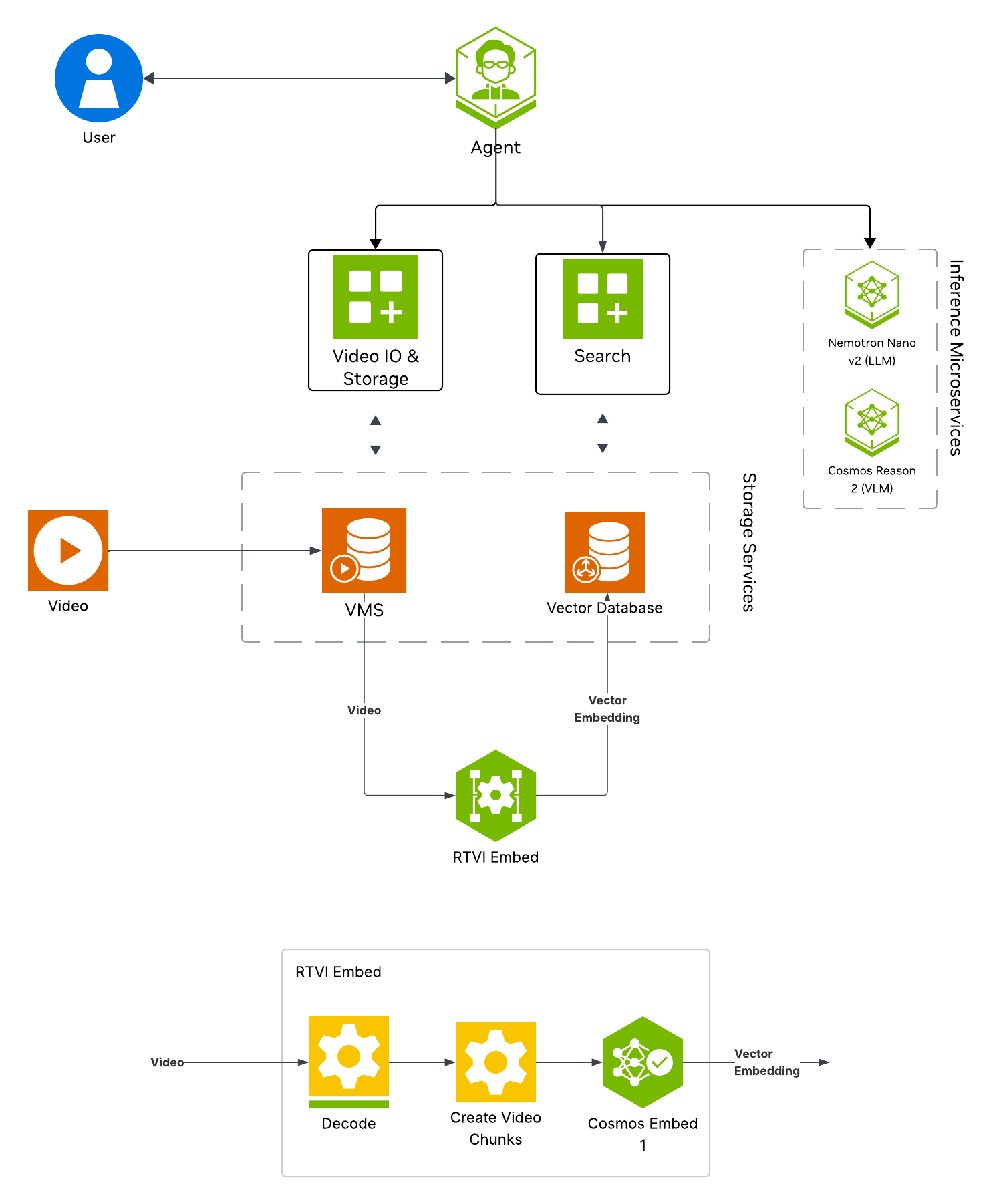
Key Features of the Vision Agent with Search:
Upload videos to the agent for search.
Semantic search of videos for key actions and objects of interest using embedding-based video indexing.
Natural language query support (e.g., “find all instances of forklifts”).
Filter and retrieve timestamped results using similarity scores, time range, video name, description, and source.
What’s being deployed#
VSS Agent: Agent service that orchestrates tool calls and model inference to answer questions and generate outputs
VSS Agent UI: Web UI with chat, video upload, and different views
VSS Video IO & Storage (VIOS): Video ingestion, recording, and playback services used by the agent for video access and management
Nemotron LLM (NIM): LLM inference service used for reasoning, tool selection, and response generation
Phoenix: Observability and telemetry service for agent workflow monitoring
ELK: Elasticsearch, Logstash and Kibana stack to index and search embeddings of video clips
Kafka: A real-time message bus to publish embeddings, to be consumed and indexed by ELK for search
RTVI-Embed: Real Time Video Intelligence Embed Microservice to generate embeddings for videos and text, based on Cosmos-Embed1
Prerequisites#
Before you begin, ensure all of the prerequisites are met. See Prerequisites for more details.
Deploy#
Note
For instructions on downloading sample data and the deployment package, see Download Sample Data and Deployment Package in the Quickstart guide.
Skip to Step 1: Deploy the Agent if you have already downloaded and deployed another agent workflow.
Step 1: Deploy the Agent#
Based on your GPU, run the following command to deploy the agent:
deployments/dev-profile.sh up -p search
deployments/dev-profile.sh up -p search -H RTX6000PROBW
deployments/dev-profile.sh up -p search -H L40S
This deployment uses the following defaults:
Host IP: Primary IP from
ip routeLLM mode: local_shared
LLM model: nvidia-nemotron-nano-9b-v2
This command will download the necessary containers from the NGC Docker registry and start the agent. Depending on your network speed, this may take a few minutes.
Note
NGC API Key: The deployment requires an NGC CLI API key. You can either set it as an environment variable (export NGC_CLI_API_KEY='your_ngc_api_key') or pass it as a command-line argument using -k 'your_ngc_api_key'.
Note
For advanced deployment options such as hardware profiles and NIM configurations, see Advanced Deployment Options.
Once complete, check that all the containers are running and healthy:
docker ps
Once all the containers are running, you can access the agent UI at http://<HOST_IP>:3000/.
Step 2: Upload a video#
Click on the Video Management tab.
Click the Upload Video button.
Select the video file
warehouse_sample.mp4from your local machine.
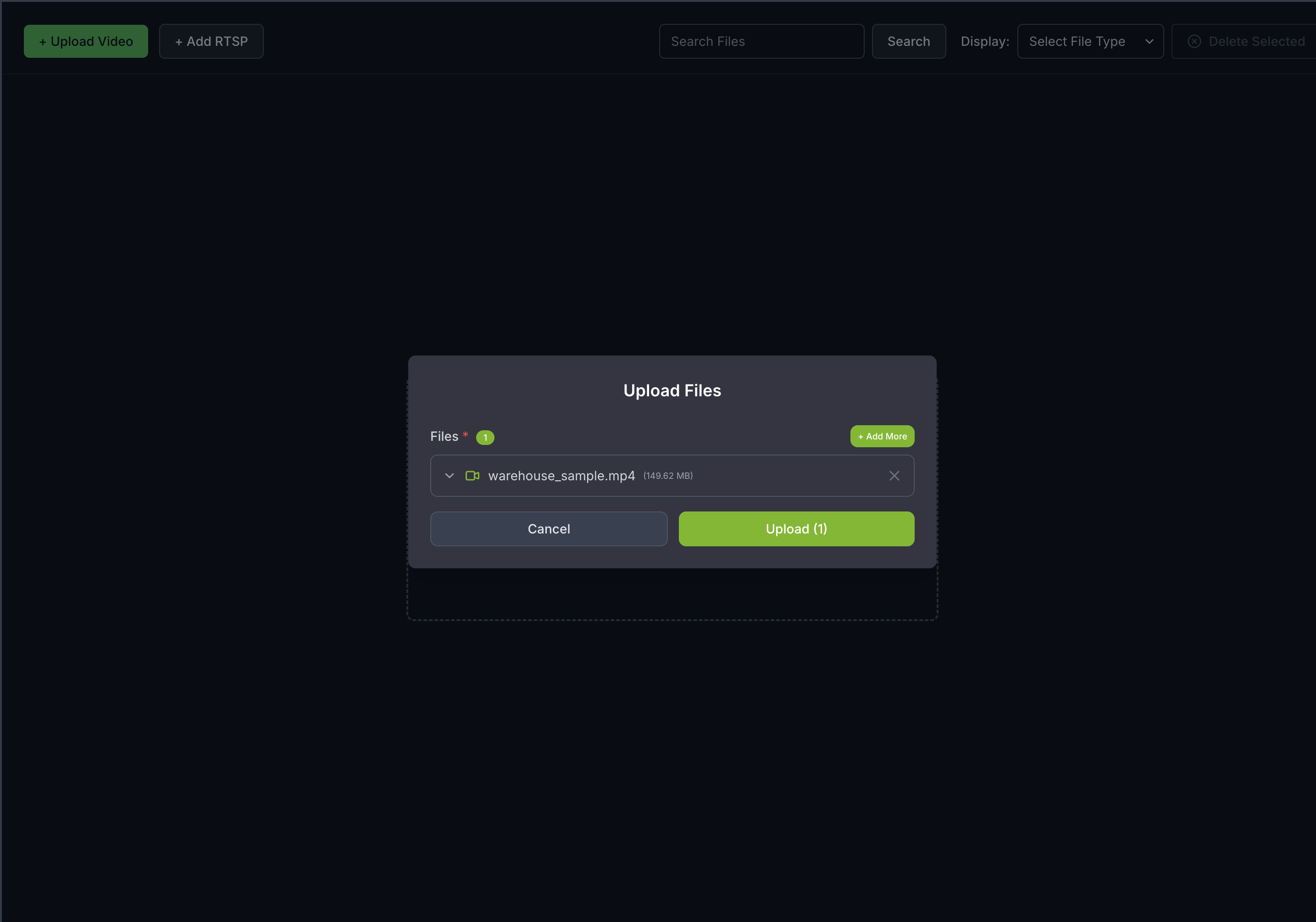
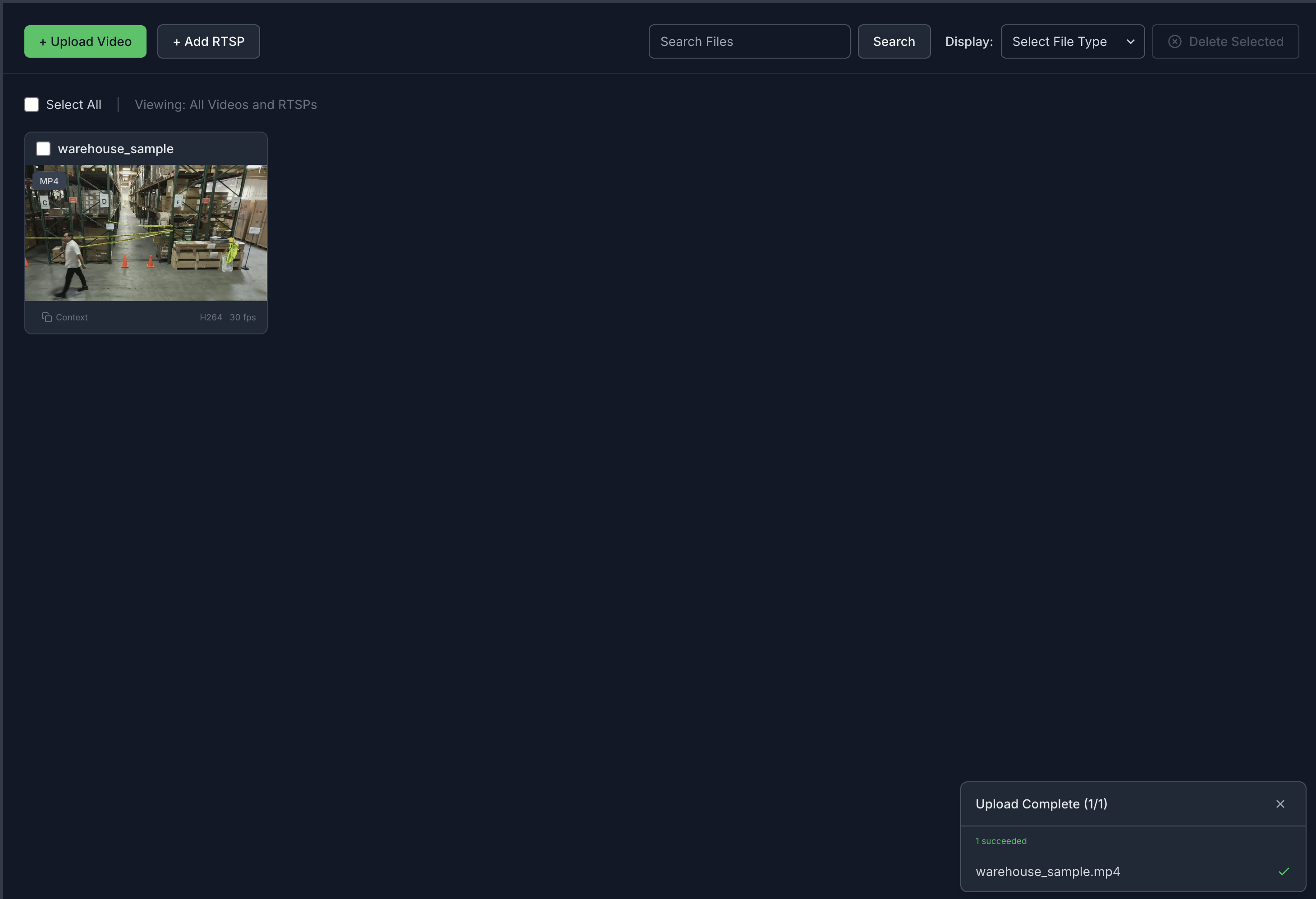
Once the video(s) is/are selected, click the Upload button and wait for the video(s) to be uploaded. It may take a few minutes depending on the size of the video(s). Once the video(s) is successfully uploaded, it will appear in the video list.
Note
Vector embeddings generated for the uploaded videos remain only until minimum index age is reached (from the time of first upload).
After that, the embeddings are deleted and the uploaded videos are no longer searchable.
However, the uploaded videos are still accessible in the video management tab. The videos have to be re-uploaded to make them searchable again.
Default minimum index age is 8 hours for the Search Workflow. This can be configured in the ILM (Index Lifecycle Management) policy settings in the Dashboard, before the index is expired.
Step 3: Search with a simple query#
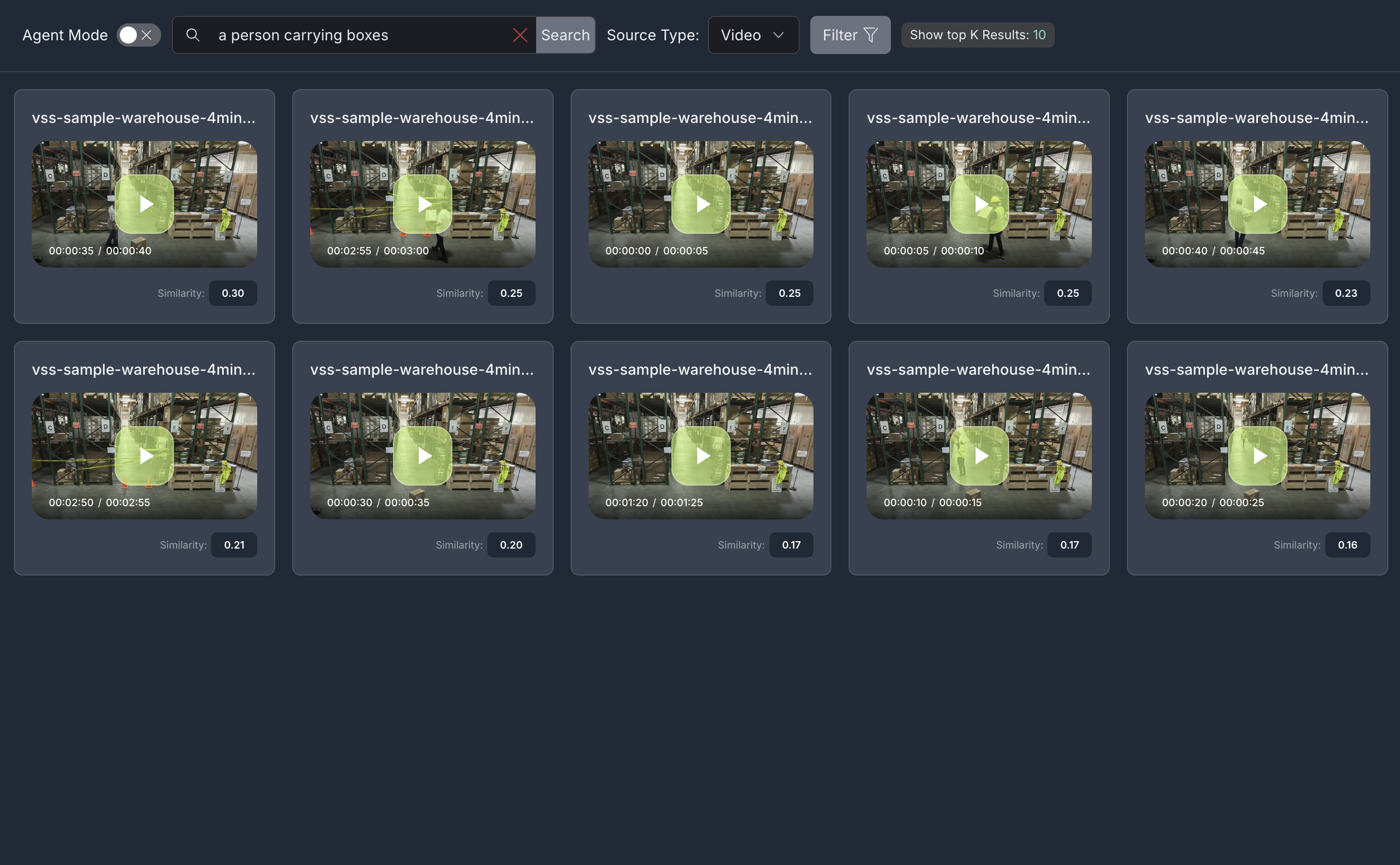
Navigate to the Search tab and enter a natural language query in the Search box. For example:
a person carrying boxes
Click the Search button to execute the query. The agent will return video clips that match your search description.
Note
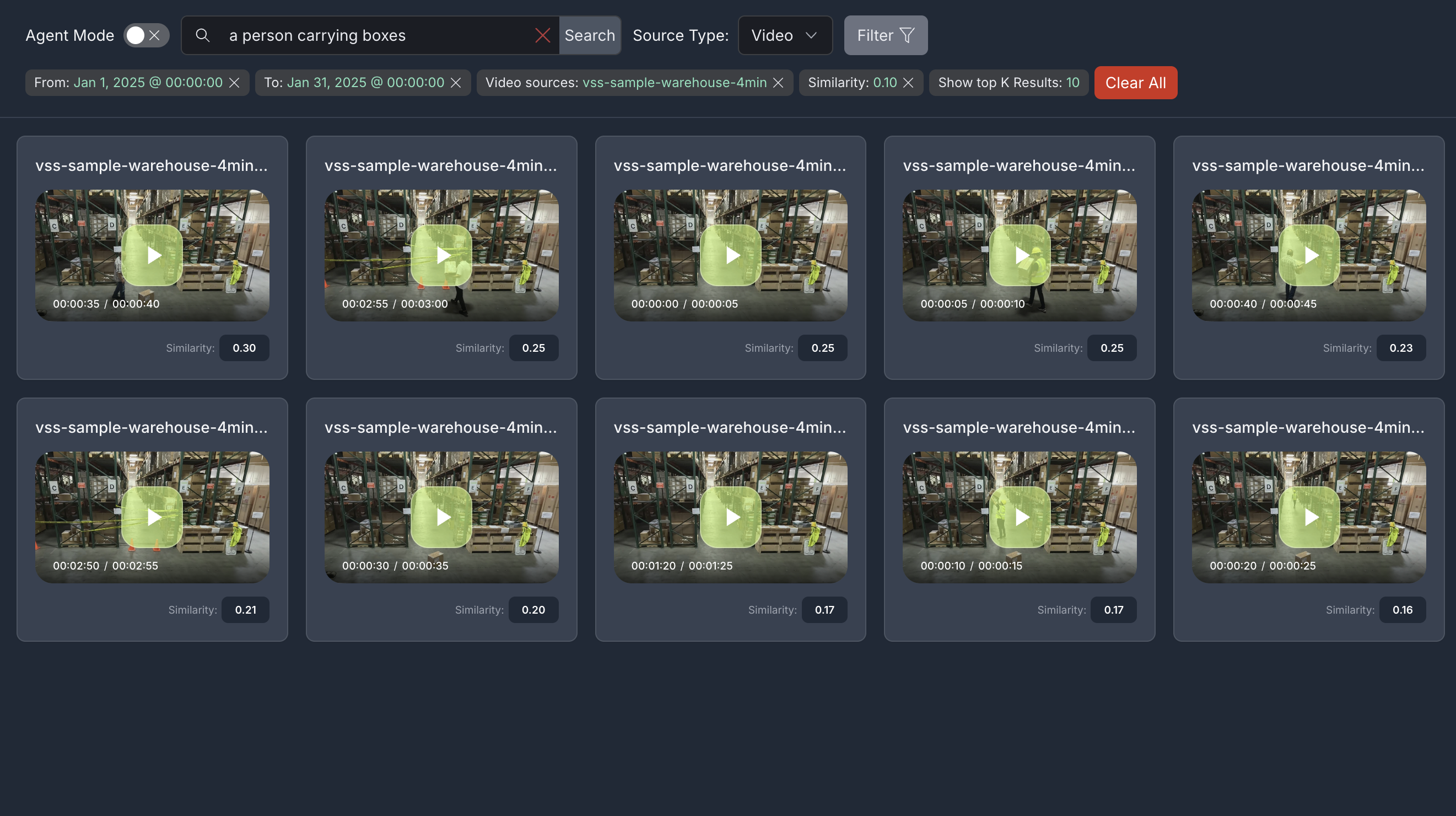
By default, the Show top K Results filter is applied to display the top 10 results. This value can be changed in the filters to show more or fewer results.
Step 4: Search with additional filters#
To try additional filters, upload the video file sample-warehouse-ladder.mp4 (following the steps in Step 2: Upload a video).
Navigate to the Search tab and click the Filter button to open the filter panel with the following options:
Note
Ensure Agent Mode is disabled (toggle off) when using manual filters.
From: Filter results by the start date and time of the video clips
To: Filter results by the start date and time of the video clips
Video names: Select specific videos to search within
Description: Filter by video description
Min Cosine Similarity: Set a minimum similarity threshold (-1.00 to 1.00) to filter results based on how closely they match your query. Set a lower threshold for broader results, or raise it for high-confidence matches. Optimal values vary depending on the video content.
Show top K Results: Set the maximum number of results to display
Enter your search query in the Search box, configure the desired filters, and click Confirm to apply.
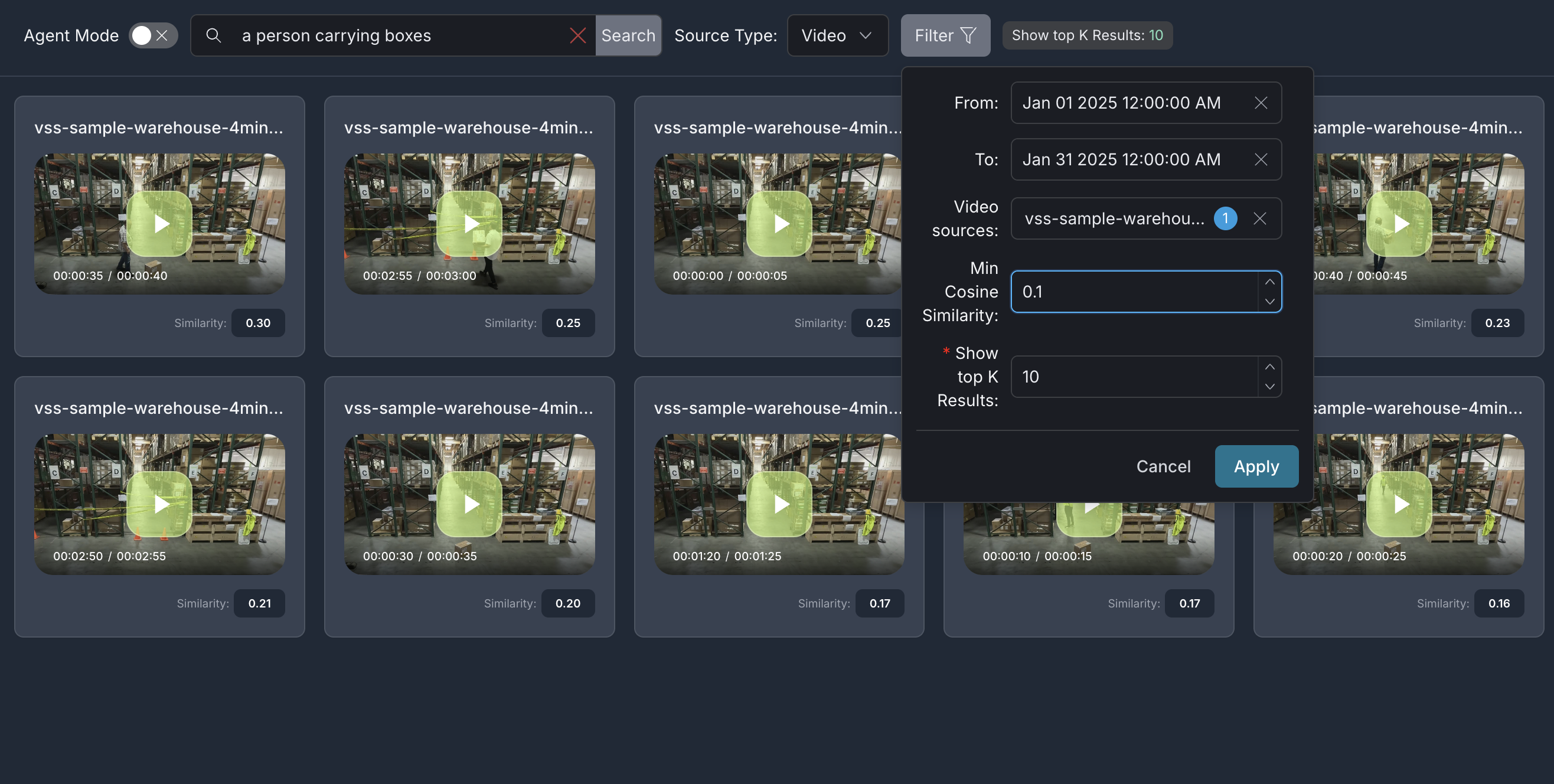
For example, in the filter panel above:
Set From and To timestamps to filter results within a specific time range
Select specific Video names to search within particular videos
Set Min Cosine Similarity to
0.2to only show results with a similarity score of 0.2 or higherSet Show top K Results to
5to display maximum of top 5 results
After configuring the filters, the search results will be refined based on the applied criteria:
Step 5: Search with natural language filters (Agent Mode)#
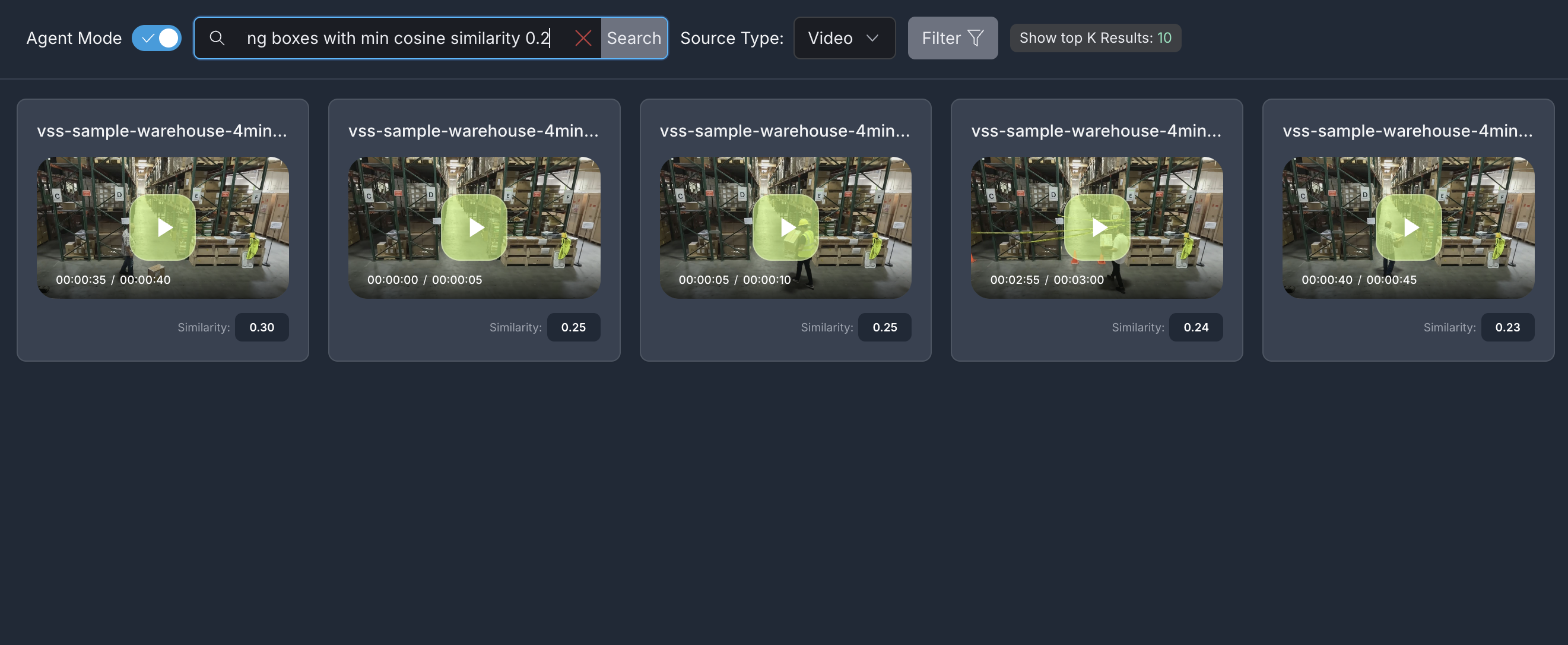
Enable Agent Mode by toggling it on. This allows you to specify filters directly within your natural language query instead of using the filter panel.
Example 1: Query with minimum cosine similarity filter
Enter a query that includes a minimum cosine similarity filter in natural language:
a person carrying boxes with min cosine similarity 0.2
The agent will parse your query and automatically apply the specified filter to return relevant results.
Example 2: Query with minimum cosine similarity and video name filters
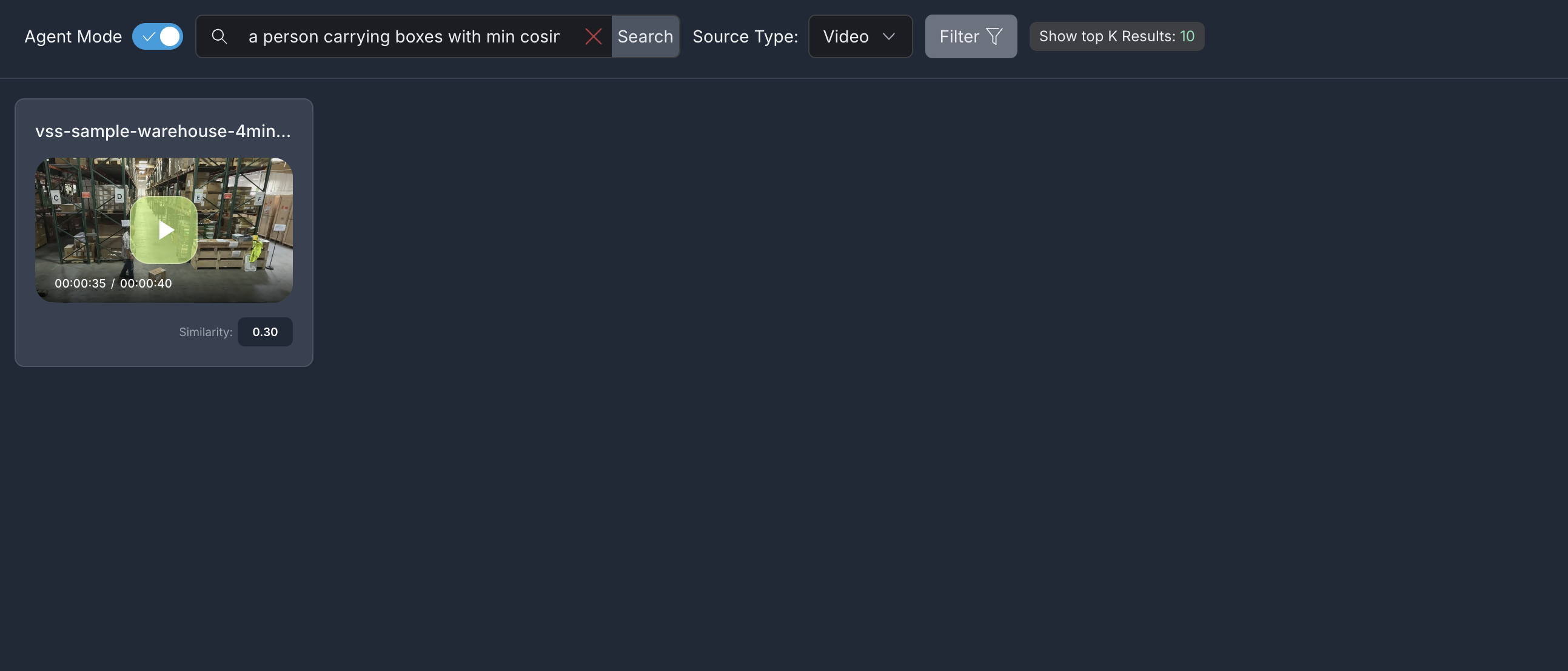
You can combine multiple filters in a single natural language query. For example, to search within a specific video with a minimum similarity threshold:
a person carrying boxes with min cosine similarity 0.2 in warehouse_sample video
The agent will filter results to show matching video clips from only the specified video with a similarity score of 0.25 or higher.
In each of the search scenarios, the results include:
Video clips relevant to the search query and the filters specified (if any)
Each result in the search:
Is a video clip with similarity score displayed
Shows a screenshot/thumbnail (if available)
Is playable when clicked (if video clip is available)
Note
The video clips when played may be longer than 5secs even though the clip duration is 5secs.
Step 6: Teardown the agent#
To teardown the agent, run the following command:
deployments/dev-profile.sh down
This command will stop and remove the agent containers.
Appendix: Advanced Deployment Options#
The deployment script supports additional configuration options for advanced use cases. To view all available options, run:
deployments/dev-profile.sh --help
Hardware Profile#
Specify the hardware profile to optimize for your GPU:
deployments/dev-profile.sh up -p search -H RTX6000PROBW
Available hardware profiles: H100 (default), L40S, RTX6000PROBW
Host IP Configuration#
Manually specify the host IP address:
deployments/dev-profile.sh up -p search -i '<HOST_IP>'
Default: Primary IP from ip route
Externally Accessible IP#
Optionally specify an externally accessible IP address for services that need to be reached from outside the host:
deployments/dev-profile.sh up -p search -e '<EXTERNALLY_ACCESSIBLE_IP>'
LLM Configuration#
Configure the LLM (NVIDIA Inference Microservice) mode:
deployments/dev-profile.sh up -p search --llm-mode local
Available modes:
local_shared(default): Shared local NIM instancelocal: Dedicated local NIM instanceremote: Use remote NIM endpoints
For remote LLM, specify the LLM base URL:
deployments/dev-profile.sh up -p search \
  --llm-mode remote \
  --llm-base-url https://your-llm-endpoint.com
Optionally, for remote LLM, you can provide an NVIDIA API key:
deployments/dev-profile.sh up -p search \
  --llm-mode remote \
  --llm-base-url https://your-llm-endpoint.com \
  --nvidia-api-key your_nvidia_api_key
Note
To deploy your own remote NIM endpoint, refer to the NVIDIA NIM Deployment Guide for instructions on setting up NIM on your infrastructure.
Note: VLM configuration (--vlm-mode, --vlm-base-url) is not supported for the search profile.
Model Selection#
Specify a custom LLM model:
deployments/dev-profile.sh up -p search \
  --llm llama-3.3-nemotron-super-49b-v1.5
Available LLM models: nvidia-nemotron-nano-9b-v2, nemotron-3-nano, llama-3.3-nemotron-super-49b-v1.5, gpt-oss-20b
Note: VLM model selection (--vlm) and custom VLM weights (--vlm-custom-weights) are not supported for the search profile.
Note
Only the default model nvidia-nemotron-nano-9b-v2 (LLM) has been verified on local and local_shared NIM modes.
Device Assignment#
Assign a specific GPU device for the LLM:
deployments/dev-profile.sh up -p search \
  --llm-device-id 0
Note: --llm-device-id is not allowed if --llm-mode is remote. --vlm-device-id is not applicable for the search profile.
Dry Run#
To preview the deployment commands without executing them:
deployments/dev-profile.sh up -p search -d
Note: The -d or --dry-run flag is also available for the down command.
API Reference
Known Issues#
When setting a filter threshold for minimum cosine similarity, results with similarity scores equal to the threshold may be omitted.
A race condition between RTVI-embed and LLM NIM during deployment can result in an unhealthy state for the RTVI-embed container. To resolve this:
Stop the LLM NIM.
Wait for RTVI-embed to become healthy.
Restart LLM NIM.
Queries with negative intent (e.g., “people without a yellow hat”) may return the same results as positive intent queries (e.g., “people with a yellow hat”).
Queries with a single word (e.g., “person”) may return no results.
The duration of video clips in search results may be longer than the displayed duration.
Some video clips in search results may not be relevant to the query.