

Object Detection and Tracking#
Overview#
The Real Time Video Intelligence CV Microservice leverages NVIDIA DeepStream SDK to generate metadata for each stream that downstream microservices can use to generate spatial metrics and alerts.
The microservice features rtvi-cv-app, a DeepStream pipeline that builds on the built-in deepstream-test5 app in the DeepStream SDK. This RTVI-CV app provides a complete application that takes streaming video inputs, decodes the incoming streams, performs inference & tracking, and sends the metadata to other microservices using the defined Protobuf schema.
The Vision Intelligence CV Microservice supports both 2D single-camera detection models (RT-DETR, Grounding DINO) for object detection and classification, as well as 3D multi-camera model (Sparse4D) for birds-eye-view detection and tracking. All the models are integrated within DeepStream pipelines, providing a complete streaming analytics solution for AI-based video understanding.
Key Features#
Real-time Performance: TensorRT/Triton-accelerated inference
Multi-model Support: Flexible architecture supporting different detection models
DeepStream Integration: Built on NVIDIA’s proven streaming analytics framework
Scalable Architecture: Handles multiple camera streams with batch processing
Standardized Output: Consistent metadata schema for downstream processing
Production-Ready: Configurable pipelines with comprehensive monitoring
Architecture#
The Real Time Video Intelligence Microservice follows a modular, pipeline-based architecture built on NVIDIA DeepStream SDK. The architecture supports both 2D single-camera and 3D multi-camera detection pipelines.

Core Components#
Video Source: Handles multiple RTSP streams, file inputs with dynamic stream add/remove capabilities
Stream Multiplexer (nvstreammux): Batches video frames from multiple sources for efficient GPU processing
Preprocessor: Hardware-accelerated image transformation, normalization, and augmentation using nvdspreprocess plugin
Inference Engine: Supports both TensorRT (nvinfer) and Triton Inference Server (nvinferserver) backends for model execution
Tracker: Multi-object tracker for maintaining object identities across frames
Metadata Generator: Converts detection outputs to standardized protobuf format
Message Broker: Kafka producer for streaming metadata to downstream microservices
Models Supported#
The Real Time Video Intelligence CV Microservice supports both 2D single-camera and 3D multi-camera detection models:
2D Single-Camera Models:
NV-Grounding-DINO (Smart City Blueprint): Open vocabulary multi-modal object detection model trained on commercial data with language grounding for zero-shot detection using natural language text prompts
RT-DETR (Smart City Blueprint): Object detection model included in the TAO Toolkit, transformer-based end-to-end detector optimized for real-time performance
RT-DETR (Warehouse Blueprint): Real-Time Detection Transformer object detection model optimized for warehouse environments
3D Multi-Camera Model:
Sparse4D (Warehouse Blueprint): Multi-Camera 3D Detection and Tracking model with 4D (spatial-temporal) capabilities for Birds-Eye-View (BEV) detection across multiple synchronized camera sensors with temporal instance banking
API Reference#
For complete API documentation including all endpoints, request/response schemas, and interactive examples, see the Object Detection and Tracking API Reference.
The API is organized into the following categories:
Health Check: Pipeline health and status endpoints
Stream Management: Dynamic stream add/remove operations
Metrics: Performance metrics and monitoring
Metadata: Service version and license information
All endpoints are prefixed with /api/v1. The API is available at http://<host>:9000.
Deployment#
1. Blueprint Deployment
For warehouse deployment, refer Warehouse Quickstart Guide For smart city deployment, refer Smart City Quickstart Guide For public safety deployment, refer Public Safety Quickstart Guide
2. Verify Deployment
Check service health:
# Check liveness
curl http://localhost:<port>/api/v1/live

# Check readiness
curl http://localhost:<port>/api/v1/ready

# Check startup
curl http://localhost:<port>/api/v1/startup

# Get stream information
curl http://localhost:<port>/api/v1/stream/get-stream-info

# Monitor metrics
curl http://localhost:<port>/api/v1/metrics
3. Monitor Output
View detection metadata in Kafka topic or check logs for the service:
docker-compose logs -f <rtvi-cv-service-name>
2D Single Camera Detection and Tracking#
2D models perform object detection and classification on individual camera streams, providing accurate bounding box predictions and class labels in image coordinates. These models are ideal for single-camera applications requiring high-accuracy object detection.
DeepStream Pipeline
The diagram below shows the RTVI-CV pipeline used for 2D single camera detection and tracking.
The VSS platform supports multiple 2D detection models, each optimized for different use cases:
RT-DETR: Transformer-based end-to-end detector
Grounding DINO: Zero-shot detector with language grounding for open-vocabulary detection
RT-DETR Detector RTVI-CV Pipeline#
The RT-DETR (Real-Time Detection TRansformer) detector pipeline is based on the deepstream-test5 app in the DeepStream SDK. The app takes streaming video inputs, decodes the incoming stream, performs inference & tracking, and lastly sends metadata over Kafka to other Metropolis Microservices, using the defined Protobuf schema.
RT-DETR is a transformer-based end-to-end object detector optimized for real-time performance. A finetuned RT-DETR model for warehouse bluprint is located at /opt/nvidia/deepstream/deepstream-8.0/sources/apps/sample_apps/metropolis_perception_app/models/mtmc/rtdetr_detection_aic25v0.41_openimages_ytcc_moving_classes_iter_012_v0.7.onnx. The model supports the following classes: Person, Agility_Digit_Humanoid, Fourier_GR1_T2_Humanoid, Nova_Carter, Transporter, Forklift, and Pallet.
A finetuned RT-DETR model for smartcity bluprint is located at /opt/nvidia/deepstream/deepstream-8.0/sources/apps/sample_apps/metropolis_perception_app/models/rtdetr-its/model_epoch_035.onnx. The model supports the following classes: background, two_wheeler, Vehicle, Person, and road_sign.
Configuration Options
The RT-DETR Detector RTVI-CV Pipeline has several key configuration options:
Sources: To change input source type and number of channels, refer to:
Source Group for offline configuration
RTVI-CV microservice API for dynamic configuration
PGIE: To change AI model, batch size, and model parameters, refer to the Primary and Secondary GIE Group and the Gst-nvinfer plugin
Tracker: To change Multi-Object Tracker parameters, refer to the Gst-nvtracker and the NvMultiObjectTracker Parameter Tuning Guide
Message Broker: To change Message Broker parameters, refer to the Gst-nvmsgbroker
Grounding DINO Detector RTVI-CV Pipeline#
The Grounding DINO detector pipeline is based on the deepstream-test5 app in the DeepStream SDK. The app takes streaming video inputs, decodes the incoming stream, performs inference & tracking, and lastly sends metadata over Kafka to other Metropolis Microservices, using the defined Protobuf schema.
Grounding DINO is a zero-shot object detection model that combines vision and language understanding to detect objects based on free-form text descriptions (prompts). The implementation uses the DeepStream Triton Inference Server plugin (Gst-nvinferserver) with a custom processing library for text prompt support and optional instance segmentation masks. The app is enabled with PGIE (Primary GPU Inference Engines), NVDCF/DeepSORT tracker and message broker for sending metadata to Kafka.
Configuration Options
The Grounding DINO Detector RTVI-CV Pipeline has several key configuration options:
Sources: To change input source type and number of channels, refer to:
Source Group for offline configuration
RTVI-CV microservice API for dynamic configuration
PGIE: The implementation uses Triton Inference Server backend via the Gst-nvinferserver plugin. To change AI model, batch size, and model parameters, refer to the Primary and Secondary GIE Group
Tracker: To change Multi-Object Tracker parameters, refer to the Gst-nvtracker and the NvMultiObjectTracker Parameter Tuning Guide
Message Broker: To change Message Broker parameters, refer to the Gst-nvmsgbroker
Text Prompt Configuration#
Labels for Grounding DINO are defined in the nvinferserver configuration file (config_triton_nvinferserver_gdino.txt) in the postprocess section. The text prompts enable zero-shot detection of objects using natural language descriptions.
postprocess {
  other {
   type_name: "Car . Truck . Bus . Motorcycle . Bicycle . Scooter . Emergency Vehicle . Vehicle . Person . ;0.4"
  }
}
Prompt Syntax:
Use periods (
.) followed by spaces (” . “) to separate multiple objectsAdd a semicolon (
;) followed by confidence threshold (e.g.,;0.4for 40% confidence)Descriptive phrases enable fine-grained detection (e.g., “person wearing helmet”)
Case-insensitive processing
The threshold value filters detections below the specified confidence level
3D Multi Camera Detection and Tracking#
The 3D pipeline performs object detection and tracking across multiple synchronized camera streams using Sparse4D, a Birds-Eye-View (BEV) detection model. It maintains object identity across frames through temporal tracking with instance banking, providing 3D position, orientation, velocity, and persistent instance IDs for each detected object.
The pipeline ingests multicamera video streams, processes them through calibrated projection matrices for spatial alignment, and utilizes a feedback mechanism with temporal instance banking to maintain object identity across frames. Detection results include 3D position, orientation, velocity, and instance IDs, enabling sophisticated multi-camera fusion capabilities.
The processed metadata follows DeepStream’s standardized message format and transmits via Kafka brokers for downstream applications such as Multi-Camera Tracking (MCT), Real-Time Location Systems (RTLS), and Facility Safety Logic (FSL). The entire pipeline optimizes for real-time performance with TensorRT acceleration (FP16/FP32) and configurable batch processing, making it ideal for complex spatial understanding in applications like warehouse automation, traffic monitoring, and public safety.
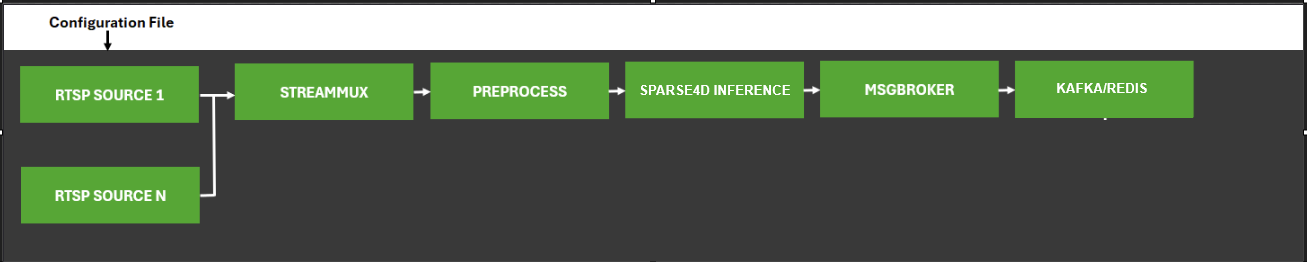
DeepStream Pipeline
The diagram below shows the RTVI-CV pipeline used for 3D multi camera detection and tracking.
Sparse4D RTVI-CV Pipeline#
The Sparse4D RTVI-CV pipeline is based on the deepstream-test5 app in the DeepStream SDK. The app takes streaming video inputs from multiple synchronized camera streams, decodes the incoming streams, performs 3D inference & temporal tracking using instance banking, and sends metadata over Kafka to other Metropolis Microservices, using the defined Protobuf schema.
Sparse4D is a Birds-Eye-View (BEV) detection model that performs 3D object detection and tracking across multiple synchronized camera sensors. The model maintains object identity across frames through temporal tracking with instance banking, providing 3D position, orientation, velocity, and persistent instance IDs for each detected object.
Configuration Options
The Sparse4D RTVI-CV Pipeline has several key configuration options:
Inference Configuration: To configure model inference parameters, calibration settings, preprocessing properties, instance bank properties, decoder properties, and debugging options, refer to the Inference Configuration File section.
DeepStream Configuration: To change input source type, number of channels, stream multiplexing, and message broker settings, refer to:
Source Group for offline configuration
RTVI-CV microservice API for dynamic configuration
DeepStream SDK Documentation for complete configuration options
Preprocessing: To configure preprocessing operations such as resizing, scaling, cropping, format conversion, and normalization, refer to the DeepStream Preprocessing Plugin Documentation and the Preprocess Plugin Configuration File section.
Message Broker: To change Message Broker parameters, refer to the Gst-nvmsgbroker
Runtime Configuration: For common configuration adjustments such as modifying the number of input streams or integrating a new Sparse4D model checkpoint, refer to the Modifying the Number of Input Streams and Integrating a Sparse4D Model Checkpoint sections.
Implementation Details#
Since the application is built using DeepStream SDK deepstream-test5-app, refer to the following documentation for more details:
Kafka Integration#
The Real Time Video Intelligence CV Microservice publishes detection and tracking metadata to Kafka for downstream processing by other microservices such as Multi-Camera Tracking (MCT), Real-Time Location Systems (RTLS), and Facility Safety Logic (FSL).
Kafka Topics
The microservice publishes messages to configurable Kafka topics. By default, detection metadata is sent to the deepstream-metadata topic.
Configuration
Configure Kafka integration in the DeepStream application configuration file:
[message-broker]
enable=1
broker-proto-lib=/opt/nvidia/deepstream/deepstream/lib/libnvds_kafka_proto.so
broker-conn-str=kafka-broker:9092
topic=deepstream-metadata
comp-id=perception-app
Message Formats#
Detection and tracking metadata is serialized as Protocol Buffer messages using the Frame message type defined in the Protobuf Schema.
Message Header:
message_type:
"frame"(default, if not specified)
Message Structure:
Key Fields:
Frame message:
version: Schema version
id: Frame identifier
timestamp: Frame timestamp in UTC format
sensorId: Camera/sensor identifier
objects: Array of detected objects with bounding boxes, classifications, tracking IDs, and attributes
info: Additional metadata (key-value pairs)
Object message:
id: Object tracking ID
bbox: Bounding box coordinates (leftX, topY, rightX, bottomY) for 2D detection
bbox3d: 3D bounding box coordinates for Sparse4D detection
type: Object class (e.g., Person, Vehicle, Forklift)
confidence: Detection confidence score
coordinate: 3D position (x, y, z) for Sparse4D detection
speed: Object velocity for Sparse4D tracking
dir: Movement direction vector for Sparse4D tracking
info: Additional object attributes
DeepStream Configuration Files#
The following table lists the DeepStream configuration files for different blueprint deployments. These configurations define the pipeline behavior, model parameters, and integration settings for 2D and 3D computer vision models.
DeepStream configuration files are present in RTVI-CV Docker at below mentioned locations.
Smart City Blueprint#
Configuration Location: deployments/smartcities/smc-app/deepstream/configs/
Configuration File |
Description |
|---|---|
|
Primary GIE (PGIE) configuration for RT-DETR |
|
Main DeepStream pipeline configuration for RT-DETR & Grounding DINO |
|
Triton inference server configuration for Grounding DINO model |
Note: Few config parameters are updated dynamically based on the model name and number of streams.
Warehouse 2D Blueprint#
Please refer to the Warehouse 2D Blueprint documentation for configurations.
Warehouse 3D Blueprint#
Please refer to the Warehouse 3D Blueprint documentation for configurations.
Customization of Microservice#
The microservice provides flexible customization options to adapt to different deployment requirements, models, and use cases. This section describes the key customization areas.
Model Customization#
Updating Model Checkpoints for provided models
The microservice supports RT-DETR and Grounding DINO detection models for 2D object detection:
For custom 2D detection models (RT-DETR and Grounding DINO) trained with TAO Toolkit:
Export your model to ONNX format using TAO
Update deepstream application configuration file to reference your model:
[primary-gie]
model-engine-file=<custom_model_name_b4_gpu0_fp16>.engine
onnx-file=<custom_model_name>.onnx
batch-size=4 # set to the batch size of your model
Update the PGIE configuration file (nvinfer or nvinferserver ) for your custom model in the deepstream application configuration file.
For integrating custom model architectures (beyond RT-DETR and Grounding DINO), you will need to export your model to ONNX format, configure the DeepStream nvinfer plugin with appropriate preprocessing and parsing parameters, and potentially implement custom bounding box parsers. Refer to the DeepStream nvinfer Plugin Guide for detailed integration steps.
For 3D object detection models, refer to the Integrating a Sparse4D Model Checkpoint section in the 3D Multi Camera Detection and Tracking (Sparse4D) documentation.
Tracker Customization#
Tracker Selection and Configuration
DeepStream supports multiple tracking algorithms. You can configure tracker section in the deepstream application configuration file as per your requirements. For example:
[tracker]
enable=1
tracker-width=640
tracker-height=384
ll-lib-file=/opt/nvidia/deepstream/deepstream/lib/libnvds_nvmultiobjecttracker.so
ll-config-file=config_tracker_NvDCF_perf.yml
display-tracking-id=1
Tracker Algorithm Options
NvDCF: Discriminative Correlation Filter (recommended for most use cases)
IOU: Intersection over Union tracker (lightweight, best for static cameras)
DeepSORT: Deep learning-based tracker (best accuracy, higher compute)
For detailed tracker configuration options, parameters, and algorithm-specific settings, refer to the Gst-nvtracker Plugin Documentation.
Message Broker Customization#
Kafka Configuration
Customize message broker output in the deepstream application configuration file:
[message-broker]
enable=1
broker-proto-lib=/opt/nvidia/deepstream/deepstream/lib/libnvds_kafka_proto.so
broker-conn-str=kafka-broker:9092
topic=deepstream-metadata
comp-id=perception-app
Redis Configuration
For Redis message broker, use the deepstream application configuration file:
[message-broker]
enable=1
broker-proto-lib=/opt/nvidia/deepstream/deepstream/lib/libnvds_redis_proto.so
broker-conn-str=redis-server:6379
For detailed message broker configuration options, parameters, and settings, refer to the Gst-nvmsgbroker Plugin Documentation.
Application Customization#
The application can be customized to add custom processing logic, modify metadata handling, or integrate additional GStreamer elements.
Source Code Location
The application source code is typically located in /opt/nvidia/deepstream/deepstream/sources/apps/sample_apps/metropolis_perception_app/ :
metropolis_perception_app/
├── metropolis_perception_app.c           # Main application with pipeline setup
├── metropolis_perception_app.h           # Header with structure definitions
├── Makefile                              # Build configuration
Key Customization Points
Adding Custom Probes
Add probes to access metadata and buffers at specific pipeline elements:
static GstPadProbeReturn
custom_pad_probe(GstPad *pad, GstPadProbeInfo *info, gpointer user_data)
{
    GstBuffer *buf = (GstBuffer *) info->data;
    NvDsBatchMeta *batch_meta = gst_buffer_get_nvds_batch_meta(buf);

    // Access and process metadata
    for (NvDsMetaList *l_frame = batch_meta->frame_meta_list; l_frame != NULL;
         l_frame = l_frame->next) {
        NvDsFrameMeta *frame_meta = (NvDsFrameMeta *) (l_frame->data);
        // Custom processing per frame
    }

    return GST_PAD_PROBE_OK;
}

// Attach probe to a pad
GstPad *sink_pad = gst_element_get_static_pad(element, "sink");
gst_pad_add_probe(sink_pad, GST_PAD_PROBE_TYPE_BUFFER,
                  custom_pad_probe, NULL, NULL);
gst_object_unref(sink_pad);
Building Custom Application
After modifying the source code, rebuild the application:
cd metropolis_perception_app/
make clean
make
Deployment Considerations
When deploying customized applications using docker compose:
Update the Docker container to include your custom binary:
COPY metropolis_perception_app /opt/nvidia/deepstream/deepstream/sources/apps/sample_apps/metropolis_perception_app/
RUN chmod +x /opt/nvidia/deepstream/deepstream/sources/apps/sample_apps/metropolis_perception_app/metropolis_perception_app
Ensure all dependencies and libraries are available in the container
Update configuration files to match your custom processing requirements
Common Customization Use Cases
Custom Object Filtering: Filter detected objects based on size, confidence, or region of interest
Custom Analytics: Implement line crossing, zone intrusion, or occupancy counting
External System Integration: Connect to databases, REST APIs, or other services
Performance Monitoring: Add custom telemetry and performance metrics collection
RTSP Streaming#
Variable |
Description |
Default |
|---|---|---|
|
RTSP latency (ms) |
|
|
RTSP timeout (ms) |
|
|
Time to detect stream interruption and wait for reconnection (seconds) |
|
|
Duration to attempt reconnection after interruption (seconds) |
|
|
Max reconnection attempts |
|
Kafka Configuration#
Variable |
Description |
Default |
|---|---|---|
|
Enable Kafka integration |
|
|
Kafka broker address |
|
|
Topic for embedding messages |
|
|
Topic/channel for error messages |
|
OpenTelemetry Support#
The microservice supports OpenTelemetry for exporting metrics to observability platforms like Prometheus and Grafana.
Configuration#
Configure OpenTelemetry using the following environment variables:
Environment Variable |
Description |
|---|---|
|
Set to |
|
Service identifier (e.g., |
|
Collector base URL (e.g., |
|
Metric export interval in milliseconds (default: |
|
Export destination: |
Additionally, set below parameters in the deepstream application configuration file:
[tiled-display]
enable=3

[sinkN]
nvdslogger=1
Supported Prometheus Metrics#
The following metrics are exported to Prometheus for monitoring and alerting:
Stream Performance Metrics:
Metric Name |
Description |
Typical Value |
|---|---|---|
|
Frames per second processed for each stream |
25-30 (depends on source) |
|
End-to-end pipeline latency in milliseconds (from frame capture to metadata output) |
30-100ms (lower is better) |
|
Current frame number being processed for each stream (incremental counter) |
Monotonically increasing |
|
Total number of active streams being processed |
Based on configuration |
System Resource Metrics:
Metric Name |
Description |
|---|---|
|
CPU utilization percentage across all cores |
|
GPU compute utilization percentage |
|
System RAM memory usage in gigabytes |
|
GPU memory usage in gigabytes |
Note
gpu_memory_gb is not applicable on aarch64 devices (e.g., Jetson Thor) as they use unified memory, so it returns -1.
OpenTelemetry Collector Configuration#
Ensure an OpenTelemetry Collector is running on the configured otlp-uri endpoint. To filter out inactive stream metrics, add the following processor to your collector configuration:
processors:
  filter/drop_inactive_streams:
    error_mode: ignore
    metrics:
      datapoint:
        - 'metric.name == "stream_fps" and value_double == -1.0'
        - 'metric.name == "stream_latency" and value_double == -1.0'
        - 'metric.name == "stream_frame_number" and value_int == -1'
If exporting to Prometheus, set metric_expiration >= otlp-interval to drop stale metrics:
exporters:
  prometheus:
    endpoint: "0.0.0.0:8889"
    metric_expiration: 4s
Runtime Configuration Using REST API#
The OpenTelemetry HTTP exporter can be configured at runtime using the metrics endpoint with custom headers. This allows dynamic configuration without restarting the microservice.
Available Headers:
X-REFRESH-PERIOD: Set the metrics push interval in milliseconds. If the OpenTelemetry exporter is not running, it starts the exporter at the default endpoint (http://localhost:4318) with the specified interval.X-OTLP-URL: Set the OpenTelemetry collector endpoint. Starts posting metrics to the specifiedhttp://ip:portwith default interval (5000 milliseconds).
Examples:
Set refresh interval to 3000 milliseconds (starts exporter at default endpoint if not running):
curl -XGET 'http://localhost:9000/api/v1/metrics' -H "X-REFRESH-PERIOD:3000"
Set custom collector endpoint (uses default 5000 milliseconds interval):
curl -XGET 'http://localhost:9000/api/v1/metrics' -H "X-OTLP-URL:http://192.168.1.100:4318"
Set both custom endpoint and interval:
curl -XGET 'http://localhost:9000/api/v1/metrics' -H "X-REFRESH-PERIOD:3000" -H "X-OTLP-URL:http://192.168.1.100:4318"
Note
If OTEL_SDK_DISABLED="true" is set in the environment variables, using the above runtime configuration will enable OpenTelemetry metrics support. The X-REFRESH-PERIOD value is specified in milliseconds.
Disable the OpenTelemetry HTTP exporter:
curl -XGET 'http://localhost:9000/api/v1/metrics' -H "X-REFRESH-PERIOD:-1"
Troubleshooting#
Common Issues#
Environment settings to be exported in working environment
DEEPSTREAM_ENABLE_SENSOR_ID_EXTRACTION=1Enables sensor_id_extraction, which adds support for the updated schema required by rtvi-cvGST_ENABLE_CUSTOM_PARSER_MODIFICATIONS=1Enables custom_parser changes that patch the SEI handling logic in the OSS parser code to prevent crashes caused by NULL SEI pointer
Issue: Poor performance with large number of streams
For ensuring performance with large number of streams, need to enable sub-batches property in the nvtracker plugin.
Refer nvtracker plugin documentation for more details.
For example:
For 24 streams, set sub-batches to 8:8:8.
Issue: Low FPS / High Latency
Solution:
Reduce batch size for latency-critical applications
Increase batch size for throughput optimization
Check GPU utilization (
nvidia-smi)
Issue: Poor Detection Accuracy
Solution:
Adjust confidence threshold (
pre-cluster-threshold)Verify input image quality and resolution
Check preprocessing configuration (normalization, resize)
Fine-tune model on domain-specific data using TAO
Issue: TensorRT Engine Build Failure
Solution:
Verify ONNX model compatibility with TensorRT version
Check available GPU memory during engine build
Review TensorRT logs for specific errors
Set
force_engine_rebuild: Trueto rebuild engine
Issue: Sparse4D Multi-Camera Sync Issues
Solution:
Verify camera time synchronization (NTP)
Check
batch-sizematchesnum_sensorsEnsure all cameras are streaming at same FPS
Review
nvstreammuxconfiguration
Debugging Tips#
Enable Verbose Logging
export NVDS_LOG_LEVEL=4 # Debug level
Monitor Performance
# Check GPU utilization
nvidia-smi dmon -s u

# Monitor DeepStream FPS
# Check console output for "FPS:" lines
Visualize Outputs
Enable on-screen display (OSD) in DeepStream config:
[osd]
enable=1
border-width=3
text-size=15
Dump Intermediate Tensors
For debugging model issues, enable tensor dumping:
# In config.yaml (Sparse4D)
dump_frames: True
dump_max_frames: 50
For additional troubleshooting guidance, see the DeepStream SDK Troubleshooting Guide.
Error Propagation Configuration#
The microservice supports error propagation using the message API with Redis protocol adaptors to monitor pipeline errors and stream-related issues. Configure error propagation in the application configuration:
[source-list]
#Set the below error propagation key to enable the error propagation to a given adaptor
enable-error-propagation=0
# Once above error propagation key is set, uncomment and update below key values accordingly
# All error messages (stream-related and GStreamer-based) published to user-defined topic
#proto-lib=/opt/nvidia/deepstream/deepstream/lib/libnvds_redis_proto.so
#conn-str=<host>;<port>
#topic=<topic>
Configuration Parameters:
enable-error-propagation: Set to1to enable error propagation (default:0)proto-lib: Path to the protocol adaptor library (libnvds_redis_proto.so)conn-str: Connection string for the message broker (format:<host>;<port>for Kafka,<host>:<port>for Redis)topic: Base topic name for error messages
References#
Official Documentation
Model Papers
External Resources
API Reference