

Configure Defaults: Softwareimage and Category#
In this section, the default-image softwareimage is configured to use the Pre-RHEL7 naming convention, matching the configuration applied to the head node in earlier steps.
The default category disk setup is updated to use a single large partition formatted with the XFS filesystem. For this, an existing xml file will be copied and modified to only use a single disk, nvme0n1.
Configure the default-image softwareimage.
a. Enter cmsh (if not already within it).
root@nvidia-era-bcm-01:~# cmshb. Enter the softwareimage mode.
[nvidia-era-bcm-01]% softwareimage
c. Use the default-image softwareimage to edit its settings.
[nvidia-era-bcm-01->softwareimage]% use default-image
d. Append the kernel parameters to include “ net.ifnames=0 biosdevname=0”.
Note
There is a space between the first quotation mark “ and net.ifnames=0. The append command adds the new parameters to the end of the existing parameters, so a space is required to separate the old from the new.
[nvidia-era-bcm-01->softwareimage[default-image]]% append kernelparameters " net.ifnames=0 biosdevname=0"
e. Commit the changes.
[nvidia-era-bcm-01->softwareimage*[default-image*]]% commit
f. Return to the cmsh home menu.
[nvidia-era-bcm-01->softwareimage*[default-image*]]% home
Create the disk setup xml file.
a. Exit cmsh and return to the OS root.
[nvidia-era-bcm-01]% quit

Figure 79 Output after exiting cmsh and returning to the OS root prompt.#
b. Change directory to /cm/local/apps/cmd/etc/htdocs/disk-setup/
root@nvidia-era-bcm-01:~# cd /cm/local/apps/cmd/etc/htdocs/disk-setup/
c. Copy the existing file x86_64-slave-one-big-partition-xfs.xml to nvidia-era-nvme0n1-one-big-partition-xfs.xml.
root@nvidia-era-bcm-01:/cm/local/apps/cmd/etc/htdocs/disk-setup# cp x86_64-slave-one-big-partition-xfs.xml nvidia-era-nvme0n1-one-big-partition-xfs.xml
d. Modify the copied file, removing references to any device other than nvme0n1. In this example nano is used as the editor, but the administrator should use the editor they are most comfortable with.
root@nvidia-era-bcm-01:/cm/local/apps/cmd/etc/htdocs/disk-setup# nano nvidia-era-nvme0n1-one-big-partition-xfs.xml
Before:
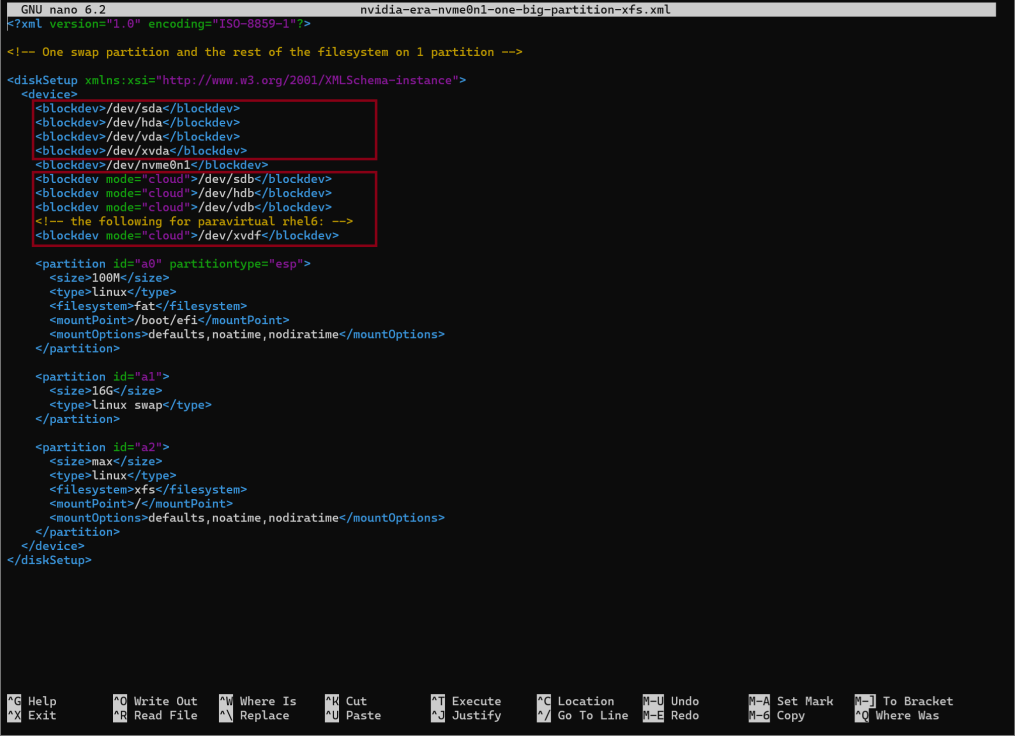
Figure 80 The nvidia-era-nvme0n1-one-big-partition-xfs.xml file before modification, showing references to multiple disk devices.#
After:
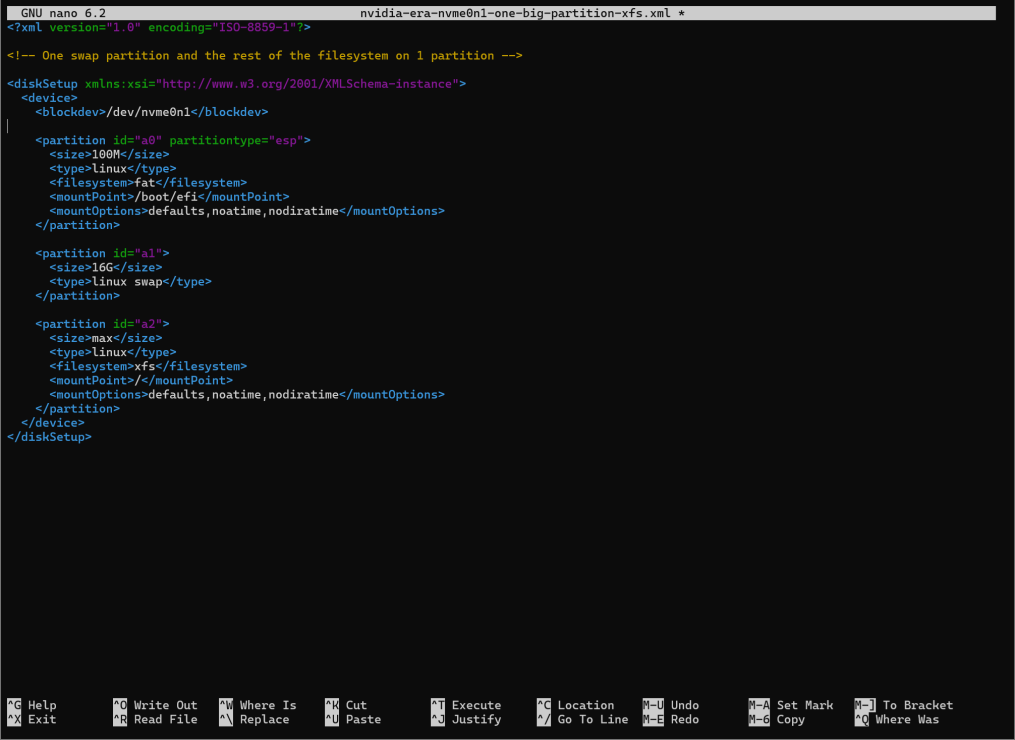
Figure 81 The nvidia-era-nvme0n1-one-big-partition-xfs.xml file after modification, with references to devices other than nvme0n1 removed.#
Save (ctrl+s) and exit (ctrl+x).
e. Change directory back to home.
root@nvidia-era-bcm-01:/cm/local/apps/cmd/etc/htdocs/disk-setup# cd ~
f. Enter cmsh.
root@nvidia-era-bcm-01:~# cmshConfigure the default category.
a. Enter the category mode.
[nvidia-era-bcm-01]% category
b. Use the default category to edit its settings.
[nvidia-era-bcm-01->category]% use default
c. Set the disk layout to the newly create disk setup xml file. Use tab completion to avoid typing the entire filename manually.
[nvidia-era-bcm-01->category[default]]% set disksetup nvidia-era-nvme0n1-one-big-partition-xfs.xml
d. Commit the changes.
[nvidia-era-bcm-01->category*[default*]]% commit