
Getting Started#
This quick start guide covers setting up the environment and deploying the Halos Outside-In Safety Blueprint with sample data.
NVIDIA Halos Outside-In Blueprint Architecture#
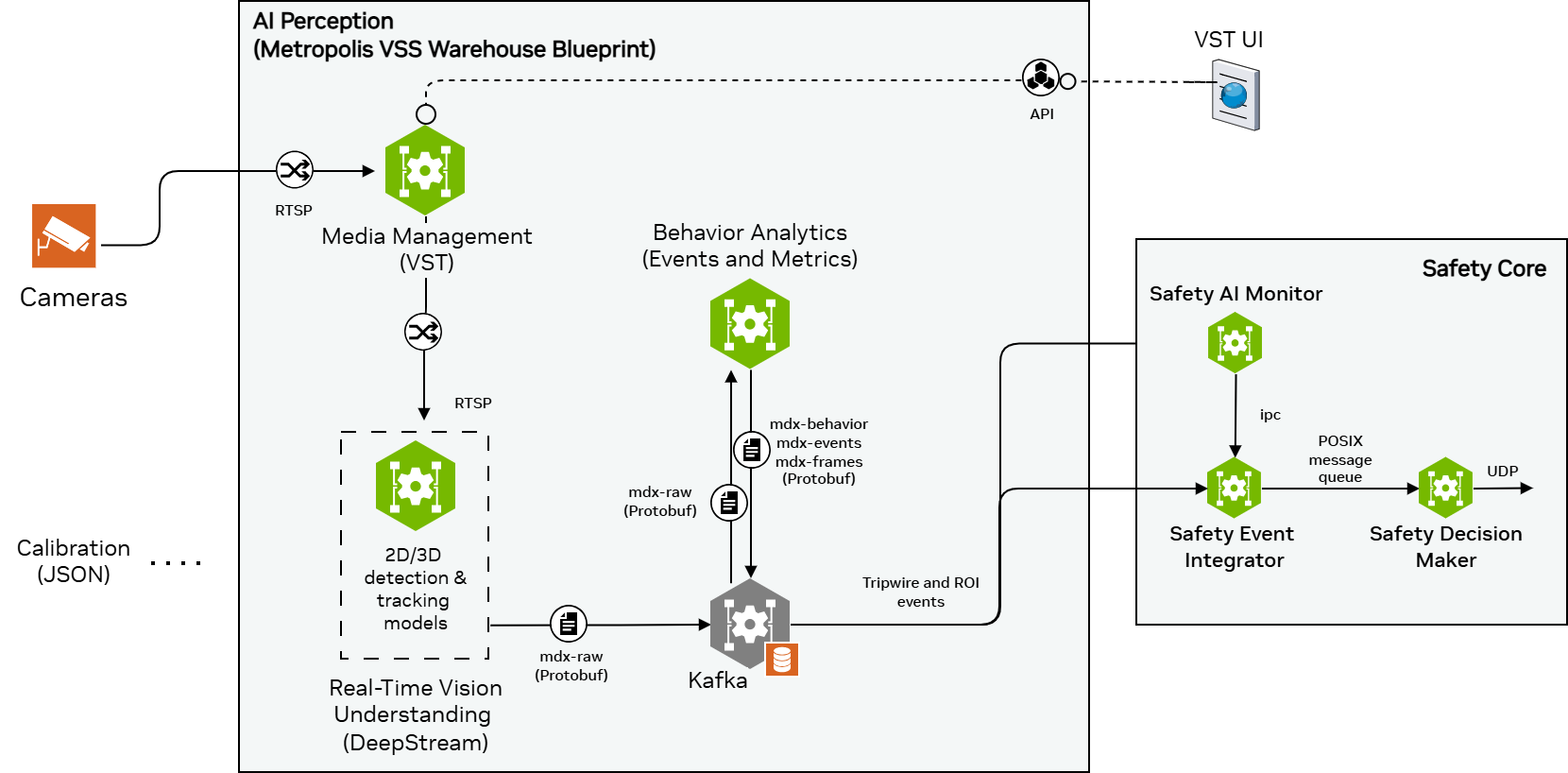
The current architecture consists of two main groups of components:
1. AI Perception#
This module detects safety events from 2D camera streams using advanced perception and behavior analytics tuned for warehouse environments. It continuously tracks people, forklifts, AMRs, and other moving assets and emits semantically rich events tied to safety zones and workflows. The system supports three primary event types:
Region-of-interest (ROI) events: Triggered when objects enter or exit configured safety zones, enabling occupancy monitoring and enforcement of human‑free or equipment‑free areas.
Tripwire events: Triggered when objects cross virtual lines placed at doors, dock edges, or aisle boundaries, enabling directional counting and presence inference in partially occluded or blind areas.
Proximity events: Triggered when people and equipment come within unsafe distances, supporting pedestrian–vehicle collision avoidance and automatic slow‑down or stop behaviors.
Learn more about AI Perception component: VSS Warehouse Blueprint - 2D Vision AI and Perception Microservices Documentation.
2. Safety Core#
2.1 Safety AI Monitor#
The Safety AI Monitor (SAIM) continuously assesses the health of the camera sensor inputs feeding NVIDIA Halos Outside-In Safety Blueprint (HOISA).
It independently observes the same RTSP streams consumed by the AI Perception pipeline and scores every decoded frame against a per-sensor baseline of frame-quality metrics learned during an initial calibration phase.
When a stream degrades — for example, due to out-of-distribution frames, camera blockage or fogging, RTSP transport loss, or stream corruption — SAIM publishes a SENSOR_INVALID trust report to the Safety Event Integrator; when the stream recovers, it publishes a matching SENSOR_VALID report.
This lets fusion and downstream decisions factor sensor integrity into the safety response, rather than relying on perception output from a sensor that can no longer be trusted.
Refer to the Integration Guide and Safety AI Monitor (SAIM) for more details.
2.2 Safety Event Integrator#
The Safety Event Integrator (SEI) receives alerts from the VSS Warehouse Blueprint - 2D Vision AI Perception component. It groups and correlates alerts that represent the same underlying situation, whether they come from redundant detection pipelines or from multiple camera views of the same area. After validating and fusing these inputs into a single high-confidence safety event, Safety Event Integrator forwards the consolidated event to the Safety Decision Maker for action.
Refer to the Integration Guide and Safety Event Integrator (SEI) for more details.
2.3 Safety Decision Maker#
The Safety Decision Maker (SDM) consumes validated safety events from the SEI and converts them into concrete control actions for field devices and applications. It applies use-case–specific logic to decide when to slow down or stop a vehicle or inhibit or enable a safety function. The blueprint provides a reference SDM implementation for the ATL (Automated Trailer Loading) scenario, which you are expected to extend or adapt to match your target equipment, safety policies, and integration requirements.
Refer to the Integration Guide and Safety Decision Maker (SDM) for more details.
Deploying Halos Outside-In#
Halos Outside-In can be deployed in three levels:
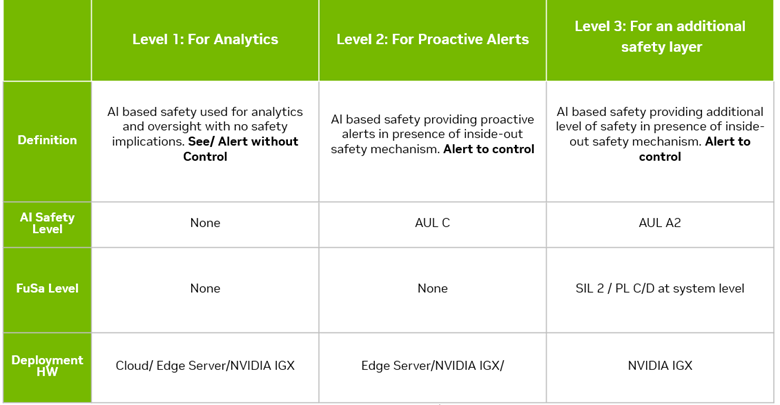
The deployment process includes these steps:
Camera Selection, Placement and Calibration
Installation of VSS Warehouse Blueprint
Installation of Safety Event Integrator and Decision Maker
Camera Selection, Placement and Calibration Guidelines#
(If you just want to try out Halos Outside-In with the sample videos packaged within the software, skip this step and proceed to the next step Installation of AI Perception.)
Camera model choice and configuration settings significantly impact detection latency. The method used to connect cameras to the compute platform greatly influences overall system latency.
Best Practices for Deployment#
Use a Consistent Camera Model: Deploy the same camera model across all units to ensure uniform performance and predictable latency.
Standardize Camera Settings: Apply identical configuration settings to every camera in the deployment. This consistency is essential for reliable detection and optimal fusion of results by the safety supervisor, minimizing latency across the system.
Connection Method Matters: Ensure that all cameras connect to the compute platform using the same interface and topology to avoid introducing variable delays.
Optimal camera placement is crucial and should be tailored to your specific use case. Camera positioning significantly affects both accuracy and latency of safety event detection. For detailed guidance on camera positioning for best results, refer to the camera placement guide.
Once you place your camera, calibrate it by referring to the camera calibration guidelines.
Configuring Safety Zones and Tripwires is part of the camera calibration process and definitions of tripwires and zones are included in the calibration file.
Installation of AI Perception#
System Requirements#
The System and GPU requirement of AI Perception (VSS Warehouse Blueprint - 2D profile) is shown as below:
GPU Type |
Number of streams |
2D Vision AI Profile (Number of GPUs) |
|---|---|---|
RTX PRO 6000 BW |
16 |
1 |
H100 (NVL, SXM HBM3) |
26 |
1 |
RTX A6000 ADA |
8 |
1 |
L40S |
12 |
1 |
L4 |
4 |
1 |
The minimum system requirements are:
x86-64 architecture
16 core CPU
64 GB RAM
1 TB SSD
1 × 1 Gbps network interface
1 or 2 supported GPUs
For more details in hardware and software prerequisites please refer to VSS Warehouse Blueprint Prerequisites.
Installation Steps#
1. Clone the VSS Warehouse repository
You need an NGC API key to pull the container images. If you don’t have the NGC CLI installed, refer to the NGC CLI installation guide: https://org.ngc.nvidia.com/setup
git clone https://github.com/NVIDIA-AI-Blueprints/video-search-and-summarization.git
cd video-search-and-summarization
git lfs install
git checkout v3.2.0
git lfs pull
The warehouse-operations profile, including the sample calibration data, lives under deploy/docker/industry-profiles/warehouse-operations/.
2. Download the sample data assets
Download the sample app data (videos and perception models for the warehouse-loading-dock-3cams-synthetic dataset) from NGC and extract it:
ngc registry resource download-version "nvidia/vss-warehouse/vss-warehouse-app-data:3.2.0"

cd vss-warehouse-app-data_v3.2.0
tar -xvf vss-warehouse-app-data.tar.gz

# Set permissions
sudo chmod -R 777 /path/to/vss-warehouse-app-data
3. Environment Settings
Edit deploy/docker/industry-profiles/warehouse-operations/.env to run the 2D Vision AI Profile. Set the following (the file ships with bp_wh_kafka defaults, confirm they match; Kafka is required so the Safety Framework can consume perception events):
# Deployment mode: 2d, 3d, or mv3dt
MODE=2d
# Blueprint profile: bp_wh, bp_wh_kafka, bp_wh_redis, bp_wh_auto_calib
BP_PROFILE=bp_wh_kafka
NUM_STREAMS=3
SAMPLE_VIDEO_DATASET="warehouse-loading-dock-3cams-synthetic"
HOST_IP='<HOST IP>'
VSS_APPS_DIR="/path/to/deploy/docker"            # the cloned repo's deploy/docker
VSS_DATA_DIR="/path/to/vss-warehouse-app-data"   # where the sample data was extracted in step 2
HARDWARE_PROFILE=(L4, A6000, H100, L40S, DGX-THOR, DGX-SPARK etc)
# Dont use higher HARDWARE_PROFILE value when using lower HARDWARE_PROFILE machine.
# For example when deploying app on L4 dont set HARDWARE_PROFILE=H100
LLM_MODE=none
VLM_MODE=none
4. Deploy VSS Warehouse Blueprint
Warning
The two issues below have been observed only on safety-flashed
IGX Thor platforms (IGX Thor Developer Kit T7000 and Developer Kit Mini T5000): the
nvstreamer-2d container fails to start due to a missing NVIDIA
Container Runtime, and --pull always can intermittently fail
during image pulls. If you are deploying on one of these platforms,
apply the workarounds in Annex A before
running the deployment commands below.
Important
Docker registry authentication is mandatory before deploying VSS Warehouse or Safety Core images from nvcr.io. NGC CLI authentication is only used for downloading NGC resources; it does not authenticate Docker image pulls.
Log in to the NGC Docker registry, then validate the required VSS image pulls before starting Docker Compose:
docker login nvcr.io
# Username: $oauthtoken
# Password: <NGC API key>

docker pull nvcr.io/nvidia/vss-core/vss-rt-cv:3.2.0
docker pull nvcr.io/nvidia/vss-core/vss-behavior-analytics:3.2.0
docker pull nvcr.io/nvidia/vss-core/vss-vios-sensor:3.2.0
docker pull nvcr.io/nvidia/vss-core/vss-vios-streamprocessing:3.2.0
docker pull nvcr.io/nvidia/vss-core/vss-vios-ingress:3.2.0
Run Docker Compose from deploy/docker/ so the relative include paths resolve. The top-level compose.yml pulls in the shared infrastructure (Kafka, Redis), the perception app, and the warehouse-operations profile selected by the .env above.
cd deploy/docker

# Start the blueprint
docker compose -f compose.yml \
  --env-file industry-profiles/warehouse-operations/.env \
  up --detach --pull always --force-recreate --build
Verify the running VSS Warehouse Blueprint:
# Verify if containers are in running state
docker ps
docker compose ls
# For 2D Vision AI Profile (perception)
docker logs -f vss-rtvi-cv
# Open a browser to check the data once all containers are up and running
# Verify the Kibana dashboard for safety events
http://<hostip>:5601/app/kibana_overview/
# Verify the video storage toolkit (VST) dashboard
http://<hostip>:30888/vst/dashboard
Before launching Safety Core, validate the streams and events that HOISA will consume:
# Confirm the VST sensors are online.
curl -s http://<hostip>:81/api/v1/sensor/status

# Validate each exact rtspUrl configured in sensor_config.conf.
ffprobe -rtsp_transport tcp <rtsp_url>
# or
gst-launch-1.0 rtspsrc location=<rtsp_url> ! fakesink

# Optional: confirm behavior analytics events are present on mdx-events.
docker exec mdx-kafka kafka-console-consumer \
    --bootstrap-server localhost:9092 \
    --topic mdx-events \
    --from-beginning \
    --timeout-ms 10000
Note
VST sensor online status is not enough by itself. The exact
rtspUrl in sensor_config.conf must be playable before SAIM
and Safety Core are launched.
Note
For Halos V1.2 with VSS 3.1.0, VST halo overlay visualization is not supported. Use the VST sensor status, RTSP playback check, SAIM logs, Safety Core logs, and Kafka events as the validation signals. See VST UI visualization limitation.
Stop VSS Warehouse Blueprint:
# From deploy/docker, use the SAME env file you deployed with
docker compose -f compose.yml \
  --env-file industry-profiles/warehouse-operations/.env down
# Tear down all dangling volumes
docker volume ls -q -f "dangling=true" | xargs docker volume rm
# Cleanup all data (matches how you deployed)
bash scripts/cleanup_all_datalog.sh -e industry-profiles/warehouse-operations/.env
Customization#
It is supported to customize the VSS Warehouse Blueprint for user specific use cases, including adding new cameras, configuring different safety zones and tripwires, fine-tuning the AI perception models, etc.
For details please refer to the VSS Warehouse 2D Blueprint Customization Guide.
Installation of Safety Event Integrator and Decision Maker#
Once the AI Perception is up and running, events are being generated from the input camera streams. To convert events into actionable signals, you can now install and launch the Safety Event Integrator and Decision Maker by following the steps listed in Sections 1 and 2 of Safety Core Guide.
Before launching Safety Core, complete the Docker nvcr.io login and PSF image pull validation in Section 1.2 of Safety Core Guide.
Before launch, confirm the behavior analytics events on mdx-events use
the same camera names that will be configured as sensorName values in
/opt/nvidia/psf/bin/sensor_config.conf. If the camera or pipeline
mapping is changed in VSS, update sensor_config.conf before starting
SEI and SDM.
The command receiver application used for demo and test with the reference ‘smart door’ and ‘ATL’ Decision Maker application is present in the Debian package, and may run in the target system’s native user space when using the Docker-based steps for running the Safety Event Integrator and Decision Maker itself.
The configurable parameters for the Safety Event Integrator are described in Section 3 of the Safety Core Guide. The HOISA processes (if using the Debian-based installation) or the Docker container (if using the Docker-based installation) must be restarted after making any change in the configuration.
You may modify the Safety Decision Maker implementation based on your overall application and deployment system requirements and use cases.
The source code of the ‘smart door’ and ‘ATL’ sample implementation can be found at the path <Extraction root>/opt/nvidia/psf/apps/ after extracting the PSF-desktop-dev Debian package.
Technical details pertaining to implementation of Safety Decision Maker Logic from scratch, including the Safety Framework APIs and decision request call flows are described in Chapter 4 of the Integration Guide.
Annex A: VSS Warehouse Blueprint deployment workarounds for safety-flashed IGX Thor#
The two issues described in this annex have been observed only when deploying the VSS Warehouse Blueprint - 2D profile on safety-flashed IGX Thor systems (IGX Thor Developer Kit T7000 and Developer Kit Mini T5000). Deployment on other (non-safety-flashed) platforms is not affected.
Apply the corresponding workaround below before deploying on these systems. With these workarounds, VSS Warehouse 3.2 has been deployed successfully on safety-flashed IGX Thor systems.
a. nvstreamer-2d container fails to start (NVIDIA Container Runtime missing)#
Issue: In the safety build with the Safety Extension Package (SEP),
runtime: nvidia is commented out in warehouse-2d-app.yml and the
NVIDIA Container Runtime is not selected automatically. As a result, the
nvstreamer-2d container fails to start with a runtime hook error.
Workaround: Add runtime: nvidia to the nvstreamer-2d service via a
Compose override. Create deploy/docker/docker-compose.override.yml with:
services:
  nvstreamer-2d:
    runtime: nvidia
The deployment command passes -f compose.yml explicitly, which disables
auto-discovery of the override file, so add it with an extra -f flag when
starting the blueprint:
cd deploy/docker

docker compose -f compose.yml -f docker-compose.override.yml \
  --env-file industry-profiles/warehouse-operations/.env \
  up --detach --force-recreate --build
With this override, the nvstreamer-2d service (container
vss-vios-nvstreamer in docker ps) starts successfully.
b. Intermittent Docker image pull failures with –pull always#
Issue: Deploying with --pull always re-fetches every service image on
each docker compose up and intermittently fails, blocking the deployment
during image pulls.
Workaround: Pre-pull the required images once while authenticated to
nvcr.io (see the Docker registry authentication step under
Installation of AI Perception), then start the blueprint without
--pull always so Docker Compose uses the locally cached images:
cd deploy/docker

docker compose -f compose.yml \
  --env-file industry-profiles/warehouse-operations/.env \
  up --detach --force-recreate --build
Prefer a local cache or an authenticated registry over anonymous Docker Hub pulls.