


Quick Start Guide#
Deploy Halos SIL for Software-in-Loop testing.
Note
Halos SIL requires VSS Warehouse 3.2 as its perception backend. Deploy VSS Warehouse first using the official VSS Warehouse Blueprint - 2D Vision AI Profile documentation before proceeding with Halos SIL deployment.
Prerequisites#
See Prerequisites for hardware and software requirements.
Deploy with Halos Deployment Skill (recommended)#
For an automated bring-up via Claude Code, use the hoisa-deploy-profile skill — it replaces Steps 1–6 below with a single agent prompt. See Quick Start with Halos Deployment Skill.
Manual instructions below remain supported and are required without Claude Code.
Step 1: Download Packages#
Clone the Halos Outside-In Safety repository (ships the compose files, profiles, configs, and scripts in-tree), then download the SIL data tarball from NGC:
# Clone the Halos Outside-In Safety repo
git clone https://github.com/NVIDIA/halos-outside-in-safety.git
cd halos-outside-in-safety

# Download SIL data
ngc registry resource download-version \
  "nvidia/halos-outside-in/sample-sil-data:v1.2.1"

tar -xvf sample-sil-data_v*/halos-outside-in-sil-data.tar.gz \
  --directory=/home/$USER/ # change me
Output:
halos-outside-in-safety/- Cloned repo (compose files, profiles, configs, scripts)sil-data/- Isaac Sim scenes and configs
Step 2: Deploy VSS Warehouse#
Deploy VSS Warehouse 3.2 following the official VSS Warehouse Blueprint - 2D Vision AI Profile documentation.
Before deploying, update the VSS Warehouse .env with the following settings:
MDX_SAMPLE_APPS_DIR="/path/to/deployments"
MDX_DATA_DIR="/path/to/vss-warehouse-app-data"
HOST_IP='<HOST_IP>'  # Get with: hostname -I | awk '{print $1}'
LLM_MODE=none
VLM_MODE=none
BP_PROFILE=bp_wh_kafka
SAMPLE_VIDEO_DATASET="warehouse-loading-dock-3cams-synthetic"
NUM_STREAMS=3
Important
Required for SIL with VSS 3.2: When using Isaac Sim RTSP streams as input, the following DeepStream config changes are required in the perception config file industry-profiles/warehouse-operations/warehouse-2d-app/deepstream/configs/ds-main-config.txt:
In the [source-list] section, comment out SEI (Supplemental Enhancement Information) extraction:
[source-list]
# extract-sei-type5-data=1
# sei-uuid=NVDS_CUSTOMMETA
In the [streammux] section, enable system timestamp and comment out SEI parameters:
[streammux]
attach-sys-ts-as-ntp=1       # Enable system timestamp (change from 0 to 1)
# extract-sei-sim-time=1     # Comment out to disable SEI simulation time extraction
# drop-backward-sei=1        # Comment out to disable backward SEI frame dropping
These changes ensure correct FPS and timestamp synchronization when consuming RTSP streams from Isaac Sim. Without these changes, the perception pipeline may report low FPS and cause flickering bounding boxes on VST.
In industry-profiles/warehouse-operations/warehouse-2d-app/vst/configs/vst_config.json, increase the bounding-box tolerance to further reduce flickering on VST:
"bbox_tolerance_ms": 100
Start VSS Warehouse and wait for TensorRT engine build to complete.
Note
First startup takes 15-20 minutes for TensorRT engine build. Monitor build progress:
docker logs -f vss-rtvi-cv
Expected output when ready:
Active sources : 3
**PERF:
30.00000 (29.99911)     source_id : 2 stream_name Camera_02
30.00000 (29.99919)     source_id : 1 stream_name Camera_01
30.00000 (30.00077)     source_id : 0 stream_name Camera
Step 3: Configure Halos SIL Environment#
nano deployments/profiles/sil.env
Required settings:
MDX_SAMPLE_APPS_DIR="/path/to/halos-outside-in-safety"  # this repo checkout root
MDX_DATA_DIR="/path/to/sil-data"                        # the extracted sil-data dir from Step 1
HOST_IP='<HOST_IP>'                                      # same value as the VSS Warehouse .env
ISAAC_GPU_DEVICE=0                                       # Use GPU 1 if available, else 0
ROS_DOMAIN_ID=0                                          # MUST be unique per host (0-232); see Troubleshooting
DOCKER_GID=999                                           # run: getent group docker | cut -d: -f3
PSF_IMAGE and ISAAC_SIM_IMAGE are pre-set in sil.env — leave them.
Step 4: Deploy Halos SIL#
cd deployments
../closed-loop-testing/scripts/setup.sh sil              # Create required directories and set permissions
../closed-loop-testing/scripts/cleanup_all_datalog.sh sil # Clean previous data logs
docker compose --env-file profiles/sil.env up -d --build
Services started: safety-core, comm-layer, isaac-sim, mediamtx
Step 5: Run Test Scenario#
docker exec -d isaac-sim bash -lc 'cd /isaac-sim/sil/scripts && \
  ./run_sdg.sh -c /isaac-sim/sil/configs/default_config_ros.yaml \
  --start --headless --enable-vst \
  --cameras-config /isaac-sim/sil/configs/cameras.yaml'
For script usage details and additional options, see Execution Script.
What happens:
Loads warehouse scene (20×20m)
Spawns forklift and 3 digital humans from USD
Initializes ROS2 Action Graph for forklift
Runs forklift playback sequence
Starts RTSP streaming (IRA/RTSP before VST)
Registers 3 cameras with VST
Startup time:
First run: 10–15 min Isaac Sim loads cache and compiles render shaders for GPU initialization. This includes time to start the simulation and establish RTSP streaming.
Subsequent runs: 5–10 min Cache and shaders are already compiled, reducing startup time.
Simulation: ~5 min (3500 frames @ 15 FPS). Rerun the script to repeat. The script runs 3500 frames and completes in approximately 5 minutes. To rerun, execute the script again.
Step 6: Monitor Safety Commands#
The log paths below use MDX_DATA_DIR from your sil.env. From the deployments/ directory, load it into your shell first (re-run it in each terminal you monitor from):
set -a; source profiles/sil.env; set +a
Monitor OPC server log:
tail -f $MDX_DATA_DIR/comm-layer/opc_server.log
Expected output:
INFO:udp_receiver.safety_receiver:Received: Seq#0 | HEARTBEAT | 💓 Heartbeat | ts=2026-04-29T13:33:28.055302+00:00
INFO:udp_receiver.safety_receiver:Received: Seq#3 | MUTE (ALLOW OPERATION) | 🟢 Safety muted - Loading allowed | ts=2026-04-29T13:33:38.946800+00:00
INFO:udp_receiver.safety_receiver:Received: Seq#9 | UNMUTE (PREVENT OPERATION) | 🟡 Safety active + Alarm on | ts=2026-04-29T13:34:06.987138+00:00
🟢 MUTE (ALLOW OPERATION): Forklift in trailer, no humans detected (allow loading)
🟡 UNMUTE (PREVENT OPERATION): Human detected or forklift exiting (alarm active)
💓 HEARTBEAT: Periodic keep-alive (every 5s) — confirms PSF→comm-layer link is healthy
Monitor PSF:
tail -f $MDX_DATA_DIR/psf-log/pss.log
Expected output:
2026-04-29T13:33:38.770555+00:00 host nv_mdx_client[59]:  Timestamp: 2026-04-29 13:33:38:770421 Endpoint: NVPSB_PSS_SOURCE Data: Safety event reported: EVENT_0 (rule: Forklift tripwire OUT)
2026-04-29T13:34:06.823078+00:00 host nv_mdx_client[59]:  Timestamp: 2026-04-29 13:34:06:822968 Endpoint: NVPSB_PSS_SOURCE Data: Safety event reported: EVENT_1 (rule: Forklift tripwire IN)
2026-04-29T13:34:06.986286+00:00 host NVPSB_PSD_CLIENT[34]:  Timestamp: 2026-04-29 13:34:06:986216 Endpoint: NVPSB_PSD_CLIENT  Data: PSD-Gateway: received DecisionRequest id=1 with 1 events
EVENT_0 / EVENT_1: Tripwire crossings reported by perception (forklift OUT/IN trailer).
DecisionRequest: PSF decision-maker invoked — produces the corresponding MUTE/UNMUTE command on the OPC log above.
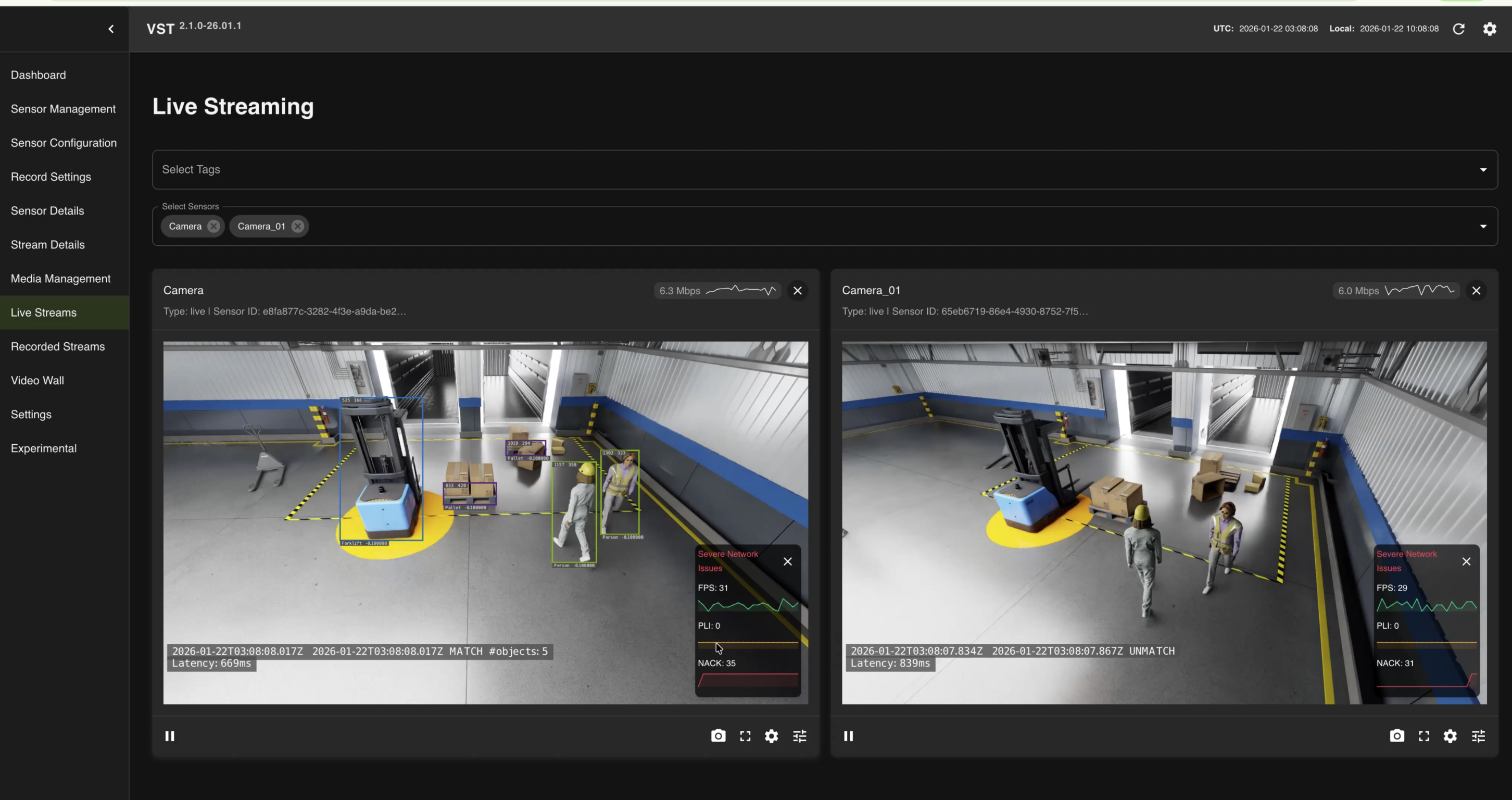
Step 7: View Camera Streams#
VST UI — http://<HOST_IP>:30888/vst/
# Open in browser
http://<HOST_IP>:30888/vst/
View live camera streams from Isaac Sim.
Cleanup and Restart#
# Stop Halos SIL
cd deployments
docker compose --env-file profiles/sil.env down
bash ../closed-loop-testing/scripts/cleanup_all_datalog.sh sil
docker volume prune -f

# Stop VSS Warehouse (refer to VSS Warehouse docs for full cleanup)
# https://docs.nvidia.com/vss/3.2.0/warehouse-docs/Quickstart-Guide.html#teardown-the-deployment
Troubleshooting#
Safety Core (PSF) Cannot Connect to Kafka#
Warehouse (Kafka) must be running before Halos SIL. Check status:
# Check Warehouse running
docker ps | grep kafka
If Kafka is not running, redeploy VSS Warehouse following Step 2: Deploy VSS Warehouse.
STALE Events in Safety Core (PSF)#
Increase timeWindowSize in nvpss.conf (e.g., 900ms → 1200ms) to resolve STALE events in SIL.:
nano closed-loop-testing/safety-core/configs/nvpss.conf
# Increase: timeWindowSize=1200
cd deployments && docker compose --env-file profiles/sil.env restart safety-core
Safety Indicator Flickering (Multi-Machine)#
If multiple SIL systems run on the same network, each must use a unique
ROS_DOMAIN_ID (0-232) in deployments/profiles/sil.env. Without this, ROS2 nodes
from different machines publish to the same /safety/is_muted topic,
causing cross-machine interference and safety indicator flickering.
# In deployments/profiles/sil.env — assign a unique number per machine
ROS_DOMAIN_ID=42
Restart Halos SIL after changing. Verify with:
docker exec comm-layer bash -c \
  "source /opt/ros/jazzy/setup.bash && ros2 topic info /safety/is_muted -v"
Should show Publisher count: 1.
Next Steps#
Architecture — System architecture and data flow
Isaac Sim Configuration — Isaac Sim configuration
Forklift ROS2 Action Graph — Forklift control details