

Enable G-SYNC
Enable G-SYNC
For better performance and to keep up with the high refresh rate of Holoscan applications, we recommend the use of a G-SYNC display.
Holoscan has been tested with these two G-SYNC displays:
Follow these steps to ensure G-SYNC is enabled on your display:
-
Open the “NVIDIA Settings” Graphics application (
nvidia-settingsin Terminal). -
Click on
X Server Display Configurationthen theAdvancedbutton. This will show theAllow G-SYNC on monitor not validated as G-SYNC compatibleoption. Enable the option and clickApply: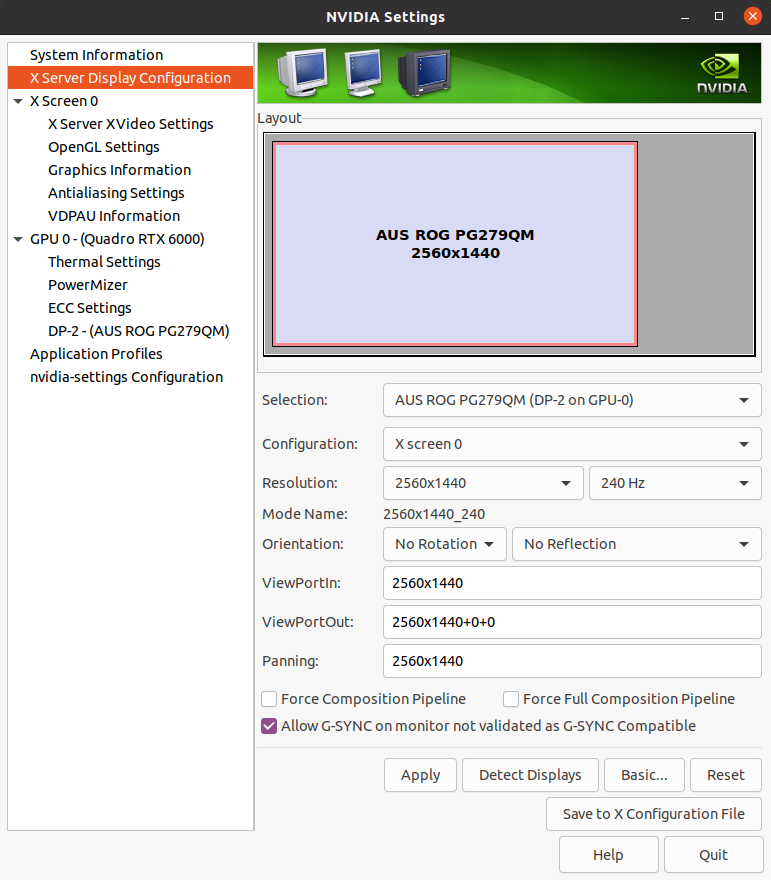
Enable G-SYNC for the current display -
To show the refresh rate and G-SYNC label on the display window, click on
OpenGL Settingsfor the selected display. Now clickAllow G-SYNC/G-SYNC CompatibleandEnable G-SYNC/G-SYNC Compatible Visual Indicatoroptions, then clickQuit. This step is shown in the image below. TheGsyncindicator is at the top right of the screen once the application is running.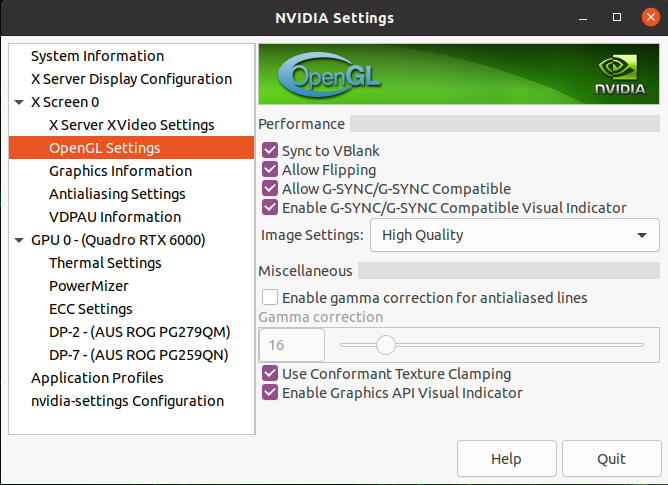
Enable Visual Indicator for the current display