# Copyright (c) 2022-2025, The Isaac Lab Project Developers.
# All rights reserved.
#
# SPDX-License-Identifier: BSD-3-Clause
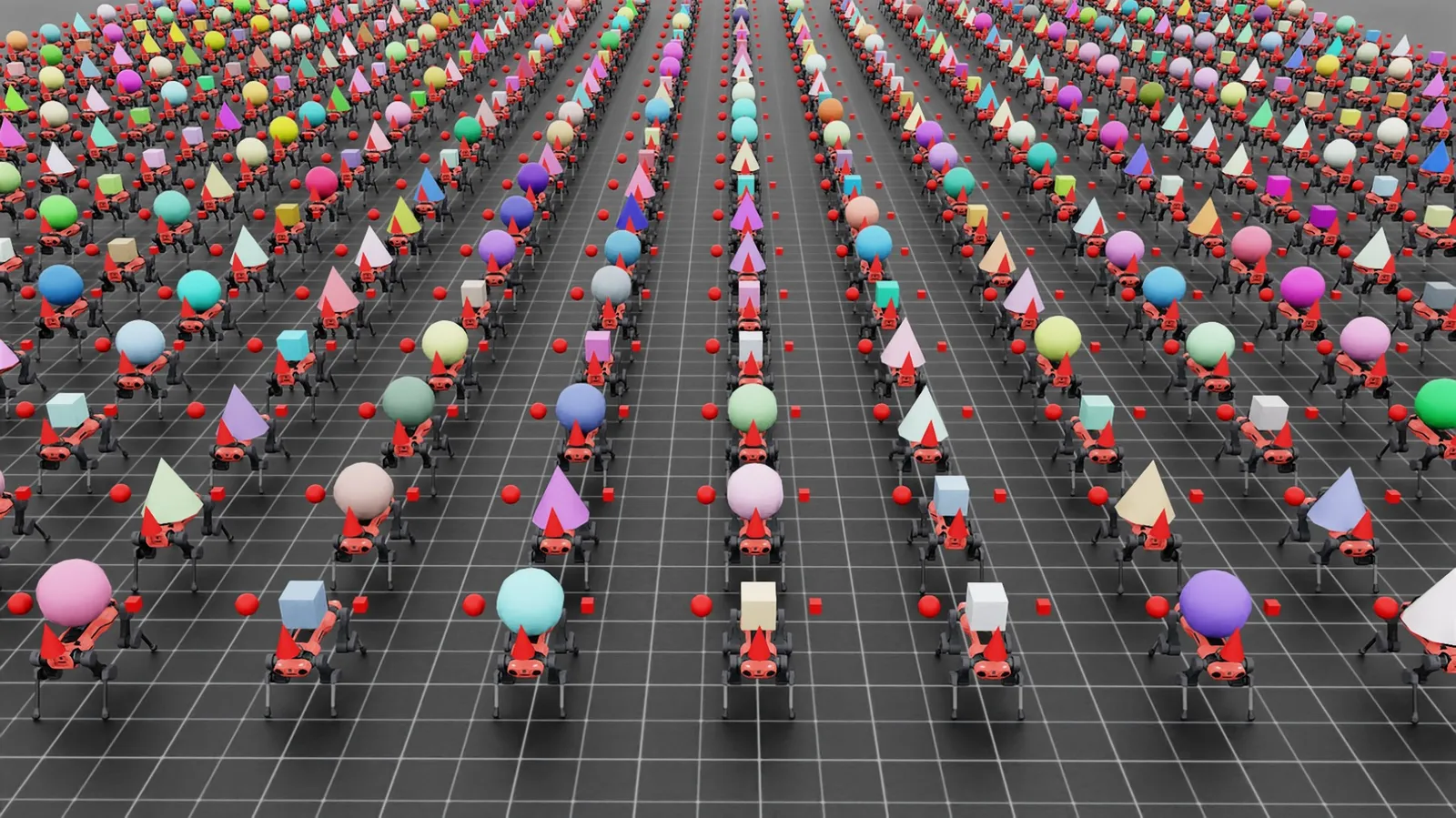
"""This script demonstrates how to spawn multiple objects in multiple environments.
~~~bash
# Usage
./isaaclab.sh -p scripts/demos/multi_asset.py --num_envs 2048
~~~
"""
from __future__ import annotations
"""Launch Isaac Sim Simulator first."""
import argparse
from isaaclab.app import AppLauncher
# add argparse arguments
parser = argparse.ArgumentParser(description="Demo on spawning different objects in multiple environments.")
parser.add_argument("--num_envs", type=int, default=512, help="Number of environments to spawn.")
# append AppLauncher cli args
AppLauncher.add_app_launcher_args(parser)
# parse the arguments
args_cli = parser.parse_args()
# launch omniverse app
app_launcher = AppLauncher(args_cli)
simulation_app = app_launcher.app
"""Rest everything follows."""
import random
import omni.usd
from pxr import Gf, Sdf
import isaaclab.sim as sim_utils
from isaaclab.assets import (
Articulation,
ArticulationCfg,
AssetBaseCfg,
RigidObject,
RigidObjectCfg,
RigidObjectCollection,
RigidObjectCollectionCfg,
)
from isaaclab.scene import InteractiveScene, InteractiveSceneCfg
from isaaclab.sim import SimulationContext
from isaaclab.utils import Timer, configclass
from isaaclab.utils.assets import ISAACLAB_NUCLEUS_DIR
##
# Pre-defined Configuration
##
from isaaclab_assets.robots.anymal import ANYDRIVE_3_LSTM_ACTUATOR_CFG # isort: skip
##
# Randomization events.
##
def randomize_shape_color(prim_path_expr: str):
"""Randomize the color of the geometry."""
# acquire stage
stage = omni.usd.get_context().get_stage()
# resolve prim paths for spawning and cloning
prim_paths = sim_utils.find_matching_prim_paths(prim_path_expr)
# manually clone prims if the source prim path is a regex expression
with Sdf.ChangeBlock():
for prim_path in prim_paths:
# spawn single instance
prim_spec = Sdf.CreatePrimInLayer(stage.GetRootLayer(), prim_path)
# DO YOUR OWN OTHER KIND OF RANDOMIZATION HERE!
# Note: Just need to acquire the right attribute about the property you want to set
# Here is an example on setting color randomly
color_spec = prim_spec.GetAttributeAtPath(prim_path + "/geometry/material/Shader.inputs:diffuseColor")
color_spec.default = Gf.Vec3f(random.random(), random.random(), random.random())
##
# Scene Configuration
##
@configclass
class MultiObjectSceneCfg(InteractiveSceneCfg):
"""Configuration for a multi-object scene."""
# ground plane
ground = AssetBaseCfg(prim_path="/World/defaultGroundPlane", spawn=sim_utils.GroundPlaneCfg())
# lights
dome_light = AssetBaseCfg(
prim_path="/World/Light", spawn=sim_utils.DomeLightCfg(intensity=3000.0, color=(0.75, 0.75, 0.75))
)
# rigid object
object: RigidObjectCfg = RigidObjectCfg(
prim_path="/World/envs/env_.*/Object",
spawn=sim_utils.MultiAssetSpawnerCfg(
assets_cfg=[
sim_utils.ConeCfg(
radius=0.3,
height=0.6,
visual_material=sim_utils.PreviewSurfaceCfg(diffuse_color=(0.0, 1.0, 0.0), metallic=0.2),
),
sim_utils.CuboidCfg(
size=(0.3, 0.3, 0.3),
visual_material=sim_utils.PreviewSurfaceCfg(diffuse_color=(1.0, 0.0, 0.0), metallic=0.2),
),
sim_utils.SphereCfg(
radius=0.3,
visual_material=sim_utils.PreviewSurfaceCfg(diffuse_color=(0.0, 0.0, 1.0), metallic=0.2),
),
],
random_choice=True,
rigid_props=sim_utils.RigidBodyPropertiesCfg(
solver_position_iteration_count=4, solver_velocity_iteration_count=0
),
mass_props=sim_utils.MassPropertiesCfg(mass=1.0),
collision_props=sim_utils.CollisionPropertiesCfg(),
),
init_state=RigidObjectCfg.InitialStateCfg(pos=(0.0, 0.0, 2.0)),
)
# object collection
object_collection: RigidObjectCollectionCfg = RigidObjectCollectionCfg(
rigid_objects={
"object_A": RigidObjectCfg(
prim_path="/World/envs/env_.*/Object_A",
spawn=sim_utils.SphereCfg(
radius=0.1,
visual_material=sim_utils.PreviewSurfaceCfg(diffuse_color=(1.0, 0.0, 0.0), metallic=0.2),
rigid_props=sim_utils.RigidBodyPropertiesCfg(
solver_position_iteration_count=4, solver_velocity_iteration_count=0
),
mass_props=sim_utils.MassPropertiesCfg(mass=1.0),
collision_props=sim_utils.CollisionPropertiesCfg(),
),
init_state=RigidObjectCfg.InitialStateCfg(pos=(0.0, -0.5, 2.0)),
),
"object_B": RigidObjectCfg(
prim_path="/World/envs/env_.*/Object_B",
spawn=sim_utils.CuboidCfg(
size=(0.1, 0.1, 0.1),
visual_material=sim_utils.PreviewSurfaceCfg(diffuse_color=(1.0, 0.0, 0.0), metallic=0.2),
rigid_props=sim_utils.RigidBodyPropertiesCfg(
solver_position_iteration_count=4, solver_velocity_iteration_count=0
),
mass_props=sim_utils.MassPropertiesCfg(mass=1.0),
collision_props=sim_utils.CollisionPropertiesCfg(),
),
init_state=RigidObjectCfg.InitialStateCfg(pos=(0.0, 0.5, 2.0)),
),
"object_C": RigidObjectCfg(
prim_path="/World/envs/env_.*/Object_C",
spawn=sim_utils.ConeCfg(
radius=0.1,
height=0.3,
visual_material=sim_utils.PreviewSurfaceCfg(diffuse_color=(1.0, 0.0, 0.0), metallic=0.2),
rigid_props=sim_utils.RigidBodyPropertiesCfg(
solver_position_iteration_count=4, solver_velocity_iteration_count=0
),
mass_props=sim_utils.MassPropertiesCfg(mass=1.0),
collision_props=sim_utils.CollisionPropertiesCfg(),
),
init_state=RigidObjectCfg.InitialStateCfg(pos=(0.5, 0.0, 2.0)),
),
}
)
# articulation
robot: ArticulationCfg = ArticulationCfg(
prim_path="/World/envs/env_.*/Robot",
spawn=sim_utils.MultiUsdFileCfg(
usd_path=[
f"{ISAACLAB_NUCLEUS_DIR}/Robots/ANYbotics/ANYmal-C/anymal_c.usd",
f"{ISAACLAB_NUCLEUS_DIR}/Robots/ANYbotics/ANYmal-D/anymal_d.usd",
],
random_choice=True,
rigid_props=sim_utils.RigidBodyPropertiesCfg(
disable_gravity=False,
retain_accelerations=False,
linear_damping=0.0,
angular_damping=0.0,
max_linear_velocity=1000.0,
max_angular_velocity=1000.0,
max_depenetration_velocity=1.0,
),
articulation_props=sim_utils.ArticulationRootPropertiesCfg(
enabled_self_collisions=True, solver_position_iteration_count=4, solver_velocity_iteration_count=0
),
activate_contact_sensors=True,
),
init_state=ArticulationCfg.InitialStateCfg(
pos=(0.0, 0.0, 0.6),
joint_pos={
".*HAA": 0.0, # all HAA
".*F_HFE": 0.4, # both front HFE
".*H_HFE": -0.4, # both hind HFE
".*F_KFE": -0.8, # both front KFE
".*H_KFE": 0.8, # both hind KFE
},
),
actuators={"legs": ANYDRIVE_3_LSTM_ACTUATOR_CFG},
)
##
# Simulation Loop
##
def run_simulator(sim: SimulationContext, scene: InteractiveScene):
"""Runs the simulation loop."""
# Extract scene entities
# note: we only do this here for readability.
rigid_object: RigidObject = scene["object"]
rigid_object_collection: RigidObjectCollection = scene["object_collection"]
robot: Articulation = scene["robot"]
# Define simulation stepping
sim_dt = sim.get_physics_dt()
count = 0
# Simulation loop
while simulation_app.is_running():
# Reset
if count % 250 == 0:
# reset counter
count = 0
# reset the scene entities
# object
root_state = rigid_object.data.default_root_state.clone()
root_state[:, :3] += scene.env_origins
rigid_object.write_root_pose_to_sim(root_state[:, :7])
rigid_object.write_root_velocity_to_sim(root_state[:, 7:])
# object collection
object_state = rigid_object_collection.data.default_object_state.clone()
object_state[..., :3] += scene.env_origins.unsqueeze(1)
rigid_object_collection.write_object_link_pose_to_sim(object_state[..., :7])
rigid_object_collection.write_object_com_velocity_to_sim(object_state[..., 7:])
# robot
# -- root state
root_state = robot.data.default_root_state.clone()
root_state[:, :3] += scene.env_origins
robot.write_root_pose_to_sim(root_state[:, :7])
robot.write_root_velocity_to_sim(root_state[:, 7:])
# -- joint state
joint_pos, joint_vel = robot.data.default_joint_pos.clone(), robot.data.default_joint_vel.clone()
robot.write_joint_state_to_sim(joint_pos, joint_vel)
# clear internal buffers
scene.reset()
print("[INFO]: Resetting scene state...")
# Apply action to robot
robot.set_joint_position_target(robot.data.default_joint_pos)
# Write data to sim
scene.write_data_to_sim()
# Perform step
sim.step()
# Increment counter
count += 1
# Update buffers
scene.update(sim_dt)
def main():
"""Main function."""
# Load kit helper
sim_cfg = sim_utils.SimulationCfg(dt=0.005, device=args_cli.device)
sim = SimulationContext(sim_cfg)
# Set main camera
sim.set_camera_view([2.5, 0.0, 4.0], [0.0, 0.0, 2.0])
# Design scene
scene_cfg = MultiObjectSceneCfg(num_envs=args_cli.num_envs, env_spacing=2.0, replicate_physics=False)
with Timer("[INFO] Time to create scene: "):
scene = InteractiveScene(scene_cfg)
with Timer("[INFO] Time to randomize scene: "):
# DO YOUR OWN OTHER KIND OF RANDOMIZATION HERE!
# Note: Just need to acquire the right attribute about the property you want to set
# Here is an example on setting color randomly
randomize_shape_color(scene_cfg.object.prim_path)
# Play the simulator
sim.reset()
# Now we are ready!
print("[INFO]: Setup complete...")
# Run the simulator
run_simulator(sim, scene)
if __name__ == "__main__":
# run the main execution
main()
# close sim app
simulation_app.close()