

Deploying Isaac ROS on Jetson#
Overview#
In this module, we will begin our Hardware-in-the-Loop (HIL) demonstration. With the NVIDIA Jetson environment fully configured and operational, it’s time to integrate Isaac Sim and Isaac ROS to test and evaluate the Jetson Orin’s performance in real-world scenarios.
What You’ll Do in This Module:
Use Isaac Sim to emulate sensors equivalent to those on a real robot.
Shift computational loads to the NVIDIA Jetson Orin for HIL testing.
Implement the same image segmentation configuration used in the SIL module.
Evaluate the performance of the PeopleSemSegNet model on the Jetson Orin.
By the end of this module, you will be able to:
Use Isaac ROS with Isaac Sim to enable HIL testing.
Run an image segmentation package on the Jetson Orin using simulated camera data.
Monitor system performance with jtop and analyze diagnostic outputs.
Visualize segmentation results and evaluate software performance on the Jetson.
This module solidifies your understanding of HIL testing and its practical applications in robotics, preparing you to efficiently test and validate robotics software using simulation and hardware integration. Let’s get started!
Setting Up Isaac Sim Environment#
In this section, we will set up the Isaac Sim environment to test the image segmentation package using simulated data. The sample environment includes people and the Nova Carter robot, a wheeled autonomous mobile robot (AMR) equipped with a camera. This camera will capture images from the robot’s perspective, which will then be processed for segmentation.
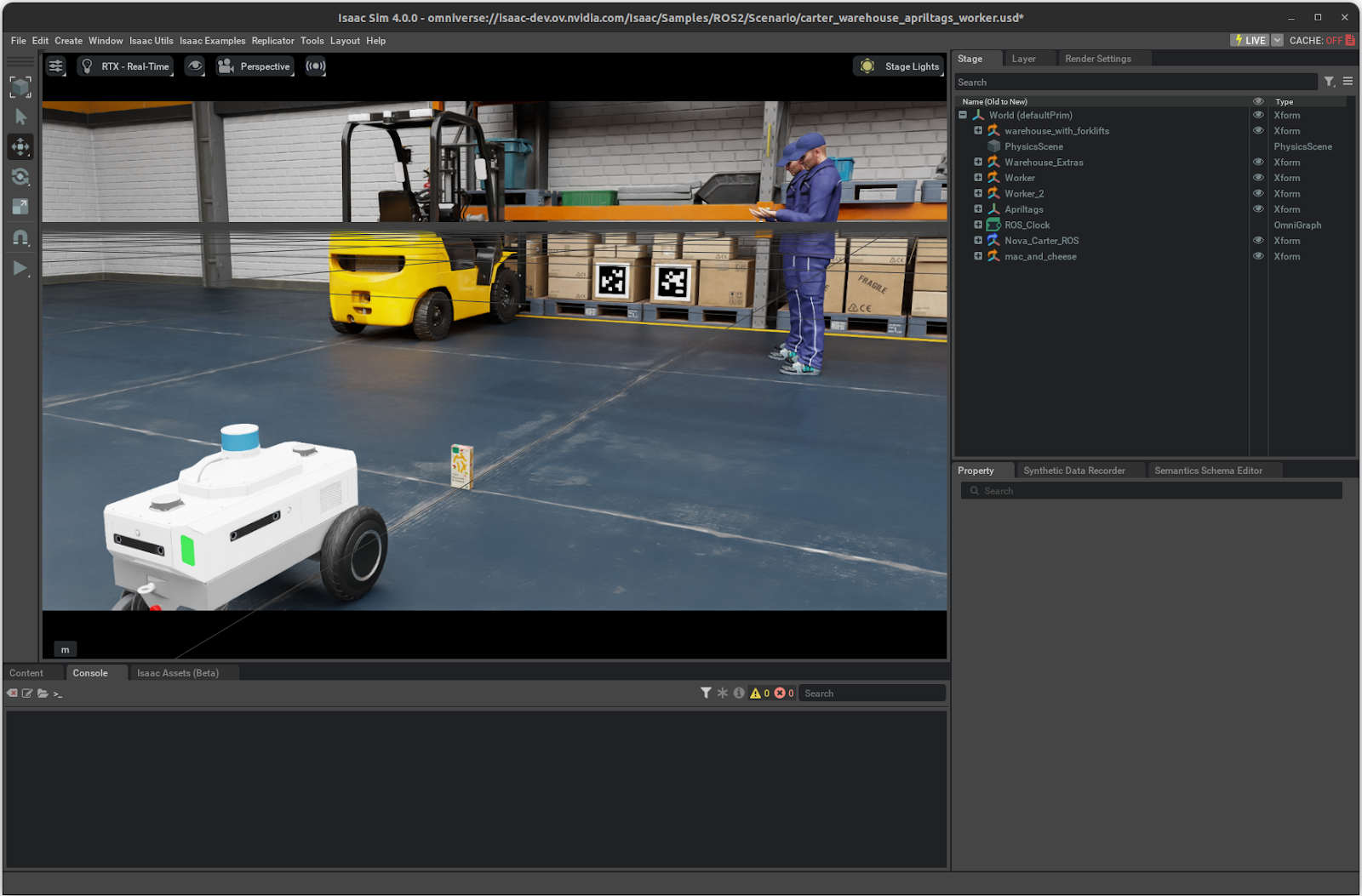
Isaac Sim Environment#
What You’ll Do in This Section#
Enable the ROS 2 Bridge for communication between Isaac Sim and the Isaac ROS image segmentation package.
Load the Isaac ROS sample scene, which includes the Carter robot, people, and other objects for testing.
Enable ROS 2 Bridge#
To enable communication between Isaac Sim and ROS 2, follow these steps:
Refer to the instructions on the “ROS and ROS 2 Installation” page.
For this module, we focus on running ROS without a system-level install.
Use the instructions under “ROS 2 > Humble > Linux,” as this is the ROS version currently supported by NVIDIA Isaac ROS.
Set Up Your Environment#
Open a terminal and enter the following commands:
export isaac_sim_package_path=$HOME/.local/share/ov/pkg/isaac-sim-4.2.0
export RMW_IMPLEMENTATION=rmw_fastrtps_cpp

# Can only be set once per terminal.
# Setting this command multiple times will append the internal library path again potentially leading to conflicts
export LD_LIBRARY_PATH=$LD_LIBRARY_PATH:$isaac_sim_package_path/exts/omni.isaac.ros2_bridge/humble/lib

# Run Isaac Sim
$isaac_sim_package_path/isaac-sim.sh
Open a terminal and enter the following commands:
export
isaac_sim_package_path=$HOME/isaacsim

export RMW_IMPLEMENTATION=rmw_fastrtps_cpp

# Can only be set once per terminal.
# Setting this command multiple times will append the internal library path again potentially leading to conflicts
export
LD_LIBRARY_PATH=$LD_LIBRARY_PATH:$isaac_sim_package_path/exts/isaacsim.ros2.bridge/humble/lib


# Run Isaac Sim
$isaac_sim_package_path/isaac-sim.sh
Once entered, the Isaac Sim application will launch. A smaller window might pop up asking if you would like to “Force Quit” or “Wait” - click on Wait. Wait for the “Isaac Sim App is loaded” message in the terminal.
Load the Sample Scene#
In the Isaac Sim GUI, follow these steps:
Navigate to
Isaac Sim 4.2.0: Isaac Examples > ROS2 > Isaac ROS > Sample Scene.
Isaac Sim 4.5.0: Robotics Examples > ROS2 > Isaac ROS > Sample Scene
Select this option to load the sample environment.
Wait approximately 30 seconds for the scene to load completely.
Explore the Scene#
After loading, you can move around in the scene using your mouse or keyboard. Observe objects such as:
People and a forklift within the environment.
The Carter robot with its mounted camera, which will capture images for segmentation.
At this point, you have successfully set up Isaac Sim with ROS 2 enabled and loaded a sample scene containing a robot and objects for testing!
HIL and Analyzing Results on the Jetson Platform#
In this section, we replicate the steps from the SIL module to execute the PeopleSemSegNet model for segmenting images captured by the robot’s camera in simulation. This time, however, Isaac ROS is running on your NVIDIA Jetson, showcasing Hardware-in-the-Loop (HIL) in action. While running Isaac ROS on the Jetson, we will also observe GPU utilization increasing as the system processes data.
What You’ll Do in This Section#
Check active ROS topics being communicated from Isaac Sim to the Jetson.
Start the image segmentation package using a ROS 2 launch file.
Visualize segmentation results using
rqt_image_view.Test segmentation by interacting with the simulated environment.
List ROS Topics#
Note
On the main computer shown here, we are running Isaac Sim, but the terminal on top is remotely connected to the Jetson Orin Nano.
Ensure Isaac Sim is running with the sample scene loaded.
Ensure your NVIDIA Jetson is running and you are remotely connected to it..
Once inside the Isaac ROS container, and before starting the simulation, enter the following command to list active ROS topics:
ros2 topic list
You should see only a few default topics since the simulation is paused.
Press Play in the Isaac Sim window to start the simulation.
Run the
ros2 topic listcommand again. This time, you should see additional topics such as/front_stereo_camera/left/image_rect_color, which correspond to data streams from the robot’s camera.
Run the Image Segmentation Package#
In the same terminal, use this command to launch the image segmentation package:
ros2 launch isaac_ros_unet isaac_ros_unet_tensor_rt_isaac_sim.launch.py engine_file_path:=${ISAAC_ROS_WS}/isaac_ros_assets/models/peoplesemsegnet/deployable_quantized_vanilla_unet_onnx_v2.0/1/model.plan input_binding_names:=['input_1:0']
This command starts processing images from Isaac Sim using the PeopleSemSegNet model.
After a few seconds, you should see messages like “Node was started,” indicating that all required nodes are running successfully.
Run the Isaac ROS Jetson Launcher#
Open a second terminal on your desktop and remotely connect to your Jetson Orin:
ssh username@.local
Run this command to execute the Isaac ROS Jetson launcher:
cd ${ISAAC_ROS_WS}/src/isaac_ros_common && ./scripts/run_dev.sh
From inside the container, run:
ros2 launch isaac_ros_jetson_stats jtop.launch.py
Visualize Segmentation Results#
In the terminal running the Isaac ROS container on your desktop, run this command to start
rqt:
rqt
Once
rqtopens, navigate to:Plugins > Robot Tools > Diagnostics Viewer:
![rqt Diagnostics Viewer][image12]
You will see diagnostics from your Jetson under “jtop.”
Plugins > Visualization > Image View:
![rqt imageviewer][image13]
A new window will open.
![no topic chosen][image14]
Select a topic to visualize:
Start with input image topics like
/front_stereo_camera/left/image_rect_colorto see what the robot’s camera captures.Switch to segmentation output topics to view results where people are highlighted with a red segmentation mask.
Test Segmentation in Simulation#
![final result][image15]
In Isaac Sim, select one of the simulated people with your mouse and manually move them to a new location while keeping them visible from the robot’s camera.
Observe how their position updates in real-time within
rqt_image_view, confirming that segmentation continues to work dynamically.Observe the GPU usage rising on the NVIDIA Jetson from the
rqtdiagnostic view.Stop the simulation by pressing Stop in Isaac Sim and note that no new data appears in
rqt_image_viewsince image streams stop when simulation is paused.Restart the simulation by pressing Play and repeat this experiment to explore further.
::{card}
By completing these steps, you have successfully tested image segmentation using simulated data from Isaac Sim working Hardware in the Loop (HIL). The PeopleSemSegNet model processed images from the robot’s camera, segmented people in real-time, and output results as ROS topics, which were visualized using rqt_image_view.
Review
In this module, we demonstrated how to run the Isaac ROS Image Segmentation package on a Jetson Orin. We performed segmentation on a simulated camera stream from Isaac Sim running on separate computer, and showed how the two systems communicate via ROS. This showcased the power of Hardware-in-the-Loop (HIL) testing by building upon the foundational concepts from earlier SIL modules.
What We Accomplished in This Module
Loaded a sample scene in Isaac Sim featuring the Carter robot equipped with a camera, capturing images from the robot’s perspective to serve as input for the segmentation process.
Used a ROS 2 launch file to execute the PeopleSemSegNet model, processing images from the simulated camera to perform semantic segmentation and identify people in the scene.
Utilized rqt, a popular ROS debugging tool, to visualize diagnostic messages and image data, observing raw input images and segmentation results where people were highlighted in red.
Interacted with the simulation by moving objects (e.g., people) and observed real-time updates in segmentation results, demonstrating dynamic performance.
Key Takeaways
This module highlighted how HIL testing bridges simulation and real-world applications by processing simulated data as if it were real-world input. By using Isaac Sim to emulate sensor data and deploying it on Jetson Orin, we validated the functionality of the PeopleSemSegNet model under realistic conditions.
Quiz
What is the main purpose of using Isaac Sim in Hardware-in-the-Loop (HIL) testing?
To simulate sensors and provide input for hardware testing
To replace the need for real hardware
To visualize only the robot’s movements
To eliminate the need for software validation
Answer
A
Isaac Sim is used in HIL testing to simulate sensor data and provide realistic inputs to test hardware, such as the Jetson Orin. This allows developers to validate software functionality without relying on physical sensors.
How did dynamic testing in simulation demonstrate the PeopleSemSegNet model’s performance?
By running the model without any input data
By testing it with physical sensors instead of simulated ones
By showing real-time updates as objects moved in the scene
By visualizing static images only
Answer
C
Dynamic testing involved interacting with the simulation, such as moving objects like people, and observing how segmentation results updated in real time. This demonstrated the model’s ability to handle dynamic environments effectively.
What was a key benefit of running HIL tests on the Jetson Orin?
It eliminated the need for simulation tools like Isaac Sim
It replaced all software testing with hardware-only tests
It validated hardware performance while running the software on simulated camera input
It required no prior SIL testing
Answer
C
HIL testing on the Jetson Orin allowed us to validate software performance by processing simulated sensor inputs as if they were real-world data. This approach ensures robust testing before deploying robotics applications in actual environments.
Leveraging ROS 2 and Hardware-in-the-Loop in Isaac Sim#
This module has introduced you to the foundational concepts and practical applications of Hardware-in-the-Loop (HIL) testing for robotics development using NVIDIA Isaac Sim and ROS 2 on the NVIDIA Jetson platform. You have learned how HIL bridges the gap between simulation-based testing and real-world deployment by integrating simulated environments with physical hardware.
Learning Objectives#
Explored HIL Concepts: Learned how HIL enhances development by validating software performance on actual hardware while simulating environmental interactions.
Configured Jetson Environment: Set up and configured the NVIDIA Jetson Orin for HIL testing, ensuring efficient communication between the Jetson and simulated environments.
Integrated Isaac ROS: Used Isaac ROS to run image segmentation packages, leveraging the PeopleSemSegNet model to process simulated camera data in real-time.
Visualized Results: Utilized tools like
rqt_image_viewto visualize segmentation results and monitor system performance usingjtop.Applied HIL in Practical Scenarios: Dynamically tested robotics software in simulated environments, observing real-time updates and optimizing performance based on feedback.
Congratulations! You have successfully completed this module, mastering the skills needed to integrate simulation with physical hardware for efficient robotics development. This achievement marks a significant milestone in your learning journey, preparing you for more advanced applications in robotics development.