
NVIDIA Mission Control is an integrated AI factory management platform designed to simplify operations, reduce downtime, and accelerate model development for enterprise AI infrastructure. It combines NVIDIA’s operational best practices and AI cluster automation into a single control plane.

Learn more at Cloud & Data Center -> Mission Control.
DGX Systems
For all DGX systems—excluding DGX GB200/GB300—installation and setup resources are available at https://docs.nvidia.com/dgx-resources/index.html:
- What's Included with Your Purchase
- Software Download, Installation & Activation
- DGX roduct Updates
GB200/GB300 NVL72 Systems
Hardware Setup
For systems with NVIDIA GB200/GB300 NVL72 (including DGX GB200/GB300):
- Contact your hardware vendor for hardware-specific installation instructions
NVIDIA Mission Control Installation
For self-installation of NVIDIA Mission Control:
- Review Release Notes: Consult the Latest Mission Control Release Notes for your specific version.
- Review Software Bill of Materials:
- Download and Install: Follow the appropriate installation guide:
- Follow Technical Guides: Reference the Latest Mission Control Product Documentation for detailed procedures, including:
- Quick Start Guide
- Installation and configuration workflows
- System management procedures
Critical Installation Notice
⚠️ Important: GB200/GB300 NVL72 systems (including DGX GB200/GB300) require NVIDIA Mission Control for installation and management. Do not use DGX B200/B300 installation procedures for these systems.
NVIDIA Mission Control Release Announcements (Latest)
Release 1.2.1
Release 1.2
What’s included with your purchase?
Your purchase of NVIDIA Mission Control includes the following:
- NVIDIA Mission Control
- Recommended software for DGX B200/B300 and NVIDIA GB200/GB300 NVL72 systems.
- As a part of integrated software delivery licensing, the following is included with NVIDIA Mission Control:
- NVIDIA Base Command Manager (BCM) for cluster management and provisioning
- NVIDIA Run:ai for AI workload management and GPU orchestration
- NVIDIA Unified Fabric Manager (UFM) for managing InfiniBand scale-out computing environments. May require additional hardware appliances
- NVIDIA NetQ for unified observability across NVLink and Ethernet, providing real-time visibility, monitoring, and troubleshooting for datacenter network fabrics and NVLink Switch telemetry.
- NVIDIA Mission Control delivers additional capabilities not included with these other NVIDIA products. These additional capabilities are delivered through NVIDIA Base Command only to customers who purchased NVIDIA Mission Control. To stay up to date on current functionalities and what’s supported on your DGX system, see NVIDIA Mission Control documentation.
Software Download, Installation, and Activation :
Installing Software for NVIDIA GB200/GB300 NVL72 Systems using NVIDIA Mission Control
- NVIDIA GB200/GB300 NVL72 systems leverage NVIDIA Mission Control for software installation and activation.
- Installation is managed through NVIDIA Mission Control workflows, specifically for NVIDIA GB200/GB300 NVL72 platforms.
Note: Please do not use the DGX B200/B300 SuperPOD installation instructions for NVIDIA GB200/GB300 NVL72 systems, as the processes and tools differ. - For assistance with setup or installation, please contact the NVIDIA Installer Services team member for your account.
Components included for NVIDIA GB200/GB300 NVL72 Systems with NVIDIA Mission Control:
- NVIDIA Base Command Manager (BCM):
- Generating License File:
Using the PAK ID on the entitlement email, generate your Base Command Manager Product Key from the NVIDIA Licensing Portal (NLP). Within the NLP, click the “Base Command Manager” section on the left navigation pane. Then on the Base Command Manager line item, click the 3 vertical dots under the ‘Actions’ column to expose a “Generate key” button. This key will be used to activate your license - Downloading and Installing BCM Software:
- Download your ISO for Base Command Manager software by visiting the Base Command Manager Download site. You will need to fill in the following details:
- Product key
- Linux version
- Base Command Manager version (if not the most current version)
- Should you need support when installing your software, please visit the NVIDIA Enterprise Support Portal. Once you’ve installed the software on your head node, use the 'request-license' command on the head node to activate the license for your cluster. Detailed instructions can be found in chapter 4 of the Installation Manual here.
- Download your ISO for Base Command Manager software by visiting the Base Command Manager Download site. You will need to fill in the following details:
- Generating License File:
- NVIDIA Run:ai:
- Token Generation: Customers will receive a token to access Run:ai installation artifacts. For assistance with JFrog Artifactory token creation request or issues, cut an NVIDIA Enterprise Support Ticket here: https://enterprise-support.nvidia.com/s/create-case.
- Software Download: Downloaded from NGC Catalog via NVIDIA Base Command Manager
‘ Run:ai set-up (cm-kubernetes-setup) wizard’ . - Installation: Refer to the updated NVIDIA Base Command Manager Run:ai documentation for Base Command Manager Wizard based installation procedure.
- NVIDIA Unified Fabric Manager (UFM):
- Generating License File:
- Prepare a list of servers with the MAC address of each server on which you plan to install the UFM software
- Go to NVIDIA’s NVIDIA Licensing Portal (NLP) and log in using your credentials
- Click on the Network Entitlements tab. You'll see a list with the serial licenses of all your software products and software product license information and status
- Select the license you want to activate and click on the “Actions” button
- In the MAC Address field, enter the MAC address of the delegated license-registered host. If applicable, in the HA MAC Address field, enter your High Availability (HA) server MAC address. If you have more than one NIC installed on a UFM Server, use any of the MAC addresses
- Click on Generate License File to create the license key file for the software
- Click on Download License File and save it on your local computer
- If you replace your NIC or UFM server, repeat the process of generating the license to set new MAC addresses. You can only regenerate a license two times. To regenerate the license after that, contact NVIDIA Sales Administration at enterprisesupport@nvidia.com.
- Downloading UFM Software:
- Go to NVIDIA’s NVIDIA Licensing Portal (NLP) and log in using your credentials
- Click on Software Downloads, filter the product family to UFM, and select the relevant version of the software
- Click on Download
- Save the file on your local drive
- Click Close
- Generating License File:
- NVIDIA NetQ
- License Generation
- Preparation:
- Prepare a list of servers with MAC addresses for each server where NetQ software will be installed
- Generate License:
- Log into the NVIDIA Licensing Portal (NLP)
- Click on the "Network Entitlements" tab
- Review the list of serial licenses for your software products
- Select the license you want to activate and click "Actions"
- Enter the MAC address of the delegated license-registered host
- If applicable, enter your High Availability (HA) server MAC address
- Note: If multiple NICs are installed on the NetQ Server, use any MAC address
- Click "Generate License File"
- Click "Download License File" and save to your local computer
- License Regeneration:
- If you replace your NIC or NetQ server, repeat the license generation process
- Limitation: You can only regenerate a license 2 times
- For additional regenerations, contact NVIDIA Sales Administration at enterprisesupport@nvidia.com
- Preparation:
- Ethernet
- License Generation:
- No license file generation required at this time
- License Generation:
Software Download
- Download Process:
- Log into the NVIDIA Licensing Portal (NLP)
- Click on "Software Downloads"
- Filter the product family to "NetQ"
- Select the relevant software version
- Click "Download"
- Save the file to your local drive
- Click "Close"
- License Generation
- Mission Control Grafana Visualizations
- Mission Control- Autonomous Recovery Engine Software Stack:
- autonomous job recovery
- autonomous hardware recovery
- autonomous hardware recovery-Config files and Runbooks
- NVIDIA Resiliency Extension (NVRx)
Note: NVIDIA Resiliency Extensions (NVRx) is not bundled with Mission Control. It must be installed separately. Please follow the installation instructions at: https://nvidia.github.io/nvidia-resiliency-ext/
- Mission Control Kubernetes Security Policy Files:
- Mission Control- Launchpad :
- NVIDIA Domain Power Service-Early Preview:
- Mission Control- Air-Gap Tool for DGX B200/B300 and GB200/GB300 NVL72 Systems
Installation Process for All Components: All software components listed above are installed and configured through the NVIDIA Mission Control workflow specifically designed for NVIDIA GB200/GB300 NVL72 systems. The installation process includes:
- License Generation: NVIDIA Installer Services will generate and provision all required licenses for your system configuration
- Software Download: All software packages will be downloaded and prepared by NVIDIA Installer Services
- Installation and Configuration: Complete installation and system-specific configuration will be performed by NVIDIA Installer Services
- Integration Testing: End-to-end testing to ensure all components work together seamlessly
- Documentation and Training: Handover documentation and system-specific training materials
Important: Do not attempt to manually install or configure these components using standard installation procedures, as NVIDIA GB200/GB300 NVL72 systems require specialized installation workflows managed by NVIDIA Installer Services.
Installing Software for DGX B200/B300 Systems using NVIDIA Mission Control
- NVIDIA Base Command Manager (BCM):
- Generating License File:
- Using the PAK ID on the entitlement email, generate your Base Command Manager Product Key from the NVIDIA Licensing Portal (NLP). Within the NLP, click the “Base Command Manager” section on the left navigation pane. Then on the Base Command Manager line item, click the 3 vertical dots under the ‘Actions’ column to expose a “Generate key” button. This key will be used to activate your license
- Downloading and Installing BCM Software:
- Download your ISO for Base Command Manager software by visiting the Base Command Manager Download site. You will need to fill in the following details:
- Product key
- Linux version
- Base Command Manager version (if not the most current version)
- Should you need support when installing your software, please visit the NVIDIA Enterprise Support Portal. Once you’ve installed the software on your head node, use the 'request-license' command on the head node to activate the license for your cluster. Detailed instructions can be found in chapter 4 of the Installation Manual here.
- Download your ISO for Base Command Manager software by visiting the Base Command Manager Download site. You will need to fill in the following details:
- Generating License File:
- NVIDIA Run:ai:
- Token Generation: Customers will receive a token to access Run:ai installation artifacts. For assistance with JFrog Artifactory token creation request or issues, cut an NVIDIA Enterprise Support Ticket here:https://enterprise-support.nvidia.com/s/create-case.
- Software Download: Downloaded from NGC Catalog via NVIDIA Base Command Manager ‘ Run:ai set-up (cm-kubernetes-setup) wizard’ .
- Installation: Refer to the updated NVIDIA Base Command Manager Run:ai documentation for Base Command Manager Wizard based installation procedure.
- NVIDIA Unified Fabric Manager (UFM):
- Generating License File:
- Prepare a list of servers with the MAC address of each server on which you plan to install the UFM software
- Go to NVIDIA’s NVIDIA Licensing Portal (NLP) and log in using your credentials
- Click on the Network Entitlements tab. You'll see a list with the serial licenses of all your software products and software product license information and status
- Select the license you want to activate and click on the Actions button
- In the MAC Address field, enter the MAC address of the delegated license-registered host. If applicable, in the HA MAC Address field, enter your High Availability (HA) server MAC address. If you have more than one NIC installed on a UFM Server, use any of the MAC addresses
- Click Generate License File to create the license key file for the software
- Click Download License File and save it on your local computer
- If you replace your NIC or UFM server, repeat the process of generating the license to set new MAC addresses. You can only regenerate a license two times. To regenerate the license after that, contact NVIDIA Sales Administration at enterprisesupport@nvidia.com.
- Downloading UFM Software:
- Go to NVIDIA’s NVIDIA Licensing Portal (NLP) and log in using your credentials
- Click Software Downloads, filter the product family to UFM, and select the relevant version of the software
- Click Download
- Save the file to your local drive
- Click Close
- Generating License File:
- DGX OS
- DGX OS is include with your DGX system purchase and you can download the DGX OS ISO from the NVIDIA Licensing Portal for re-imaging the system following these steps:
- Go to the Download Center
- Click [Server/Workstation] -> [DGX] and select All Downloads for your system
- Click on the download link for the latest ISO release to go to the announcement
- Download the ISO image that is referenced in the announcement and save it to your local disk
- For Red Hat Enterprise Linux or vanilla Ubuntu deployments, including other cluster management systems, refer to the User Guides available from NVIDIA Base OS User Guides
- Keeping your DGX OS software and firmware up to date is the most important task for protecting your DGX systems. Security-related updates are available from the Ubuntu and NVIDIA repositories. Please refer to the User Guides for upgrade instructions
- For Base Command Manager 10 and 11, DGX OS doesn't need to be downloaded separately. Just follow the instructions in theBase Command Manager deployment guides.
- DGX OS is include with your DGX system purchase and you can download the DGX OS ISO from the NVIDIA Licensing Portal for re-imaging the system following these steps:
- DGX System Software and Firmware
- NVIDIA DGX systems have several firmware components. It is important to keep these up to date to avoid security, software, or hardware issues. Please refer to the system firmware update guides listed in the NVIDIA DGX Systems Guides for your system
- Mission Control Grafana Visualizations
- Mission Control- Autonomous Recovery Engine Software Stack:
- autonomous job recovery
- autonomous hardware recovery
- autonomous hardware recovery-Config files and Runbooks
- NVIDIA Resiliency Extension (NVRx)
Note: NVIDIA Resiliency Extensions (NVRx) is not bundled with Mission Control. It must be installed separately. Please follow the installation instructions at: https://nvidia.github.io/nvidia-resiliency-ext/
- Mission Control Kubernetes Security Policy Files:
- Mission Control- Launchpad :
- NVIDIA Domain Power Service-Early Preview:
- Mission Control- Air-Gap Tool for DGX B200/B300 and GB200/GB300 NVL72 Systems
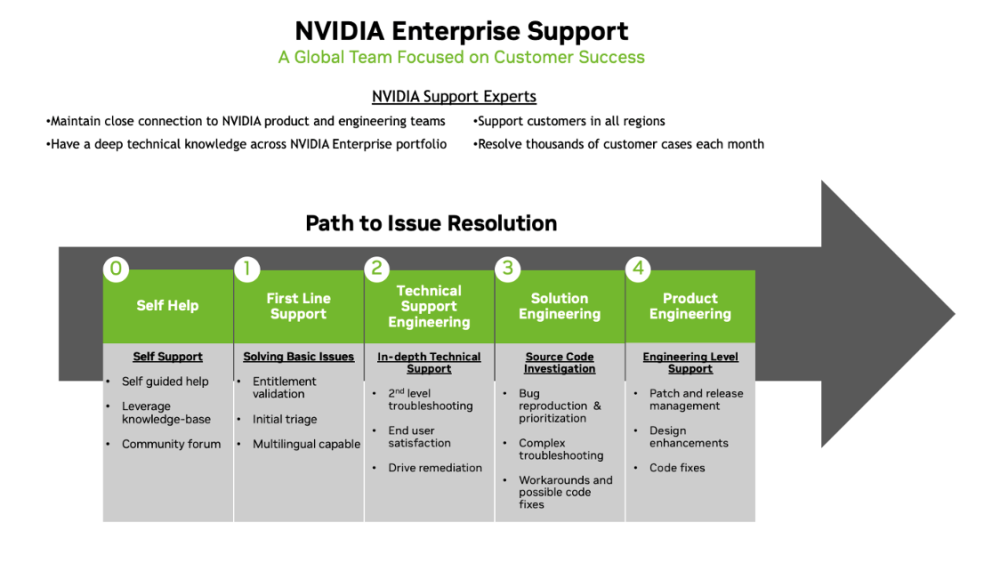
This document is intended for both prospective and existing NVIDIA enterprise customers, including IT administrators, technical decision‑makers, and support teams who rely on NVIDIA enterprise products and solutions. It outlines key support workflows, service entitlements, and guidance to help customers maximize value from NVIDIA Enterprise‑branded support services.
Please note that this User Guide is a non‑binding informational document. It is provided solely for reference and informational purposes and does not create or modify any contractual obligations between NVIDIA and its customers. Customers should refer to their official agreements for specific terms and conditions related to support and services.
The goal of this guide is to ensure clarity, consistency, and ease of use when engaging with NVIDIA Enterprise Support, enabling customers to resolve issues efficiently, understand service capabilities, and maintain optimal system performance.
Announcements :
This widget helps customers determine the appropriate Classless Inter-Domain Routing (CIDR) size required for their project.
It supports both DGX B300/B200 and NVIDIA GB300/GB200 NVL72 systems and provides subnet breakdowns based on the recommended prefix size for Out-of-Band (OOB), In-Band, and Storage networks.