

Service Accounts (formerly applications)
Service accounts are used for API integrations with NVIDIA Run:ai. A service account contains a client ID and a client secret. With the client credentials, you can obtain an access token as detailed in API authentication and use it within subsequent API calls.
Service accounts are assigned with access rules to manage permissions. For example, service account ci-pipeline-prod is assigned with a Researcher role in Cluster: A.
Note
You can also create your own access keys for API integrations with NVIDIA Run:ai. See User access keys for more details.
Service Accounts Table
The Service accounts table can be found under Access in the NVIDIA Run:ai platform.
The Service accounts table provides a list of all the services accounts defined in the platform, and allows you to manage them.
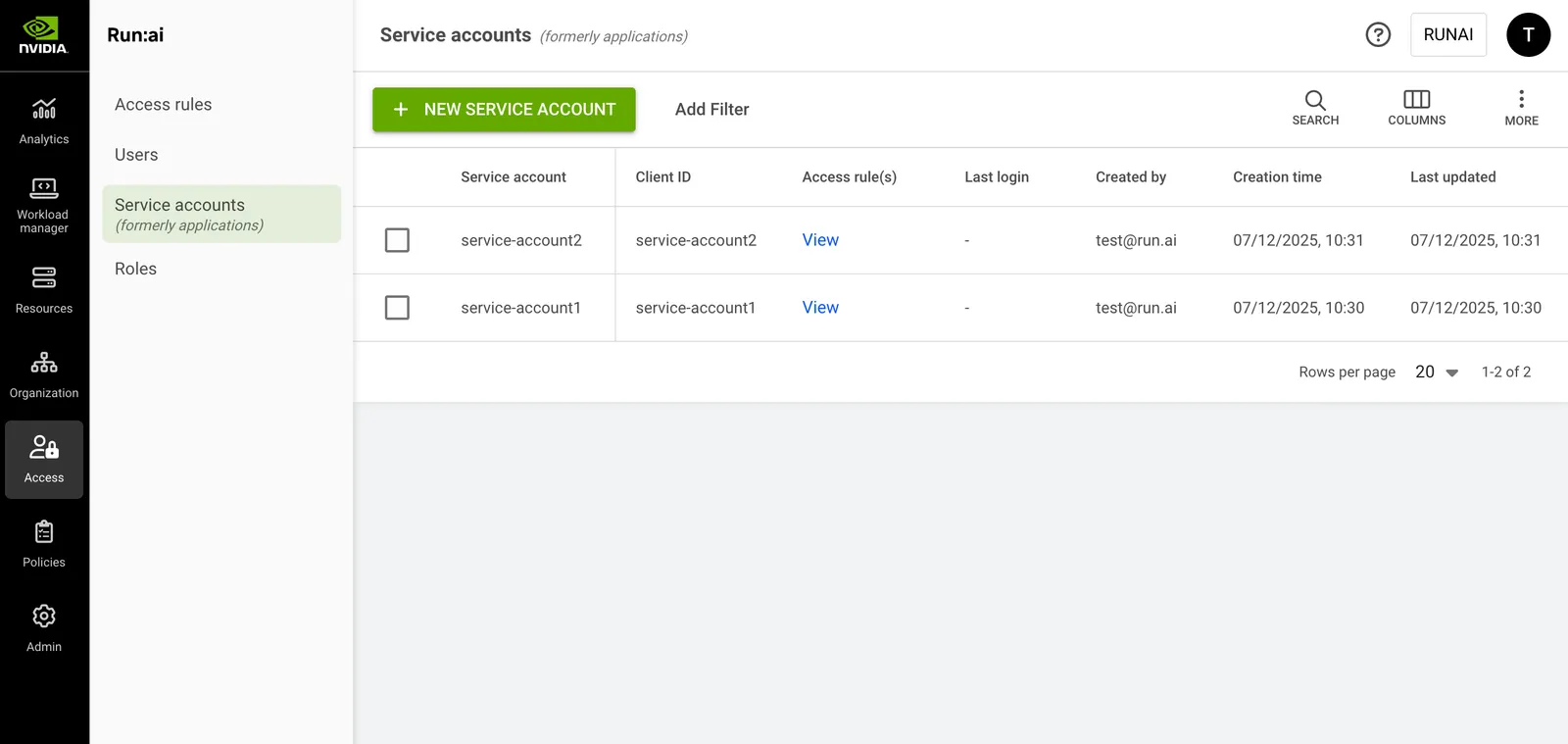
The Service accounts table consists of the following columns:
Customizing the Table View
- Filter - Click ADD FILTER, select the column to filter by, and enter the filter values
- Search - Click SEARCH and type the value to search by
- Sort - Click each column header to sort by
- Column selection - Click COLUMNS and select the columns to display in the table
- Download table - Click MORE and then Click Download as CSV. Export to CSV is limited to 20,000 rows.
Creating a Service Account
To create a service account:
- Click +NEW SERVICE ACCOUNT
- Enter the service account’s name
- Click CREATE
- Copy the Client ID and Client secret and store them securely
- Click DONE or click ADD ACCESS RULES to proceed to the Access rules step
- In the Access rules step:
- Select a role
- Select up to 10 scopes where the access rule will apply
- Click SAVE RULE
- Click CLOSE
Note
The client secret is visible only at the time of creation. It cannot be recovered but can be regenerated.
Adding an Access Rule to a Service Account
To create an access rule:
- Select the service account you want to add an access rule for
- Click ACCESS RULES
- Click +ACCESS RULE
- Select a role
- Select up to 10 scopes where the access rule will apply
- Click SAVE RULE
- Click CLOSE
Deleting an Access Rule from a Service Account
To delete an access rule:
- Select the service account you want to remove an access rule from
- Click ACCESS RULES
- Find the access rule assigned to the user you would like to delete
- Click on the trash icon
- Click CLOSE
Regenerating a Client Secret
To regenerate a client secret:
- Locate the service account you want to regenerate its client secret
- Click REGENERATE CLIENT SECRET
- Click REGENERATE
- Copy the New client secret and store it securely
- Click DONE
Important
Regenerating a client secret revokes the previous one.
Deleting a Service Account
- Select the service account you want to delete
- Click DELETE
- On the dialog, click DELETE to confirm
Using API
Go to the Service accounts, Access rules API reference to view the available actions.