

Access Rules
Access rules provide users, groups, or service accounts privileges to system entities. An access rule is the assignment of a role to a subject in a scope: <Subject> is a <Role> in a <Scope>. For example, user user@domain.com is a department admin in department A.
Access Rules Table
The Access rules table can be found under Access in the NVIDIA Run:ai platform.
The Access rules table provides a list of all the access rules defined in the platform and allows you to manage them.
Flexible management
It is also possible to manage access rules directly for a specific user, service account, project, or department.
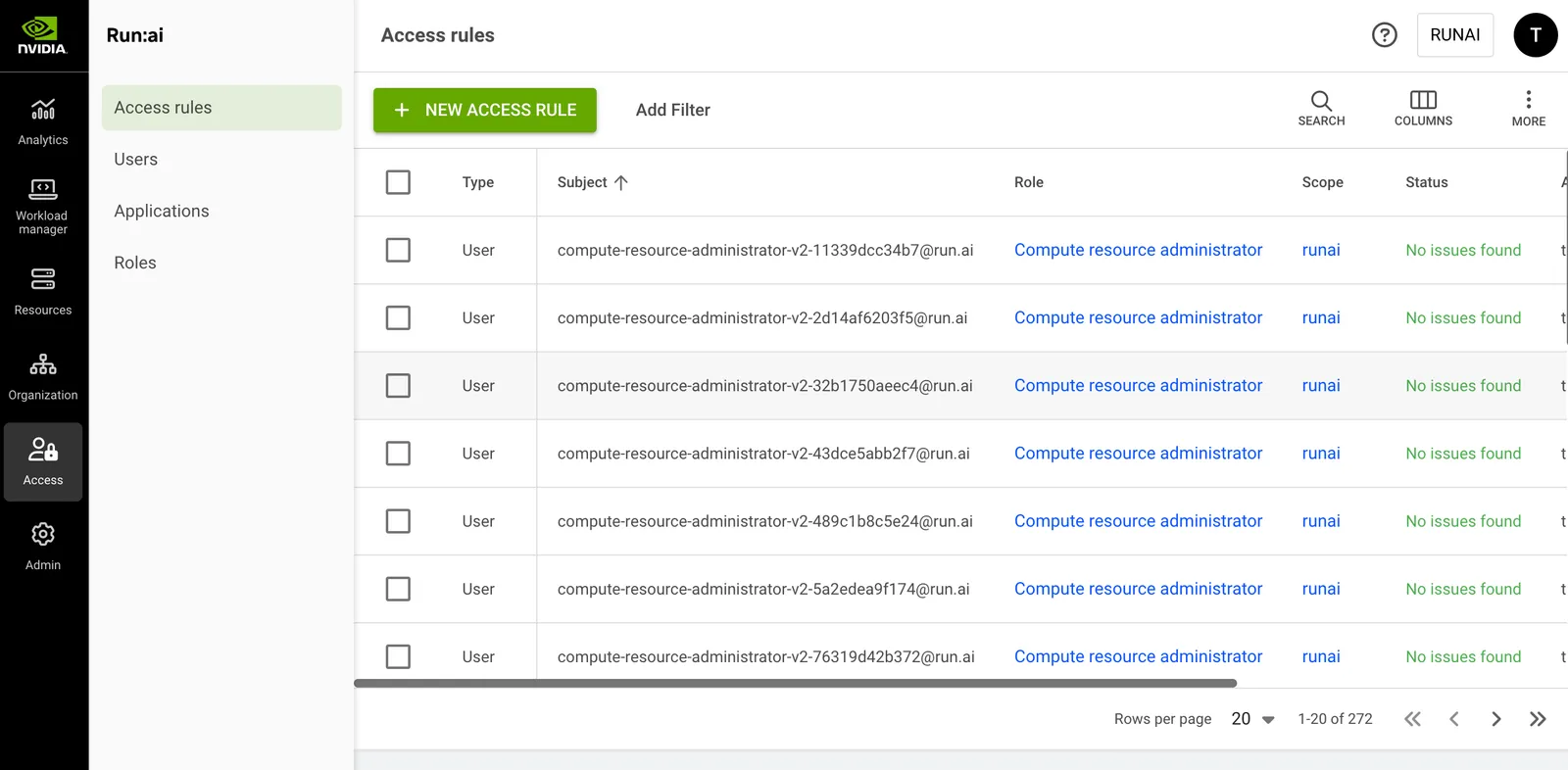
The Access rules table consists of the following columns:
Access Rule Status
The following table describes the condition of access rules and whether they were successfully created for the selected scope. The status indicates whether the access rule is synced in the cluster.
Customizing the Table View
- Filter - Click ADD FILTER, select the column to filter by, and enter the filter values
- Search - Click SEARCH and type the value to search by
- Sort - Click each column header to sort by
- Column selection - Click COLUMNS and select the columns to display in the table
- Download table - Click MORE and then Click Download as CSV. Export to CSV is limited to 20,000 rows.
Adding New Access Rules
To add a new access rule:
- Click +NEW ACCESS RULE
- Select a subject - User, SSO Group, Service account, or All authenticated users and service accounts
- Select or enter the subject identifier. You can define up to 10 subjects of the selected type. Not applicable when the subject is All authenticated users and service accounts:
- User for a local user created in NVIDIA Run:ai or for an SSO user as recognized by the IDP. Search by name or email, or manually enter the user’s email if they do not appear in the search results.
- Group name as recognized by the IDP
- Service account name as created in NVIDIA Run:ai
- Select a role
- Select up to 10 scopes where the access rule will apply
- Click SAVE RULE
Editing an Access Rule
Access rules cannot be edited. To change an access rule, you must delete the rule, and then create a new rule to replace it.
Deleting an Access Rule
- Select one or more access rules you want to delete
- Click DELETE
- On the dialog, click DELETE to confirm
Transitioning Access Rules to New Roles
Due to the deprecation of some roles, referred to as legacy roles, access rules using them should be transitioned to supported roles. When access rules still use legacy roles, a banner at the top of the Access rules table prompts you to transition them. Transitioning recreates each selected rule under a new role with the same subject and scope, and deletes the legacy rule.
To transition access rules:
- On the banner, click transition to new roles
- In the Transition Access Rules To New Roles dialog, select the access rules to transition
- For each legacy role listed, select a new role. For some legacy roles, NVIDIA Run:ai pre-selects a recommended replacement, which you can change.
- Click TRANSITION ACCESS RULES to confirm
Required permissions
Your role must include the Create, Read, Update, and Delete permissions on the Access rules resource.
Viewing Your User Access Rule
To view the assigned roles and scopes you have access to:
- Click the user avatar at the top right corner, then select Settings
- Click User details
The list of assigned roles and scopes will be displayed.
Using API
Go to the Access rules API reference to view the available actions.