

Workspace Templates (Legacy)
This section explains the procedure to manage templates.
A template is a pre-set configuration that is used to quickly configure and submit workloads using existing assets. A template consists of all the assets a workload needs, allowing researchers to submit a workload in a single click, or make subtle adjustments to differentiate them from each other.
Note
Legacy workspace templates are deprecated and will be removed in a future release.
Workspace Templates Table
The Templates table can be found under Workload manager in the NVIDIA Run:ai User interface.
The Templates table provides a list of all the templates defined in the platform, and allows you to manage them.
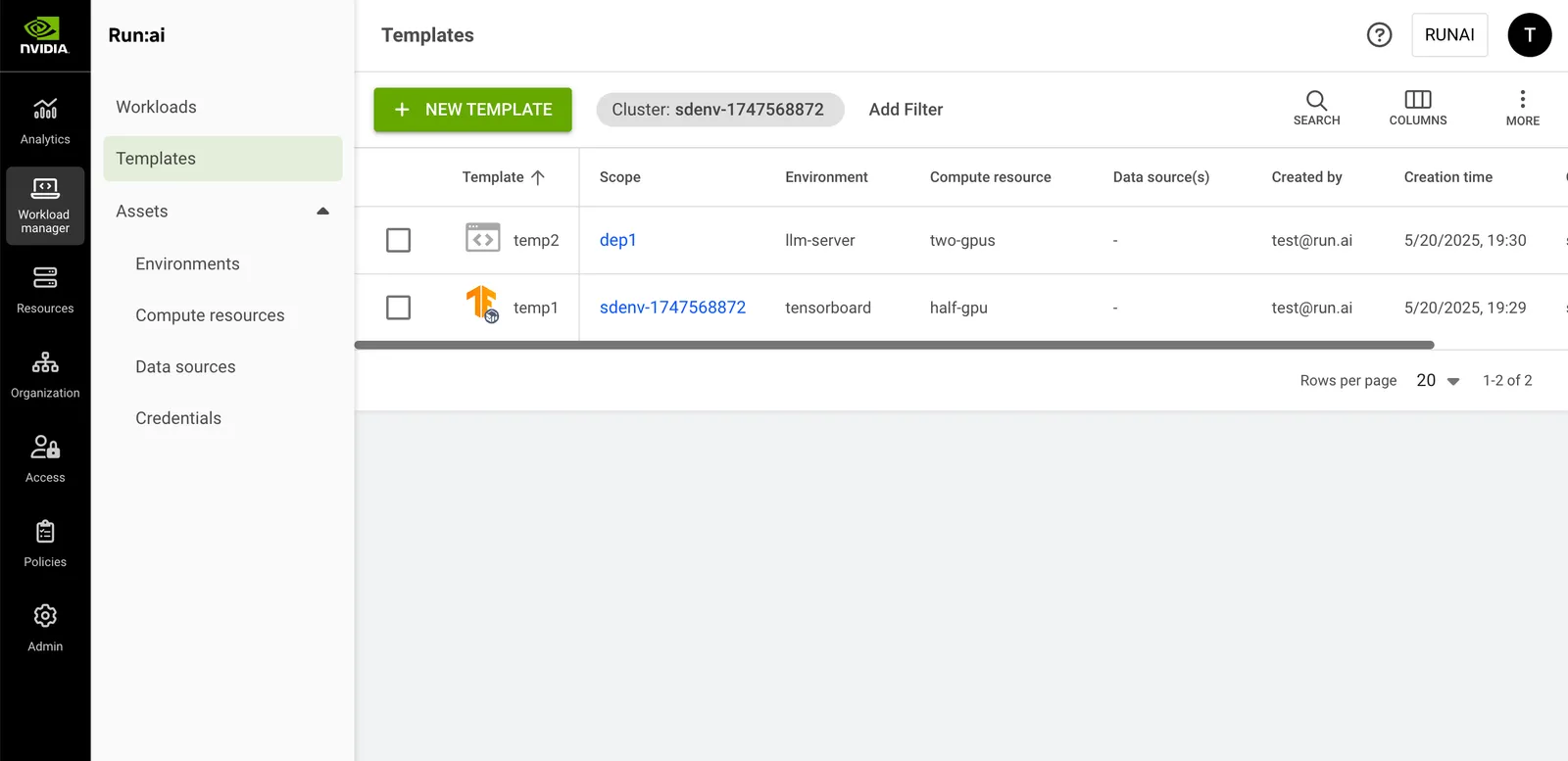
The Templates table consists of the following columns:
Customizing the Table View
- Filter - Click ADD FILTER, select the column to filter by, and enter the filter values
- Search - Click SEARCH and type the value to search by
- Sort - Click each column header to sort by
- Column selection - Click COLUMNS and select the columns to display in the table
- Download table - Click MORE and then click Download as CSV. Export to CSV is limited to 20,000 rows.
- Refresh (optional) - Click REFRESH to update the table with the latest data
- Show/Hide details (optional) - Click to view additional information on the selected row
Adding a New Workspace Template
To add a new template:
- Click +NEW TEMPLATE
- Set the scope for the template
- Enter a name for the template
- Select the environment for your workload
- Select the node resources needed to run your workload
- or -
Click +NEW COMPUTE RESOURCE - Set the volume needed for your workload
- Create a new data source
- Set auto-deletion, annotations and labels, as required
- Click CREATE TEMPLATE
Copying a Template
To copy an existing template:
- Select the template you want to copy
- Click MAKE A COPY
- Enter a name for the template. The name must be unique.
- Update the template and click CREATE TEMPLATE
Renaming a Template
To rename an existing template:
- Select the template you want to rename
- Click Rename and edit the name/description
Deleting a Template
To delete a template:
- Select the template you want to delete
- Click DELETE
- Confirm you want to delete the template
Using API
Go to the Workload template API reference to view the available actions.