

NVIDIA Run:ai Native Workload Policies
This guide explains the structure and procedures for managing policies for NVIDIA Run:ai native workloads.
Note
- Workload policies are enabled by default. If you do not see it in the menu, contact your administrator to enable it under General settings → Workloads → Policies
- Starting from version 2.23, the creation and editing of control plane policies are no longer synchronized to the cluster. This ensures that new policy features function correctly and prevents conflicts with outdated cluster policies.
- For cluster versions 2.21 and above, changes to control plane policies do not affect existing cluster policies, because workload policies are stored and enforced only in the control plane. Existing cluster policies impact only workloads submitted directly to the cluster, and administrators may choose to keep or manually delete these older cluster policies.
- For cluster versions 2.18 to 2.20, policies in the cluster affect both control plane and cluster-submitted workloads. When a policy is created or edited in the control plane, the corresponding or effective policy in the cluster is automatically removed to avoid conflicts. Administrator acknowledgment is required before this change takes effect.
Workload Policies Table
The Workload policies table can be found under Policies in the NVIDIA Run:ai platform.
The Workload policies table provides a list of all the policies defined in the platform, and allows you to manage them.
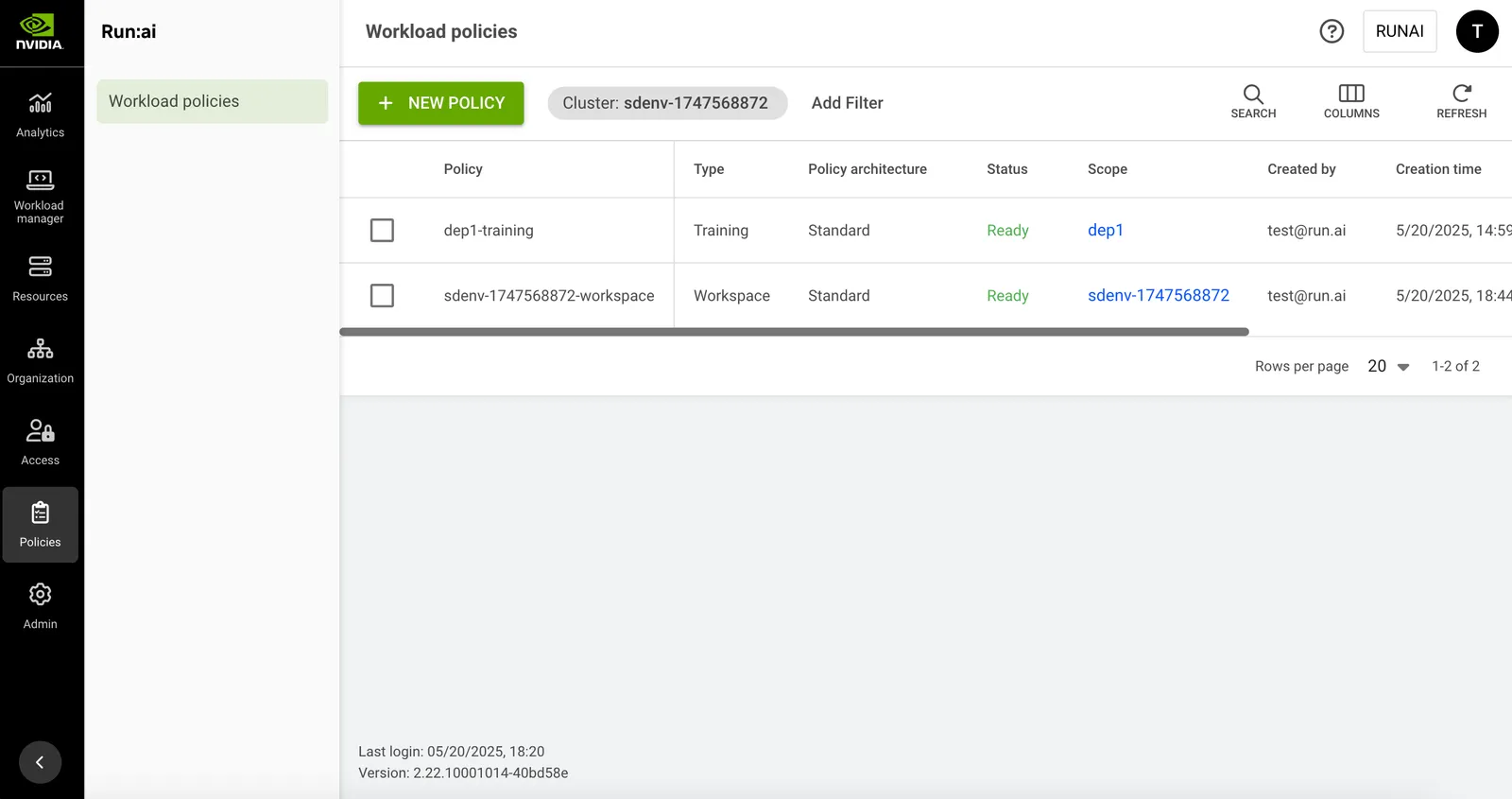
The Workload policies table consists of the following columns:
Customizing the Table View
- Filter - Click ADD FILTER, select the column to filter by, and enter the filter values
- Search - Click SEARCH and type the value to search by
- Sort - Click each column header to sort by
- Column selection - Click COLUMNS and select the columns to display in the table
- Refresh - Click REFRESH to update the table with the latest data
Policy Structure
A workload policy consists of three constructs:
- Rules - Constraints that limit or control the values of workload fields. Rules are enforced during submission and cannot be overridden by users.
- Defaults - Suggested values for workload fields. Defaults are pre-filled during submission but can be modified by users.
- Imposed assets - Assets (such as a PVC data source) that are automatically applied to any workload submitted under the policy’s scope.
For more information, see rules, defaults, and imposed assets.
Adding a Policy
To create a new policy:
- Click +NEW POLICY
- Select a scope
- Select the workload type
- Click +POLICY YAML
- In the YAML editor, type or paste a YAML policy with defaults and rules.
You can use the following references and examples: - Click SAVE POLICY
Editing a Policy
- Select the policy you want to edit
- Click EDIT
- Update the policy and click APPLY
- Click SAVE POLICY
Troubleshooting
Listed below are issues that might occur when creating or editing a policy via the YAML Editor:
Viewing a Policy
To view a policy:
- Select the policy for which you want to view its policies.
- Click VIEW POLICY
- In the Policy form per workload section, view the workload rules and defaults:
- Parameter
The workload submission parameter that Rules and Defaults are applied to - Type (applicable for data sources only)
The data source type (Git, S3, nfs, pvc etc.) - Default
The default value of the Parameter - Rule
Set up constraint on workload policy field - Source
The origin of the applied policy (cluster, department or project)
- Parameter
Note
Some of the rules and defaults may be derived from policies of a parent cluster and/or department. You can see the source of each rule in the policy form. For more information, check the Scope of effectiveness documentation.
Deleting a Policy
- Select the policy you want to delete
- Click DELETE
- On the dialog, click DELETE to confirm the deletion
Using API
Go to the Policies API reference to view the available actions.