

Workload Templates
A workload template is a reusable setup that defines all the required configuration fields for submitting a workload. Templates simplify the submission process by allowing users to predefine settings. Researchers can quickly submit workloads using a saved template or adjust the values before submission as needed.
Note
- Flexible workload templates is enabled by default and applies only to flexible workload submission (enabled by default). If unavailable, contact your administrator to enable it under General settings → Workloads → Flexible workload templates.
- Templates (legacy) is deprecated and will be removed in a future release. See Workspace Templates (Legacy) for more details.
Templates Table
The Templates table can be found under Workload manager in the NVIDIA Run:ai User Interface.
The Templates table provides a list of all the templates defined in the platform, and allows you to manage them.
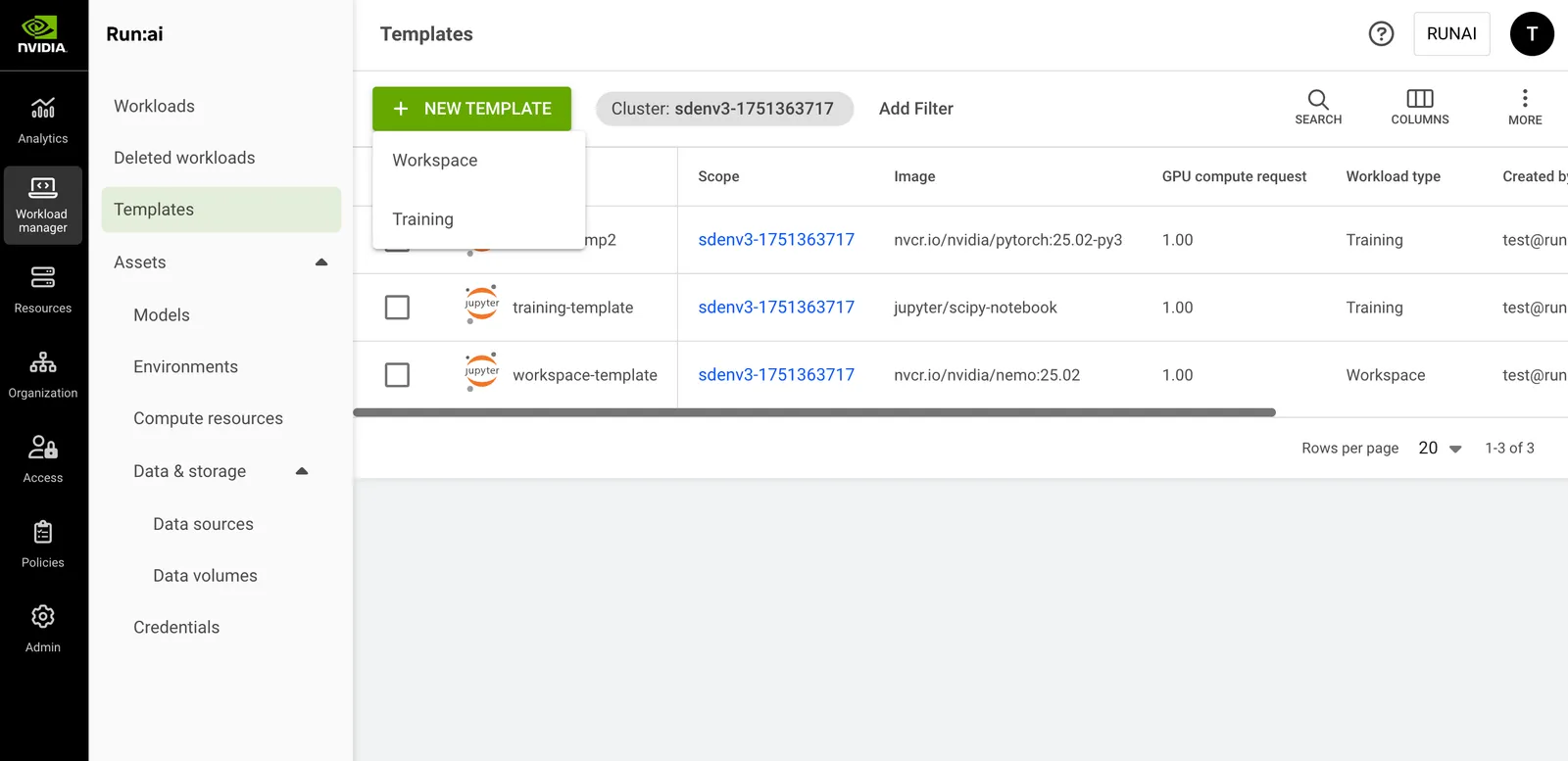
The Templates table consists of the following columns:
Customizing the Table View
- Filter - Click ADD FILTER, select the column to filter by, and enter the filter values
- Search - Click SEARCH and type the value to search by
- Sort - Click each column header to sort by
- Column selection - Click COLUMNS and select the columns to display in the table
- Download table - Click MORE and then click Download as CSV. Export to CSV is limited to 20,000 rows.
- Refresh (optional) - Click REFRESH to update the table with the latest data
- Show/Hide details (optional) - Click to view additional information on the selected row
Templates Created by NVIDIA Run:ai
When installing NVIDIA Run:ai, you automatically get the templates created by NVIDIA Run:ai to ease up the onboarding process and support different use cases out of the box. These templates are created at the scope of the account.
Adding a New Template
To create a new template:
- Click +NEW TEMPLATE
- Select a workload type - Follow the links below to view the step-by-step guide for each workload type:
- Click CREATE TEMPLATE
Editing a Template
To edit an existing template:
- Select the template you want to update
- Click EDIT
- Edit the template and click SAVE TEMPLATE
Copying a Template
To copy an existing template:
- Select the template you want to copy
- Click MAKE A COPY
- Enter a name for the template. The name must be unique.
- Update the template and click CREATE TEMPLATE
Deleting a Template
To delete a template:
- Select the template you want to delete
- Click DELETE
- Confirm you want to delete the template
Migrating Legacy Templates
If you previously created templates before the introduction of flexible workload templates, these templates are automatically migrated. Your legacy templates will appear in the new grid and will be separated by workload type - Workspace and Training.
Note
You will not lose your existing templates. All legacy templates remain available and can be viewed by toggling Flexible workload templates off. Contact your administrator to disable it under General settings → Workloads → Flexible workload templates.
Using APIs
Go to the Workload templates API reference to view the available actions.