

Data Volumes
Data volumes (DVs) are one type of workload assets. They offer a powerful solution for storing, managing, and sharing AI training data, promoting collaboration, simplifying data access control, and streamlining the AI development lifecycle.
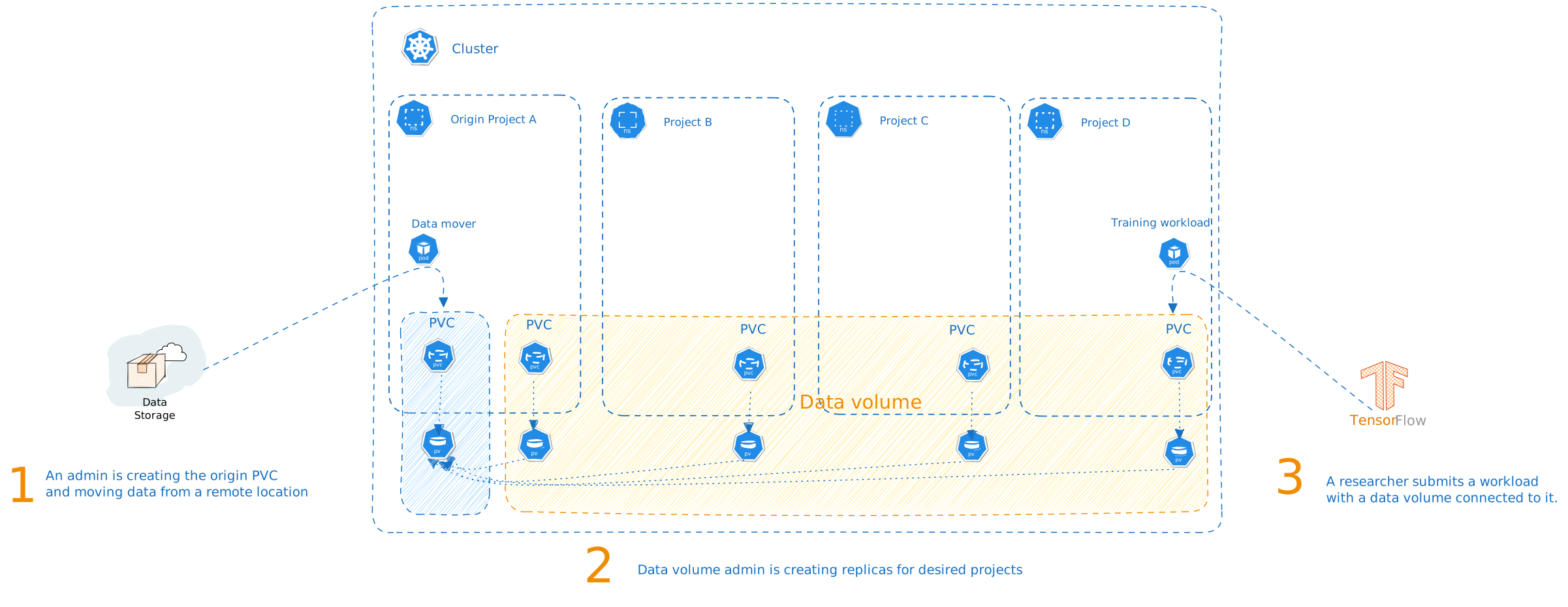
Acting as a central repository for organizational data resources, data volumes can represent datasets or raw data, that is stored in Kubernetes Persistent Volume Claims (PVCs).
Once a data volume is created, it can be shared with additional multiple scopes and easily utilized by AI practitioners when submitting workloads. Shared data volumes are mounted with read-only permissions, ensuring data integrity. Any modifications to the data in a shared DV must be made by writing to the original volume of the PVC used to create the data volume.
Note
Data volumes is enabled by default and applies only to flexible workload submission (enabled by default). If unavailable, contact your administrator to enable it under General Settings → Workloads → Data volumes.
Why Use a Data Volume?
- Sharing with multiple scopes - Data volumes can be shared across different scopes in a cluster, including projects, departments. Using data volumes allows for data reuse and collaboration within the organization.
- Storage saving - A single copy of the data can be used across multiple scopes
Typical Use Cases
- Sharing large datasets - In large organizations, the data is often stored in a remote location, which can be a barrier for large model training. Even if the data is transferred into the cluster, sharing it easily with multiple users is still challenging. Data volumes can help share the data seamlessly, with maximum security and control.
- Sharing data with colleagues - When sharing training results, generated datasets, or other artifacts with team members is needed, data volumes can help make the data available easily.
Prerequisites
To create a data volume, you must have a PVC data source already created. Make sure the PVC includes data before sharing it.
Data Volumes Table
The data volumes table can be found under Workload manager in the NVIDIA Run:ai platform.
The data volumes table provides a list of all the data volumes defined in the platform and allows you to manage them.
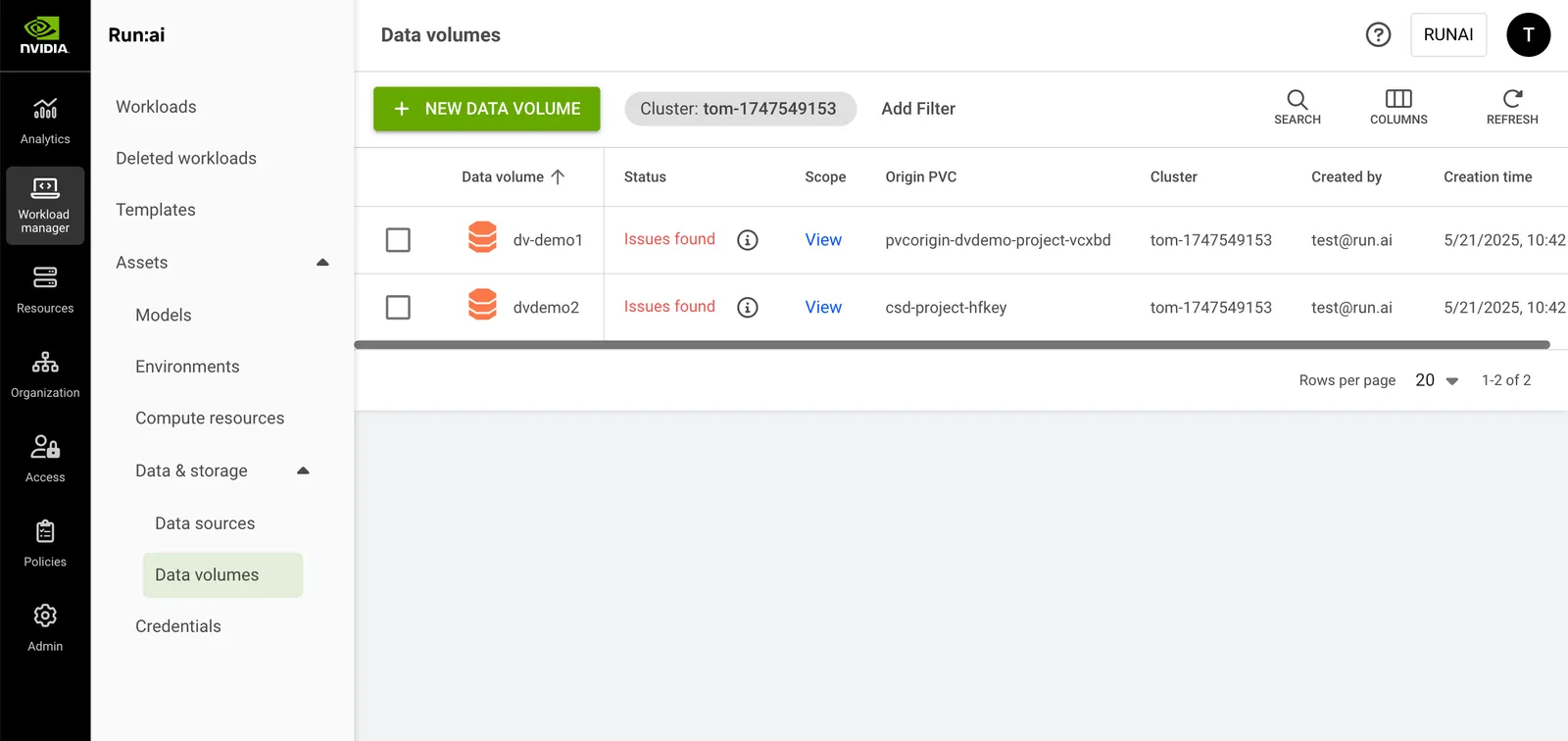
The data volumes table comprises the following columns:
Data Volumes Status
The following table describes the data volumes’ condition and whether they were created successfully for the selected scope.
Customizing the Table View
- Filter - Click ADD FILTER, select the column to filter by, and enter the filter values
- Search - Click SEARCH and type the value to search by
- Sort - Click each column header to sort by
- Column selection - Click COLUMNS and select the columns to display in the table
- Refresh - Click REFRESH to update the table with the latest data
Adding a New Data Volume
To create a new data volume:
- Click +NEW DATA VOLUME
- Set the project where the data is located
- Set a PVC from which to create the data volume
- Enter a name for the data volume. The name must be unique.
- Optional: Provide a description of the data volume
- Set the Scopes that will be able to mount the data volume
- Click CREATE DATA VOLUME
Editing a Data Volume
To edit a data volume:
- Select the data volume you want to edit
- Click Edit
- Click SAVE DATA VOLUME
Copying a Data Volume
To copy an existing data volume:
- Select the data volume you want to copy
- Click MAKE A COPY
- Enter a name for the data volume. The name must be unique.
- Set a new Origin PVC for your data volume, since only one Origin PVC can be used per data volume
- Click CREATE DATA VOLUME
Deleting a Data Volume
To delete a data volume:
- Select the data volume you want to delete
- Click DELETE
- Confirm you want to delete the data volume
Note
It is not possible to delete a data volume being used by an existing workload.
Using CLI
To view the available actions on data volumes, see the data volume CLI v2 reference.
Using API
To view the available actions, go to the Data volumes API reference.