Hello World

View as Markdown

This topic demonstrates how you can:

  • Clone the mapd-connector repository.
  • Connect to a HEAVY.AI server instance.
  • Retrieve the results of a SQL query.
  • Display the results on an HTML page.

Clone

Much of the underlying infrastructure you need to interact with a HEAVY.AI server is provided by the mapd-connector repository. You can clone the repository locally to take advantage of its utilities.

To clone the mapd-connector repository:

  1. Go to https://github.com/heavyai/mapd-connector.
  2. Click Clone or Download.
  3. Choose whether to clone the repository using HTTPS or SSH, or optionally download a Zip archive to expand on your local drive.

For more information on cloning GitHub repositories, see https://help.github.com/articles/cloning-a-repository/

Open mapd-connector/examples/browser.html in a web browser to connect to a sample HEAVY.AI server instance and display information from the sample database. You can open mapd-connector/examples/browser.js in a text editor and follow along as the following sections describe how the script connects, retrieves, and displays data from the HEAVY.AI server.

Connect

The lynchpin of the application is establishing a connection to HEAVY.AI. Fortunately, the MapdCon object does the heavy lifting for you. You provide the location and port of the HEAVY.AI host and your user credentials to create a connection.

const connector = new window.MapdCon()
connector
.protocol("https")
.host("metis.mapd.com")
.port("443")
.dbName("heavyai")
.user("admin")
.password("HyperInteractive")
.connectAsync()

Retrieve

Connecting to the HEAVY.AI server is not the final goal, of course. Once you have a connection, you can send SQL queries to retrieve data.

First, create constant variables for your SQL queries.

// The total number of tweets from Columbia
const query = "SELECT count(*) AS n FROM tweets_nov_feb WHERE country='CO'"
// try changing airtime to arrdelay in the query
const query2 =
"SELECT carrier_name as key0, AVG(airtime) AS val FROM flights_donotmodify WHERE airtime IS NOT NULL GROUP BY key0 ORDER BY val DESC LIMIT 100"

Create an empty array for your query options.

const defaultQueryOptions = {}

Connect as shown above.

const connector = new window.MapdCon()
connector
.protocol("https")
.host("metis.mapd.com")
.port("443")
.dbName("heavyai")
.user("admin")
.password("HyperInteractive")
.connectAsync()

Use a promise to send a series of queries, including the ones defined as constants.

.then(session =>
// now that we have a session open we can make some db calls:
Promise.all([
session.getTablesAsync(),
session.getFieldsAsync("flights_donotmodify"),
session.queryAsync(query, defaultQueryOptions),
session.queryAsync(query2, defaultQueryOptions)
])
)

Display

Promise returns a values object with an array of query results. The first item in the values array is a list of tables. Write the results to the browser console.

.then(values => {
console.log(
"All tables available at metis.mapd.com:",
values[0].map(x => x.name)
)

The second item in the array contains a list of fields in the table flights_donotmodify.

// handle result of getFieldsAsync
console.log(
"All fields for 'flights_donotmodify':",
values[1].reduce((o, x) => Object.assign(o, { [x.name]: x }), {})
)

The third query contains a count of Twitter™ tweets from Columbia. Display that in the HTML page using the DOM.

// handle result of first query
document.getElementById("result-async").innerHTML =
"There are " + values[2][0].n + " tweets from Columbia."
console.log("Query 1 results:", Number(values[2][0].n))

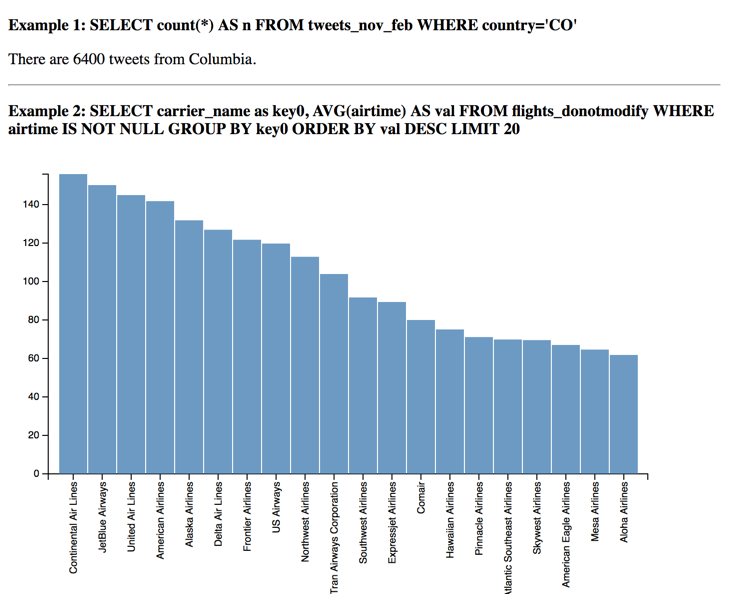
The final query returns the average air time for flights listed in the flights_donotmodify table, with a limit of 100 records. Display the results as a chart using the createRowChart method.

// handle result of 2nd query
createRowChart(values[3])
console.log(
"Query 2 results:",
values[3].reduce((o, x) => Object.assign(o, { [x.key0]: x.val }), {})
)
})
.catch(error => {
console.error("Something bad happened: ", error)
})

Use the array to create a chart using the D3 API. This example is based on an example from the free ebook D3 Tips and Tricks
function createRowChart(data) {
var margin = { top: 20, right: 20, bottom: 150, left: 40 },
width = 600
height = 300
var x = d3.scale.ordinal().rangeRoundBands([0, width], 0.05)
var y = d3.scale.linear().range([height, 0])
var xAxis = d3.svg
.axis()
.scale(x)
.orient("bottom")
.tickFormat(function(d, i) {
return d
})
var yAxis = d3.svg
.axis()
.scale(y)
.orient("left")
.ticks(10)
var svg = d3
.select("#chart")
.append("svg")
.attr("width", width + margin.left + margin.right)
.attr("height", height + margin.top + margin.bottom)
.append("g")
.attr("transform", "translate(" + margin.left + "," + margin.top + ")")
x.domain(
data.map(function(d) {
return d.key0
})
)
y.domain([
0,
d3.max(data, function(d) {
return d.val
})
])
svg
.append("g")
.attr("class", "x axis")
.attr("transform", "translate(0," + height + ")")
.call(xAxis)
.selectAll("text")
.style("text-anchor", "end")
.attr("dx", "-.8em")
.attr("dy", "-.55em")
.attr("transform", "rotate(-90)")
svg
.append("g")
.attr("class", "y axis")
.call(yAxis)
.append("text")
.attr("transform", "rotate(-90)")
.attr("y", 6)
.attr("dy", ".71em")
.style("text-anchor", "end")
svg
.selectAll("bar")
.data(data)
.enter()
.append("rect")
.style("fill", "steelblue")
.attr("x", function(d) {
return x(d.key0)
})
.attr("width", x.rangeBand())
.attr("y", function(d) {
return y(d.val)
})
.attr("height", function(d) {
return height - y(d.val)
})
}