Skip to navigation

Interacting with a rigid object

View as Markdown

In the previous tutorials, we learned the essential workings of the standalone script and how to spawn different objects (or prims) into the simulation. This tutorial shows how to create and interact with a rigid object. For this, we will use the assets.RigidObject class provided in Isaac Lab.

The Code

The tutorial corresponds to the run_rigid_object.py script in the scripts/tutorials/01_assets directory.

# Copyright (c) 2022-2025, The Isaac Lab Project Developers (https://github.com/isaac-sim/IsaacLab/blob/main/CONTRIBUTORS.md).
# All rights reserved.
#
# SPDX-License-Identifier: BSD-3-Clause
"""
This script demonstrates how to create a rigid object and interact with it.
~~~bash
# Usage
./isaaclab.sh -p scripts/tutorials/01_assets/run_rigid_object.py
~~~
"""
"""Launch Isaac Sim Simulator first."""
import argparse
from isaaclab.app import AppLauncher
# add argparse arguments
parser = argparse.ArgumentParser(description="Tutorial on spawning and interacting with a rigid object.")
# append AppLauncher cli args
AppLauncher.add_app_launcher_args(parser)
# parse the arguments
args_cli = parser.parse_args()
# launch omniverse app
app_launcher = AppLauncher(args_cli)
simulation_app = app_launcher.app
"""Rest everything follows."""
import torch
import isaacsim.core.utils.prims as prim_utils
import isaaclab.sim as sim_utils
import isaaclab.utils.math as math_utils
from isaaclab.assets import RigidObject, RigidObjectCfg
from isaaclab.sim import SimulationContext
def design_scene():
"""Designs the scene."""
# Ground-plane
cfg = sim_utils.GroundPlaneCfg()
cfg.func("/World/defaultGroundPlane", cfg)
# Lights
cfg = sim_utils.DomeLightCfg(intensity=2000.0, color=(0.8, 0.8, 0.8))
cfg.func("/World/Light", cfg)
# Create separate groups called "Origin1", "Origin2", "Origin3"
# Each group will have a robot in it
origins = [[0.25, 0.25, 0.0], [-0.25, 0.25, 0.0], [0.25, -0.25, 0.0], [-0.25, -0.25, 0.0]]
for i, origin in enumerate(origins):
prim_utils.create_prim(f"/World/Origin{i}", "Xform", translation=origin)
# Rigid Object
cone_cfg = RigidObjectCfg(
prim_path="/World/Origin.*/Cone",
spawn=sim_utils.ConeCfg(
radius=0.1,
height=0.2,
rigid_props=sim_utils.RigidBodyPropertiesCfg(),
mass_props=sim_utils.MassPropertiesCfg(mass=1.0),
collision_props=sim_utils.CollisionPropertiesCfg(),
visual_material=sim_utils.PreviewSurfaceCfg(diffuse_color=(0.0, 1.0, 0.0), metallic=0.2),
),
init_state=RigidObjectCfg.InitialStateCfg(),
)
cone_object = RigidObject(cfg=cone_cfg)
# return the scene information
scene_entities = {"cone": cone_object}
return scene_entities, origins
def run_simulator(sim: sim_utils.SimulationContext, entities: dict[str, RigidObject], origins: torch.Tensor):
"""Runs the simulation loop."""
# Extract scene entities
# note: we only do this here for readability. In general, it is better to access the entities directly from
# the dictionary. This dictionary is replaced by the InteractiveScene class in the next tutorial.
cone_object = entities["cone"]
# Define simulation stepping
sim_dt = sim.get_physics_dt()
sim_time = 0.0
count = 0
# Simulate physics
while simulation_app.is_running():
# reset
if count % 250 == 0:
# reset counters
sim_time = 0.0
count = 0
# reset root state
root_state = cone_object.data.default_root_state.clone()
# sample a random position on a cylinder around the origins
root_state[:, :3] += origins
root_state[:, :3] += math_utils.sample_cylinder(
radius=0.1, h_range=(0.25, 0.5), size=cone_object.num_instances, device=cone_object.device
)
# write root state to simulation
cone_object.write_root_pose_to_sim(root_state[:, :7])
cone_object.write_root_velocity_to_sim(root_state[:, 7:])
# reset buffers
cone_object.reset()
print("----------------------------------------")
print("[INFO]: Resetting object state...")
# apply sim data
cone_object.write_data_to_sim()
# perform step
sim.step()
# update sim-time
sim_time += sim_dt
count += 1
# update buffers
cone_object.update(sim_dt)
# print the root position
if count % 50 == 0:
print(f"Root position (in world): {cone_object.data.root_pos_w}")
def main():
"""Main function."""
# Load kit helper
sim_cfg = sim_utils.SimulationCfg(device=args_cli.device)
sim = SimulationContext(sim_cfg)
# Set main camera
sim.set_camera_view(eye=[1.5, 0.0, 1.0], target=[0.0, 0.0, 0.0])
# Design scene
scene_entities, scene_origins = design_scene()
scene_origins = torch.tensor(scene_origins, device=sim.device)
# Play the simulator
sim.reset()
# Now we are ready!
print("[INFO]: Setup complete...")
# Run the simulator
run_simulator(sim, scene_entities, scene_origins)
if __name__ == "__main__":
# run the main function
main()
# close sim app
simulation_app.close()

The Code Explained

In this script, we split the main function into two separate functions, which highlight the two main steps of setting up any simulation in the simulator:

  1. Design scene: As the name suggests, this part is responsible for adding all the prims to the scene.
  2. Run simulation: This part is responsible for stepping the simulator, interacting with the prims in the scene, e.g., changing their poses, and applying any commands to them.

A distinction between these two steps is necessary because the second step only happens after the first step is complete and the simulator is reset. Once the simulator is reset (which automatically plays the simulation), no new (physics-enabled) prims should be added to the scene as it may lead to unexpected behaviors. However, the prims can be interacted with through their respective handles.

Designing the scene

Similar to the previous tutorial, we populate the scene with a ground plane and a light source. In addition, we add a rigid object to the scene using the assets.RigidObject class. This class is responsible for spawning the prims at the input path and initializes their corresponding rigid body physics handles.

In this tutorial, we create a conical rigid object using the spawn configuration similar to the rigid cone in the Spawn Objects tutorial. The only difference is that now we wrap the spawning configuration into the assets.RigidObjectCfg class. This class contains information about the asset’s spawning strategy, default initial state, and other meta-information. When this class is passed to the assets.RigidObject class, it spawns the object and initializes the corresponding physics handles when the simulation is played.

As an example on spawning the rigid object prim multiple times, we create its parent Xform prims, /World/Origin{i}, that correspond to different spawn locations. When the regex expression /World/Origin.*/Cone is passed to the assets.RigidObject class, it spawns the rigid object prim at each of the /World/Origin{i} locations. For instance, if /World/Origin1 and /World/Origin2 are present in the scene, the rigid object prims are spawned at the locations /World/Origin1/Cone and /World/Origin2/Cone respectively.

# Create separate groups called "Origin1", "Origin2", "Origin3"
# Each group will have a robot in it
origins = [[0.25, 0.25, 0.0], [-0.25, 0.25, 0.0], [0.25, -0.25, 0.0], [-0.25, -0.25, 0.0]]
for i, origin in enumerate(origins):
prim_utils.create_prim(f"/World/Origin{i}", "Xform", translation=origin)
# Rigid Object
cone_cfg = RigidObjectCfg(
prim_path="/World/Origin.*/Cone",
spawn=sim_utils.ConeCfg(
radius=0.1,
height=0.2,
rigid_props=sim_utils.RigidBodyPropertiesCfg(),
mass_props=sim_utils.MassPropertiesCfg(mass=1.0),
collision_props=sim_utils.CollisionPropertiesCfg(),
visual_material=sim_utils.PreviewSurfaceCfg(diffuse_color=(0.0, 1.0, 0.0), metallic=0.2),
),
init_state=RigidObjectCfg.InitialStateCfg(),
)
cone_object = RigidObject(cfg=cone_cfg)

Since we want to interact with the rigid object, we pass this entity back to the main function. This entity is then used to interact with the rigid object in the simulation loop. In later tutorials, we will see a more convenient way to handle multiple scene entities using the scene.InteractiveScene class.

# return the scene information
scene_entities = {"cone": cone_object}
return scene_entities, origins

Running the simulation loop

We modify the simulation loop to interact with the rigid object to include three steps — resetting the simulation state at fixed intervals, stepping the simulation, and updating the internal buffers of the rigid object. For the convenience of this tutorial, we extract the rigid object’s entity from the scene dictionary and store it in a variable.

Resetting the simulation state

To reset the simulation state of the spawned rigid object prims, we need to set their pose and velocity. Together they define the root state of the spawned rigid objects. It is important to note that this state is defined in the simulation world frame, and not of their parent Xform prim. This is because the physics engine only understands the world frame and not the parent Xform prim’s frame. Thus, we need to transform desired state of the rigid object prim into the world frame before setting it.

We use the assets.RigidObject.data.default_root_state attribute to get the default root state of the spawned rigid object prims. This default state can be configured from the assets.RigidObjectCfg.init_state attribute, which we left as identity in this tutorial. We then randomize the translation of the root state and set the desired state of the rigid object prim using the assets.RigidObject.write_root_pose_to_sim and assets.RigidObject.write_root_velocity_to_sim methods. As the name suggests, this method writes the root state of the rigid object prim into the simulation buffer.

# reset root state
root_state = cone_object.data.default_root_state.clone()
# sample a random position on a cylinder around the origins
root_state[:, :3] += origins
root_state[:, :3] += math_utils.sample_cylinder(
radius=0.1, h_range=(0.25, 0.5), size=cone_object.num_instances, device=cone_object.device
)
# write root state to simulation
cone_object.write_root_pose_to_sim(root_state[:, :7])
cone_object.write_root_velocity_to_sim(root_state[:, 7:])
# reset buffers
cone_object.reset()

Stepping the simulation

Before stepping the simulation, we perform the assets.RigidObject.write_data_to_sim method. This method writes other data, such as external forces, into the simulation buffer. In this tutorial, we do not apply any external forces to the rigid object, so this method is not necessary. However, it is included for completeness.

# apply sim data
cone_object.write_data_to_sim()

Updating the state

After stepping the simulation, we update the internal buffers of the rigid object prims to reflect their new state inside the assets.RigidObject.data attribute. This is done using the assets.RigidObject.update method.

# update buffers
cone_object.update(sim_dt)

The Code Execution

Now that we have gone through the code, let’s run the script and see the result:

./isaaclab.sh -p scripts/tutorials/01_assets/run_rigid_object.py

This should open a stage with a ground plane, lights, and several green cones. The cones must be dropping from a random height and settling on to the ground. To stop the simulation, you can either close the window, or press the STOP button in the UI, or press Ctrl+C in the terminal
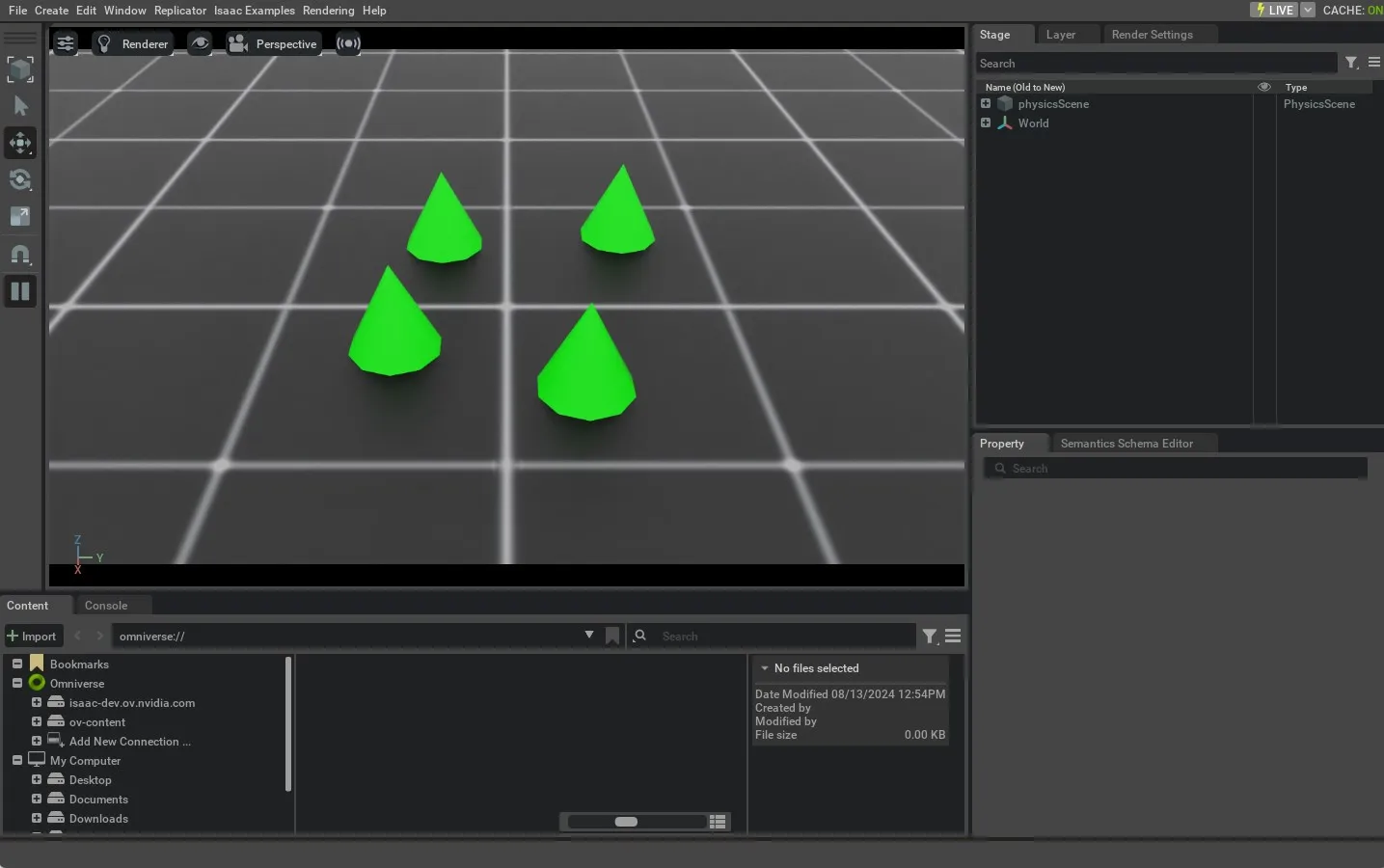
result of run_rigid_object.py

This tutorial showed how to spawn rigid objects and wrap them in a RigidObject class to initialize their physics handles which allows setting and obtaining their state. In the next tutorial, we will see how to interact with an articulated object which is a collection of rigid objects connected by joints.