Installation using Isaac Sim Pre-built Binaries
The following steps first installs Isaac Sim from its pre-built binaries, then Isaac Lab from source code.
Installing Isaac Sim
Downloading pre-built binaries
Isaac Sim binaries can be downloaded directly as a zip file from here. If you wish to use the older Isaac Sim 4.5 release, please check the older download page here.
Once the zip file is downloaded, you can unzip it to the desired directory. As an example set of instructions for unzipping the Isaac Sim binaries, please refer to the Isaac Sim documentation.
Linux
Windows
On Linux systems, we assume the Isaac Sim directory is named ${HOME}/isaacsim.
Verifying the Isaac Sim installation
To avoid the overhead of finding and locating the Isaac Sim installation directory every time, we recommend exporting the following environment variables to your terminal for the remaining of the installation instructions:
Linux
Windows
Check that the simulator runs as expected:
Linux
Windows
Check that the simulator runs from a standalone python script:
Linux
Windows
If you have been using a previous version of Isaac Sim, you need to run the following command for the first time after installation to remove all the old user data and cached variables:
fa-brands fa-linux Linux
fa-brands fa-windows Windows
${ISAACSIM_PATH}/isaac-sim.sh —reset-user
If the simulator does not run or crashes while following the above instructions, it means that something is incorrectly configured. To debug and troubleshoot, please check Isaac Sim documentation and the Isaac Sim Forums.
Installing Isaac Lab
Cloning Isaac Lab
We recommend making a fork of the Isaac Lab repository to contribute
to the project but this is not mandatory to use the framework. If you
make a fork, please replace isaac-sim with your username
in the following instructions.
Clone the Isaac Lab repository into your project’s workspace:
SSH
HTTPS
We provide a helper executable isaaclab.sh and isaaclab.bat for Linux and Windows respectively that provides utilities to manage extensions.
Linux
Windows
Creating the Isaac Sim Symbolic Link
Set up a symbolic link between the installed Isaac Sim root folder
and _isaac_sim in the Isaac Lab directory. This makes it convenient
to index the python modules and look for extensions shipped with Isaac Sim.
Linux
Windows
Setting up a Python Environment (optional)
This step is optional. If you are using the bundled Python with Isaac Sim, you can skip this step.
Creating a dedicated Python environment for Isaac Lab is strongly recommended, even though it is optional. Using a virtual environment helps:
- Avoid conflicts with system Python or other projects installed on your machine.
- Keep dependencies isolated, so that package upgrades or experiments in other projects do not break Isaac Sim.
- Easily manage multiple environments for setups with different versions of dependencies.
- Simplify reproducibility — the environment contains only the packages needed for the current project, making it easier to share setups with colleagues or run on different machines.
You can choose different package managers to create a virtual environment.
- UV: A modern, fast, and secure package manager for Python.
- Conda: A cross-platform, language-agnostic package manager for Python.
Once created, you can use the default Python in the virtual environment (python or python3) instead of ./isaaclab.sh -p or isaaclab.bat -p.
The Python version of the virtual environment must match the Python version of Isaac Sim.
- For Isaac Sim 5.X, the required Python version is 3.11.
- For Isaac Sim 4.X, the required Python version is 3.10.
Using a different Python version will result in errors when running Isaac Lab.
UV Environment
Conda Environment
To install uv, please follow the instructions here.
You can create the Isaac Lab environment using the following commands:
fa-brands fa-linux Linux
fa-brands fa-windows Windows
Once you are in the virtual environment, you do not need to use ./isaaclab.sh -p or
isaaclab.bat -p to run python scripts. You can use the default python executable in your
environment by running python or python3. However, for the rest of the documentation,
we will assume that you are using ./isaaclab.sh -p or isaaclab.bat -p to run python scripts.
Installation
- Install dependencies using
apt(on Linux only):
- Run the install command that iterates over all the extensions in
sourcedirectory and installs them using pip (with--editableflag):
Linux
Windows
By default, the above will install all the learning frameworks. These include
rl_games, rsl_rl, sb3, skrl, robomimic.
If you want to install only a specific framework, you can pass the name of the framework
as an argument. For example, to install only the rl_games framework, you can run:
Linux
Windows
The valid options are all, rl_games, rsl_rl, sb3, skrl, robomimic,
and none. If none is passed, then no learning frameworks will be installed.
Verifying the Isaac Lab installation
To verify that the installation was successful, run the following command from the top of the repository:
Linux
Windows
The above command should launch the simulator and display a window with a black
viewport. You can exit the script by pressing Ctrl+C on your terminal.
On Windows machines, please terminate the process from Command Prompt using
Ctrl+Break or Ctrl+fn+B.
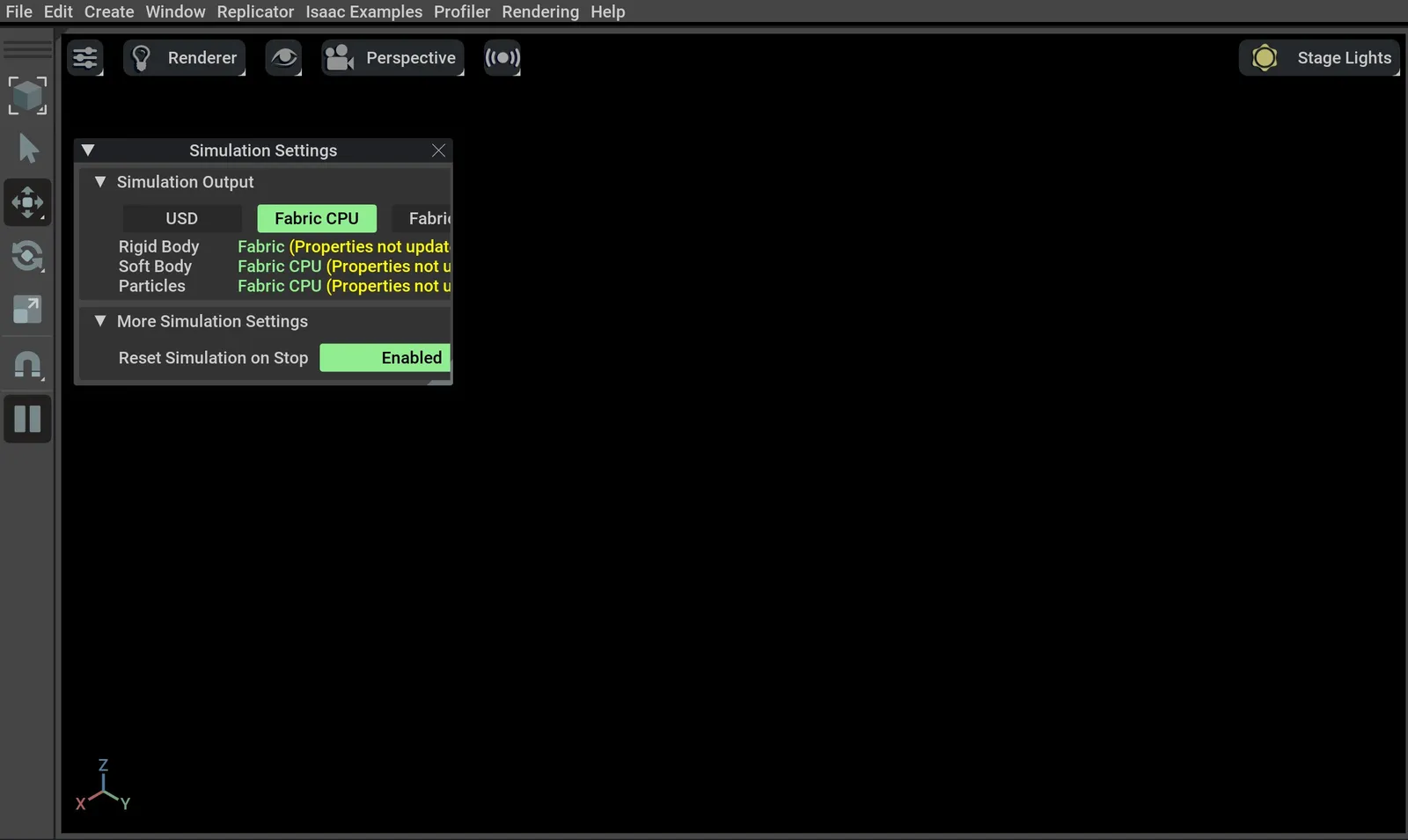
If you see this, then the installation was successful! |🎉|
If you see an error ModuleNotFoundError: No module named 'isaacsim', please ensure that the virtual
environment is activated and source _isaac_sim/setup_conda_env.sh has been executed (for uv as well).
Train a robot!
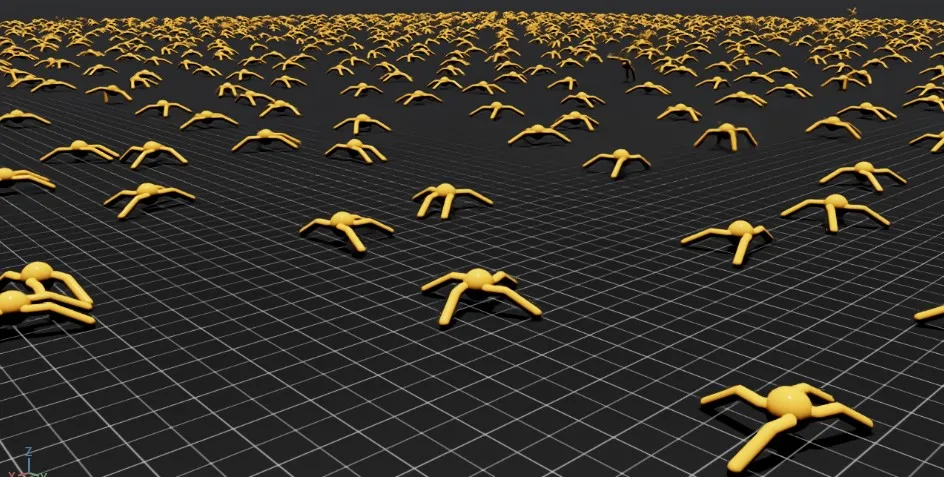
You can now use Isaac Lab to train a robot through Reinforcement Learning! The quickest way to use Isaac Lab is through the predefined workflows using one of our Batteries-included robot tasks. Execute the following command to quickly train an ant to walk!
We recommend adding --headless for faster training.
Linux
Windows
… Or a robot dog!
Linux
Windows
Isaac Lab provides the tools you’ll need to create your own Tasks and Workflows for whatever your project needs may be. Take a look at our How-to Guides guides like Adding your own learning Library or Wrapping Environments for details.