

Interacting with a surface gripper
This tutorial shows how to interact with an articulated robot with a surface gripper attached to its end-effector in the simulation. It is a continuation of the Interacting with an articulation tutorial, where we learned how to interact with an articulated robot. Note that as of IsaacSim 5.0 the surface gripper are only supported on the cpu backend.
The Code
The tutorial corresponds to the run_surface_gripper.py script in the scripts/tutorials/01_assets
directory.
The Code Explained
Designing the scene
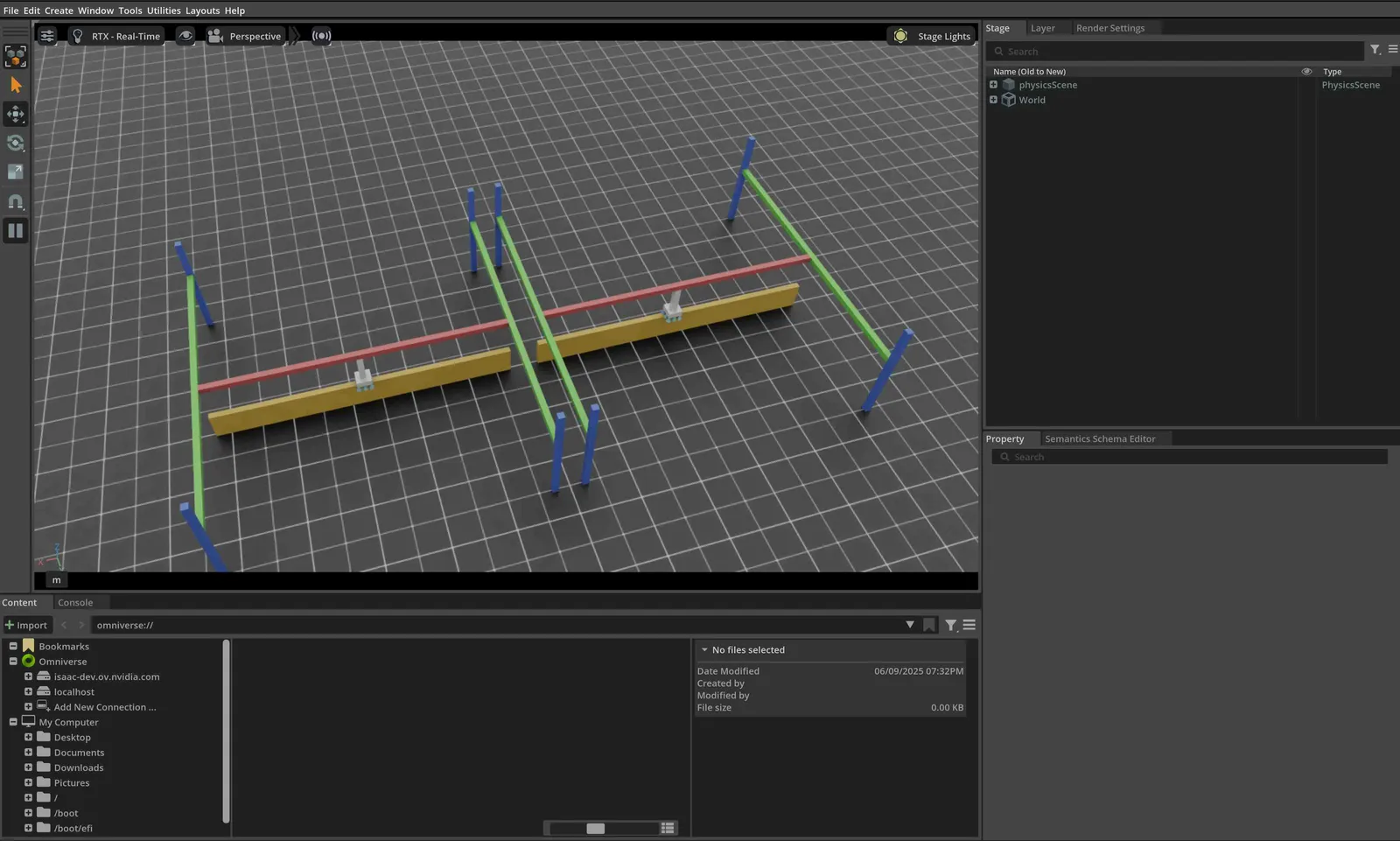
Similarly to the previous tutorial, we populate the scene with a ground plane and a distant light. Then, we spawn an articulation from its USD file. This time a pick-and-place robot is spawned. The pick-and-place robot is a simple robot with 3 driven axes, its gantry allows it to move along the x and y axes, as well as up and down along the z-axis. Furthermore, the robot end-effector is outfitted with a surface gripper. The USD file for the pick-and-place robot contains the robot’s geometry, joints, and other physical properties as well as the surface gripper. Before implementing a similar gripper on your own robot, we recommend to check out the USD file for the gripper found on Isaaclab’s Nucleus.
For the pick-and-place robot, we use its pre-defined configuration object, you can find out more about it in the
Writing an Asset Configuration tutorial. For the surface gripper, we also need to create a configuration
object. This is done by instantiating a assets.SurfaceGripperCfg object and passing it the relevant
parameters.
The available parameters are:
max_grip_distance: The maximum distance at which the gripper can grasp an object.shear_force_limit: The maximum force the gripper can exert in the direction perpendicular to the gripper’s axis.coaxial_force_limit: The maximum force the gripper can exert in the direction of the gripper’s axis.retry_interval: The time the gripper will stay in a grasping state.
As seen in the previous tutorial, we can spawn the articulation into the scene in a similar fashion by creating
an instance of the assets.Articulation class by passing the configuration object to its constructor. The same
principle applies to the surface gripper. By passing the configuration object to the assets.SurfaceGripper
constructor, the surface gripper is created and can be added to the scene. In practice, the object will only be
initialized when the play button is pressed.
Running the simulation loop
Continuing from the previous tutorial, we reset the simulation at regular intervals, set commands to the articulation, step the simulation, and update the articulation’s internal buffers.
Resetting the simulation
To reset the surface gripper, we only need to call the SurfaceGripper.reset method which will reset the
internal buffers and caches.
Stepping the simulation
Applying commands to the surface gripper involves two steps:
- Setting the desired commands: This sets the desired gripper commands (Open, Close, or Idle).
- Writing the data to the simulation: Based on the surface gripper’s configuration, this step handles writes the converted values to the PhysX buffer.
In this tutorial, we use a random command to set the gripper’s command. The gripper behavior is as follows:
- -1 < command < -0.3 —> Gripper is Opening
- -0.3 < command < 0.3 —> Gripper is Idle
- 0.3 < command < 1 —> Gripper is Closing
At every step, we randomly sample commands and set them to the gripper by calling the
SurfaceGripper.set_grippers_command method. After setting the commands, we call the
SurfaceGripper.write_data_to_sim method to write the data to the PhysX buffer. Finally, we step
the simulation.
Updating the state
To know the current state of the surface gripper, we can query the assets.SurfaceGripper.state property.
This property returns a tensor of size [num_envs] where each element is either -1, 0, or 1
corresponding to the gripper state. This property is updated every time the assets.SurfaceGripper.update method
is called.
-1—> Gripper is Open0—> Gripper is Closing1—> Gripper is Closed
The Code Execution
To run the code and see the results, let’s run the script from the terminal:
This command should open a stage with a ground plane, lights, and two pick-and-place robots.
In the terminal, you should see the gripper state and the command being printed.
To stop the simulation, you can either close the window, or press Ctrl+C in the terminal.
In this tutorial, we learned how to create and interact with a surface gripper. We saw how to set commands and query the gripper state. We also saw how to update its buffers to read the latest state from the simulation.
In addition to this tutorial, we also provide a few other scripts that spawn different robots. These are included
in the scripts/demos directory. You can run these scripts as:
Note that in practice, the users would be expected to register their assets.SurfaceGripper instances inside
a isaaclab.InteractiveScene object, which will automatically handle the calls to the
assets.SurfaceGripper.write_data_to_sim and assets.SurfaceGripper.update methods.