This topic describes power and performance management features of the IGX Thor product family. It describes the power, thermal, and electrical management features visible to software, as well as some tools and related techniques.
NVIDIA Board Support Packages (BSP) provide many features related to power management, thermal management, and electrical management. These features deliver the best user experience possible given the constraints of a particular platform. They help to create an optimum user experience:
Uniformly high performance
Excellent battery life
Perfect stability
Cool operation (the device is comfortable to touch)
Power, thermal, and electrical management features place dynamic
constraints on many operational settings (“knobs”), such as:
Clock gate settings
Clock frequencies
Power gate (or regulator enable) settings
Voltages
Processor power state (i.e., which idle state is selected for the CPU)
Peripheral power state (i.e., which idle state is selected for an I/O controller)
Chipset power state
Availability of CPU cores to the OS
Some of these knobs are constrained by more than one feature. For example, cpufreq implements load-based scaling, which adjusts the CPU frequency according to how busy the CPU is. CPU thermal management, however, can override the target frequency of cpufreq. Consequently, before you attempt to debug power, performance, thermal, or electrical problems, you must familiarize yourself with all of the power, thermal, and electrical management features in BSP.
This section describes BSP features that save power and extend battery
life. Many of these features are implemented by the Linux kernel, with
support from firmware and hardware, and without significant involvement
from the user space.
The following power states are supported in increasing order of flexibility or configurability:
Off: There is only one way for a system to be in this state.
Deep Sleep (SC7) offers a small amount of configurability. For
example, before entering Deep Sleep, the software can select which hardware wake events can wake the chip from this state.
Active state is extraordinarily flexible in terms of power and
performance. It encompasses activity levels from low-power audio playback through peak performance. Power consumption in this state can range from tens of milliwatts to several watts.
If the systemd init system is being used, you can initiate deep sleep from
the user space with the following command:
$sudosystemctlsuspend
You can also use the following command:
$sudobash-c"echo mem > /sys/power/state"
The first method of entering deep sleep is preferred because it cooperates better with systemd, which maintains the Linux runlevel.
If your system is not running systemd, use the second method.
The system can be awakened from deep sleep by the common wake sources
available on IGX platforms. The following table shows the wake sources:
Wake source
Usage
Power button
Press and release the power button on the IGX device. If the power button
is not available, connect and disconnect the power button pin and ground.
RTC alarm
Before entering low power state, program the RTC alarm with the following
command:
The BPMP clock provider driver in the kernel implements the common clock framework (CCF) APIs.
When kernel drivers use APIs (such as clk_set_rate and clk_get_rate) provided by the common clock framework (CCF) to manage the clocks, the BPMP clock provider driver translates those requests into MRQ calls to the BPMP, and the BPMP performs the actual clock configuration.
You can use the following commands to get/set the clock rate of a specific clock:
To set the clock rate to a specific value, use the clk_set_rate API.
To get the clock rate of a specific clock, use the clk_get_rate API.
Typically, the first argument of CCF APIs is the clock handler of type structclk*. To get the clock handler, define the clock properties in the device tree and get the clock handler in the kernel via the devm_clk_get API.
The following example shows how to define the clock properties in the device tree with VIC hardware:
Regulators are managed by the BPMP on Tegra SoCs. BPMP abstracts the complexity of voltage scaling and regulator control from the kernel drivers. Kernel drivers do not have direct access to regulators; some operations are automatically handled by the BPMP.
For example, when the kernel driver scales the clock rate of a specific clock, the BPMP automatically scales up or down the regulator output voltage to facilitate the change to the new clock rate.
When the kernel decides to power off a specific power domain, the BPMP can turn off the regulator to save power.
The following four voltage domains come from two VRS11 switching regulators on IGX Thor:
IGX Thor integrates a three-channel INA3221 power monitor on the module. In addition, IGX Thor Developer Kit Mini has another one-channel INA238 power monitor on its carrier board, and IGX Thor Developer Kit has another INA3221 sensor and INA219 sensor on the ATX motherboard. The sensors are i2c devices and exposed under the Linux hwmon subsystem. Use the following commands to get the hwmon paths for different devices at runtime:
To protect both chip and board from damage, the INA3221 and INA238 power monitors can prevent power consumption from exceeding the Thermal Design Power (TDP) budget of the system.
Whenever the instantaneous or average current exceeds the configured OC limit, the module performs hardware-based clock throttling to the CPU and GPU.
The following table shows TDP budgets and OC limits for various IGX Thor modules:
The INA3221 or INA238 driver might expose additional nodes.
Avoid relaxing the current or power limit values in sysfs in an attempt to bypass hardware-based clock throttling.
Modifying these limits does not ensure maximum performance and can cause permanent device damage.
Instead, use more conservative settings to align with cooling and power management requirements.
Note
The included power adapter (ADP-240LB) for IGX Thor Developer Kit Mini can deliver up to 140 W (28 V * 5 A).
To prevent excessive current draw, it features built-in overcurrent protection (OCP). When OCP is triggered, the adapter immediately cuts power to the device.
To avoid tripping the adapter’s OCP, a 168 W limit is enforced on the IGX Thor Developer Kit Mini.
Users must ensure that the device’s power consumption does not exceed the power adapter’s rated capacity.
Caution
Performance and stability cannot be guaranteed if an IGX Thor Developer Kit Mini is not powered by the included power adapter (ADP-240LB), which has fine-tuned OCP settings.
If an IGX Thor Developer Kit Mini is not powered by the included power adapter or one that has lower voltage input, you must create a new nvpmodel power mode that specifies a lower maximum frequency or fewer CPU cores or GPU TPCs, depending on the workload.
For more information, refer to Supported Modes and Power Efficiency.
an IGX Thor device contains 14 CPU clusters in 7 cluster pairs. CPU clusters in the same cluster pair share a clock unit so that they operate at the same frequency.
The dynamic voltage and frequency scaling (DVFS) policy is enforced at the cluster-pair level rather than at the individual CPU cluster level.
By default, all cluster pairs use the schedutil cpufreq governor, which is a load-based frequency scaling policy. This governor reduces CPU frequency when the estimated CPU load against the CPU cluster is low.
Caution
To meet the latency requirement, CPU DVFS is disabled by default with the real-time (RT) kernel.
To achieve maximum and consistent CPU performance, you can switch to the performance governor, which disables CPU DVFS and locks all CPU clusters at their maximum frequency. Use the following command:
IGX Thor uses ARM CPU cores, and CPU idle management is supported in the Linux kernel through the upstream psci_idle driver.
For each core, an idle task is scheduled when no other runnable tasks are left in that CPU’s runqueue. This task puts the core into a low-power state selected by the cpuidle menu governor.
The core stays in that state until an interrupt wakes it to process more work.
The GPU Rail-Gating low power feature allows the GPU power to be turned off when the GPU is idle.
Use the following command to determine whether the GPU Rail-Gating feature is enabled.
Output auto means the Rail-Gating feature is enabled, on means the Rail-Gating feature is disabled.
When GPU Rail-Gating is engaged, it increases wake-up latency. If users are sensitive to wake-up latency, use the following command to disable GPU Rail-Gating:
The GPU has two main clock domains exposed through the Linux devfreq framework:
GPC: Controls performance of compute and graphics tasks.
NVD: Controls performance of multimedia tasks like video decode/encode, JPEG processing, and OFA.
These domains can be monitored and controlled through their respective sysfs interfaces:
GPC:/sys/class/devfreq/gpu-gpc-0/
NVD:/sys/class/devfreq/gpu-nvd-0/
By default, both domains use dynamic frequency scaling with the nvhost_podgov governor, which automatically adjusts clock speeds based on GPU load. The governor’s behavior can be customized through parameters in the nvhost_podgov directory of each domain:
With the real-time (RT) kernel, to improve the latency, GPU DVFS is disabled because of the slow path of GPU load queries as part of the DVFS cycle.
Note that NVIDIA does not guarantee the functionality and performance of GPU kernel driver with the PREEMPT_RT kernel.
The following table shows the configurable parameters for the nvhost_podgov governor:
Parameter
Description
load_max
Load threshold at which the governor scales the clock to maximum frequency.
load_target
Target load that the governor maintains for the engine. When the underlying load exceeds the
target value, the governor scales up the clock rate to reduce the load.
load_margin
Load margin associated with the load_target parameter. When the underlying load drops
below load_target-load_margin, the governor scales down the clock rate to increase the
load.
k
The moving-average weight factor for the average load calculation inside the governor.
The average load of the device is calculated as follows:
load_avg=(load_avg*(2**k-1)+load)/(2**k)
up_freq_margin
Number of frequency steps for each up-scaling operation.
down_freq_margin
Number of frequency steps for each down-scaling operation.
For maximum performance, you can disable dynamic scaling by switching to the performance governor:
The NVIDIA kernel mode driver must be running and connected to a target GPU device before any user interactions with that device can occur.
After the driver is loaded, GPU initialization is triggered only when a GPU client attempts to access the GPU. When all GPU clients terminate, the driver deactivates the GPU.
Driver initialization behavior is important for end users in two ways:
Application start latency: Applications that trigger GPU initialization might incur a startup cost per GPU, which can be avoided if the GPU is already initialized.
Preservation of driver state: If the driver deactivates a GPU, some non-persistent state associated with that GPU is lost and reverts to defaults when the GPU is initialized next time.
Under Linux systems where X runs by default on the target GPU, the kernel mode driver is generally initialized and kept alive from machine startup to shutdown, courtesy of the X process. On headless systems or situations where no long-lived X-like client maintains a handle to the target GPU, the kernel mode driver initializes and deactivates the target GPU each time a target GPU application starts and stops. Because keeping the GPU initialized is often desirable in these cases, NVIDIA provides the Persistence Mode (Legacy) option to change the driver behavior.
Persistence Mode is the term for a user-settable driver property that keeps a target GPU initialized even when no clients are connected to it.
Persistence mode can be set using nvidia-smi.
To enable persistence mode using nvidia-smi (as root):
To prevent the GPU from being initialized, you might also want to disable the GPU Rail-Gating feature, which powers off the whole GPU and introduces more wake-up latency.
For more information, refer to GPU Low Power.
NVIDIA SoC chipsets include power saving features whose operation is largely invisible to software at runtime. Most of those features are statically enabled at boot, according to settings in the boot configuration table (BCT).
Additionally, BSP implements Dynamic Voltage and frequency scaling for the memory controller (EMC/MC) and DRAM to save power. The EMC BCT and DVFS table are specific to the board design.
Kernel device drivers (such as GPU, VIC, and PCIe) and firmware running on other processors (such as RCE) can send bandwidth requests to the BPMP bandwidth-manager (BWMGR) service to influence the memory frequency selection. Bandwidth requests from various clients are invisible to the user, but a control interface exposed by the Linux devfreq subsystem controls the minimum frequency and maximum frequency of the EMC clock. BPMP firmware handles all selection of the EMC clock frequency between the minimum and maximum values.
To change the minimum frequency of the EMC clock:
.. code-block:: bash
$ echo <val> > /sys/class/devfreq/bwmgr/min_freq
To cap the maximum frequency of the EMC clock:
$echo<val>>/sys/class/devfreq/bwmgr/max_freq
If you want to disable the EMC DVFS, set min_freq to the value of max_freq:
The Video Image Compositor (VIC) is used for common video-processing tasks like frame scaling, frame rotation, and pixel color space conversion.
The VIC has its own activity monitor (actmon) hardware used for monitoring its load, and this load information is used for load-based dynamic frequency scaling.
The VIC clock domain can be controlled through its sysfs interface:
/sys/class/devfreq/8188050000.vic
By default, VIC uses dynamic frequency scaling with the tegra_wmark governor, which automatically adjusts clock speeds based on VIC load. The governor’s behavior can be customized through parameters in the tegra_wmark directory:
$cd/sys/class/devfreq/8188050000.vic/tegra_wmark
The following table shows the configurable parameters for the tegra_wmark governor:
Parameter
Description
load_target
Target load that the governor maintains for the engine.
up_wmark_margin
Load margin associated with the load_target parameter. When the underlying load exceeds
load_target+up_wmark_margin, the governor scales up the clock rate to reduce the load.
down_wmark_margin
Load margin associated with the load_target parameter. When the underlying load drops
below load_target-down_wmark_margin, the governor scales down the clock rate to increase
the load.
up_freq_margin
Number of frequency steps for each up-scaling operation.
down_freq_margin
Number of frequency steps for each down-scaling operation.
The tegra_wmark governor relies on the actmon hardware to periodically sample the load of the VIC engine. If needed, actmon triggers a DVFS cycle via interrupt.
To check the actmon settings for the VIC engine, go to the debugfs directory under tegra-host1x.0:
$cd/sys/kernel/debug/tegra-host1x.0/actmon/vic
To check or update the sampling period (in microseconds) for the VIC engine, read from or write to the following node:
In the background, the actmon hardware itself calculates the load as a moving average. The formula of the load calculation is as follows:
load_avg=(load_avg*(2**(k+1))-1)+load)/(2**(k+1))
The value of load_avg is the average load value, and load is the value sampled by the actmon in the current cycle. The k is a programmable variable that you can check or update through the following node:
USB specifications support link power management (LPM), which allows a USB device to save power when no transfer is required on the bus.
The link state definitions for USB 2 and USB 3 differ. In the USB 2 specification, the link states are L0 (on), L1 (sleep), L2 (suspend), and L3 (off). In the USB 3 specification, the link states are U0 (active), U1 (link idle, fast exit), U2 (link idle, slow exit), and U3 (link suspend).
On Tegra, the USB controller provides hardware link power management. The host can automatically put the device into a lower power state if the device is also capable of LPM. More precisely, the hardware can automatically switch the USB device to the U1 or U2 state.
Two attributes in /sys/bus/usb/devices/<device-id>/power/ control hardware LPM: usb3_hardware_lpm_u1 and usb3_hardware_lpm_u2.
When a USB 3 LPM-capable device is connected, it checks for U1 and U2 exit latencies in the BOS descriptor.
If they are set, USB 3 hardware LPM is enabled for the device and these files are created. Each holds a string value (enable or disable) that indicates whether USB 3 hardware LPM is enabled for the device.
In Linux, the kernel can suspend (that is, change the link state to L2 or U3) an idle device by software. This action is called autosuspend.
The attributes to control autosuspend are under /sys/bus/usb/devices/<device-id>/power/:
wakeup
This file is empty if the device does not support remote wakeup. Otherwise the file contains either enabled or disabled, indicating whether remote wakeup is enabled. You can write those words to the file.
control
This file contains either on or auto. You can write those values to the file to change the device’s setting. Set to on to disallow autosuspend.
This means the device won’t be placed in a low-power state by software. Set to auto to allow the kernel to autosuspend and autoresume the device.
autosuspend_delay_ms
This file contains an integer value, which is the number of milliseconds the device remains idle before the kernel can autosuspend it. The default is 2000. Set to 0 to autosuspend as soon as the device becomes idle.
A negative value tells the kernel to never autosuspend. You can write a number to the file to change the autosuspend idle-delay time.
Caution
Many devices do not fully support USB link power management. For this reason, by default the kernel disables autosuspend (the power/control attribute is initialized to on) for all devices other than hubs.
Also note that the kernel does not prevent you from enabling autosuspend on devices that can’t handle it. In theory, you could damage a device by suspending it at the wrong time. (Highly unlikely, but possible.)
We recommend that you manually enable autosuspend and check for issues. If autosuspend works for a device, you can add udev rules. You can also change the idle-delay time because two seconds might not be the best choice for every device.
Active State Power Management (ASPM) is a power-management mechanism for PCIe devices to garner power savings while otherwise in a fully active state.
Predominantly, this is achieved through active-state link power management; that is, the PCIe serial link is powered down when there is no traffic across it.
Although ASPM reduces power consumption, it can also result in increased latency because the serial bus must be “awakened” from low-power mode, possibly reconfigured, and the host-to-device link re-established.
This condition is known as ASPM exit latency and takes up valuable time, which can be annoying to the end user. As a result, knowing the trade-off between performance and power regarding this mechanism can be critical.
When ASPM is enabled, the hardware can manage link state automatically without communication between host and device. Two low-power modes can be entered by ASPM: L0s and L1.
L0s sets low-power mode for one direction of the serial link only, usually downstream of the PHY controller.
L1 shuts off the PCIe link completely, including the reference clock signal, until a dedicated signal (CLKREQ#) is asserted, and results in greater power reductions, although with the penalty of greater exit latency.
L1 also has many substates to improve the granularity of the power/performance trade-off.
Before you can enable ASPM on IGX Thor for an endpoint device, you may need to configure the ASPM capability of the PCIe controller.
You need to determine which controller corresponds to the device for ASPM and then add the aspm-capability attribute to ODMDATA before flashing.
The following example applies to PCIe controller C2:
After you add ASPM support on the PCIe controller, the Linux kernel determines ASPM settings according to the parameter policy of the pcie_aspm driver. Read the /sys/module/pcie_aspm/parameters/policy node to determine the valid values to set on this parameter.
On IGX devices, ASPM has the following four policies that determine how the kernel controls ASPM:
default
ASPM enablement is set according to the defaults specified by the bootloader or firmware on the system.
performance
ASPM is disabled for all devices. This policy prevents devices from entering a low-power state, which enhances performance.
powersave
Enable ASPM states L0s and L1 for power saving.
powersupersave
Enable ASPM states L0s and L1 and the L1 substates for power saving.
To change the policy at runtime, write the policy string to /sys/module/pcie_aspm/parameters/policy.
If you want the policy to apply to every system boot, prepend pcie_aspm.policy= to the policy string (for example, pcie_aspm.policy=powersupersave) and add it to bootargs.
You can check the ASPM settings by using the lspci utility. The enablement of L0s and L1 states can be checked from the LnkCtl field, and the L1 substate can be checked from L1SubCtl1 field.
In some cases, ASPM still gets disabled even if you configure the PCIe controller to support ASPM and set the powersupersave policy. One reason ASPM might be disabled is low-power state exit latency.
In short, even with the powersupersave mode, the Linux pcie_aspm driver might prevent the device from enabling ASPM due to high exit latency.
For example, if the PCIe controller on an IGX Thor device is configured at Gen5 speed, high exit latency can prevent the PCIe endpoints that connect to the controller from enabling ASPM.
As a result, we strongly recommend that you set max-link-speed according to the maximum speed of the endpoint device. For example, if we know that the PCIe controller C2 is always connected to a Gen3 network interface card, we can configure the controller as follows:
PCIe also supports software-based control for link power management. On the Linux kernel, this is designed through the runtime power management framework.
The interface to control PCIe runtime power management is under /sys/bus/pci/devices/<device-id>/power/: the control attribute.
This file contains either on or auto. You can write those values to the file to change the device’s setting. Set to on to disallow autosuspend.
This means the device won’t be placed in a low-power state by software. Set to auto to allow the kernel to autosuspend and autoresume the device.
The support for runtime power management of a PCIe device can be missing. In that case, setting control to auto has no effect.
Hibernate is the deepest low-power link state for UFS. When no transmission occurs between the host and the UFS device, ultra power saving can be achieved with the state.
Auto-hibernation is a feature that enables a UFS host controller to send the link to the hibernation state automatically.
For IGX Thor with Linux, the interface to control auto-hibernation is under /sys/bus/platform/devices/a80b8d0000.ufshci/: the auto_hibern8 attribute.
This file contains the auto-hibernate idle timer setting of a UFS host controller. A value of zero means that auto-hibernate is not enabled.
A positive value specifies the number of microseconds of idle time before the UFS host controller autonomously puts the link into hibernate state.
This state saves power but increases latency.
Instead of controlling the link state by hardware, it is also possible to enter hibernation through software. On Linux, this is achieved through the runtime power management framework.
You must enable runtime power management for every SCSI LUN and the UFSHCD to enable the path for software hibernation.
# echo auto > /sys/bus/platform/devices/a80b8d0000.ufshci/power/control# tee /sys/bus/scsi/devices/host0/target0\:0\:0/0\:0\:0\:*/power/autosuspend_delay_ms <<< 2000# tee /sys/bus/scsi/devices/host0/target0\:0\:0/0\:0\:0\:*/power/control <<< auto# echo auto > /sys/bus/platform/devices/a80b8d0000.ufshci/power/control
To verify whether software hibernation occurs, first ensure that the UFS device is idle. Then read /sys/bus/platform/devices/a80b8d0000.ufshci/power/runtime_status. If the device entered hibernation successfully, the value of the node is suspended.
Power states represent various working states for an NVMe device. Each state corresponds to specific maximum power consumption, in/out conversion time, read/write latency, and other characteristics.
The controller can support up to 32 power states, PS0 through PS31. The larger the number, the lower the power consumption.
You can obtain the controller data structure through the NVMe Identify command.
In that structure, the power state descriptor data structure describes the characteristics of each power state that is supported by the controller. For example, information for nvme0n1 is similar to the following:
Some controllers support Autonomous Power State Transition (APST), which allows the controller to automatically switch power states to control temperature (thermal management) or power consumption.
By default, APST is enabled on Linux if it is supported.
If you are looking for better performance, you can sacrifice power by setting nvme_core.default_ps_max_latency_us in bootargs. The value specifies the acceptable latency for power states to be enabled by the kernel.
For example, set nvme_core.default_ps_max_latency_us=0 to keep the device in PS0, preventing any autonomous power state transitions.
Some NVMe controllers support a mechanism for temperature management, which you can use as a basis for the controller to automatically transition between power states, or to provide temperature-management functions to the host to meet specific requirements.
For example, if the NVMe is used in a desktop or server with good heat dissipation, you might raise the upper limit of the temperature to maintain operating performance.
If it is used in a laptop or mobile device, though, you need to keep the NVMe as cool as possible to protect the battery.
You can use the NVMe thermal throttle interface to meet a range of usage requirements and user expectations.
From the Identify command, you can find the mntmt and mxtmt fields, which indicate the minimum and maximum temperatures (in degrees Kelvin) that trigger thermal management.
The host can specify Thermal Management Temperature 1 (bits 15:0) and Thermal Management Temperature 2 (bits 31:16) in the Set Feature command with the feature identifier set to 10h.
A value of 0h indicates that the controller does not report this field or that the host-controlled thermal management feature is not supported.
# nvme set-feature /dev/nvme0 -f 0x10 -V value
For more information, see “8.1.17.5 Host Controlled Thermal Management” in the NVM Express Base Specification.
Energy-Efficient Ethernet (EEE) is a set of enhancements to reduce power consumption during periods of low data activity.
The intention is to reduce power consumption by at least half while maintaining full compatibility with existing equipment.
When the controlling software or firmware decides that no data needs to be sent, it can issue a low-power idle (LPI) request to the Ethernet controller physical layer.
The PHY then sends LPI symbols for a specified time onto the link and then disables its transmitter. Turning off the unused circuit reduces power consumption.
Refresh signals are sent periodically to maintain link signaling integrity. When there is data to transmit, a normal IDLE signal is sent for a predetermined period of time.
The data link is considered to be always operational because the receive signal circuit remains active even when the transmit path is in low-power mode.
You can enable or disable EEE by using the ethtool utility:
Note that EEE can be active only if both sides of the link support it. For example, if you connect a Tegra device to an RJ45 port, EEE can be inactive if the hub doesn’t support it.
You can check whether EEE is enabled and active by using the ethtool--show-eee command:
Display Power Management Signaling (DPMS) is a mechanism for power saving of video monitors. It is designed by the VESA consortium and defines the power management of horizontal synchronization (H-Sync) signals and vertical synchronization (V-Sync) signals. Three levels of power saving—Standby, Suspend and Off—are included for DPMS, and each can be configured with a time for inactivity before the monitor enters the given level.
The following table shows a brief summary of the differences between the states:
State
H-Sync
V-Sync
Power Saving
On
On
On
None
Standby
Off
On
Minimal
Suspend
On
Off
Substantial
Off
Off
Off
Maximum
$xsetq
You can enable or disable DPMS by using the following commands:
$xset+dpms//EnableDPMS
$xset-dpms//DisableDPMS
To adjust the idle-time delay for the monitor to enter the given power-saving state, you can use the following commands.
For example, xset102030 means to enter “Standby” after 10 seconds of idle, “Suspend” after 20 seconds, and “Off” after 30 seconds.
If you set the timeout to 0, the corresponding state is disabled. In other words, running the command``xset 0 0 0`` disables DPMS implicitly.
This is a brute force way to “disable” DPMS, because the effect of -dpms could be reverted by other DPMS commands.
$xsetdpms[standby[suspend[off]]]
You can also forcibly set the DPMS state instead of specifying the idle timeout to enter the state using the following commands:
The SATA physical interface (PHY) consumes a significant power of the host or peripheral electronics. SATA provides the means to place the PHY into reduced power modes.
As portions of the PHY are shut down to conserve power, the ability of the SATA device to respond to commands is impacted.
The SATA protocol, therefore, enables the tracking of the power modes of devices and makes allowances for the added latencies required to wake up from reduced power modes, which is SATA Link Power Management(LPM).
Note
LPM (Link Power Management) is not compatible with hot-plug. When LPM is enabled, the SATA link may enter a neutral logical state, preventing an AHCI host controller from detecting the removal of a SATA device from the bus.
The SATA specification defines the following SATA interface power modes:
Active: the SATA PHY is ready to send/receive data
Partial: the PHY is in a reduced power mode; exit time can be up to 10 microseconds
Slumber: the PHY is in a reduced power mode (lower power than Partial mode); exit time can be as much as 10 milliseconds
DEVSLP: The lowest power state for SATA. Unlike existing partial/slumber states, which require a partially powered PHY, this allows the PHY and other circuitry to be completely powered off.
After a period of inactivity, the host or the SATA peripheral itself can initiate entry into the Partial or Slumber power mode. The SATA PHY is awakened upon receipt of a wake-up signaling sequence sent by the host or device.
SATA allows PHY Power Management to be Host Initiated (HIPM) or Device Initiated (DIPM). In other words, both the host and the device can request the link to change to a low-power state, thus providing the flexibility to optimize the SATA components for a wide range of uses and applications.
On Linux, the attribute link_power_management_policy can be configured to specify the trade-off between power and performance.
The possible options are:
Value
Effect
keep_firmware_settings
LPM configuration will be the default in the firmware.
min_power
Enable slumber mode (no partial mode) for the link to use the least possible power when possible. This may sacrifice some performance due to increased latency when coming out of lower power states.
max_performance
Generally, this means no power management. Tell the controller to have performance be a priority over power management.
medium_power
Tell the controller to enter a lower power state when possible, but do not enter the lowest power state, thus improving latency over the min_power setting.
med_power_with_dipm
Same as medium_power, but additionally with device-initiated PM enabled, as Intel Rapid Storage Technology (IRST) does.
min_power_with_partial
Enable both partial and slumber for the link to use the least possible power when possible.
You can configure LPM in the following way. For example, the following command configures LPM for the SATA controller host0:
IGX Thor is designed with a high efficiency Power Management Integrated Circuit (PMIC), voltage regulators, and power tree to optimize power efficiency.
It supports multiple optimized power budgets, such as 10 Watts, 15 Watts, and 30 Watts. For each power budget, several configurations are possible with various CPU frequencies and number of cores online.
Capping the memory, CPU, and GPU frequencies, and number of online CPU, GPU TPC, and PVA cores at a prequalified level confines the module to the target mode.
Refer to the Thermal Design Guide, which you can find in the Jetson Download Center, for heavy workloads.
The MAXN mode is an unconstrained power mode that allows a maximum
number of cores and clock frequency for CPU, GPU, PVA, and SOC engines like VI, VIC, and so on.
However, this mode does not guarantee the best performance for all use cases because hardware throttling is engaged when the total module power exceeds the TDP budget.
Therefore, it is not the maximum performance mode. This is an experimental mode to tweak clock settings and create custom power modes that balance performance and power consumption.
Refer to the Power Estimator for more information about estimating the power and generating the nvpmodel configuration file for the custom power mode.
Because MAXN mode is an experimental setting for adjusting clock settings and creating custom power profiles, we don’t recommend running heavy workloads for prolonged periods in this mode.
The configurations predefined by NVIDIA are as follows:
NVP Model Clock Configuration
T5000 / T7000
Property
Mode
MAXN*
120W**
90W
70W
SAFETY_DEFAULT***
Power budget
n/a
120W
90W
70W
n/a
Mode ID
0
1
2
3
4
Online CPU
14
14
12
12
12
CPU maximum frequency (MHz)
2601
2601
2601
1998
2601
GPU TPC
10
10
6
6
10
GPU FBP
4
4
3
3
4
GPU maximum frequency (MHz)
1575
1386
1530
1530
990
NVDEC/NVENC/OFA/NVJPG maximum frequency (MHz)
1692
1557
1692
1557
990
PVA cores
1
1
1
1
1
PVA VPS maximum frequency (MHz)
1215
1215
1215
1215
1215
PVA AXI maximum frequency (MHz)
909
909
909
909
909
Memory maximum frequency (MHz)
4266
4266
4266
4266
4266
All modes SOC clocks maximum frequency (MHz)
adsp: 800 display: 843 rce: 396 vi: 873
ape: 600 display_hub: 192.8 se: 855 vic: 1107
axi_cbb: 202.5 host1x: 202.5 smmu: 900
bpmp: 810 isp: 1215 sor: 833
dce: 396 mcf: 1503 tsec: 360
* When Safety Extension Package (SEP) is applied on T7000
the BSP only provides MAXN mode be default. Users
must create a new nvpmodel power mode that balances
performance and power consumption, depending on the workload.
** The default mode for T5000 / T7000 is 120W (mode ID 1)
when Safety Extension Package (SEP) is not applied.
*** The default mode for T5000 is SAFETY_DEFAULT (mode ID 4) which is a
conservative mode to avoid overcurrent protection (OCP) triggered by the power
adaptor under heavy workload when Safety Extension Package (SEP) is applied.
Users must create a new nvpmodel power mode that balances
performance and power consumption, depending on the workload.
Note
A one-time reboot is required after the first boot if nvpmodel.conf defaults to a mode that has fewer than 10 TPCs for the T5000/T7000 module.
You can display and change the power mode with the nvpmodel command.
To change the power mode, enter the following command:
$sudo/usr/sbin/nvpmodel-m<x>
Where <x> is the power mode ID (for example, 0, 1, 2 or 3).
You can also use the nvpmodel graphical user interface (GUI). For details, refer to the nvpmodel GUI section.
After you set a power mode, the module stays in that mode until you change it. The mode persists across power cycles and SC7.
Note
The GPU gpu_pg_mask can be set once before the GPU golden context is created. If the nvpmodel power mode change requires a different gpu_pg_mask value, a system reboot is required.
To display the current power mode, run the following command:
$sudo/usr/sbin/nvpmodel-q
Alternatively, see the mode displayed to the right of the NVIDIA icon in the nvpmodel menu bar. For more information, see the nvpmodel GUI section.
To add a custom power mode definition, edit the /etc/nvpmodel.conf file.
The unit of measure for CPU frequency is kilohertz. The unit for GPU, VIDEO, EMC, and PVA frequency is hertz (Hz). You must assign each custom mode a unique number in the ID field.
Test your use case to determine the following:
How many active cores to use.
Frequency limits per engine.
The frequencies you select are subject to the MAXN limit defined in mode 0.
To learn about other options, enter the following command:
Every fan speed step is associated with the trip point temperature and corresponding hysteresis. The following table shows the configurations predefined by NVIDIA:
Fan profile configuration for IGX Thor Developer Kit Mini
Fan profile "cool"
Trip temperature*†
0
15
24
29
35
45
115
Hysteresis*
0
0
0
0
0
0
0
Fan PWM value
255
255
192
140
102
77
77
Fan RPM value
5371
5371
4170
2900
2300
1750
1750
* Trip temperature and hysteresis in degrees Celsius.
† Trip temperature is the TMARGIN temperature.
Fan profile configuration for IGX Thor Developer Kit
Fan profile "quiet" for module side fan
Trip temperature*†
0
5
7
9
13
16
115
Hysteresis*
0
0
0
0
0
0
0
Fan PWM value
255
255
140
100
70
50
50
Fan RPM value
2700
2700
1805
1605
1427
1292
1292
Fan profile "quiet" for dGPU side fan
Trip temperature*†
0
4
8
10
30
115
Hysteresis*
0
0
0
0
0
0
Fan PWM value
255
255
105
40
0
0
Fan RPM value
2700
2700
1800
1400
1000
1000
* Trip temperature and hysteresis in degrees Celsius.
nvfancontrol is a userspace fan speed control daemon.
It manages the fan speed based on the temperature-to-fan-speed mapping table in the nvfancontrol configuration file.
The basic elements of the nvfancontrol service include TMARGIN, kickstart PWM, fan profile, fan control, and fan governor. All of these can be programmed through the configuration file based on the user’s preferences.
This chapter explains each of them in the following sections.
The nvfancontrol.conf file is located at /etc/nvfancontrol.conf.
The following is a sample nvfancontrol.conf file for IGX Thor:
For IGX Thor devices, by default, the fan profile is set to “cool”. It is defined as FAN_DEFAULT_PROFILE in the configuration file /etc/nvfancontrol.conf.
TMARGIN temperature is the difference between the maximum allowable temperature
and the current thermal zone temperature. For example, if the maximum allowable temperature of cpu-thermal is 115°C and the current temperature of cpu-thermal is 45°C, the current TMARGIN temperature of cpu-thermal is 70°C (115 - 45).
The minimal required PWM value to start the fan from complete stop state is called kickstart PWM. The fan might not start spinning if the PWM value is less than kickstart PWM.
THERMAL_GROUP contains the group maximum temperature for calculating the TMARGIN temperature and the list of thermal zones considered for calculating the trip temperature.
Thermal group maximum temperature is calculated as follows:
GROUP_MAX_TEMP<temp_in_degree_celcius>
This parameter is used only when TMARGIN is enabled. The TMARGIN temperature is calculated as shown in the TMARGIN section.
Thermal zone name, coefficients, and the thermal zone maximum temperature is calculated as follows:
<coeff_0..coeff_19>: Coefficients used for calculating weighted average. Currently, only <coeff_0> is taken into consideration.
<thermal_zone_max_temp>: Thermal zone maximum temperature. This is used only when TMARGIN is enabled. If GROUP_MAX_TEMP is specified, this temperature is ignored.
The nvfancontrol service has the following two types of fan controls:
open-loop: The open-loop fan control adjusts the fan speed by setting the desired PWM (Pulse Width Modulation) value based on the current trip temperature step. The RPM values in the profile are ignored.
closed-loop: The closed-loop fan control makes the fan spin close to the desired RPM value based on the current trip temperature step. The PWM values in the profile are ignored.
To have the fan spin at the exact same speed as the target RPM incurs a performance drop and the risk of shorter fan life due to the constant adjustment of the speed.
A programmable value specifies the tolerance between the target RPM and the current RPM value.
In the following example, an RPM difference of 100 is specified as being acceptable:
pid: The pid governor changes the fan speed only when the weighted average temperature crosses the trip temperature step. The curve between the weighted average temperature and fan speed resembles a stair.
For example, when a TMARGIN weighted average decreases and the TMARGIN weighted average is 70°C, the PWM is set to 77.
Later, even when the TMARGIN weighted average decreases to 45°C, the PWM will still be set to 77.
When the TMARGIN weighted average decreases to 44°C, the PWM is set to 102 until the next trip temperature step is crossed.
cont: The cont governor linearly interpolates the fan speed based on the upper and lower fan speeds between the trip temperature steps. Compared to the pid governor, the curve between weighted average temperature and fan speed is more continuous.
For example, when the current TMARGIN weighted average is 32°C, the PWM will be set to 121 (140+(32-29)*(102-140)/(35-29)).
The nvfancontrol daemon polls the thermal zone temperatures at the time interval specified by POLLING_INTERVAL and sets the fan speed value specified in the fan profile table:
This section provides an example of how to perform actions when TMARGIN is enabled. When TMARGIN is enabled, the nvfancontrol daemon calculates the TMARGIN temperature based on the formula mentioned later in this section.
Temperature steps defined in the preceding table are the TMARGIN temperatures calculated by using the formula mentioned at the start of this section.
Assume that GROUP_MAX_TEMP is set to 105, the current fan governor is continuous, and the current fan control is closed-loop.
As specified in the fan profile table, the TMARGIN trip temperature step is 60°C, which corresponds to 45°C (105-60). This is the weighted average of the thermal zone temperature.
When the weighted average of the thermal zone temperature reaches 46°C (TMARGIN temperature 59°C), nvfancontrol sets the fan RPM to around 806 (the linear interpolated value between 750 and 2440).
In the preceding FAN_PROFILEcool table, the fan RPM value stays at 750 when the weighted average of the thermal zone temperature is between 0°C and 45°C (the TMARGIN temperature between 105°C and 60°C).
The fan RPM value stays at 2440 when the weighted average of the thermal zone temperature is between 60°C and 105°C (the TMARGIN temperature between 60°C and 0°C).
This section provides an example of how to perform actions when TMARGIN is disabled. When TMARGIN is disabled, the nvfancontrol daemon does not calculate the TMARGIN temperature based on the formula mentioned later in this section.
Formula to calculate the weighted average of the thermal group sensors:
Temperature steps defined in the preceding table are the weighted average of the actual thermal zone temperature.
Assume that the current fan governor is PID (Proportional-Integral-Derivative) and the current fan control is open-loop.
As specified in the FAN_PROFILEquiet table, when the actual weighted average of the thermal zone temperature reaches 50°C and continues rising, nvfancontrol sets the fan PWM to 77.
The fan PWM remains at 77 until the weighted average of the thermal zone temperature reaches 63°C.
Thermal management is essential for system stability and quality of the user experience.
IGX Thor thermal management provides the following capabilities:
Sensing: for on-board and on-chip thermal sensor temperature reporting.
Active Cooling: for removing heat through the fan.
Passive Cooling: for software and hardware clock throttling.
Shutdown: for orderly software and hardware thermal shutdown.
Thermal management in IGX Thor is performed by the following:
The Linux kernel, which monitors on-board and on-chip thermal sensors, performs cooldown, and supports software and hardware thermal shutdown.
The Board and Power Management Processor (BPMP), which monitors on-chip thermal sensors and performs slowdown and hardware thermal shutdown.
The following table identifies each thermal management action and the associated module for the SoC:
The Linux thermal framework provides generic user space and kernel space interfaces for working with devices that measure or control temperature.
The central component of the framework is the thermal zone.
A thermal zone is a virtual object that represents an area on the die whose temperature is monitored and controlled. A thermal zone acts as an object with the following components:
Temperature sensor.
Cooling device.
Trip points.
Governor.
BSP includes drivers that provide interfaces to these components. This section introduces these components and demonstrates how they form a thermal zone on an IGX device.
A thermal zone provides knobs to tune the thermal response of the zone.
BSP provides several thermal zones tuned to provide optimum thermal
performance. You can modify the provided thermal zones by editing the entries in the kernel device tree.
Users can define sensors to use temperature limits and cooling actions on those limits. Device overheating can be resolved in most cases by tuning the thermal zone.
The following code snippet provides an example of a thermal zone for IGX Thor. This thermal zone monitors the temperature of the TEGRA264_THERMAL_ZONE_CPU_MAX sensor.
Clock throttling is performed using the devfreq cooling device when the passive trip point temperature is crossed.
A temperature sensor in a thermal zone is responsible for reporting the
temperature in millidegrees Celsius. IGX Thor has several types of
temperature sensors on the chip and board.
Thermal management uses trip points to communicate with thermal zones. A trip point describes the temperature at which cooling is recommended.
Trip points are classified by the type of cooling device triggered:
Passive trip points: trigger passive cooling devices, which reduce the IGX device’s performance and so reduce the amount of heat generated. Hardware or software clock throttling (reducing the frequency of a clock) is an example of a passive cooling device.
Active trip points: trigger active cooling devices to remove the dissipated heat. A fan is an example of an active cooling device.
Critical trip points trigger a thermal shutdown.
A cooling map specifies how a cooling device is associated with certain trip points.
A governor implements a control loop that keeps an IGX device within a safe operating temperature range. Although the Linux thermal framework provides a variety of governors, BSP provides a simple step_wise governor for all passive throttling needs.
BSP defines platform-specific thermal zones. The zones are tuned to
provide the best performance within the thermal constraints of the
IGX device. Each thermal zone uses a temperature sensor that is controlled
by the Linux kernel or the BPMP firmware as described in the
following table.
Gains achieved by tuning are limited by the Thermal Design Power (TDP) of the system.
Tuning cannot remedy a faulty TDP. Removing all thermal zones does not guarantee maximum performance and can cause resets and irreversible damage to the device.
BSP includes a driver for on-board sensor devices such as TMP451.
These thermal sensors can sense their own temperature as well as the temperature of a remote diode.
IGX platforms have these sensors set up as follows:
Thermal Sensor
Thermal Measurement Location
TMP451 remote sensor
Temperature on die near GPU
TMP451 local sensor
Temperature of the board
BSP configures these sensors to operate in an extended mode to increase the temperature range to -64 degree in celcius to 191 degree in celcius.
The voltage rail that powers the on-board sensor is gated when the SoC enters the SC7 state on most IGX platforms, except for IGX Thor.
For IGX Thor, the voltage rail powering the TMP451 sensor remains on, so the sensor is operational in SC7 and can perform hardware thermal shutdown.
The on-board sensors allow software to program a static offset temperature for the remote sensor.
This accounts for any inaccuracy that might be present in the sensor hardware.
BSP reads the offset in the boot configuration table (BCT) and programs it into the offset register on boot.
The offset is calculated and validated via oil-bath experiments.
The on-chip NV_THERM thermal sensors are controlled by BPMP firmware and the tegra-bpmp-thermal Linux kernel driver.
The BPMP firmware exposes each on-chip thermal sensor using the Application Binary Interface (ABI). Each sensor has an ABI name shown in the table in BSP-specific Thermal Zones.
The on-chip sensors, whose names have the TEGRA264_THERMAL_ZONE_ prefix, work as described in the following paragraphs.
The BPMP firmware has one programmable temperature threshold (one trip point) for each on-chip sensor, allocated for a Linux thermal zone trip point.
The tegra_bpmp_thermal driver walks through the list of thermal trip points in a Linux thermal zone based on the current temperature.
It then determines a trip to program the sensor temperature threshold in BPMP firmware.
The driver then uses the following thermal message requests (MRQs) to communicate with the BPMP thermal framework:
CMD_THERMAL_QUERY_ABI
CMD_THERMAL_GET_TEMP
CMD_THERMAL_SET_TRIP
CMD_THERMAL_GET_NUM_ZONES
The driver receives a CMD_THERMAL_HOST_TRIP_REACHED MRQ message when a particular sensor crosses a trip. The message is then relayed back to the Linux thermal framework.
For more information on thermal management features provided as part of BSP, see Thermal Management in BPMP.
BSP provides active cooling by fan management through the pwm-fan driver, controlled by nvfancontrol, which provides the following:
Fan speed control by programming the PWM controller.
Ramp-up and ramp-down control to change the speed of the fan smoothly.
Fan control during various power states.
SoC thermal management uses the fan as the first line of defense to delay clock throttling until a much higher temperature is reached.
Note
If nvfancontrol failed to start, the kernel will take over the fan speed control based on the trip point temperatures defined for the tj-thermal sensor.
BSP provides thermal cooling by throttling various clocks in the system.
When a thermal sensor’s temperature rises above a throttling trip point, clock throttling employs the DVFS capabilities of the clocks to reduce their operating frequencies, and thereby the voltages of the rails that power the clocks.
This reduction in frequency and voltage reduces power consumption, which helps to control the temperature. Because BSP provides cooling by reducing the clock frequency, it directly impacts performance and the user experience.
If a device feels warm and seems sluggish, it might be due to thermal throttling of the clocks. This can be remedied by tuning the trip points and cooling devices of thermal zones.
BSP provides the following cooling devices for software clock throttling:
cpufreq_cooling
devfreq_cooling
Each of these cooling devices provides several cooling states, each of which translates to a maximum allowable operating frequency for the CPU and GPU clocks.
These frequencies are optimized to provide the best possible performance at a given temperature. The frequency tables for these clocks are available in the sysfs nodes exposed by cpufreq and devfreq frameworks.
The governor uses the current temperature of a thermal zone as an input to the feedback control loop. Similarly, it uses the output of the control loop to set a new cooling state for the thermal zone’s cooling device.
As the device heats up, the governor picks progressively higher cooling states, which result in lower frequency caps for all of the clocks and potentially greater cooling.
BSP performs this thermal throttling of the clocks to maintain the junction temperature of the die within the recommended safe limits.
For software throttling trip temperatures, see the table in Thermal Specifications.
A critical trip point triggers a software thermal shutdown. It allows the operating system to save its state and perform an orderly shutdown before a hardware thermal reset occurs.
A software thermal shutdown is considered a rare event. It occurs after all other cooling strategies have failed.
BSP defines one critical trip point per thermal zone. You can set the lower limit for the orderly shutdown. For software thermal shutdown trip temperatures, see the table in Thermal Specifications.
The on-chip and on-board sensors can trigger hardware shutdown when all other cooling strategies have failed, and software shutdown has failed to occur when it should. For hardware shutdown
limits, see the table in Thermal Specifications.
NV_THERM is the collection of on-chip ring oscillators whose frequency changes are based on temperature.
To convert a measured frequency to a temperature, the oscillating frequency of the sensor, at a fixed temperature, must be known in advance and stored in the on-chip fuses.
The BPMP firmware nvtherm driver uses these fuses during boot and calibrates the sensor.
When the calibration is complete, the temperature sensor reports the temperature, in degrees Celsius, with a 0.03125 degree in celcius precision margin.
The temperature sensors on the chip are logically classified in sensor groups, based on their proximity to certain hardware blocks.
The sensor groups are represented as a single sensor to the operating system running on the CPUs and the BPMP firmware.
For example, IGX Thor has some temperature sensors in the CPU cluster. These are grouped as CPU sensors that are represented as TEGRA264_THERMAL_ZONE_CPU_MAX to the operating system running on the CPUs.
The BPMP firmware reports the temperature of a given group by taking the maximum of all the sensors in the group.
Note
When the GPU power rail is turned off at idle by run-time power management, the temperature cannot be read from GPU thermal sensors.
An attempt to read a sensor with the power off returns error code EAGAIN (resource temporarily unavailable).
In this case, the Jetson Power GUI or tegrastats utility reports -256000 millidegrees Celsius or -256 degrees Celsius.
Thermal sensors can report the temperature when the current temperature crosses a software-defined trip point.
The sensors are capable of monitoring several of these software trip points to perform the following thermal actions:
Report when the thermal trip point has been crossed.
To provide accurate temperature sensing, the sensors require a minimum voltage to operate.
Additionally, the sensors cannot operate when the rail is power-gated.
When the system is in a low-power state, the firmware provides the following mode of operation:
No temperature measurements during SC7: Because the rail powering the sensor is power-gated in the SC7 state, the oscillator is not running.
Therefore, the frequency-to-temperature conversion might produce inaccurate values.
To avoid spurious temperature reports from the sensors, stop the sensors before entering the SC7 state.
The BPMP firmware hosts a thermal framework to perform the following tasks:
Register thermal sensors as thermal zones, as identified in Thermal Sensing.
Allow BPMP modules to register trip points on the thermal zones.
Allow the host OS to register trips using thermal MRQ messages.
Provide trip management and reporting.
The thermal framework maintains a list of trips per sensor that includes the current trip from the host OS and various BPMP modules.
As temperatures change, the framework examines the list of current trips and notifies the owners of the trips of the changes.
The notification is sent using a callback for the BPMP owned trips and the thermal MRQ message CMD_THERMAL_HOST_TRIP_REACHED for trips that are owned by the host OS.
The primary thermal MRQ requests handled by the framework are as follows:
CMD_THERMAL_QUERY_ABI
CMD_THERMAL_GET_TEMP
CMD_THERMAL_SET_TRIP
CMD_THERMAL_GET_NUM_ZONES
Because a sensor might have several trips, the thermal framework must ensure that a notification is generated whenever a given trip is crossed.
For example, if TEGRA264_THERMAL_ZONE_CPU_MAX has trips at 55, 60, 65, and 70 degree in celcius, the thermal framework sends a single notification when the temperature crosses 55, 60, 65, or 70 degree in celcius.
Additionally, the framework implements hysteresis to prevent sending too many notifications. Thus for the preceding example, the framework:
Sends one notification when the temperature reaches 55 degree in celcius.
Waits until the temperature drops below 54 degree in celcius.
Sends another notification when the temperature rises back to 55 degree in celcius.
To generate these notifications, the thermal framework sets low trips on the sensors to receive events that the temperature has dropped below the limit.
Like software throttling, hardware throttling can reduce performance.
Because the triggering events are rare and transient in nature, though, the impact on the user experience is minimal.
The host OS is not notified of these events, but you can detect the drop in clock rates by using a performance measuring tool that samples the CPU cycle counters.
While thermal management in the host OS seeks to control temperature on an ongoing basis, hardware throttling clamps down the clocks to handle events.
The BPMP device tree binary holds the various throttle points and the throttle settings that govern when and how throttling is performed.
The nvtherm driver in the BPMP firmware handles any interrupts resulting from these events.
The following table shows the hardware throttling levels:
Hardware throttling
Clock throttled percentage
Heavy
87.5
Medium
75
Light
50
Throttle vectors are optimized for limiting peak current consumption while maximizing performance.
To manage peak current consumption, the firmware supports capping the CPU and GPU clocks at various levels (such as light, medium, and heavy), as described in the device tree bindings.
Clock capping prevents the CPU and GPU from drawing more current than their voltage regulators can supply.
Designing failsafe measures into Power Management Integrated Circuits (PMICs) or using the battery controller to shut down the device when the events described here occur, results in a bad user experience.
Similarly, designing power delivery hardware for worst-case loads results in large and costly components.
Consequently, NVIDIA SoCs are designed for use with power delivery systems that are adequate for common loads.
NVIDIA SoCs actively manage their components to avoid exceeding their design limits. When events are transient, the advantage of this approach to power management becomes more compelling.
The final failsafe for firmware thermal management is a hardware thermal reset, or thermtrip.
If software and hardware throttling are unable to control heat generation in the system, and the software becomes unresponsive, the SoC asserts the reset pin on the PMIC as the hardware shutdown mechanism.
The following table describes the supported cooling states.
Thermal Zone or
HWMON Node
Thermal Sensor
Cooling Action
T5000 / T7000
without Safety
Extension
Package
T5000 / T7000
with Safety
Extension
Package
cpu-thermal
TEGRA264_THERMAL_ZONE_CPU_MAX
SW throttling
109.0 °C
N/A
HW throttling
113.0 °C
N/A
SW shutdown
114.5 °C
117.5 °C
HW shutdown
115.0 °C
118.0 °C
gpu-thermal
TEGRA264_THERMAL_ZONE_GPU_MAX
SW throttling
109.0 °C
N/A
HW throttling
113.0 °C
N/A
SW shutdown
114.5 °C
117.5 °C
HW shutdown
115.0 °C
118.0 °C
soc012-thermal
TEGRA264_THERMAL_ZONE_SOC_012_MAX
SW throttling
109.0 °C
N/A
HW throttling
113.0 °C
N/A
SW shutdown
114.5 °C
117.5 °C
HW shutdown
115.0 °C
118.0 °C
soc345-thermal
TEGRA264_THERMAL_ZONE_SOC_345_MAX
SW throttling
109.0 °C
N/A
HW throttling
113.0 °C
N/A
SW shutdown
114.5 °C
117.5 °C
HW shutdown
115.0 °C
118.0 °C
tmp451 hwmon temp1
TMP451 local sensor
HW shutdown
117.0 °C
120.0 °C
tmp451 hwmon temp2
TMP451 remote sensor
HW shutdown
117.0 °
120.0 °C
Note
When the threshold is exceeded, the TEMP_THERM signal is asserted by TMP451 thermal sensors and the hardware is shut down. The board should be sufficiently cooled before it is powered on again.
The power rail for TMP451 on IGX T5000 / T7000 is always on, so powering the board on without sufficient cooling will fail. (The default hysteresis is 10°C.)
The board can be powered on again only after the temperature falls below (<threshold>-<hysteresis>) °C. If the board cannot be sufficiently cooled, completely cut off the power to TMP451 and reset the TEMP_THERM signal by unplugging the power supply and then plugging it in again.
The jetson_clocks.sh script maximizes IGX Thor performance by setting the static maximum frequencies of the CPU, GPU and EMC clocks.
The maximum clock frequency is defined by nvpmodel power modes. Refer to Supported Modes and Power Efficiency for more information.
You can also use the script to show current clock settings, store current clock settings into a file, and restore clock settings from a file.
The script is available at:
$/usr/bin/jetson_clocks
To run the script, enter:
$jetson_clocks[<options>]
Where <options> are zero or more of the command line options in the following table:
jetson_clocks.sh command line option
Description
--show
Displays the current settings.
--store[<file>]
Stores the current settings to a file. The default file is ${HOME}/.jetsonclocks_conf.txt.
--restore[<file>]
Restores the saved settings from a file. The default file is ${HOME}/.jetsonclocks_conf.txt.
To maximize IGX Thor performance only, enter the command:
$sudo/usr/bin/jetson_clocks
Note
After running jetson_clocks, you cannot change the nvpmodel power mode. If the power mode has to be changed after running jetson_clocks, a system reboot is required.
The nvpmodel GUI is a GUI front end for the nvpmodel command line tool.
It is an easy way to access power-related functionality and information.
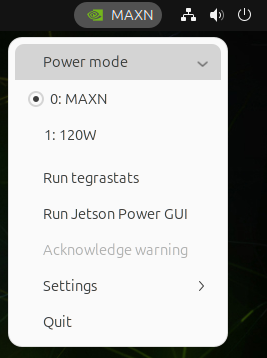
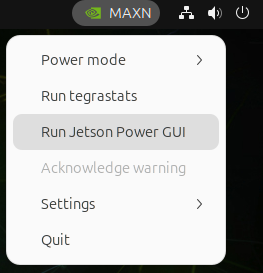
The nvpmodel GUI is represented by an NVIDIA icon on the right side of the Ubuntu desktop’s top bar.
The current power mode is displayed next to the NVIDIA icon. In the preceding illustration, the current mode is MAXN.
To switch the current power mode, click the NVIDIA icon to open a dropdown menu from the icon. Click Power mode to open a submenu of power modes:
Click the power mode you want to set.
Note
The GPU gpu_pg_mask value can be set once before the GPU golden context is created. If the nvpmodel power mode change requires a different gpu_pg_mask value, a system reboot is required.
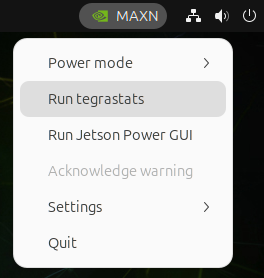
To run tegrastats, click the NVIDIA icon to open the dropdown menu:
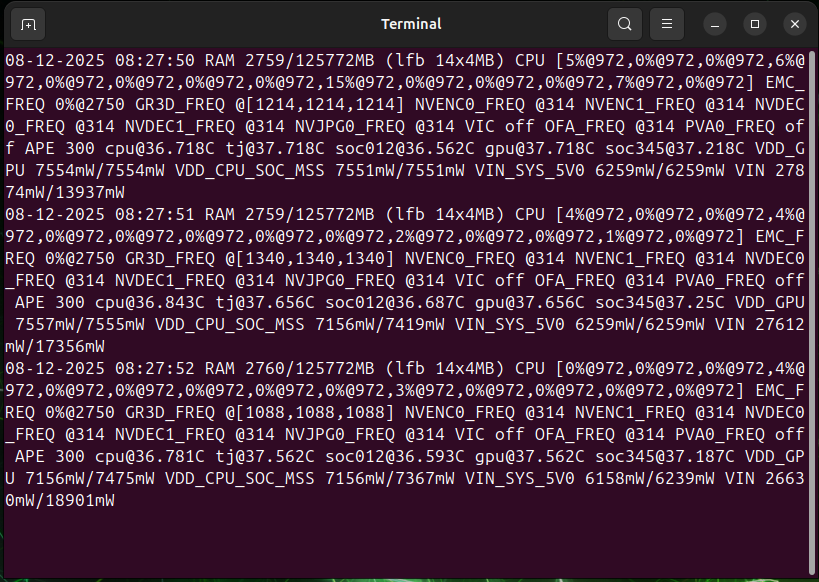
Click Run tegrastats to spawn a terminal window and run tegrastats:
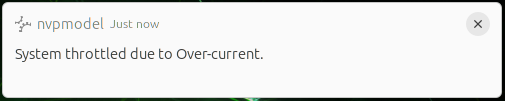
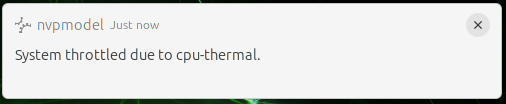
If system input voltage drops below a safe level, the nvpmodel GUI displays a desktop notification to warn you that the system is being throttled back to avoid a shutdown due to insufficient power. When the system is thermally throttled, the GUI displays a similar notification to show that the device is operating at lowered speed to reduce heat generation.
The following images show examples of notifications:
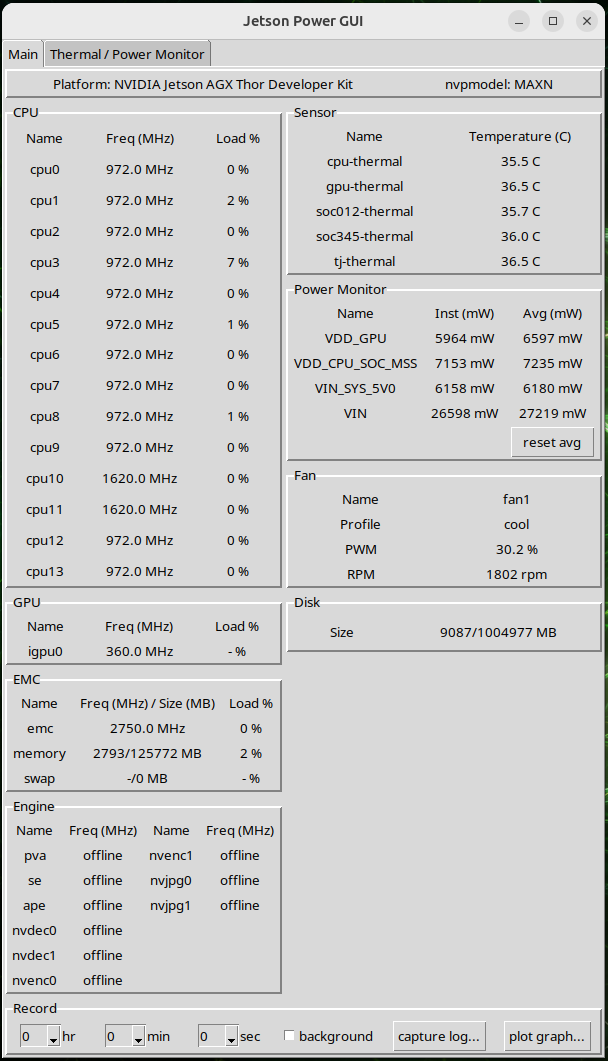
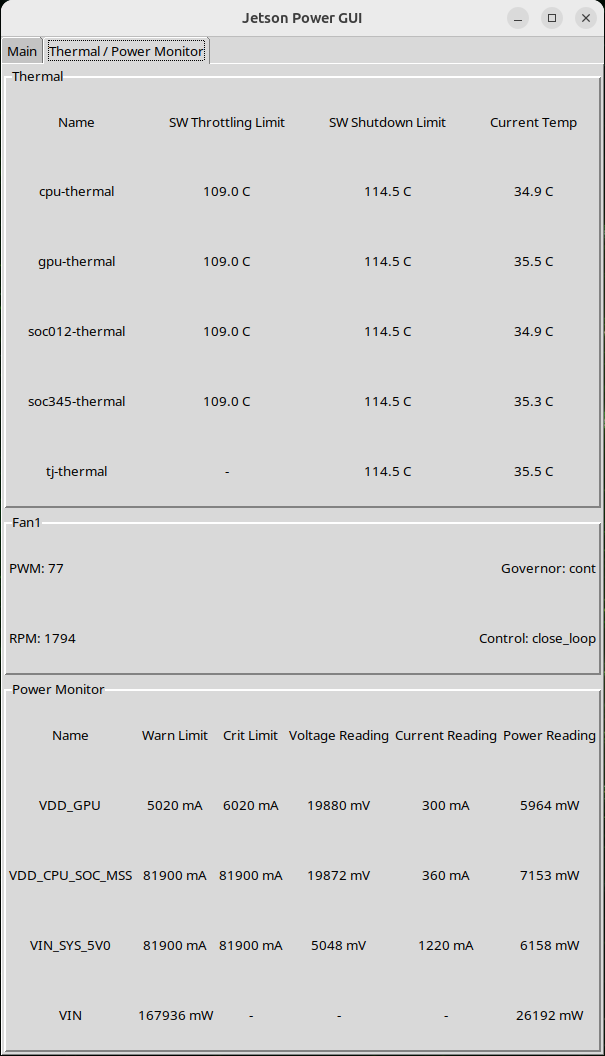
The Jetson Power GUI is a GUI tool for monitoring the power and thermal status of Jetson / IGX platforms.
The tool reports various power and thermal related information which would help the user to understand power and thermal behavior of Jetson / IGX platforms.
To run the Jetson Power GUI:
Click the nvpmodel GUI represented by an NVIDIA icon on the right side the Ubuntu desktop’s top bar.
The following table shows the information and functionalities provided in the Main tab:
Frame name
Provided information / functionalities
Top
Jetson / IGX platform name
Current power mode
CPU
CPU related information
- State
- Clock frequency
- Load percentage
GPU
GPU related information
- State
- Clock frequency
- Load percentage
EMC
EMC related information
- State
- Clock frequency
- Load percentage
- Memory usage (used size / total size)
- Swap usage (used size / total size)
Engine
Engine related information
- State
- Clock frequency
Sensor
Thermal sensor related information
- Temperature read by thermal sensor
Power Monitor
Power monitor related information
- Instantaneous power read by power monitor
- Average power read by power monitor
Power monitor related functionalities
- Reset average power calculation by clicking the reset avg button
Fan
Fan related information
- Fan profile
- PWM percentage
- RPM value
Disk
Disk related information
- Disk usage (used size / total size)
Record
Functionalities
- Allow the user to capture the log within the specified duration.
- Click the background button to capture the log in the background, which avoids the system putting in extra effort on rendering GUI.
- Allow the user to plot the power related data. The user can plot the data from captured log, or plot the real-time data.
The following table shows the information and functionalities provided in the Thermal and Power Monitor tab:
Frame name
Provided information / functionalities
Thermal
Thermal sensor related information
- Software throttling limit (if any)
- Software shutdown limit (if any)
- Temperature read by thermal sensor
Fan
Fan related information
- PWM value
- RPM value
Power Monitor
Power monitor related information
- Average current limit
- Instantaneous current limit
- Voltage read by power monitor
- Current read by power monitor
- Power read by power monitor
Capture power related information to a log file within the user specified duration
Plot the power related information to graph.
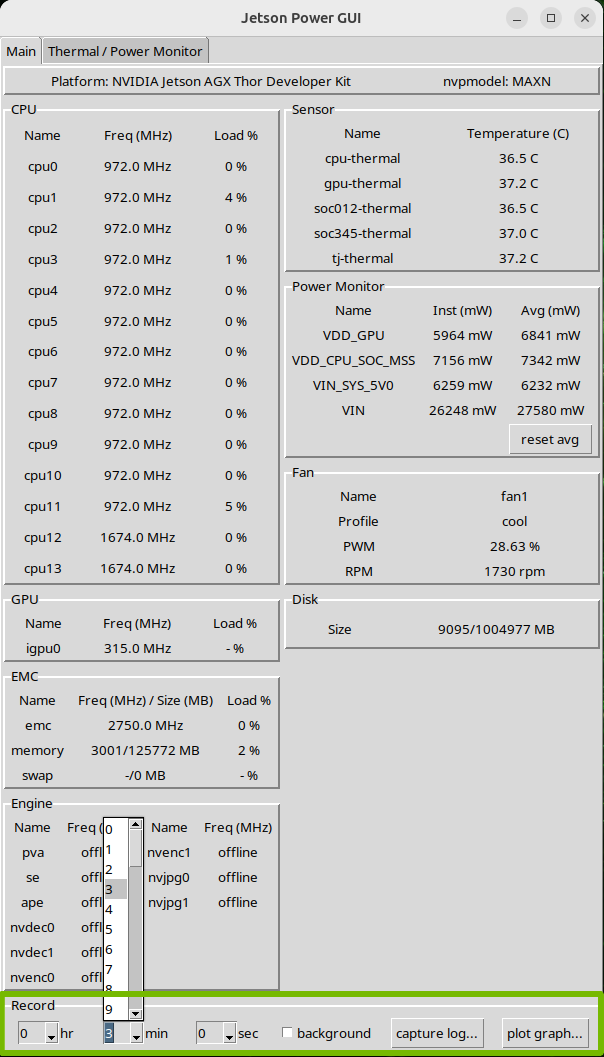
The following steps illustrate how to capture the data to a log file:
Before clicking the capture log… button in the Record frame, select the desired capture duration.
After selecting the desired capture duration, click the capture log… button.
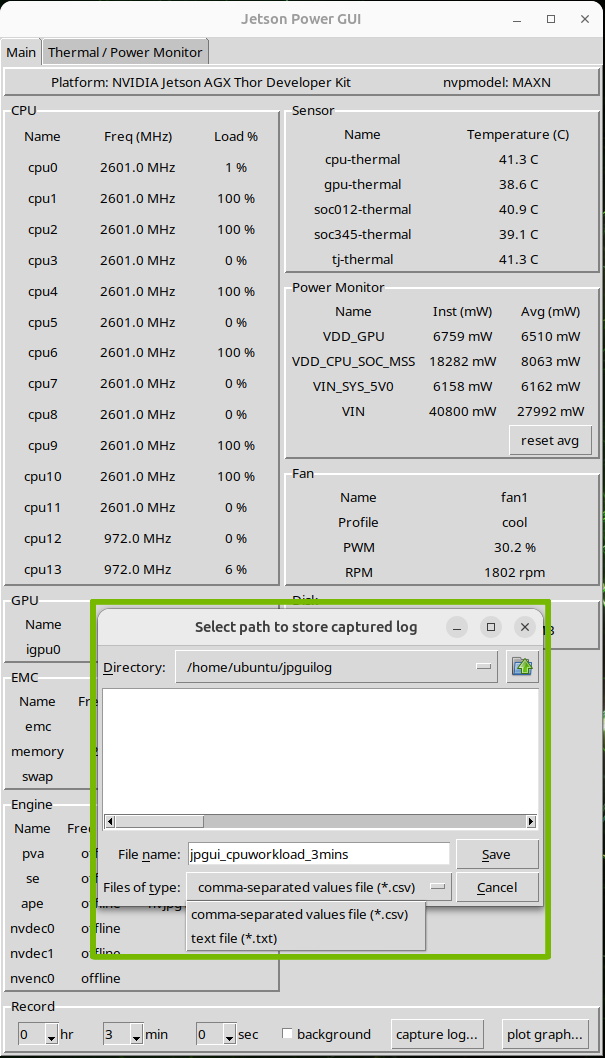
In the file dialog, select the path in which to save the captured log.
There are two kinds of supported formats, the .csv and the .txt file format.
If the user wants to capture the log in the background, the background checkbox should be checked before clicking the capture log… button.
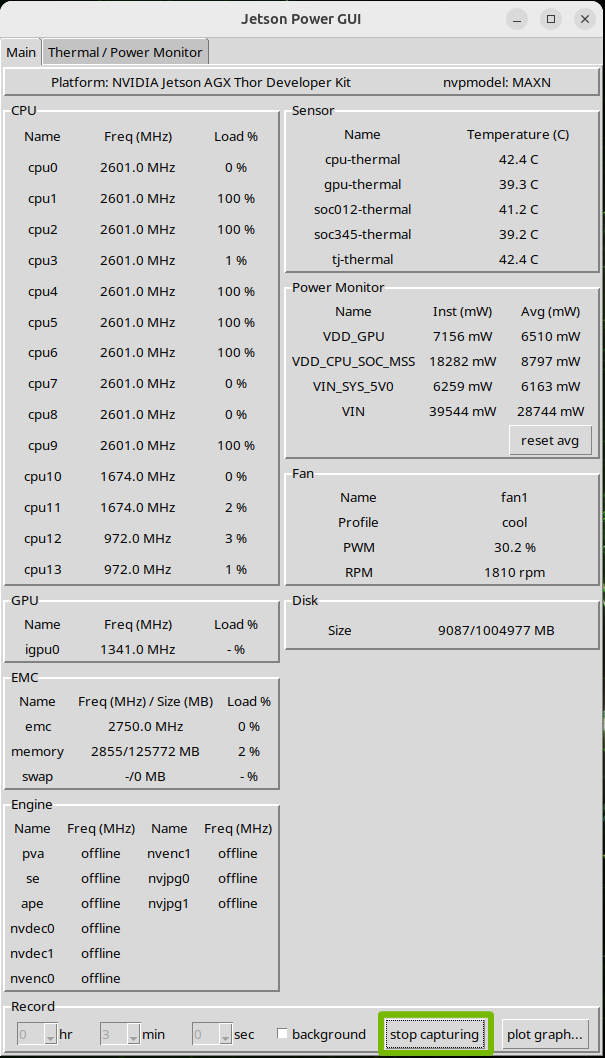
After you select the path to the capture log, the capturing process starts.
Note
If you want to stop the capturing process earlier during the capturing process, you
can click the stop capturing button to interrupt the capturing process. The captured log
will still be saved to the specified path.
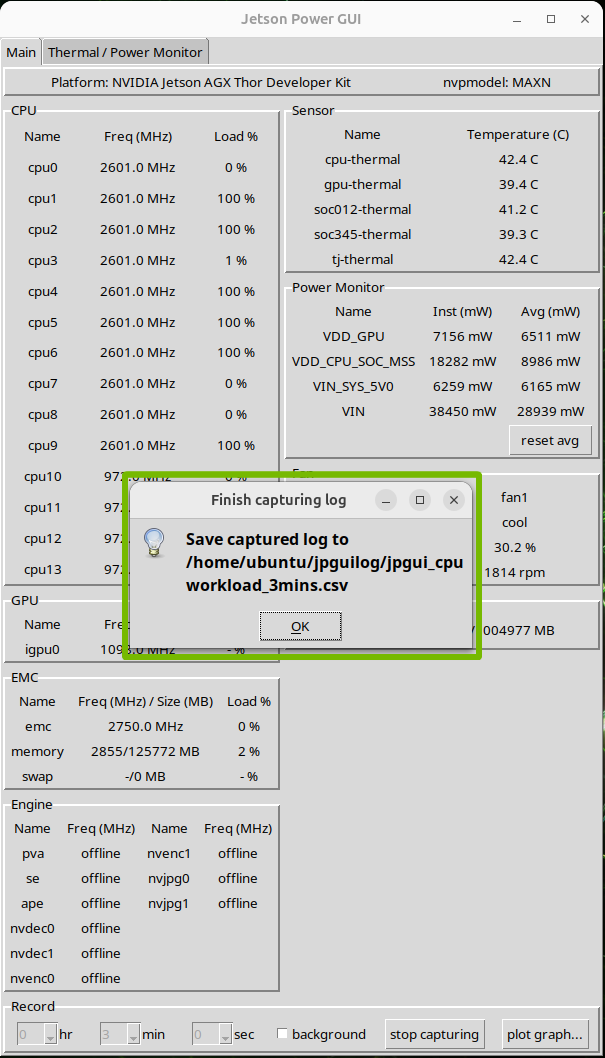
When the capturing process is finished, a message box appears.
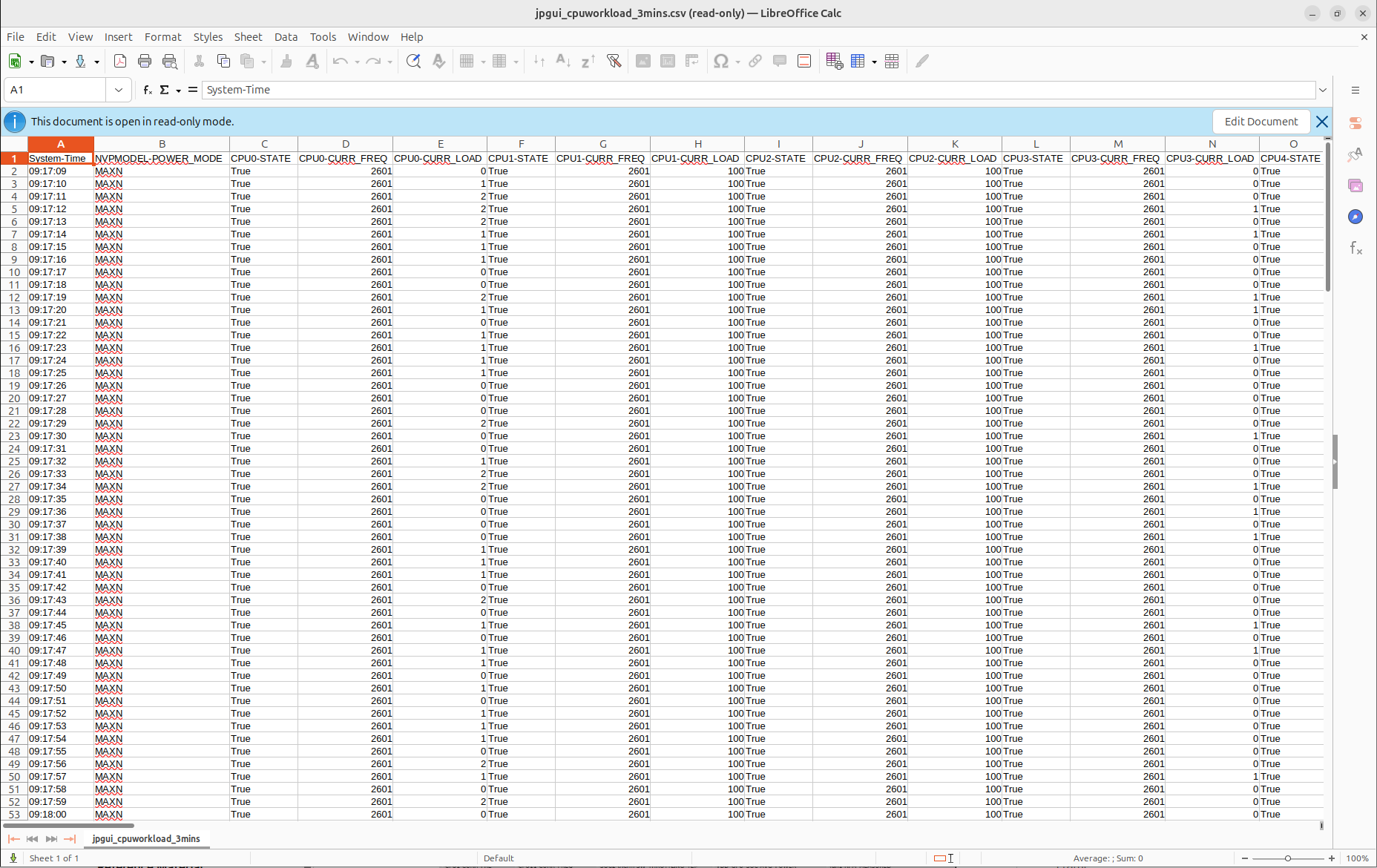
The following image shows the preview of the captured log.
The following steps illustrate how to visualize the data:
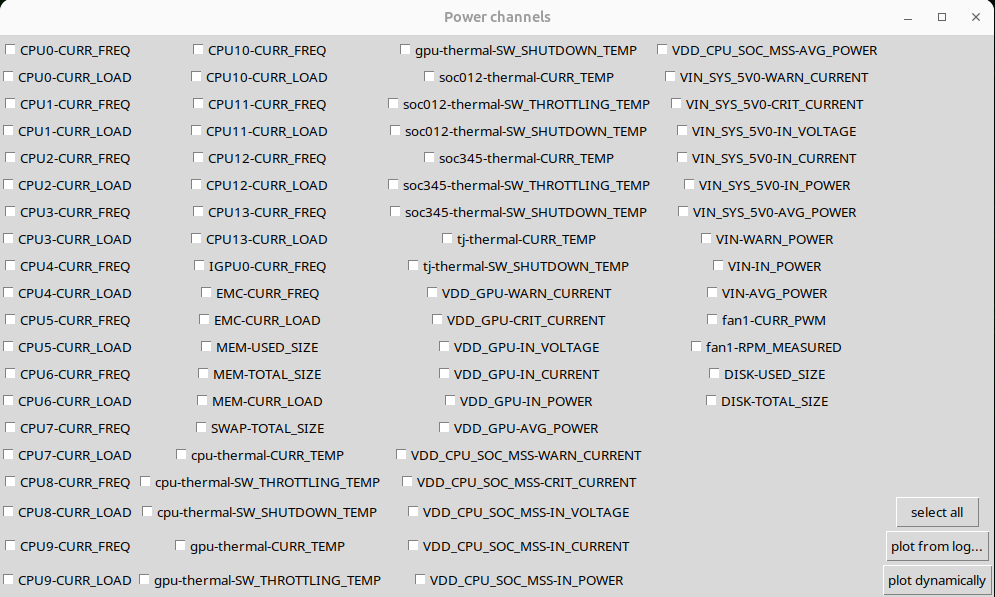
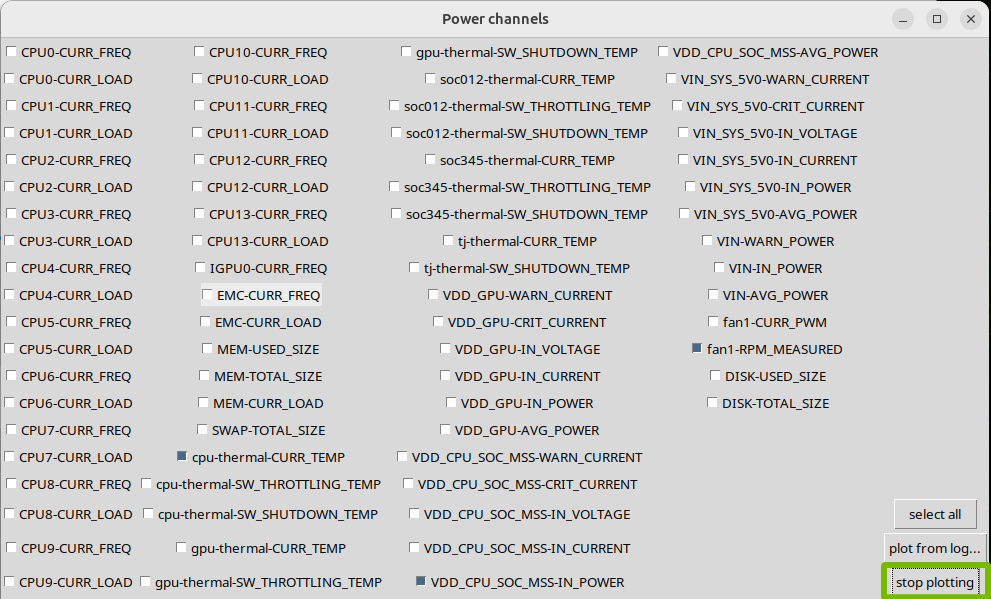
The plot graph…* button provides the data visualization functionality. Click the button to
open a window in which you can select the desired power channels to plot. Click the select all button to select all power channels with a single click.
After selecting the desired power channels, you can plot the data either from the captured log or in real time.
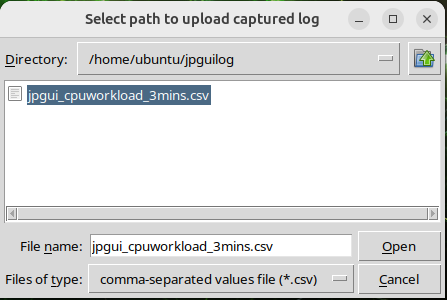
Click the plot from log… button to open a file dialog in which you can choose which log file to plot.
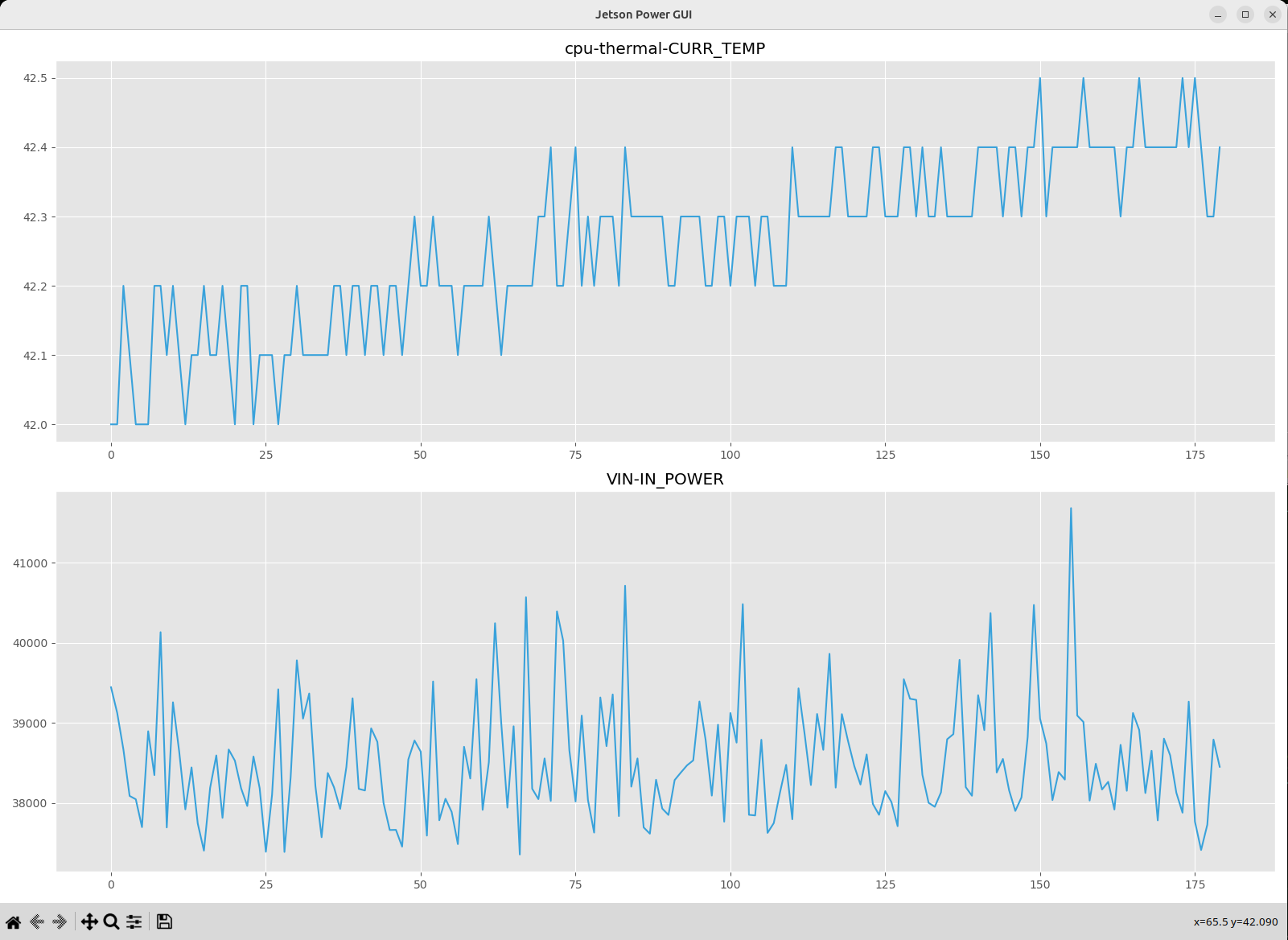
After you select the log file, the data is plotted.
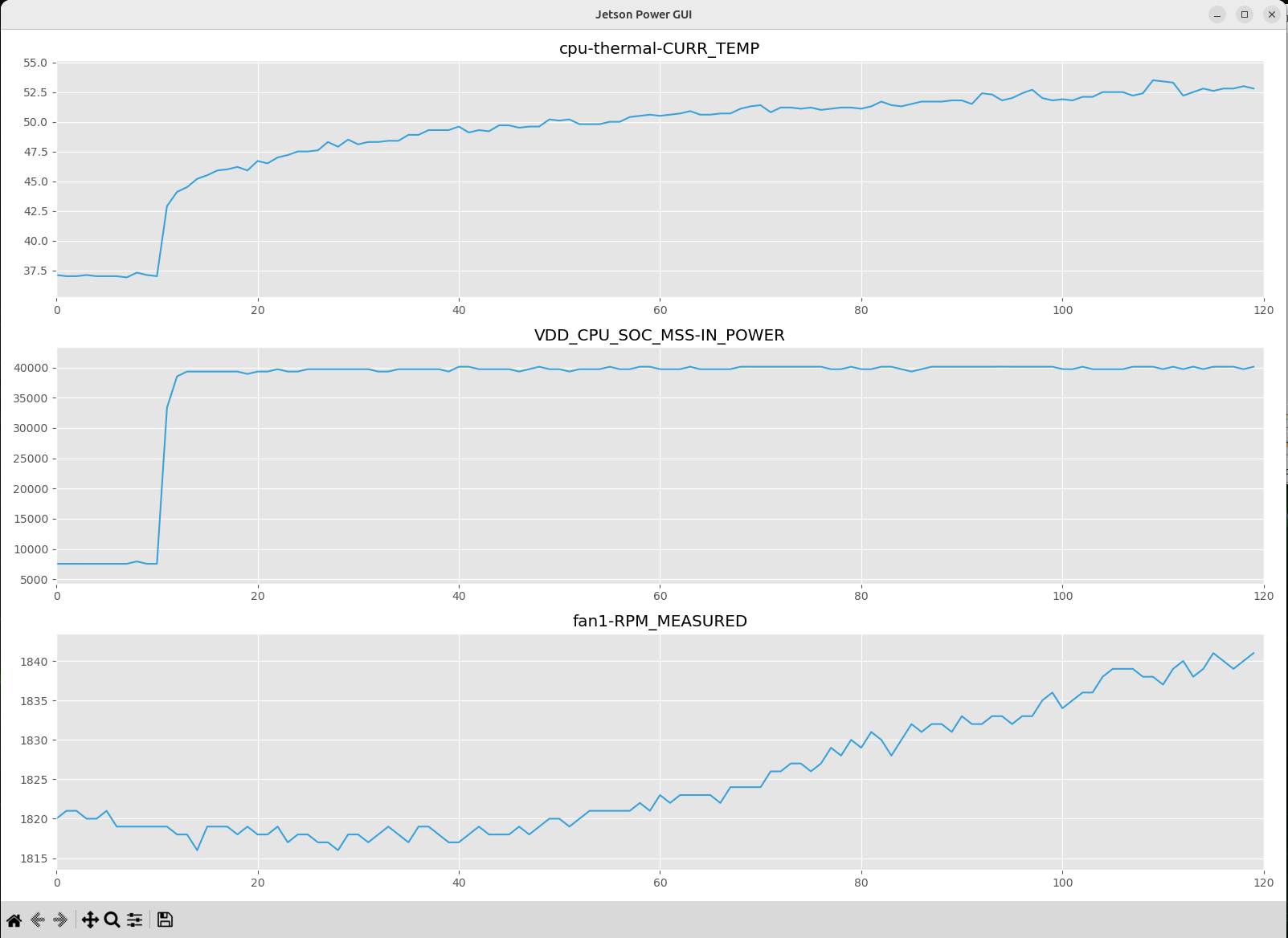
Click the plot dynamically button to plot the last 120 seconds of real-time data.
To stop the real-time plotting process, click the stop plotting button.