

Kernel Module Verification#
Before you complete the steps in this documentation, complete the steps in Enable Secure Boot for UEFI.
To enable Linux kernel module signing and verification, use the following documentation:
OOT Modules Signing Process#
The OOT modules signing process ensures that custom kernel modules (built outside the main kernel tree) are securely signed and trusted during system boot. This involves multiple stakeholders: Canonical, NVIDIA, Device Builder, ODM, and the 3rd party working together to maintain integrity and compliance with secure boot requirements.
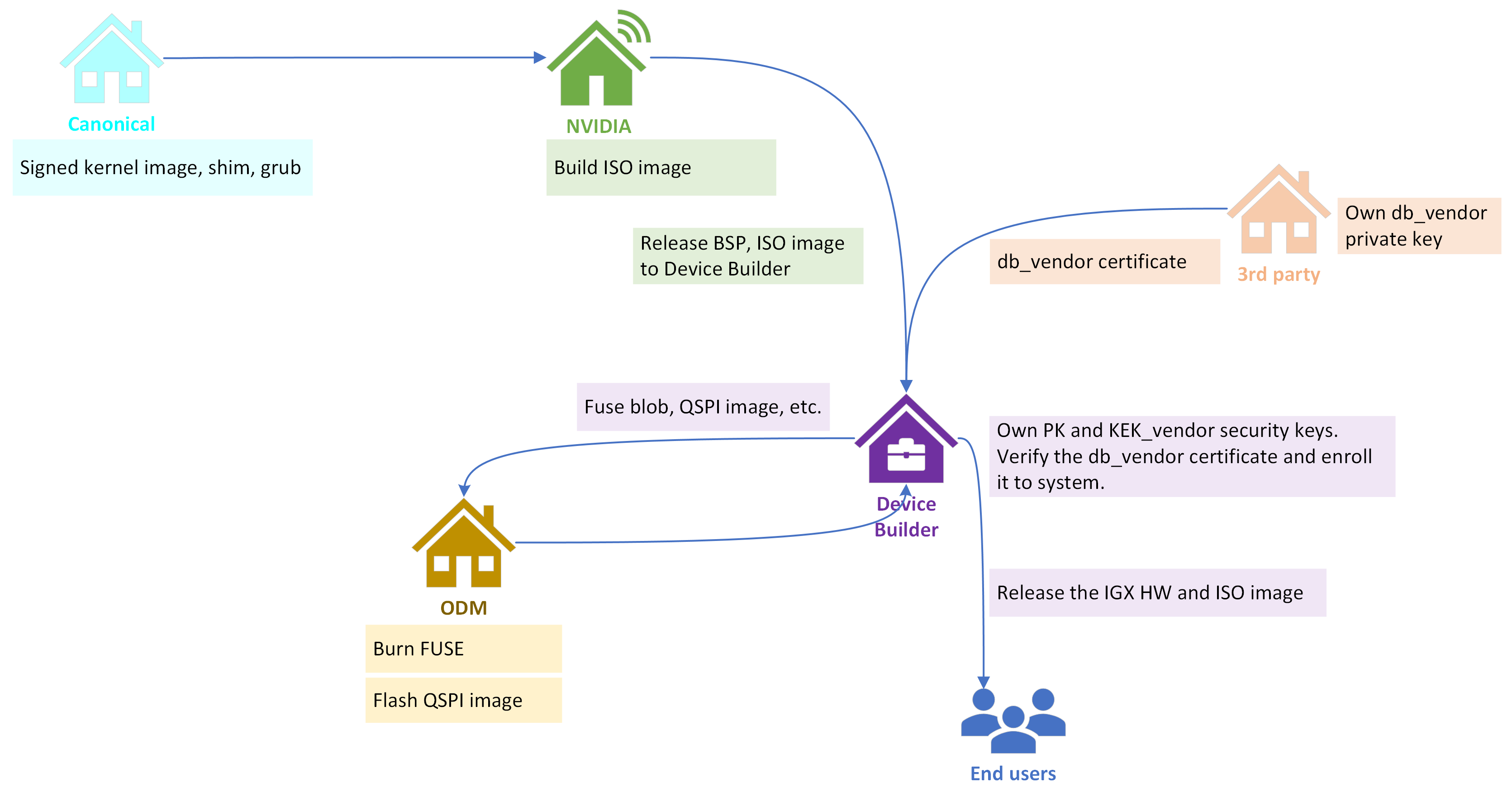
Canonical
Provides signed kernel image, shim, and GRUB components.
These are foundational for secure boot and module verification.
NVIDIA
Builds the ISO image and releases the Board Support Package (BSP) and ISO to the Device Builder.
Acts as the source for platform software and boot components.
3rd Party
Owns the db_vendor private key and provides the db_vendor certificate.
Signs vendor-specific kernel modules using this private key.
Delivers these signed kernel modules and the db_vendor certificate to the Device Builder.
Device Builder
Central role in security:
Holds PK and KEK_vendor security keys.
Verifies the db_vendor certificate and enrolls it into the system.
Verifies the signed kernel modules against the enrolled certificate.
Creates the secure fuse blob that contains all secure boot required PKC, SBK (if encryption enabled), and other security features supporting keys.
Signs all bootloader and firmware components, then generates the QSPI image.
Packages these verified modules into the IGX ISO image or delivers them separately for installation.
Note
The db_vendor certificate (or public key) can be enrolled into UEFI db keys via configuring UEFI keys config file.
ODM (Original Design Manufacturer)
Handles hardware-level security: burns FUSE and flashes QSPI image.
Ensures the device is locked and secure before deployment.
End Users
Receive the final IGX hardware and ISO image, ready for secure operation.
Enable Kernel Module Verification#
To enable kernel module signature checks, you need to ensure that the following kernel configuration options are set in the kernel configuration:
Kernel configuration |
Description |
|---|---|
CONFIG_MODULE_SIG=y
CONFIG_MODULE_SIG_ALL=y
CONFIG_MODULE_SIG_SHA512=y
CONFIG_MODULE_SIG_HASH=”sha512”
CONFIG_MODULE_SIG_KEY=”certs/signing_key.pem”
|
Enables kernel module signing.
Kernel module signature is checked by the kernel while loading kernel modules. It ensures integrity and authenticity of kernel modules while loading them.
When enforced, the kernel loads kernel modules only from known origin(s) and if their integrity is not broken.
|
CONFIG_MODULE_SIG_FORCE=n
|
Select the kernel module signature verification mode:
- off: permissive mode.
If the module is signed, it must have a trusted signature. If the module is not signed, it can be loaded, and the kernel is marked as tainted.
- on: restrictive mode.
Modules can only be loaded if they are signed with a trusted signature. The other modules will generate an error.
By default, kernel module signature verification is not enforced. This allows for unsigned DKMS modules to be loaded when secure boot is disabled.
When secure boot is enabled, kernel lockdown enforces signature verification to ensure that only properly signed modules can be loaded.
Please see the kernel documentation for more information on signing kernel modules and securing signing keys.
|
CONFIG_SECURITY_LOCKDOWN_LSM=y
CONFIG_SECURITY_LOCKDOWN_LSM_EARLY=y
CONFIG_LOCK_DOWN_IN_SECURE_BOOT=y
|
Enforce kernel lockdown.
This feature helps prevent unauthorized modifications to the kernel image and restricts access to security-sensitive and cryptographic information stored in kernel memory.
|
Install Utilities on Host#
Before you begin, ensure that the following utilities are installed in your Ubuntu host:
openssl
device-tree-compiler
efitools
uuid-runtime
Sign and Verify Kernel Module#
To sign and verify a kernel module, you need to ensure that a vendor db key is enrolled when enabling secure boot for UEFI in the section Enable Secure Boot for UEFI.
Take the kernel module pwm-fan.ko as an example:
1cd /opt
2sudo cp /usr/lib/modules/5.15.0-1019-nvidia-tegra-igx/kernel/drivers/hwmon/pwm-fan.ko .
3sudo cp pwm-fan.ko pwm-fan.ko.signed
Remove the pwm-fan.ko from the Linux:
1lsmod | grep pwm
2sudo modprobe -r pwm_fan
3lsmod | grep pwm
Ensure that the pwm_fan is not in the output list.
Install the Unsigned Kernel Module#
To install the unsigned kernel module, you need to check the signature of the kernel module and remove the signature.
Check the signature of the kernel module:
1cd /opt
2modinfo pwm-fan.ko
The kernel module is likely signed by an autogenerated kernel key, and the output is as the following:
…
sig_id:         PKCS#7
signer:         Build time autogenerated kernel key
…
signature: …
…
Remove the signature of the kernel module:
1sudo strip -g pwm-fan.ko
2modinfo pwm-fan.ko
3sudo cp pwm-fan.ko pwm-fan.ko.unsigned
Ensure that the output does not have the <sig_id>, <signer> and <signature>, etc.
Install the unsigned kernel module to Linux:
1sudo insmod pwm-fan.ko
The command should fail with the following error log:
nvidia@localhost:/opt$ sudo insmod pwm-fan.ko
insmod: ERROR: could not insert module pwm-fan.ko: Operation not permitted
[  476.015693] Lockdown: insmod: unsigned module loading is restricted; see man kernel_lockdown.7
This means the unsigned kernel module can NOT be inserted to secure boot enabled kernel.
Sign the Kernel Module#
To sign the kernel module, follow the steps below:
Extract the Vendor Owned DB Key certificate embedded with the RSA public key to a file in DER format:
1cd <Your_DIR>/Linux_for_Tegra/uefi_keys 2 3# Convert x509 to PEM 4openssl x509 -in db_vendor.crt -outform PEM -out db_vendor.pem 5 6# Convert PEM to DER 7openssl x509 -outform der -in db_vendor.pem -out db_vendor.der
Copy the unsigned kernel module to host from IGX:
1scp /opt/pwm-fan.ko.unsigned <host_name>@<host_ip>:<Your_DIR>/Linux_for_Tegra/uefi_keys
On host, use kmodsign to sign the unsigned kernel module with the enrolled Vendor owned db key pair.
1cd <Your_DIR>/Linux_for_Tegra/uefi_keys
2
3# The db_vendor.key is private key, and the db_vendor.crt is
4# self-signed certificate that contains the RSA public key.
5kmodsign sha512 db_vendor.key db_vendor.der pwm-fan.ko.unsigned pwm-fan.ko.sign.vendor
Install the Signed Kernel Module#
To install the signed kernel module, follow the steps below:
Copy the kernel module signed by Vendor Owned DB Key pair to IGX from Host and check the signature:
1cd /opt
2sudo scp <host_name>@<host_ip>:Linux_for_Tegra/uefi_keys/pwm-fan.ko.sign.vendor .
3sudo cp pwm-fan.ko.sign.vendor pwm-fan.ko
4modinfo pwm-fan.ko
The kernel module is signed by Vendor Owned DB Key, and the output should be as the following:
…
sig_id:         PKCS#7
signer:         Vendor Owned Signature Database key
…
signature:   …
…
Install the kernel module signed by the Vendor Owned DB key pair:
1sudo insmod pwm-fan.ko
2echo $?
The command should return
0, which means the kernel module is installed successfully.Additionally, check the kernel module is in the lsmod output list:
1lsmod | grep pwm
Ensure that the pwm_fan is in the output list:
nvidia@localhost:/opt$ lsmod | grep pwm
pwm_fan                20480  0
pwm_tegra_tachometer    20480  0
The kernel module signed by the Vendor Owned db key pair is inserted into Linux kernel successfully.