

Asset Inventory and Data Export#
Now that you’ve learned to navigate your factory scene visually using waypoints, let’s explore how to navigate it programmatically using Python scripting. This section teaches you to automatically traverse your USD stage, identify all assets, and export the data to CSV format for facility management and reporting purposes.
Understanding Stage Traversal#
Stage traversal is the process of systematically walking through your USD scene’s hierarchy to query or extract data from every primitive (prim) in the stage. Think of it as an automated way to “visit” every object in your digital twin and collect information about it.
Tip
For a deep dive into Stage traversal and more OpenUSD topics, check out our learning path.
Why Stage Traversal Matters for Digital Twins#
As your factory digital twin grows in complexity, manually tracking assets becomes impractical. Consider these scenarios:
Facility Management Needs
“How many safety devices do we have in the facility?”
“What types of machines are installed in Production Line A?”
“Which assets need maintenance based on their installation dates?”
“What’s the total count of each asset type for procurement planning?”
In real facility management, you need to:
Generate asset inventories for maintenance planning
Create compliance reports showing all safety equipment locations
Track component installations across production lines
Export data for ERP integration and facility management systems
Manual clicking through hundreds of objects isn’t practical—scripting automates this essential workflow.
How USD Stage Traversal Works#
USD traversal operates by walking through prims in depth-first order
/Factory (Root)
├── /Factory/ProductionLine_A (visited first)
│   ├── /Factory/ProductionLine_A/Machine_001 (visited second)
│   └── /Factory/ProductionLine_A/Machine_002 (visited third)
└── /Factory/ProductionLine_B (visited fourth)
    └── /Factory/ProductionLine_B/Machine_003 (visited fifth)
This systematic approach ensures every prim gets visited exactly once, in a predictable order.
Python Scripting in Omniverse#
Accessing the Script Editor
Navigate to Developer > Script Editor to open the Script Editor.
Basic Stage Traversal: Listing All Assets#
Let’s start with a fundamental script that traverses your factory stage and lists every prim path.
Script 1: Complete Stage Traversal#
Warning
Depending on the size of your scene this may take some time to complete.
Copy and paste this script into the Script Editor
 1# Import necessary USD modules
 2from pxr import Usd
 3
 4# Get the current stage (your opened factory scene)
 5stage = omni.usd.get_context().get_stage()
 6
 7# Check if stage is valid
 8if not stage:
 9    print("No stage currently loaded!")
10else:
11    print("=== Factory Scene Traversal ===")
12    print("Traversing all prims in depth-first order:\n")
13
14    # Traverse all active, loaded, defined prims
15    prim_count = 0
16    for prim in stage.Traverse():
17        print(f"Path: {prim.GetPath()}")
18        print(f"Type: {prim.GetTypeName()}")
19        print(f"Kind: {prim.GetKind()}")
20        print("-" * 40)
21        prim_count += 1
22
23    print(f"\nTotal prims traversed: {prim_count}")
Execute the script and observe:
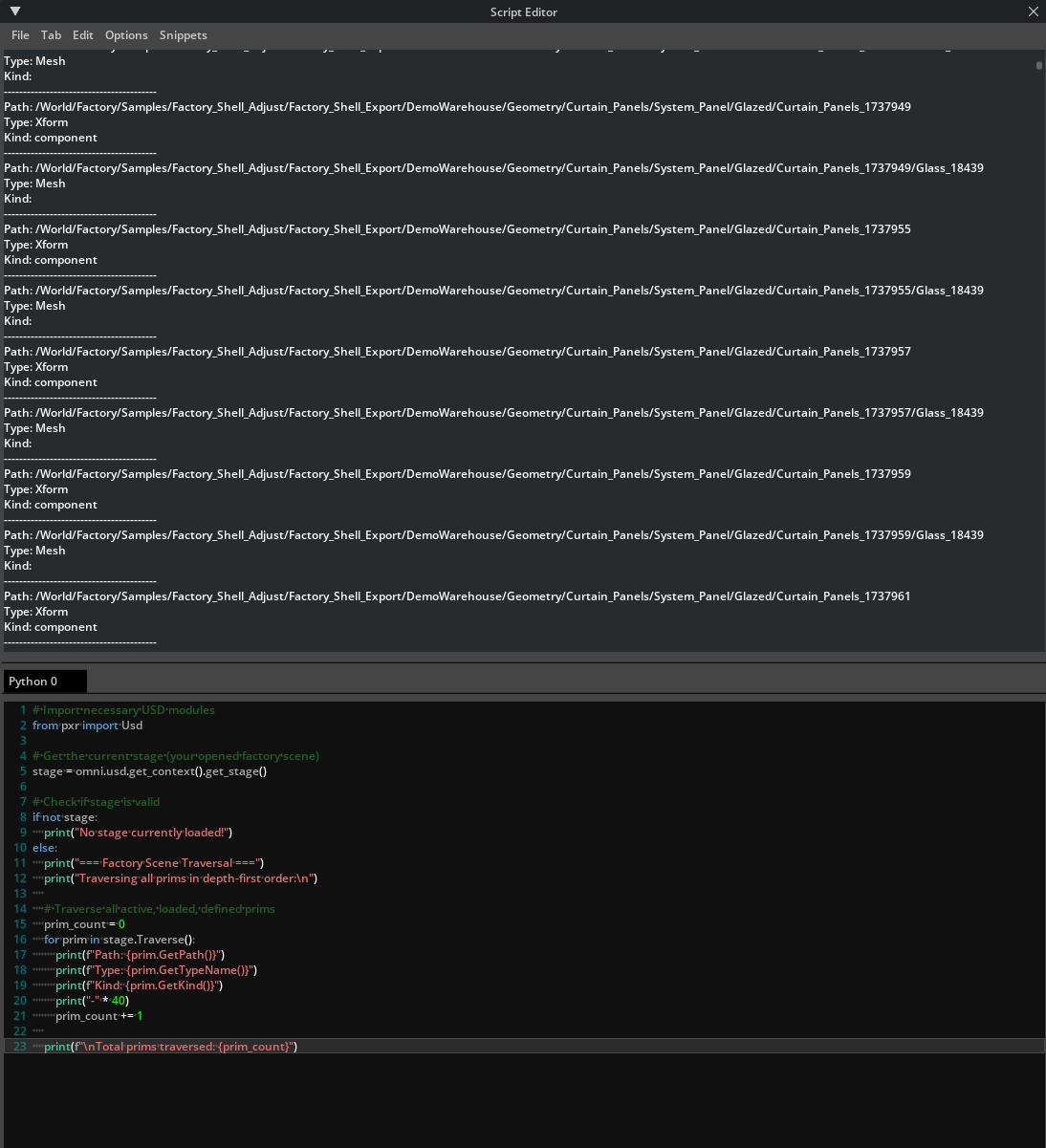
The hierarchical structure of your factory scene
Prim types (Xform, Mesh, Material, etc.)
USD Kind metadata (Component, Assembly, Group)
Total count of all objects in your scene
Understanding the Output#
Your results will show the organized structure of your digital twin:
Output Element |
What It Tells You |
Why It Matters |
|---|---|---|
Path |
Hierarchical location in scene |
Navigation and organization |
Type |
USD primitive type (Mesh, Xform, etc.) |
Technical structure understanding |
Kind |
Asset classification (Component, Assembly) |
Logical grouping and filtering |
Targeted Asset Identification#
Rather than listing everything, let’s create more focused scripts that identify specific types of assets relevant to facility management.
Script 2: Finding Manufacturing Equipment#
This script identifies machines and equipment specifically
Note
This script finds the machine assets by searching for these keywords in the name or if the Kind is set to Component. Keywords include: machine,** robot**, conveyor, etc.
 1from pxr import Usd, UsdGeom
 2
 3# Get current stage
 4stage = omni.usd.get_context().get_stage()
 5
 6if stage:
 7    print("=== Manufacturing Equipment Inventory ===\n")
 8
 9    machines = []
10
11    for prim in stage.Traverse():
12        # Look for prims with "machine" in the name or specific kinds
13        prim_name = prim.GetName().lower()
14        prim_kind = prim.GetKind()
15
16        # Identify potential manufacturing equipment
17        if (any(keyword in prim_name for keyword in ['machine', 'robot', 'conveyor', 'press', 'router', 'feeder'])
18            or prim_kind == 'Component'):
19
20            # Get additional information
21            transform = UsdGeom.Xformable(prim)
22
23            machine_data = {
24                'name': prim.GetName(),
25                'path': str(prim.GetPath()),
26                'type': prim.GetTypeName(),
27                'kind': prim_kind
28            }
29
30            machines.append(machine_data)
31
32            print(f"Equipment: {machine_data['name']}")
33            print(f"Location: {machine_data['path']}")
34            print(f"Type: {machine_data['type']}")
35            print(f"Classification: {machine_data['kind']}")
36            print("-" * 50)
37
38    print(f"\nTotal manufacturing equipment found: {len(machines)}")
Script 3: Props and Safety Equipment Inventory#
This script focuses on props, safety equipment, and environmental objects
Note
This script is searching prims similar to the previous one, but it will categorize them by type.
Such as: Safety Equipment, Storage/Transport, Lighting
 1from pxr import Usd
 2
 3# Get current stage
 4stage = omni.usd.get_context().get_stage()
 5
 6if stage:
 7    print("=== Props and Safety Equipment Inventory ===\n")
 8
 9    props = []
10    safety_equipment = []
11
12    for prim in stage.Traverse():
13        prim_name = prim.GetName().lower()
14        prim_path = str(prim.GetPath()).lower()
15
16        # Categorize based on name patterns
17        if any(keyword in prim_name for keyword in ['cone', 'barrier', 'sign', 'safety', 'warning']):
18            safety_equipment.append({
19                'name': prim.GetName(),
20                'path': str(prim.GetPath()),
21                'category': 'Safety Equipment'
22            })
23
24        elif any(keyword in prim_name for keyword in ['pallet', 'container', 'box', 'rack', 'shelf']):
25            props.append({
26                'name': prim.GetName(),
27                'path': str(prim.GetPath()),
28                'category': 'Storage/Transport'
29            })
30
31        elif any(keyword in prim_name for keyword in ['light', 'lamp', 'fixture']):
32            props.append({
33                'name': prim.GetName(),
34                'path': str(prim.GetPath()),
35                'category': 'Lighting'
36            })
37
38    # Display results
39    print("SAFETY EQUIPMENT:")
40    for item in safety_equipment:
41        print(f"  {item['name']} at {item['path']}")
42
43    print(f"\nPROPS BY CATEGORY:")
44    for item in props:
45        print(f"  {item['category']}: {item['name']} at {item['path']}")
46
47    print(f"\nSummary:")
48    print(f"Safety Equipment: {len(safety_equipment)}")
49    print(f"Props: {len(props)}")
CSV Export: Asset Data Export#
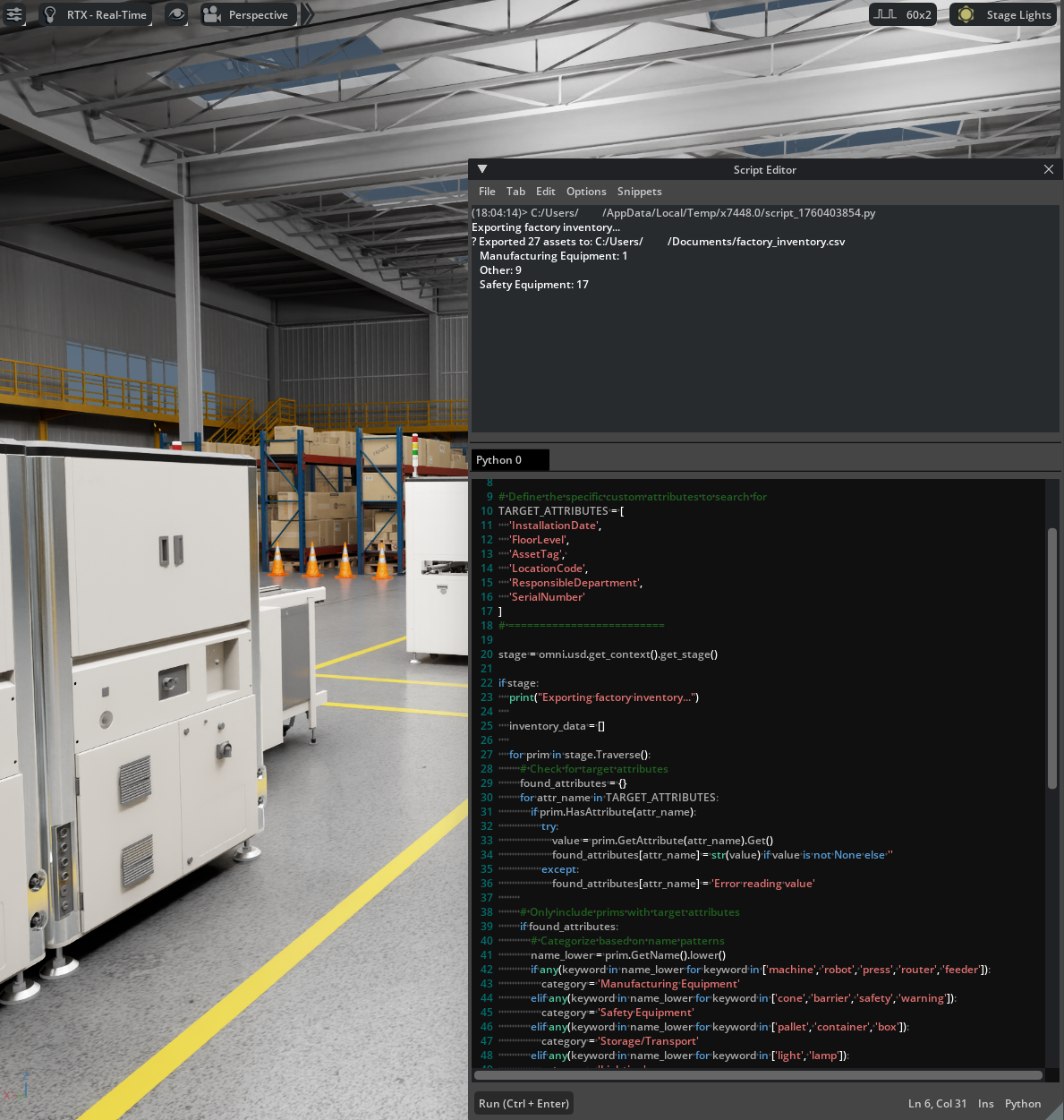
Now let’s create a comprehensive script that exports all asset data to CSV format for external use.
This final script combines all the techniques we’ve learned to create a focused, efficient export. Unlike the earlier exploratory scripts, this version is optimized for performance and targets only assets with specific custom attributes that you’ve added to your scene.
Key Features of this Export Script
Targeted Filtering Only exports assets that contain your custom metadata attributes, making the process faster and the results more relevant for facility management.
Smart Categorization Automatically categorizes assets based on naming patterns, grouping them into meaningful categories like “Manufacturing Equipment,” “Safety Equipment,” and “Storage/Transport.”
Structured Output Creates a standardized CSV format that can be easily imported into facility management systems, maintenance databases, or spreadsheet applications.
Performance Optimization Uses efficient USD methods to check for specific attributes without processing every prim’s complete attribute list.
Note
To change the location that the file will save to, search for the comment in the code:
# Set your CSV file save location here
CSV_SAVE_PATH = "C:/Users/YourName/Desktop/factory_inventory.csv"
Understanding the TARGET_ATTRIBUTES Configuration
The script searches specifically for these custom attributes:
InstallationDate- When the asset was installedFloorLevel- Physical floor locationAssetTag- Unique facility identifierLocationCode- Facility location referenceResponsibleDepartment- Owning departmentSerialNumber- Manufacturer serial number
Only assets containing at least one of these attributes will be included in the export, ensuring your CSV contains meaningful facility management data rather than every geometric primitive in the scene.
Interpreting Your Export Results
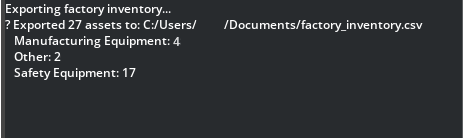
After running the script, you’ll see console output showing:
Export confirmation with file location and asset count
Category breakdown showing how many assets were found in each type
File location where you can open the CSV in Excel or your preferred application
The resulting CSV file provides a complete asset inventory that bridges your 3D digital twin with traditional facility management workflows, enabling data-driven maintenance planning, compliance reporting, and operational decision-making.
 1from pxr import Usd
 2import csv
 3import os
 4
 5# ===== CONFIGURATION =====
 6# Set your CSV file save location here
 7CSV_SAVE_PATH = "C:/Users/YourName/Desktop/factory_inventory.csv"
 8
 9# Define the specific custom attributes to search for
10TARGET_ATTRIBUTES = [
11    'InstallationDate',
12    'FloorLevel',
13    'AssetTag',
14    'LocationCode',
15    'ResponsibleDepartment',
16    'SerialNumber'
17]
18# =========================
19
20stage = omni.usd.get_context().get_stage()
21
22if stage:
23    print("Exporting factory inventory with attributes...")
24
25    inventory_data = []
26
27    for prim in stage.Traverse():
28        # Check for target attributes
29        found_attributes = {}
30        for attr_name in TARGET_ATTRIBUTES:
31            if prim.HasAttribute(attr_name):
32                try:
33                    value = prim.GetAttribute(attr_name).Get()
34                    found_attributes[attr_name] = str(value) if value is not None else ''
35                except:
36                    found_attributes[attr_name] = 'Error reading value'
37
38        # Only include prims with target attributes
39        if found_attributes:
40            # Categorize based on name patterns
41            name_lower = prim.GetName().lower()
42            if any(keyword in name_lower for keyword in ['machine', 'robot', 'press', 'router', 'feeder']):
43                category = 'Manufacturing Equipment'
44            elif any(keyword in name_lower for keyword in ['cone', 'barrier', 'safety', 'warning']):
45                category = 'Safety Equipment'
46            elif any(keyword in name_lower for keyword in ['pallet', 'container', 'box']):
47                category = 'Storage/Transport'
48            elif any(keyword in name_lower for keyword in ['light', 'lamp']):
49                category = 'Lighting'
50            else:
51                category = 'Other'
52
53            prim_data = {
54                'Name': prim.GetName(),
55                'Path': str(prim.GetPath()),
56                'Type': prim.GetTypeName(),
57                'Kind': prim.GetKind(),
58                'Category': category
59            }
60            prim_data.update(found_attributes)
61            inventory_data.append(prim_data)
62
63    if inventory_data:
64        # Write CSV
65        base_columns = ['Name', 'Path', 'Type', 'Kind', 'Category']
66        target_columns = [attr for attr in TARGET_ATTRIBUTES if any(attr in item for item in inventory_data)]
67        columns = base_columns + target_columns
68
69        with open(CSV_SAVE_PATH, 'w', newline='', encoding='utf-8') as csvfile:
70            writer = csv.DictWriter(csvfile, fieldnames=columns)
71            writer.writeheader()
72            for item in inventory_data:
73                row = {col: item.get(col, '') for col in columns}
74                writer.writerow(row)
75
76        print(f"✅ Exported {len(inventory_data)} assets to: {CSV_SAVE_PATH}")
77
78        # Category summary
79        categories = {}
80        for item in inventory_data:
81            cat = item['Category']
82            categories[cat] = categories.get(cat, 0) + 1
83
84        for category, count in sorted(categories.items()):
85            print(f"   {category}: {count}")
86
87    else:
88        print("No assets found with target attributes.")
89
90else:
91    print("No USD stage loaded.")
Factory Inventory Export Results#
Name |
Path |
Type |
Kind |
Category |
Installation Date |
Asset Tag |
Responsible Department |
Serial Number |
|---|---|---|---|---|---|---|---|---|
CL6_Line_Full |
/World/CL6_Line_Full |
Xform |
assembly |
Manufacturing Equipment |
1/22/2024 |
FAC-FDR-003 |
Manufacturing |
N03-FD-2024-0156 |
CL6_Line_OnBoard_Router |
/World/CL6_Line_OnBoard_Router |
Xform |
assembly |
Manufacturing Equipment |
8/15/2025 |
FAC-RTR-001 |
Production Engineering |
CL6-RT-2023-0847 |
CL6_Line_Small |
/World/CL6_Line_Small |
Xform |
assembly |
Manufacturing Equipment |
3/10/2025 |
FAC-ASM-005 |
Assembly Operations |
ASM-A-2024-0298 |
CL6_Line_Full_01 |
/World/CL6_Line_Full_01 |
Xform |
assembly |
Manufacturing Equipment |
6/5/2025 |
FAC-QIR-007 |
Quality Assurance |
QIR-07-2024-0445 |
WarehousePile_A1 |
/World/Props/WarehousePile_A1 |
Xform |
component |
Other |
11/8/2023 |
FAC-SHF-201 |
Inventory Management |
|
RackSmall_A7 |
/World/Props/RackSmall_A7 |
Xform |
component |
Other |
11/8/2023 |
FAC-SHF-202 |
Inventory Management |
|
PopUpCone_A04_71cm_PR_NVD_02 |
/World/Props/PopUpCone_A04_71cm_PR_NVD_02 |
Xform |
component |
Safety Equipment |
11/8/2023 |
FAC-SC-012 |
Safety & Compliance |
SC-ORG-2024-0891 |
Practical Applications and Next Steps#
Real-World Use Cases#
The CSV export you’ve created enables:
Use Case |
Data Application |
Business Value |
|---|---|---|
Maintenance Planning |
Asset locations and schedules |
Preventive maintenance optimization |
Compliance Reporting |
Safety equipment inventory |
Regulatory compliance documentation |
Facility Management |
Complete asset database |
Integration with CMMS systems |
Change Management |
Before/after asset comparisons |
Impact assessment and planning |
Extending the Scripts#
You can enhance these scripts by:
Adding filters for specific production lines or areas
Including geometric data like bounding box dimensions
Collecting material information for procurement planning
Integrating with databases for real-time facility management
Generating reports in different formats (JSON, Excel, XML)
Integration with Facility Systems#
This scripting approach transforms your visual digital twin into a data-rich facility management tool, bridging the gap between 3D visualization and operational business systems. The automated inventory generation you’ve learned represents a fundamental capability for industrial digital twin applications.