

Sim-to-Real Strategy 2: Co-Training With Real Data#
What Do I Need for This Module?
Hands-on. You’ll need the calibrated SO-101 robot, teleop arm, both cameras, the assembled workspace, and the real-robot container.
In this session, you’ll learn the theory of co-training approaches and then deploy your first policy to the physical robot.
Learning Objectives#
By the end of this session, you’ll be able to:
Explain co-training strategies for mixing sim and real data
Deploy trained policies safely to the physical SO-101 robot
Observe and document real-world policy behavior
Identify initial sim-to-real gap symptoms
What Is Co-Training?#
Co-training combines data from multiple sources—simulation and real-world—during policy training.
In our examples, we’ll show the power of combining a small amount of real demonstration data (5 episodes) with a much larger set of simulation demonstrations (70-100).
You’ll have a chance to experience policies trained with various mixes of data.
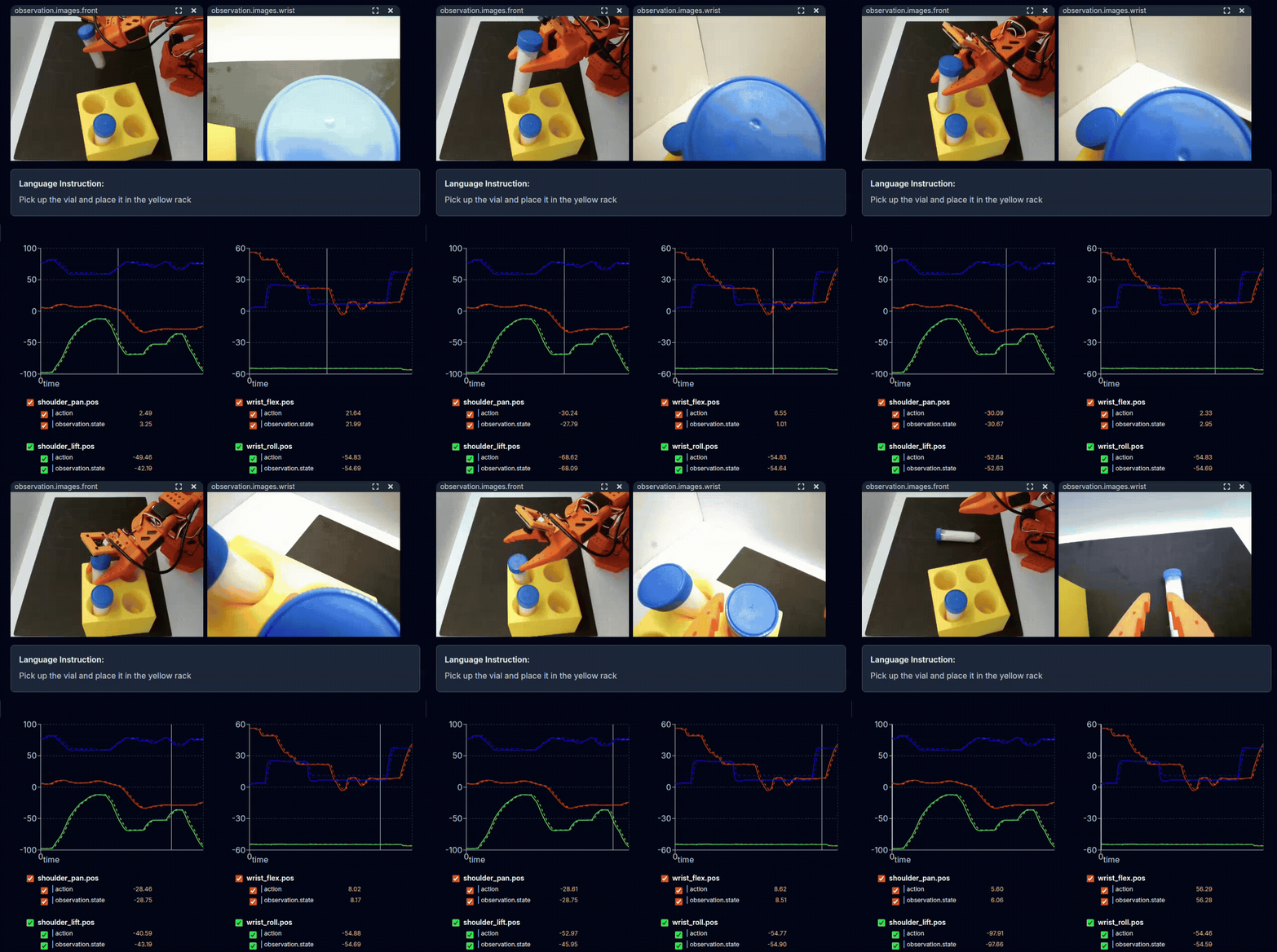
Physical demonstration of the task with teleoperation.#
Tip
View a dataset of real-only demonstrations using the Hugging Face Dataset Visualizer here.
The Data Challenge#
Data Source |
Quantity |
Quality |
Reality Match |
|---|---|---|---|
Simulation |
Abundant |
Consistent |
Approximate |
Real teleop |
Limited |
Variable |
Exact |
Neither source alone is ideal:
Sim-only: Abundant but doesn’t match real-world distribution
Real-only: Matches reality but quantity is limited
Co-training leverages both.
(Optional) Collecting Real Demonstrations With LeRobot#
We will provide both a real dataset and a post-trained GR00T model trained on this sim+real dataset. But if you’d like, you can collect your own real demonstrations below.
Note
Since you’ll likely use our dataset / model, for now this section is a bit less detailed.
Run the
teleop-dockercontainer.Log into the
hfcli application:hf auth loginSet your Hugging Face username as an environment variable.
export HF_USER=your-hf-username
Run the following command - make sure to set the
dataset.repo_idargument.
lerobot-record \
  --robot.type=so101_follower \
  --robot.port=$ROBOT_PORT \
  --robot.id=$ROBOT_ID \
  --robot.cameras='{
    "wrist": {
      "type": "opencv",
      "index_or_path": '"$CAMERA_GRIPPER"',
      "width": 640,
      "height": 480,
      "fps": 30
    },
    "front": {
      "type": "opencv",
      "index_or_path": '"$CAMERA_EXTERNAL"',
      "width": 640,
      "height": 480,
      "fps": 30
    }
  }' \
  --teleop.type=so101_leader \
  --teleop.port=$TELEOP_PORT \
  --teleop.id=$TELEOP_ID \
  --display_data=true \
  --dataset.repo_id=${HF_USER}/so101-teleop-vials-to-rack-real \
  --dataset.num_episodes=5 \
  --dataset.single_task="Pick up the vial and place it in the yellow rack" \
  --play_sounds=false
Use these controls to control recording:
Press Right Arrow (→): Early stop the current episode or reset time and move to the next.
Press Left Arrow (←): Cancel the current episode and re-record it.
Press Escape (ESC): Immediately stop the session, encode videos, and upload the dataset.
Read more about LeRobot Record here: lerobot-record
Upload this dataset to the Hugging Face Hub:
hf upload ${HF_USER}/so101-teleop-vials-to-rack-realMerge this dataset with your simulation dataset.
Train GR00T on this merged dataset.
Hands-On: Deploy Co-Trained Policy to Robot#
Now let’s deploy the sim-and-real co-trained policy to the physical robot—the same two-terminal GR00T server + client setup you used for sim and real evaluation earlier.
Tip
For hardware issues or unexpected policy behavior, consult the Troubleshooting Guide.
What Policy Are We Running?#
We use the sim-and-real co-trained checkpoint: trained on both simulation demonstrations and a small set of real teleoperation episodes. The exact MODEL (checkpoint path) is set in the commands below; you can change it to evaluate a different strategy or checkpoint.
Workspace Prep#
Review the Safety protocol before proceeding.
Verify robot connection:
lerobot-find-portPlace 1–3 vials randomly on the foam mat; position the rack in its designated location
Ensure cameras have clear view of workspace and clear any obstacles
Turn on the lightbox to suitable brightness (see Building the Workspace if needed)
Running Policy Evaluation on the Real Robot#
Throughout this course, when we run evaluations there will be two terminals involved:
The host terminal, where we start the GR00T container and policy server
The client terminal, where we run the evaluation rollout and control the robot
For real robot evaluation, the client is the physical robot.
Terminal 1 (real-robot container) — Start the GR00T policy server#
Locate the terminal already running the
real-robotcontainer.
If you can’t find it, click here to see the command to run the container.
If you don’t have the real-robot container terminal open, open a new terminal window (CTRL+ALT+T), and
run the docker real-robot container using:
cd ~/Sim-to-Real-SO-101-Workshop
xhost +
docker run -it --rm --name real-robot --network host --privileged --gpus all \
    -e DISPLAY \
    -v /dev:/dev \
    -v /run/udev:/run/udev:ro \
    -v $HOME/.Xauthority:/root/.Xauthority \
    -v /tmp/.X11-unix:/tmp/.X11-unix \
    -v ~/.cache/huggingface/lerobot/calibration:/root/.cache/huggingface/lerobot/calibration \
    -v ./docker/env:/root/env \
    -v ~/models:/workspace/models \
    -v $(pwd)/docker/real/scripts:/Isaac-GR00T/gr00t/eval/real_robot/SO100 \
    real-robot \
    /bin/bash
Inside this container, run the following. This is where we choose which model to evaluate (co-trained for Strategy 2).
export MODEL=aravindhs-NV/grootn16-finetune_sreetz-so101_teleop_vials_rack_left_sim_and_real/checkpoint-10000
Run the policy server with that model.
python Isaac-GR00T/gr00t/eval/run_gr00t_server.py \
    --model-path /workspace/models/$MODEL
Terminal 2 (real-robot container) — Evaluation rollout#
Open a second terminal. You will attach to the same
real-robotcontainer and run the robot client.On the host, attach to the container you started in the last step:
docker exec -it real-robot /bin/bash
Inside the container, run the evaluation script:
python Isaac-GR00T/gr00t/eval/real_robot/SO100/so101_eval.py \
  --robot.type=so101_follower \
  --robot.port="$ROBOT_PORT" \
  --robot.id="$ROBOT_ID" \
  --robot.cameras="{
      wrist:  {type: opencv, index_or_path: $CAMERA_GRIPPER, width: 640, height: 480, fps: 30},
      front:  {type: opencv, index_or_path: $CAMERA_EXTERNAL, width: 640, height: 480, fps: 30}
  }" \
  --policy_host=localhost \
  --policy_port=5555 \
  --lang_instruction="Pick up the vial and place it in the yellow rack" \
  --rerun True
Note
The --rerun flag is optional.
It adds Rerun into the loop for debugging, so you can see joint actions and the camera feeds while the policy is running. This lets you confirm the camera views are reasonable and the assignments are correct.
Watching the Evaluation#
Watch the robot and the terminal during execution. The policy will run until you stop it or it completes the evaluation. Watch closely but stay clear; note any unexpected behavior and be ready to intervene.
To stop the robot: Press CTRL+C in Terminal 2 (robot client). The policy server in Terminal 1 keeps running.
To run again: Simply run the command again python Isaac-GR00T/gr00t/eval/real_robot/SO100/so101_eval.py ... in Terminal 2
To switch model or fully restart:
Stop both terminals’ commands (CTRL+C)
Set
MODELenvironment variable to the model you want to evaluateRestart the commands for each terminal (model server, robot client)
Note
At evaluation start, the robot will slowly rise to its initial pose, then enter into inference mode.
At robot stop (CTRL+C), it will slowly drive itself back to its home pose.
Tip
Keep the policy server running between evaluation attempts. Only restart it if you want to load a different model checkpoint.
Key Takeaways#
Co-training combines sim and real data for better policies
Safety is paramount when deploying to real hardware
Document observations systematically—they guide improvement
The sim-to-real gap is real and often significant
Different policies exhibit different failure modes
Resources#
Isaac-GR00T Repository — Source code for GR00T deployment including SO-101 evaluation scripts
SO-101 Finetuning Guide — Full instructions for finetuning and evaluation
Sim-and-Real Co-Training: A Simple Recipe for Vision-Based Robotic Manipulation — RSS 2025 paper on co-training strategies
What’s Next?#
Let’s try another strategy to address the sim-to-real gap. In the next session, Sim-to-Real Strategy 3: Augmenting with Cosmos, you’ll learn about synthetic data augmentation using Cosmos Transfer 2.5.