

Sim-to-Real Strategy 3: Augmenting Datasets With Cosmos#
What Do I Need for This Module?
Hands-on. You’ll need the calibrated SO-101 robot, both cameras, the assembled workspace, and the real-robot container.
In this session, you’ll learn how Cosmos can create diverse synthetic training data and deploy Cosmos-augmented policies to the real robot.
Learning Objectives#
By the end of this session, you’ll be able to:
Explain how Cosmos and world models generate synthetic robot data
Deploy policies trained with Cosmos augmentation
Compare performance across different training data strategies
Beyond Domain Randomization and Co-Training#
In Strategy 1, you used domain randomization to vary simulation parameters. This is effective, but limited:
Only varies what you explicitly randomize
Simulation rendering still looks “synthetic”
Can’t generate truly novel scenarios
Cosmos addresses these limitations through generative modeling.
What Is Cosmos?#
Cosmos is NVIDIA’s world foundation model for physical AI. It can:
Generate realistic video sequences from prompts or initial frames
Simulate plausible physical interactions
Augment robot training data with diverse synthetic scenarios
How Cosmos Works#
Input: Robot demonstration video + prompt
       "Same task, different lighting, different vial positions"

Cosmos generates: Multiple variations of the scenario
                  with consistent physics and new visual appearance

Output: Augmented training data with diverse conditions
Prompt:
prompt: Photorealistic first-person view from a robotic arm's orange claw-like gripper. The prongs are visible at the bottom edge, hovering over a heavily corroded, textured rusty steel plate showing oxidation and wear mat. To the left is a yellow rectangular vial rack; to the right, two white opaque centrifuge tubes with blue caps, filled with a white substance, lie horizontally. Plain white wall background with {bright, diffused clinical LED lighting. Sharp macro focus, realistic plastic finishes, and fluid mechanical motion.
{
  "name": "so101",
  "prompt_path": "prompt_test2.txt",
  "video_path": "ego_rgb_001.mp4",
  "guidance": 3,
  "depth": {
    "control_weight": 0.2,
    "control_path": "ego_depth_001.mp4"
  },
  "edge": {
    "control_weight": 1.0
  },
  "seg": {
    "control_weight": 0.3,
    "control_path": "ego_instance_id_segmentation_001.mp4"
  },
  "vis": {
    "control_weight": 0.1
  }
}
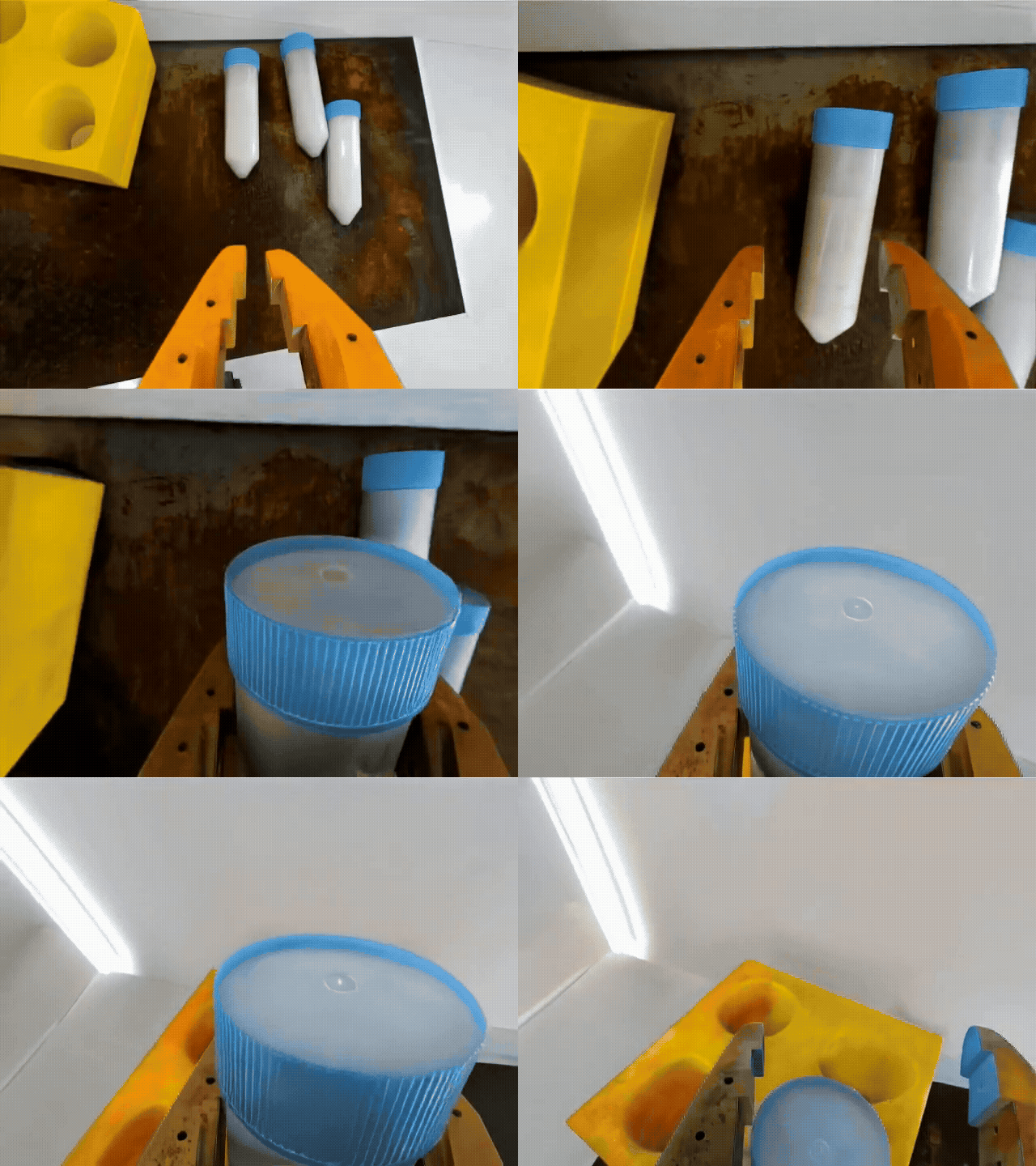
Cosmos Augmentation Example 1#
Key Capabilities#
Visual Diversity
Photorealistic rendering variations
Natural lighting changes
Background and texture diversity
Scenario Variation
Object position changes
Different object instances
Environmental modifications
Physical Consistency
Maintains plausible physics
Preserves task structure
Coherent object interactions
Hands-On: Using Cosmos-Augmented Data#
We’ve pre-generated Cosmos-augmented datasets for this learning path.
Compare to the DR-augmented data:
Notice the visual difference in rendering
Observe lighting and texture variations
Check for physical plausibility
Policies to Evaluate#
Deploy a policy trained with Cosmos-augmented data using the same two-terminal GR00T server + client setup as in Strategy 2 and Real Evaluation.
Tip
See the Troubleshooting Guide for help with deployment issues.
What Policy Are We Running?#
We have two Cosmos-augmented policies to test. Set MODEL in Terminal 1 to the checkpoint you want to evaluate:
Training Data Mix |
Visualize Dataset |
Model Checkpoint |
|---|---|---|
75 sim episodes + 7 Cosmos-augmented episodes |
aravindhs-NV/sreetz-so101_teleop_vials_rack_left_augment_02/ |
|
75 sim episodes + 70 Cosmos-augmented episodes |
Workspace Prep#
Same as Strategy 2: verify robot connection, place vials and rack, ensure cameras have a clear view, turn on the lightbox. See Building the Workspace, Strategy 2: Workspace prep, and Real Evaluation: Workspace prep.
Running Policy Evaluation on the Real Robot#
Throughout this course, when we run evaluations there will be two terminals involved:
The host terminal, where we start the GR00T container and policy server
The client terminal, where we run the evaluation rollout and control the robot
For real robot evaluation, the client is the physical robot.
Terminal 1 (real-robot container) — Start the GR00T policy server#
Locate the terminal already running the
real-robotcontainer.
If you can’t find it, click here to see the command to run the container.
If you don’t have the real-robot container terminal open, open a new terminal window (CTRL+ALT+T), and
run the docker real-robot container using:
cd ~/Sim-to-Real-SO-101-Workshop
xhost +
docker run -it --rm --name real-robot --network host --privileged --gpus all \
    -e DISPLAY \
    -v /dev:/dev \
    -v /run/udev:/run/udev:ro \
    -v $HOME/.Xauthority:/root/.Xauthority \
    -v /tmp/.X11-unix:/tmp/.X11-unix \
    -v ~/.cache/huggingface/lerobot/calibration:/root/.cache/huggingface/lerobot/calibration \
    -v ./docker/env:/root/env \
    -v ~/models:/workspace/models \
    -v $(pwd)/docker/real/scripts:/Isaac-GR00T/gr00t/eval/real_robot/SO100 \
    real-robot \
    /bin/bash
Inside this container, run the following. Set
MODELto the Cosmos-augmented checkpoint you want to test (e.g. 75+70 Cosmos).
export MODEL=aravindhs-NV/so100-orig-groot-vials-rack-left-cosmos-70
Run the policy server with that model.
python Isaac-GR00T/gr00t/eval/run_gr00t_server.py \
    --model-path /workspace/models/$MODEL
Terminal 2 (real-robot container) — Evaluation rollout#
Open a second terminal. You will attach to the same real-robot container and run the robot client.
On the host, attach to the container:
docker exec -it real-robot /bin/bash
Inside the container, run the evaluation script:
python Isaac-GR00T/gr00t/eval/real_robot/SO100/so101_eval.py \
  --robot.type=so101_follower \
  --robot.port="$ROBOT_PORT" \
  --robot.id="$ROBOT_ID" \
  --robot.cameras="{
      wrist:  {type: opencv, index_or_path: $CAMERA_GRIPPER, width: 640, height: 480, fps: 30},
      front:  {type: opencv, index_or_path: $CAMERA_EXTERNAL, width: 640, height: 480, fps: 30}
  }" \
  --policy_host=localhost \
  --policy_port=5555 \
  --lang_instruction="Pick up the vial and place it in the yellow rack" \
  --rerun True
Note
The --rerun flag is optional.
It adds Rerun into the loop for debugging, so you can see joint actions and the camera feeds while the policy is running. This lets you confirm the camera views are reasonable and the assignments are correct.
Watching the Evaluation#
Watch the robot and the terminal during execution. Compare behavior to the sim-only and co-trained policies: Cosmos-augmented policies may show different robustness to lighting and visual variation.
To stop the robot: Press CTRL+C in Terminal 2 (robot client). The policy server in Terminal 1 keeps running.
To run again: Simply run the command again python Isaac-GR00T/gr00t/eval/real_robot/SO100/so101_eval.py ... in Terminal 2
To switch model or fully restart:
Stop both terminals’ commands (CTRL+C)
Set
MODELenvironment variable to the model you want to evaluateRestart the commands for each terminal (model server, robot client)
To Try the Other Policy Trained on Cosmos-Augmented Data#
In terminal 1, press CTRL+C to stop the policy server.
In terminal 2, press CTRL+C to stop the robot client.
Set
MODELenvironment variable to the model you want to evaluate.
export MODEL=aravindhs-NV/sreetz-so101_teleop_vials_rack_left_augment_02/checkpoint-10000
Restart the policy server by running the same command again.
python Isaac-GR00T/gr00t/eval/run_gr00t_server.py --model-path /workspace/models/$MODEL
Run the robot client again by running the same command again.
python Isaac-GR00T/gr00t/eval/real_robot/SO100/so101_eval.py \
  --robot.type=so101_follower \
  --robot.port="$ROBOT_PORT" \
  --robot.id="$ROBOT_ID" \
  --robot.cameras="{
      wrist:  {type: opencv, index_or_path: $CAMERA_GRIPPER, width: 640, height: 480, fps: 30},
      front:  {type: opencv, index_or_path: $CAMERA_EXTERNAL, width: 640, height: 480, fps: 30}
  }" \
  --policy_host=localhost \
  --policy_port=5555 \
  --lang_instruction="Pick up the vial and place it in the yellow rack" \
  --rerun True
Note
At evaluation start, the robot will slowly rise to its initial pose, then enter into inference mode.
At robot stop (CTRL+C), it will slowly drive itself back to its home pose.
Tip
Keep the policy server running between evaluation attempts. Only restart it when you want to load a different model checkpoint.
Comparing Policies#
After running the Cosmos-augmented policy, compare with your notes from Strategy 2 (co-trained) and your earlier real evaluation baseline (sim-only policy). Note whether Cosmos augmentation improves consistency, grasp success, or placement accuracy on the real robot.
Key Takeaways#
Cosmos generates photorealistic synthetic data beyond DR capabilities
Different approaches address different aspects of the sim-to-real gap
Combining strategies often works better than any single approach
Visual diversity from Cosmos can unlock performance gains
Resources#
Cosmos Transfer 2.5 — NVIDIA Research page on Cosmos video-to-video transfer capabilities
Cosmos Cookbook — Recipes and examples for Cosmos world foundation models
What’s Next?#
We have not measured or addressed the actuation gap. In the next session, Sim-to-Real Strategy 4: SAGE + GapONet, you’ll learn to systematically measure and close the actuation gap.