

Troubleshooting Guide#
This page consolidates troubleshooting information from across this learning path for easy access.
This learning path uses Docker for teleoperation in sim, real-robot evaluation, and GR00T inference.
Commands such as lerobot-find-port and lerobot-find-cameras opencv are run inside the teleop-docker container.
GR00T inference and real-robot evaluation are run inside the real-robot container.
Hardware Issues#
First Thing to Try#
Unplug power, and replug the power cable. Do this 2X if the next command doesn’t run. If that doesn’t solve, proceed to the next steps.
Robot Doesn’t Respond
Check USB connection
Verify power LED is on
Try a different USB port
Inside the
teleop-dockercontainer, runlerobot-find-portto confirm the port is correct.
No Ports Found or Permission Denied on /dev/ttyACM*
If lerobot-find-port finds no ports, or you see permission denied when accessing the robot:
Close terminals.
Open a new terminal window (CTRL+ALT+T).
Grant read/write access to the serial ports (update device paths to match your assigned ports):
sudo chmod 666 /dev/ttyACM0
sudo chmod 666 /dev/ttyACM1
sudo chmod 666 /dev/ttyACM2
sudo chmod 666 /dev/ttyACM3
Permissions reset when devices are reconnected; re-run these after unplugging/replugging USB if needed.
Permanent fix: add your user to the
dialoutgroup (and optionallyttyandvideofor cameras), then log out and back in:
sudo usermod -a -G dialout "$USER"
sudo usermod -a -G tty "$USER"
sudo usermod -a -G video "$USER"
Power Not Connected (All Motors Missing)
If you see this error showing all motors missing:
Missing motor IDs:
  - 1 (expected model: 777)
  - 2 (expected model: 777)
  - 3 (expected model: 777)
  - 4 (expected model: 777)
  - 5 (expected model: 777)
  - 6 (expected model: 777)

Full expected motor list (id: model_number):
{1: 777, 2: 777, 3: 777, 4: 777, 5: 777, 6: 777}

Full found motor list (id: model_number):
{}
This indicates power is not connected to the robot. The USB connection allows communication, but the motors need separate power.
Solution:
Connect the 12V power supply to the robot
Verify the power LED illuminates
Retry the command
Single Motor Disconnected
If you see an error showing one motor missing:
Full expected motor list (id: model_number):
{1: 777, 2: 777, 3: 777, 4: 777, 5: 777, 6: 777}

Full found motor list (id: model_number):
{2: 777, 3: 777, 4: 777, 5: 777, 6: 777}
This indicates motor 1 is disconnected or not communicating. Sometimes this will happen unexpectedly, in which case a simple repower should solve it.
Solution:
Power cycle: Unplug and replug the power cable
If that doesn’t work, inspect motor cables for loose connections
Check the cable connecting to the specific missing motor
The motor chain is daisy-chained—a loose connection can affect motors downstream
Motor Connection Error
If you see this error:
ConnectionError: Failed to write 'Torque_Enable' on id_=2 with '1' after 1 tries. [TxRxResult] There is no status packet!
This indicates communication failure with a specific motor.
Solution:
Check power: Ensure the 12V power supply is connected and LED is on
Check USB: Verify the USB cable is securely connected at both ends
Restart motors: Power cycle the robot (disconnect and reconnect power)
Check motor ID: The motor with the specified ID may have a loose connection
Calibration Fails
Ensure the robot port matches the robot.id of the real robot
Ensure robot is in exact calibration pose
Check that motors can move freely
Verify no joint is at a limit
True end stops only — Move each joint to its mechanical end stop, not a cable or obstacle. A cable pinched between links (or the robot hitting a cable) creates a false min/max and wrong calibration. Check cable routing so the arm can reach its real limits.
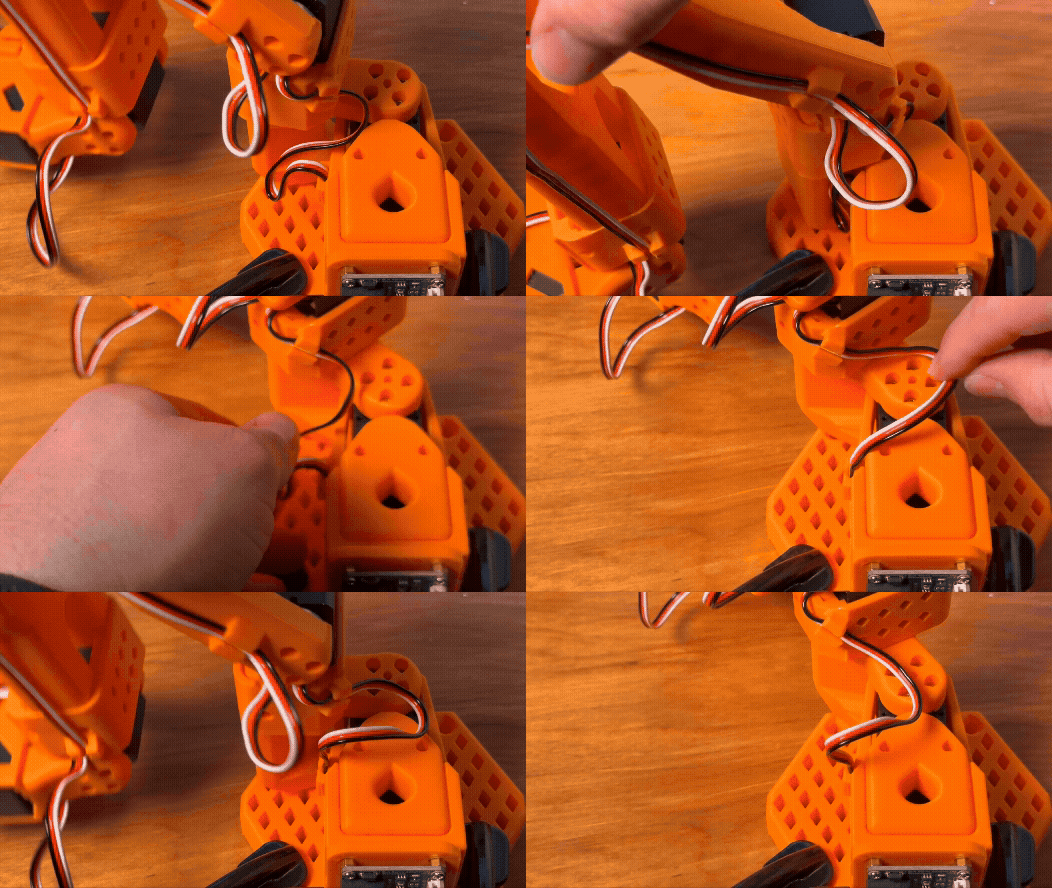
Re-run calibration from step 1
Camera Issues#
Dark or No Image
If the camera feed is very dark or black:
Check the lens cap — Ensure the lens cap is removed from the camera. This is a common cause of dark or missing feed.
Verify the camera is powered and connected
Inside the
teleop-dockercontainer, runlerobot-find-cameras opencvto confirm the camera is detected
Camera Index Changed
Camera indices may change any time cameras are unplugged or replugged into your computer.
Solution:
Inside the
teleop-dockercontainer, runlerobot-find-cameras opencvto discover current indicesUpdate your configuration with the new indices
Verify by checking the captured test images
Blurry or Out-of-Focus Image
If the camera feed is blurry or the policy has trouble with fine visual detail:
Check focus — Ensure the camera lens is in focus.
Clean the lens if it is smudged or dusty
Verify the camera is fixed in place and not vibrating
Wrong Camera Feed
If the policy receives incorrect visual input:
Check camera assignments match expectations
Verify gripper camera vs. external camera are correctly identified
Re-run
lerobot-find-cameras opencvto confirm indices
Policy Deployment Issues#
“It worked once but not consistently”
Likely cause: Distribution shift
Solution:
Check if initial conditions vary between trials
Ensure cameras are stable and haven’t shifted
“Grasp is always off by the same amount”
Likely cause: Calibration or camera positioning
Solution:
Re-run robot calibration
Check camera positioning
Verify workspace setup matches training
Dataset and Recording Issues#
Dataset Already Exists (FileExistsError)
If you see this error when recording or evaluating:
FileExistsError: [Errno 17] File exists: '/home/user/.cache/huggingface/lerobot/username/dataset_name'
Or a traceback ending with:
AttributeError: 'NoneType' object has no attribute 'push_to_hub'
This indicates a dataset already exists at that path from a previous run.
Solution:
Ideal: Use a different dataset name by changing the
--dataset.repo_idparameter (e.g., append_v2,_v3, etc.)Delete the existing directory and re-run:
rm -rf ~/.cache/huggingface/lerobot/<repo_id>
Warning
Be extremely careful with rm -rf. Always double-check the path before pressing Enter. A typo like rm -rf / or rm -rf ~ can permanently delete critical system files or your entire home directory. Copy-paste the exact path from the error message to avoid mistakes.
Getting Help
If you’re stuck:
Check this guide for your specific error message
Power cycle the robot (fixes many transient issues)
Re-run camera detection if visual behavior is unexpected
Re-run the diagnostic steps above if the issue persists