


Quick Start Guide#
In about 30–60 minutes you can activate your enterprise account, install NVIDIA AI Enterprise software, and confirm GPU containers run. Follow the steps for your path: bare metal (Ubuntu + Docker), VMware vSphere, or public cloud (Azure walkthrough below).
What You Will Accomplish
When you finish, you will have:
Activated your NVIDIA Enterprise Account and accessed the NVIDIA NGC Catalog
Installed NVIDIA AI Enterprise software components
Verified GPU-accelerated containers are working
Next Steps
After this guide, use Where to Go Next for license tasks, software components, and deeper deployment documentation.
Prerequisites#
Before you start, confirm you have:
Hardware Requirements
NVIDIA-Certified Server Platform that supports NVIDIA AI Enterprise
One or more supported NVIDIA GPUs installed in your server
Important
The NVIDIA-Certified Systems requirement does not apply to GB200 NVL4, GB200 NVL72, and GB300 NVL72 systems. For these platforms, NVIDIA-Qualified server status is the prerequisite for NVIDIA AI Enterprise support. For more information, refer to the NVIDIA Qualified Systems Catalog.
Software & Licensing
Valid NVIDIA AI Enterprise software subscription
For bundled GPUs (such as NVIDIA H100 PCIe), activate your license before installation
Additional Information
Refer to the 7.8 Support Matrix for supported hardware, hypervisors, and component versions on this release. For release highlights and known issues, see the 7.8 Release Notes.
Attention
Already have an account? Skip directly to Installing NVIDIA AI Enterprise Software Components.
Note
The following instructions do not apply to NVIDIA DGX systems. Refer to NVIDIA DGX Systems for DGX-specific documentation.
Activating the Accounts for NVIDIA AI Enterprise#
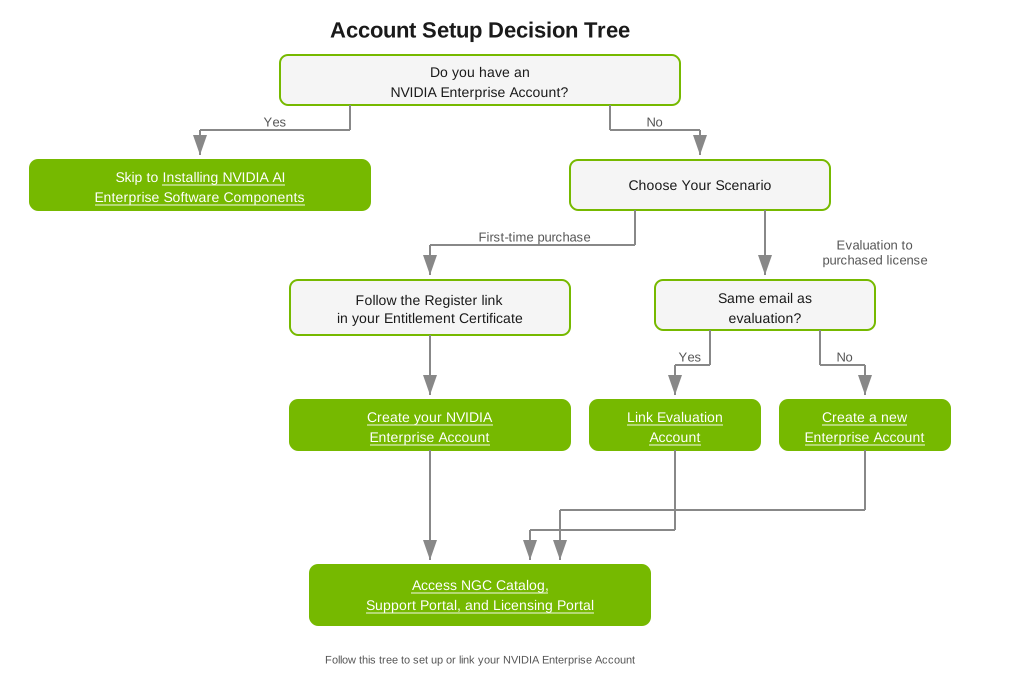
Your Order Confirmation Message#
After your order is processed, you receive an order confirmation with an attached NVIDIA Entitlement Certificate (product activation keys and usage steps).
If you are a data center administrator, follow the certificate instructions. If not, forward the full email and attachment to your data center administrator.
What Your NVIDIA Enterprise Account Provides#
Sign in at the NVIDIA Application Hub to reach:
NVIDIA NGC - software catalog, services, and management tools under your subscription
NVIDIA Enterprise Support Portal - support cases and downloads for NVIDIA AI Enterprise
NVIDIA Licensing Portal - entitlements and license server setup (required before NVIDIA vGPU for Compute; refer to NVIDIA vGPU for Compute Licensing for in-repo setup steps)
Creating your NVIDIA Enterprise Account
Prerequisites
Have your order confirmation message with the NVIDIA Entitlement Certificate ready
Choose a unique email address (if creating a new account separate from an evaluation account)
Steps
Follow the Register link in the instructions for using your NVIDIA Entitlement Certificate.
Fill out the NVIDIA Enterprise Account Registration page form and click REGISTER. A message confirming that an account has been created will appear. The email address you provided will then receive an email instructing you to log in to your account on the NVIDIA Application Hub.
Open the email instructing you to log in to your account and click Log In.
On the open NVIDIA Application Hub Login page, type the email address you provided in the text-entry field and click Sign In.
On the Create Your Account page that opens, provide and confirm a password for the account and click Create Account. A message prompting you to verify your email address appears. An email instructing you to verify your email address is sent to your provided email address.
Open the email instructing you to verify your email address and click Verify Email Address. A message confirming that your email address is confirmed appears.
Your account is now active. Continue to Installing NVIDIA AI Enterprise Software Components.
Linking an evaluation account to purchased licenses
Link your evaluation account to purchased licenses by registering with the same email address you used for your evaluation account. To create a separate account instead, see Creating your NVIDIA Enterprise Account and use a different email address.
Follow the Register link in the instructions for using the NVIDIA Entitlement Certificate for your purchased licenses.
Fill out the NVIDIA Enterprise Account Registration page form, specifying the email address with which you created your existing account, and click Register.
When a message stating that your email address is already linked to an evaluation account is displayed, click LINK TO NEW ACCOUNT.
Log in to the NVIDIA Licensing Portal with the credentials for your existing account.
Installing NVIDIA AI Enterprise Software Components#
Get NVIDIA AI Enterprise components from the NVIDIA NGC Catalog. Main entry points:
NVIDIA AI Enterprise Software Suite - frameworks, NIM microservices, models, and application tooling
NVIDIA AI Enterprise Infra 7 collection - GPU Operator, Network Operator, device plugins, and related infrastructure
NVIDIA Omniverse - OpenUSD-based apps and workflows (industrial digitalization, simulation, physical AI)
NVIDIA Run:ai collections - GPU scheduling and AI workload orchestration; available as self-hosted (customer-managed control plane) or SaaS (NVIDIA-managed cloud service control plane), both included in NVIDIA AI Enterprise
Sign in to NVIDIA NGC from the NVIDIA NGC Sign In page before you download assets.
Data scientists, ML engineers, and developers use the application layer to build and deploy models and applications on the GPU platform. The Software Suite bundles AI frameworks, NIM microservices, and pretrained models on NGC.
Go to NVIDIA AI Enterprise Supported on NVIDIA NGC to view the NVIDIA AI Enterprise Software Suite.
Browse the NVIDIA AI Enterprise Software Suite to find software assets.
Click an asset to learn more about it or download it.
Cluster administrators and IT operations use the infrastructure layer to install and run the GPU platform. The NVIDIA AI Enterprise Infra collection includes GPU Operator, Network Operator, device plugins, and related orchestration software.
Go to the NVIDIA AI Enterprise Infra 7 collection on NVIDIA NGC.
Click the Artifacts tab and select the resource.
Click Download and choose to download the resource using a direct download in the browser, the displayed wget command, or the NVIDIA NGC CLI.
NVIDIA Omniverse is included with your NVIDIA AI Enterprise license for OpenUSD-based build and deploy workflows (industrial digitalization, simulation, physical AI).
Go to the NVIDIA Omniverse page on NVIDIA NGC.
Browse the available components, including Omniverse Kit SDK, Nucleus, and enterprise applications.
Click an asset to learn more about it or download it.
For more information about NVIDIA Omniverse, refer to the NVIDIA Omniverse documentation.
NVIDIA Run:ai is GPU scheduling and AI workload orchestration for clusters. Both NVIDIA Run:ai deployment options - self-hosted and SaaS - have their own NGC collections (not inside the Infra collection).
Self-hosted (customer-managed control plane)
Go to the NVIDIA Run:ai Self-Hosted collection on NVIDIA NGC.
Follow the steps in the NVIDIA Run:ai Self-Hosted Installation Guide.
SaaS (NVIDIA-managed cloud service control plane)
Go to the NVIDIA Run:ai SaaS collection on NVIDIA NGC.
Follow the onboarding steps in the NVIDIA Run:ai SaaS Documentation.
Note
The NVIDIA AI Enterprise license includes both NVIDIA Run:ai self-hosted and NVIDIA Run:ai SaaS deployments under the same enterprise SLA. Choose the deployment that fits your environment.
Accessing Container Images from NGC#
NVIDIA AI Enterprise ships as container images on the NVIDIA NGC Catalog. A typical image bundles the runtime stack (CUDA, cuDNN, Magnum IO, TensorRT, and the target framework).
Before you pull images, complete:
From the host machine, obtain the Docker pull command from the component listing in the NGC Catalog.
Refer to the NVIDIA AI Enterprise NGC supported software for the full image list.
Choose Your Deployment Type#
Open the tab that matches your environment. Before you install, confirm compatibility in the 7.8 Support Matrix.
Note
The Bare Metal Ubuntu path installs drivers and Docker on a physical host. For Ubuntu KVM or RHEL KVM with NVIDIA vGPU for Compute, use Installing NVIDIA vGPU for Compute after the hypervisor host is ready.
Deploy a single-node bare metal stack with Docker on NVIDIA-Certified Systems (or see NVIDIA-Qualified server exceptions for GB200 NVL4, GB200 NVL72, and GB300 NVL72).
Prerequisites
Install the NVIDIA Data Center GPU Driver:
Download from NVIDIA Drivers.
Within the Manual Driver Search section, select Data Center/Tesla, your architecture type, and Linux 64-bit to download the
.runfile.
Installing NVIDIA AI Enterprise using the TRD Driver
The NVIDIA AI Enterprise Linux driver installation requires a compiler toolchain and kernel headers.
Prerequisites
Complete the CUDA pre-installation steps first.
Note
If you prefer to use a Debian package to install CUDA, refer to the Debian instructions.
Steps
Log into the system and check for updates.
sudo apt-get update
Install the GCC compiler and the make tool in the terminal.
sudo apt-get install build-essential
Copy the NVIDIA AI Enterprise Linux driver package, for example,
NVIDIA-Linux-x86_64-xxx.xx.xx.run, to the host machine where you are installing the driver.Where
xxx.xx.xxis the current NVIDIA AI Enterprise version and driver version.Navigate to the directory containing the NVIDIA Driver
.runfile. Then, add the Executable permission to the NVIDIA Driver file using thechmodcommand.sudo chmod +x NVIDIA-Linux-x86_64-xxx.xx.xx.run
From a console shell, run the driver installer as the root user and accept the defaults.
sudo sh ./NVIDIA-Linux-x86_64-xxx.xx.xx.run
Reboot the system.
sudo rebootAfter the system has rebooted, confirm that you can see your NVIDIA GPU device in the output from
nvidia-smi.# Verify GPU driver installation and GPU detection $ nvidia-smi
 +-----------------------------------------------------------------------------------------+
 | NVIDIA-SMI 580.xx.xx    Driver Version: 580.xx.xx    CUDA Version: 12.x               |
 |-----------------------------------------+------------------------+----------------------+
 | GPU  Name                 Persistence-M | Bus-Id          Disp.A | Volatile Uncorr. ECC |
 | Fan  Temp   Perf          Pwr:Usage/Cap |           Memory-Usage | GPU-Util  Compute M. |
 |=========================================+========================+======================|
 |   0  NVIDIA ...              Off        | 00000000:00:00.0 Off   |                    0 |
 | N/A   35C    P0               30W / 300W |       0MiB / xxxxxMiB |      0%      Default |
 +-----------------------------------------+------------------------+----------------------+
If no output appears or you see
command not found, confirm the driver installation finished and reboot if needed.
Installing the NVIDIA Container Toolkit
The NVIDIA Container Toolkit adds libnvidia-container and runtime hooks so Docker can use NVIDIA GPUs. Refer to the NVIDIA Container Toolkit documentation for architecture details.
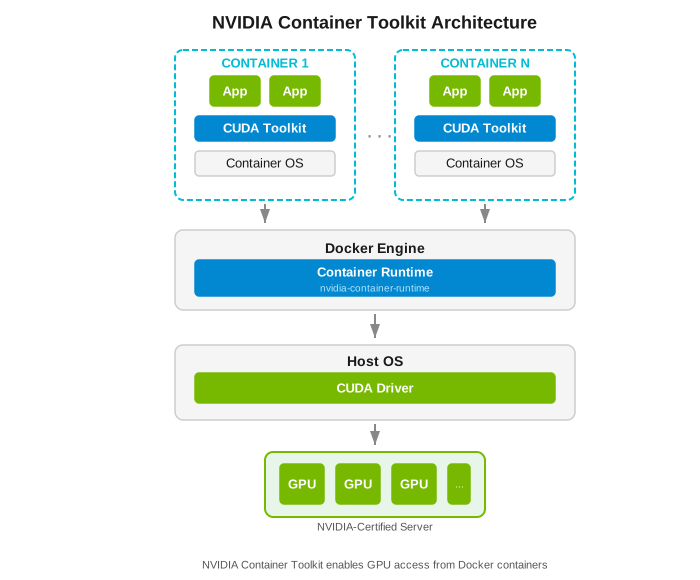
Installation Steps
Install Docker - Install Docker Engine on Ubuntu (Install Docker Engine on Ubuntu).
Install the NVIDIA Container Toolkit - Add the repo and packages (Installing the NVIDIA Container Toolkit).
Configure the runtime - Point Docker at the NVIDIA Container Runtime (Configuration).
Verification Steps
Run the
nvidia-smicommand from a CUDA container image. Use a CUDA Toolkit image version that matches or is earlier than your installed driver version.Note
Use a CUDA Toolkit image version that does not exceed your driver version. For example, if your driver supports CUDA 12.x, use a CUDA 12.x or earlier container image. For a list of available images, refer to nvidia/cuda on Docker Hub.
# Test GPU access from container (uses all available GPUs)
# --rm: automatically remove container after exit
# --runtime=nvidia: use NVIDIA Container Runtime
# --gpus all: expose all GPUs to container
$ sudo docker run --rm --runtime=nvidia --gpus all nvidia/cuda:12.8.1-base-ubuntu22.04 nvidia-smi
Troubleshooting
- icon:
wrench
If you encounter
nvidia-container-cli: initialization error, verify:NVIDIA driver is loaded:
nvidia-smireturns successfully on hostContainer toolkit is installed:
which nvidia-container-cliDocker daemon restarted:
sudo systemctl restart docker
Start a GPU-enabled container on any two available GPUs.
$ docker run --runtime=nvidia --gpus 2 nvidia/cuda:12.8.1-base-ubuntu22.04 nvidia-smi
Start a GPU-enabled container on two specific GPUs identified by their index numbers.
$ docker run --runtime=nvidia --gpus '"device=1,2"' nvidia/cuda:12.8.1-base-ubuntu22.04 nvidia-smi
Start a GPU-enabled container on two specific GPUs, with one GPU identified by its UUID and the other GPU identified by its index number.
$ docker run --runtime=nvidia --gpus '"device=UUID-ABCDEF,1"' nvidia/cuda:12.8.1-base-ubuntu22.04 nvidia-smi
Specify a GPU capability for the container.
$ docker run --runtime=nvidia --gpus all,capabilities=utility nvidia/cuda:12.8.1-base-ubuntu22.04 nvidia-smi
Obtaining NVIDIA Base Command Manager
NVIDIA Base Command Manager handles cluster provisioning, workload management, and infrastructure monitoring on bare metal.
Activate your NVIDIA Enterprise Account (Activating the Accounts for NVIDIA AI Enterprise).
Email your entitlement certificate to sw-bright-sales-ops@NVIDIA.onmicrosoft.com to request your NVIDIA Base Command Manager product keys. After your entitlement certificate has been reviewed, you will receive a product key. Generate a license key for the number of licenses you purchased.
Download NVIDIA Base Command Manager for your operating system.
Follow the steps in the NVIDIA Base Command Manager Installation Manual to create and license your head node.
For more information, refer to the Base Command Manager product manuals.
Refer to the NVIDIA AI Enterprise VMware Deployment Guide to deploy on a third-party NVIDIA-Certified System with VMware vSphere and NVIDIA vGPU for Compute.
Prerequisites
NVIDIA Virtual GPU Manager
NVIDIA vGPU for Compute Guest Driver
NVIDIA License System
To download the NVIDIA vGPU for Compute software drivers, follow the instructions for Installing NVIDIA AI Enterprise Software Components.
Your NVIDIA AI Enterprise subscription covers downloading vGPU for Compute software from NGC; use Installing NVIDIA AI Enterprise Software Components to sign in and browse. vGPU deployments need the NVIDIA License System to enforce entitlements.
NVIDIA License System Overview
- icon:
info
The NVIDIA License System is a pool of floating licenses for licensed NVIDIA software products configured with licenses obtained from the NVIDIA Licensing Portal.
Service Instance Types:
Cloud License Service (CLS): Hosted on the NVIDIA Licensing Portal
Delegated License Service (DLS): Hosted on-premises at a location accessible from your private network
An NVIDIA vGPU for Compute client VM with a network connection obtains a license by leasing it from an NVIDIA License System service instance. The service instance serves the license to the client over the network from a pool of floating licenses obtained from the NVIDIA Licensing Portal. The license is returned to the service instance when the licensed client no longer requires the license.
To activate an NVIDIA vGPU for Compute, software licensing must be configured for the vGPU VM client when booted. NVIDIA vGPU for Compute VMs run at a reduced capability until a license is acquired.
Documentation:
NVIDIA Licensing Quick Start Guide - Instructions for configuring an express Cloud License Service (CLS) instance and verifying license status
NVIDIA License System User Guide - Detailed instructions for installing, configuring, and managing the NVIDIA License System, including Delegated License Service (DLS) instances
See also NVIDIA vGPU for Compute Licensing for in-repo licensing configuration and verification steps.
NVIDIA AI Enterprise runs on AWS, Google Cloud, Microsoft Azure, OCI, Alibaba Cloud, and Tencent Cloud.
This section is a short Azure path using the NVIDIA AI Enterprise VMI. For other clouds, start from Planning & Deployment on the Docs Hub.
Installing NVIDIA AI Enterprise on Microsoft Azure using the NVIDIA AI Enterprise VMI
The On-Demand VMI provisions a GPU VM with common AI/HPC tooling already installed.
Preinstalled software includes:
Ubuntu Operating System
NVIDIA Data Center GPU Driver
Docker-ce
NVIDIA Container Toolkit
CSP CLI, NGC CLI
Miniconda, JupyterLab, Git
Token Activation Script
On the Enterprise (On-Demand) VMI, do two things:
Authorize the instance with NGC using the instance ID token on the Activate Subscription page. Work through these four sub-steps:
Get an identity token from the VMI.
Activate your NVIDIA AI Enterprise subscription with the token.
Generate an API key to access the catalog.
Put the API key on the VMI.
Follow the NGC Catalog access instructions to complete this step.
Pull and run NVIDIA AI Enterprise containers (pull and run NGC images).
For a more comprehensive public-cloud walkthrough, refer to the Microsoft Azure Overview.
For full deployment documentation beyond this quick start, refer to Planning & Deployment on the NVIDIA AI Enterprise Docs Hub.
Where to Go Next#
After this quick start, use these resources as needed:
If you need to… |
Go to |
Why |
|---|---|---|
Start: Get started from scratch (account, drivers, first workload) |
This Document |
Guides you through account activation, software installation, and running your first AI workload |
Discover: Browse available software components |
Complete catalog of Application and Infrastructure Layer components with links to NGC Catalog entries |
|
Research: Choose a release branch or check version compatibility |
Defines branch types (FB, PB, LTSB, Infrastructure), support periods, and includes the Interactive Lifecycle and Compatibility Explorer |
|
Confirm: Check GPU, OS, hypervisor, and cloud support for this release |
Lists the GPUs, operating systems, hypervisors, cloud platforms, and software versions supported with NVIDIA AI Enterprise 7.8 |
|
Plan: Plan a deployment architecture |
Planning & Deployment on the NVIDIA AI Enterprise Docs Hub |
Reference architectures, sizing guides, and deployment blueprints |
Validate: Validate your infrastructure stack |
Confirm that your NVIDIA GPU driver, NVIDIA GPU Operator, NVIDIA Network Operator, and NVIDIA Run:ai versions are compatible before deploying |
|
Application layer: Deploy or configure NVIDIA Omniverse |
Standalone documentation site - NVIDIA Omniverse is included in your NVIDIA AI Enterprise license, but is documented separately |
|
Kubernetes operators: Deploy NVIDIA GPU Operator, NVIDIA Network Operator, or NVIDIA DPU Operator (DPF) |
NVIDIA GPU Operator Documentation · NVIDIA Network Operator Documentation · NVIDIA DOCA Platform Framework (DPF) Documentation |
Standalone documentation sites for Kubernetes operator installation and configuration |
AI frameworks and NIMs: Set up NVIDIA NIM, NVIDIA NeMo, or other AI frameworks |
NVIDIA NIM Documentation · NVIDIA NeMo Documentation · NVIDIA NGC Catalog |
Standalone documentation sites; the NVIDIA NGC Catalog lists all supported software |
Infrastructure orchestration: Deploy NVIDIA Run:ai |
NVIDIA Run:ai Self-Hosted Documentation · NVIDIA Run:ai SaaS Documentation |
Standalone documentation sites - see NVIDIA Run:ai licensing note in this guide |
Support: Check licensing or open a support case |
Support on the NVIDIA AI Enterprise Docs Hub |
NVIDIA Enterprise Support Services portal for licensing and technical support |