

Creating an empty scene
This tutorial shows how to launch and control Isaac Sim simulator from a standalone Python script. It sets up an
empty scene in Isaac Lab and introduces the two main classes used in the framework, app.AppLauncher and
sim.SimulationContext.
Please review Isaac Sim Workflows prior to beginning this tutorial to get an initial understanding of working with the simulator.
The Code
The tutorial corresponds to the create_empty.py script in the scripts/tutorials/00_sim directory.
The Code Explained
Launching the simulator
The first step when working with standalone Python scripts is to launch the simulation application. This is necessary to do at the start since various dependency modules of Isaac Sim are only available after the simulation app is running.
This can be done by importing the app.AppLauncher class. This utility class wraps around
isaacsim.SimulationApp class to launch the simulator. It provides mechanisms to
configure the simulator using command-line arguments and environment variables.
For this tutorial, we mainly look at adding the command-line options to a user-defined
argparse.ArgumentParser. This is done by passing the parser instance to the
app.AppLauncher.add_app_launcher_args method, which appends different parameters
to it. These include launching the app headless, configuring different Livestream options,
and enabling off-screen rendering.
Importing python modules
Once the simulation app is running, it is possible to import different Python modules from Isaac Sim and other libraries. Here we import the following module:
isaaclab.sim: A sub-package in Isaac Lab for all the core simulator-related operations.
Configuring the simulation context
When launching the simulator from a standalone script, the user has complete control over playing, pausing and stepping the simulator. All these operations are handled through the simulation context. It takes care of various timeline events and also configures the physics scene for simulation.
In Isaac Lab, the sim.SimulationContext class inherits from Isaac Sim’s
isaacsim.core.api.simulation_context.SimulationContext to allow configuring the simulation
through Python’s dataclass object and handle certain intricacies of the simulation stepping.
For this tutorial, we set the physics and rendering time step to 0.01 seconds. This is done
by passing these quantities to the sim.SimulationCfg, which is then used to create an
instance of the simulation context.
Following the creation of the simulation context, we have only configured the physics acting on the simulated scene. This includes the device to use for simulation, the gravity vector, and other advanced solver parameters. There are now two main steps remaining to run the simulation:
- Designing the simulation scene: Adding sensors, robots and other simulated objects
- Running the simulation loop: Stepping the simulator, and setting and getting data from the simulator
In this tutorial, we look at Step 2 first for an empty scene to focus on the simulation control first. In the following tutorials, we will look into Step 1 and working with simulation handles for interacting with the simulator.
Running the simulation
The first thing, after setting up the simulation scene, is to call the sim.SimulationContext.reset
method. This method plays the timeline and initializes the physics handles in the simulator. It must always
be called the first time before stepping the simulator. Otherwise, the simulation handles are not initialized
properly.
only plays the timeline and does not initializes the physics handles.
After playing the simulation timeline, we set up a simple simulation loop where the simulator is stepped repeatedly
while the simulation app is running. The method sim.SimulationContext.step takes in as argument render,
which dictates whether the step includes updating the rendering-related events or not. By default, this flag is
set to True.
Exiting the simulation
Lastly, the simulation application is stopped and its window is closed by calling
isaacsim.SimulationApp.close method.
The Code Execution
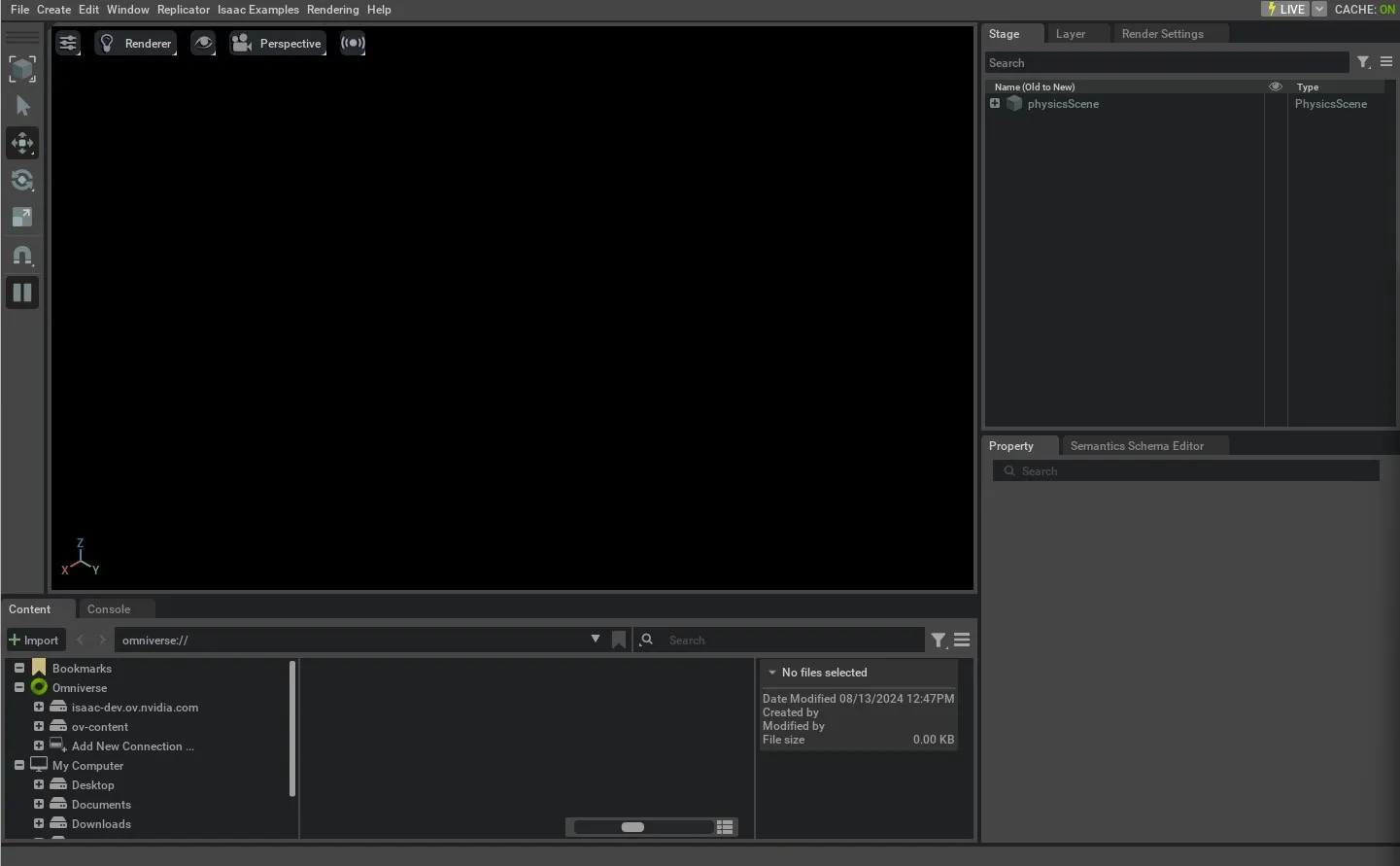
Now that we have gone through the code, let’s run the script and see the result:
The simulation should be playing, and the stage should be rendering. To stop the simulation,
you can either close the window, or press Ctrl+C in the terminal.
Passing --help to the above script will show the different command-line arguments added
earlier by the app.AppLauncher class. To run the script headless, you can execute the
following:
Now that we have a basic understanding of how to run a simulation, let’s move on to the following tutorial where we will learn how to add assets to the stage.