Skip to navigation

Configuring Rendering Settings

View as Markdown

Isaac Lab offers 3 preset rendering modes: performance, balanced, and quality. You can select a mode via a command line argument or from within a script, and customize settings as needed. Adjust and fine-tune rendering to achieve the ideal balance for your workflow.

Selecting a Rendering Mode

Rendering modes can be selected in 2 ways.

  1. using the rendering_mode input class argument in ~sim.RenderCfg
# for an example of how this can be used, checkout the tutorial script
# scripts/tutorials/00_sim/set_rendering_mode.py
render_cfg = sim_utils.RenderCfg(rendering_mode="performance")
  1. using the --rendering_mode CLI argument, which takes precedence over the rendering_mode argument in ~sim.RenderCfg.
./isaaclab.sh -p scripts/tutorials/00_sim/set_rendering_mode.py --rendering_mode {performance/balanced/quality}

Note, the rendering_mode defaults to balanced. However, in the case where the launcher argument --enable_cameras is not set, then the default rendering_mode is not applied and, instead, the default kit rendering settings are used.

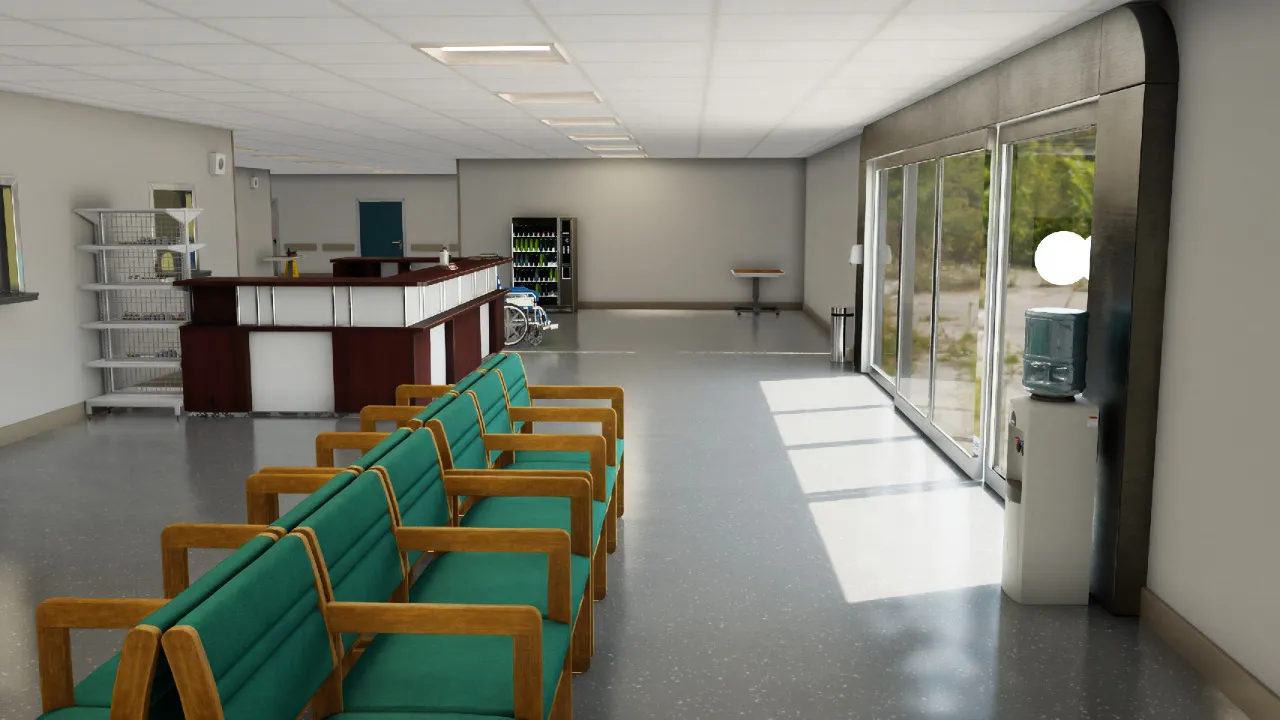
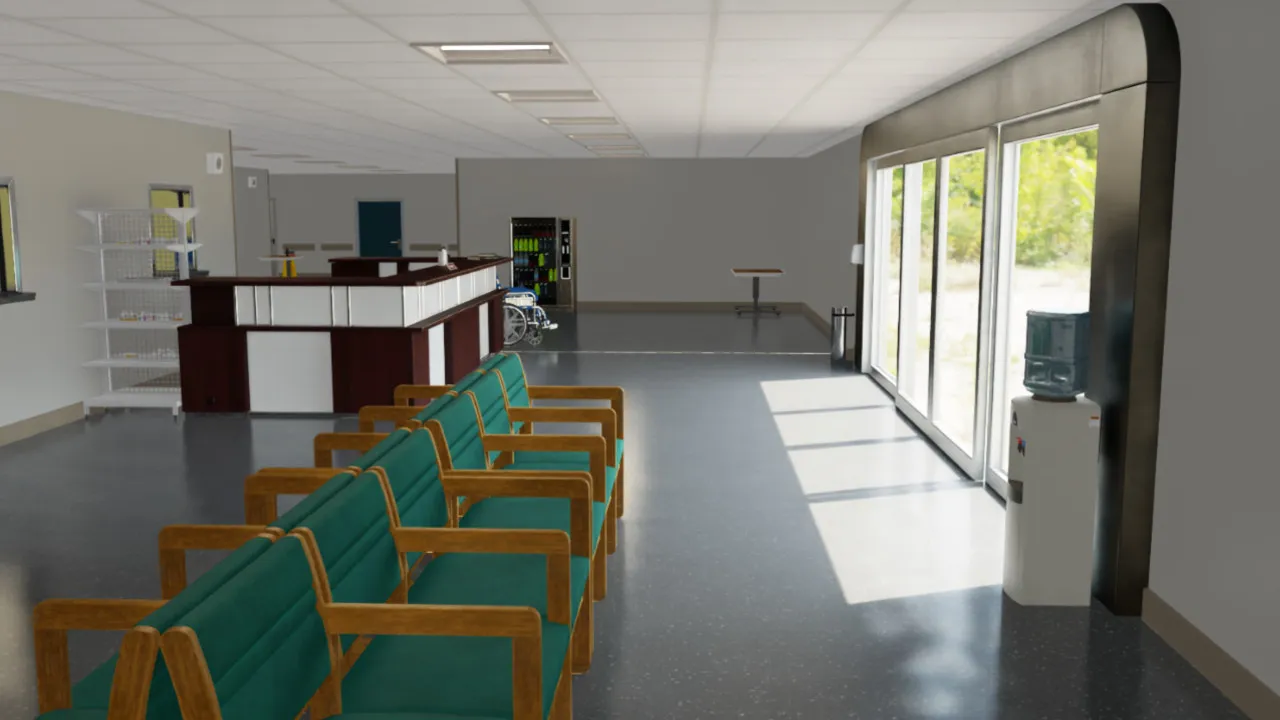
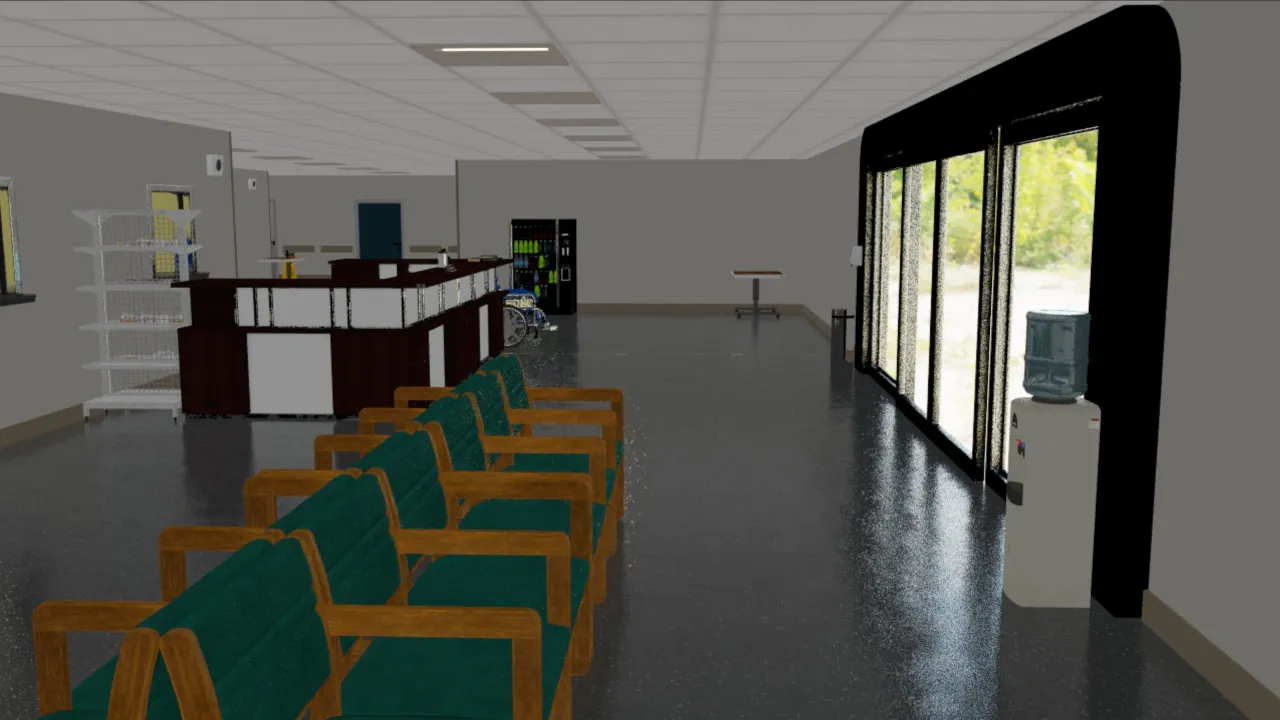
Example renders from the set_rendering_mode.py script. To help assess rendering, the example scene includes some reflections, translucency, direct and ambient lighting, and several material types.

  • Quality Mode

Quality Rendering Mode Example

  • Balanced Mode

Balanced Rendering Mode Example

  • Performance Mode

Performance Rendering Mode Example

Overwriting Specific Rendering Settings

Preset rendering settings can be overwritten via the ~sim.RenderCfg class.

There are 2 ways to provide settings that overwrite presets.

  1. ~sim.RenderCfg supports overwriting specific settings via user-friendly setting names that map to underlying RTX settings. For example:
render_cfg = sim_utils.RenderCfg(
rendering_mode="performance",
# user friendly setting overwrites
enable_translucency=True, # defaults to False in performance mode
enable_reflections=True, # defaults to False in performance mode
dlss_mode="3", # defaults to 1 in performance mode
)

List of user-friendly settings.

enable_translucencyBool. Enables translucency for specular transmissive surfaces such as glass at the cost of some performance.
enable_reflectionsBool. Enables reflections at the cost of some performance.
enable_global_illuminationBool. Enables Diffused Global Illumination at the cost of some performance.
antialiasing_modeLiteral[“Off”, “FXAA”, “DLSS”, “TAA”, “DLAA”]. DLSS: Boosts performance by using AI to output higher resolution frames from a lower resolution input. DLSS samples multiple lower resolution images and uses motion data and feedback from prior frames to reconstruct native quality images. DLAA: Provides higher image quality with an AI-based anti-aliasing technique. DLAA uses the same Super Resolution technology developed for DLSS, reconstructing a native resolution image to maximize image quality.
enable_dlssgBool. Enables the use of DLSS-G. DLSS Frame Generation boosts performance by using AI to generate more frames. This feature requires an Ada Lovelace architecture GPU and can hurt performance due to additional thread-related activities.
enable_dl_denoiserBool. Enables the use of a DL denoiser, which improves the quality of renders at the cost of performance.
dlss_modeLiteral[0, 1, 2, 3]. For DLSS anti-aliasing, selects the performance/ quality tradeoff mode. Valid values are 0 (Performance), 1 (Balanced), 2 (Quality), or 3 (Auto).
enable_direct_lightingBool. Enable direct light contributions from lights.
samples_per_pixelInt. Defines the Direct Lighting samples per pixel. Higher values increase the direct lighting quality at the cost of performance.
enable_shadowsBool. Enables shadows at the cost of performance. When disabled, lights will not cast shadows.
enable_ambient_occlusionBool. Enables ambient occlusion at the cost of some performance.
  1. For more control, ~sim.RenderCfg allows you to overwrite any RTX setting by using the carb_settings argument.

    Examples of RTX settings can be found from within the repo, in the render mode preset files located in apps/rendering_modes.

    In addition, the RTX documentation can be found here - https://docs.omniverse.nvidia.com/materials-and-rendering/latest/rtx-renderer.html.

    An example usage of carb_settings.

render_cfg = sim_utils.RenderCfg(
rendering_mode="quality",
# carb setting overwrites
carb_settings={
"rtx.translucency.enabled": False,
"rtx.reflections.enabled": False,
"rtx.domeLight.upperLowerStrategy": 3,
}
)

Current Limitations

For performance reasons, we default to using DLSS for denoising, which generally provides better performance. This may result in renders of lower quality, which may be especially evident at lower resolutions. Due to this, we recommend using per-tile or per-camera resolution of at least 100 x 100. For renders at lower resolutions, we advice setting the antialiasing_mode attribute in ~sim.RenderCfg to DLAA, and also potentially enabling enable_dl_denoiser. Both of these settings should help improve render quality, but also comes at a cost of performance. Additional rendering parameters can also be specified in ~sim.RenderCfg.