


Data Collection with Data Lake#
Aerial CUDA-Accelerated RAN supports data capture for offline processing using logging, which is useful for debugging and performance analysis. It also captures richer control and data plane data in real time in Data Lake for offline and real-time usage to enhance debugging and performance analysis, to train AI/ML models, and to be used by dApps, written by 3rd parties to achieve new RAN functionality.
Data Lake is a real-time component of ACAR running on the O-DU that captures L1 and L2 data from O-RUs and the O-DU.
It consists of three parts (refer to the figure below):
The Data Collection App (DCA) running on the CPU
The Data Lake Database (DLDB)
DLDB APIs used for retrieving data from the DLDB
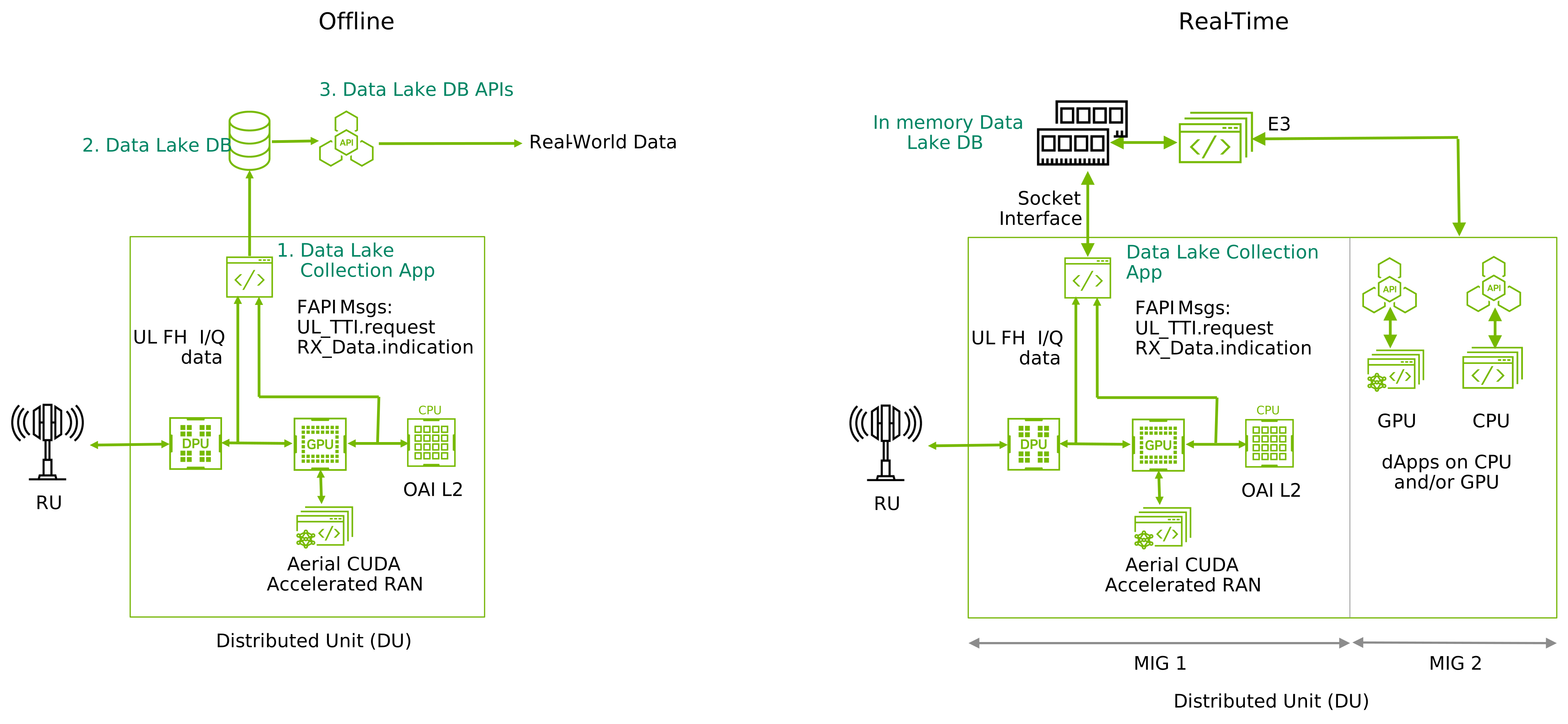
Data Lake components for offline and real-time data access#
Key Features#
Data Lake has the following features:
Real-time capture of uplink PUSCH and SRS data
The uplink I/Q samples, the channel estimates produced by the L1 pipelines, the per-UE SRS measurements, and the metadata exchanged with L2 in UL_TTI.Request, RX_Data.Indication and CRC.Indication are all exported to the database.
API access to the database
Scalable and time coherent over arbitrary number of BSs
The data collection app runs on the same CPU that supports the DU. It runs on a single core, and the database runs on free cores. Because each gNB is responsible for collecting its own uplink data, the collection process scales as more gNBs are added to the network testbed. Database entries are time-stamped so data collected over multiple gNBs can be used in a training flow in a time-coherent manner.
Use in conjunction with pyAerial to generate training data for neural network physical layer designs
Data Lake can be used in conjunction with pyAerial CUDA-Accelerated Python L1 library. Using the Data Lake database APIs, pyAerial can access RF samples in a Data Lake database and transform those samples into training data for all the signal processing functions in an uplink or downlink pipeline.
Use by dApps
dApps can use real-time data from the database to analyze system performance and/or to trigger real-time actions on the gNB based on the analysis.
Example: Training Data Generation Using pyAerial#
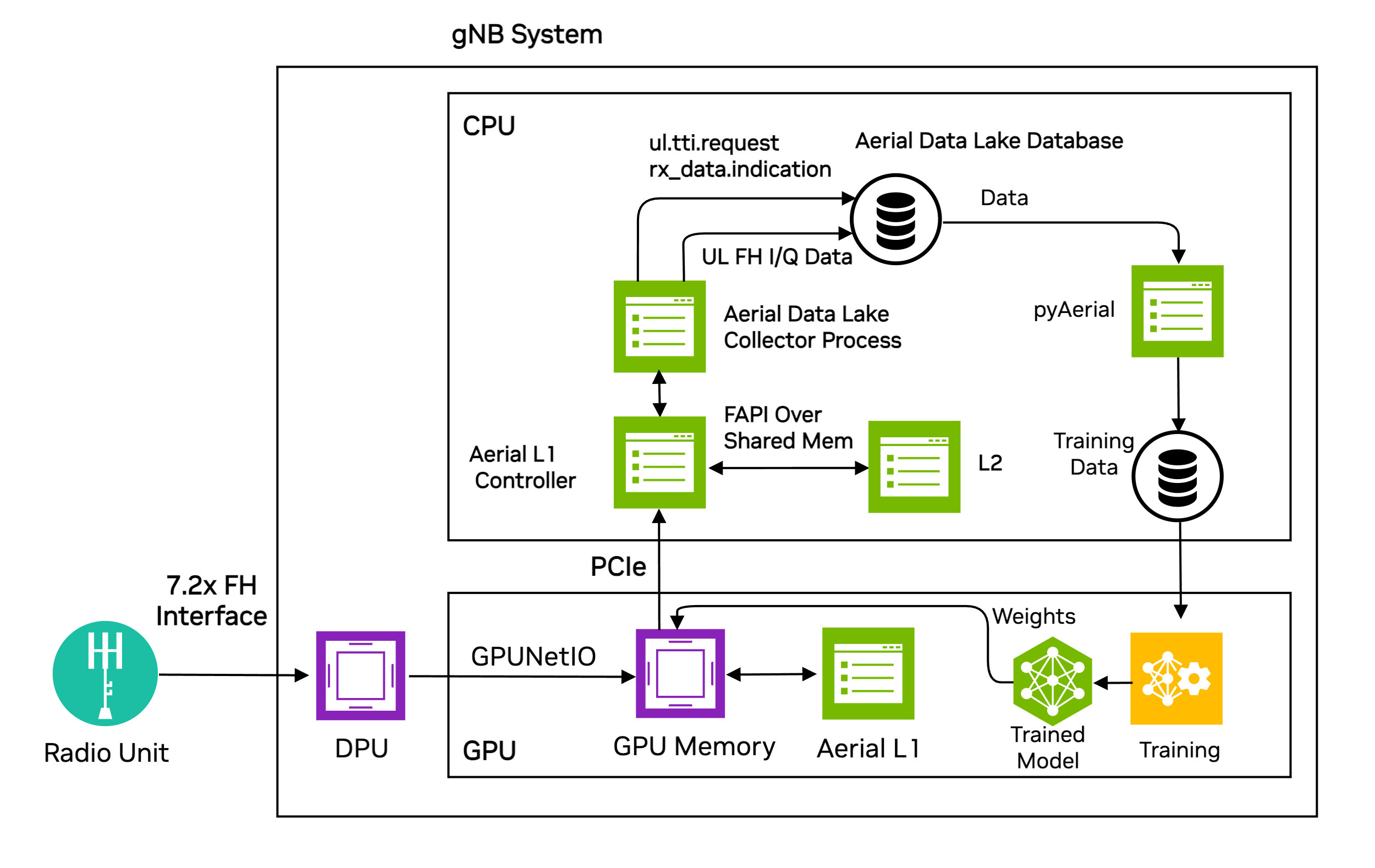
The Data Lake data capture and usage by pyAerial for model training#
Uplink I/Q data from one or more O-RAN Radio Units (O-RUs) is delivered
to GPU memory where it is both processed by the L1 PUSCH baseband
pipeline and delivered to host CPU memory. The Data Lake
collector process writes the I/Q samples to the Data Lake
database in the fh table.
The fh table has columns for SFN, Slot, IQ samples as fhData,
and the start time of that SFN.slot as TsTaiNs.
The collector app saves data that the L2 sent to L1 to describe UL OTA transmissions in UL_TTI.Request messages as well as data returned to the L2 via RX_Data.Indication and CRC.Indication. This data is then written to the fapi database table. These messages and the fields within them are described in SCF 5G FAPI PHY Spec version 10.02, sections 3.4.3, 3.4.7, and 3.4.8.
Each gNB in a network testbed collects data from all O-RUs associated with it. That is, data collection over the span of a network is performed in a distributed manner, each gNB is building its own local database. Training can be performed locally at each gNB, and site-specific optimizations can be realized with this approach. Since the data in a database is time-stamped, the local databases can be consolidated at a centralized compute resource and training performed using the time aligned aggregated data.
In cases where the PUSCH pipeline was unable to decode due to channel conditions, retransmissions can be used as ground truth as long as one of the retransmissions succeeds, allowing the user to test algorithms with better performance than the originals.
The Data Lake database storage requirements depend on the number of O-RUs, the antenna configuration of the O-RU, the carrier bandwidth, the TDD pattern and the number of samples to be collected. Collecting IQ samples of 1 million transmissions from a single RU 4T4R O-RU employing a single 100MHz carrier will consume approximately 660 GB of storage.
The Data Lake database comprises the fronthaul RF data. However, for many training applications access to data at other nodes in the receive pipeline is required. A pyAerial pipeline, together with the Data Lake database APIs, can access samples from an Data Lake database and transform that data into training data for any function in the pipeline.
The figure below illustrates data ingress from a Data Lake database into a pyAerial pipeline and using standard Python file I/O to generate training data for a soft de-mapper.
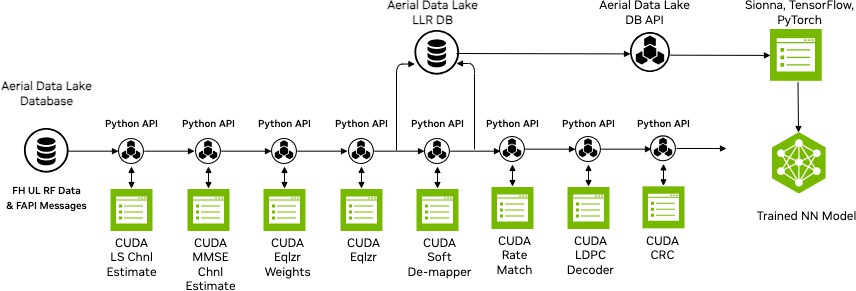
pyAerial and Data Lake data flow for building training datasets for a neural network soft de-mapper#
Installation#
Data Lake is compiled by default as part of cuphycontoller. To record fresh data every time cuphycontroller is started, refer to the section on Fresh Data.
Start by installing Clickhouse database on the server collecting the data. The command below will download and run an instance of the clickhouse server in a docker container.
docker run -d \
--network=host \
-v $(realpath ./ch_data):/var/lib/clickhouse/ \
-v $(realpath ./ch_logs):/var/log/clickhouse-server/ \
--cap-add=SYS_NICE --cap-add=NET_ADMIN --cap-add=IPC_LOCK \
--name my-clickhouse-server --ulimit nofile=262144:262144 clickhouse/clickhouse-server
By default clickhouse will not drop large tables, and may not return an error if attempted. The clickhouse-cpp library does not return exceptions so to avoid what looks like a cuphycontroller crash or hang we recommend allowing it to drop large tables using the following command:
sudo touch './ch_data/flags/force_drop_table' && sudo chmod 444 './ch_data/flags/force_drop_table'
Previously this was mode 666, but in that case clickhouse deletes the file after dropping a single large table.
Usage#
In the cuphycontoller adapter yaml configuration file, enable data collection by specifying a core then start cuphycontroller as usual. The core should be on the same NUMA node as the rest of cuphycontroller, i.e. should follow the same pattern as the rest of the cores. An example of this can be found commented out in cuphycontroller_P5G_FXN_GH.yaml. data_core is required.
cuphydriver_config:
  data_config:
    data_core: 12 # Core on which data collection runs. Must be isolated, as for the other cuphycontroller cores
Note
The former key name datalake_core is deprecated. It is still accepted for backward compatibility and logs a warning at startup.
Data collection is enabled in three additive steps:
data_coreon its own runs the collector and fills the host-memory buffers, but nothing consumes them.Adding
datalake_db_write_enable: 1also writes the selected data types to ClickHouse.Adding
e3_agent_enable: 1exposes the captured data to dApps through the E3 Agent.
data_core is required in every case. datalake_data_types selects only what is written to the database; the E3
Agent always receives every captured type in memory.
The following keys are optional. The values shown are those used in the reference configuration; where the default applied when a key is omitted differs from the value shown, the comment says so.
cuphydriver_config:
  data_config:
    # datalake_db_write_enable: 1             # Enable/disable ClickHouse writes based on datalake_data_types. Disabled if the key is omitted
    # datalake_samples: 1000000               # Number of samples to capture per UE (by RNTI), when database writes are enabled
    # datalake_address: localhost
    # datalake_engine: "MergeTree() PRIMARY KEY (TsTaiNs)" # Default: Memory
    # datalake_drop_tables: 0                 # Set to 1 to drop Clickhouse tables at startup
    # datalake_data_types: [fh, pusch, hest, srs_iq, srs, srs_hest]  # Data types to write to ClickHouse DB (all types always collected in memory for E3 Agent):
                                              # fh = Fronthaul IQ, pusch = PUSCH/FAPI, hest = PUSCH channel estimates,
                                              # srs_iq = SRS IQ samples, srs = SRS scalars and RB SNR, srs_hest = SRS channel estimates
    # datalake_store_failed_pdu: 0            # Set to 1 to store PDU data even when CRC fails
    # num_rows_fh: 120                        # These set the number of rows buffered in memory before they are written to the database
    # num_rows_pusch: 200
    # num_rows_hest: 140
    # num_rows_srs_iq: 40
    # num_rows_srs: 70
    # num_rows_srs_hest: 90
Each num_rows_* key sizes a pair of ping-pong buffers for one data type: the collector fills one buffer while the
other one is written to the database, and a buffer is handed over once it holds that many rows. A row is one cell in one
slot for fh and srs_iq, one slot for hest, and one UE for pusch, srs and srs_hest. Row counts
with a large least common multiple keep the insertions of the different types from coinciding.
To enable the E3-Agent, use the following configuration:
cuphydriver_config:
  data_config:
    e3_agent_enable: 1          # Enable/disable E3 Agent and dApp capabilities
    # e3_rep_port: 5555           # E3 reply port for E3AP requests (dApp REQ -> Agent REP)
    # e3_pub_port: 5556           # E3 publisher port for indication messages (Agent PUB -> dApp SUB)
    # e3_sub_port: 5557           # E3 subscriber port for dApp messages (dApp PUB -> Agent SUB)
The ports must match those configured in the dApp. For the data the E3 Agent exposes to dApps, refer to Available Data Streams.
Tables#
Each captured data type is written to its own table:
Table |
Contents |
|---|---|
|
Uplink fronthaul I/Q samples, per cell and slot |
|
PUSCH metadata from UL_TTI.Request, RX_Data.Indication and CRC.Indication, one row per UE |
|
PUSCH DMRS channel estimates |
|
Raw SRS I/Q samples, per cell and slot |
|
Per-UE SRS metrics: wideband and per-RB SNR, time of arrival, SRS resource configuration |
|
Per-UE SRS channel estimates |
Every table carries CellId, SFN, Slot and a TAI timestamp (TsTaiNs), so rows can be joined across tables
and, when a common clock is used, across gNBs. Use describe table <name> in the ClickHouse client for the exact
column list, and refer to the
Application Development Guide
in the sample apps repository for the per-field description of the captured data.
When data collection is enabled the tables are initialized at startup. At the end of the PUSCH and SRS pipelines
cuphycontroller notifies Data Lake with the addresses of the data to be saved, and two worker threads pinned to
data_core, one per pipeline, copy it into the ping-pong buffers. Once a buffer holds the num_rows_* rows
configured for its data type, it is handed to the database worker pool, which inserts it into the corresponding table.
The PUSCH buffer is the only one also flushed early, when a UE reaches datalake_samples transmissions and its
capture stops.
Multi-Cell#
Data Lake can be configured to capture data from multiple cells controlled by the same L1. The Jupyter notebook datalake_pusch_multicell.ipynb shows an example of
using data captured from multiple cells. To capture the data for this example, cell 41 was controlled by testmac and cell 51 was controlled by a real L2.
In order to do this the cuphycontroller L2 interface needs to be configured to work with two cells and L2s, and testmac needs to be configured to use /dev/shm/nvipc1
rather than /dev/shm/nvipc. L2 should use the slot pattern DDDSU. Core allocations will need to be adjusted to suite the server being used.
Using Data Lake in Notebooks#
Follow pyAerial instructions to build and launch that container. It must be run on a server with a GPU.
datalake_channel_estimation.ipynb performs channel estimation and plots the result.datalake_pusch_decoding.ipynb goes further and runs the full PUSCH decoding pipeline, both a fused version and a version built up of constituent parts.datalake_pusch_multicell.ipynb shows an example of trying to decode the same transmissions from multiple UEs across two cells.datalake_hest_per_ue.ipynb extracts and plots the PUSCH channel estimate of an individual UE from the per-cell H-estimate blob.datalake_srs_per_ue.ipynb plots per-UE SRS metrics, channel estimates and IQ samples.See the pyAerial examples section for details.
Database Administration#
Note
$
and this denotes a clickhouse client prompt
aerial-gnb :)
Database Import#
Example tables covering all six data types are included in the Aerial CUDA-Accelerated RAN container. They can be imported into the clickhouse database by copying them from the container to the clickhouse user_files folder, then using the client to import them:
$ docker cp cuBB:/opt/nvidia/cuBB/pyaerial/notebooks/data/. .
$ sudo cp *.parquet ./ch_data/user_files/
A clickhouse client is needed to interact with the server. To download it and run it do the following:
curl https://clickhouse.com/ | sh
./clickhouse client

aerial@aerial-gnb:~$ ./clickhouse client
ClickHouse client version 24.3.1.1159 (official build).
Connecting to localhost:9000 as user default.
Connected to ClickHouse server version 24.3.1.

aerial-gnb :)
This is the clickhouse client prompt. Use the client to import the sample data into the clickhouse server using these commands. Import every table, since the notebooks join across them:
aerial-gnb :) create table fh ENGINE = MergeTree primary key TsTaiNs settings allow_nullable_key=1 as select * from file('fh.parquet',Parquet)
aerial-gnb :) create table fapi ENGINE = MergeTree primary key TsTaiNs settings allow_nullable_key=1 as select * from file('fapi.parquet',Parquet)
aerial-gnb :) create table hest ENGINE = MergeTree primary key TsTaiNs settings allow_nullable_key=1 as select * from file('hest.parquet',Parquet)
aerial-gnb :) create table srs ENGINE = MergeTree primary key TsTaiNs settings allow_nullable_key=1 as select * from file('srs.parquet',Parquet)
aerial-gnb :) create table srs_hest ENGINE = MergeTree primary key TsTaiNs settings allow_nullable_key=1 as select * from file('srs_hest.parquet',Parquet)
aerial-gnb :) create table srs_iq ENGINE = MergeTree primary key TsTaiNs settings allow_nullable_key=1 as select * from file('srs_iq.parquet',Parquet)
Now check that they have been imported:
aerial-gnb :) select table, formatReadableSize(sum(bytes)) as size from system.parts group by table
The output will look similar to this:
SELECT
    `table`,
    formatReadableSize(sum(bytes)) AS size
FROM system.parts
GROUP BY `table`

Query id: 95451ea7-6ea9-4eec-b297-15de78036ada

┌─table───────────────────┬─size───────┐
│ fh                      │ 4.21 MiB   │
│ fapi                    │ 11.52 KiB  │
│ hest                    │ 1.47 MiB   │
│ srs                     │ 143.63 KiB │
│ srs_hest                │ 26.52 KiB  │
│ srs_iq                  │ 104.52 KiB │
└─────────────────────────┴────────────┘
The database now holds PUSCH slots with their fronthaul IQ and channel estimates, plus SRS slots with their metrics, channel estimates and IQ. The example notebooks can be run after this.
Database Queries#
Run the following at the clickhouse client prompt to show some information about the entries (rows). This shows counts of transmissions for all RNTIs:
aerial-gnb :) select rnti, count(*) from fapi group by rnti
The output will look similar to this:
SELECT
    rnti,
    count(*)
FROM fapi
GROUP BY rnti

Query id: 603141a2-bc02-4950-8e9e-1d3f366263c6

┌──rnti─┬─count()─┐
│ 33163 │       3 │
│ 54873 │       5 │
└───────┴─────────┘
Use the following command to select information from all rows of the fapi table.
Note that nUEs is the number of UEs in the slot across all cells, so a per-cell
UE count must be obtained by grouping on CellId:
aerial-rf-gnb :) from fapi select TsTaiNs,CellId,SFN,Slot,nUEs,rbStart,rbSize,tbCrcFail,sinr order by TsTaiNs,rbStart
Output:
SELECT
    TsTaiNs,
    CellId,
    SFN,
    Slot,
    nUEs,
    rbStart,
    rbSize,
    tbCrcFail,
    sinr
FROM fapi
ORDER BY
    TsTaiNs ASC,
    rbStart ASC

Query id: f42d9192-1de1-4cc6-b3eb-932b22ecab3e

┌───────────────────────TsTaiNs─┬─CellId─┬─SFN─┬─Slot─┬─nUEs─┬─rbStart─┬─rbSize─┬─tbCrcFail─┬──────sinr─┐
│ 2026-08-26 17:48:25.963500000 │     51 │ 504 │    7 │    1 │       0 │     91 │         0 │  27.03673 │
│ 2026-08-26 17:48:29.243500000 │     51 │ 832 │    7 │    1 │       0 │      5 │         0 │ 33.483036 │
│ 2026-08-26 17:48:37.068500000 │     51 │ 590 │   17 │    1 │       0 │     19 │         0 │ 29.132591 │
│ 2026-08-26 17:48:42.859500000 │     51 │ 145 │   19 │    1 │      12 │    261 │         0 │ 30.627789 │
│ 2026-08-26 17:48:57.624500000 │     51 │ 598 │    9 │    2 │       0 │    223 │         0 │ 30.150225 │
│ 2026-08-26 17:48:57.624500000 │     51 │ 598 │    9 │    2 │     223 │     50 │         0 │  30.41972 │
│ 2026-08-26 17:49:24.999000000 │     51 │ 263 │   18 │    2 │       0 │    177 │         0 │ 29.608654 │
│ 2026-08-26 17:49:24.999000000 │     51 │ 263 │   18 │    2 │     177 │     96 │         0 │  29.87303 │
└───────────────────────────────┴────────┴─────┴──────┴──────┴─────────┴────────┴───────────┴───────────┘

8 rows in set. Elapsed: 0.002 sec.
Use the following command to show start times of the fh table:
aerial-rf-gnb :) from fh select TsTaiNs,TsSwNs,SFN,Slot,CellId,nUEs
The output will look similar to this:
SELECT
    TsTaiNs,
    TsSwNs,
    SFN,
    Slot,
    CellId,
    nUEs
FROM fh

Query id: 6926d88e-6e9c-4818-b127-aef96913cfc0

┌───────────────────────TsTaiNs─┬────────────────────────TsSwNs─┬─SFN─┬─Slot─┬─CellId─┬─nUEs─┐
│ 2026-08-26 17:48:25.963500000 │ 2026-08-26 17:48:25.964484520 │ 504 │    7 │     51 │    1 │
│ 2026-08-26 17:48:29.243500000 │ 2026-08-26 17:48:29.244486203 │ 832 │    7 │     51 │    1 │
│ 2026-08-26 17:48:37.068500000 │ 2026-08-26 17:48:37.069450939 │ 590 │   17 │     51 │    1 │
│ 2026-08-26 17:48:42.859500000 │ 2026-08-26 17:48:42.860474267 │ 145 │   19 │     51 │    1 │
│ 2026-08-26 17:48:57.624500000 │ 2026-08-26 17:48:57.625443681 │ 598 │    9 │     51 │    2 │
│ 2026-08-26 17:49:24.999000000 │ 2026-08-26 17:49:24.999942043 │ 263 │   18 │     51 │    2 │
└───────────────────────────────┴───────────────────────────────┴─────┴──────┴────────┴──────┘

6 rows in set. Elapsed: 0.002 sec.
Fresh Data#
The database of IQ samples grows quite quickly. To get fresh data on every run, set datalake_drop_tables: 1 in the
adapter YAML configuration file; the tables are then dropped and recreated at startup.
Dropping Data#
Drop the data from the database with these commands:
aerial-gnb :) drop table fh
aerial-gnb :) drop table fapi
aerial-gnb :) drop table hest
aerial-gnb :) drop table srs_iq
aerial-gnb :) drop table srs
aerial-gnb :) drop table srs_hest
Notes and Known Limitations#
The uplink and SRS buffers in pinned host memory are reused by the GPU transfer of the following slot, so the collector has to copy them out before that happens. A slot is skipped when the copy would start too late, or when the collector is still busy with the previous slot, and a note is printed in the phy log:
[CTL.DATA_LAKE] 39.04 Notify not called for collectSlot busy
[CTL.DATA_LAKE] 39.09 312 us: collectSrs slow start, skip slot
The work on the collection core grows with the number of cells and with the amount of data captured, and both consumers
add to it: the database inserts are queued to a worker pool and the E3 Agent is signalled from the same collection path.
Slots are also skipped when a buffer is still full because the database has not drained it yet. If these notes appear,
reduce the number of data types written to the database, or the number of cells captured, and check that data_core
is isolated.