


Installing Tools on Dell R750#
This chapter describes how to manually install the required kernel, driver, and tools on the host. This is a one-time installation and can be skipped if the system has been configured already.
In the following sequence of steps, the target host is Dell PowerEdge R750.
Depending on the release, tools that are installed in this section may need to be upgraded in the Installing and Upgrading cuBB section.
After everything is installed and updated, refer to the cuBB Quick Start Guide on how to use cuBB.
Dell PowerEdge R750 Server Configuration#
Dual Intel Xeon Gold 6336Y CPU @ 2.4G, 24C/48T (185W)
512GB RDIMM, 3200MT/s
1.92TB, Enterprise NVMe
Riser Config 2, Full Length, 4x16, 2x8 slots (PCIe gen 4)
Dual, Hot-Plug Power Supply Redundant (1+1), 1400W or 2400W
GPU Enablement
BF3 NIC Installation#
R750 supports PCIe 4.0 x16 at slot 2,3,6,7 and x8 at slot 4,5. Follow the table below to install BF3 NIC and ensure the PCIe/GPU power cable is connected properly. These are the GPU installation instructions from Dell R750 Installation Manual.
NOTE: Only use SIG_PWR_3 connector on the motherboard for PCIe/GPU power.
NIC |
Slot |
PCIe/GPU Power |
NUMA |
|---|---|---|---|
BF3 |
7 (Riser 4) |
SIG_PWR_3 |
1 |
Configure BIOS Settings#
During the first boot, change the BIOS settings in the following order. The same settings can be changed via BMC: Configuration → BIOS Settings.
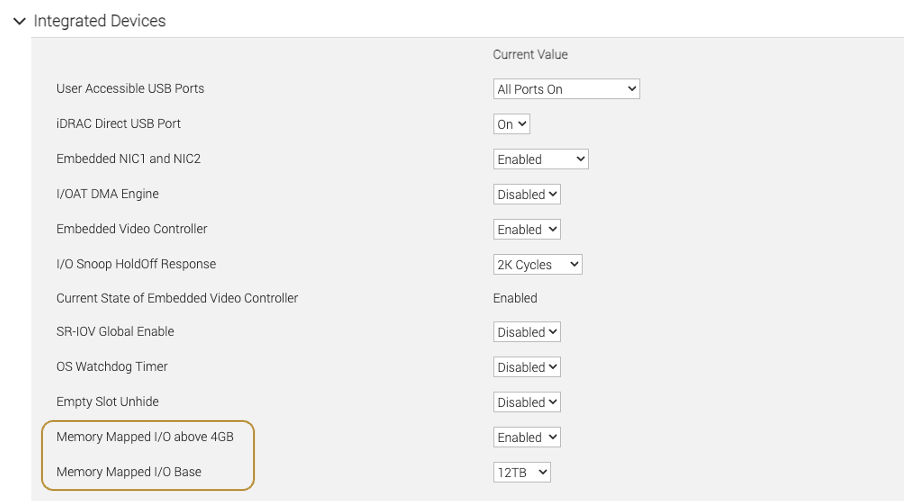
Integrated Devices: Enable Memory Mapped I/O above 4GB and change Memory Mapped I/O Base to 12TB.
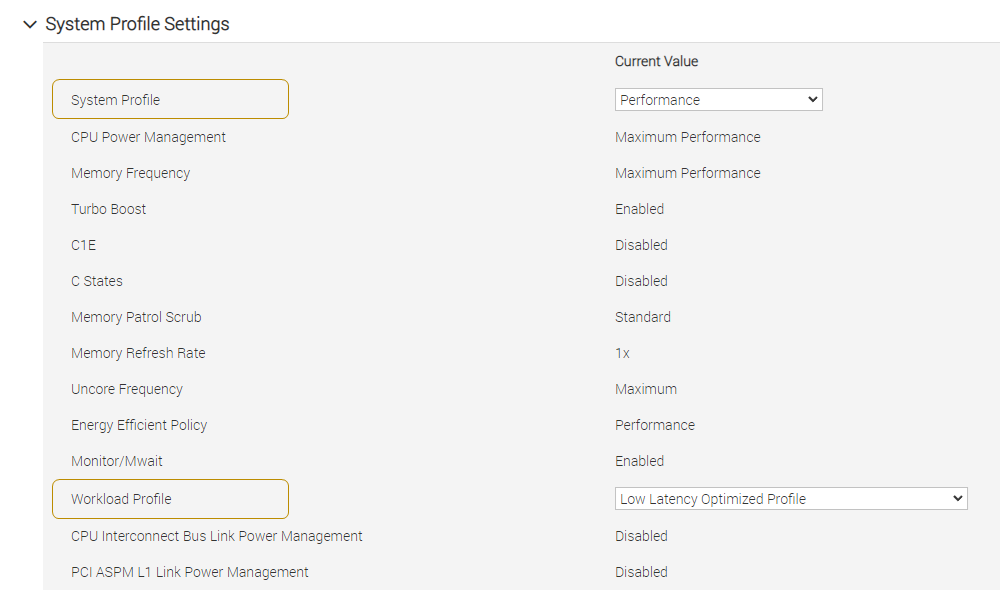
System Profile Settings: Change System Profile to Performance and Workload Profile to Low Latency Optimized Profile.
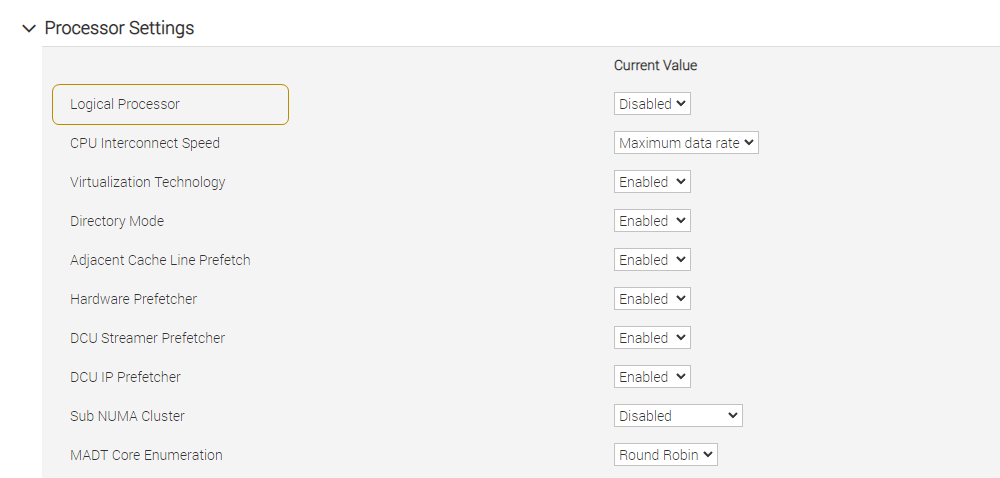
Processor Settings: Aerial CUDA-Accelerated RAN supports both HyperThreaded mode (experimental) or non-HyperThreaded mode (default) but make sure the kernel command line and the CPU core affinity in the cuPHYController YAML match the BIOS settings.
To enable HyperThreading, enable the Logical Processor. To disable HyperThreading, disable the Logical Processor.
Save the BIOS settings, then reboot the system.
Install Ubuntu 24.04 Server#
After installing Ubuntu 24.04 Server, verify the following:
System time is correct to avoid apt update error. If not, see How to fix system time.
LVM volume uses the whole disk space. If not, see How to resize LVM volume.
GPU and NIC are detected by the OS:
Use the following commands to determine whether the NIC is detected by the OS:
$ lspci | grep -i mellanox
ca:00.0 Ethernet controller: Mellanox Technologies MT43244 BlueField-3 integrated ConnectX-7 network controller (rev 01)
ca:00.1 Ethernet controller: Mellanox Technologies MT43244 BlueField-3 integrated ConnectX-7 network controller (rev 01)
ca:00.2 DMA controller: Mellanox Technologies MT43244 BlueField-3 SoC Management Interface (rev 01)
Automated Host Provisioning (Alpha)#
After completing the platform prerequisites above, installing the operating system, and configuring management-network access, you can follow the Aerial CUDA-Accelerated RAN (ACAR) cubb_scripts/install/README.md to automate the supported host software installation steps described in the remaining sections.
Note this automated host installer is an Alpha feature. If it does not support your system or does not complete successfully, follow the manual installation steps below.
Configure the Network Interfaces#
The following installation steps need an Internet connection. Ensure that you have the proper netplan config for your local network.
The network interface names could change after reboot. To ensure persistent network interface names after reboot, create a persistent net link files under /etc/systemd/network, one for each interface.
To find the MAC address of the BlueField-3 NIC, run lshw to check for network devices and look for the ConnectX-7 entries.
$ sudo apt-get install jq -y
$ sudo lshw -json -C network | jq '.[] | "\(.product), MAC: \(.serial)"' | grep "ConnectX-7"
"MT43244 BlueField-3 integrated ConnectX-7 network controller, MAC: 94:6d:ae:ww:ww:ww"
"MT43244 BlueField-3 integrated ConnectX-7 network controller, MAC: 94:6d:ae:xx:xx:xx"
Create files at /etc/systemd/network/ with the desired name for the interface and the MAC address found in the previous step.
Note
The rest of the document will assume the aerial00 and aerial01 interfaces are the ones connected to the RU emulator for the cuBB testing or the frounthaul switch for the E2E tests and that aerial00 is the interface used for PTP.
$ sudo nano /etc/systemd/network/20-aerial00.link

[Match]
MACAddress=94:6d:ae:ww:ww:ww

[Link]
Name=aerial00

$ sudo nano /etc/systemd/network/20-aerial01.link

[Match]
MACAddress=94:6d:ae:xx:xx:xx

[Link]
Name=aerial01
To apply the change:
$ sudo netplan apply
Disable Auto Upgrade#
Edit the /etc/apt/apt.conf.d/20auto-upgrades system file, and change the “1” to “0” for both lines.
This prevents the installed version of the low latency kernel from being accidentally changed with a
subsequent software upgrade.
$ sudo sed -i 's/"1"/"0"/g' /etc/apt/apt.conf.d/20auto-upgrades
Disable the fwupd-refresh timer to prevent fwupdmgr from automatically checking for any updates.
$ sudo systemctl mask fwupd-refresh.timer
Install the Low-Latency Kernel#
If the low latency kernel is not installed, you must remove the old kernels and keep only the latest generic kernel. Enter the following command to list the installed kernels:
$ dpkg --list | grep -i 'linux-image' | awk '/ii/{ print $2}'

# To remove old kernel
$ sudo apt-get purge linux-image-<old kernel version>
$ sudo apt-get autoremove
Disable Nouveau#
Disable the Nouveau open-source GPU driver before installing the NVIDIA driver:
Regenerate the kernel initramfs:
sudo update-initramfs -u
Note
The Nouveau blacklist takes effect after reboot. Complete the remaining kernel configuration steps before rebooting.
Install the low-latency kernel with the specific version listed in the release manifest.
$ sudo apt-get update
$ sudo apt-get install -y linux-image-6.8.0-1058-nvidia-lowlatency
Update the GRUB to change the default boot kernel:
# Update grub to change the default boot kernel
$ sudo sed -i 's/^GRUB_DEFAULT=.*/GRUB_DEFAULT="Advanced options for Ubuntu>Ubuntu, with Linux 6.8.0-1058-nvidia-lowlatency"/' /etc/default/grub
Configure Linux Kernel Command-line#
To set kernel command-line parameters, create the GRUB configuration fragment
/etc/default/grub.d/cmdline.cfg. This file contains the complete
GRUB_CMDLINE_LINUX_DEFAULT value managed by the installer. The following kernel parameters
are optimized for Xeon Gold 6336Y CPU and 512GB memory.
To write the GRUB configuration fragment when HyperThread is disabled (the default), enter these commands:
$ sudo mkdir -p /etc/default/grub.d
$ cat <<'EOF' | sudo tee /etc/default/grub.d/cmdline.cfg
GRUB_CMDLINE_LINUX_DEFAULT="pci=realloc=off default_hugepagesz=1G hugepagesz=1G hugepages=16 tsc=reliable processor.max_cstate=0 audit=0 idle=poll rcu_nocb_poll nosoftlockup irqaffinity=0-3 isolcpus=managed_irq,domain,4-47 nohz_full=4-47 rcu_nocbs=4-47 module_blacklist=nouveau clocksource=tsc intel_idle.max_cstate=0 mce=ignore_ce intel_pstate=disable iommu=off noht numa_balancing=disable"
EOF
When HyperThread is enabled (experimental), use the following cmdline.cfg content instead:
$ sudo mkdir -p /etc/default/grub.d
$ cat <<'EOF' | sudo tee /etc/default/grub.d/cmdline.cfg
GRUB_CMDLINE_LINUX_DEFAULT="pci=realloc=off default_hugepagesz=1G hugepagesz=1G hugepages=16 tsc=reliable clocksource=tsc intel_idle.max_cstate=0 mce=ignore_ce processor.max_cstate=0 intel_pstate=disable audit=0 idle=poll rcu_nocb_poll nosoftlockup iommu=off irqaffinity=0-3 isolcpus=managed_irq,domain,4-95 nohz_full=4-95 rcu_nocbs=4-95 module_blacklist=nouveau numa_balancing=disable"
EOF
The CPU-cores-related parameters must be adjusted depending on the number of CPU cores
on the system. In the example above, the “4-47” value represents CPU core numbers 4 to 47; you may
need to adjust the CPU-related parameters depending on the HW configuration. By default, only one DPDK thread is
used. The isolated CPUs are used by the entire cuBB software stack. Use the nproc --all command
to see how many cores are available. Do not use core numbers that are beyond the number of available
cores.
Warning
These instructions are specific to Ubuntu 24.04 with a 6.8 low-latency kernel provided by Canonical. Make sure the kernel commands provided here are suitable for your OS and kernel versions and revise these settings to match your system if necessary.
Apply the Changes and Reboot to Load the Kernel#
$ sudo update-grub
$ sudo reboot
After rebooting, enter the following command to verify that the system has booted into the low-latency kernel:
$ uname -r
6.8.0-1058-nvidia-lowlatency
Enter this command to verify that the kernel command-line parameters are configured properly:
$ cat /proc/cmdline
BOOT_IMAGE=/vmlinuz-6.8.0-1058-nvidia-lowlatency root=/dev/mapper/ubuntu--vg-ubuntu--lv ro pci=realloc=off default_hugepagesz=1G hugepagesz=1G hugepages=16 tsc=reliable processor.max_cstate=0 audit=0 idle=poll rcu_nocb_poll nosoftlockup irqaffinity=0-3 isolcpus=managed_irq,domain,4-47 nohz_full=4-47 rcu_nocbs=4-47 module_blacklist=nouveau clocksource=tsc intel_idle.max_cstate=0 mce=ignore_ce intel_pstate=disable iommu=off noht numa_balancing=disable
Enter this command to verify if hugepages are enabled:
$ grep -i huge /proc/meminfo
AnonHugePages:         0 kB
ShmemHugePages:        0 kB
FileHugePages:         0 kB
HugePages_Total:      16
HugePages_Free:       16
HugePages_Rsvd:        0
HugePages_Surp:        0
Hugepagesize:    1048576 kB
Hugetlb:        16777216 kB
Install Dependency Packages#
Enter these commands to install the prerequisite packages:
$ sudo apt-get update
$ sudo apt-get install -y build-essential linux-headers-$(uname -r) dkms unzip linuxptp pv
Install RSHIM and Mellanox Firmware Tools on the Host#
Note
Aerial has been using Mellanox inbox driver instead of MOFED since the 23-4 release. MOFED must be removed if it is installed on the system.
Check if there is an existing MOFED installed on the host system.
$ ofed_info -s
MLNX_OFED_LINUX-23.07-0.5.0.0:
Uninstall MOFED if it is present.
$ sudo /usr/sbin/ofed_uninstall.sh
Enter the following commands to install RSHIM and Mellanox Firmware Tools (MFT) from the DOCA repository.
$ wget https://www.mellanox.com/downloads/DOCA/DOCA_v3.3.0/host/doca-host_3.3.0-088000-26.01-ubuntu2404_amd64.deb
$ sudo dpkg -i doca-host_3.3.0-088000-26.01-ubuntu2404_amd64.deb
$ sudo apt update
$ sudo apt install -y rshim mft
$ sudo systemctl restart rshim
The doca-host package adds the DOCA APT repository. Installing mft from that repository selects
the MFT version bundled with the selected DOCA release. Verify the installed version and start MST:
$ sudo mst version
mst, mft 4.35.0-159. Git SHA Hash: 004525846

$ sudo mst start

# check NIC PCIe bus addresses and network interface names
$ sudo mst status -v
The output looks like the following:
MST modules:
------------
    MST PCI module is not loaded
    MST PCI configuration module loaded
PCI devices:
------------
DEVICE_TYPE             MST                           PCI       RDMA            NET                                     NUMA
BlueField3(rev:1)       /dev/mst/mt41692_pciconf0.1   cc:00.1   mlx5_1          net-aerial01                            1

BlueField3(rev:1)       /dev/mst/mt41692_pciconf0     cc:00.0   mlx5_0          net-aerial00                            1
For a manually pinned MFT version that is not available from the DOCA repository, see Install a standalone MFT version.
Install a Standalone MFT Version#
Use this method only when a required MFT version is unavailable from the DOCA repository. This installation is not managed by APT; use the version required by your release manifest.
$ export MFT_VERSION=4.35.0-159
$ wget https://www.mellanox.com/downloads/MFT/mft-$MFT_VERSION-x86_64-deb.tgz
$ tar xvf mft-$MFT_VERSION-x86_64-deb.tgz
$ sudo mft-$MFT_VERSION-x86_64-deb/install.sh

$ sudo mst version
Enter these commands to check the link status of port 0:
# Here is an example if port 0 is connected to another server via a 200GbE DAC cable.

$ sudo mlxlink -d /dev/mst/mt41692_pciconf0

Operational Info
----------------
State                              : Active
Physical state                     : LinkUp
Speed                              : 200G
Width                              : 4x
FEC                                : Standard_RS-FEC - (544,514)
Loopback Mode                      : No Loopback
Auto Negotiation                   : ON

Supported Info
--------------
Enabled Link Speed (Ext.)          : 0x00003ff2 (200G_2X,200G_4X,100G_1X,100G_2X,100G_4X,50G_1X,50G_2X,40G,25G,10G,1G)
Supported Cable Speed (Ext.)       : 0x000017f2 (200G_4X,100G_2X,100G_4X,50G_1X,50G_2X,40G,25G,10G,1G)

Troubleshooting Info
--------------------
Status Opcode                      : 0
Group Opcode                       : N/A
Recommendation                     : No issue was observed

Tool Information
----------------
Firmware Version                   : 32.47.1088
amBER Version                      : 6.4
MFT Version                        : 4.35.0-159
Install Docker CE#
The full official instructions for installing Docker CE can be found here: https://docs.docker.com/engine/install/ubuntu/#install-docker-engine. The following instructions are one supported way of installing Docker CE:
Warning
To work correctly, the CUDA driver must be installed before Docker CE or nvidia-container-toolkit installation. It is recommended that you install the CUDA driver before installing Docker CE or the nvidia-container-toolkit.
$ sudo apt-get update
$ sudo apt-get install -y ca-certificates curl gnupg
$ sudo install -m 0755 -d /etc/apt/keyrings
$ curl -fsSL https://download.docker.com/linux/ubuntu/gpg | sudo gpg --dearmor -o /etc/apt/keyrings/docker.gpg
$ sudo chmod a+r /etc/apt/keyrings/docker.gpg
$ echo "deb [arch=$(dpkg --print-architecture) signed-by=/etc/apt/keyrings/docker.gpg] https://download.docker.com/linux/ubuntu $(. /etc/os-release && echo "$VERSION_CODENAME") stable" | sudo tee /etc/apt/sources.list.d/docker.list > /dev/null
$ sudo apt-get update
$ sudo apt-get install -y docker-ce docker-ce-cli containerd.io docker-buildx-plugin docker-compose-plugin
$ sudo docker run --rm hello-world
Update BF3 BFB Image and NIC Firmware#
Note
The following instructions are for BF3 NIC (OPN: 900-9D3B6-00CV-A; PSID: MT_0000000884) specifically.
There is no need to switch to DPU mode if using the BFB image below.
This BFB image will update the NIC firmware automatically.
Check if RShim service is running by ‘sudo systemctl status rshim’. If not, restart the RShim service by ‘sudo systemctl restart rshim’.
# Enable MST
$ sudo mst start
$ sudo mst status

MST modules:
------------
    MST PCI module is not loaded
    MST PCI configuration module loaded

MST devices:
------------
/dev/mst/mt41692_pciconf0        - PCI configuration cycles access.
                                domain:bus:dev.fn=0000:ca:00.0 addr.reg=88 data.reg=92 cr_bar.gw_offset=-1
                                Chip revision is: 01


# Download the BF3 BFB image
$ wget https://content.mellanox.com/BlueField/FW-Bundle/bf-fwbundle-3.3.0-202_26.01-prod.bfb

# Here is the command to flash BFB image. NOTE: If there are multiple BF3 NICs, repeat the same command with rshim<0..N-1>. N is the number of BF3 NICs.
$ sudo bfb-install -r rshim0 -b bf-fwbundle-3.3.0-202_26.01-prod.bfb

Pushing bfb
Collecting BlueField booting status. Press Ctrl+C to stop…
INFO[PSC]: PSC BL1 START
INFO[BL2]: start
INFO[BL2]: boot mode (rshim)
INFO[BL2]: VDD_CPU: 870 mV
INFO[BL2]: VDDQ: 1120 mV
INFO[BL2]: DDR POST passed
INFO[BL2]: UEFI loaded
INFO[BL31]: start
INFO[BL31]: lifecycle GA Secured
INFO[BL31]: runtime
INFO[BL31]: MB ping success
INFO[UEFI]: Partial NIC
INFO[UEFI]: eMMC init
INFO[UEFI]: eMMC probed
INFO[UEFI]: UPVS valid
INFO[UEFI]: PMI: updates started
INFO[UEFI]: PMI: total updates: 1
INFO[UEFI]: PMI: updates completed, status 0
INFO[UEFI]: PCIe enum start
INFO[UEFI]: PCIe enum end
INFO[BL31]: Partial NIC
INFO[BL31]: power capping disabled
INFO[UEFI]: UEFI Secure Boot (disabled)
INFO[UEFI]: PK configured
INFO[UEFI]: Redfish enabled
INFO[UEFI]: exit Boot Service
INFO[MISC]: Erasing eMMC drive: /dev/mmcblk0
INFO[MISC]: Erasing NVME drive: /dev/nvme0n1
INFO[MISC]: Ubuntu installation started
INFO[MISC]: Installing OS image
INFO[MISC]: Ubuntu installation completed
INFO[MISC]: Updating NIC firmware...
INFO[MISC]: NIC firmware update done: 32.48.1000
INFO[MISC]: Installation finished

# Wait 10 minutes to ensure the card initializes properly after the BFB installation
$ sleep 600

# NOTE: Requires a full power cycle from host with cold boot

# Verify NIC FW version after reboot
$ sudo mst start
$ sudo flint -d /dev/mst/mt41692_pciconf0 q
Image type:            FS4
FW Version:            32.48.1000
FW Release Date:       11.2.2026
Product Version:       32.48.1000
Rom Info:              type=UEFI Virtio net version=21.4.13 cpu=AMD64,AARCH64
                       type=UEFI Virtio blk version=22.4.14 cpu=AMD64,AARCH64
                       type=UEFI version=14.40.10 cpu=AMD64,AARCH64
                       type=PXE version=3.8.201 cpu=AMD64
Description:           UID                GuidsNumber
Base GUID:             b8e9240300140032        38
Base MAC:              b8e924140032            38
Image VSD:             N/A
Device VSD:            N/A
PSID:                  MT_0000000884
Security Attributes:   secure-fw
Run the following commands to configure the BF3 NIC:
# Setting BF3 port to Ethernet mode (not Infiniband)
$ sudo mlxconfig -d /dev/mst/mt41692_pciconf0 --yes set LINK_TYPE_P1=2
$ sudo mlxconfig -d /dev/mst/mt41692_pciconf0 --yes set LINK_TYPE_P2=2

$ sudo mlxconfig -d /dev/mst/mt41692_pciconf0 --yes set INTERNAL_CPU_MODEL=1
$ sudo mlxconfig -d /dev/mst/mt41692_pciconf0 --yes set INTERNAL_CPU_PAGE_SUPPLIER=EXT_HOST_PF
$ sudo mlxconfig -d /dev/mst/mt41692_pciconf0 --yes set INTERNAL_CPU_ESWITCH_MANAGER=EXT_HOST_PF
$ sudo mlxconfig -d /dev/mst/mt41692_pciconf0 --yes set INTERNAL_CPU_IB_VPORT0=EXT_HOST_PF
$ sudo mlxconfig -d /dev/mst/mt41692_pciconf0 --yes set INTERNAL_CPU_OFFLOAD_ENGINE=DISABLED

$ sudo mlxconfig -d /dev/mst/mt41692_pciconf0 --yes set CQE_COMPRESSION=1
$ sudo mlxconfig -d /dev/mst/mt41692_pciconf0 --yes set PROG_PARSE_GRAPH=1
$ sudo mlxconfig -d /dev/mst/mt41692_pciconf0 --yes set ACCURATE_TX_SCHEDULER=1
$ sudo mlxconfig -d /dev/mst/mt41692_pciconf0 --yes set FLEX_PARSER_PROFILE_ENABLE=4
$ sudo mlxconfig -d /dev/mst/mt41692_pciconf0 --yes set REAL_TIME_CLOCK_ENABLE=1

$ sudo mlxconfig -d /dev/mst/mt41692_pciconf0 --yes set EXP_ROM_VIRTIO_NET_PXE_ENABLE=0
$ sudo mlxconfig -d /dev/mst/mt41692_pciconf0 --yes set EXP_ROM_VIRTIO_NET_UEFI_ARM_ENABLE=0
$ sudo mlxconfig -d /dev/mst/mt41692_pciconf0 --yes set EXP_ROM_VIRTIO_NET_UEFI_x86_ENABLE=0
$ sudo mlxconfig -d /dev/mst/mt41692_pciconf0 --yes set EXP_ROM_VIRTIO_BLK_UEFI_ARM_ENABLE=0
$ sudo mlxconfig -d /dev/mst/mt41692_pciconf0 --yes set EXP_ROM_VIRTIO_BLK_UEFI_x86_ENABLE=0

# NOTE: Requires a full power cycle from host with cold boot

# Verify that the NIC FW changes have been applied
$ sudo mlxconfig -d /dev/mst/mt41692_pciconf0 q | grep "CQE_COMPRESSION\|PROG_PARSE_GRAPH\|ACCURATE_TX_SCHEDULER\|FLEX_PARSER_PROFILE_ENABLE\|REAL_TIME_CLOCK_ENABLE\|INTERNAL_CPU_MODEL\|LINK_TYPE_P1\|LINK_TYPE_P2\|INTERNAL_CPU_PAGE_SUPPLIER\|INTERNAL_CPU_ESWITCH_MANAGER\|INTERNAL_CPU_IB_VPORT0\|INTERNAL_CPU_OFFLOAD_ENGINE"
        INTERNAL_CPU_MODEL                  EMBEDDED_CPU(1)
        INTERNAL_CPU_PAGE_SUPPLIER          EXT_HOST_PF(1)
        INTERNAL_CPU_ESWITCH_MANAGER        EXT_HOST_PF(1)
        INTERNAL_CPU_IB_VPORT0              EXT_HOST_PF(1)
        INTERNAL_CPU_OFFLOAD_ENGINE         DISABLED(1)
        FLEX_PARSER_PROFILE_ENABLE          4
        PROG_PARSE_GRAPH                    True(1)
        ACCURATE_TX_SCHEDULER               True(1)
        CQE_COMPRESSION                     AGGRESSIVE(1)
        REAL_TIME_CLOCK_ENABLE              True(1)
        LINK_TYPE_P1                        ETH(2)
        LINK_TYPE_P2                        ETH(2)
Install ptp4l and phc2sys#
PTP4l versions prior to 4.0 do not support dual port PTP. Run the following commands to install PTP4l 4.2 from source:
$ sudo apt remove linuxptp
$ wget https://github.com/richardcochran/linuxptp/archive/refs/tags/v4.2.tar.gz
$ tar -xzf v4.2.tar.gz
$ cd linuxptp-4.2/
$ make
$ sudo make install prefix=/usr sbindir=/usr/sbin
Enter these commands to configure PTP4L, assuming the aerial00 NIC interface is used for PTP:
Reload systemd and start the PTP4L service:
One server becomes the master clock, as shown below:
$ sudo systemctl status ptp4l.service

• ptp4l.service - Precision Time Protocol (PTP) service
     Loaded: loaded (/etc/systemd/system/ptp4l.service; enabled; vendor preset: enabled)
     Active: active (running) since Tue 2023-08-08 19:37:56 UTC; 2 weeks 3 days ago
       Docs: man:ptp4l
   Main PID: 1120 (ptp4l)
      Tasks: 1 (limit: 94533)
     Memory: 460.0K
        CPU: 9min 8.089s
     CGroup: /system.slice/ptp4l.service
             └─1120 /usr/sbin/ptp4l -f /etc/ptp.conf

Aug 09 18:12:35 aerial-devkit ptp4l[1120]: [81287.043]: selected local clock b8cef6.fffe.d333be as best master
Aug 09 18:12:35 aerial-devkit ptp4l[1120]: [81287.043]: port 1: assuming the grand master role
Aug 11 20:44:51 aerial-devkit ptp4l[1120]: [263223.379]: timed out while polling for tx timestamp
Aug 11 20:44:51 aerial-devkit ptp4l[1120]: [263223.379]: increasing tx_timestamp_timeout may correct this issue, but it is likely caused by a driver bug
Aug 11 20:44:51 aerial-devkit ptp4l[1120]: [263223.379]: port 1: send sync failed
Aug 11 20:44:51 aerial-devkit ptp4l[1120]: [263223.379]: port 1: MASTER to FAULTY on FAULT_DETECTED (FT_UNSPECIFIED)
Aug 11 20:45:07 aerial-devkit ptp4l[1120]: [263239.522]: port 1: FAULTY to LISTENING on INIT_COMPLETE
Aug 11 20:45:08 aerial-devkit ptp4l[1120]: [263239.963]: port 1: LISTENING to MASTER on ANNOUNCE_RECEIPT_TIMEOUT_EXPIRES
Aug 11 20:45:08 aerial-devkit ptp4l[1120]: [263239.963]: selected local clock b8cef6.fffe.d333be as best master
Aug 11 20:45:08 aerial-devkit ptp4l[1120]: [263239.963]: port 1: assuming the grand master role
The other becomes the secondary, follower clock, as shown below:
$ sudo systemctl status ptp4l.service

• ptp4l.service - Precision Time Protocol (PTP) service
     Loaded: loaded (/etc/systemd/system/ptp4l.service; enabled; vendor preset: enabled)
     Active: active (running) since Tue 2023-08-22 16:25:41 UTC; 3 days ago
       Docs: man:ptp4l
   Main PID: 3251 (ptp4l)
      Tasks: 1 (limit: 598810)
     Memory: 472.0K
        CPU: 2min 48.984s
     CGroup: /system.slice/ptp4l.service
             └─3251 /usr/sbin/ptp4l -f /etc/ptp.conf

Aug 25 19:58:34 aerial-r750 ptp4l[3251]: ptp4l[272004.187]: rms    8 max   15 freq -14495 +/-   9 delay    11 +/-   0
Aug 25 19:58:35 aerial-r750 ptp4l[3251]: ptp4l[272005.187]: rms    6 max   12 freq -14480 +/-   7 delay    11 +/-   1
Aug 25 19:58:36 aerial-r750 ptp4l[3251]: ptp4l[272006.187]: rms    8 max   12 freq -14465 +/-   5 delay    10 +/-   0
Aug 25 19:58:37 aerial-r750 ptp4l[3251]: ptp4l[272007.187]: rms   11 max   18 freq -14495 +/-  10 delay    11 +/-   1
Aug 25 19:58:38 aerial-r750 ptp4l[3251]: ptp4l[272008.187]: rms   12 max   21 freq -14515 +/-   7 delay    12 +/-   1
Aug 25 19:58:39 aerial-r750 ptp4l[3251]: ptp4l[272009.187]: rms    7 max   12 freq -14488 +/-   7 delay    12 +/-   1
Aug 25 19:58:40 aerial-r750 ptp4l[3251]: ptp4l[272010.187]: rms    7 max   12 freq -14479 +/-   7 delay    11 +/-   1
Aug 25 19:58:41 aerial-r750 ptp4l[3251]: ptp4l[272011.187]: rms   10 max   20 freq -14503 +/-  11 delay    11 +/-   1
Aug 25 19:58:42 aerial-r750 ptp4l[3251]: ptp4l[272012.188]: rms   10 max   20 freq -14520 +/-   7 delay    13 +/-   1
Aug 25 19:58:43 aerial-r750 ptp4l[3251]: ptp4l[272013.188]: rms    2 max    7 freq -14510 +/-   4 delay    12 +/-   1
Enter the commands to turn off NTP:
$ sudo timedatectl set-ntp false
$ timedatectl
Local time: Thu 2022-02-03 22:30:58 UTC
           Universal time: Thu 2022-02-03 22:30:58 UTC
                 RTC time: Thu 2022-02-03 22:30:58
                Time zone: Etc/UTC (UTC, +0000)
System clock synchronized: no
              NTP service: inactive
          RTC in local TZ: no
Run PHC2SYS as service:
PHC2SYS is used to synchronize the system clock to the PTP hardware clock (PHC) on the NIC.
Specify the network interface used for PTP and system clock as the slave clock.
Note
PTP is based on TAI time and the system clock is synchronized to TAI time scale with the above PHC2SYS settings.
The current offset between UTC and TAI is 37 seconds (leap seconds) and TAI is ahead of UTC by this amount.
If there is a need to change the system clock to UTC time on DU, the first ExecStart with -O 0 should be commented out and the second ExecStart with -w should be uncommented assuming the PTP and GrandMaster are properly configured.
Reload systemd and start the PHC2SYS service:
Verify that the system clock is synchronized:
$ timedatectl
Local time: Thu 2022-02-03 22:30:58 UTC
           Universal time: Thu 2022-02-03 22:30:58 UTC
                 RTC time: Thu 2022-02-03 22:30:58
                Time zone: Etc/UTC (UTC, +0000)
System clock synchronized: yes
              NTP service: inactive
          RTC in local TZ: no
Setup the Boot Configuration Service#
Create the directory /usr/local/bin and create the /usr/local/bin/nvidia.sh file to run the commands with every reboot.
The command for “nvidia-smi lgc” expects just one GPU device (-i 0). This needs to be modified, if the system uses more than one GPU.
Create a system service file to be loaded after network interfaces are up.
Create a system service file for nvidia-persistenced to be run at startup.
Note
This file was created following the sample from /usr/share/doc/NVIDIA_GLX-1.0/samples/nvidia-persistenced-init.tar.bz2
Then set the file permissions, reload the systemd daemon, enable the service, restart the service when installing the first time, and check status
$ sudo chmod 744 /usr/local/bin/nvidia.sh
$ sudo chmod 664 /etc/systemd/system/nvidia.service
$ sudo chmod 664 /etc/systemd/system/nvidia-persistenced.service
$ sudo systemctl daemon-reload
$ sudo systemctl enable nvidia-persistenced.service
$ sudo systemctl enable nvidia.service
$ sudo systemctl restart nvidia.service
$ sudo systemctl restart nvidia-persistenced.service
$ sudo systemctl status nvidia.service
$ sudo systemctl status nvidia-persistenced.service
The output of the last command should look like this:
$ sudo systemctl status nvidia.service
○ nvidia.service
     Loaded: loaded (/etc/systemd/system/nvidia.service; enabled; vendor preset: enabled)
     Active: inactive (dead) since Fri 2024-06-07 20:26:06 UTC; 2s ago
    Process: 251860 ExecStart=/usr/local/bin/nvidia.sh (code=exited, status=0/SUCCESS)
   Main PID: 251860 (code=exited, status=0/SUCCESS)
        CPU: 788ms

Jun 07 20:26:05 server nvidia.sh[251862]: Starting MST (Mellanox Software Tools) driver set
Jun 07 20:26:05 server nvidia.sh[251862]: Loading MST PCI module - Success
Jun 07 20:26:05 server nvidia.sh[251862]: [warn] mst_pciconf is already loaded, skipping
Jun 07 20:26:05 server nvidia.sh[251862]: Create devices
Jun 07 20:26:06 server nvidia.sh[251862]: Unloading MST PCI module (unused) - Success
Jun 07 20:26:06 server nvidia.sh[252732]: GPU clocks set to "(gpuClkMin 1410, gpuClkMax 1410)" for GPU 00000000:CF:00.0
Jun 07 20:26:06 server nvidia.sh[252732]: All done.
Jun 07 20:26:06 server nvidia.sh[252733]: Disabled MIG Mode for GPU 00000000:CF:00.0
Jun 07 20:26:06 server nvidia.sh[252733]: All done.
Jun 07 20:26:06 server systemd[1]: nvidia.service: Deactivated successfully.

$ sudo systemctl status nvidia-persistenced.service
● nvidia-persistenced.service - NVIDIA Persistence Daemon
     Loaded: loaded (/etc/systemd/system/nvidia-persistenced.service; enabled; vendor preset: enabled)
     Active: active (running) since Fri 2024-06-07 20:25:57 UTC; 3s ago
    Process: 251836 ExecStart=/usr/bin/nvidia-persistenced (code=exited, status=0/SUCCESS)
   Main PID: 251837 (nvidia-persiste)
      Tasks: 1 (limit: 598792)
     Memory: 672.0K
        CPU: 9ms
     CGroup: /system.slice/nvidia-persistenced.service
             └─251837 /usr/bin/nvidia-persistenced

Jun 07 20:25:57 server systemd[1]: Starting NVIDIA Persistence Daemon...
Jun 07 20:25:57 server nvidia-persistenced[251837]: Started (251837)
Jun 07 20:25:57 server systemd[1]: Started NVIDIA Persistence Daemon.
Validating software-component versions and system configurations#
Before running Aerial, make sure that your software-component versions and system configurations meet the required specifications. For more information, refer to the System Configuration Validation Script.