


Installing Tools on NVIDIA DGX Spark System#
This chapter describes how to manually install the required kernel, driver, and tools on the DGX Spark. This is a one-time installation and can be skipped if the system has been configured already.
In the following sequence of steps, the target host is NVIDIA DGX Spark System.
Depending on the release, tools that are installed in this section may need to be upgraded in the Installing and Upgrading cuBB section.
After everything is installed and updated, refer to the cuBB Quick Start Guide for how to use cuBB.
Cable Connection#
Host OS Internet Connection#
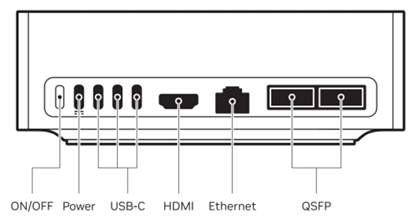
The onboard CX7 QSFP ports are reserved for fronthaul and backhaul connections, the onboard RJ45 port is recommended for the host OS internet connection.
E2E Test Connection#
To run end-to-end test with O-RU in LLS-C3 topology, the CX7 fronthaul port#0 or port#1 must be connected to the fronthaul switch. Make sure the PTP is configured to use the port connected to the fronthaul switch.
Disable Secure Boot#
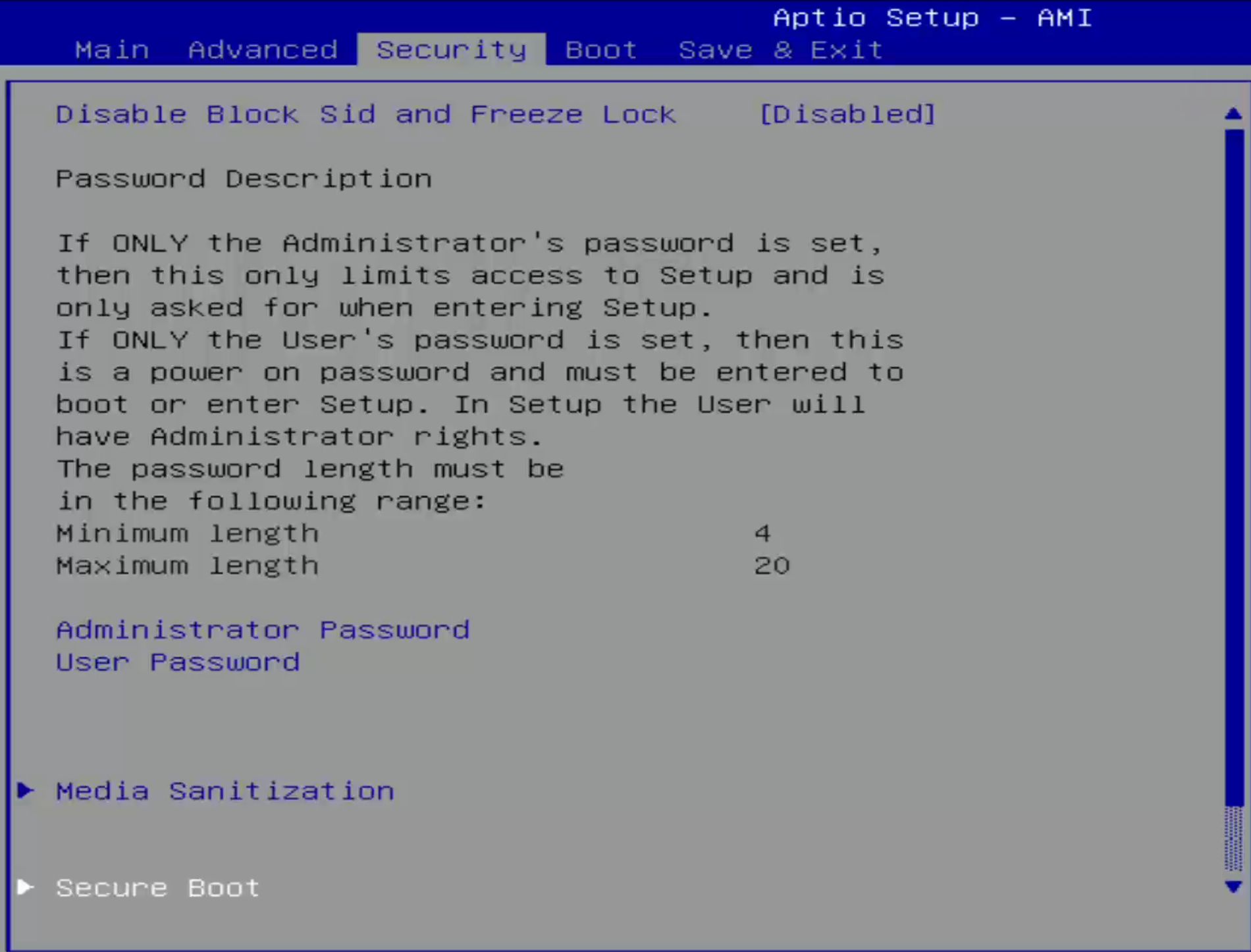
Reboot and press Esc to enter the UEFI BIOS menu. Use right arrow key to navigate to Security tab then use down arrow key to navigate to Secure Boot menu and press Enter.
Highlight Secure Boot and press Enter, then down arrow to select Disable and press Enter.
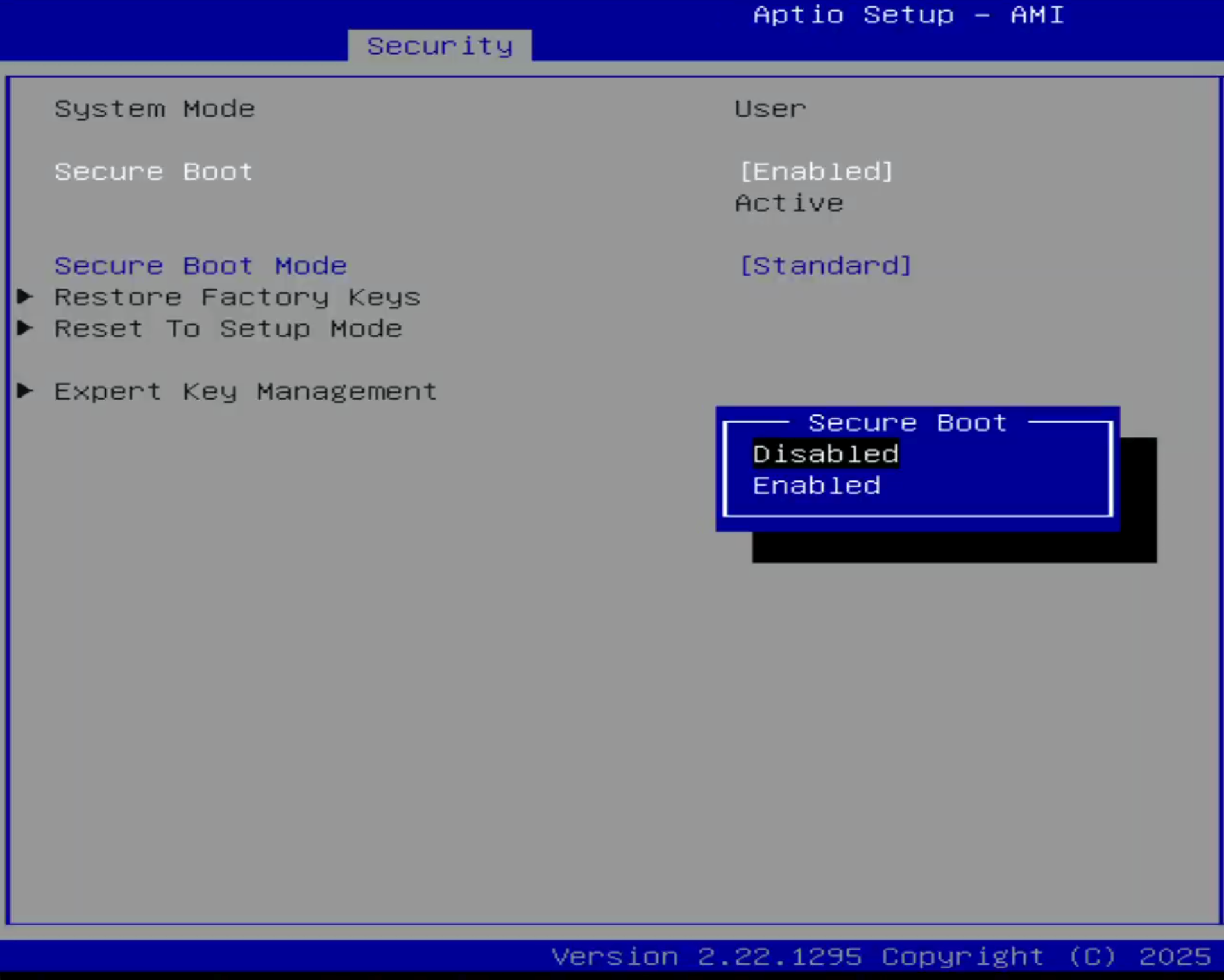
Press F4 to save and exit.
DGX Spark First-Time Setup#
Follow the DGX Spark User Guide to complete the first-time setup. Then use the following commands to verify that the operating system detects the GPU and NIC:
$ lspci | grep -i nvidia
# GB10 GPU
000f:01:00.0 VGA compatible controller: NVIDIA Corporation Device 2e12 (rev a1)

$ lspci | grep -i mellanox
0000:01:00.0 Ethernet controller: Mellanox Technologies MT2910 Family [ConnectX-7]
0000:01:00.1 Ethernet controller: Mellanox Technologies MT2910 Family [ConnectX-7]
0002:01:00.0 Ethernet controller: Mellanox Technologies MT2910 Family [ConnectX-7]
0002:01:00.1 Ethernet controller: Mellanox Technologies MT2910 Family [ConnectX-7]
Automated Host Provisioning (Alpha)#
After completing the platform prerequisites above, installing the operating system, and configuring management-network access, you can follow the Aerial CUDA-Accelerated RAN (ACAR) cubb_scripts/install/README.md to automate the supported host software installation steps described in the remaining sections.
Note this automated host installer is an Alpha feature. If it does not support your system or does not complete successfully, follow the manual installation steps below.
Configure the Network Interfaces#
The following installation steps need an Internet connection. Ensure that you have the proper netplan config for your local network.
The network interface names could change after reboot. To ensure persistent network interface names after reboot, create a persistent net link files under /etc/systemd/network, one for each interface.
To find the MAC address of the CX7 NIC, run lshw to check for network devices and look for the ConnectX-7 entries.
$ sudo apt-get install jq -y
$ sudo lshw -json -C network | jq '.[] | "\(.product), MAC: \(.serial)"' | grep "ConnectX-7"
"MT2910 Family [ConnectX-7], MAC: 4c:bb:47:ww:ww:ww"
"MT2910 Family [ConnectX-7], MAC: 4c:bb:47:xx:xx:xx"
"MT2910 Family [ConnectX-7], MAC: 4c:bb:47:yy:yy:yy"
"MT2910 Family [ConnectX-7], MAC: 4c:bb:47:zz:zz:zz"
Create files at /etc/systemd/network/ with the desired name for the interface and the MAC address found in the previous step.
Note
The rest of the document will assume the aerial00 and aerial01 interfaces are the ones connected to the RU emulator for the cuBB testing or the frounthaul switch for the E2E tests and that aerial00 is the interface used for PTP.
$ sudo nano /etc/systemd/network/20-aerial00.link

[Match]
MACAddress=4c:bb:47:ww:ww:ww

[Link]
Name=aerial00

$ sudo nano /etc/systemd/network/20-aerial01.link

[Match]
MACAddress=4c:bb:47:xx:xx:xx

[Link]
Name=aerial01

$ sudo nano /etc/systemd/network/20-aerial02.link

[Match]
MACAddress=4c:bb:47:yy:yy:yy

[Link]
Name=aerial02

$ sudo nano /etc/systemd/network/20-aerial03.link

[Match]
MACAddress=4c:bb:47:zz:zz:zz

[Link]
Name=aerial03
To apply the change:
$ sudo netplan apply
Disable Auto Upgrade#
Create or overwrite the /etc/apt/apt.conf.d/20auto-upgrades system file with unattended upgrades disabled.
This prevents the installed version of the low latency kernel from being accidentally changed with a
subsequent software upgrade.
$ sudo bash -c 'cat > /etc/apt/apt.conf.d/20auto-upgrades << EOF
APT::Periodic::Update-Package-Lists "0";
APT::Periodic::Unattended-Upgrade "0";
EOF'
Disable the fwupd-refresh timer to prevent fwupdmgr from automatically checking for any updates.
$ sudo systemctl mask fwupd-refresh.timer
Disable Nouveau#
Disable the Nouveau open-source GPU driver before installing the NVIDIA driver:
Regenerate the kernel initramfs:
sudo update-initramfs -u
Note
The Nouveau blacklist takes effect after reboot. Complete the remaining kernel configuration steps before rebooting.
Install NVIDIA Optimized Ubuntu Kernel#
Run the following commands to install the NVIDIA optimized Ubuntu kernel.
$ sudo apt update
# NOTE: This will install the specific kernel version, not the latest NVIDIA optimized kernel.
$ sudo apt install -y linux-image-6.17.0-1018-nvidia
Then, update the GRUB to change the default boot kernel. The version to use here depends on the latest version that was installed with the previous command:
# Update grub to change the default boot kernel
$ sudo sed -i 's/^GRUB_DEFAULT=.*/GRUB_DEFAULT="Advanced options for DGX OS GNU\/Linux>DGX OS GNU\/Linux, with Linux 6.17.0-1018-nvidia"/' /etc/default/grub
Configure Linux Kernel Command-line#
To set kernel command-line parameters, edit the GRUB_CMDLINE_LINUX parameter in the grub
file /etc/default/grub.d/cmdline.cfg and append or update the parameters described below. The following kernel parameters
are optimized for DGX Spark. To automatically append the grub file with these parameters, enter this command:
Note
The hugepage size 1G is optimized for DGX Spark.
Apply the Changes and Reboot to Load the Kernel#
$ sudo update-grub
$ sudo reboot
After rebooting, enter this command to verify that the kernel command-line parameters are configured properly:
$ uname -r
6.17.0-1018-nvidia

$ cat /proc/cmdline
BOOT_IMAGE=/boot/vmlinuz-6.17.0-1018-nvidia root=UUID=7283b2b3-af33-4bd9-a896-b70a086ab2d3 ro pci=realloc=off default_hugepagesz=1G hugepagesz=1G hugepages=32 tsc=reliable processor.max_cstate=0 audit=0 idle=poll rcu_nocb_poll nosoftlockup irqaffinity=0-3 isolcpus=managed_irq,domain,4-19 nohz_full=4-19 rcu_nocbs=4-19 earlycon module_blacklist=nouveau acpi_power_meter.force_cap_on=y init_on_alloc=0 preempt=none init_on_alloc=0 iommu.passthrough=0 console=tty0 plymouth.ignore-serial-consoles plymouth.use-simpledrm earlycon=uart,mmio32,0x16A00000 console=tty0 console=ttyS0,921600 crashkernel=1G-:0M quiet splash initcall_blacklist=tegra234_cbb_init pci=pcie_bus_safe vt.handoff=7
Enter this command to check if hugepages are enabled:
$ grep -i huge /proc/meminfo
AnonHugePages:         0 kB
ShmemHugePages:        0 kB
FileHugePages:         0 kB
HugePages_Total:      32
HugePages_Free:       32
HugePages_Rsvd:        0
HugePages_Surp:        0
Hugepagesize:    1048576 kB
Hugetlb:        33554432 kB
Install Dependency Packages#
Enter these commands to install the prerequisite packages:
$ sudo apt-get update
$ sudo apt-get install -y build-essential linux-headers-$(uname -r) dkms unzip linuxptp pv apt-utils net-tools
Install DOCA OFED and Mellanox Firmware Tools on the Host#
Check if there is an existing MOFED installed on the host system.
$ ofed_info -s
OFED-internal-24.04-0.6.6:
Uninstall MOFED if it is present, following the DOCA Installation Guide for Linux.
$ for f in $( dpkg --list | grep -E 'doca|flexio|dpa-gdbserver|dpa-stats|dpaeumgmt' | awk '{print $2}' ); do echo $f ; sudo apt remove --purge $f -y ; done
$ sudo /usr/sbin/ofed_uninstall.sh --force
$ sudo apt-get autoremove
Enter the following commands to install DOCA OFED.
# Install DOCA OFED
$ wget https://www.mellanox.com/downloads/DOCA/DOCA_v3.3.0/host/doca-host_3.3.0-088000-26.01-ubuntu2404_arm64.deb
$ sudo dpkg -i doca-host_3.3.0-088000-26.01-ubuntu2404_arm64.deb
$ sudo apt update
$ sudo apt install -y doca-tools doca-ofed

# To check what version of OFED you have installed
$ ofed_info -s
OFED-internal-26.01-1.0.0:
Mellanox firmware tools is already installed via the DOCA-HOST package. Run the following command to verify installation.
$ apt list --installed | grep mft
kernel-mft-dkms/DOCA-HOST-3.3.0,now 4.35.0.159-1 all [installed,automatic]
mft-mlx5/DOCA-HOST-3.3.0,now 4.35.0-159 arm64 [installed,automatic]
mft-nvredfish/DOCA-HOST-3.3.0,now 4.35.0-159 arm64 [installed,automatic]
mft/unknown,now 4.35.0.159-1 arm64 [installed,automatic]

$ sudo mst version
mst, mft 4.35.0-159. Git SHA Hash: 004525846

$ sudo mst start

$ sudo mlxfwmanager -d /dev/mst/mt4129_pciconf0 --query | grep PSID
PSID:             NVD0000000087
Check the current firmware version before updating it. If the version is already
28.47.1088, skip the firmware flash and reboot below.
If the current version differs from 28.47.1088, install the signed firmware
image and reboot to activate it.
$ NIC_FW_FILE=fw-ConnectX7-rel-28_47_1088-cx7_P4242_HORIZON_PK_Ax-UEFI-14.40.10-FlexBoot-3.8.201.signed.bin
$ wget https://nbu-nfs.gtm.nvidia.com/auto/host_fw_release/fw-4129/fw-4129-rel-28_47_1088-build-001/etc/bin/signed/${NIC_FW_FILE}
$ sudo flint -d /dev/mst/mt4129_pciconf0 -i "${NIC_FW_FILE}" -y b
$ sudo reboot
Check the firmware version after the restart:
$ sudo mst start
$ sudo flint -d /dev/mst/mt4129_pciconf0 q | grep 'FW Version'
FW Version:                              28.47.1088

# check NIC PCIe bus addresses and network interface names
$ sudo mst status -v
MST modules:
------------
    MST PCI module loaded
    MST PCI configuration module loaded
PCI devices:
------------
DEVICE_TYPE                         MST                           PCI             RDMA          NET           NUMA  VFIO        FWCTL                    STATE
ConnectX7(rev:0)                    /dev/mst/mt4129_pciconf1.1    0002:01:00.1    mlx5_3        net-aerial03  -1                /dev/fwctl/fwctl3
ConnectX7(rev:0)                    /dev/mst/mt4129_pciconf1      0002:01:00.0    mlx5_2        net-aerial02  -1                /dev/fwctl/fwctl2
ConnectX7(rev:0)                    /dev/mst/mt4129_pciconf0.1    0000:01:00.1    mlx5_1        net-aerial01  -1                /dev/fwctl/fwctl1
ConnectX7(rev:0)                    /dev/mst/mt4129_pciconf0      0000:01:00.0    mlx5_0        net-aerial00  -1                /dev/fwctl/fwctl0
Enter these commands to check the link status of port 0:
# Here is an example if the port 0 of fronthaul NIC is connected to another server or switch via a 100GbE DAC cable.
$ sudo mlxlink -d 0000:01:00.0

Operational Info
----------------
State                              : Active
Physical state                     : LinkUp
Speed                              : 100G
Width                              : 4x
FEC                                : Standard RS-FEC - RS(528,514)
Loopback Mode                      : No Loopback
Auto Negotiation                   : ON

Supported Info
--------------
Enabled Link Speed (Ext.)          : 0x00003ff2 (200G_2X,200G_4X,100G_1X,100G_2X,100G_4X,50G_1X,50G_2X,40G,25G,10G,1G)
Supported Cable Speed (Ext.)       : 0x000002f2 (100G_4X,50G_2X,40G,25G,10G,1G)

Troubleshooting Info
--------------------
Status Opcode                      : 0
Group Opcode                       : N/A
Recommendation                     : No issue was observed

Tool Information
----------------
Firmware Version                   : 28.47.1088
amBER Version                      : 6.4
MFT Version                        : 4.35.0-159
Run the following commands to configure the CX7 NIC:
#eCPRI flow steering enable
$ sudo mlxconfig -d /dev/mst/mt4129_pciconf0 --yes set FLEX_PARSER_PROFILE_ENABLE=4
$ sudo mlxconfig -d /dev/mst/mt4129_pciconf0 --yes set PROG_PARSE_GRAPH=1
# Accurate TX scheduling enable
$ sudo mlxconfig -d /dev/mst/mt4129_pciconf0 --yes set REAL_TIME_CLOCK_ENABLE=1
$ sudo mlxconfig -d /dev/mst/mt4129_pciconf0 --yes set ACCURATE_TX_SCHEDULER=1
# Maximum level of CQE compression
$ sudo mlxconfig -d /dev/mst/mt4129_pciconf0 --yes set CQE_COMPRESSION=1
# Reset NIC
$ sudo mlxfwreset -d /dev/mst/mt4129_pciconf0 --yes --level 3 r

# Verify that the NIC FW changes have been applied
$ sudo mlxconfig -d /dev/mst/mt4129_pciconf0 q | grep "CQE_COMPRESSION\|PROG_PARSE_GRAPH\|FLEX_PARSER_PROFILE_ENABLE\|REAL_TIME_CLOCK_ENABLE\|ACCURATE_TX_SCHEDULER"
        FLEX_PARSER_PROFILE_ENABLE                  4
        PROG_PARSE_GRAPH                            True(1)
        ACCURATE_TX_SCHEDULER                       True(1)
        CQE_COMPRESSION                             AGGRESSIVE(1)
        REAL_TIME_CLOCK_ENABLE                      True(1)
Install CUDA Driver#
If the system has an older driver installed, unload the current driver modules and uninstall the old driver, using the following:
# Unload the current driver modules
$ for m in $(lsmod | awk "/^[^[:space:]]*(nvidia|nv_|gdrdrv)/ {print \$1}"); do echo Unload $m...; sudo rmmod $m; done

# Remove the driver if it was installed by runfile installer before.
$ sudo /usr/bin/nvidia-uninstall
Run the following commands to install the NVIDIA open-source GPU kernel driver (OpenRM).
# Install NVIDIA GPU driver
$ wget https://us.download.nvidia.com/tesla/610.57.04/NVIDIA-Linux-aarch64-610.57.04.run
$ sudo sh NVIDIA-Linux-aarch64-610.57.04.run --silent -m kernel-open

# Verify that the driver is loaded successfully
$ nvidia-smi
+-----------------------------------------------------------------------------------------+
| NVIDIA-SMI 610.57.04              KMD Version: 610.57.04     CUDA UMD Version: 13.3     |
+-----------------------------------------+------------------------+----------------------+
| GPU  Name                 Persistence-M | Bus-Id          Disp.A | Volatile Uncorr. ECC |
| Fan  Temp   Perf          Pwr:Usage/Cap |           Memory-Usage | GPU-Util  Compute M. |
|                                         |                        |               MIG M. |
|=========================================+========================+======================|
|   0  NVIDIA GB10                    On  |   0000000F:01:00.0 Off |                  N/A |
| N/A   45C    P8              3W /  N/A  | Not Supported          |      0%      Default |
|                                         |                        |                  N/A |
+-----------------------------------------+------------------------+----------------------+

+-----------------------------------------------------------------------------------------+
| Processes:                                                                              |
|  GPU   GI   CI              PID   Type   Process name                        GPU Memory |
|        ID   ID                                                               Usage      |
|=========================================================================================|
|  No running processes found                                                             |
+-----------------------------------------------------------------------------------------+
Install Docker and Nvidia Container Toolkit#
DGX Spark should have Docker and Nvidia container toolkit installed by default. To confirm they are installed:
$ docker --version
Docker version 29.1.5, build 0e6fee6

$ nvidia-ctk --version
NVIDIA Container Toolkit CLI version 1.19.1
commit: 09ceee5dde66ba9ce25c7cc69b1ebd5e6e3266fa
Note
If the Nvidia container toolkit version is older than 1.17.4, run the following commands to upgrade to the current version:
$ sudo apt update
$ sudo apt-get install -y nvidia-container-toolkit
Install ptp4l and phc2sys#
In order to support dual port PTP, linuxptp 4.2 is used.
$ sudo apt remove linuxptp
$ wget https://github.com/richardcochran/linuxptp/archive/refs/tags/v4.2.tar.gz
$ tar -xzf v4.2.tar.gz
$ cd linuxptp-4.2/
$ make
$ sudo make install prefix=/usr sbindir=/usr/sbin
Enter the following commands to configure PTP4L. This example assumes that aerial00 is the
NIC interface used for PTP.
Create /etc/ptp.conf:
Create /etc/systemd/system/ptp4l.service:
Reload systemd and start the service:
Enter the commands to turn off NTP:
$ sudo timedatectl set-ntp false
$ timedatectl
               Local time: Thu 2026-03-19 05:36:02 UTC
           Universal time: Thu 2026-03-19 05:36:02 UTC
                 RTC time: Thu 2026-03-19 05:36:02
                Time zone: UTC (UTC, +0000)
System clock synchronized: no
              NTP service: inactive
          RTC in local TZ: no
Run PHC2SYS as service:
PHC2SYS is used to synchronize the system clock to the PTP hardware clock (PHC) on the NIC.
Set the PTP NIC, such as aerial00, as the source clock and the system clock
(CLOCK_REALTIME) as the slave clock.
If more than one phc2sys instance is already running, stop the existing sessions before
updating the service file.
Create or update /etc/systemd/system/phc2sys.service with the following contents:
Note
PTP is based on TAI time and the system clock is synchronized to TAI time scale with the above PHC2SYS settings.
The current offset between UTC and TAI is 37 seconds (leap seconds) and TAI is ahead of UTC by this amount.
If there is a need to change the system clock to UTC time on DU, the first ExecStart with -O 0 should be commented out and the second ExecStart with -w should be uncommented assuming the PTP and GrandMaster are properly configured.
After the PHC2SYS config file is changed, run the following:
$ sudo systemctl daemon-reload
$ sudo systemctl restart phc2sys.service

# Set to start automatically on reboot
$ sudo systemctl enable phc2sys.service
Verify that the system clock is synchronized:
$ timedatectl
               Local time: Thu 2026-03-19 05:40:21 UTC
           Universal time: Thu 2026-03-19 05:40:21 UTC
                 RTC time: Thu 2026-03-19 05:40:20
                Time zone: UTC (UTC, +0000)
System clock synchronized: yes
              NTP service: inactive
          RTC in local TZ: no
Setup the Boot Configuration Service#
Create cpu-dma-latency service on DGX Spark.
Set the file permissions, reload the systemd daemon, enable the service, restart the service and check status
$ sudo chmod 664 /etc/systemd/system/cpu-latency.service
$ sudo systemctl daemon-reload
$ sudo systemctl restart cpu-latency.service
$ sudo systemctl enable cpu-latency.service
$ sudo systemctl status cpu-latency.service

● cpu-latency.service - Disable CPU DMA Latency
    Loaded: loaded (/etc/systemd/system/cpu-latency.service; enabled; preset: enabled)
    Active: active (running) since Thu 2026-04-02 00:09:02 UTC; 306ms ago
Main PID: 5778 (sleep)
    Tasks: 1 (limit: 39065)
    Memory: 1.0M (peak: 4.0M)
        CPU: 1ms
    CGroup: /system.slice/cpu-latency.service
            └─5778 /usr/bin/sleep infinity

Apr 02 00:09:02 spark-76fa systemd[1]: Started cpu-latency.service - Disable CPU DMA Latency.
Create the directory /usr/local/bin and create the /usr/local/bin/nvidia.sh file to run the commands with every reboot.
Create the rcu_affinity_manager.sh script referenced in the nvidia.sh script. This file can be found in the Aerial CUDA-Accelerated RAN source code at NVIDIA/aerial-cuda-accelerated-ran. After downloading the source, ensure the rcu_affinity_manager.sh file is copied to /usr/local/bin/rcu_affinity_manager.sh.
$ wget raw.githubusercontent.com/NVIDIA/aerial-cuda-accelerated-ran/refs/heads/main/cubb_scripts/infra/rcu_affinity_manager.sh
$ sudo cp rcu_affinity_manager.sh /usr/local/bin/rcu_affinity_manager.sh
$ sudo chmod +x /usr/local/bin/rcu_affinity_manager.sh
Create a system service file to be loaded after network interfaces are up.
Create a system service file for nvidia-persistenced to be run at startup.
Note
This file was created following the sample from /usr/share/doc/NVIDIA_GLX-1.0/samples/nvidia-persistenced-init.tar.bz2
Then set the file permissions, reload the systemd daemon, enable the service, restart the service when installing the first time, and check status
$ sudo chmod 744 /usr/local/bin/nvidia.sh
$ sudo chmod 664 /etc/systemd/system/nvidia.service
$ sudo chmod 664 /etc/systemd/system/nvidia-persistenced.service
$ sudo systemctl daemon-reload
$ sudo systemctl enable nvidia-persistenced.service
$ sudo systemctl enable nvidia.service
$ sudo systemctl restart nvidia.service
$ sudo systemctl restart nvidia-persistenced.service
$ sudo systemctl status nvidia.service
$ sudo systemctl status nvidia-persistenced.service
The output of the last command should look like this:
$ sudo systemctl status nvidia.service
○ nvidia.service
    Loaded: loaded (/etc/systemd/system/nvidia.service; enabled; preset: enabled)
    Active: inactive (dead) since Thu 2026-03-19 06:51:49 UTC; 11min ago
Duration: 1.969s
    Process: 2852 ExecStart=/usr/local/bin/nvidia.sh (code=exited, status=0/SUCCESS)
Main PID: 2852 (code=exited, status=0/SUCCESS)
        CPU: 1.886s

Mar 19 06:51:49 spark-76fa nvidia.sh[3954]: Process Name                   PID      Old Affinity New Affinity CPUs and Status
Mar 19 06:51:49 spark-76fa nvidia.sh[3954]: ------------------------------ -------- - - --------------------------------------------------
Mar 19 06:51:49 spark-76fa nvidia.sh[3954]: CPU distribution of RCU processes after affinity changes:
Mar 19 06:51:49 spark-76fa nvidia.sh[3954]: --------------------------------
Mar 19 06:51:49 spark-76fa nvidia.sh[5226]: CPU 0: : 28 RCU processes
Mar 19 06:51:49 spark-76fa nvidia.sh[5226]: CPU 1: : 6 RCU processes
Mar 19 06:51:49 spark-76fa nvidia.sh[5226]: CPU 3: : 1 RCU processes
Mar 19 06:51:49 spark-76fa nvidia.sh[3954]: === End of RCU Process Affinity Information ===
Mar 19 06:51:49 spark-76fa systemd[1]: nvidia.service: Deactivated successfully.
Mar 19 06:51:49 spark-76fa systemd[1]: nvidia.service: Consumed 1.886s CPU time.

$ sudo systemctl status nvidia-persistenced.service
● nvidia-persistenced.service - NVIDIA Persistence Daemon
    Loaded: loaded (/etc/systemd/system/nvidia-persistenced.service; enabled; preset: enabled)
    Drop-In: /etc/systemd/system/nvidia-persistenced.service.d
            └─nv-persistence-override.conf
    Active: active (running) since Thu 2026-03-19 06:51:31 UTC; 12min ago
    Process: 1743 ExecStart=/usr/bin/nvidia-persistenced --persistence-mode --verbose (code=exited, status=0/SUCCESS)
Main PID: 1761 (nvidia-persiste)
    Tasks: 1 (limit: 39067)
    Memory: 72.9M (peak: 81.5M)
        CPU: 1.653s
    CGroup: /system.slice/nvidia-persistenced.service
            └─1761 /usr/bin/nvidia-persistenced --persistence-mode --verbose

Mar 19 06:51:26 spark-76fa systemd[1]: Starting nvidia-persistenced.service - NVIDIA Persistence Daemon...
Mar 19 06:51:26 spark-76fa nvidia-persistenced[1761]: Verbose syslog connection opened
Mar 19 06:51:26 spark-76fa nvidia-persistenced[1761]: Started (1761)
Mar 19 06:51:29 spark-76fa nvidia-persistenced[1761]: device 000f:01:00.0 - registered
Mar 19 06:51:31 spark-76fa nvidia-persistenced[1761]: device 000f:01:00.0 - persistence mode enabled.
Mar 19 06:51:31 spark-76fa nvidia-persistenced[1761]: device 000f:01:00.0 - NUMA memory onlined.
Mar 19 06:51:31 spark-76fa nvidia-persistenced[1761]: Local RPC services initialized
Mar 19 06:51:31 spark-76fa systemd[1]: Started nvidia-persistenced.service - NVIDIA Persistence Daemon.
Validating software-component versions and system configurations#
Before running Aerial, make sure that your software-component versions and system configurations meet the required specifications. For more information, refer to the System Configuration Validation Script.