Docker
Introduction
AIStore can be run as a cluster of Docker containers. There are two modes of operation: development and quick-start. They can be found in the deploy/dev/docker directory.
Development Mode
This mode is currently used for development purposes. All docker containers mount the same host’s AIStore source directory, and then execute from this single source. Upon restart (of the AIStore cluster), all changes made in the host will, therefore, take an immediate effect.
The development mode is currently being maintained and updated.
Quick Start Mode
Use this mode if you would like to set up a containerized, one-proxy, one-target deployment of AIStore within seconds. See quick start AIS with Docker. You just need Docker installed to quick-start AIS.
For an introduction to Docker, please watch Docker 101 youtube
Install Docker and Docker Compose
Note: Docker supports all current Ubuntu LTS releases (e.g., 26.04 and 24.04); see Install Docker Engine on Ubuntu for the up-to-date list.
- Uninstall any old versions of docker:
It’s OK if apt-get reports that none of these packages are installed.
- Update the apt package index:
- Install packages to allow apt to use a repository over HTTPS:
- Install Docker
Note: For version 16.04 and up, docker-ce is not in the default Ubuntu repository. See this guide for docker-ce installation.
- Verify that Docker CE is installed correctly by running the “hello-world” image.
- Add your current user to the Docker group (but only if you are not the root). After executing the command, restart your machine for it to take effect.
- Install Docker-Compose using python
pip. Installpipif you don’t have it:
OR
- Test the installation:
- If you have any troubles with your installation, consider using the latest version of Docker and Docker-Compose.
Uninstall Docker and Docker Compose
- To uninstall Docker, run the following:
- Ensure docker is completely uninstalled by running the following command:
There should be no docker-ce and docker-ce-cli packages listed.
- To uninstall Docker-Compose, run the following:
- Images, containers, volumes, or customized configuration files on your host are not automatically removed. To delete all images, containers, and volumes:
Starting AIStore
If not already done, install Go and set $GOPATH environment variable.
The steps:
- Build
aisnode.
- To get all sources and use scripts, you can clone AIStore repo.
- Optionally, setup AWS configuration by running
aws configurecommand. To run AIStore Docker containers, you will need to pass your AWS config and credential directory via flag-a=<aws directory>CLI. By default, AWS stores config and credential files in~/.aws/Example:
Building and running “containerized” AIStore is further documented at deploy/dev/docker.
Please note: the image building process will take some time but only for the first time; subsequent runs will use already cached images.
Helpful docker commands
List Running Containers
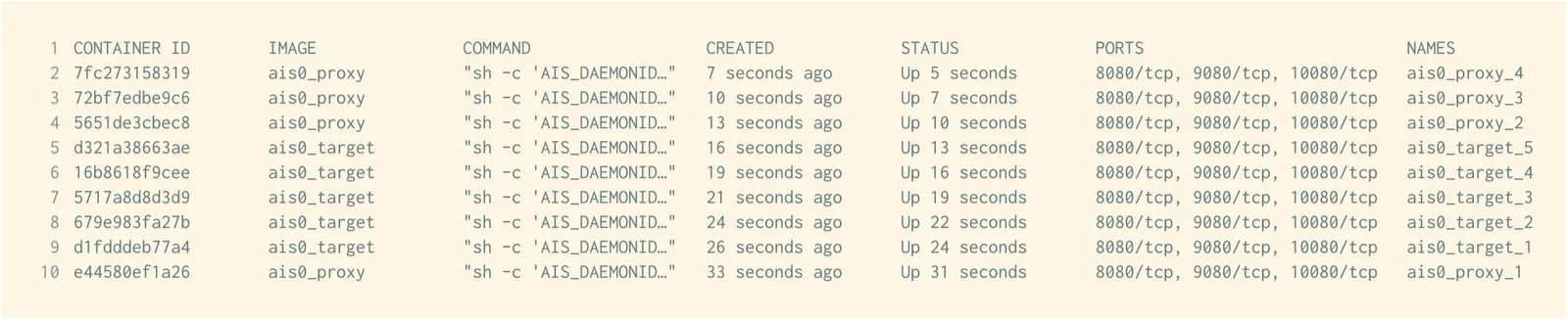
List all of the running containers using docker ps. Many commands require the CONTAINER ID or NAME fields. Example output:
List All Containers
Lists all containers (not only the running ones).
View Container Logs
To view docker logs, use docker logs <container_name>. Example:
Note:
- You can obtain the container name by running command
docker ps - The
deploy/dev/docker/directory has a more comprehensive script namedlogs.shto view logs
SSH Into a Container
Note:
- In production mode, the logs are expected to be in
/var/log/ais/.By default (development mode) the logs are undertmp/ais/log - The
deploy/dev/docker/directory has a script namedcontainer_shell.shthat does the same thing
List Docker Images
List Docker Networks
Start a Container
Stop a Container
Restart a Container
Kill a Container
View Resource Usage Statistics for all Containers
Remove Unused Images
Remove all Stopped Containers
Remove all Unused Networks
Stop all Running Containers
Delete all Existing Containers
Delete all Existing Images
Docker playground
Following is a super-simple presentation to showcase some of the AIS capabilities.
In Docker playground, you can find the scripts to download different popular AI datasets (e.g., MNIST and ImageNet). The datasets are downloaded with the AIS-integrated Downloader that stores all downloaded objects directly into the AIStore.
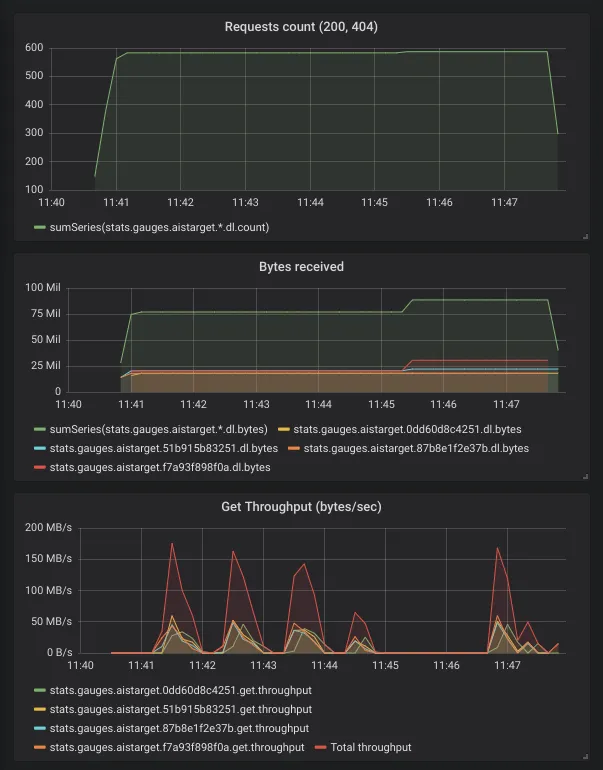
During the download, you can monitor:
- number of requests made
- number of requests failed
- number of bytes transferred
In the example below, AIS downloads a handful of ImageNet images and collects/visualizes the corresponding statistics: