

Get Started: Initialize Your AI Agent#
Do this once to get your agent running and signed in.
Start the Agent#
First, open a terminal in your course folder — the folder you unzipped after downloading the assets, named after the course (for example, RTXViewport/). You have two options:
Open a terminal and run
cd RTXViewport/(use your course’s folder name) to change into the folder.Or open that folder in the file browser, right-click inside it, and select Open in Terminal.
Note
Paths in these courses are shown relative to the unzipped course folder using forward slashes (/). On Windows you can use either / or \.
With the terminal open, start your agent to begin the sign-in process. Follow the prompts to log in.
Checkpoint
The agent starts, you’re signed in, and it reports that it’s working in your course folder.
How We Structure the Prompts#
You don’t need to memorize this - just know how our prompts work. Every build step in these courses uses the same prompt shape:
Goal: <what the app should do after this step>
Skills: read skills/<name>/SKILL.md (+ any related)
Context: <scene path, GPU, what already exists>
Done when: <observable check - frame saved, window opens, labels print>
The agent reads the named SKILL.md, which points it to the real source snippet, then writes the code.
Important
Review-before-run: read and understand the generated diff, then run only after the code makes sense to you.
Make It Yours: Prompt Builder#
Note
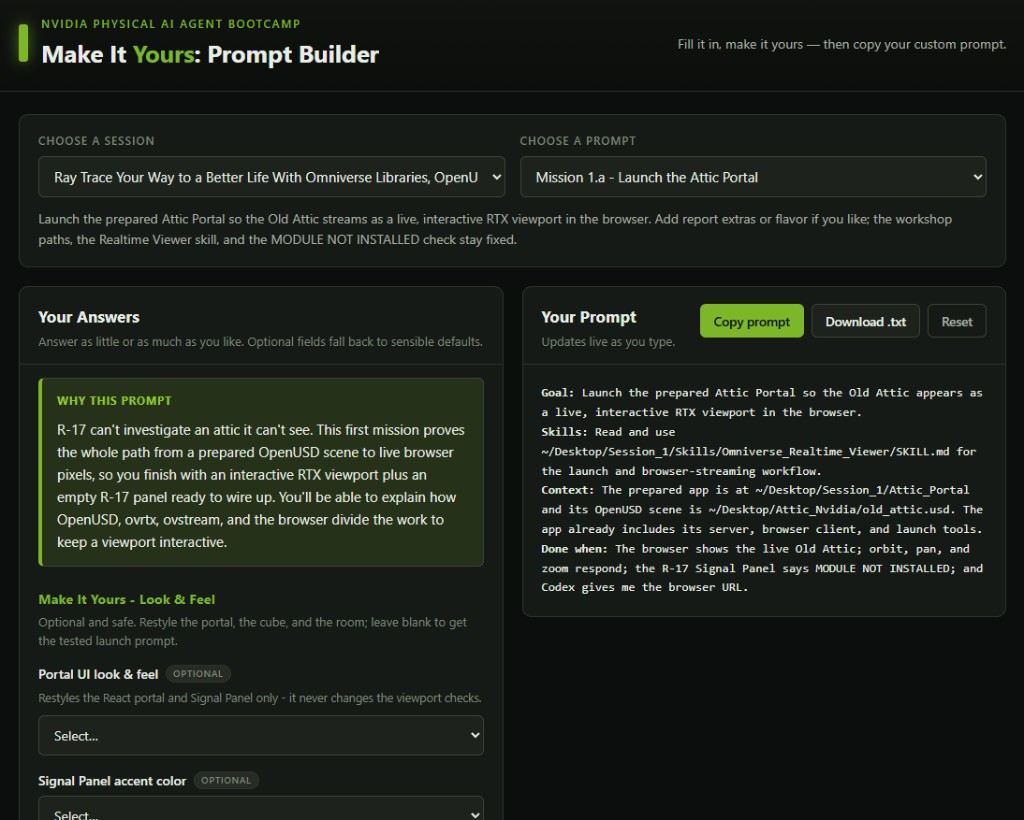
We’ve provided a Make It Yours Prompt Builder. You can open it any time from the Make It Yours Prompt Builder link at the top of the left navigation. Keep it open as you work.
Each course ships with a carefully engineered prompt. The Prompt Builder wraps each one in a friendly fill-in-the-blank form: use Choose a session and Choose a prompt to match the course step you’re on, answer a few fun questions (your vibe, colors, target asset, behavior, thresholds), and your answers are injected live into the full prompt. You get a ready-to-copy prompt that builds the course your way, while the hard architectural constraints stay locked down.
You’re ready
Next, Meet the Omniverse Libraries to see the toolkit you’ll build with. Or head straight to Ray Trace Your Way to a Better Life, or jump into whichever course you’re here for.