

Inspect What the Scene Is Missing#
Mission connection: The first drop test produced a symptom and a count, not a complete diagnosis. Before this scene can support reliable training or testing, the team needs a structured report that ties each intended object to a precise, inspectable simulation-readiness requirement. Your asset-publishing and scene-QA experience transfers directly: replace “physics is broken” with a named target, versioned requirement, authored location, and reproducible finding.
What Changes in the Application#
Mission 2 adds a Simulation Readiness section to the existing Signal Panel. It includes:
RUN SIMREADY VALIDATION;
target name or prim path;
Profile and version;
validation status;
Requirement ID;
severity;
authored prim or property location; and
concise finding text.
The panel may summarize several targeted asset validations, but the server retains the structured report as the source of truth.
Decide Before You Build#
Your call — what makes a finding actionable? A report that only says “physics is broken” cannot drive a repair. Before you build the validation workflow, decide which target(s) are worth validating and what a finding must name before you would route a fix to it.
Author your brief. The tested mission owns the read-only validation architecture. Stepping up from the last mission, author both the Context and Done when lines yourself. A worked example you can adapt:
Context (your addition):  Validate the C-9 containment pod and the Mission 2 stage; treat a
                          finding as actionable only if it names a Requirement ID and the
                          authored location, not just a symptom.
Done when (your addition): the report lists a target, Profile and version, Requirement ID,
                          severity, authored location, and a concise finding I can act on.
Carry those decisions into the Prompt Builder below, then judge the report against them.
Mission Brief 2 — Add the Read-Only SimReady Validation Workflow#
Tip
Make It Yours: Open the Prompt Builder, choose the SimReady or Not, Here Comes Gravity session, and select Mission 2 - Add Read-Only SimReady Validation. Review your Expert Brief in Context and Done when before you run the mission. If you get stuck, use the provided default to check your work.
Show a finished prompt
Goal:      Extend the prepared Session 2 Attic Portal with a read-only SimReady validation workflow. Add a panel section titled exactly "SimReady Validate" with a button labeled exactly "run targets". Keep validation IDLE until the user clicks that button; after the click, validate the Mission 2 stage and containment-pod target and report the missing requirements in the panel.
Skills:    Read ~/SimReadyPhysics/skills/omniverse-realtime-viewer/SKILL.md and its focused guidance at references/streaming-messages/README.md, references/viewer-control-patterns/README.md, references/viewer-feedback-status/README.md, and references/validation.md. Read ~/SimReadyPhysics/skills/omniverse-cad-to-simready/references/simready-validate/README.md for the validator contract.
Context:   Session 2 PreWork and Mission 1 are complete, including the dependency-only Mission 2 preflight at ~/SimReadyPhysics/.preflight/mission_2.env. Reuse ~/SimReadyPhysics/Attic_Portal_Mission_2 and run ~/SimReadyPhysics/scripts/apply_and_verify_simready_validate.sh. This default workflow installs, builds, restarts, and performs an idle-only browser smoke test; it must not execute either validation target. Preserve the r17 command/state protocol, renderer-owner queue, and explicit userInitiated guard. Do not rerun PreWork or checkpoint_00, edit either USD, create scene backups, invoke the validator with a target path during implementation, or set RUN_SIMREADY_TARGETS_FOR_TEST=1. Keep the full task under five minutes.
Done when: The frontend builds; the panel visibly contains "SimReady Validate" and "run targets"; state.json reports simready.status="IDLE", missingCount=0, targets=[], the Mission 2 stage path, and renderer_owner_count=1; the idle browser smoke test reports targetsExecuted=false and captures r17-simready-idle.png; no simready.validateTargets command appears during the apply run; both USD SHA-256 values match the preflight manifest; and the app is left open for the user to click "run targets" manually.
After the workflow applies, click run targets yourself to produce the report. The default apply run leaves validation IDLE on purpose so the finding is user-initiated evidence, not a side effect of the build.
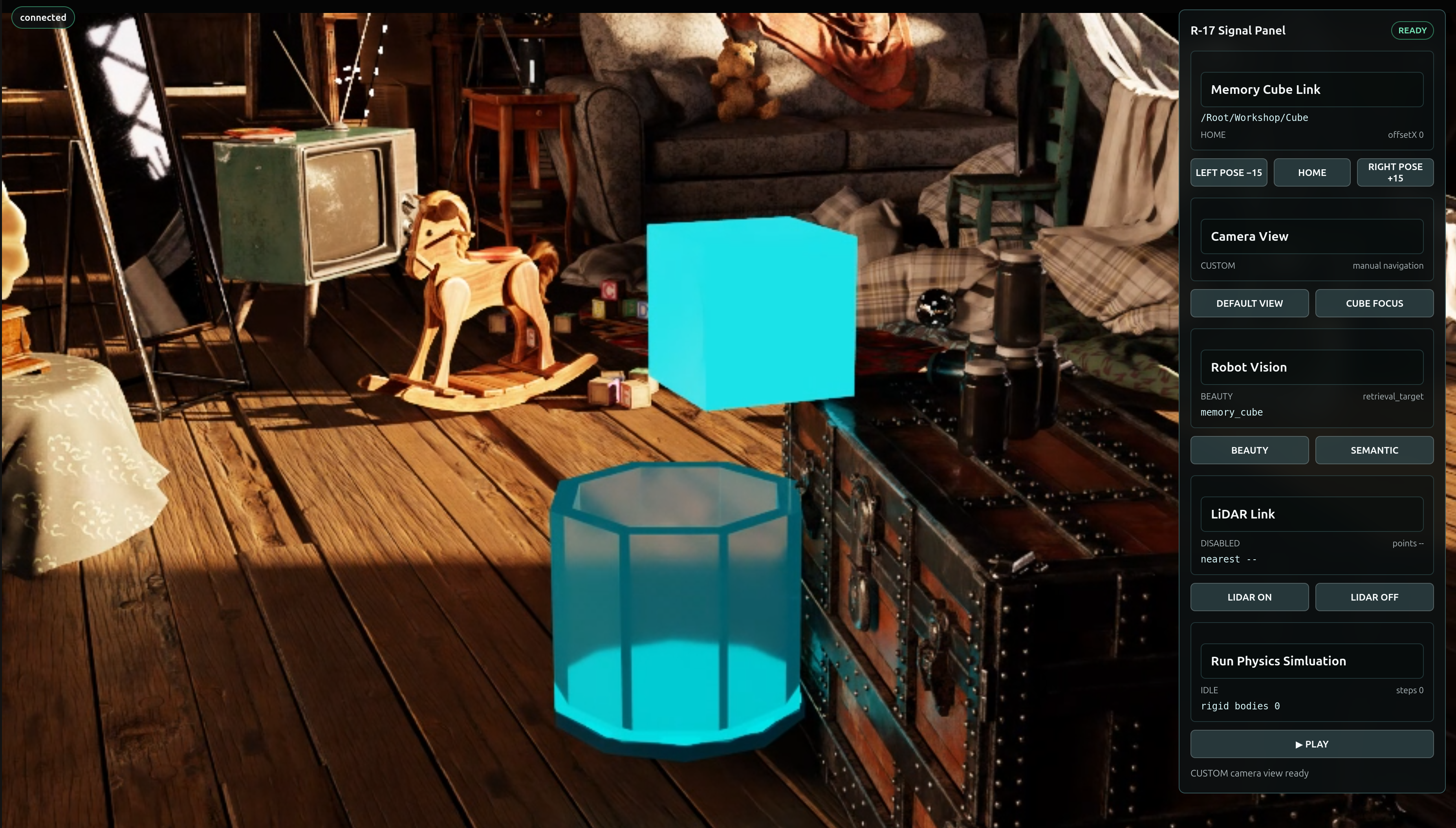
Validate: Readiness Report Produced#
Before you move on, confirm you can answer:
Did the panel stay
IDLEuntil you clicked run targets?Does the report name a target, Profile and version, Requirement ID, severity, authored location, and finding?
Is there still exactly one renderer owner?
When a Run Doesn’t Match#
If a check fails, find the first boundary to inspect:
Symptom |
First boundary |
|---|---|
Validation runs during the build instead of staying IDLE |
the apply run executed a target - it must leave |
No run targets button appears |
frontend did not build or restart - rerun the apply and reload |
The report has no Requirement ID or authored location |
the validator ran without a target - click run targets yourself after the build completes |
With a named requirement in hand, we’ll route the repair in Apply the Simulation-Ready Corrections.