

LLS Installation
This guide provides instructions for installing Low Latency Streaming (LLS) components for self-hosted NVCF deployments. LLS enables real-time streaming capabilities for simulation workloads.
LLS supports self-hosted Kubernetes deployments on AWS and Azure. AWS-specific commands and resources in this guide are illustrative examples.
This guide covers manual installation of LLS resources, image mirroring, and load balancer resources.
Overview
Low Latency Streaming (LLS) provides real-time streaming capabilities for self-hosted NVCF deployments. LLS consists of:
- Streaming Proxy (RP Container) - Handle WebRTC UDP streaming connections
Self-hosted mode uses your container registry for container images and customer-managed infrastructure.
Architecture
Request and Streaming Flow
The following diagram illustrates the request and streaming flow for self-hosted NVCF LLS, showing how a browser application invokes a function and establishes direct streaming channels to worker nodes:
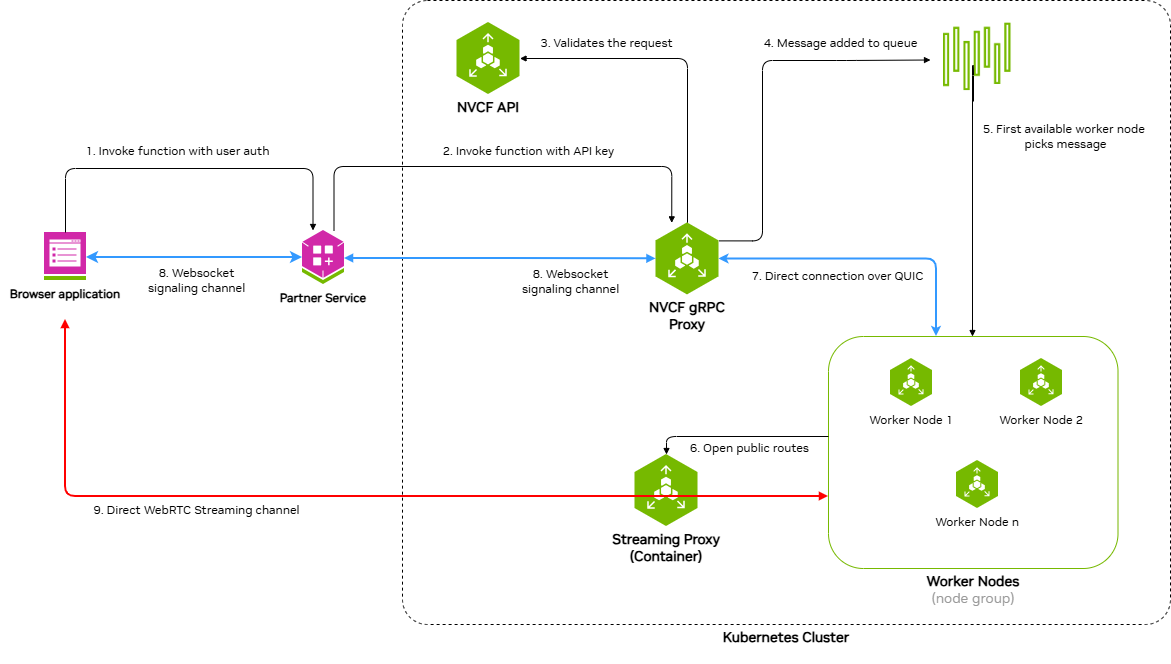
The architecture demonstrates a nine-step process:
- Invoke function with user auth - Browser application sends function invocation request with user authentication to the Partner Service
- Invoke function with API key - Partner Service forwards the request to NVCF gRPC Proxy using an API key
- Validates the request - NVCF gRPC Proxy validates the request with NVCF API
- Message added to queue - Validated request is added to the message queue
- First available worker node picks message - An available worker node retrieves the message from the queue
- WebSocket signaling channel - Bidirectional WebSocket channel between Partner Service and NVCF gRPC Proxy for signaling
- Direct connection over QUIC - Direct QUIC connection between NVCF gRPC Proxy and Worker Nodes
- WebSocket signaling channel - Bidirectional WebSocket channel between Browser application and Partner Service
- Direct WebRTC Streaming channel - Direct WebRTC streaming channel between Browser application and Streaming Proxy Container(STUN), which opens public routes to Worker Nodes
Self-Hosted Deployment Architecture
The following diagram shows the detailed architecture of a self-hosted NVCF LLS deployment in AWS VPC with EKS:
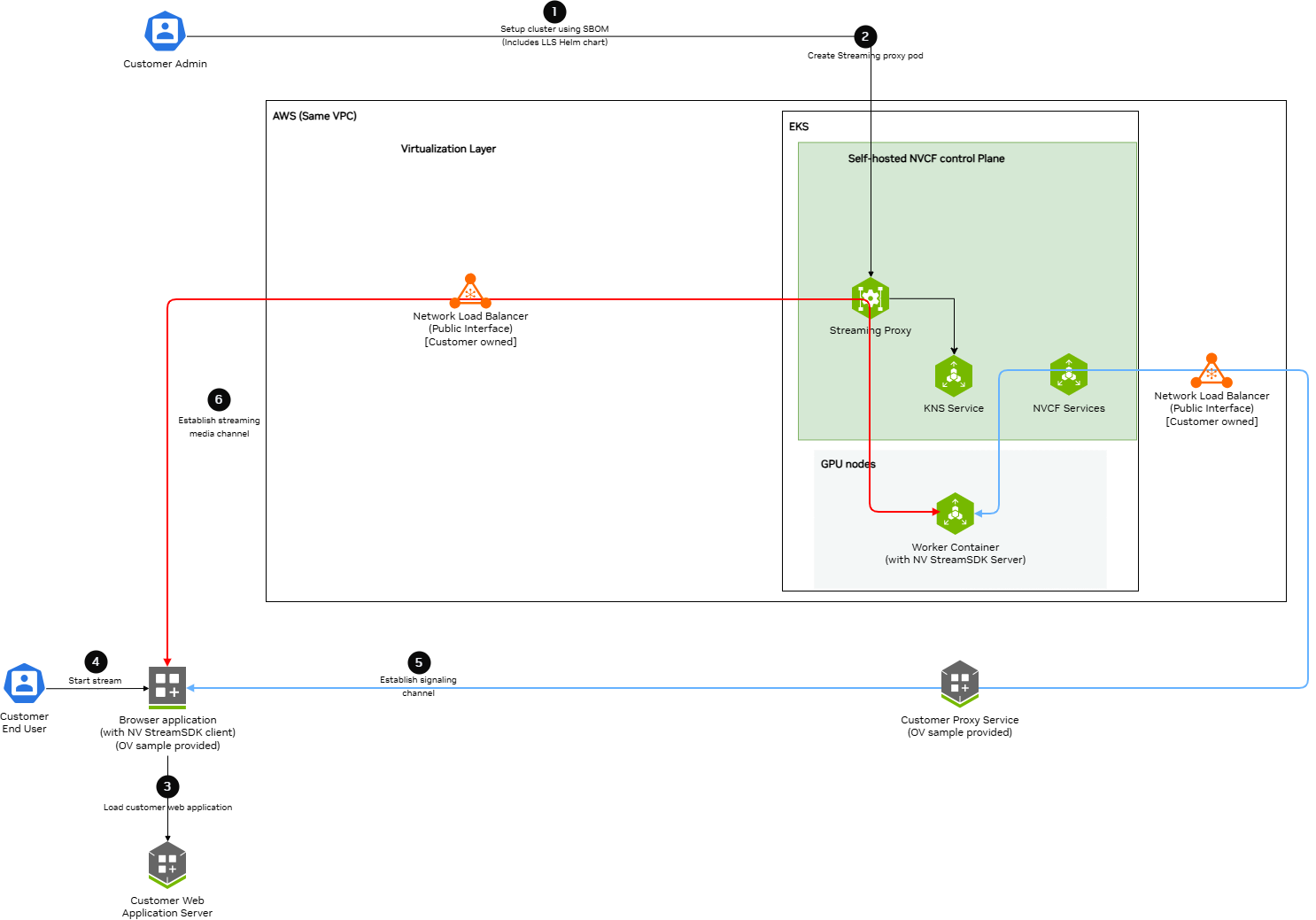
Key components and data flows:
Control Plane Components (EKS):
- Streaming Proxy Container - Handles WebRTC streaming connections and opens routes to Worker Nodes
- K8s Services - Creates ClusterIP and NodePort services
- KNS Service - Fetches JWKs for authentication
- NVCF Services - Connects to customer-owned load balancers via signaling channels
GPU Nodes (EKS):
- Worker Container - Runs streaming applications (StreamSDK packaged) and receives streaming data
AWS VPC:
- Network Load Balancer (Public Interface) - Customer-owned, receives streaming and signaling data from browser applications
Data Flow Channels:
- Red Lines (Streaming Channel) - WebRTC streaming data path from Browser application through load balancers and Streaming Proxy to Worker Containers
- Blue Lines (Signaling Channel) - WebSocket signaling data path connecting Browser application, Customer services, Load Balancers, NVCF Services, and Worker Containers
Prerequisites
Before installing LLS, ensure:
- Self-hosted NVCF control plane installed and running on a Kubernetes cluster (see helmfile-installation)
- kubectl configured with access to your cluster
- Helm v3.x installed
- NGC API Key with access to the
nvcf-onpremorganization - For AWS examples, AWS CLI configured with credentials that have permissions for EKS, ECR, EC2, ELBv2, and IAM operations
Configure AWS Credentials
For AWS examples, LLS installation requires AWS CLI access to create NLB resources, security groups, and manage EC2 instances. Verify your AWS credentials are configured:
If this command fails, configure your AWS credentials before running the AWS examples using your organization’s standard AWS authentication flow.
Set NGC API Key
Before proceeding, set your NGC API key as an environment variable:
Configurable UDP Streaming Port
The UDP port for WebRTC streaming traffic defaults to 5004 and is exported as
LLS_UDP_PORT in Step 2.1. This variable is used throughout
the guide for the NLB security group rule, NLB listener, and Helm values configuration.
To use a different port, change the export LLS_UDP_PORT= value in Step 2.1 and set
env.lbPort in your Helm values file (Step 3) to the same value.
Step 1: Mirror LLS Artifacts
LLS requires specific container images and Helm charts to be available in your registry.
Required LLS Artifacts
The following artifacts must be mirrored for LLS deployment:
Container Images:
streaming-proxy- Streaming Proxy Container(RP Container)
Helm Charts:
gdn-streaming- GDN Streaming Proxy Helm chart
Optional (for streaming workloads):
- Streaming application images (e.g.,
usd-composer)
For detailed instructions on pulling these artifacts from NGC and pushing to your registry, see self-hosted-image-mirroring. The LLS-specific artifacts section lists exactly what you need.
When mirroring to ECR, the repository path must match your Helm values configuration. Ensure your registryName in Step 4 includes the same repository path you used when mirroring the chart.
Step 2: Create Network Load Balancer
LLS requires a Network Load Balancer (NLB) for streaming traffic.
Requirements
- Type: Network Load Balancer
- Scheme: Internet-facing
- Subnet: Public subnet in the same availability zone as your GPU nodes
Security Group
Create a security group with the following rules:
Inbound:
- Protocol: UDP, Port: 5004, Source: 0.0.0.0/0 (streaming traffic)
Outbound:
- Protocol: All, Destination: 0.0.0.0/0
Target Group
- Target type: Instance
- Protocol: UDP
- Port: 30504
- Health check protocol: HTTP
- Health check port: 30800
- Health check path: /v1/health
Listener
- Protocol: UDP
- Port: 5004
- Default action: Forward to target group
You must create the NLB in the same region and availability zone as your GPU node pool.
CLI Example
The following commands create all required NLB resources. Copy and paste each section, replacing the placeholder values at the start.
2.1 Set Environment Variables
2.2 Get VPC and Public Subnet
2.3 Create Security Group
2.4 Configure Security Group Rules
2.5 Create Network Load Balancer
Choose one of the following options:
Option A: Dynamic IP (simpler)
Option B: Static EIP (predictable IP)
Use this if you need a predictable ingress IP for firewall rules:
2.6 Wait for NLB to Become Active
2.7 Create Target Group
2.8 Create Listener
2.9 Verify and Save Outputs
Save the Target Group ARN — you will need it for the adding streaming proxy container nodes as targets to the target group lls-step3-helm-values.
Step 3: Create Helm Values File
Create a custom-values.yaml file with your configuration.
Use the load balancer DNS name and availability zone from Step 2:
- Replace all
<placeholder>values with your actual configuration env.lbPortis the public UDP port for streaming trafficenv.lbDnsis the public load balancer dns nameavailabilityZones.zonesis the availability zone for streaming proxy container which must be the same as the availability zone of the Load BalancernodeSelector.node-typeis the node type where streaming proxy container will be deployedimage.repositoryis the streaming proxy container image repositoryimage.tagis the streaming proxy container image tagresources.requests.cpuis the streaming proxy pod cpu requestresources.requests.memoryis the streaming proxy pod memory requestresources.limits.cpuis the streaming proxy pod cpu limitresources.limits.memoryis the streaming proxy pod memory limit
Step 4: Deploy LLS Operator
4.1 Deploy the LLS operator using Helm:
4.2 Add RP Container Node IP and Port to Load Balancer’s Target Group:
4.3 Add security rule to cluster node to accept streaming traffic on nodeport:
Step 6: Verify Deployment
Verify the LLS components are running:
-
Check Streaming proxy pods (should show
1/1 Running):Expected output:
-
Check container logs (filter out verbose stack traces):
LLS Resource Summary
The following table summarizes all AWS and Kubernetes resources created for LLS, who creates them, and how they are cleaned up:
Step 1: Uninstall
Step 2: Delete Manual NLB Resources
The NLB and its associated resources created in lls-step2-nlb must be manually deleted.
Save your NLB cleanup script as lls-nlb-cleanup.sh, then run:
The script performs the following steps in dependency order:
- Finds the NLB security group by tag
- Removes the UDP 30504 ingress rule from the cluster node security group (added in Step 4.3 — must be removed before the NLB security group can be deleted)
- Deletes the NLB and waits for deletion to complete
- Deletes the target group (requires NLB to be fully deleted first)
- Deletes the NLB security group (with retry logic)
- Lists any Elastic IPs that may need manual release
Safety: The script identifies resources using the tags that were set during lls-step2-nlb. It will only delete resources with both lls:cluster=<your-cluster-name> and lls:managed-by=customer tags, ensuring it won’t accidentally delete other NLBs in your account.
If the NLB security group deletion still fails with DependencyViolation after the script removes the node SG rule, the NLB may not have fully deleted yet. The script will automatically retry. If it still fails after several attempts, wait a few more minutes and run the script again.
Step 3: Final Verification
Verify all LLS resources have been removed:
Resource Requirements
Streaming Proxy
- CPU: 5000m (limit), 5000m (request)
- Memory: 24Gi (limit), 24Gi (request)
- Runs as a single pod
Network Load Balancer
- Type: Network
- Scheme: Internet-facing
- Protocol: UDP
- Port: 5004
Security Groups
NLB Security Group:
Streaming Proxy Security Group:
Liveness and Readiness Probes
The streaming proxy pod has liveness and readiness probes configured to the /v1/health endpoint at port 8000.
Troubleshooting
Health check
The health check is used to determine if the streaming proxy pod is healthy. The health check is configured to check the /v1/health endpoint at port 8000 of the streaming proxy pod.